Account
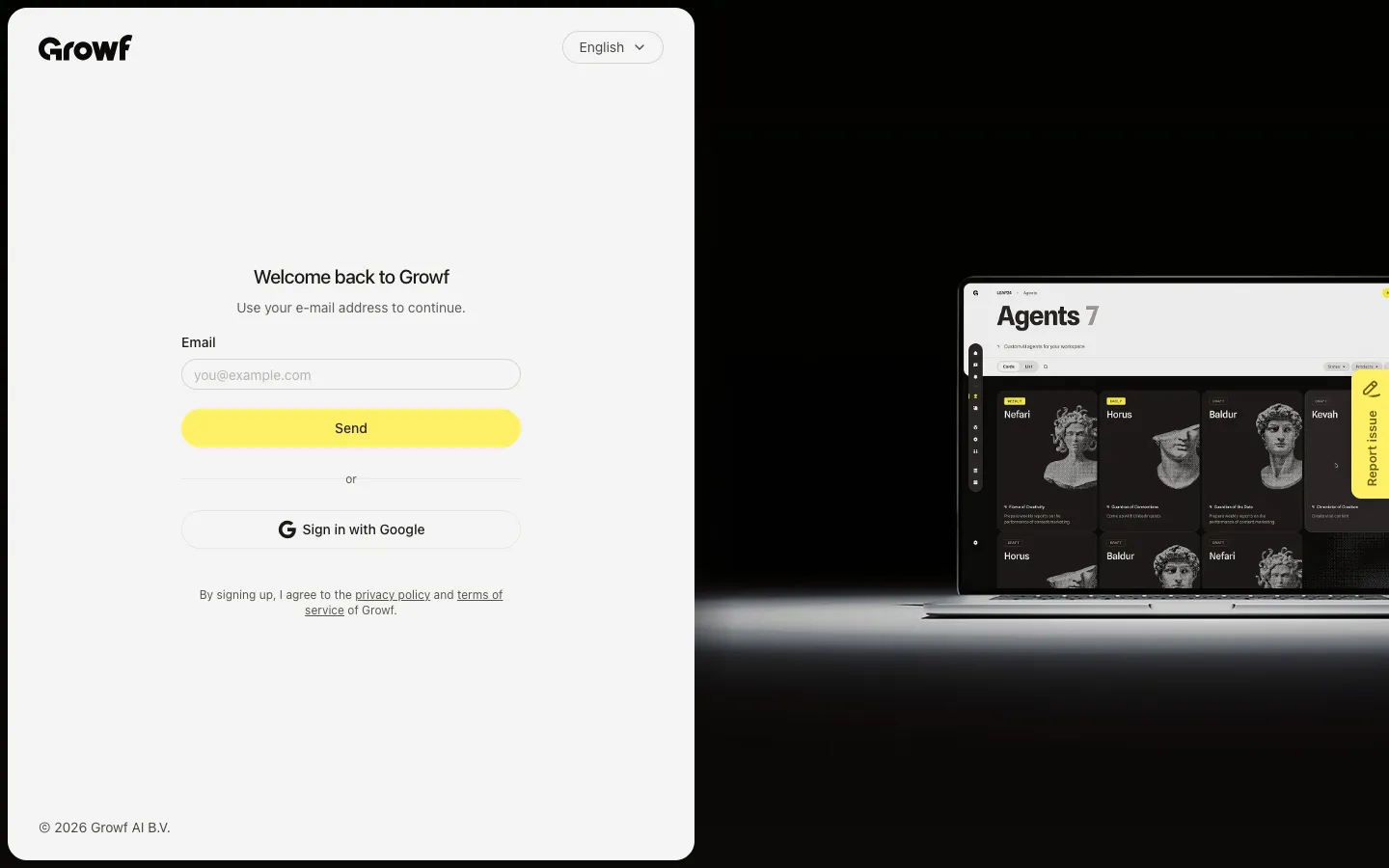
Sign in with email
Request a one-time code by email and use it to open Growf.
Read now →Clear guidance for real agency work.
165 guides
5
9
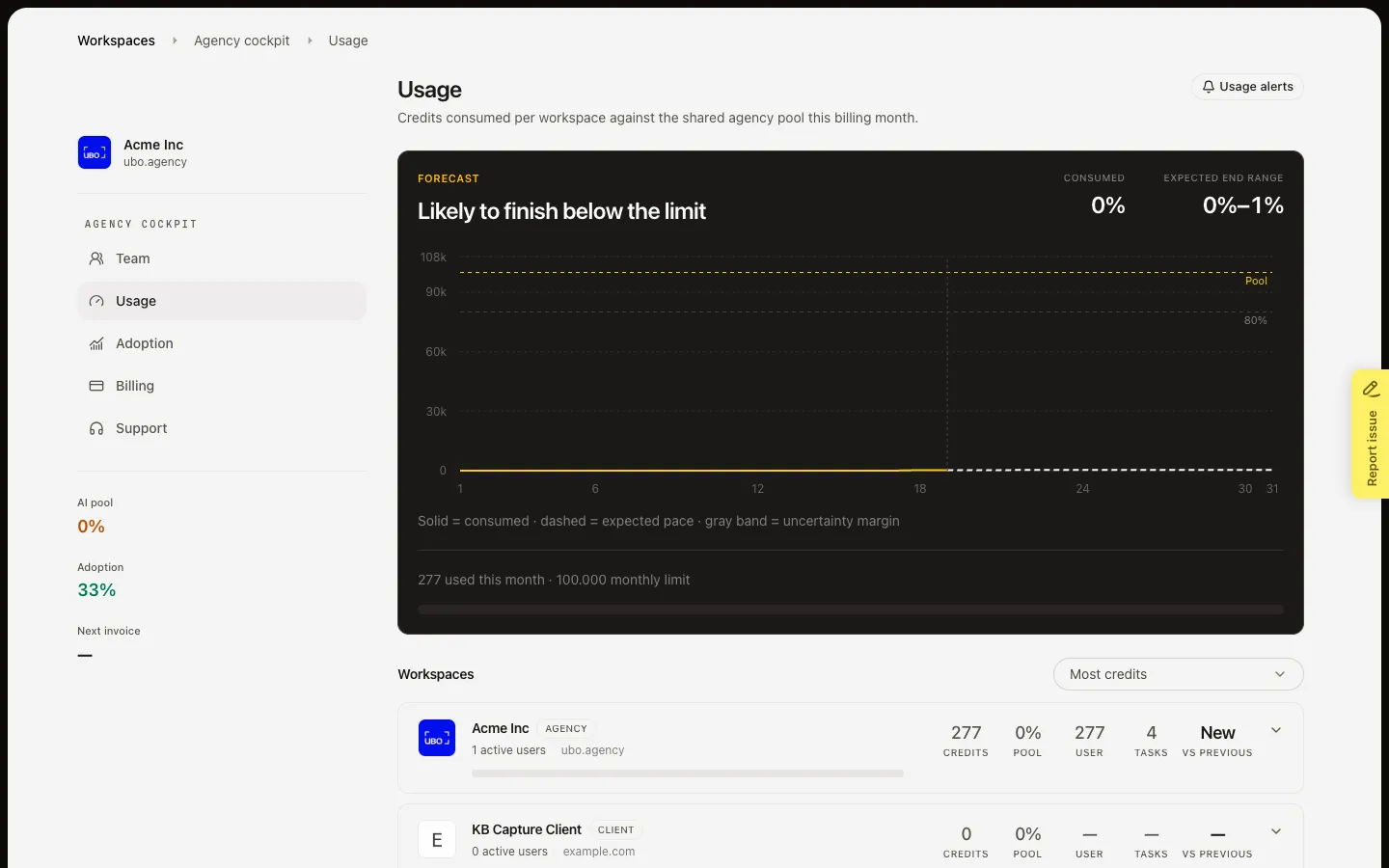
Track monthly credit cost for a client workspace so you can invoice them outside Growf.
Read now →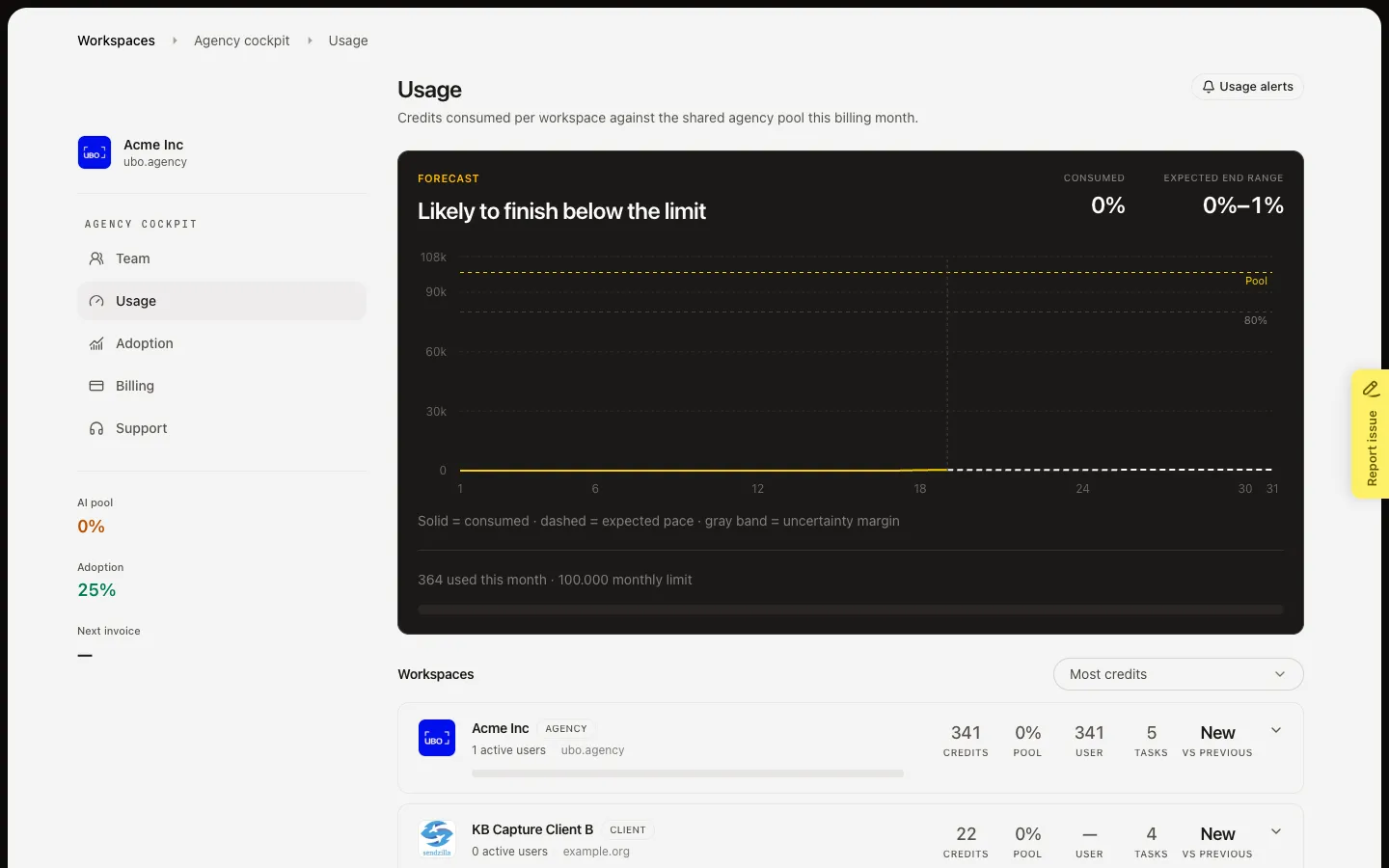
Email agency admins when the shared pool or a workspace cap reaches a percentage this billing period.
Read now →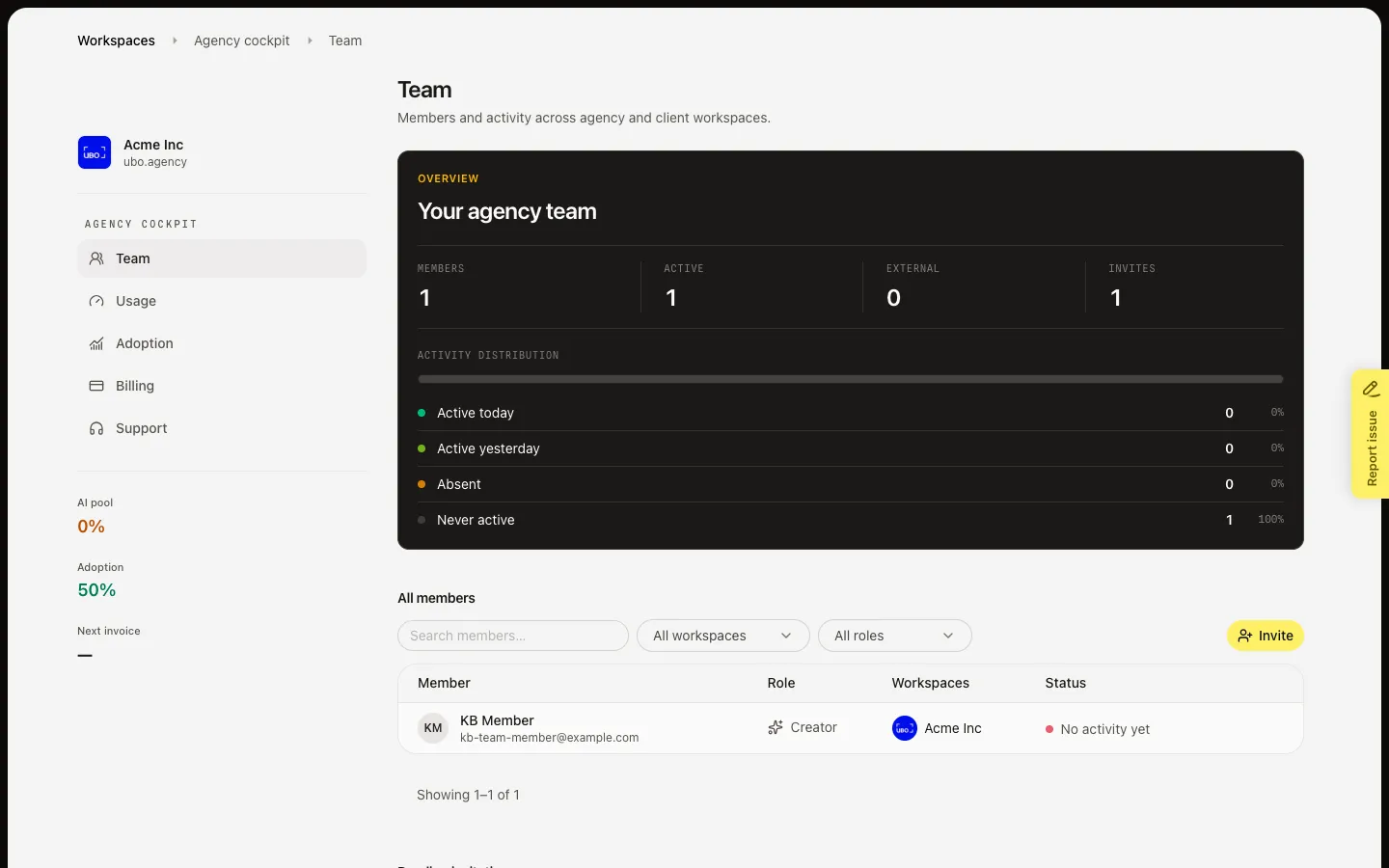
Email one role to one or more agency and client workspaces from Team.
Read now →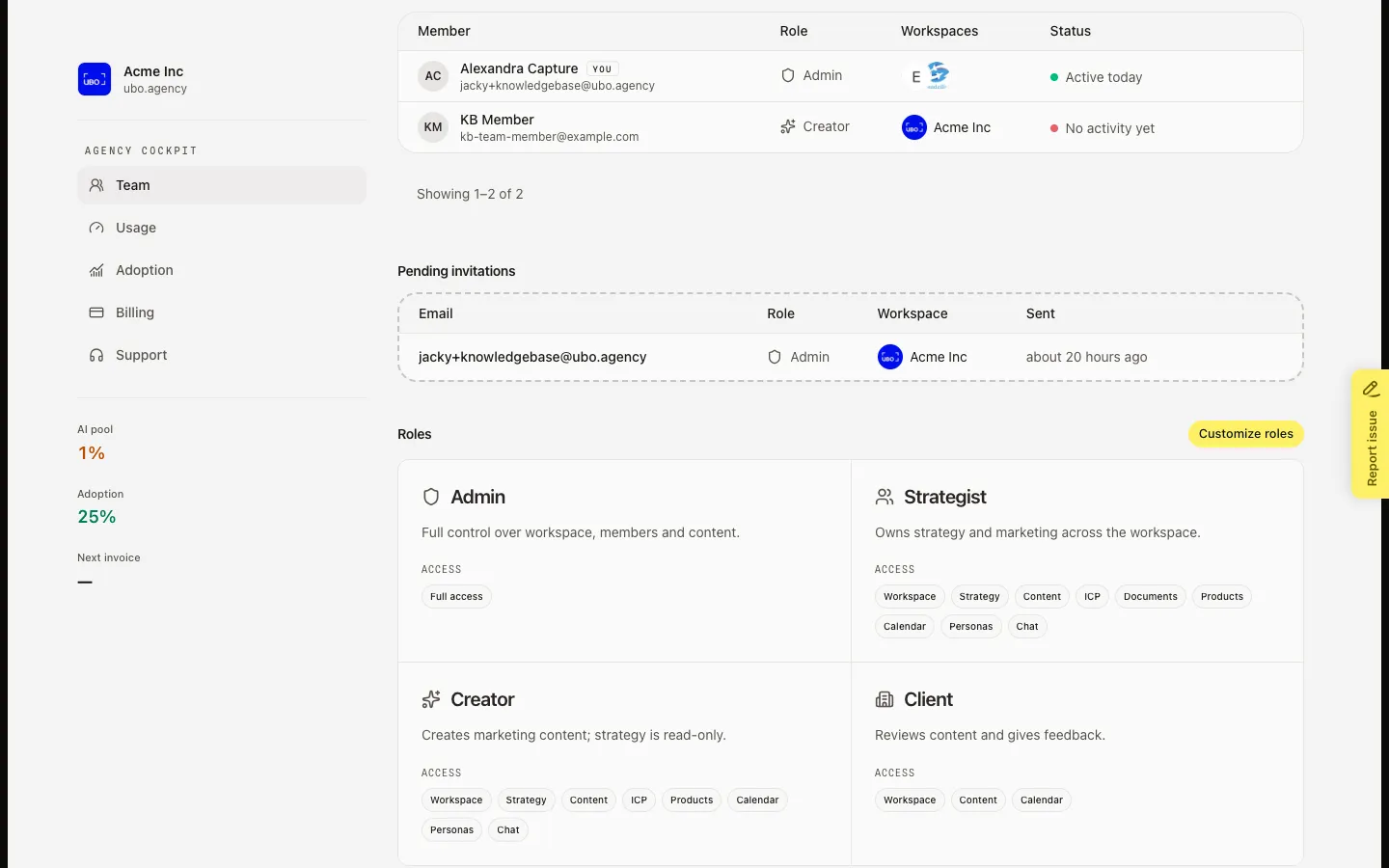
Turn on custom roles for the agency, then add or edit permissions that apply to every linked workspace.
Read now →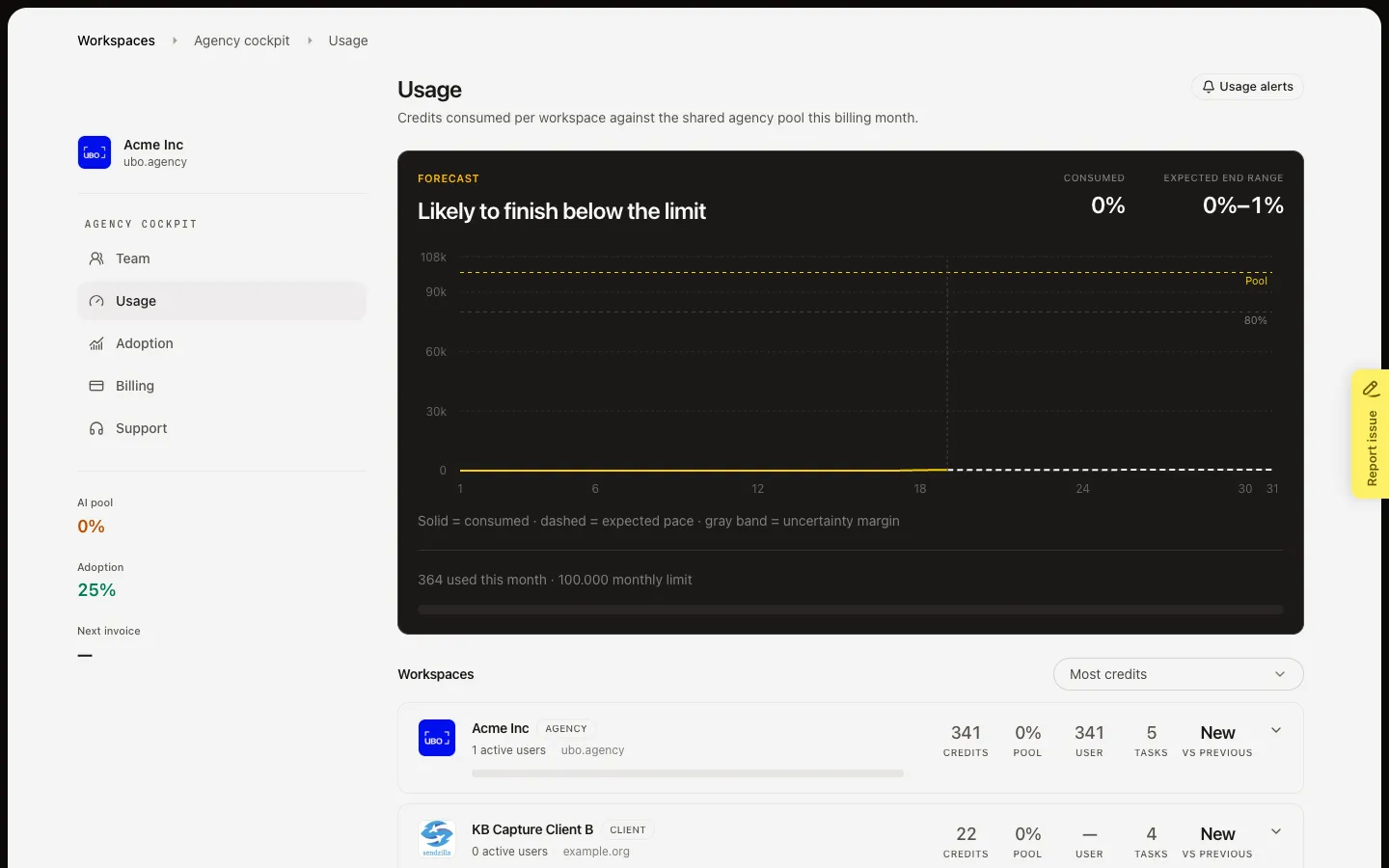
See shared-pool credit spend this billing month, the forecast, and which workspaces and people drive it.
Read now →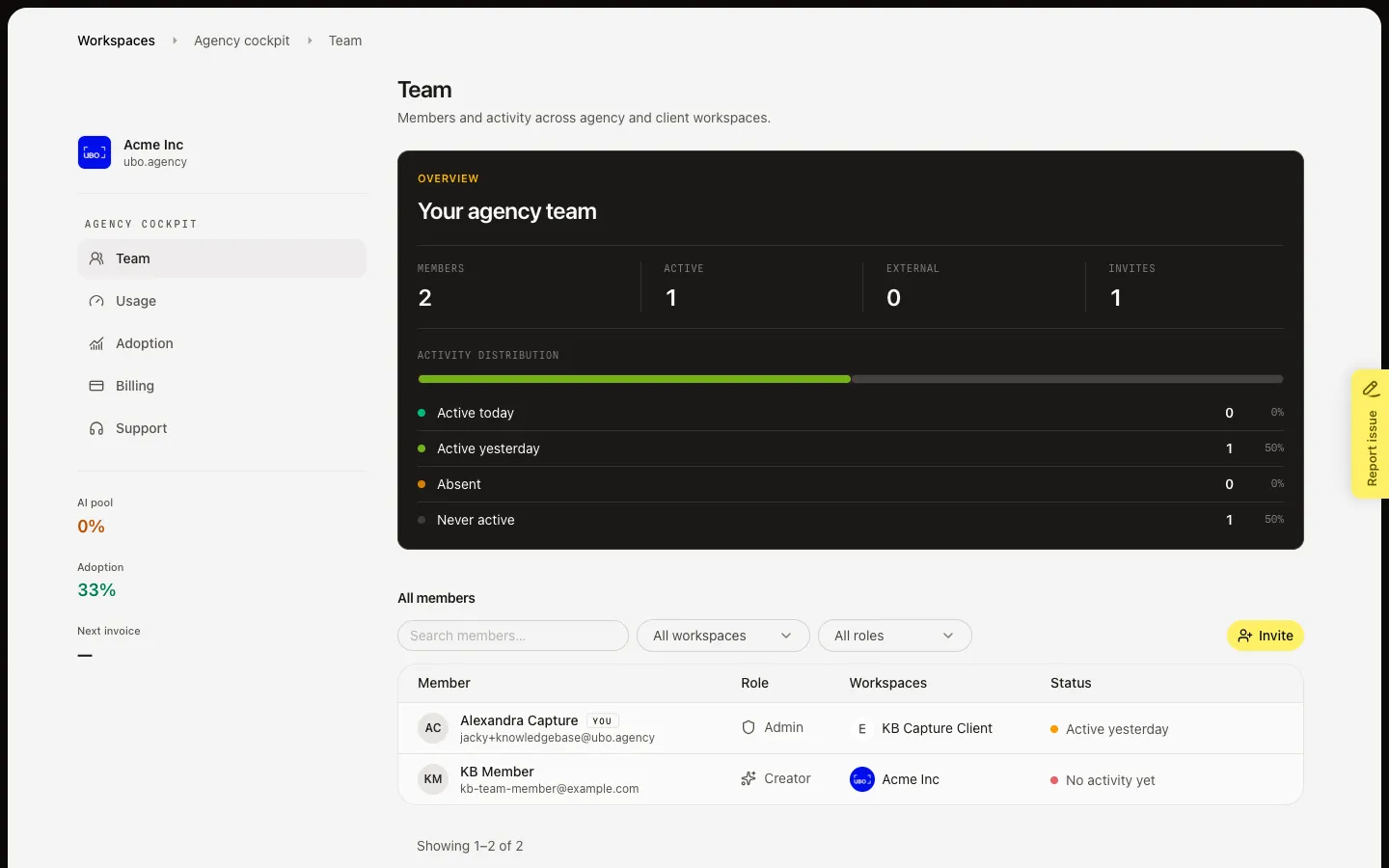
See who is on the agency and client workspaces, open a member, and change their role or workspaces.
Read now →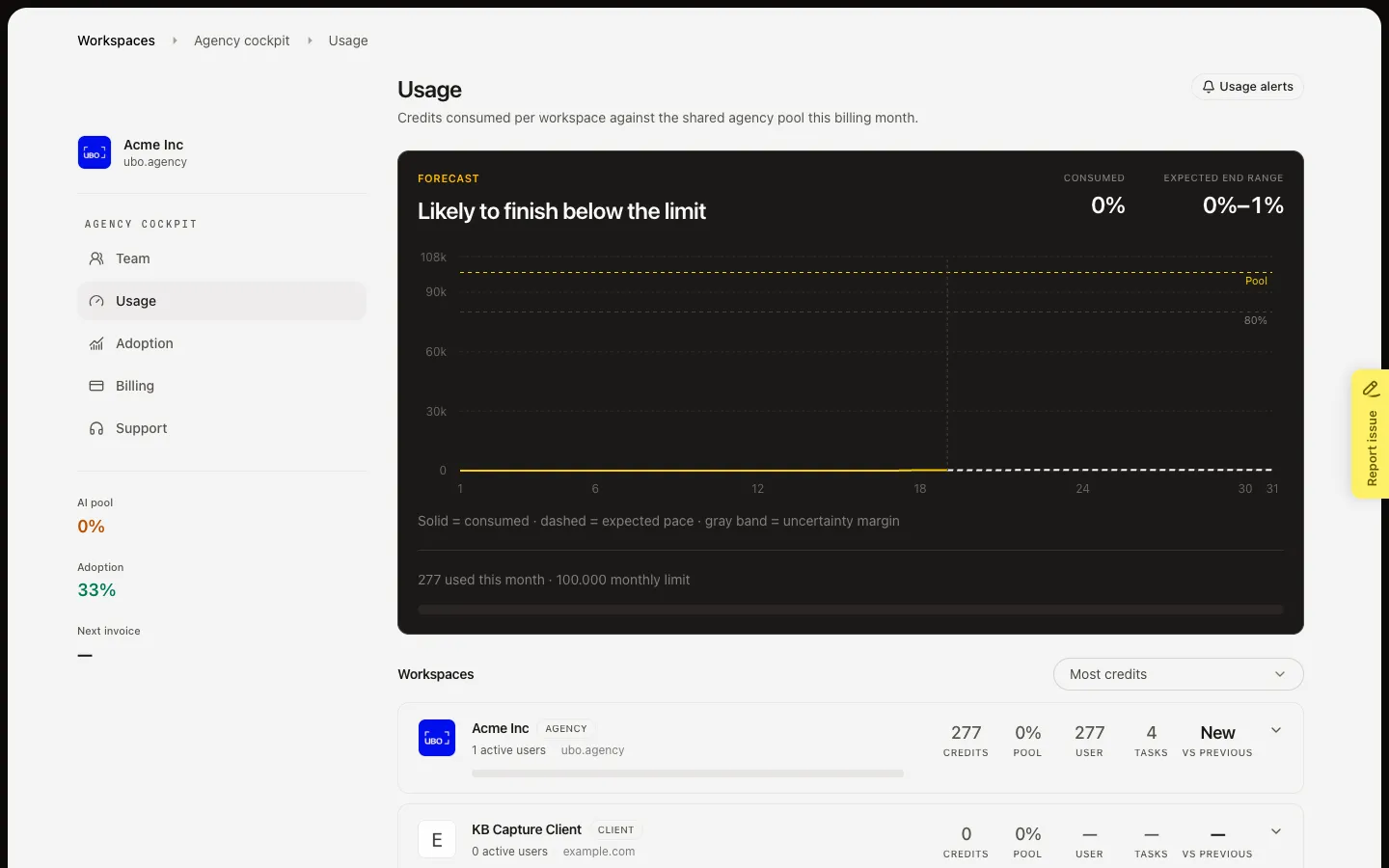
Cap monthly AI credits for one workspace so it cannot consume the whole agency pool.
Read now →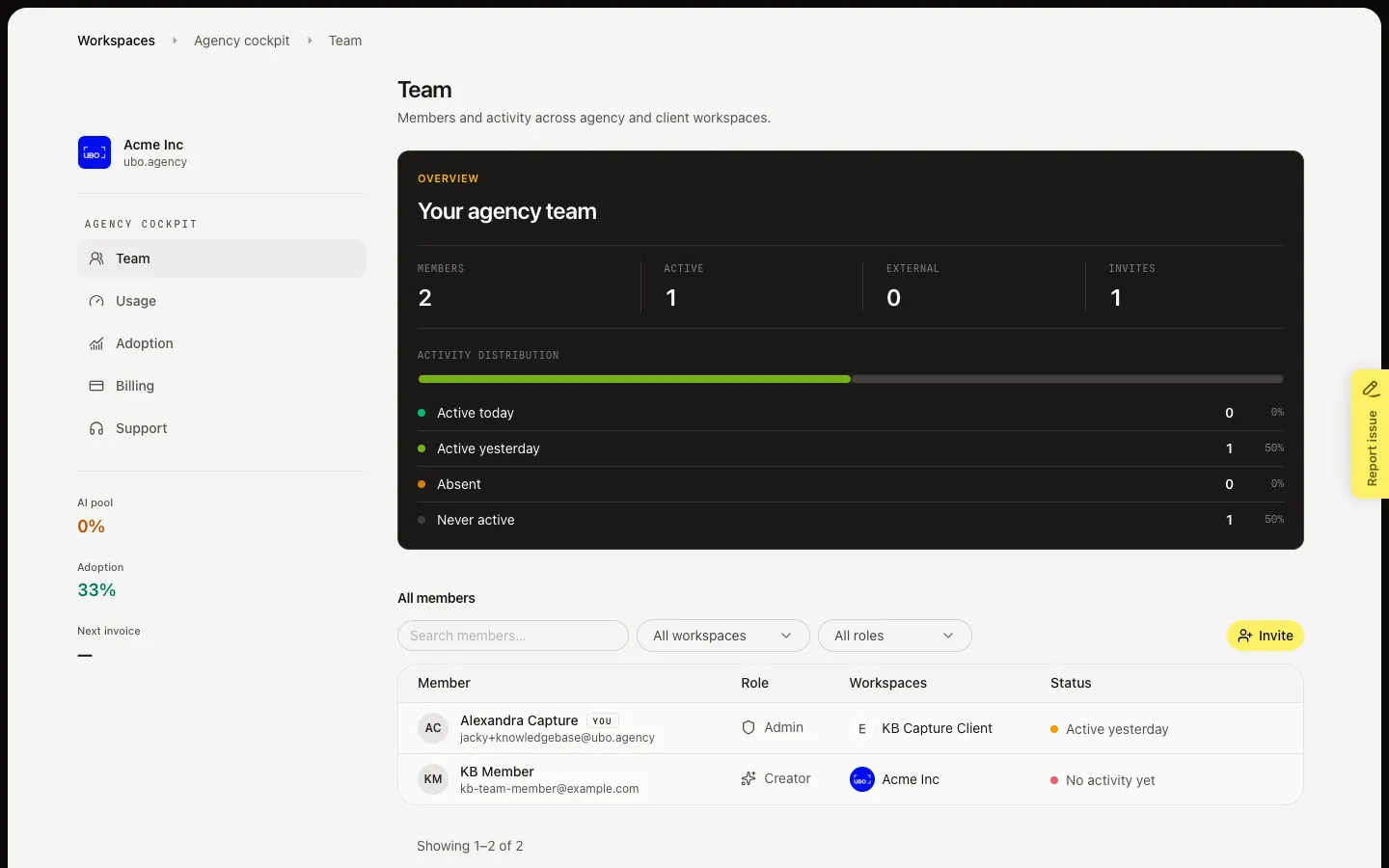
Open the agency cockpit to review team, AI usage, and adoption across your agency and client workspaces.
Read now →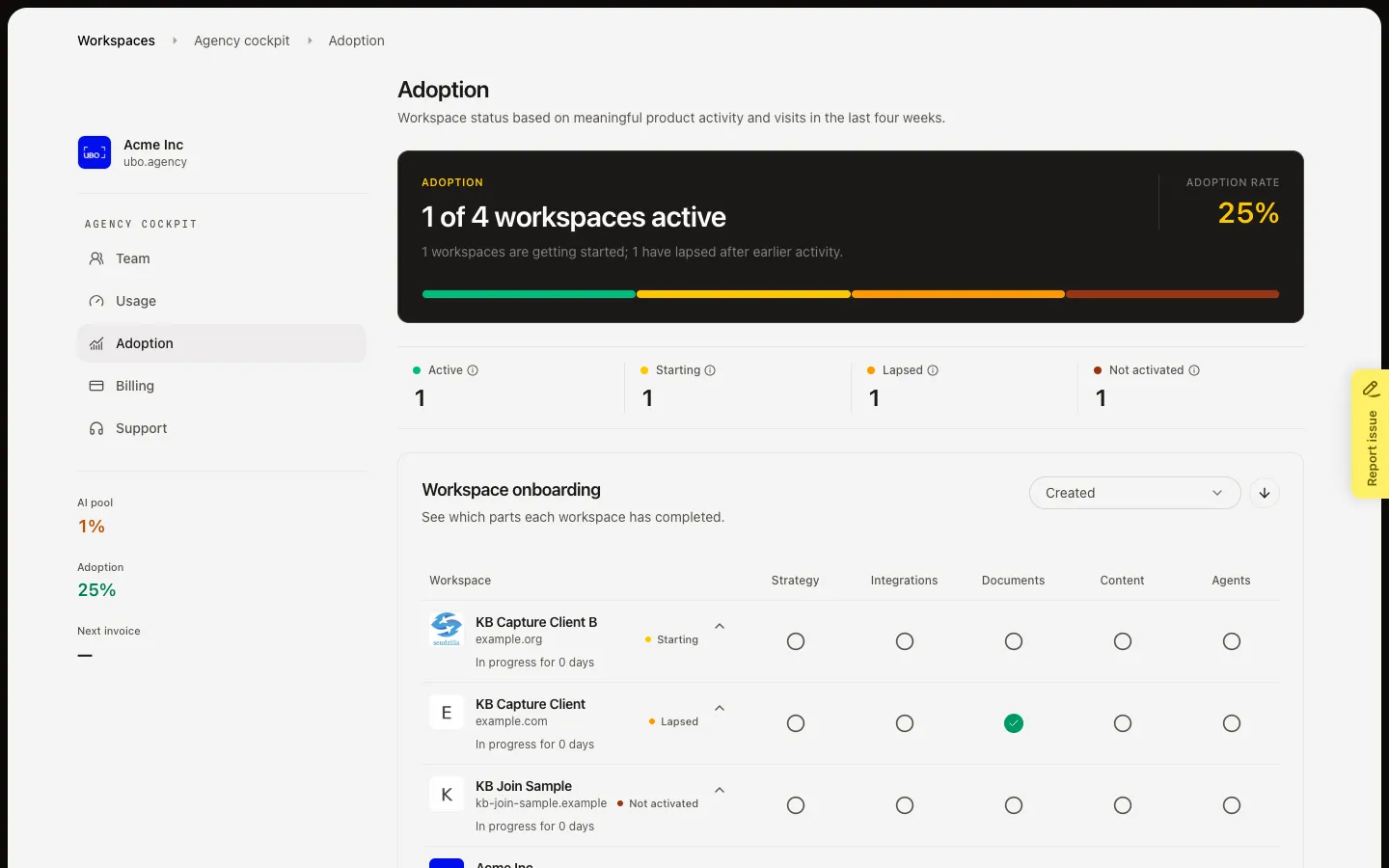
See which workspaces are active, starting, lapsed, or not activated, and who still needs a first action.
Read now →10
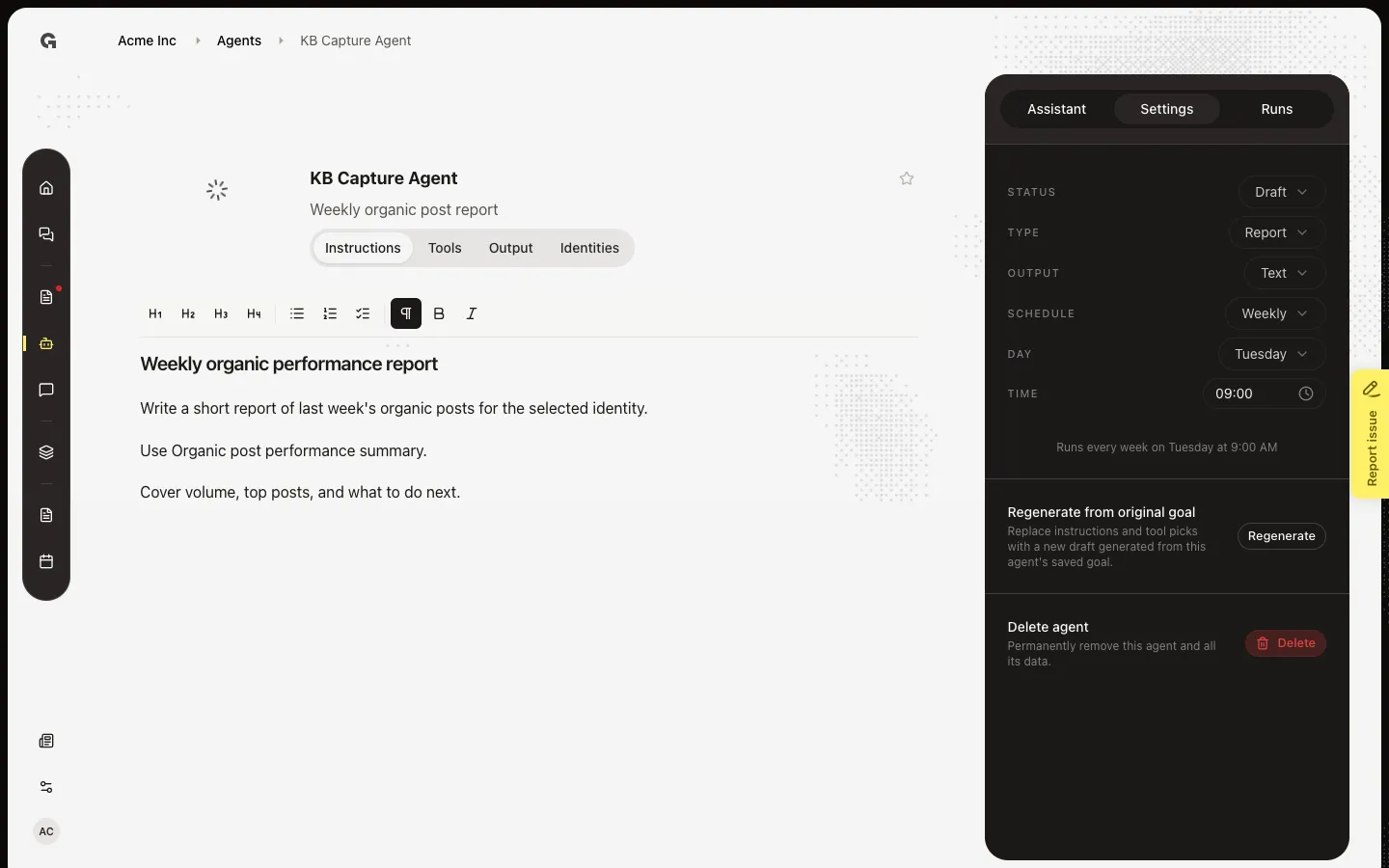
Set Type and Output, finish tools and identities, then switch Status from Draft to Active.
Read now →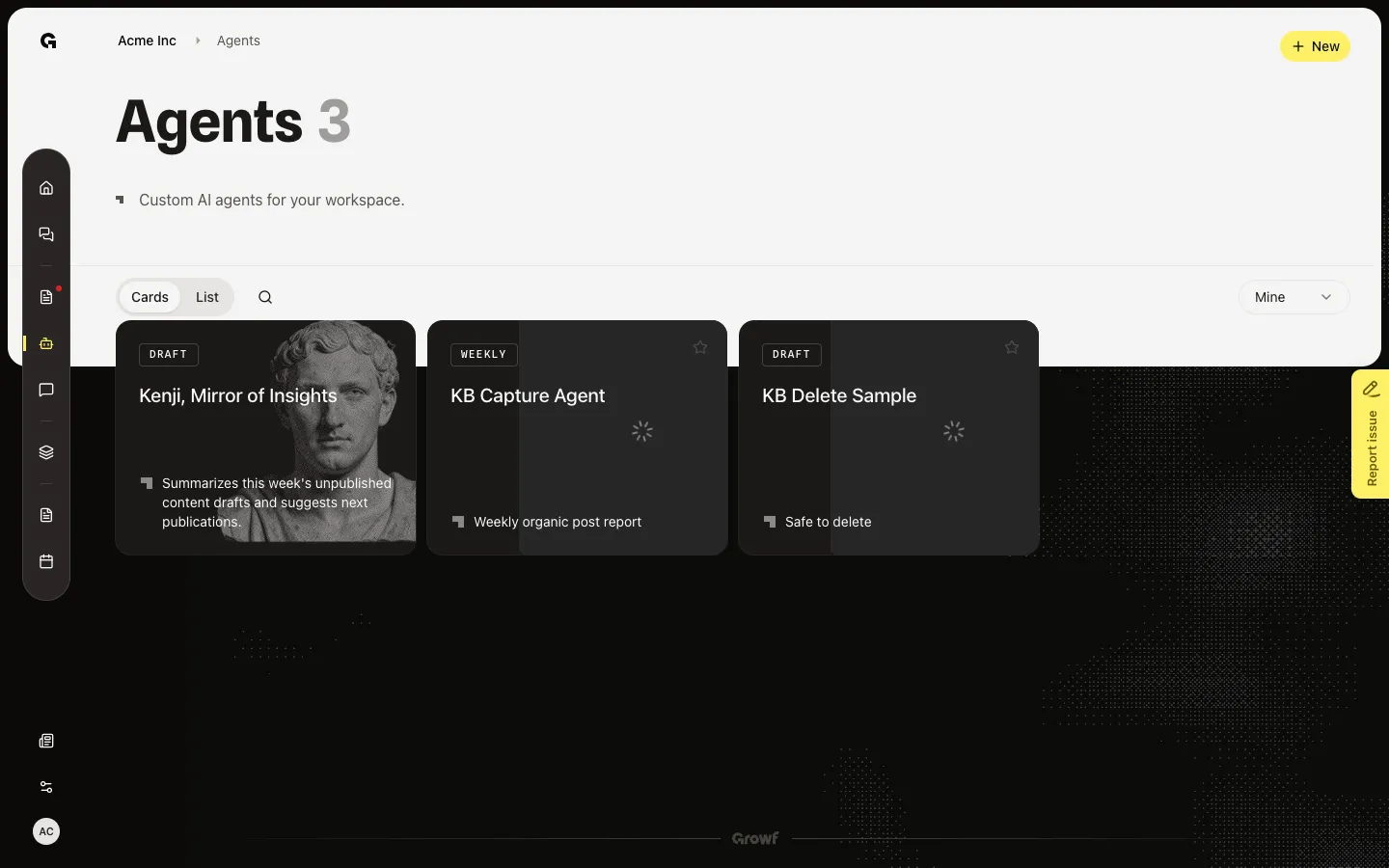
Open Agents to find workspace agents, switch Cards or List, search, filter, and favorite.
Read now →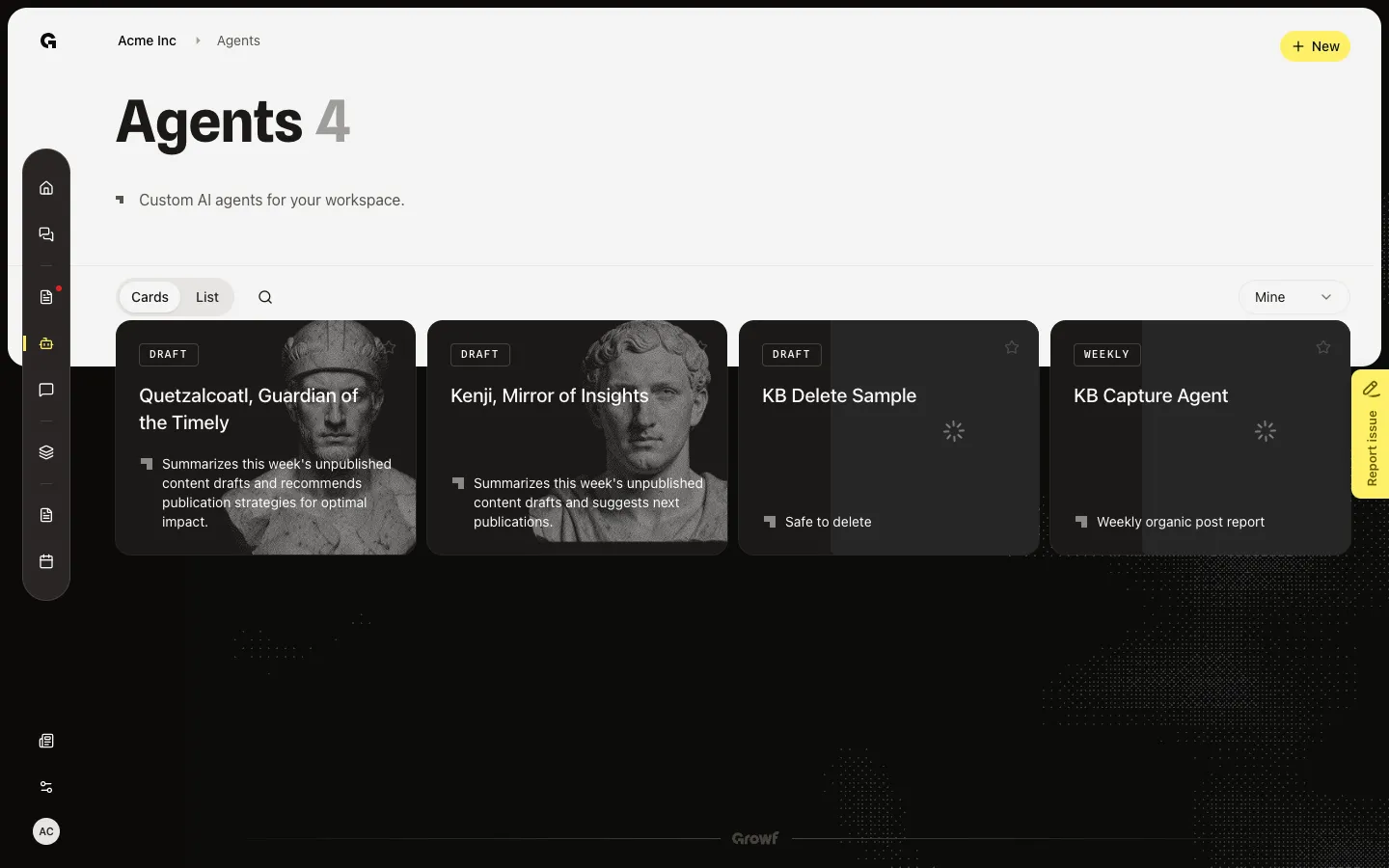
Describe a goal, create the agent, and wait while Growf writes a name, instructions, tools, and avatar.
Read now →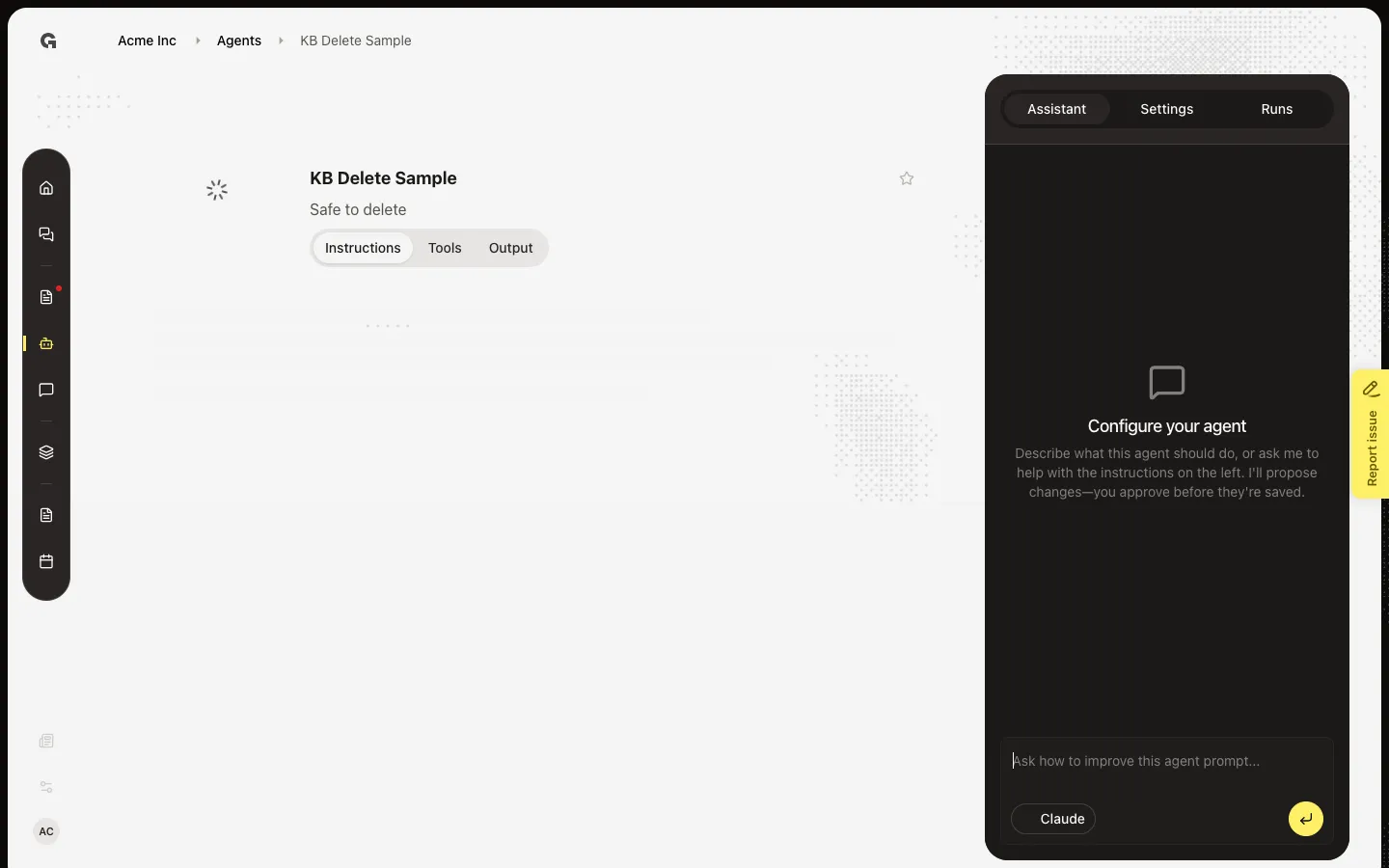
Remove an agent from Settings or from the list. You cannot undo it.
Read now →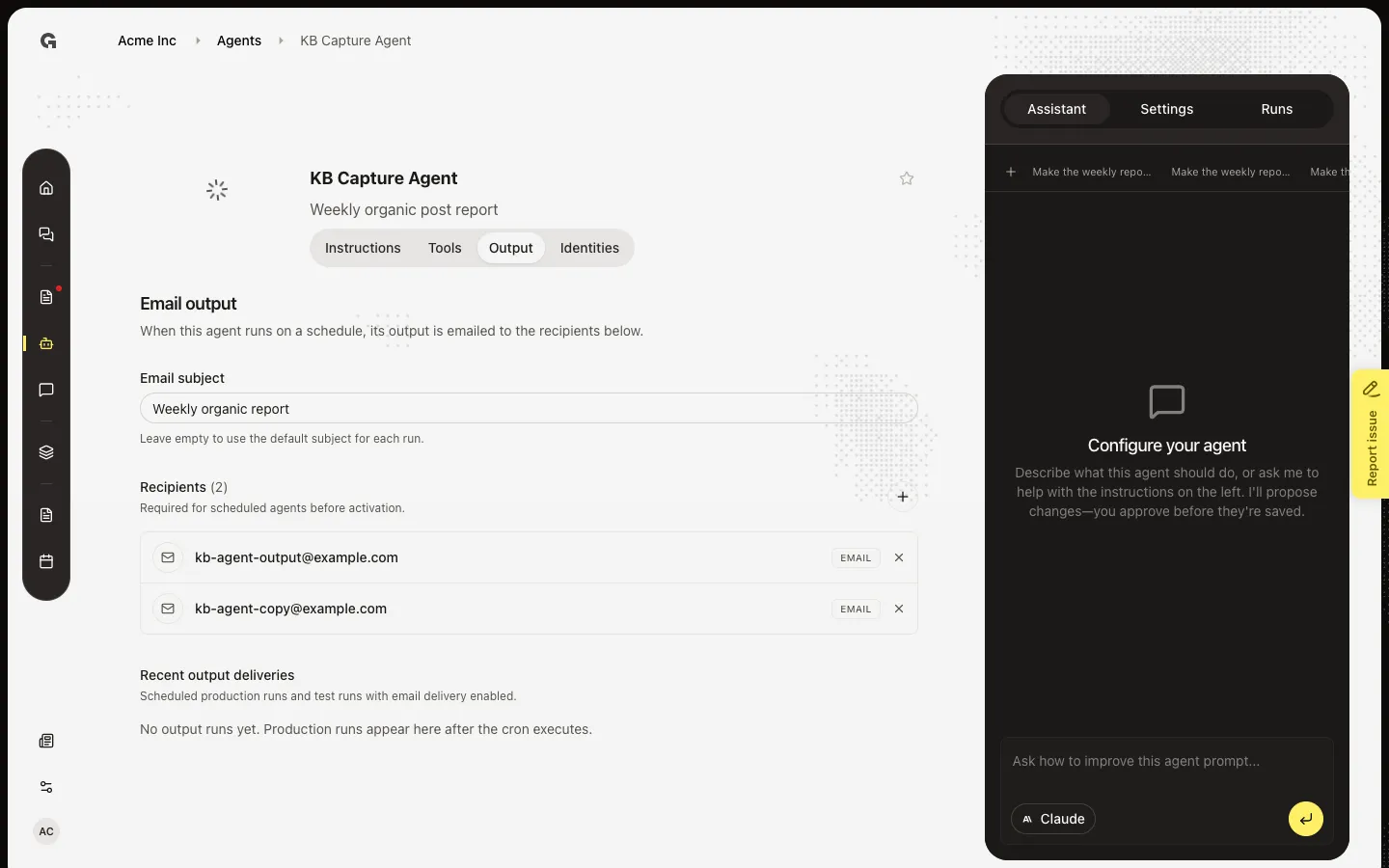
Choose who receives scheduled agent emails, set a subject, and check delivery history.
Read now →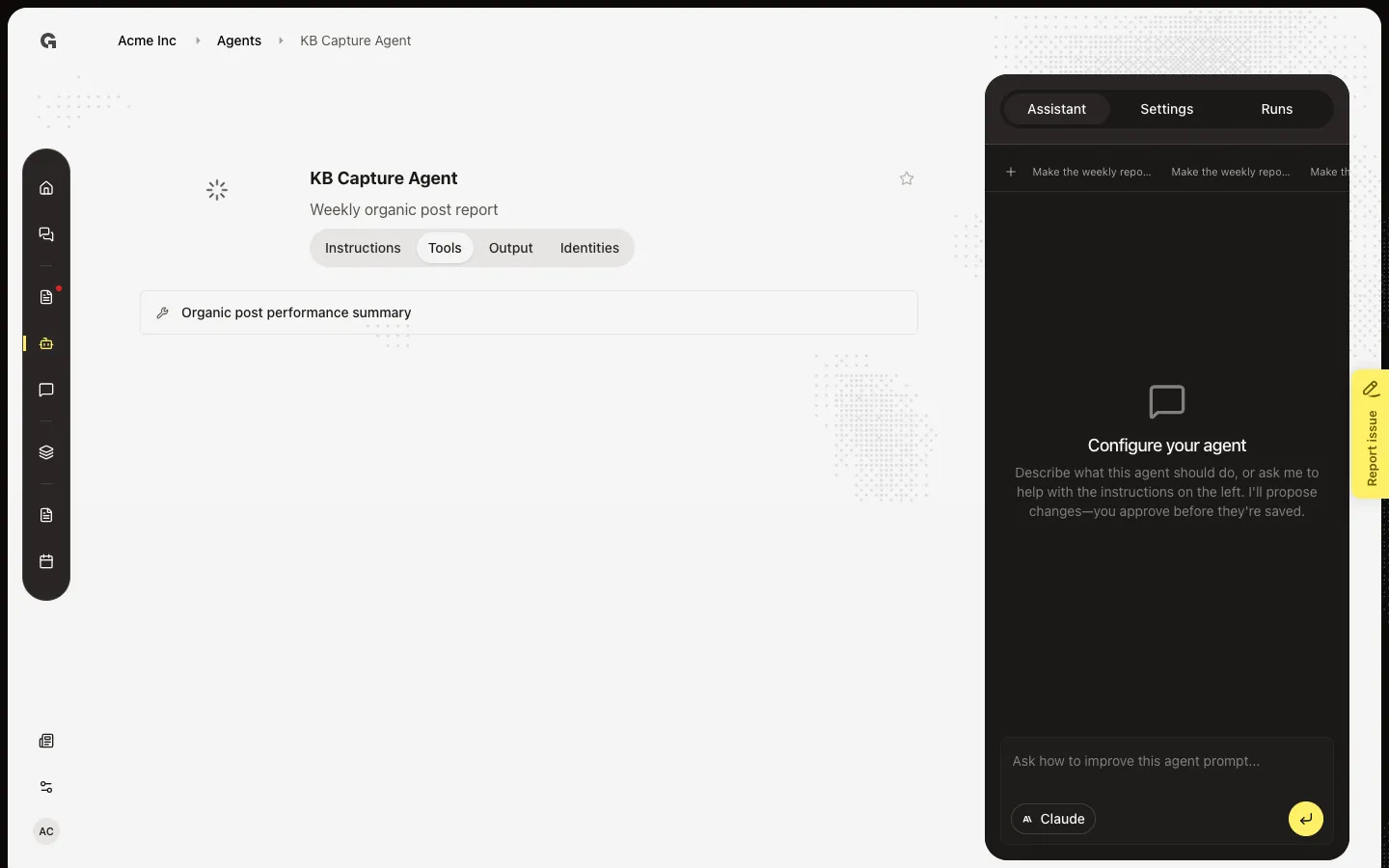
Add tools from Instructions, link a connection on Tools, and pick identities when a tool needs a brand or person.
Read now →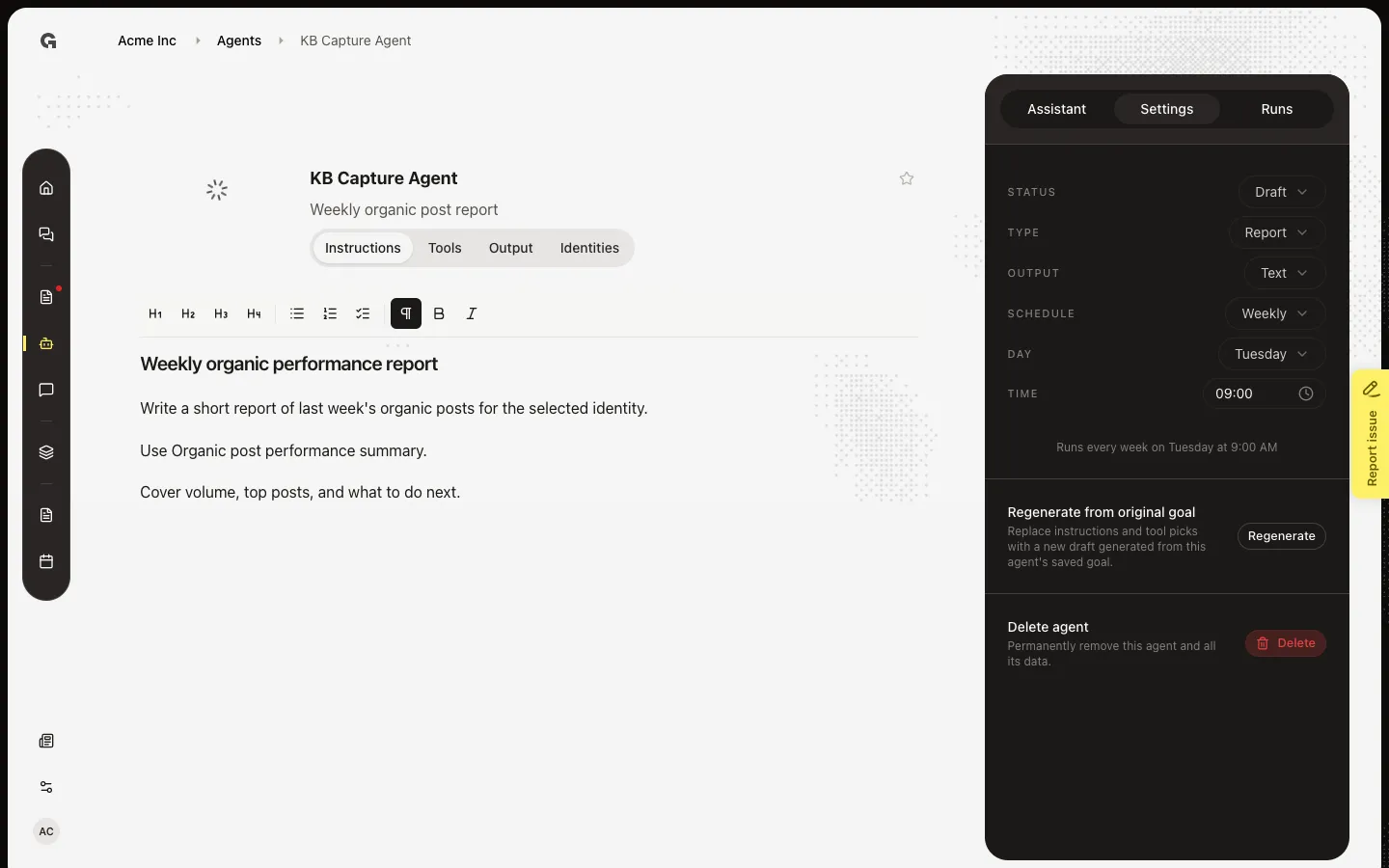
Rebuild instructions and tool picks from the saved goal, after you confirm the dialog.
Read now →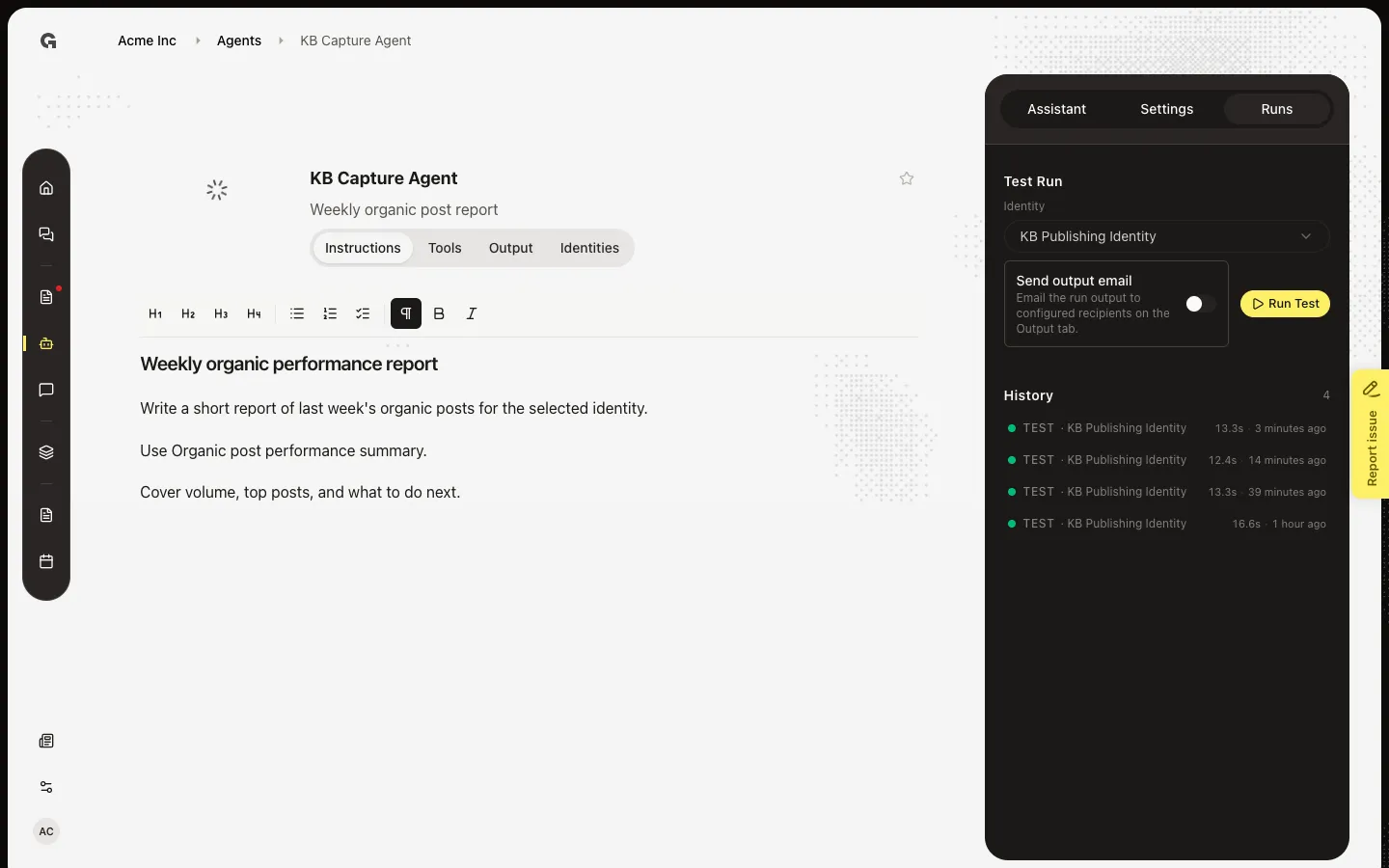
Start a Test Run from Runs, watch the live canvas, and open History for past output.
Read now →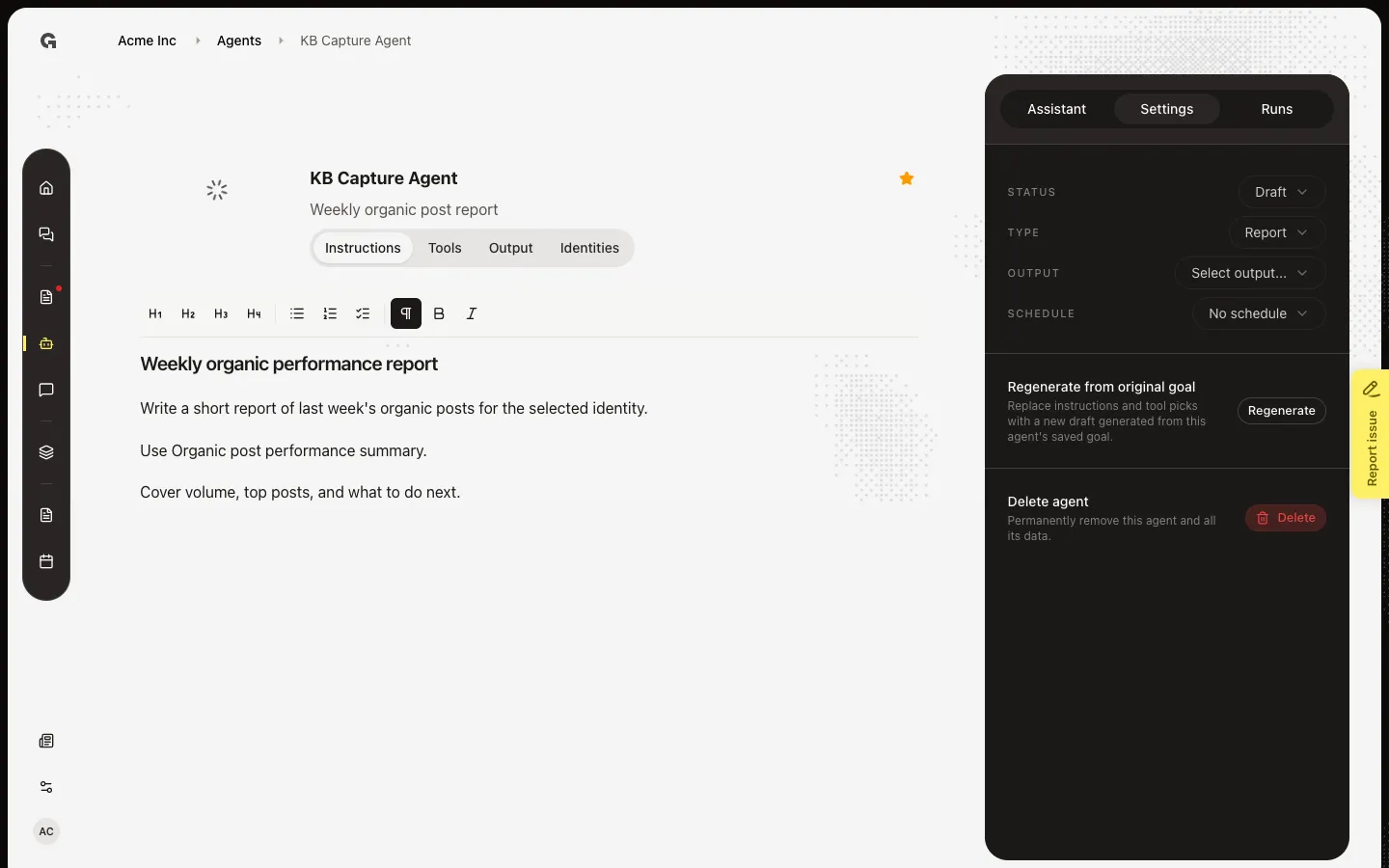
Set Daily, Weekly, or Monthly in Settings so an Active agent runs on its own.
Read now →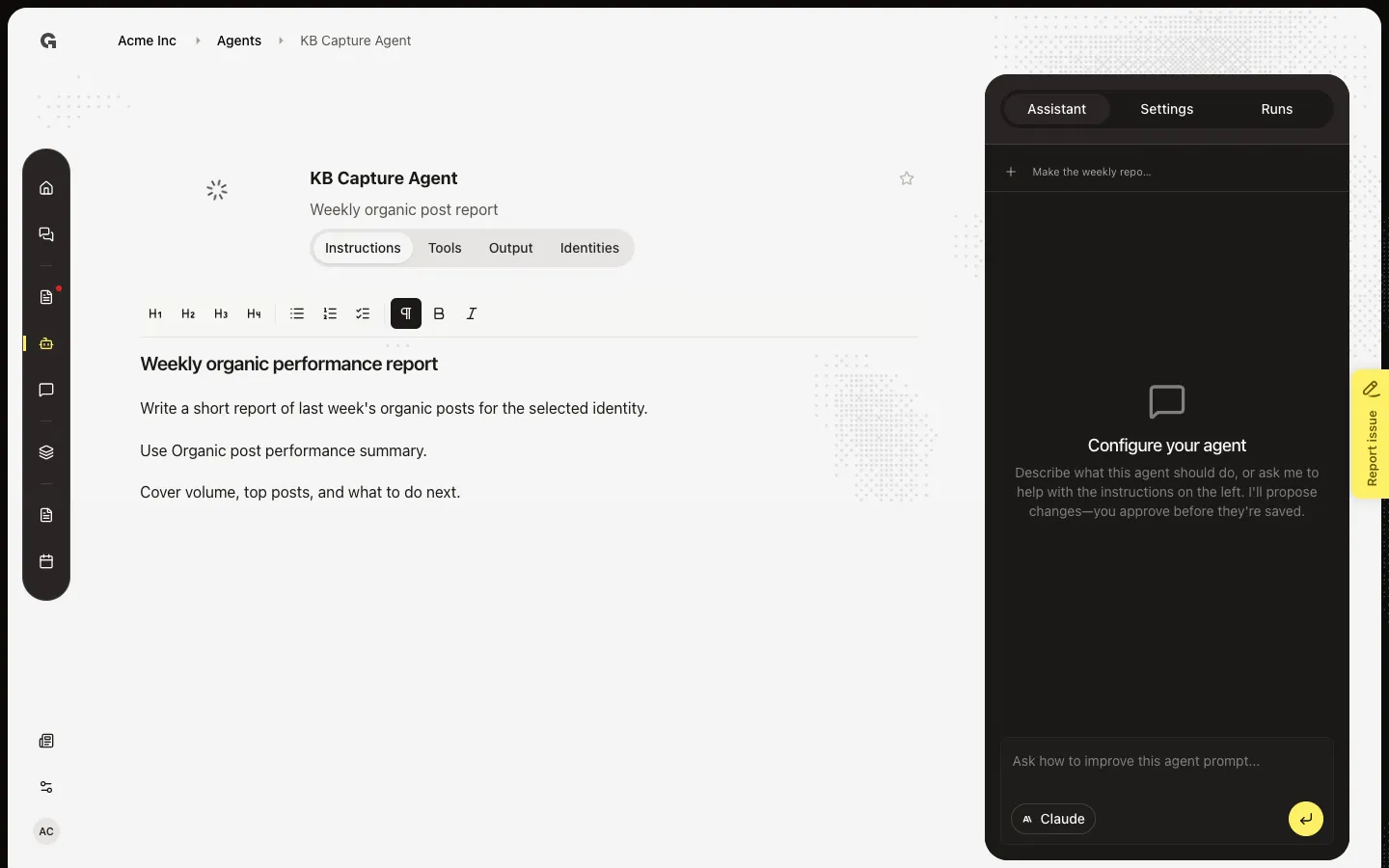
Ask the sidebar Assistant to draft a better prompt, then Apply before Instructions change.
Read now →31
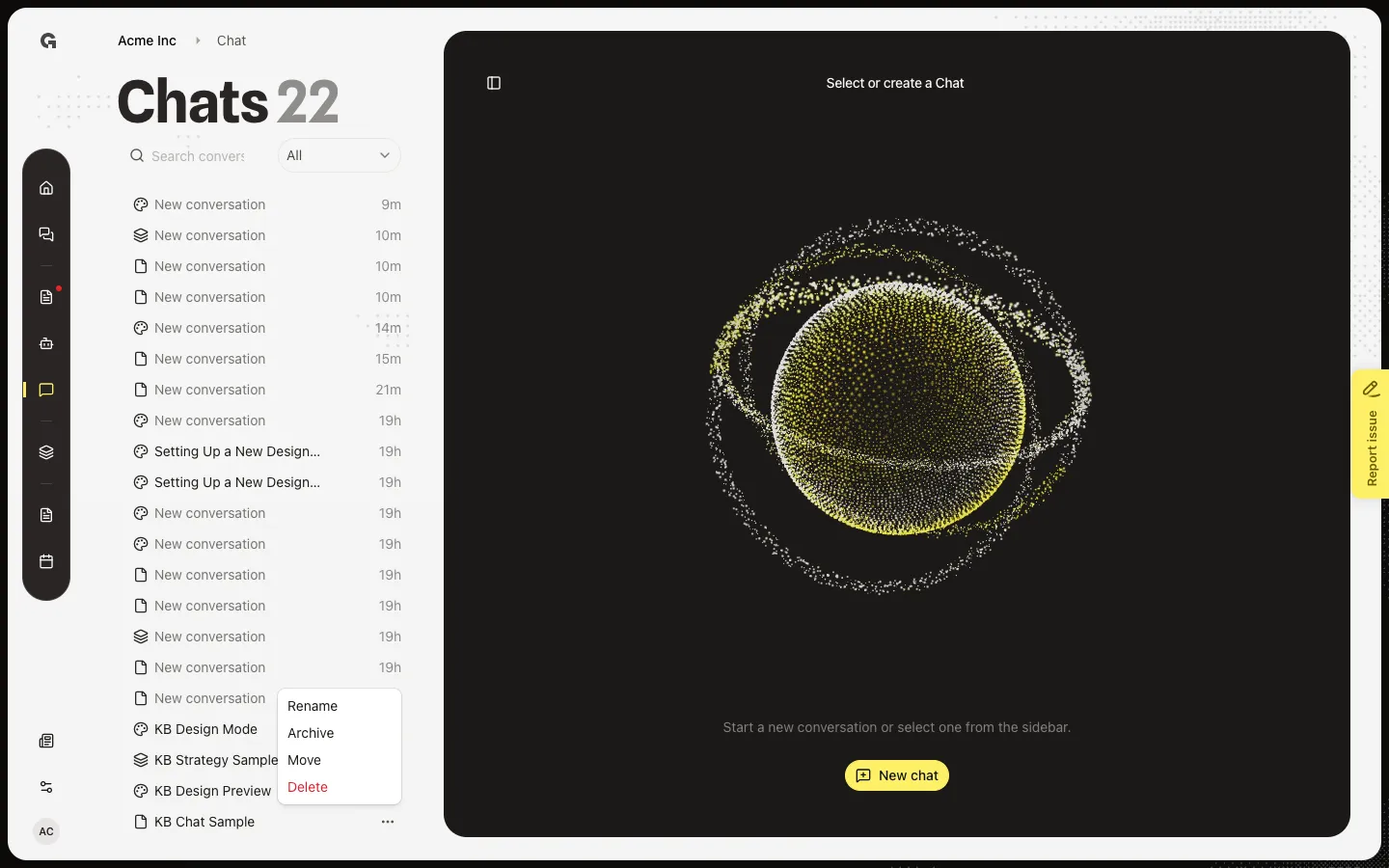
Hide a thread from All and Mine, then find it again under Archived.
Read now →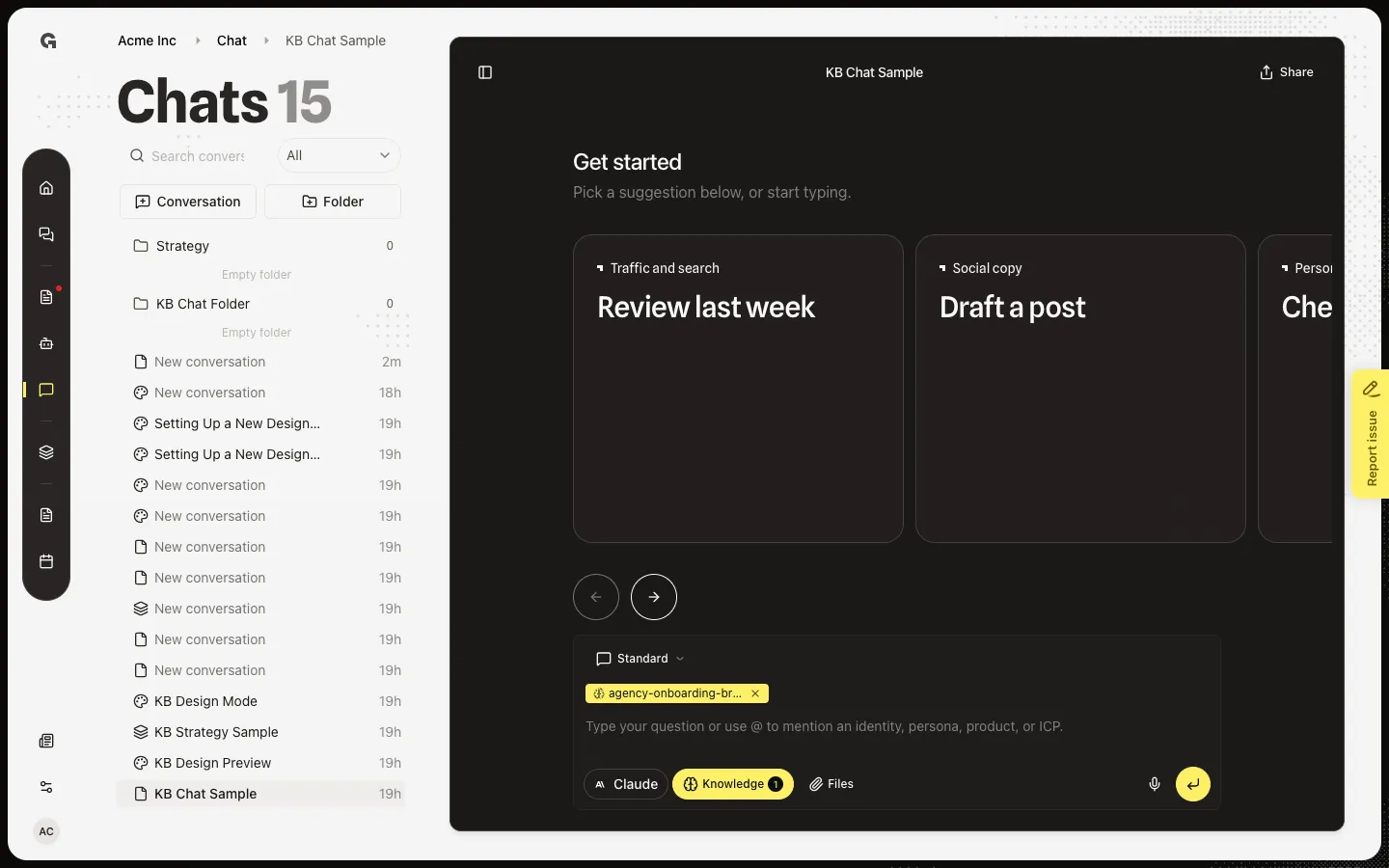
Add an image, PDF, Office file, or text file to the next chat message so the model can read it.
Read now →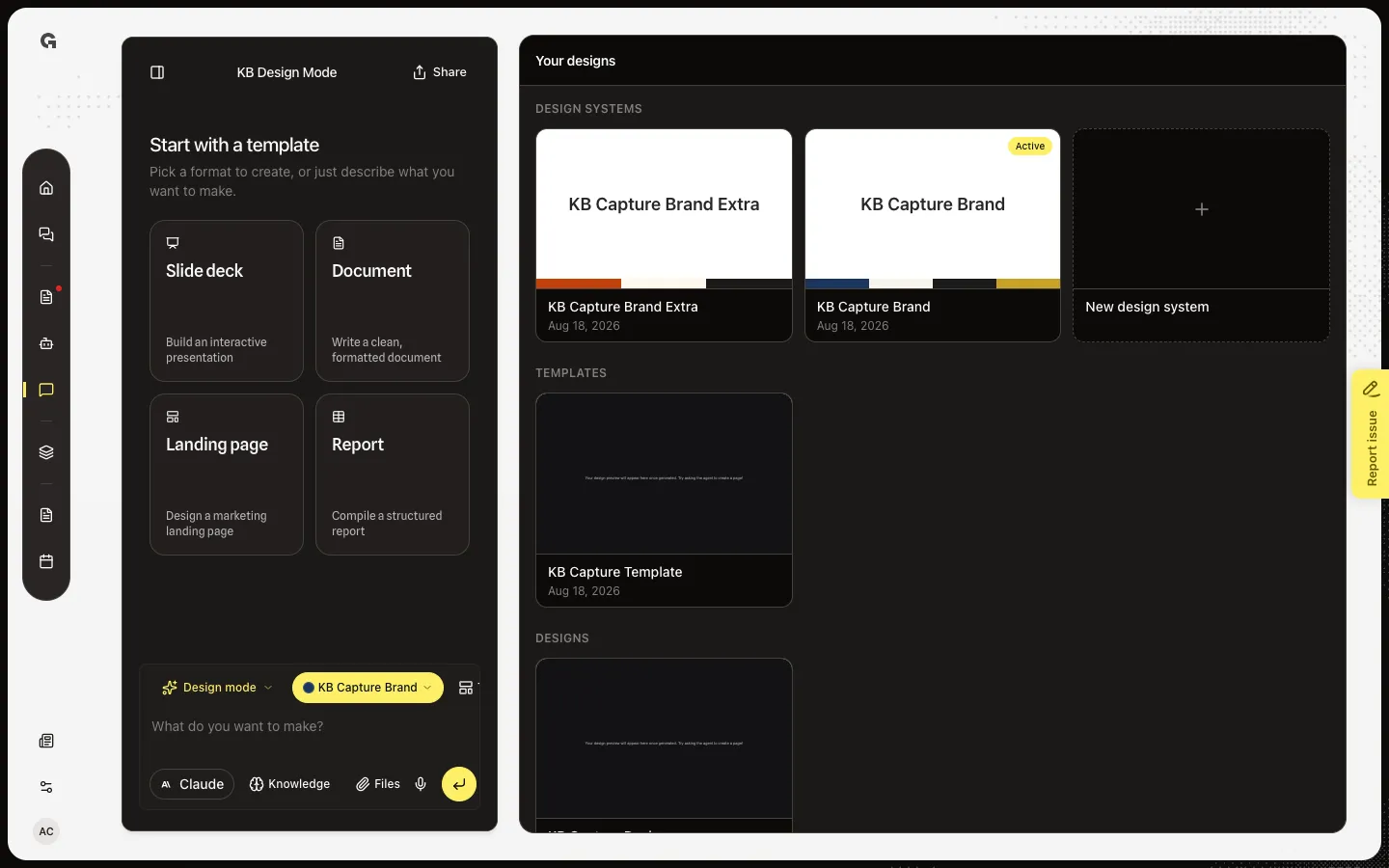
Open Your designs to see design systems, saved templates, and workspace designs.
Read now →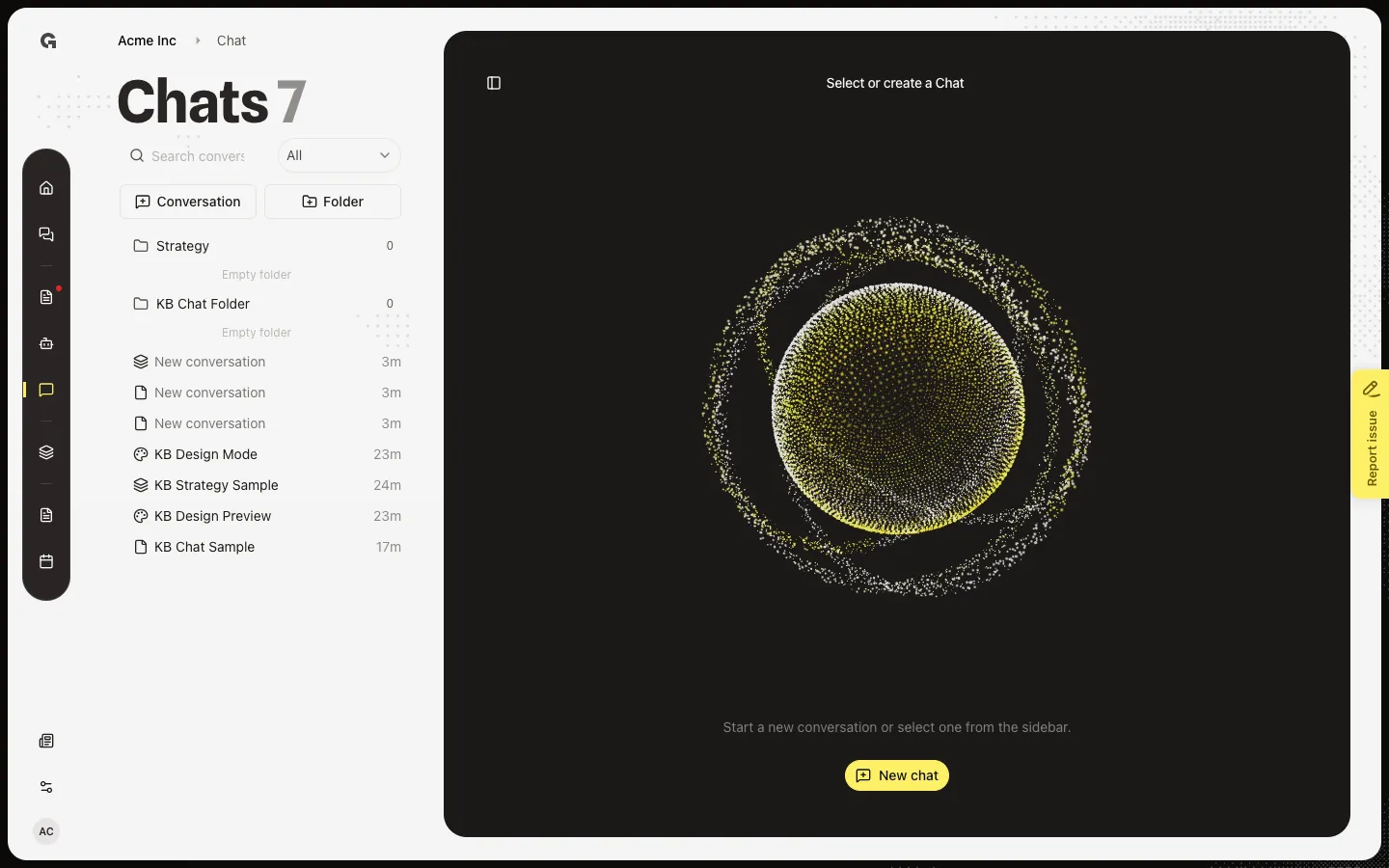
Open Chat, start or reopen a conversation, and type a message without leaving the workspace.
Read now →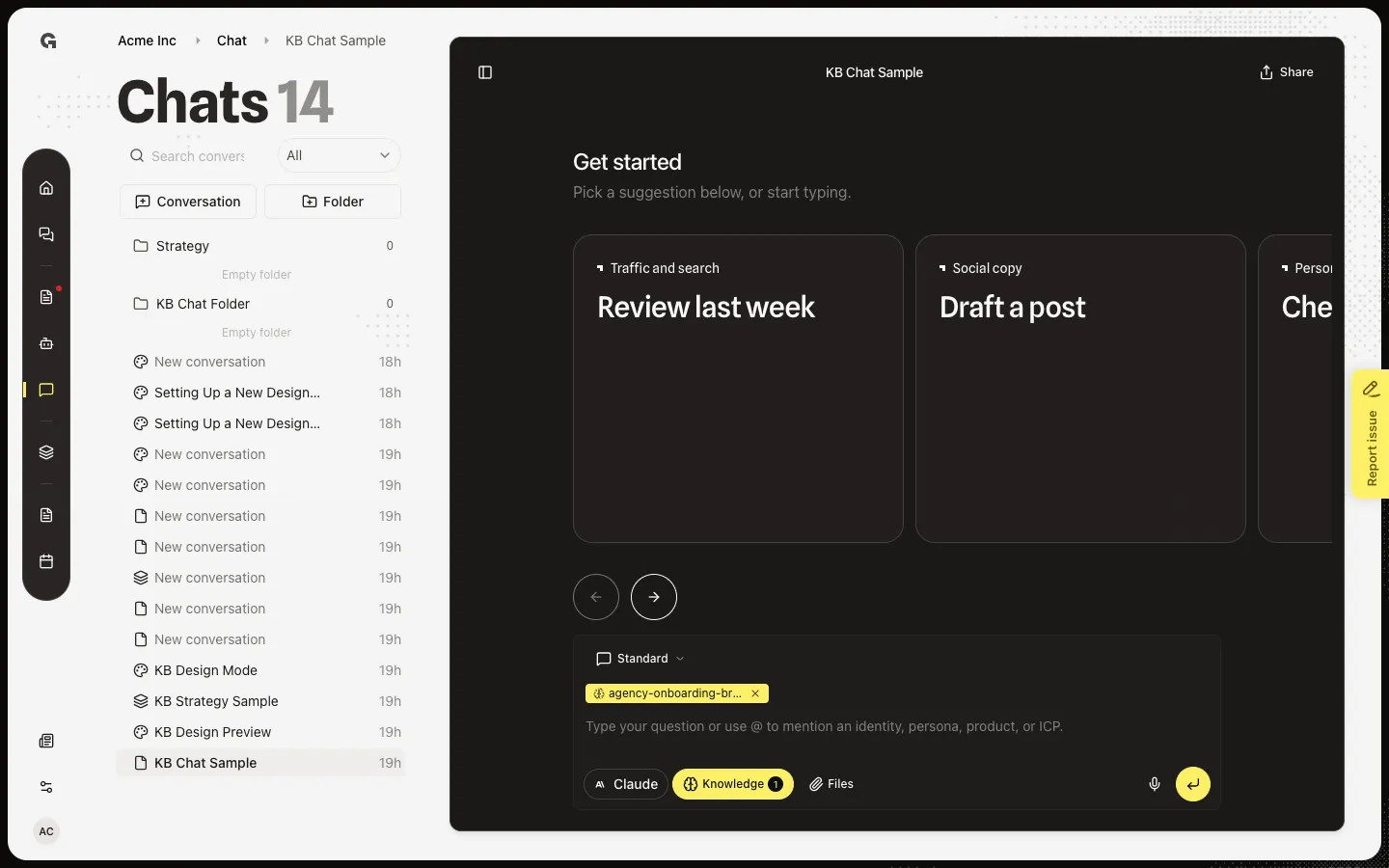
Switch a conversation between Standard, Design mode, and Strategy mode from the composer.
Read now →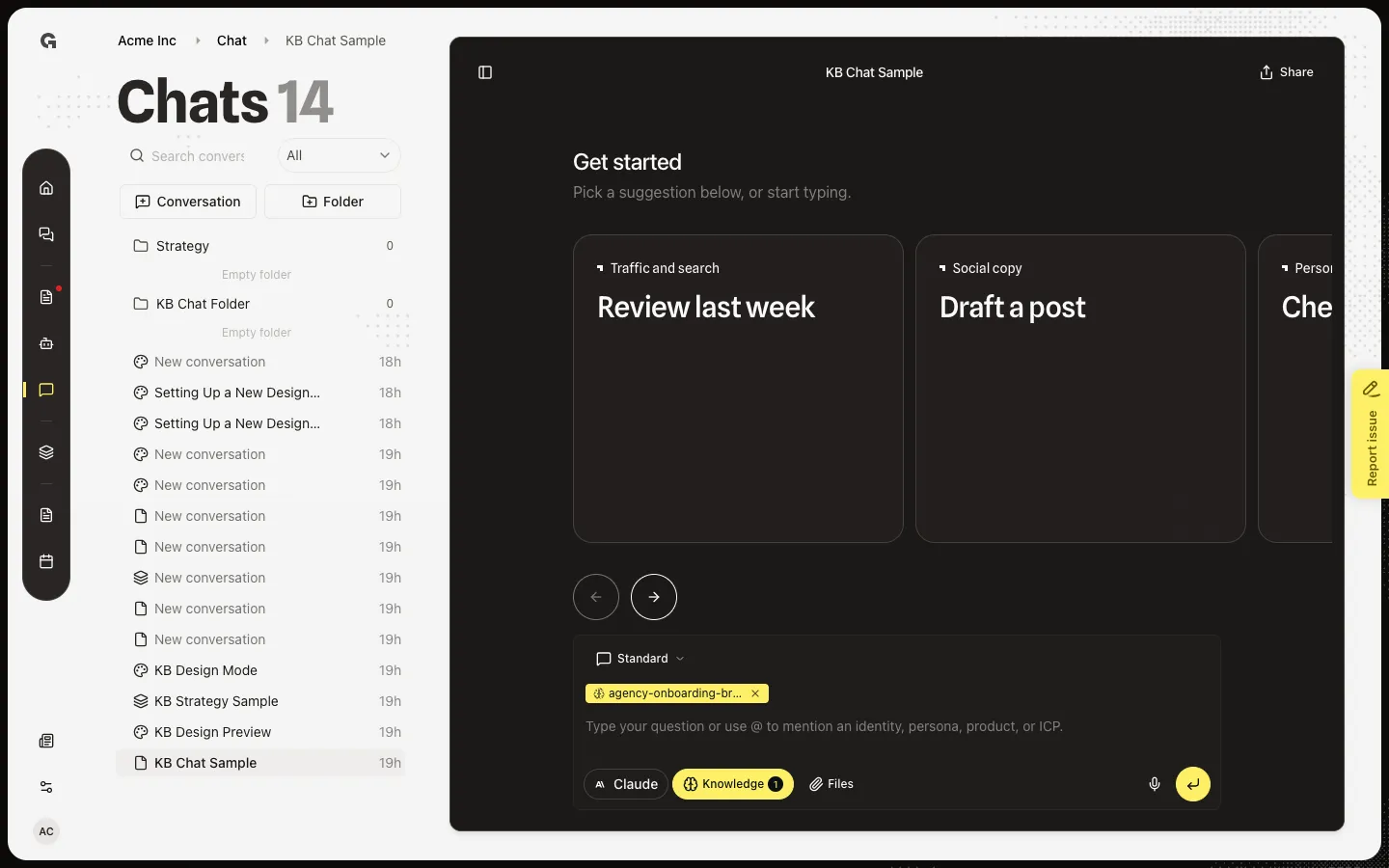
Pick Claude, Gemini, or OpenAI for the next reply in this conversation.
Read now →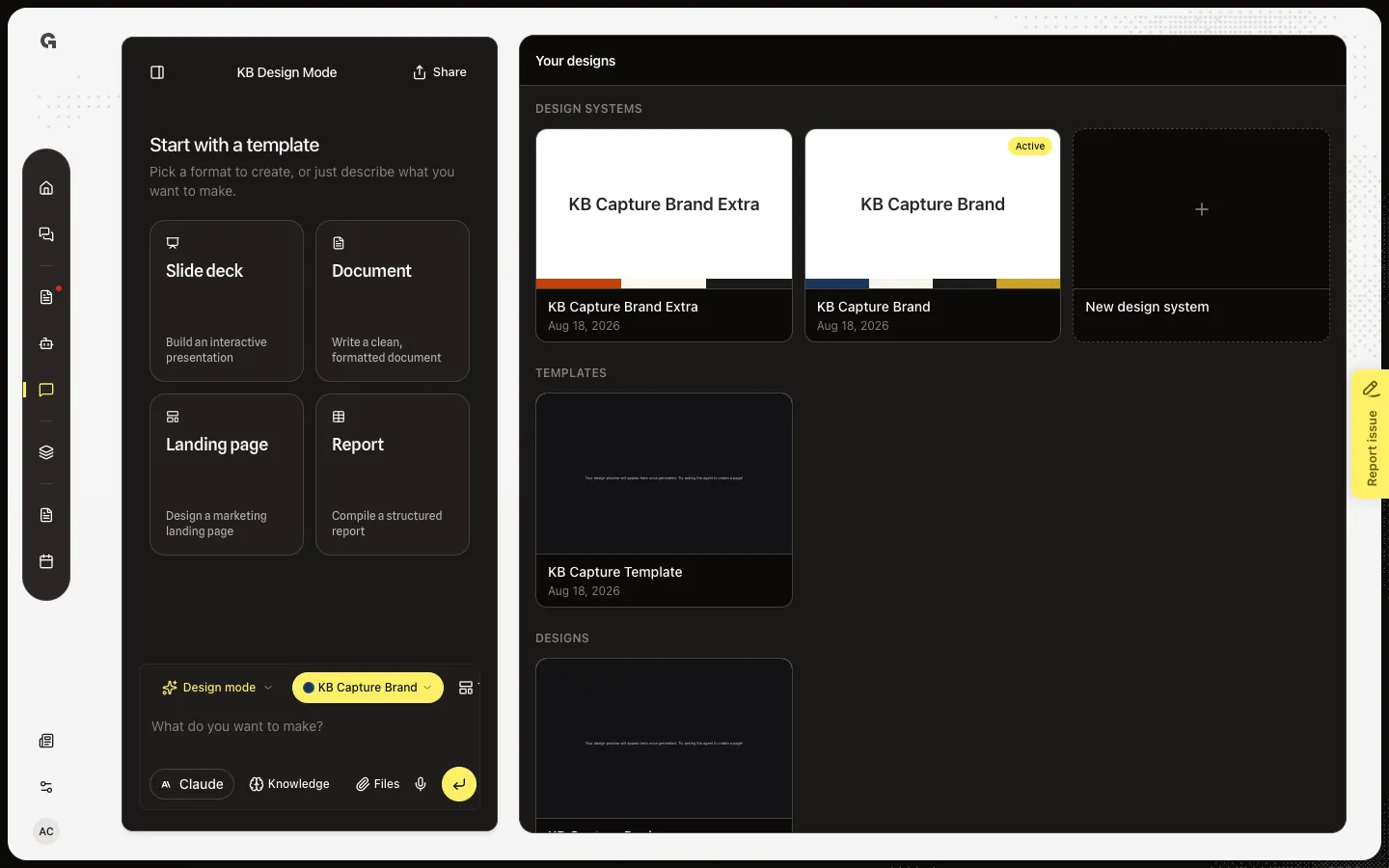
Start a new workspace brand from the Your designs gallery so later designs can stay on-brand.
Read now →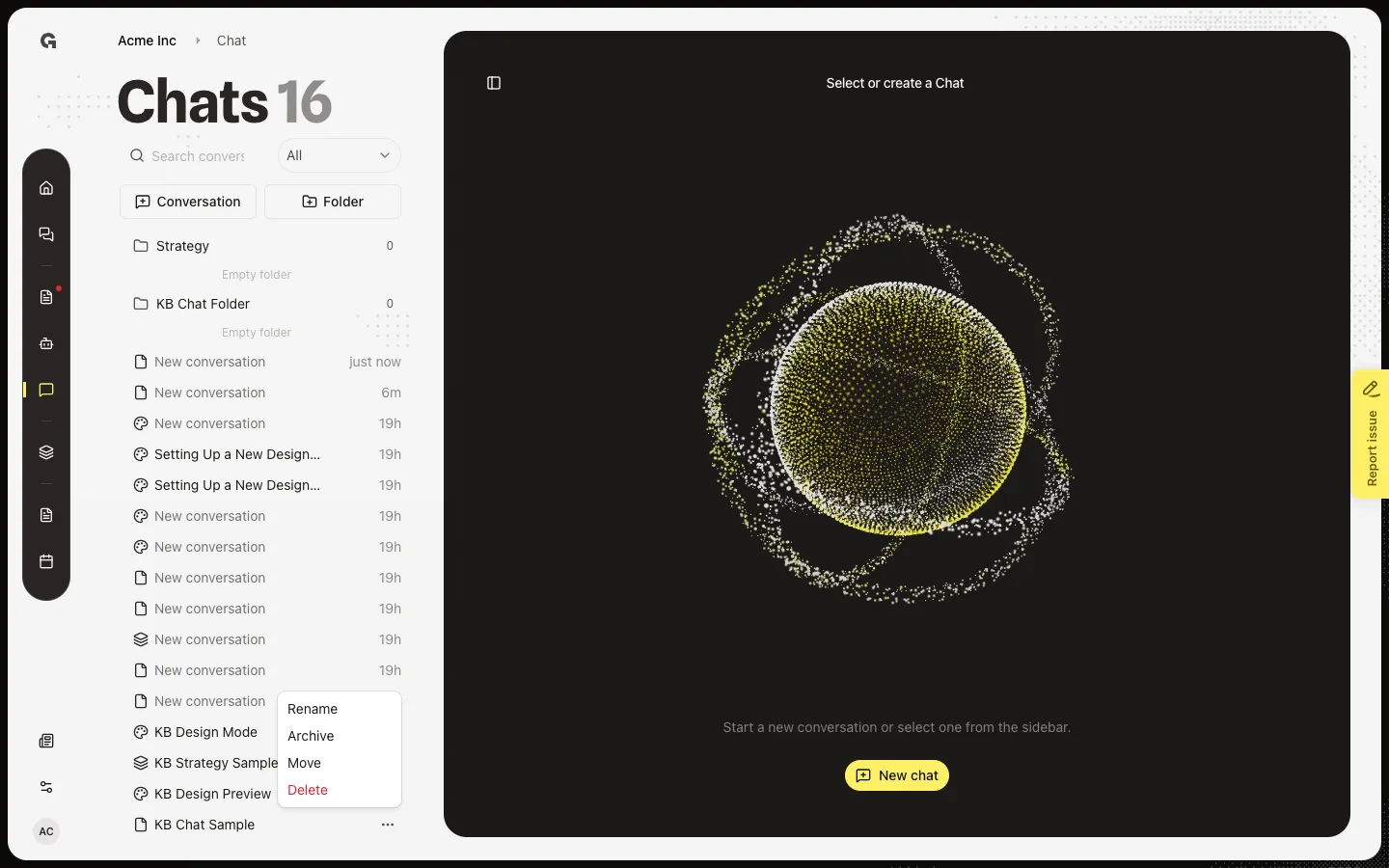
Remove a conversation from the workspace after you confirm Delete.
Read now →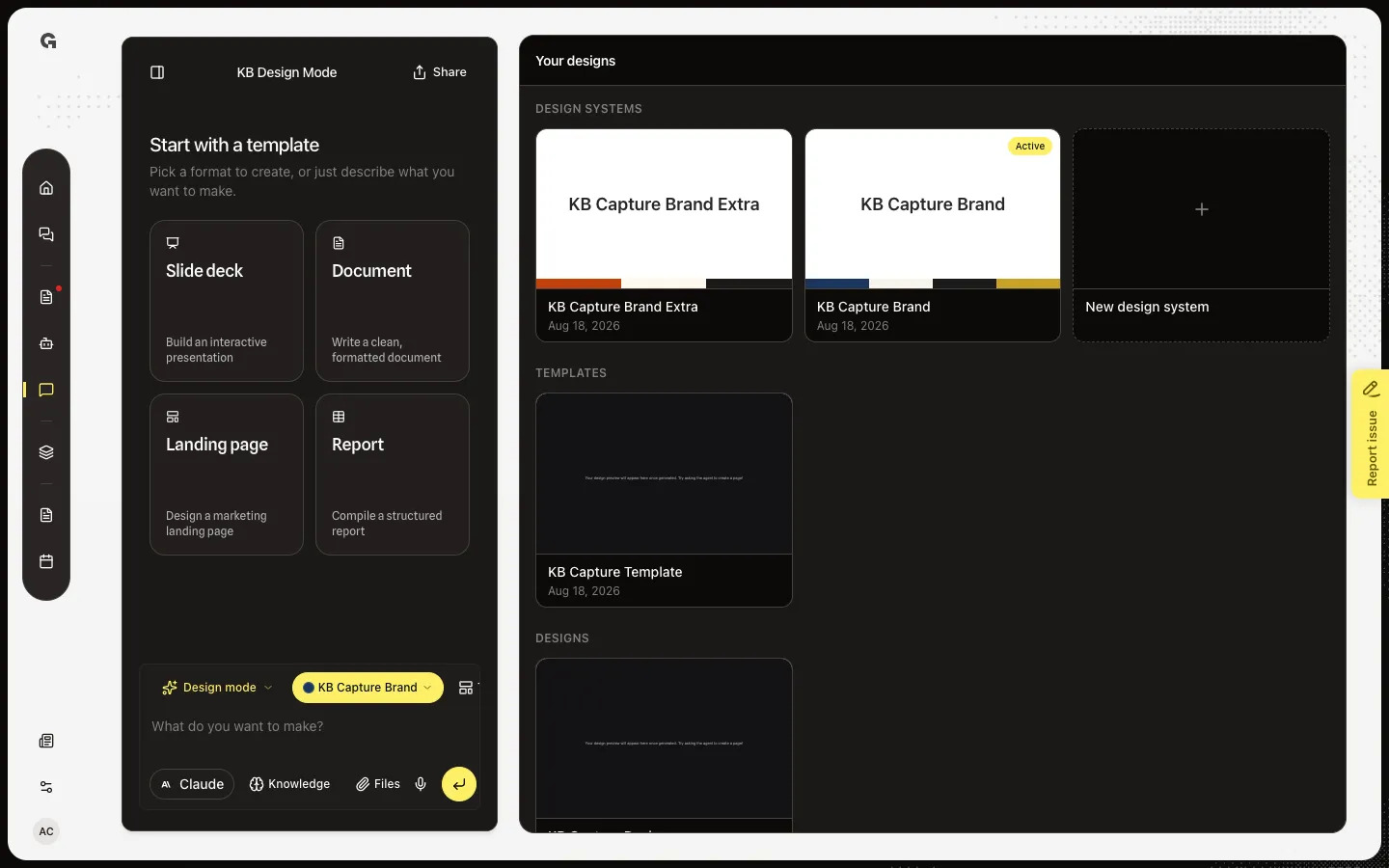
Remove a workspace brand and its stored brand files from the style guide.
Read now →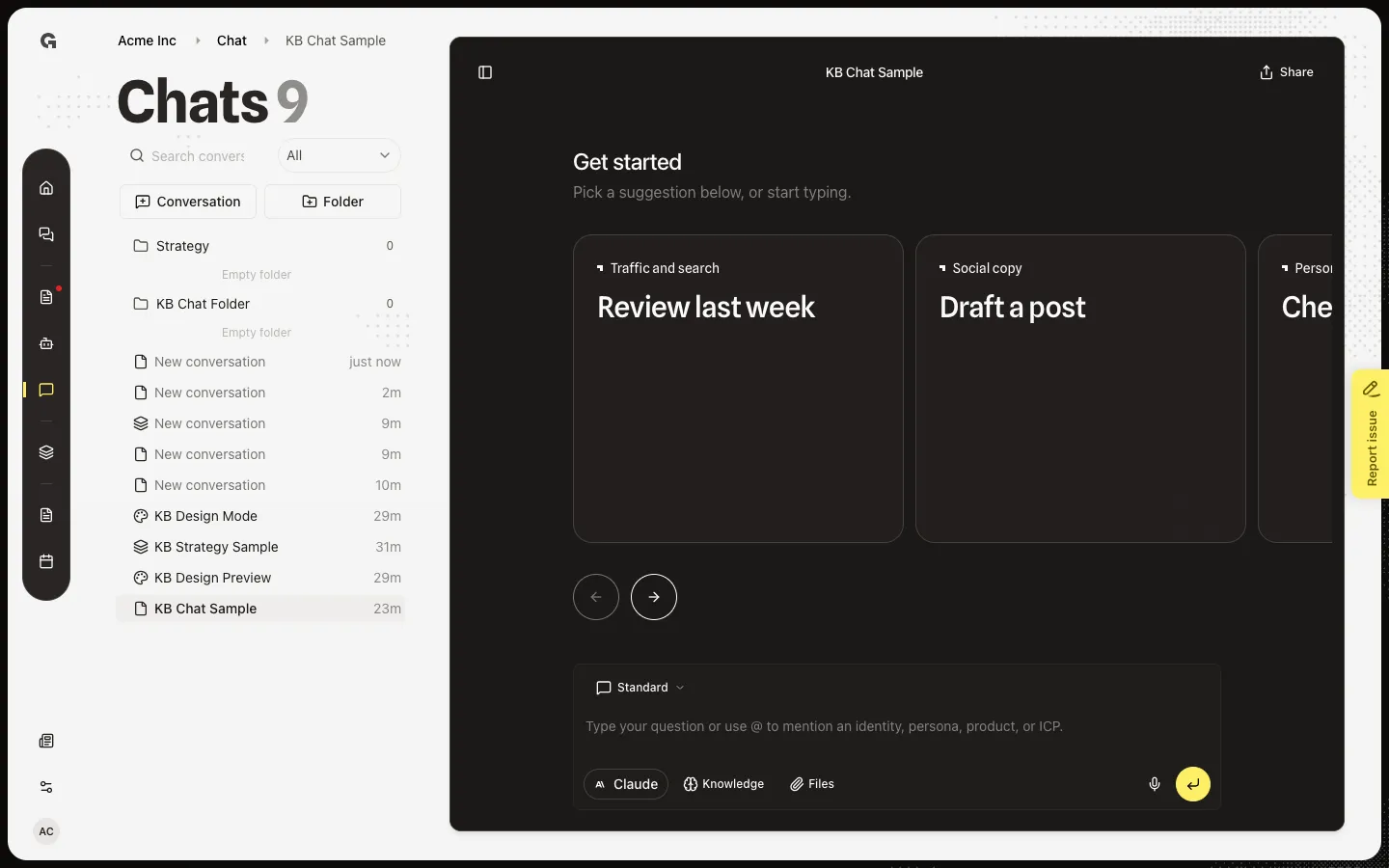
Speak a message into the composer, then confirm the transcript before you send.
Read now →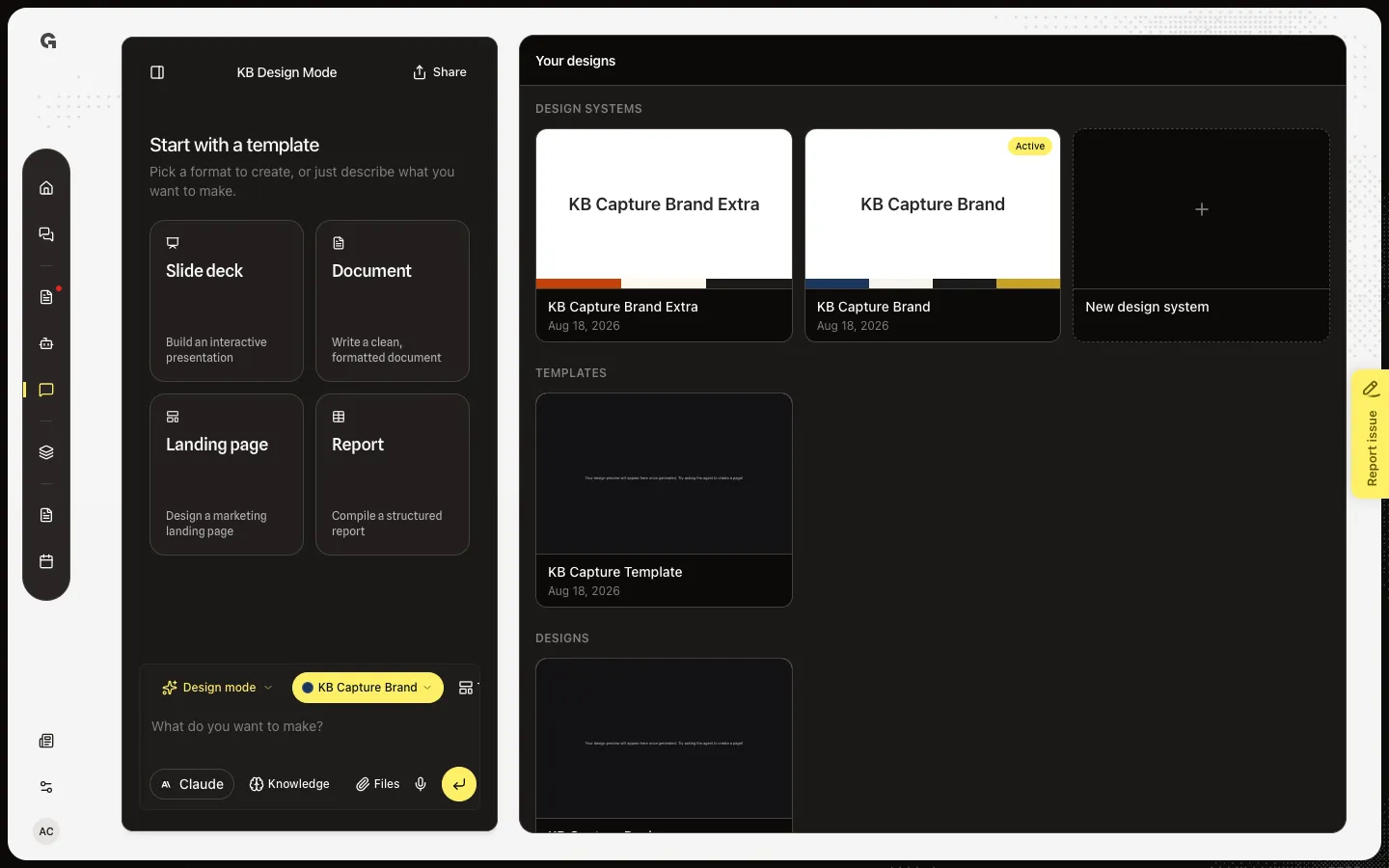
Save the open design as HTML, or as a PDF when it is a slide deck.
Read now →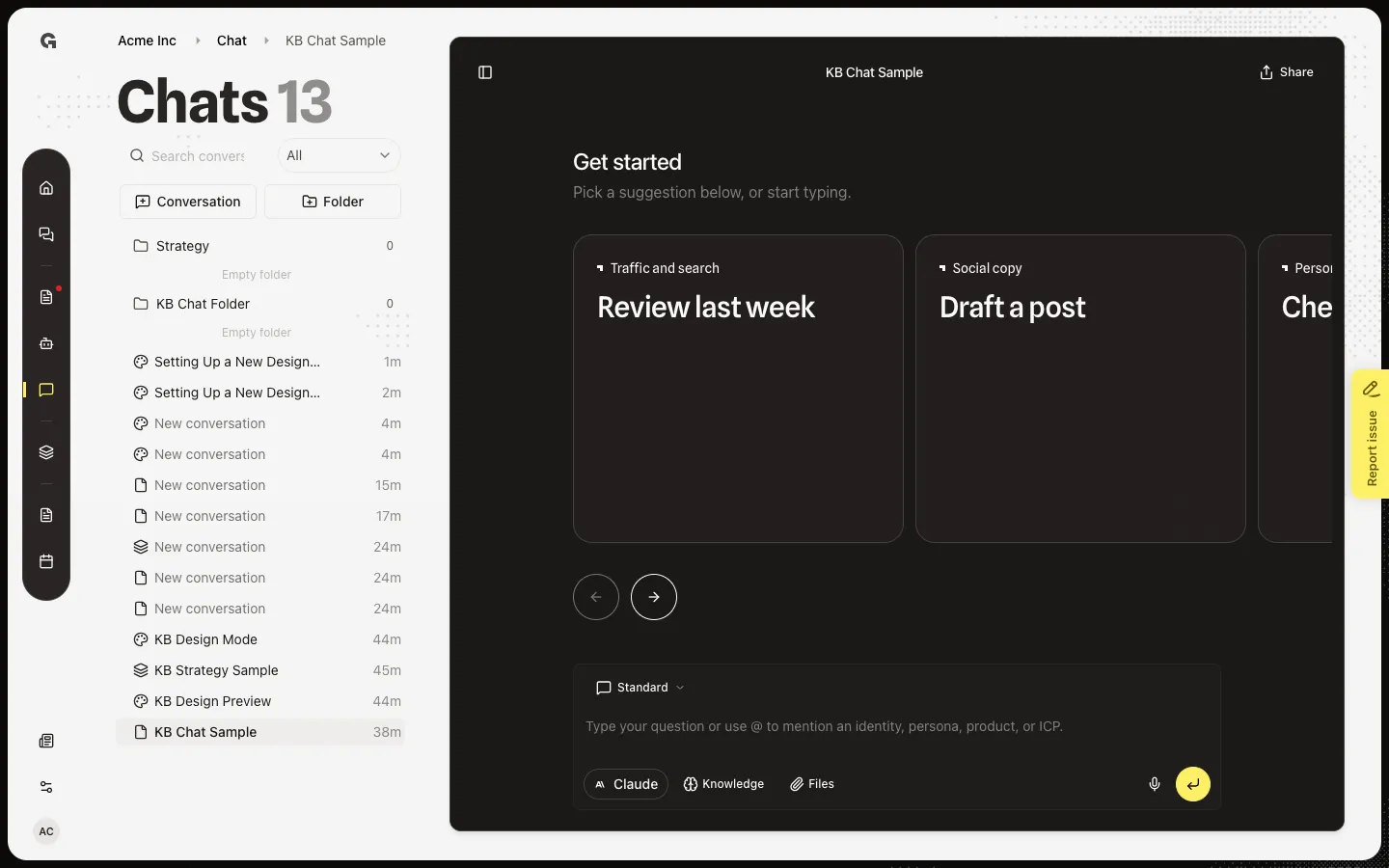
Attach workspace documents to a message from Knowledge, so the reply can use that material.
Read now →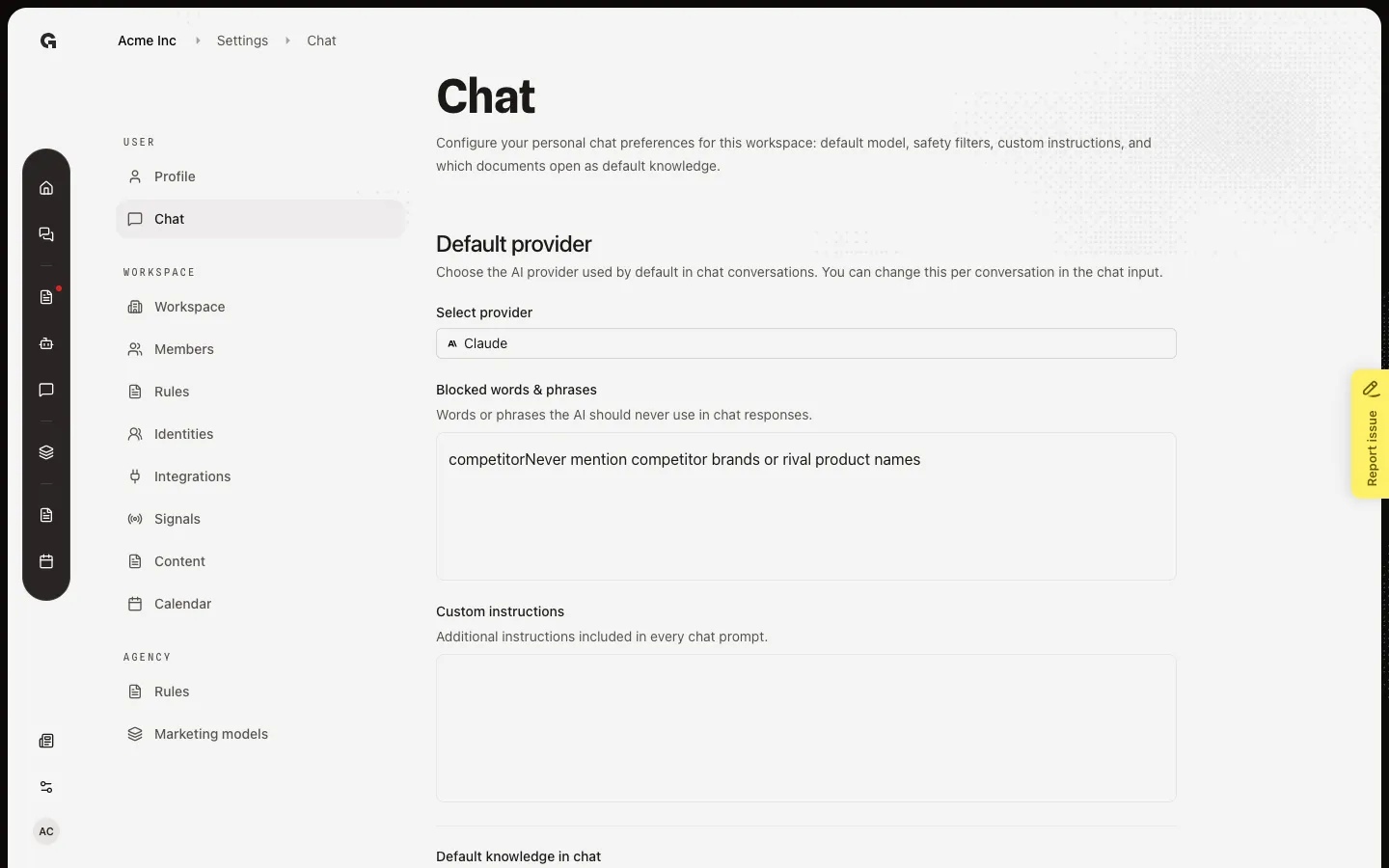
Set your default chat provider, blocked words, custom instructions, and default knowledge for this workspace.
Read now →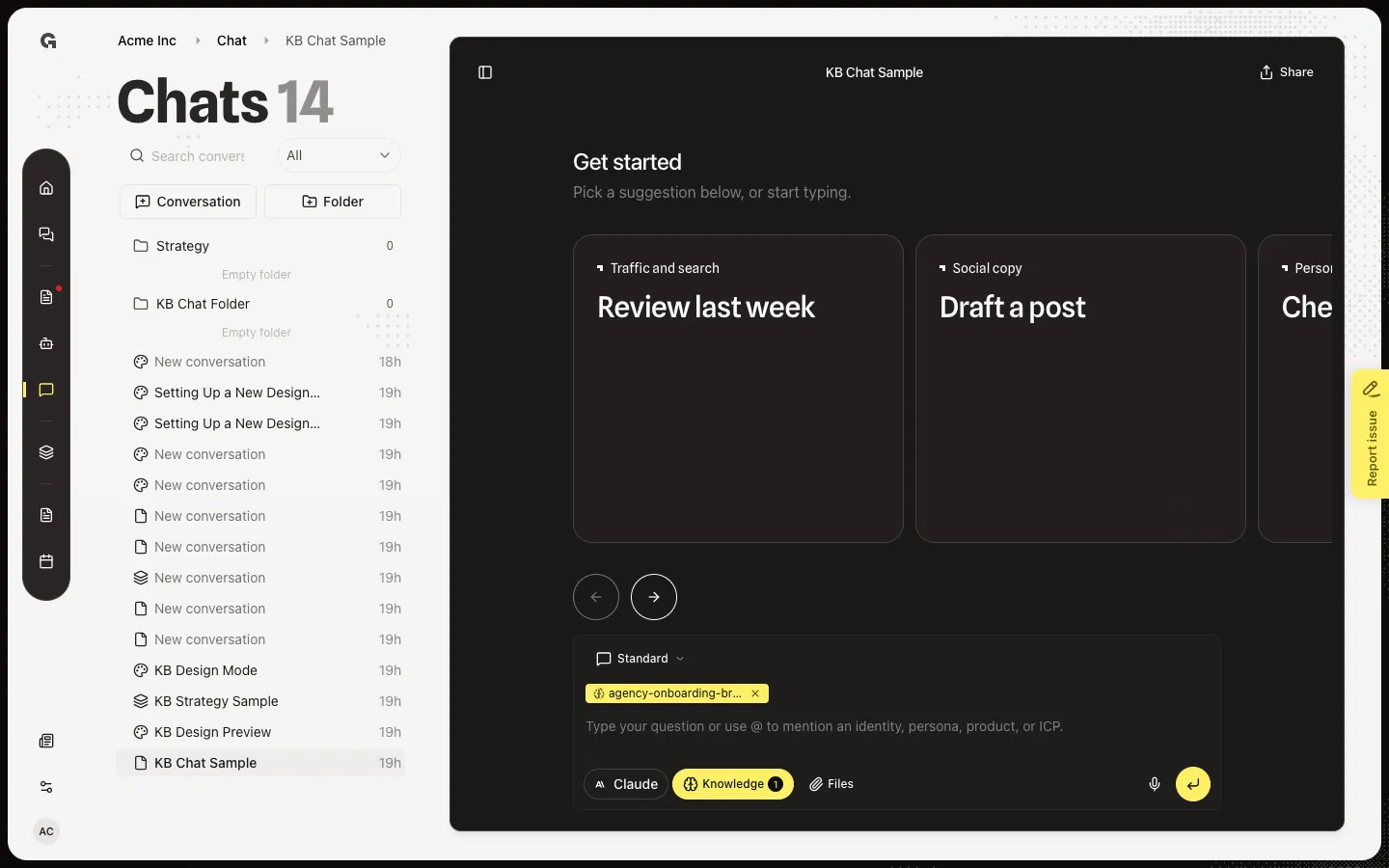
Type @ in the composer to pin a product, ICP, persona, identity, integration, strategy, or custom agent to the message.
Read now →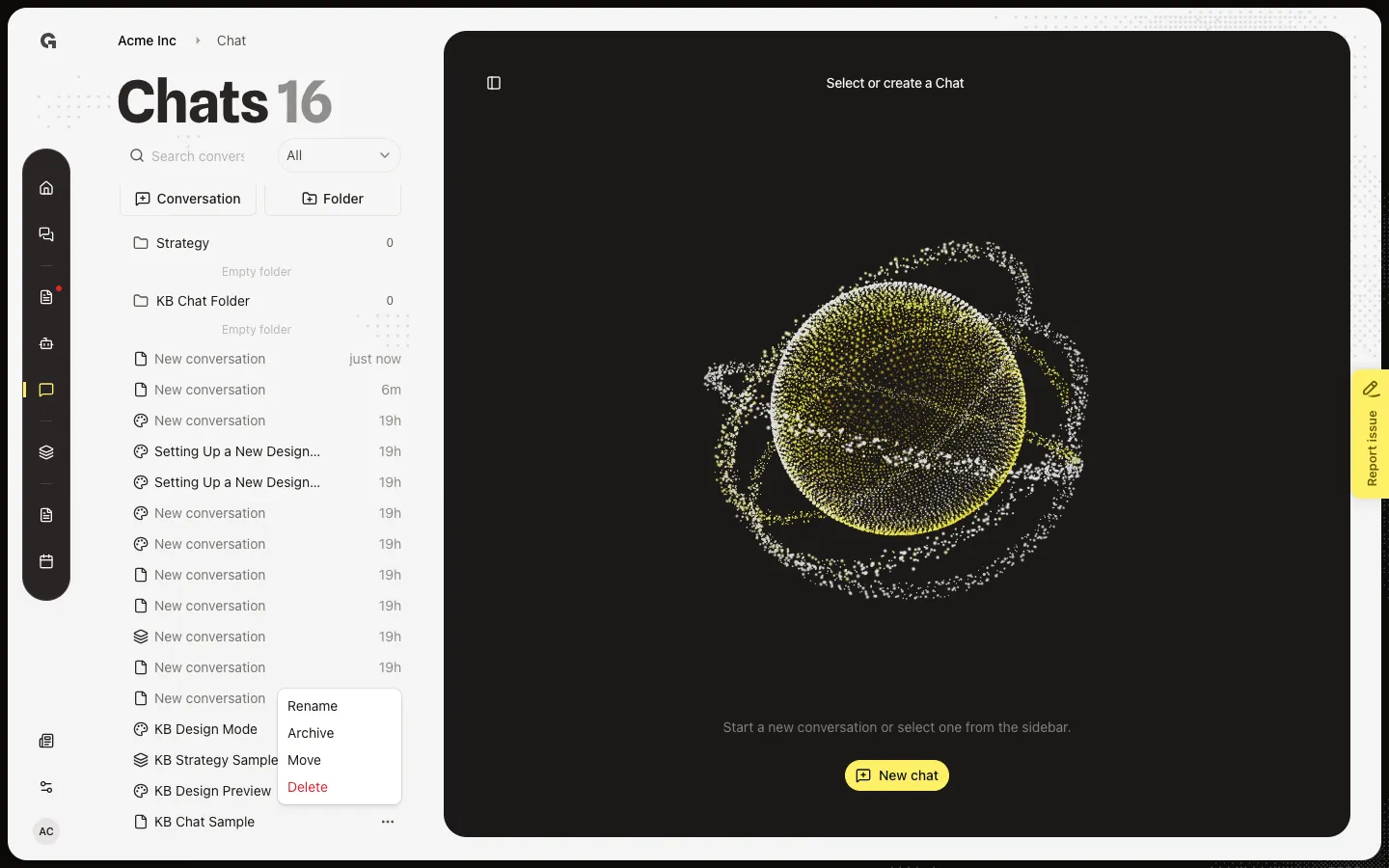
Move a thread to a folder or back to Root from the conversation menu.
Read now →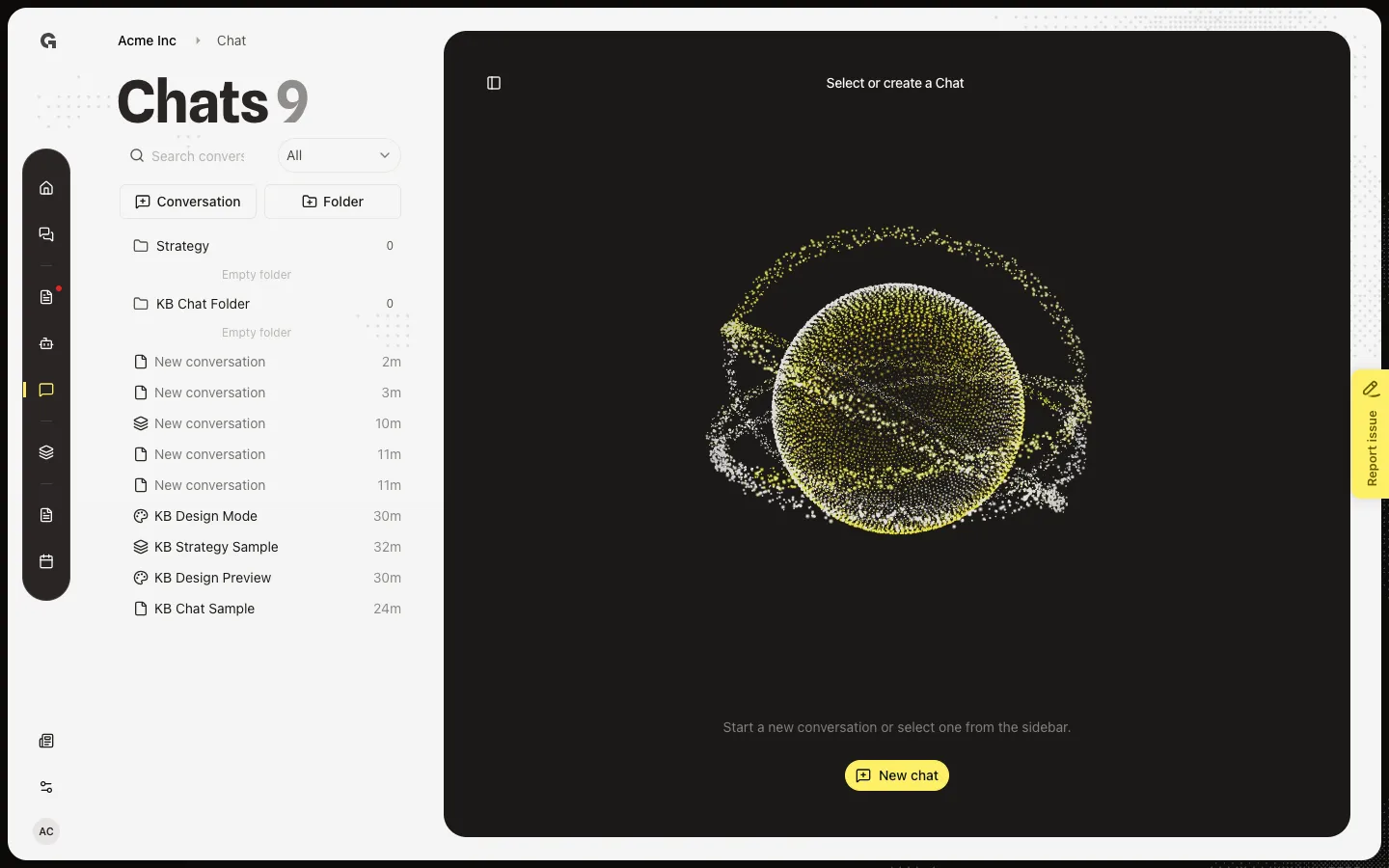
Create folders in the Chats list, then rename or nest them, so threads are easier to find.
Read now →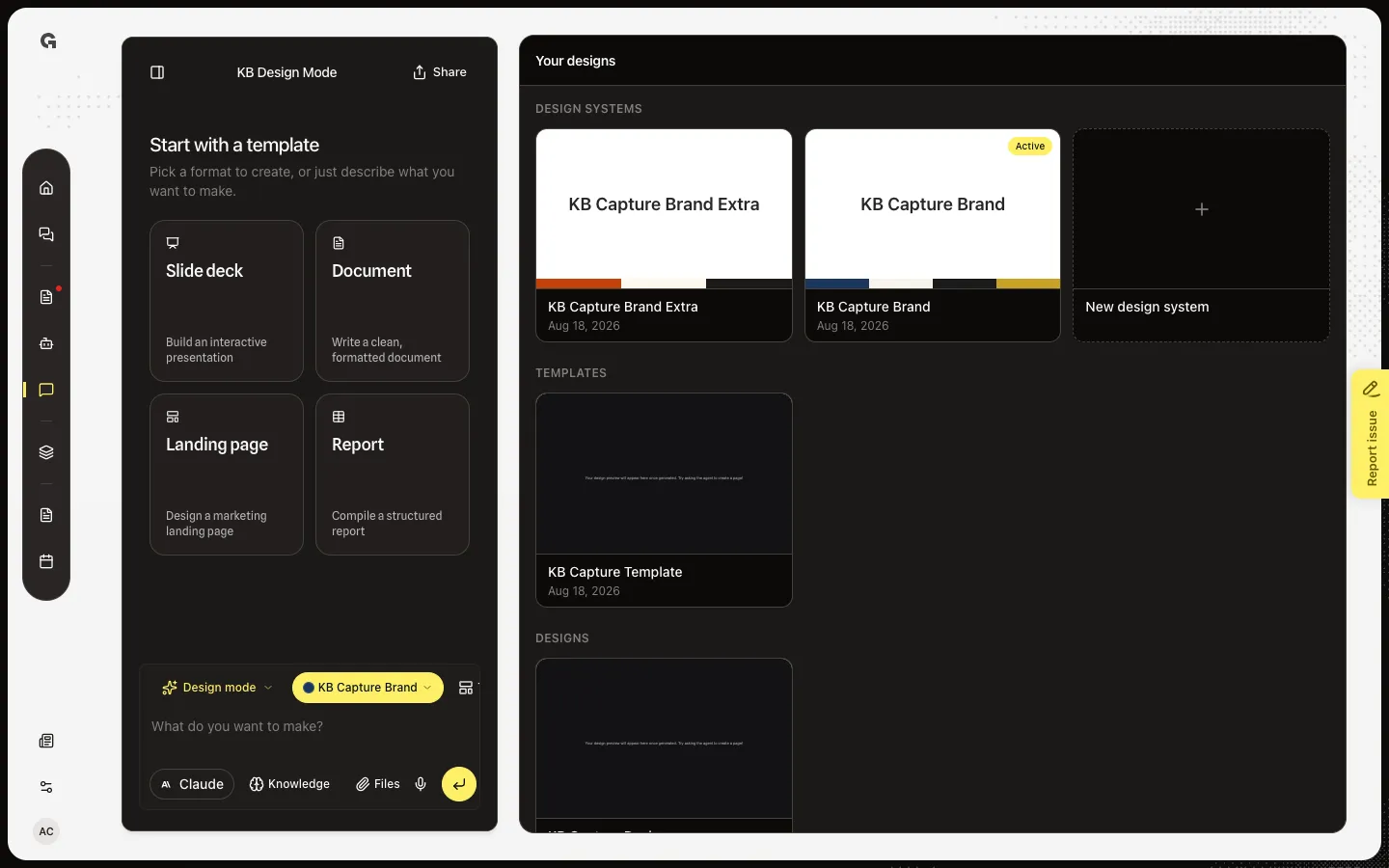
Choose which workspace brand new designs use, or re-pin the design that is open.
Read now →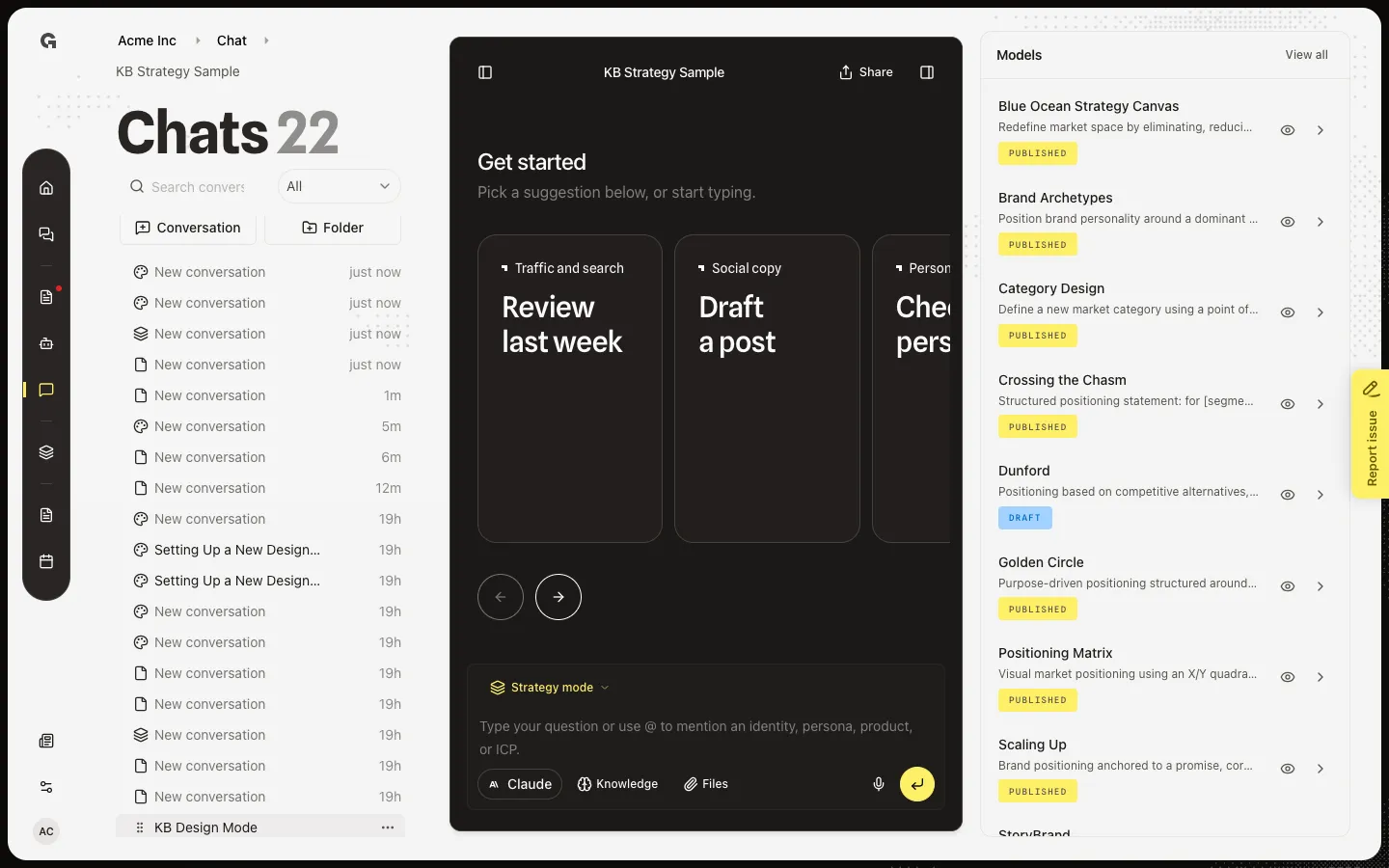
Open a read-only model preview from the Strategy mode sidebar, pick a version, then jump to the full editor if you need to change it.
Read now →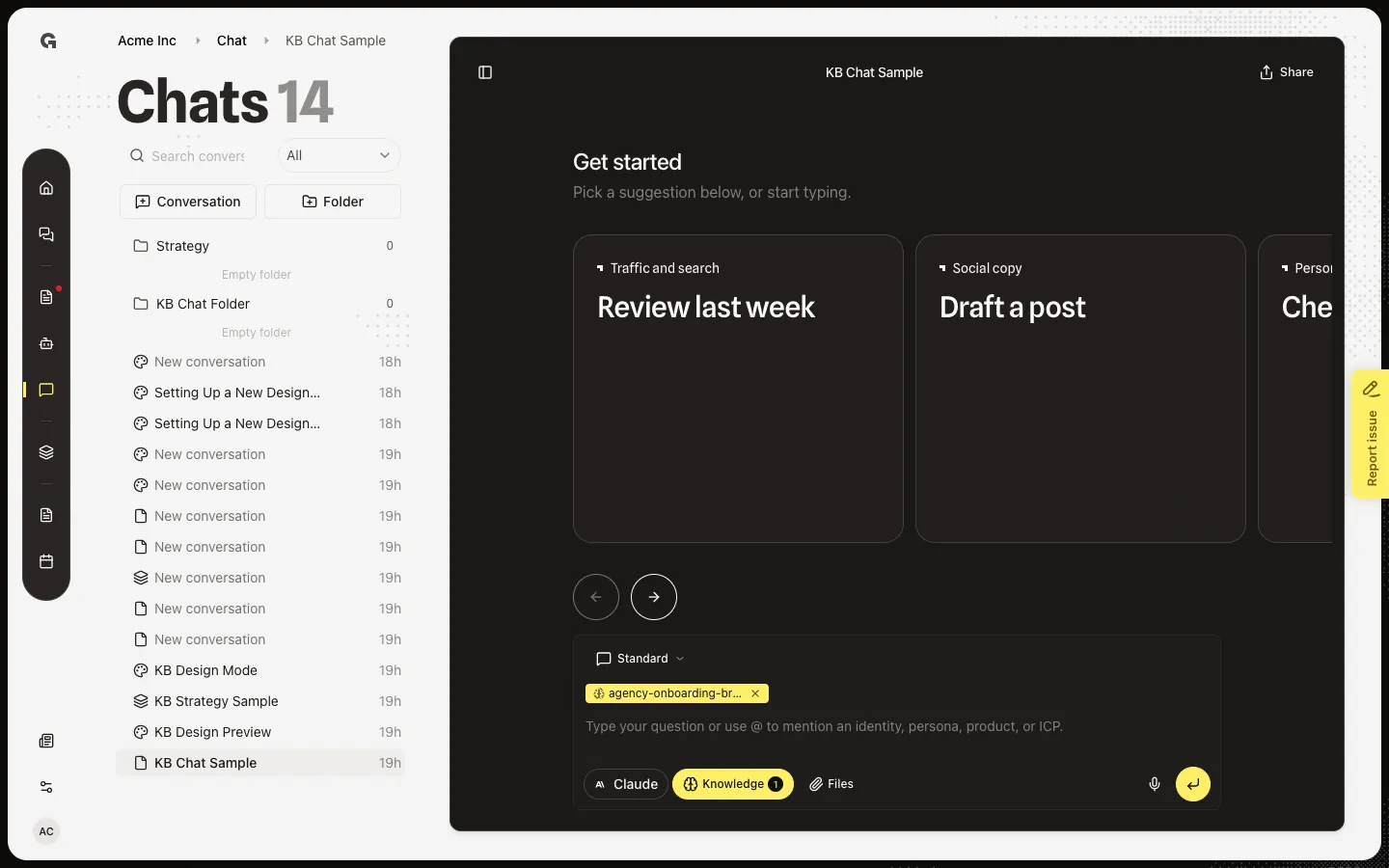
Change a conversation name from the header or the Chats list.
Read now →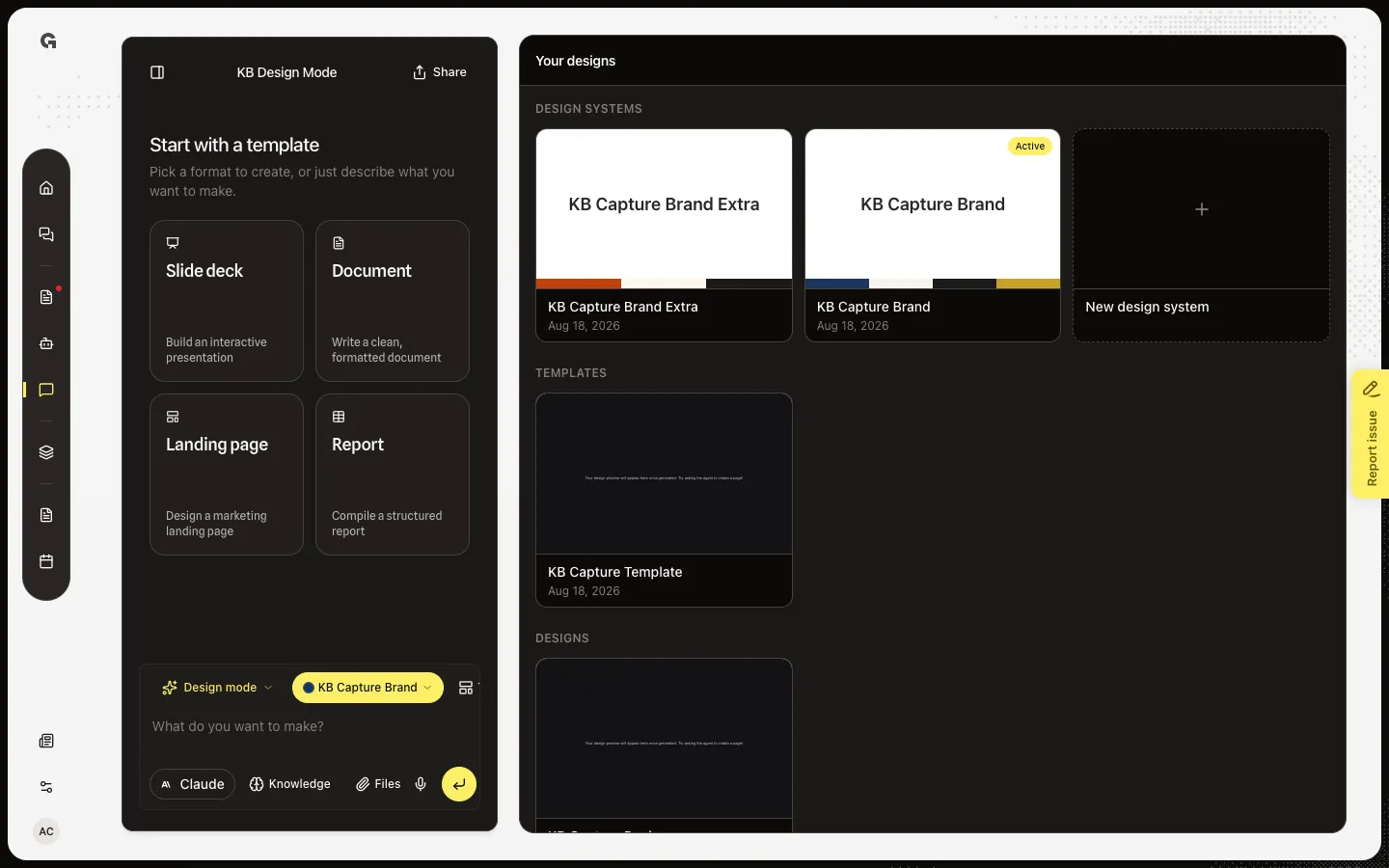
Change the title on the live preview so the gallery and downloads use the new name.
Read now →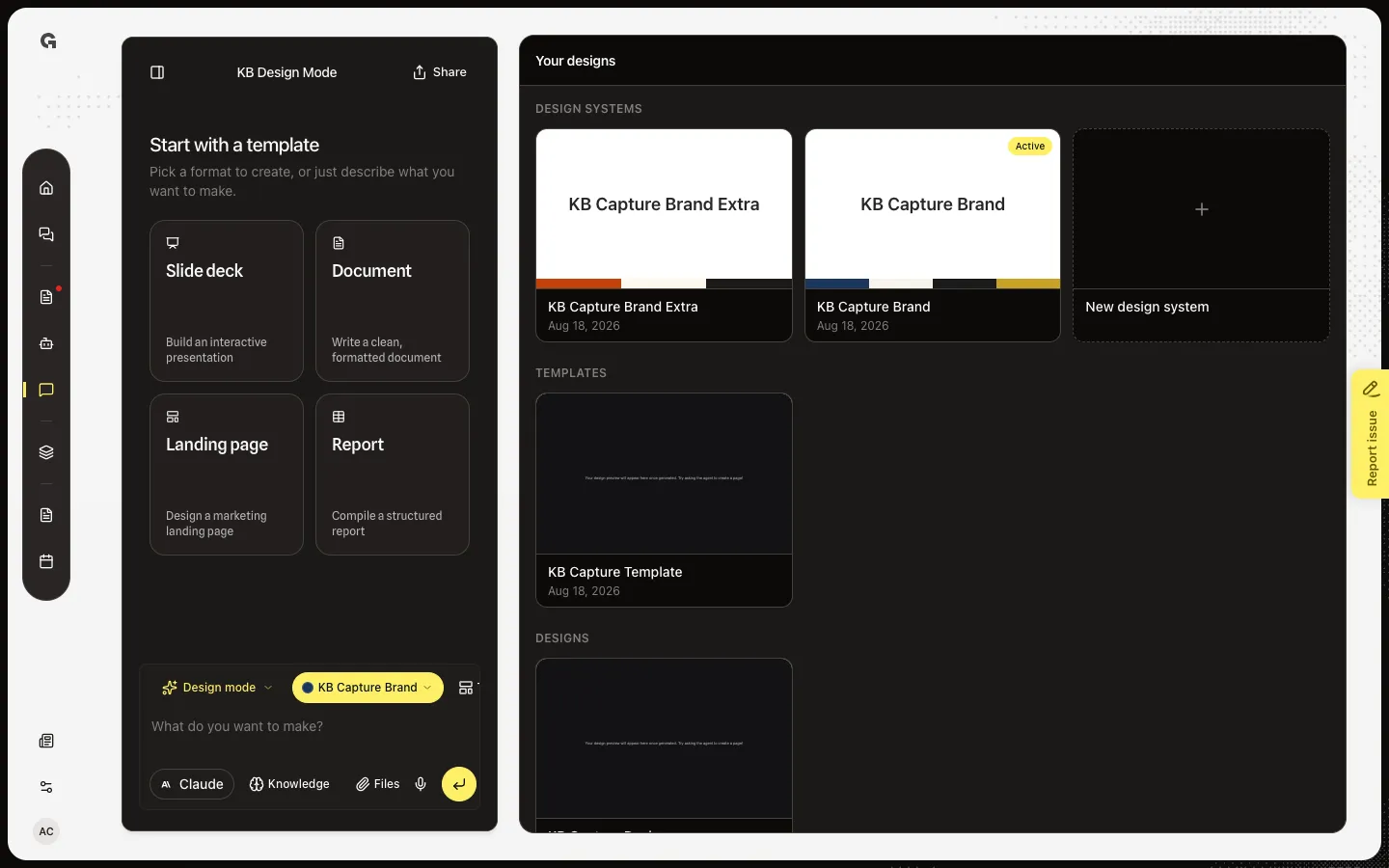
Snapshot the open design so you can reuse its HTML in later Design Mode chats.
Read now →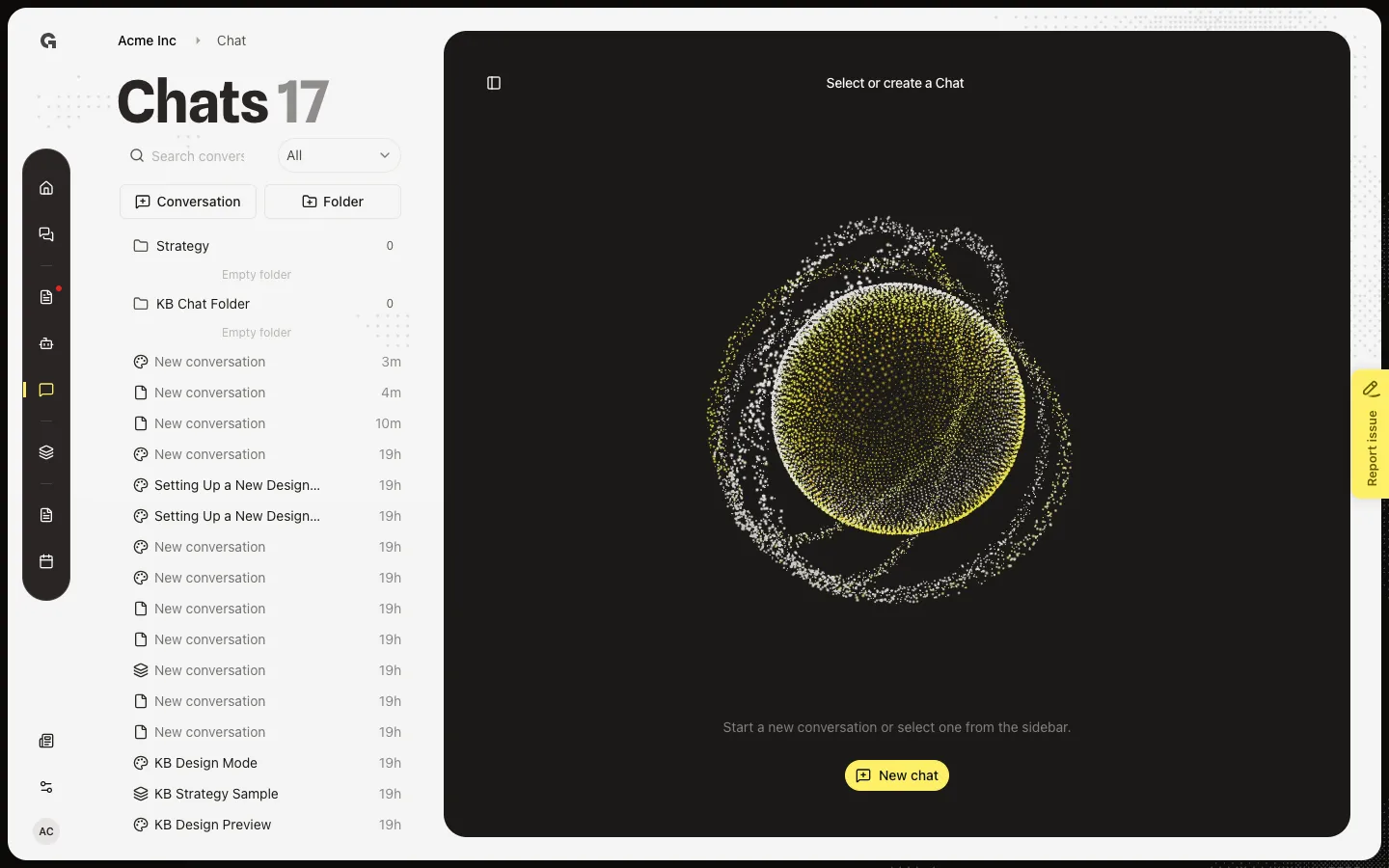
Filter the Chats list by name, then narrow it with All, Mine, or Archived.
Read now →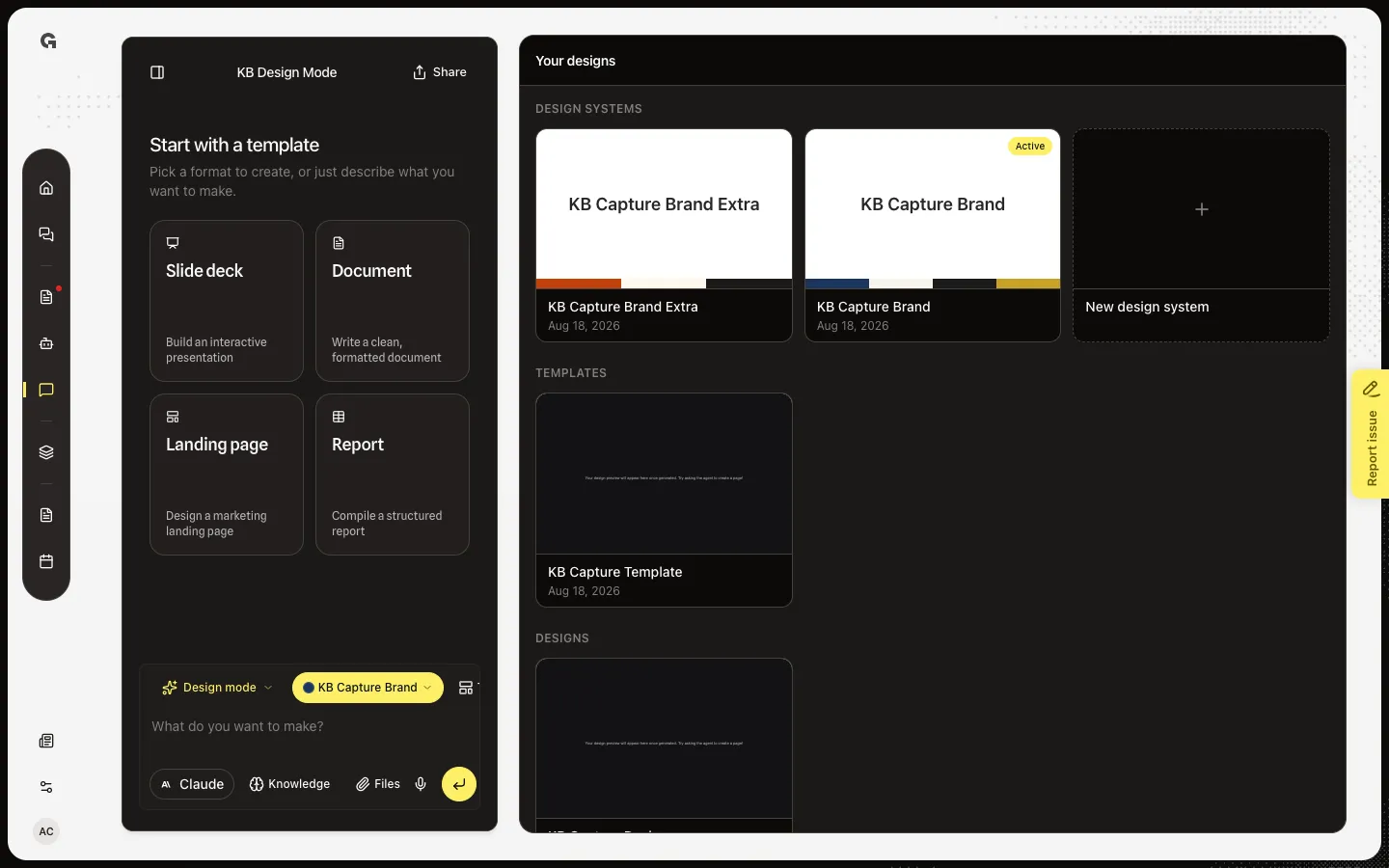
Point at a part of the live preview so your next message talks about that element.
Read now →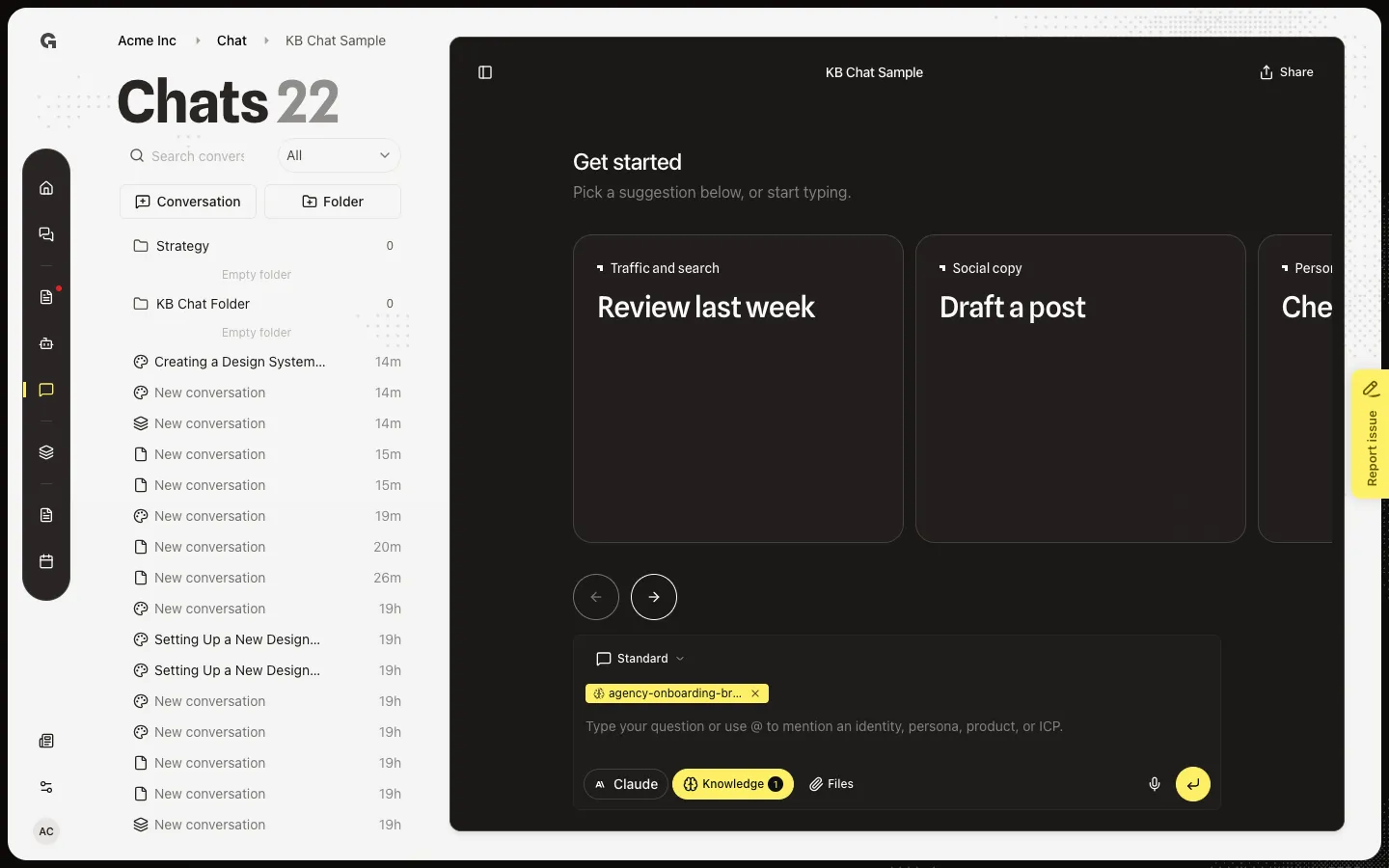
Copy a conversation link or send it to people in the same workspace.
Read now →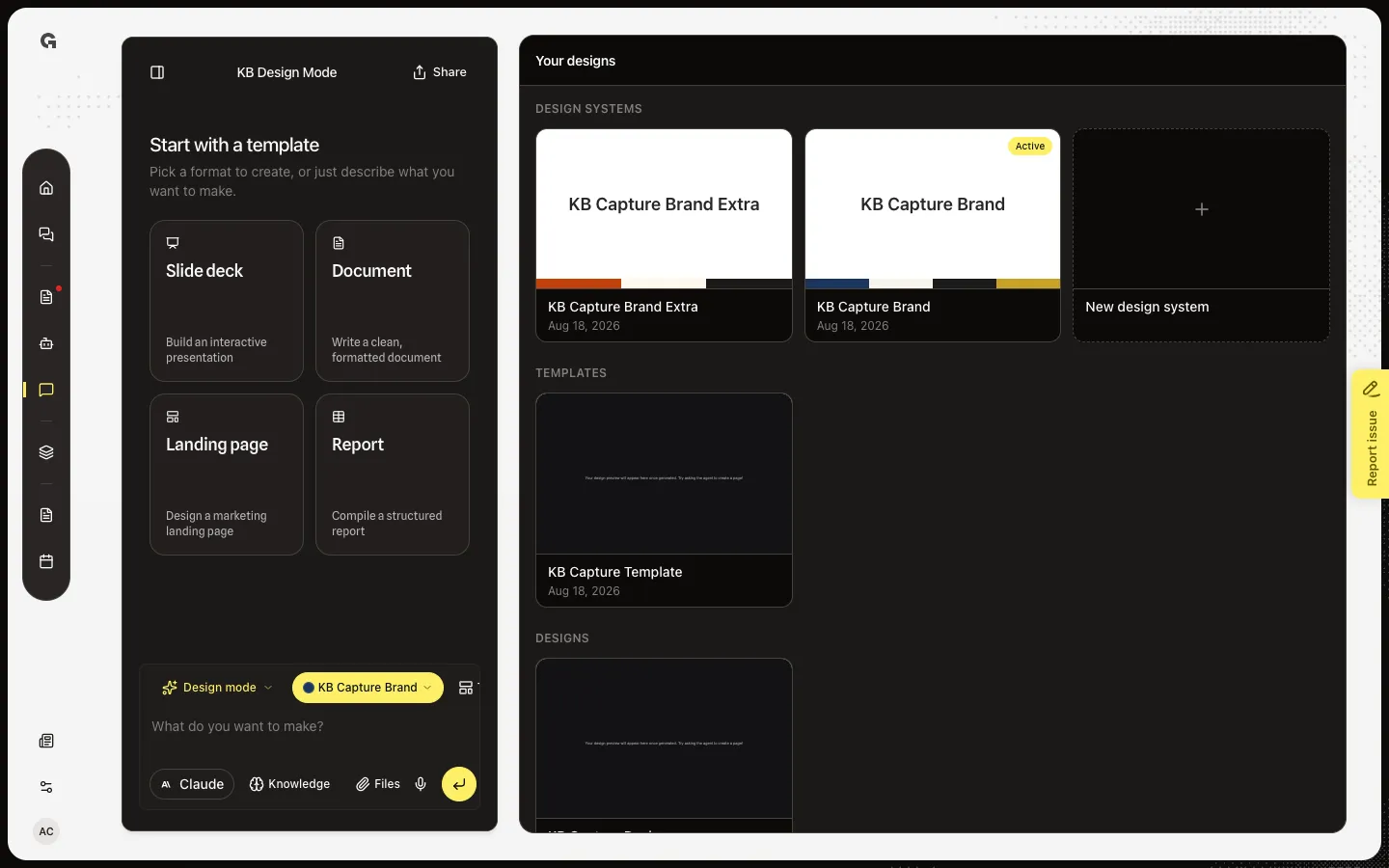
Pick Slide deck, Document, Landing page, or Report before you write the brief.
Read now →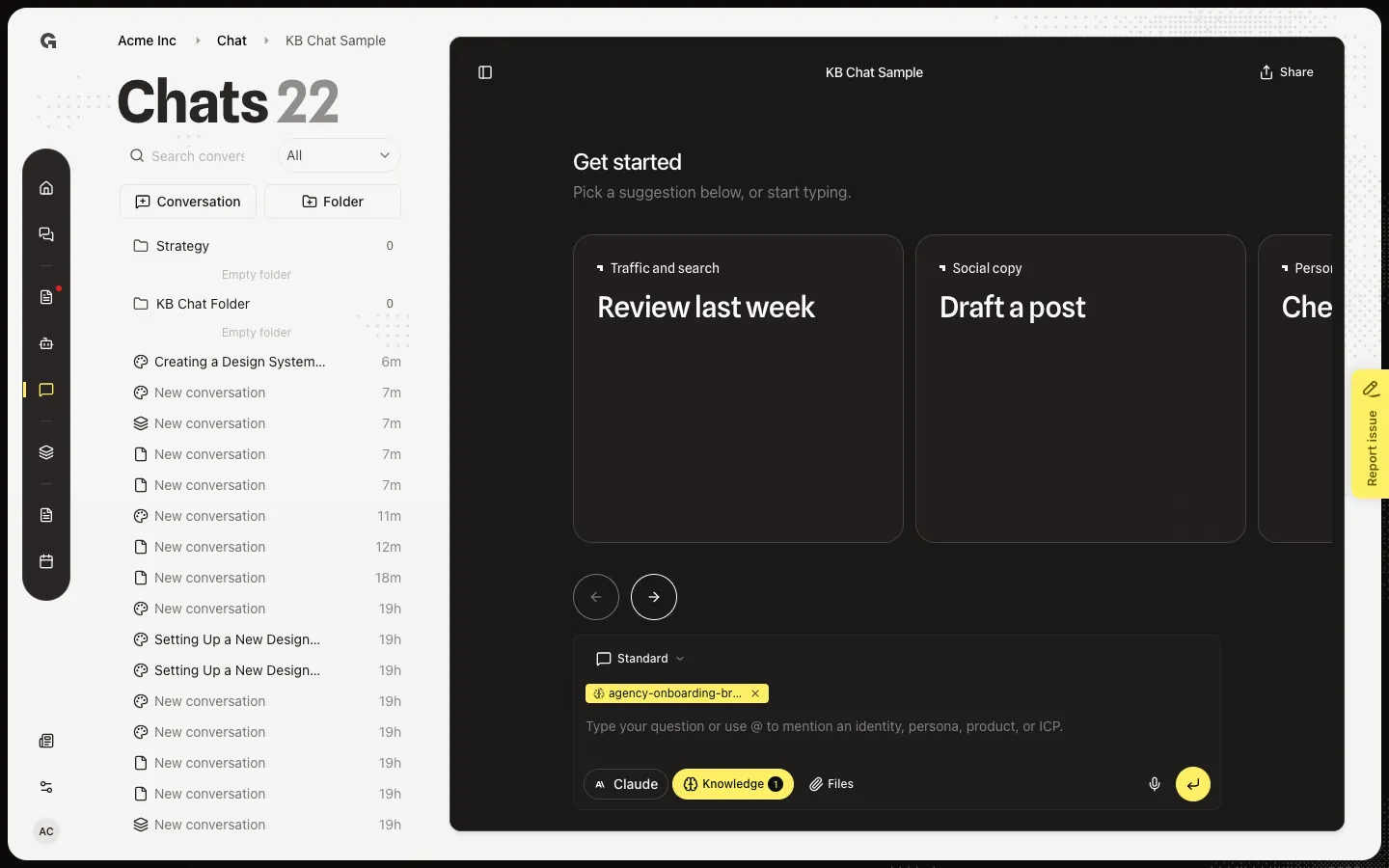
Pick a starter card on an empty Standard chat, or browse the carousel, instead of writing the first prompt yourself.
Read now →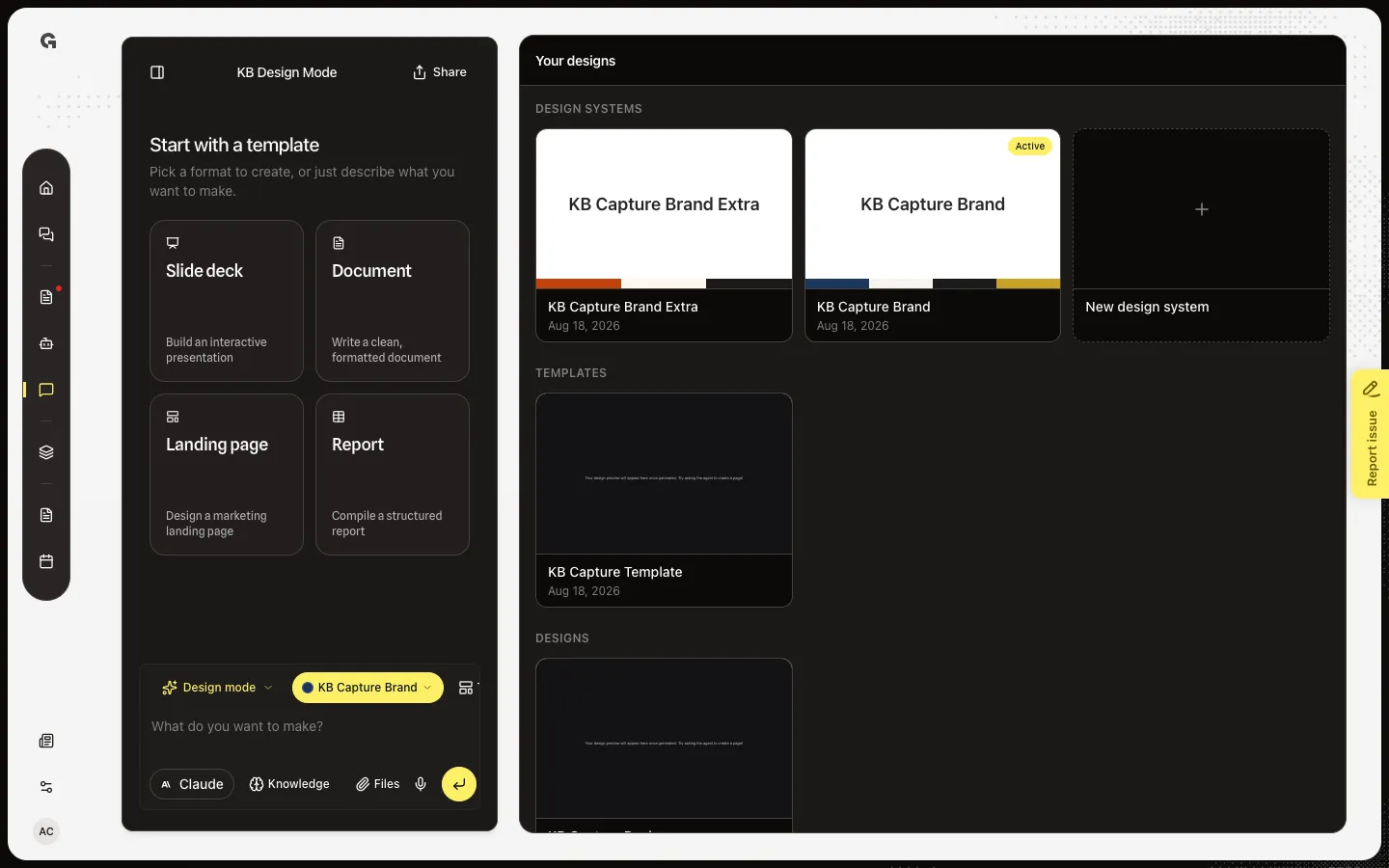
Open a workspace template to edit the snapshot, or start a new design from it.
Read now →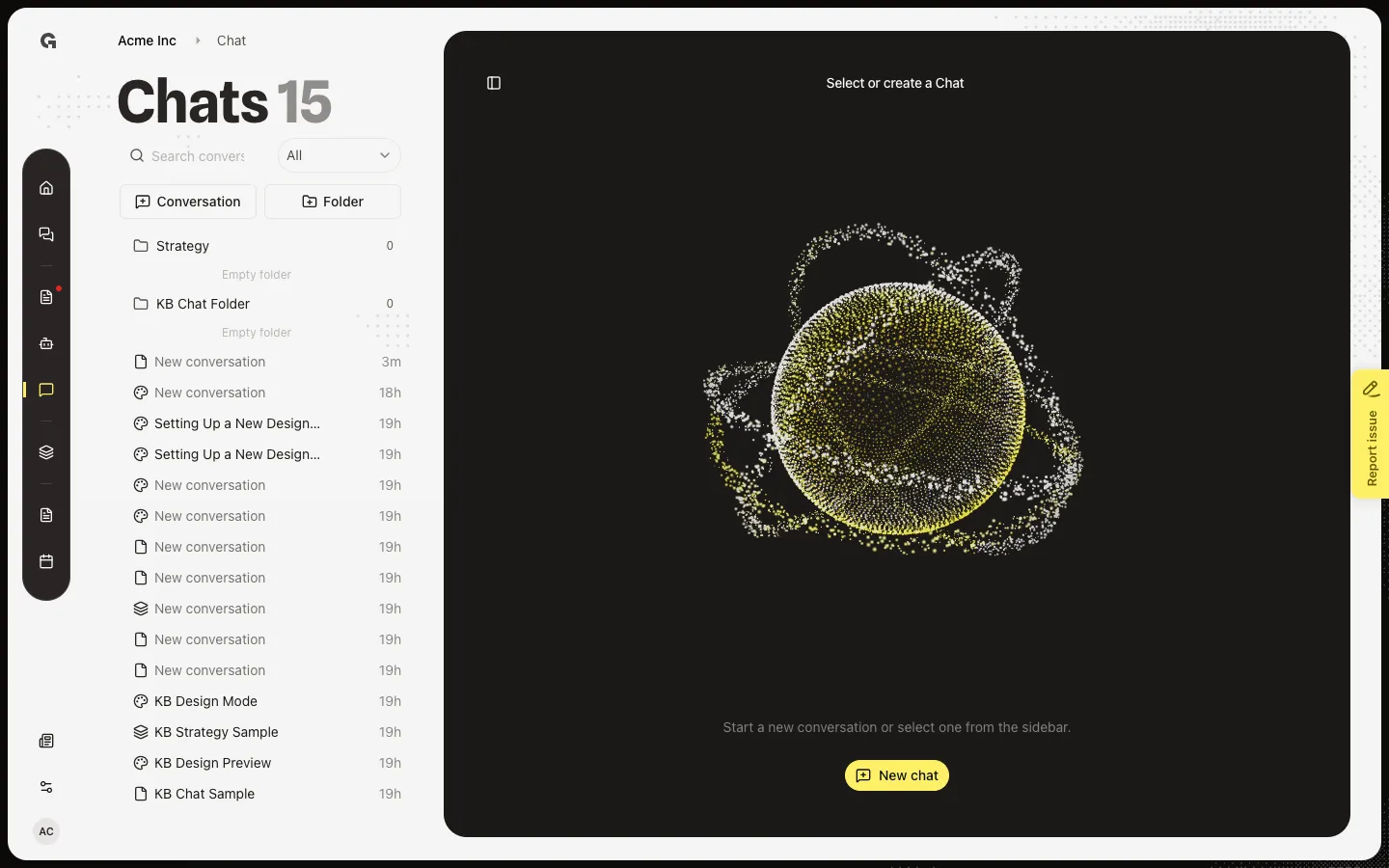
Switch a chat to Design mode, brief a visual, and work from the Your designs gallery.
Read now →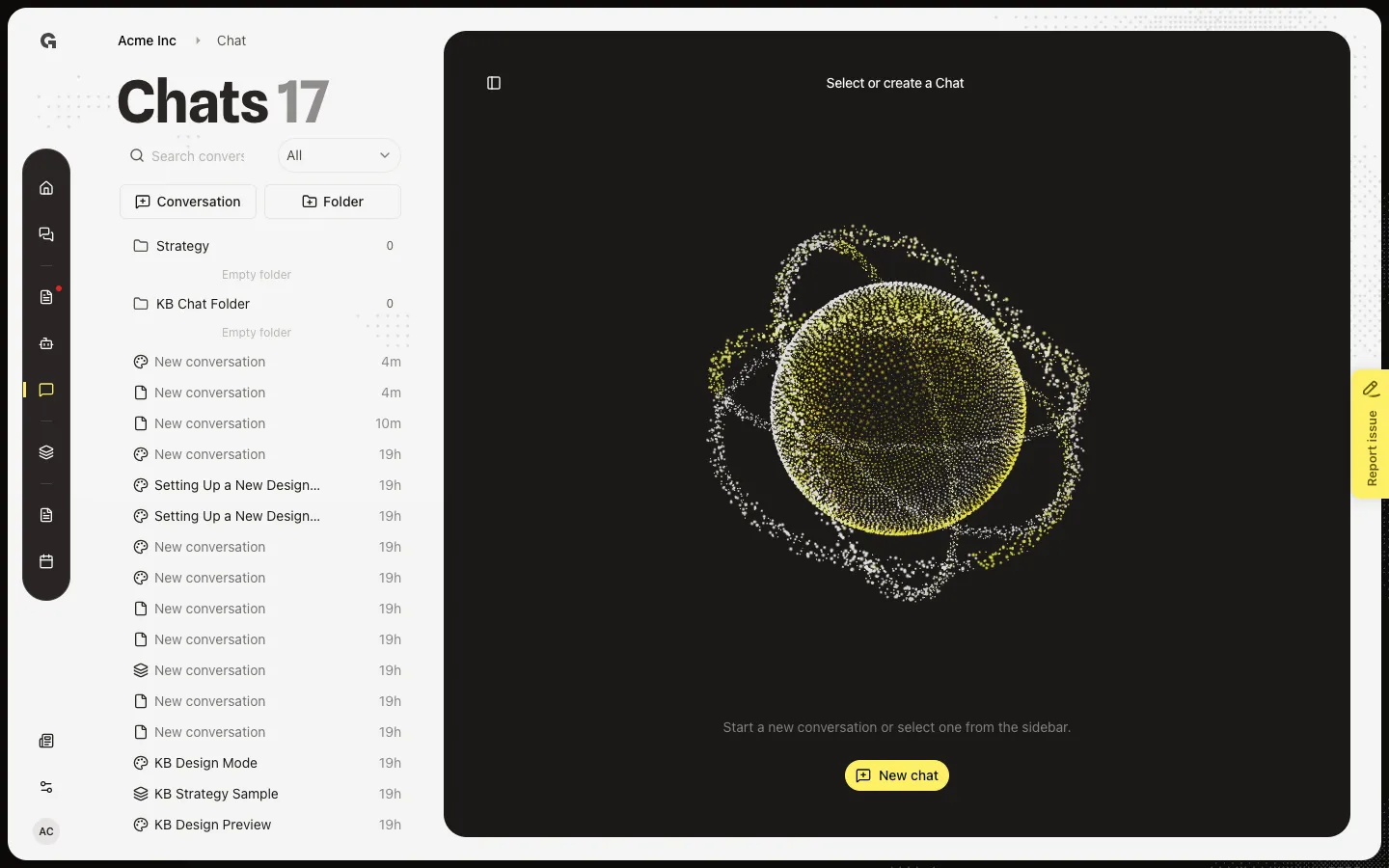
Switch a conversation to Strategy mode so the Models sidebar and strategy tools turn on.
Read now →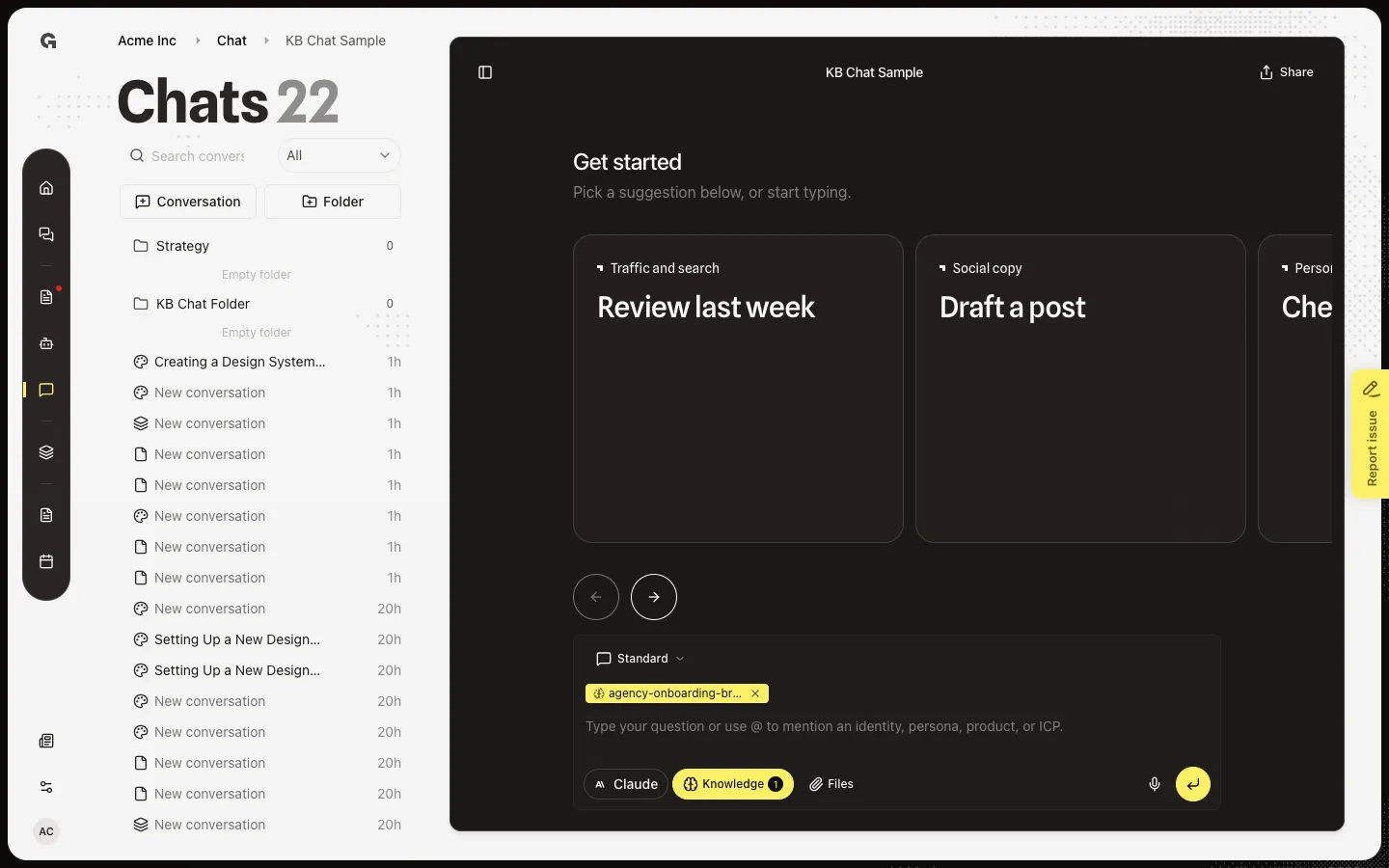
Mention a custom agent, send the task, then read the run on the agent canvas beside the thread.
Read now →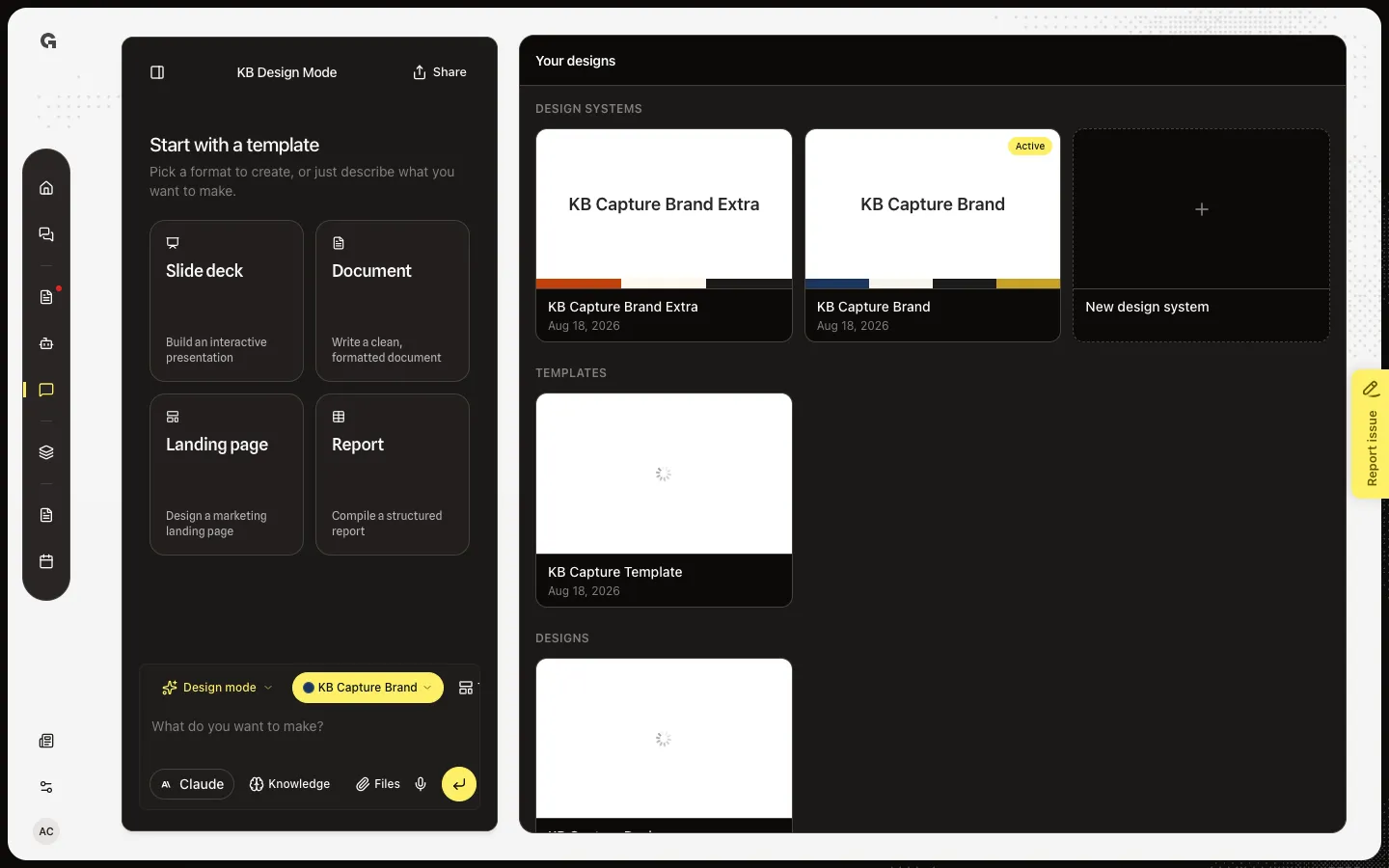
Open a brand card to read colours, type, spacing, and voice, and copy a colour hex.
Read now →15
Choose who publishes a social post and which connected accounts it can use.
Read now →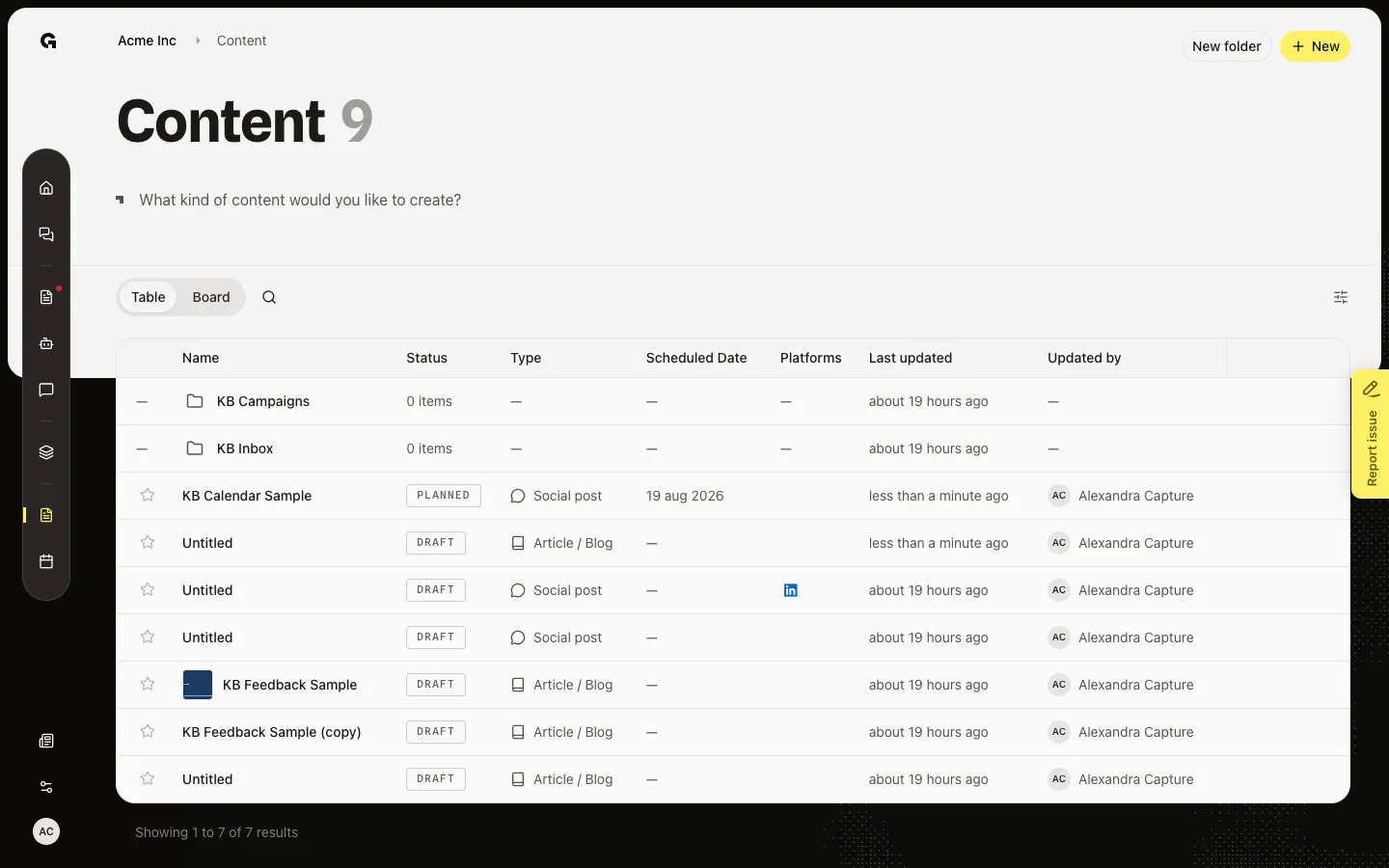
Switch Content to Board to see drafts by stage, from Draft through Posted.
Read now →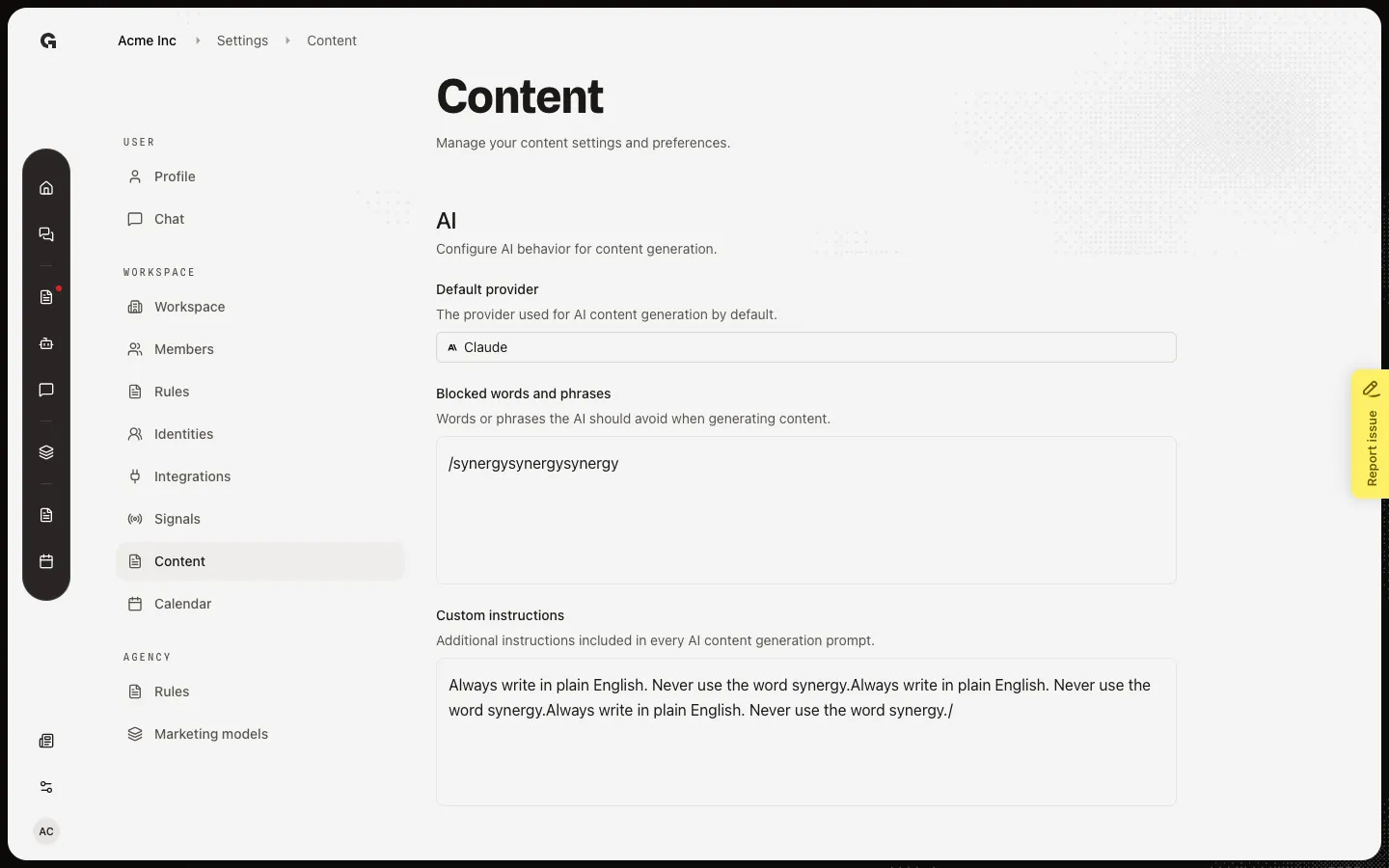
Set the default AI provider, words to avoid, and extra instructions for every content generation in this workspace.
Read now →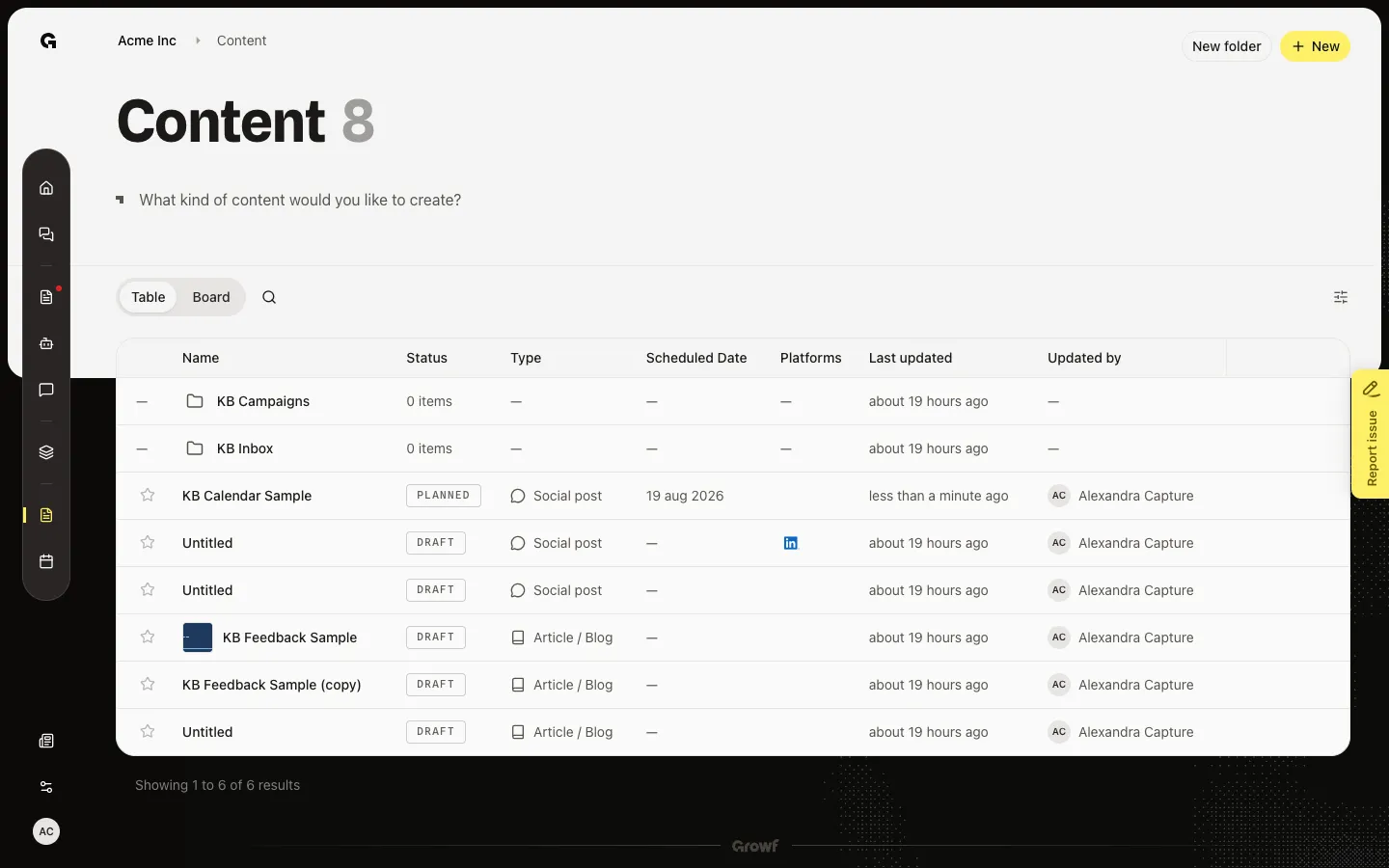
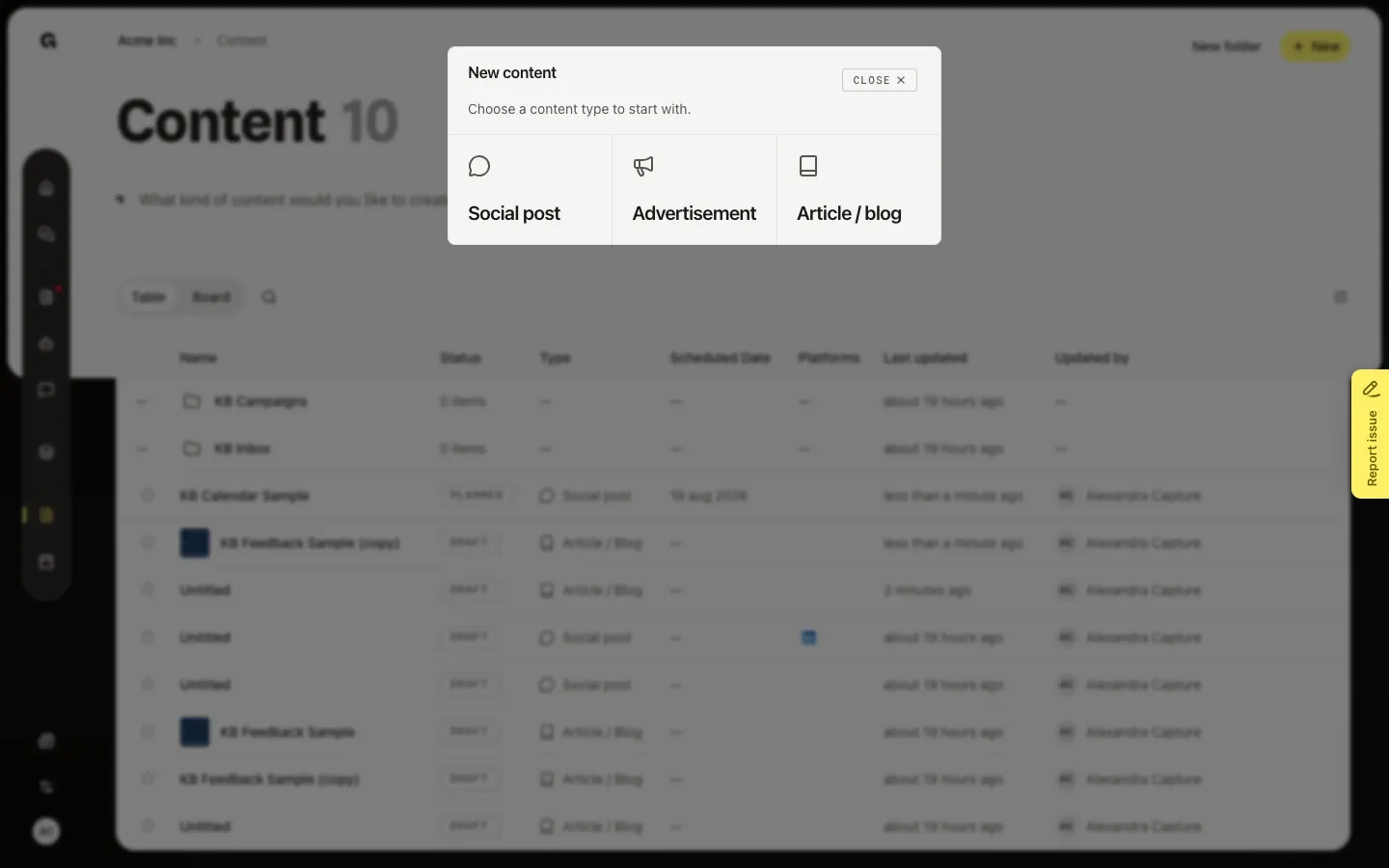
Start a social post, article, ad, email, or website piece from Content, then write it in the editor.
Read now →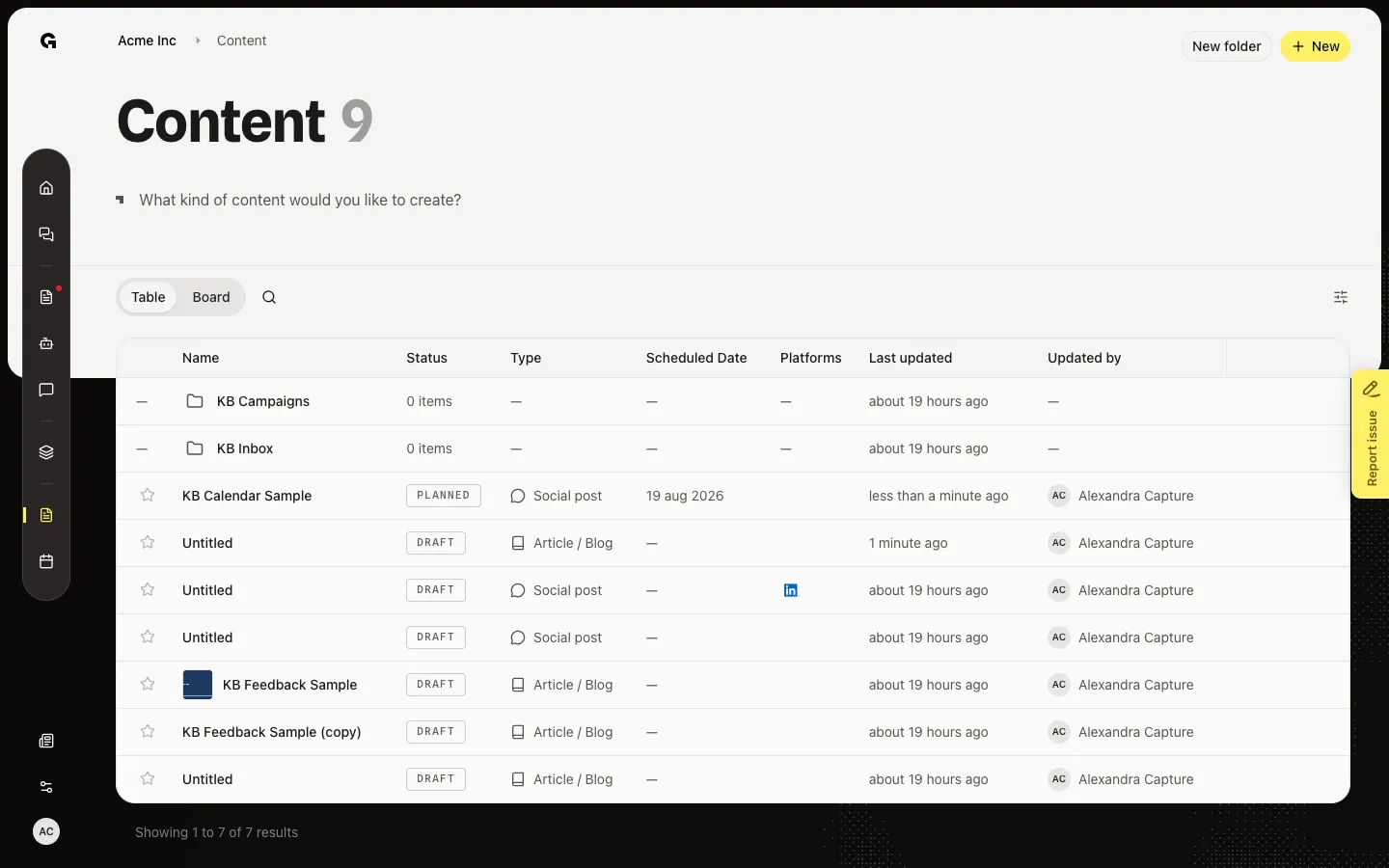
Remove a draft from Content. Posted or scheduled pieces cannot be deleted until they are drafts again.
Read now →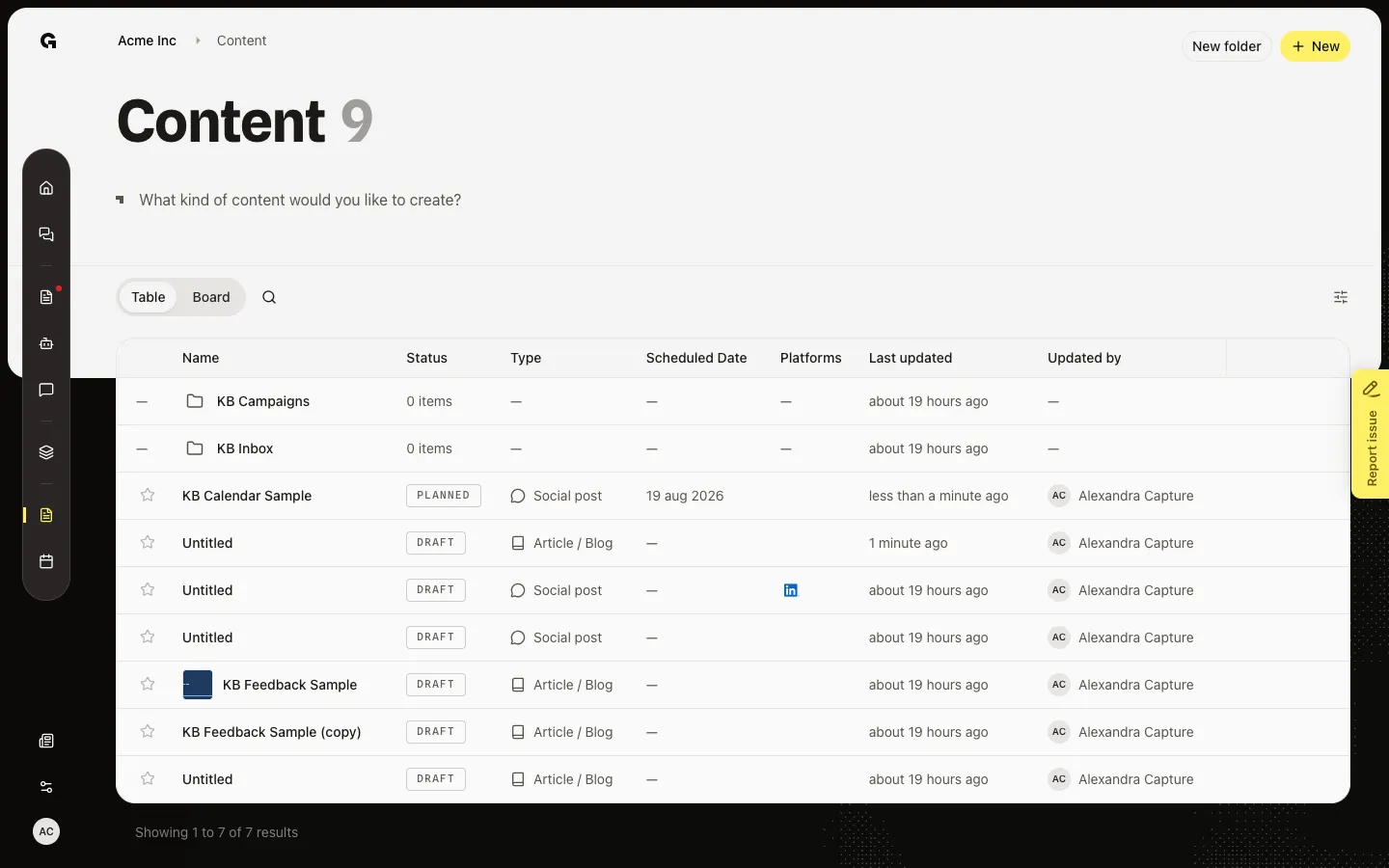
Copy a piece to a new draft so you can reuse the text without changing the original.
Read now →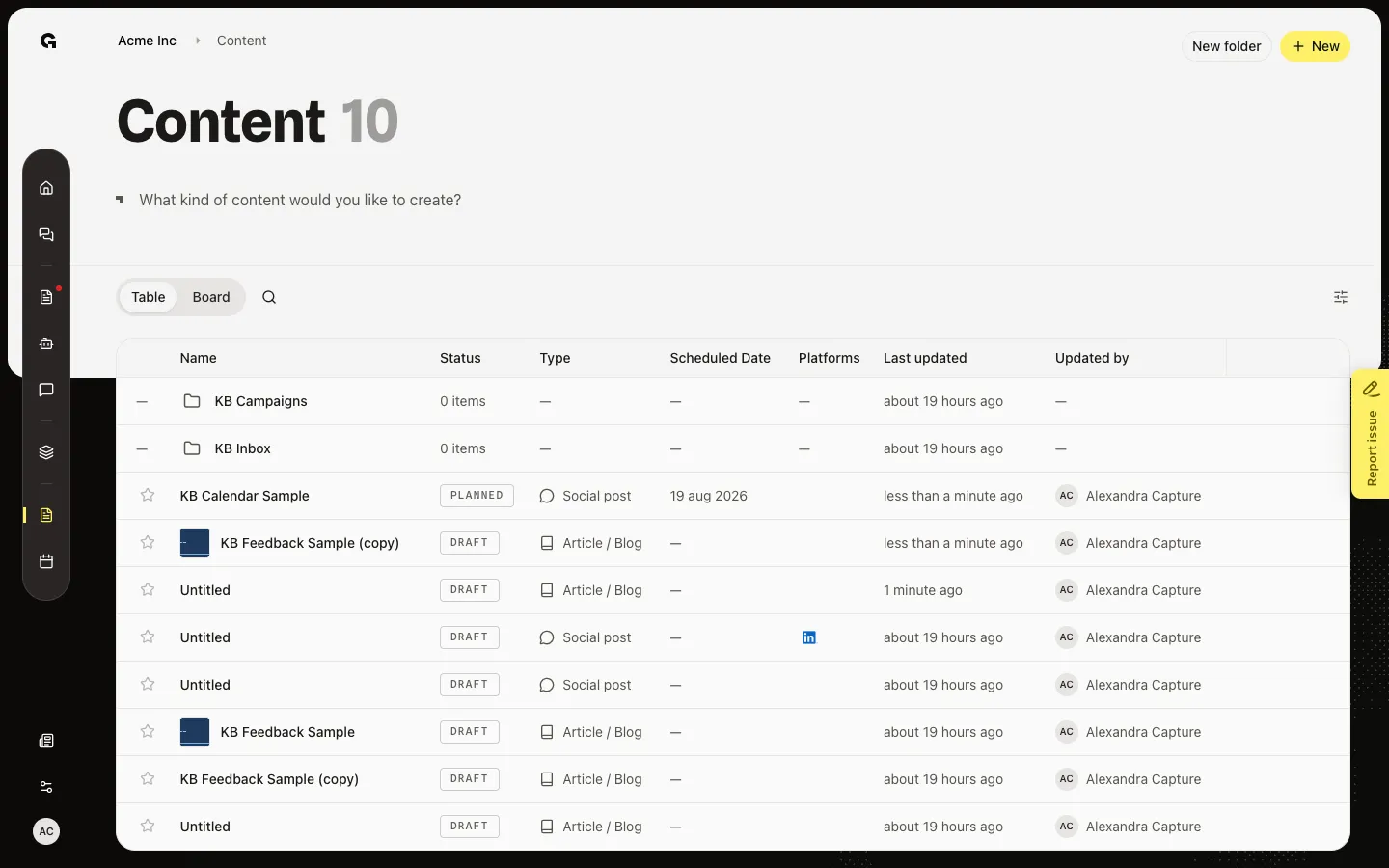
Open a draft, rename it, and write the body. Changes save as you leave a field.
Read now →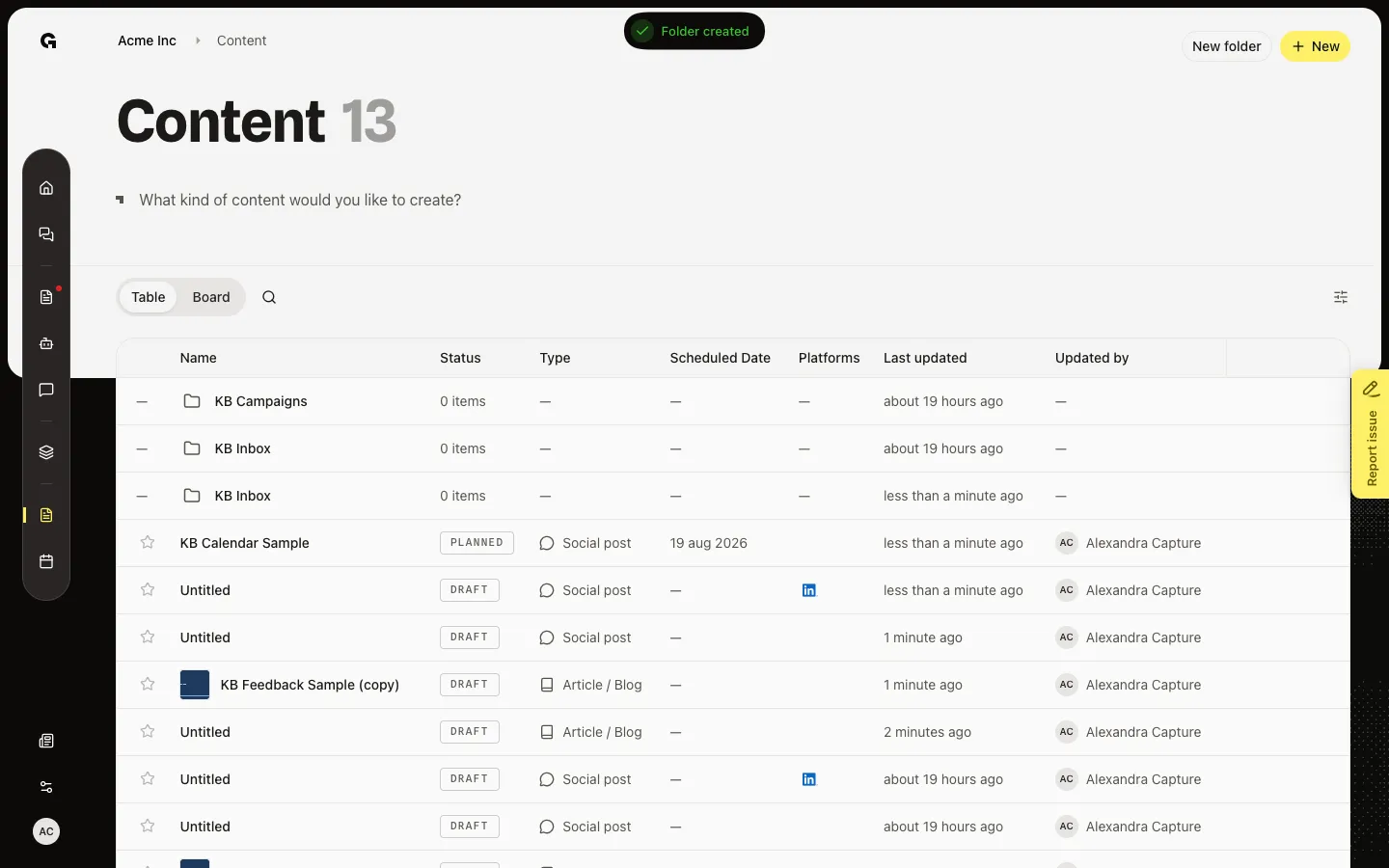
Put a draft in a folder, or send it back to All content, from the Table row.
Read now →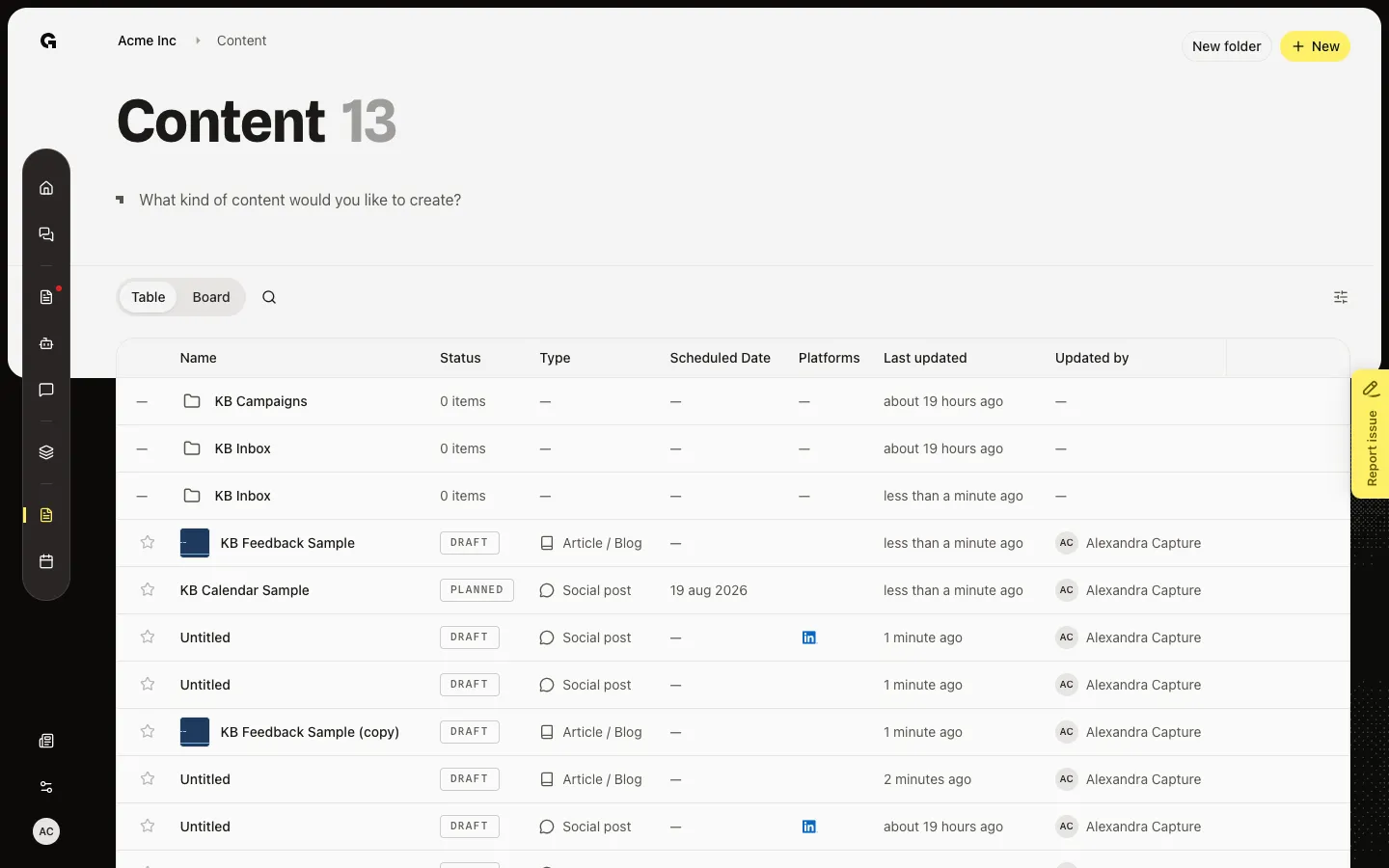
Create, rename, move, and delete folders on the Content table so drafts sit in groups.
Read now →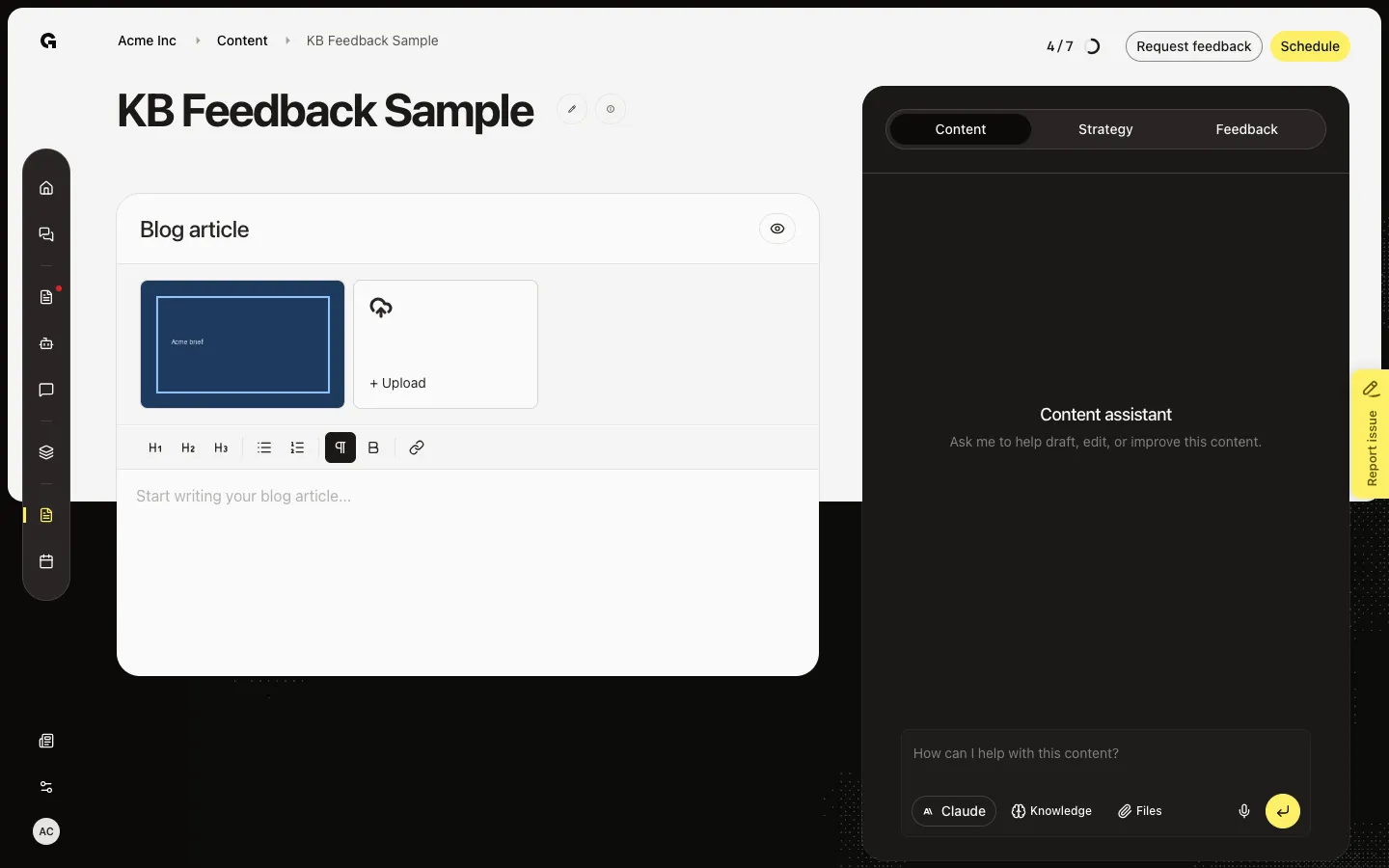
Check publishing readiness, then post at once when Publish now is available and the piece is ready.
Read now →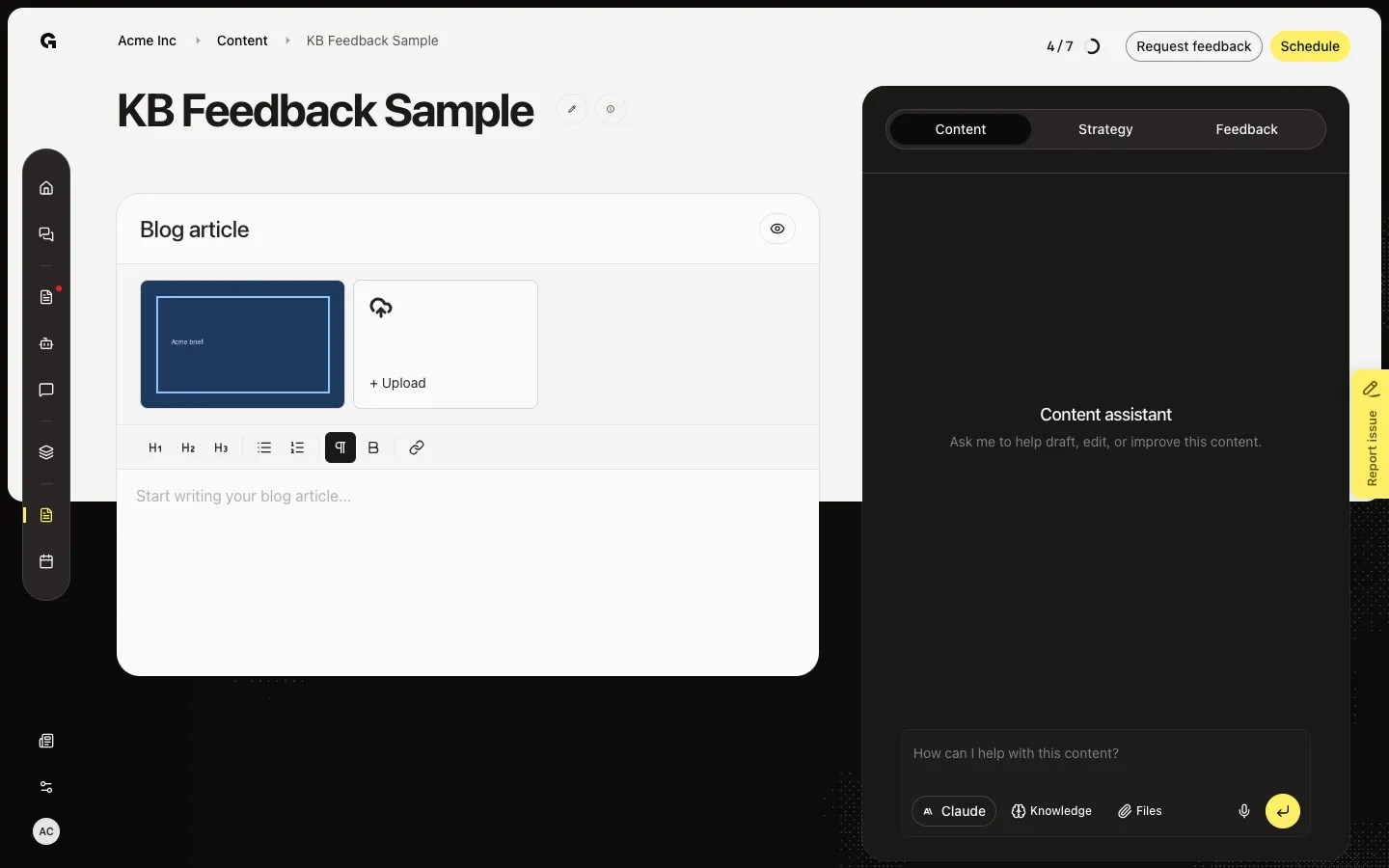
Send a draft to a teammate or client for review, with an optional lock so they finish before you edit or schedule.
Read now →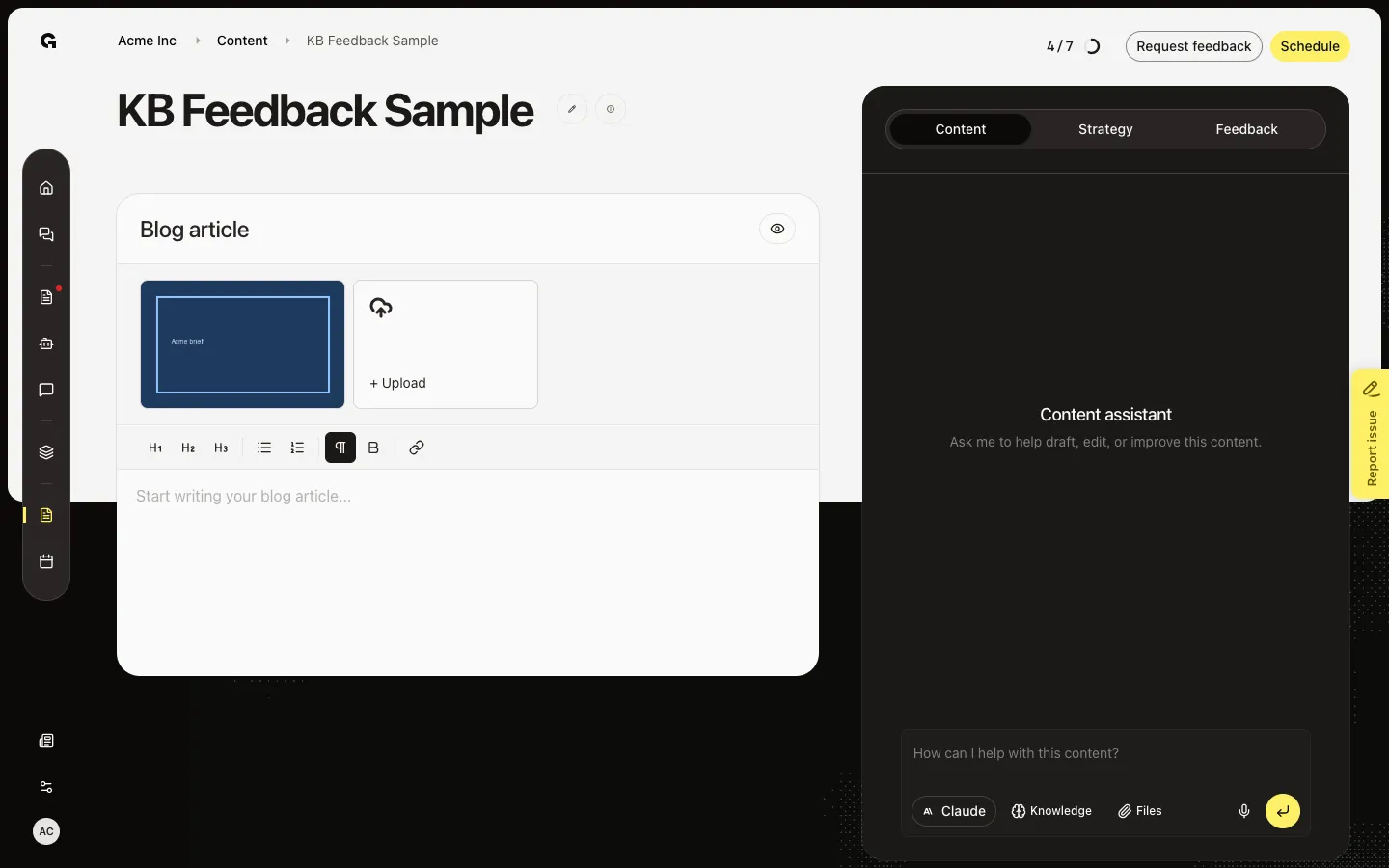
Set a date and time in the workspace timezone so Growf posts the piece automatically.
Read now →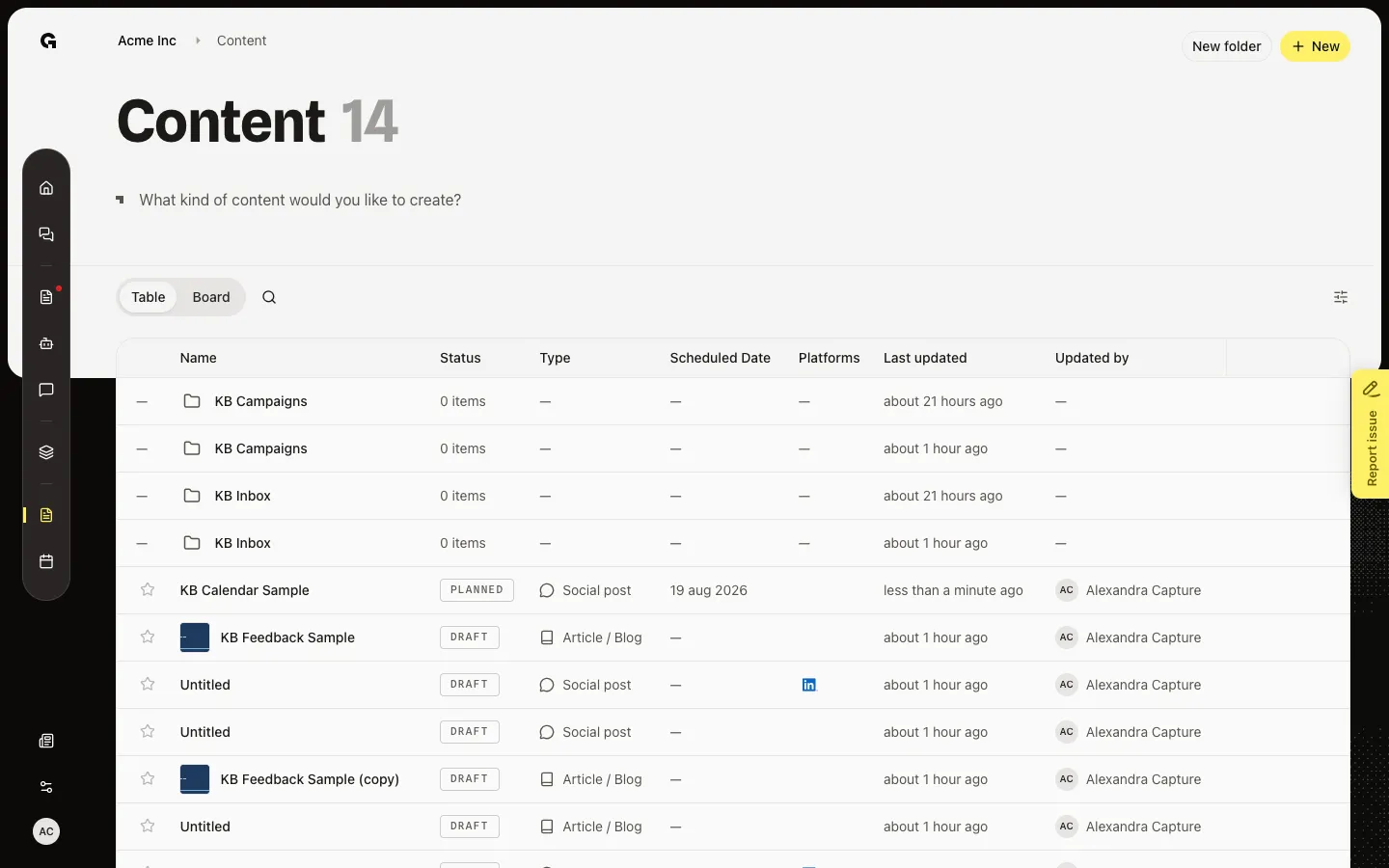
Ask the Content tab to draft or improve the open piece, then Apply or Discard the suggested text.
Read now →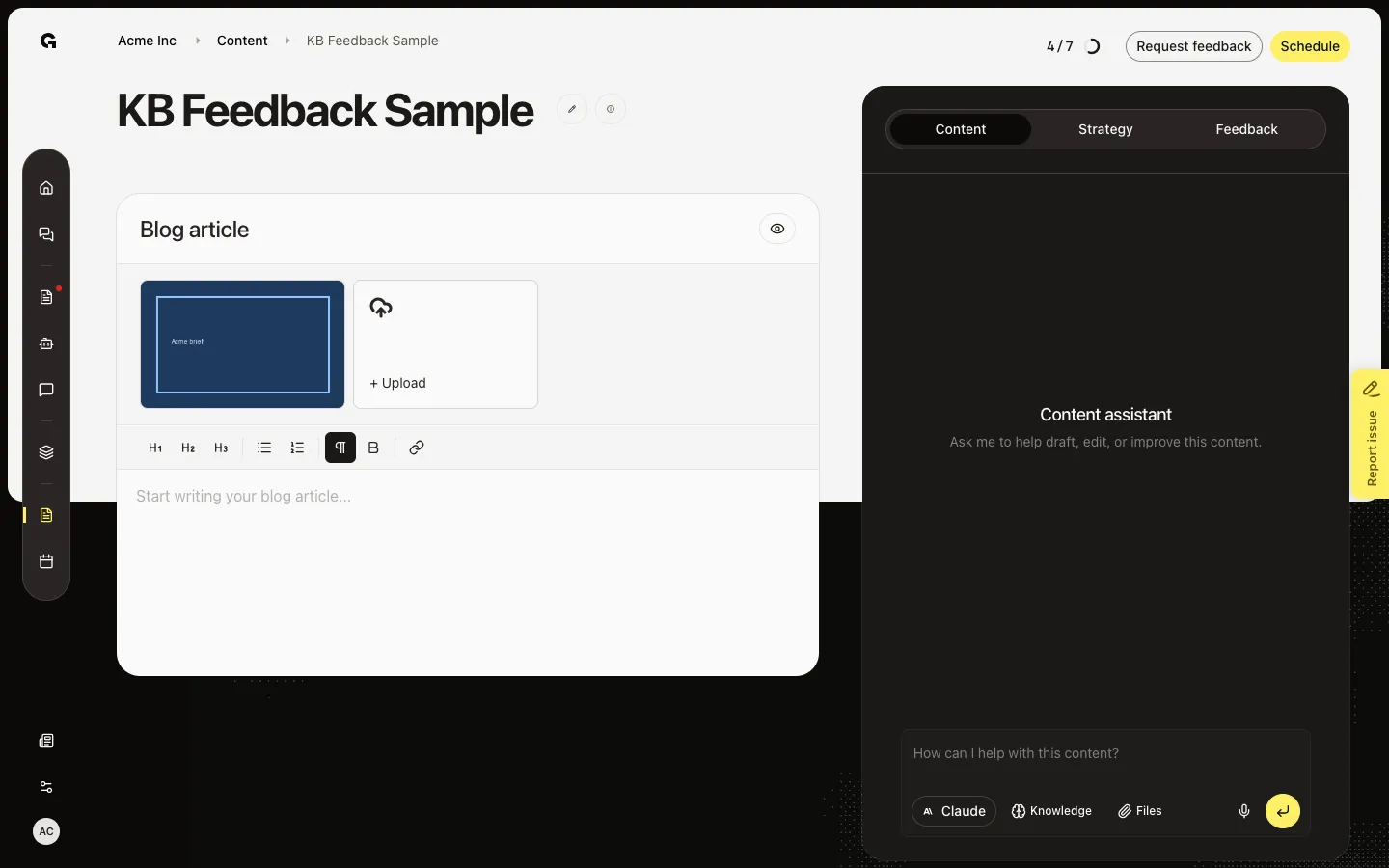
Attach JPEG, PNG, GIF, or one MP4 from the library or Upload, then use those files on the draft.
Read now →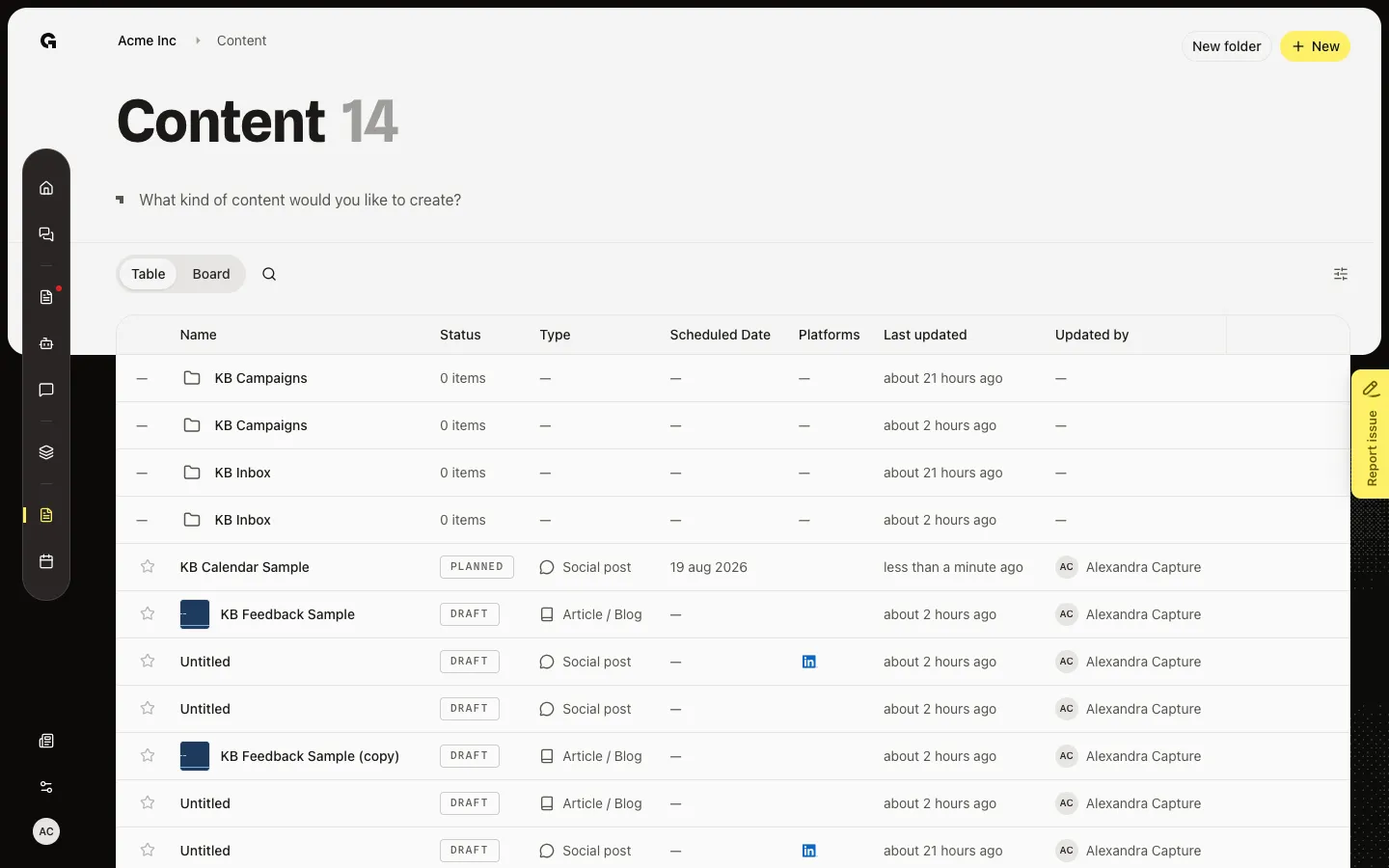
Set the persona on Strategy, then analyze tone and (for articles) blog structure against that audience.
Read now →8
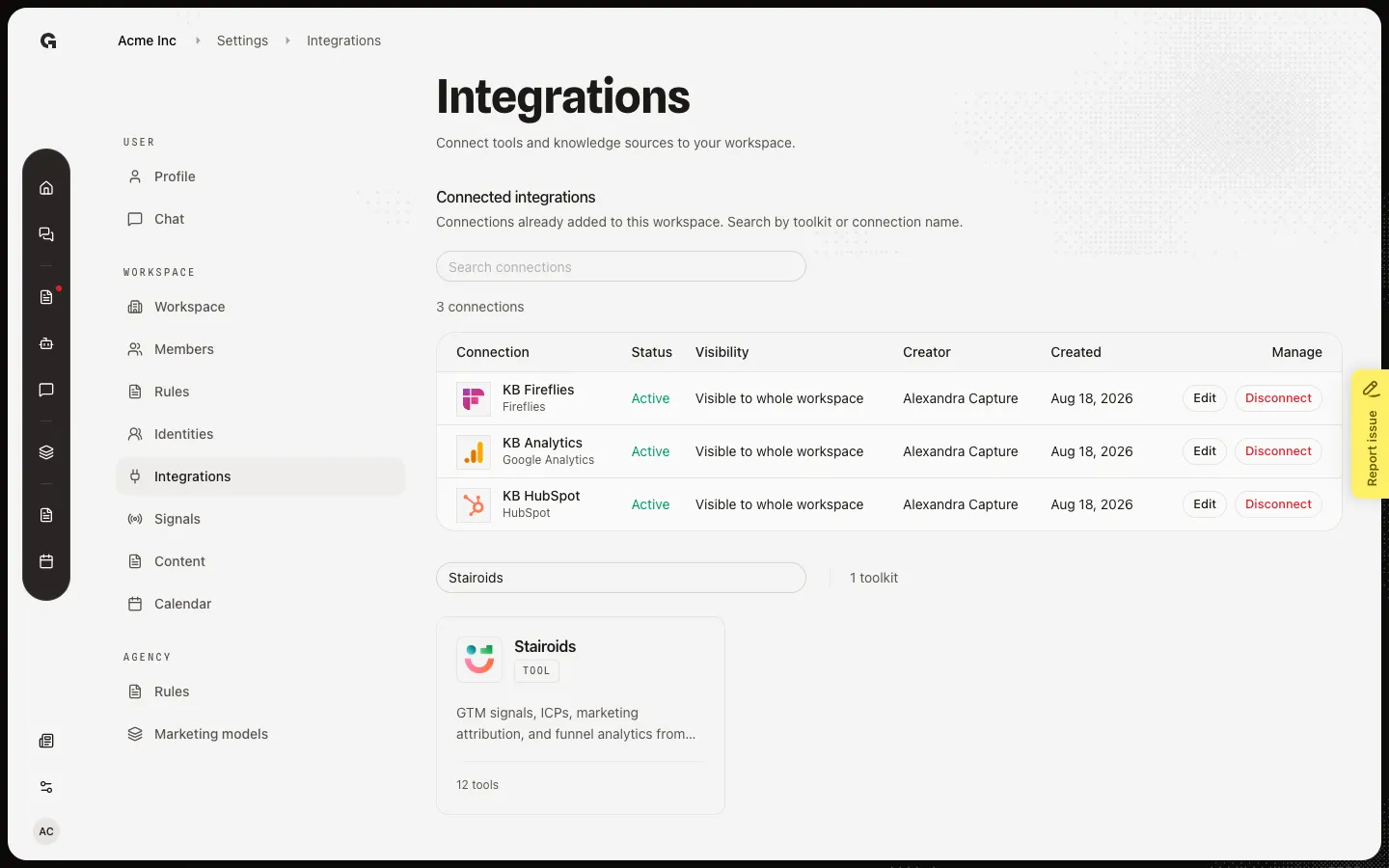
Connect Jobmatix, Livestorm, or Stairoids with an API key or MCP URL instead of a provider sign-in.
Read now →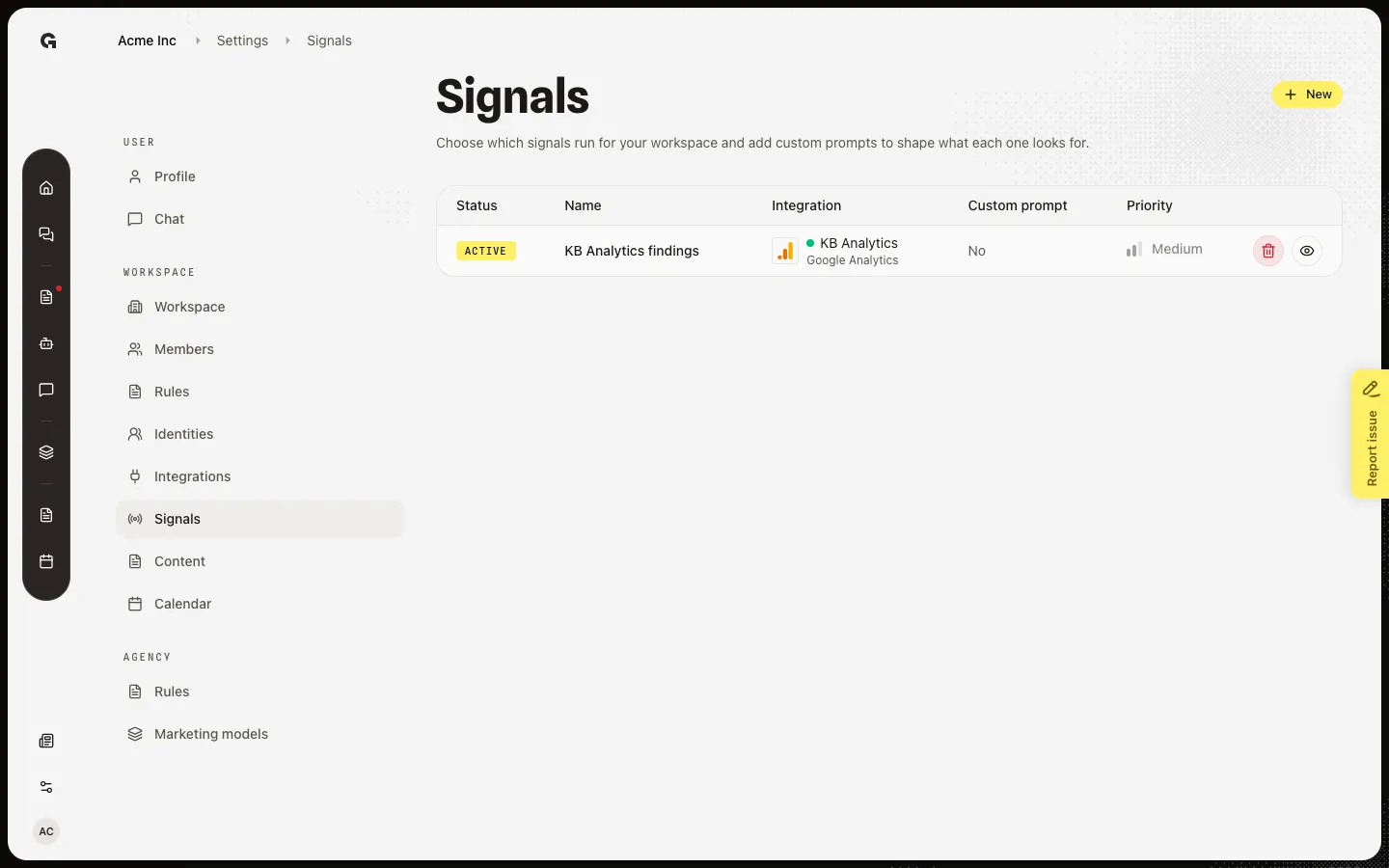
See which detectors run for this workspace, add a new one, or open one to change its prompt and priority.
Read now →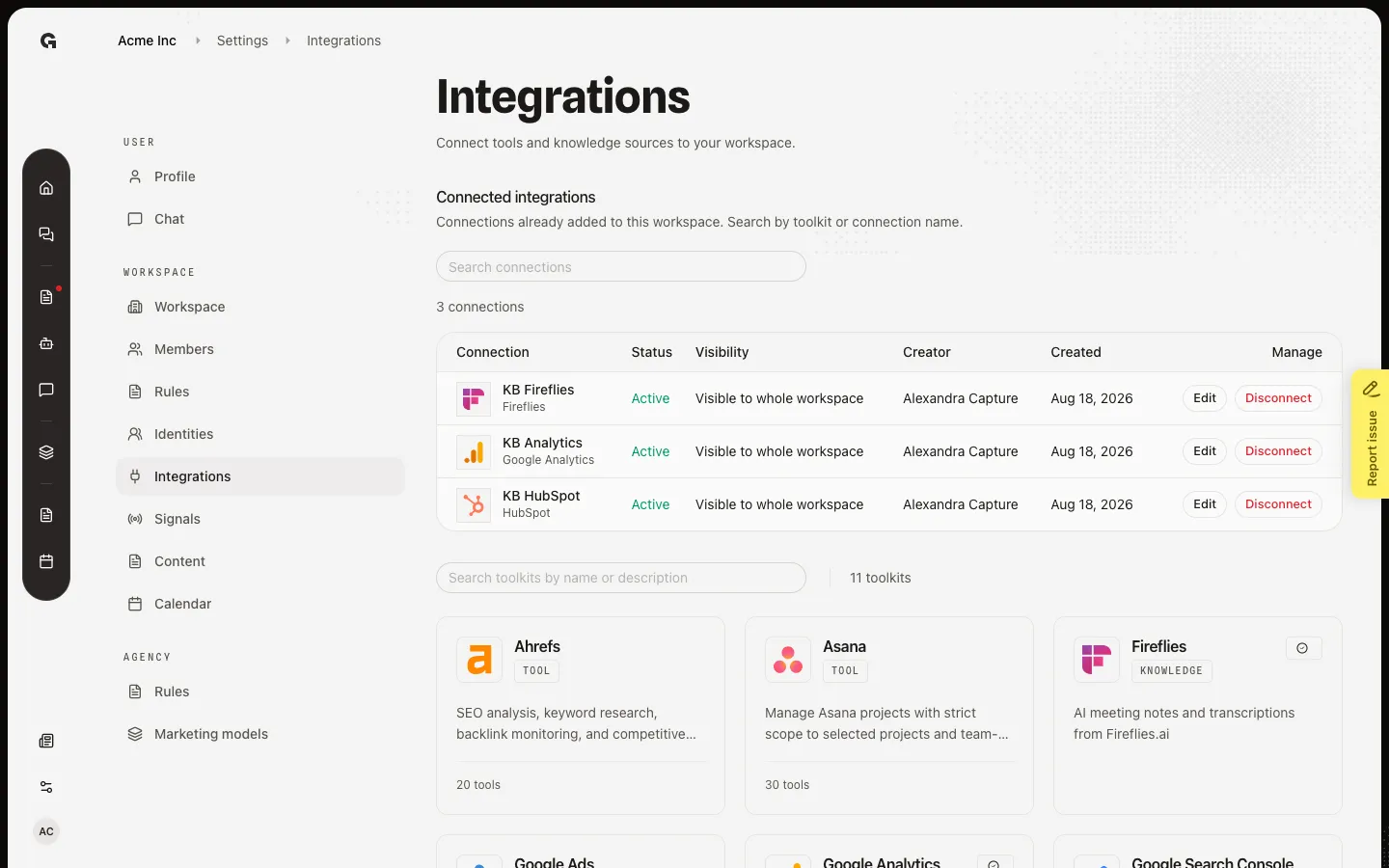
Add a tool or knowledge source to the workspace so chat, signals, and sync can use it.
Read now →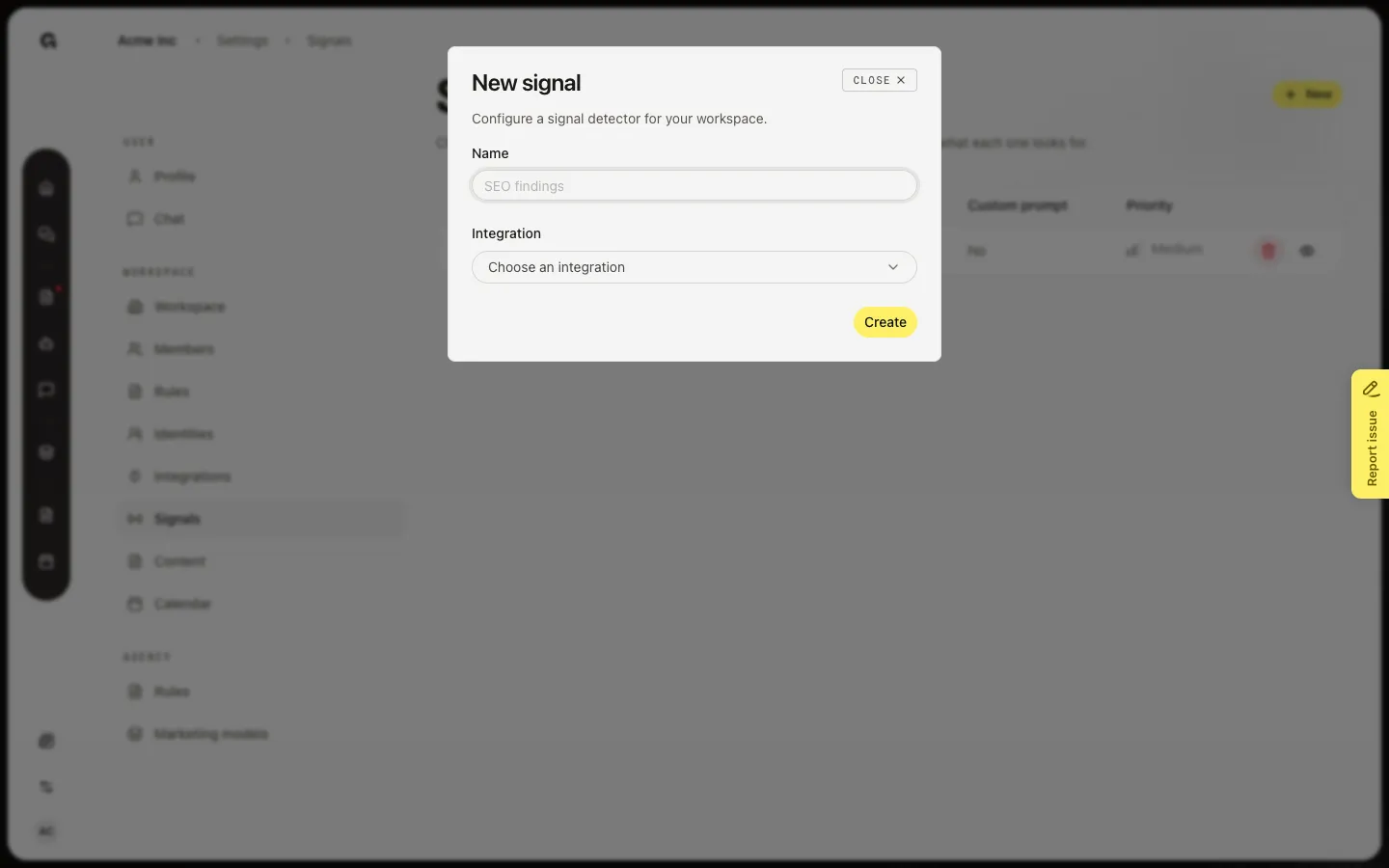
Add a detector for a connected integration so Growf can write findings to Home.
Read now →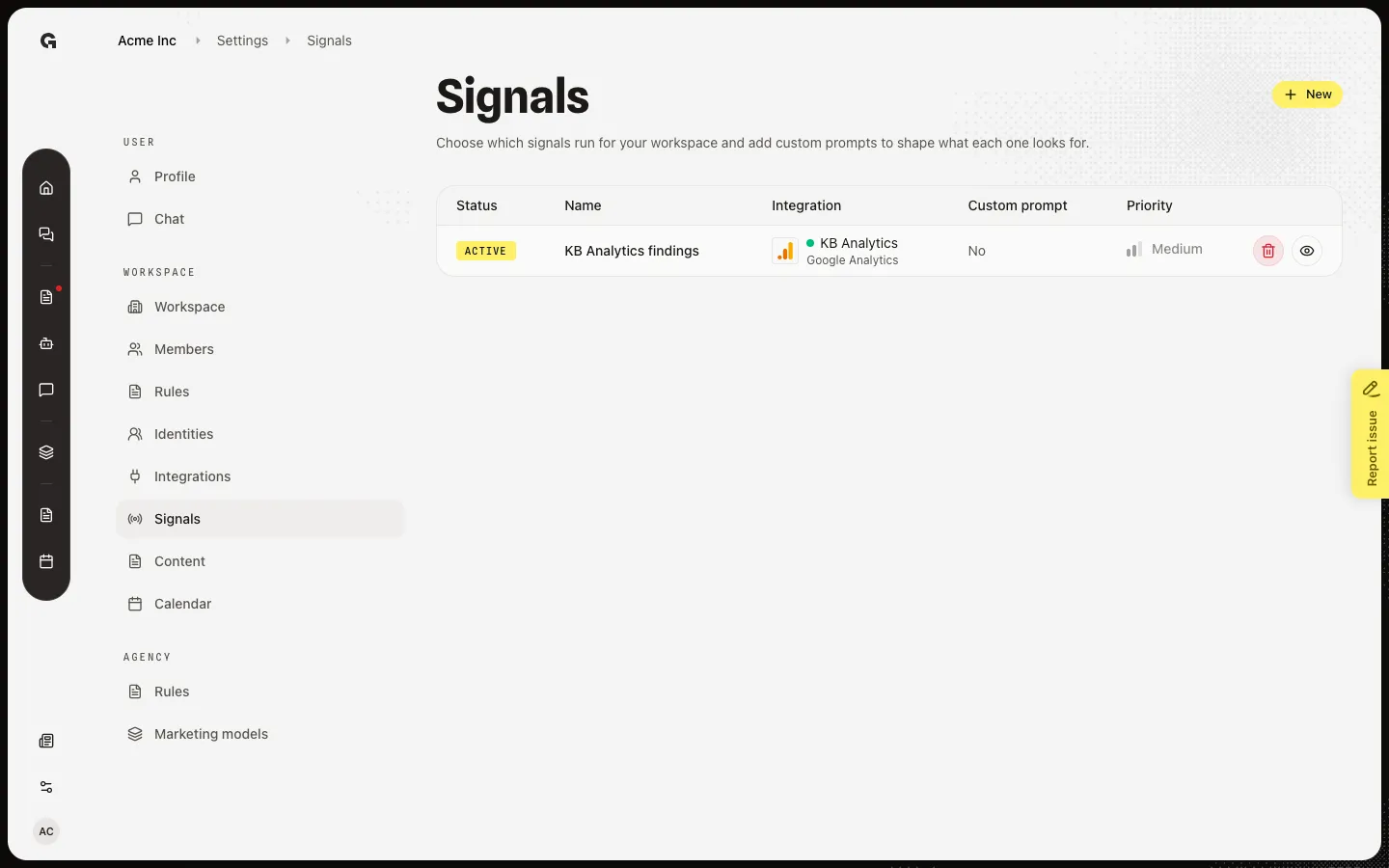
Remove a detector so that integration no longer writes findings to Home.
Read now →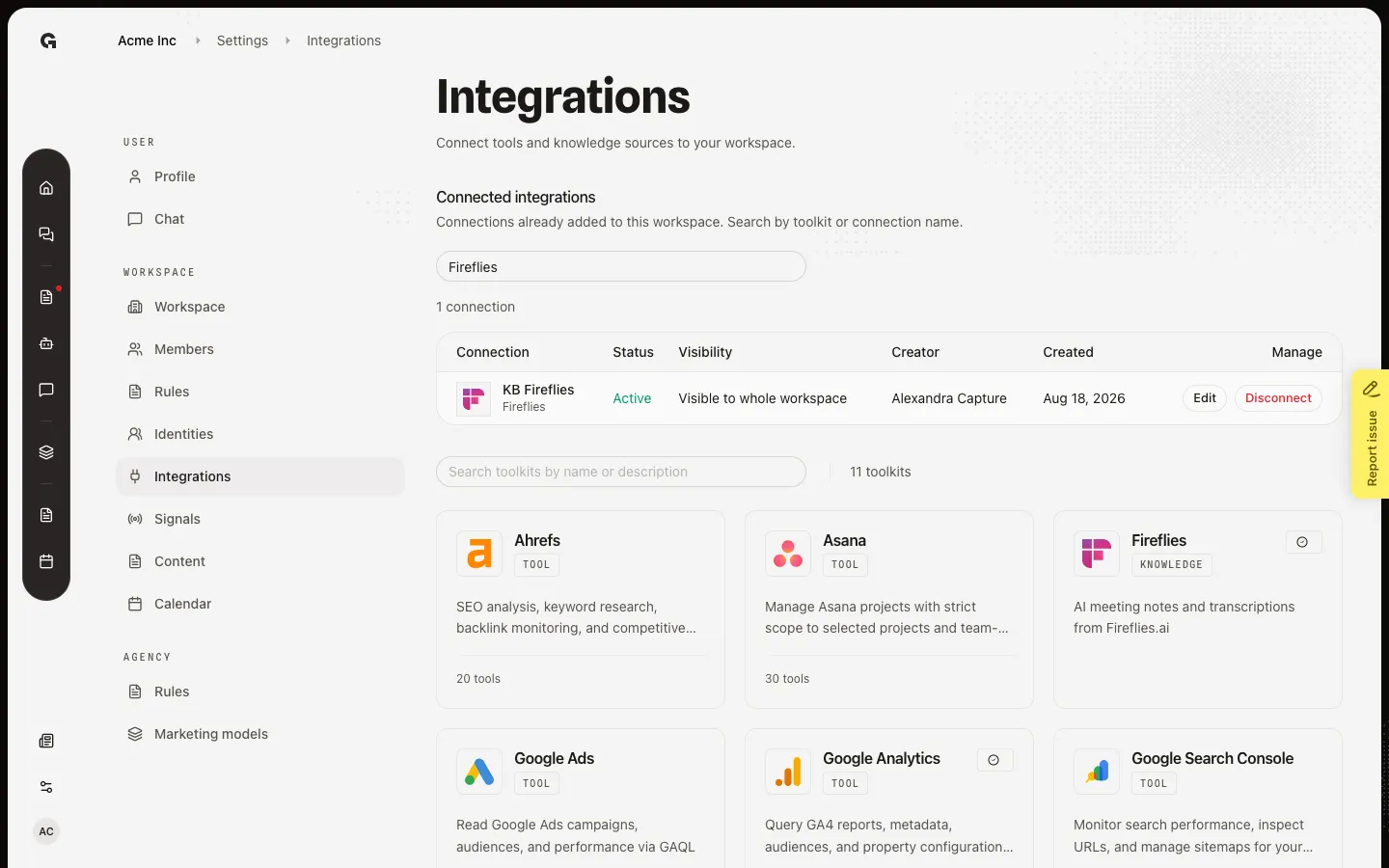
Remove a workspace connection so chat, sync, and signals stop using that account.
Read now →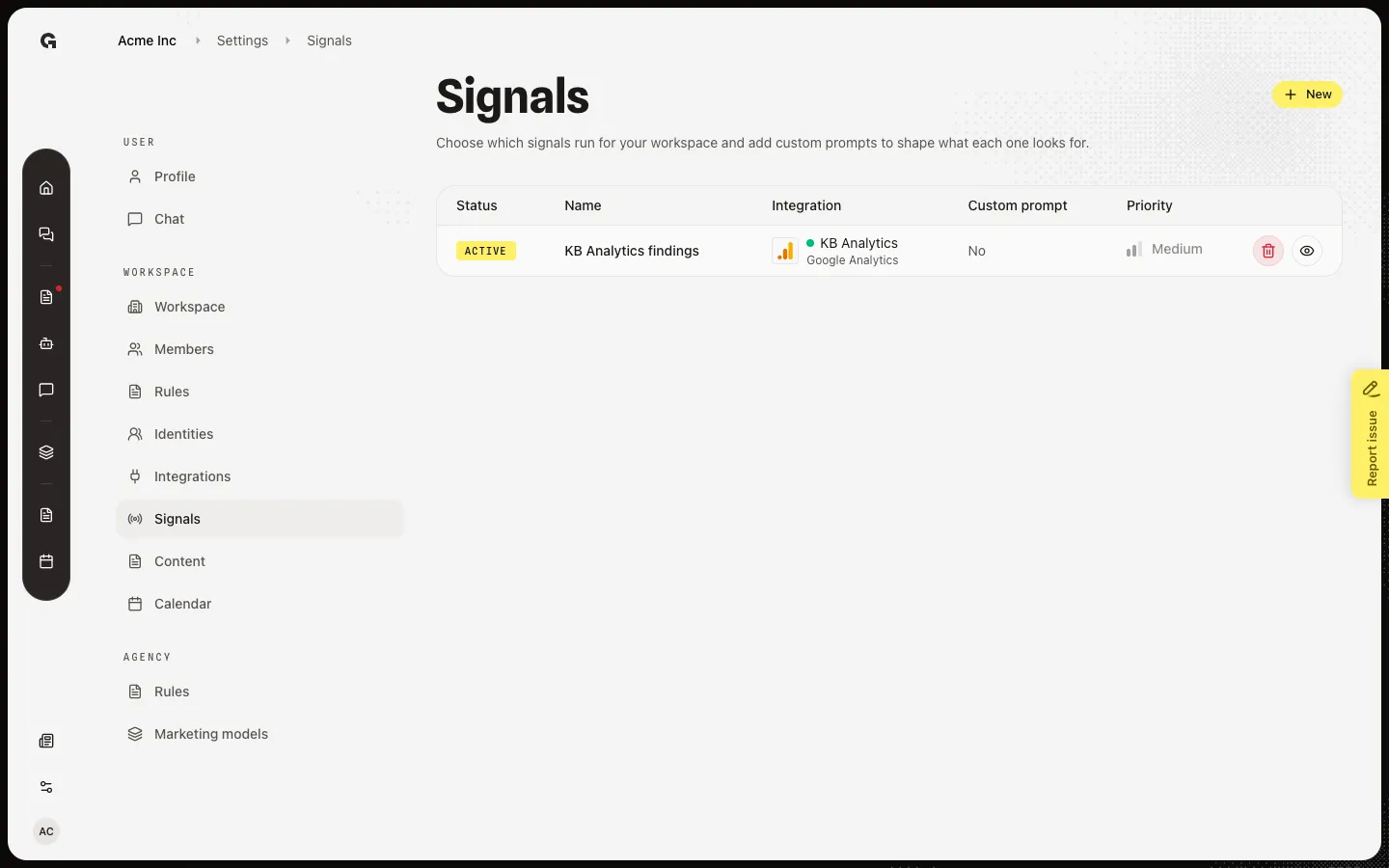
Change a detector’s name, custom prompt, active switch, or priority so the next run matches what you care about.
Read now →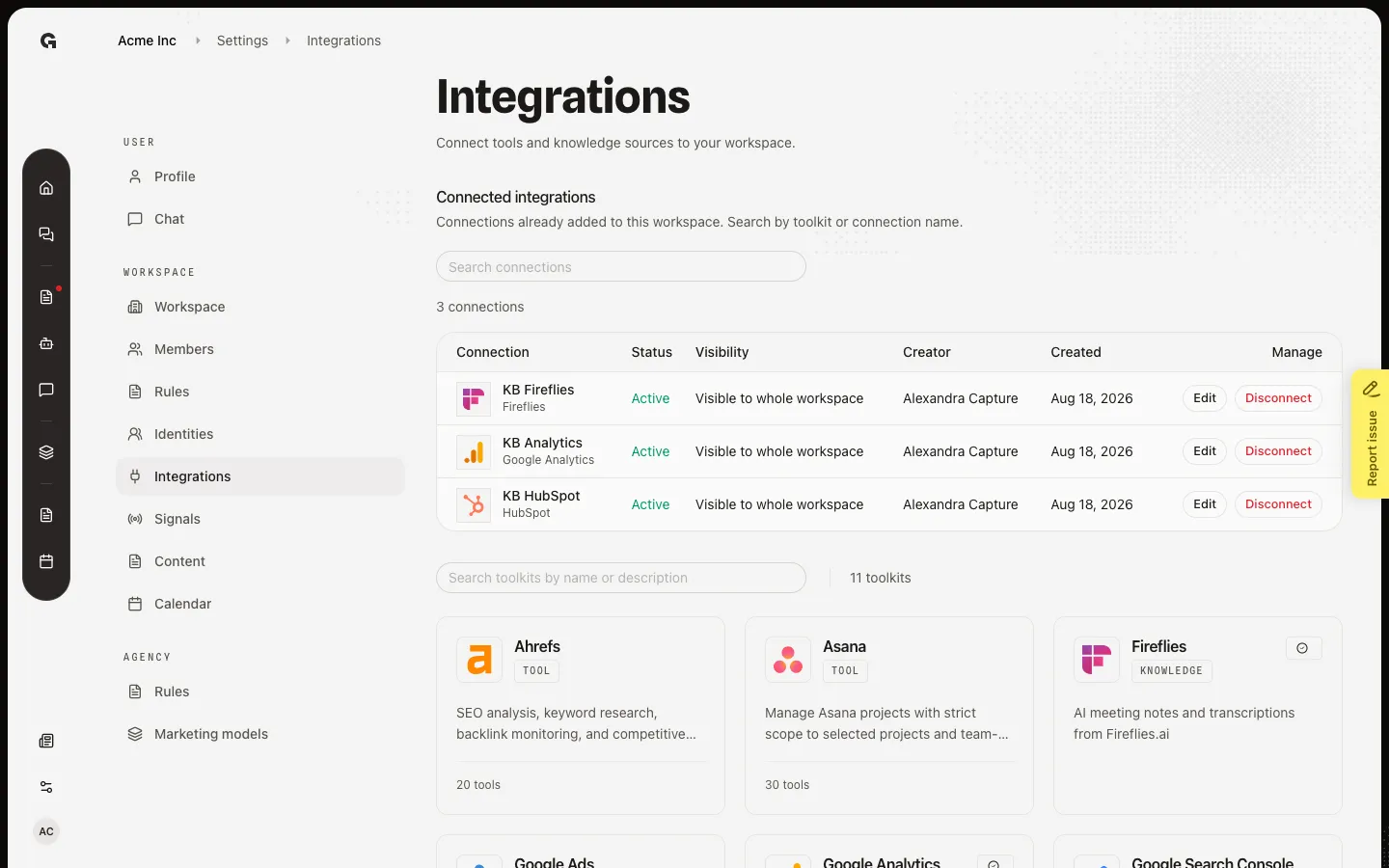
Rename a connection, choose who can use it in chat, and set toolkit options such as a property or page.
Read now →11
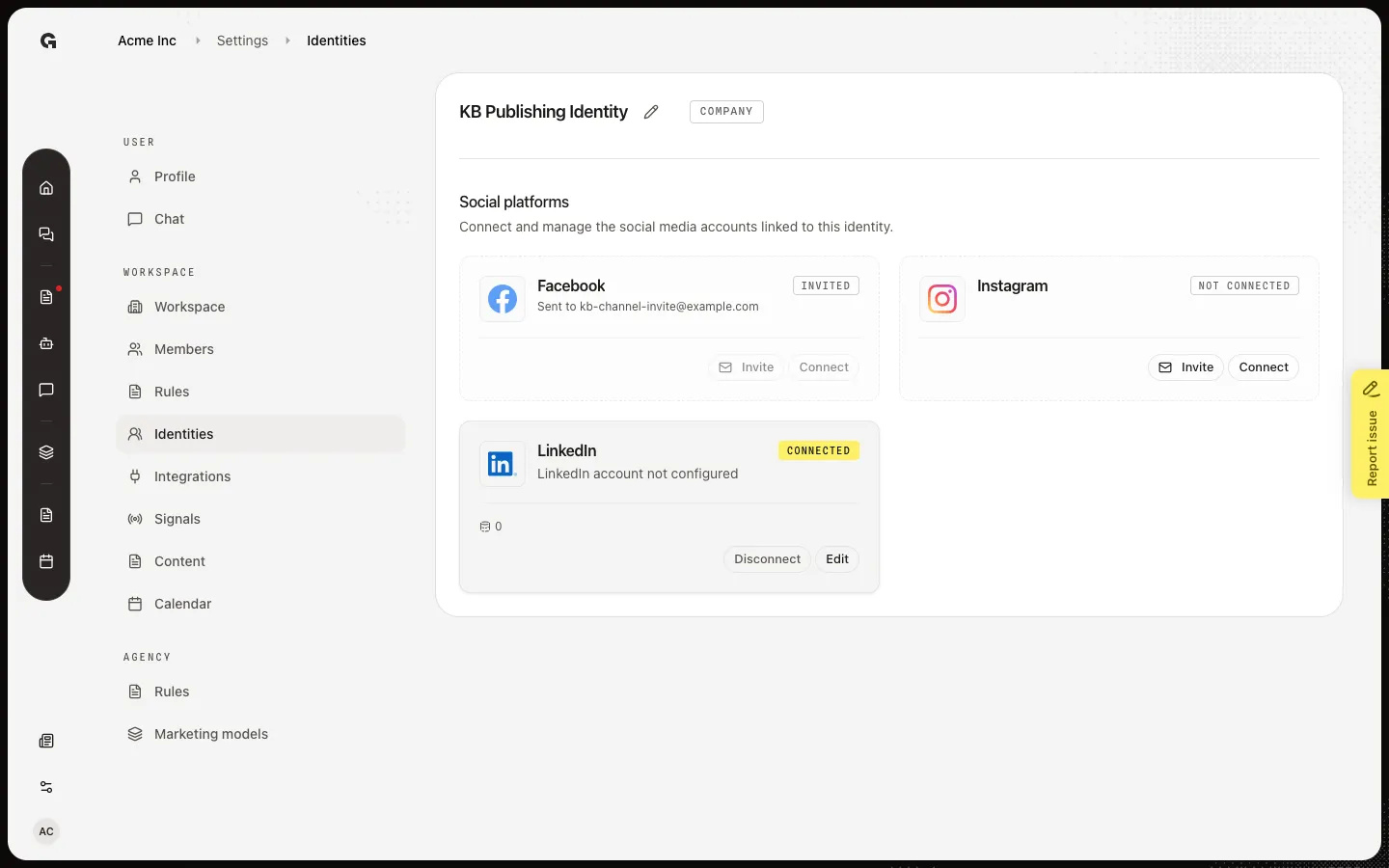
Link LinkedIn, Facebook, or Instagram to an identity, or disconnect a channel you no longer use.
Read now →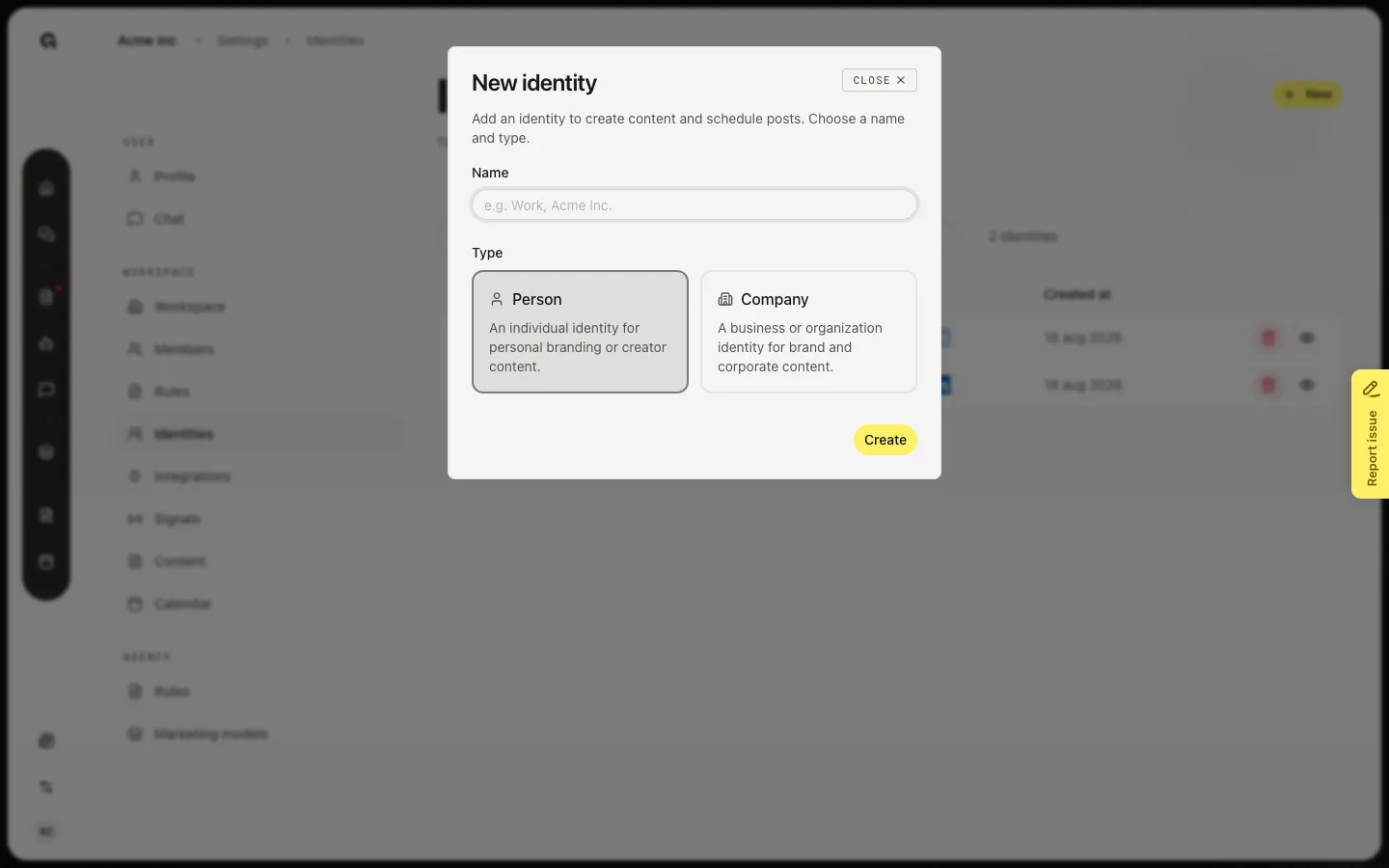
Add a person or company identity so social posts and ads have someone to publish as.
Read now →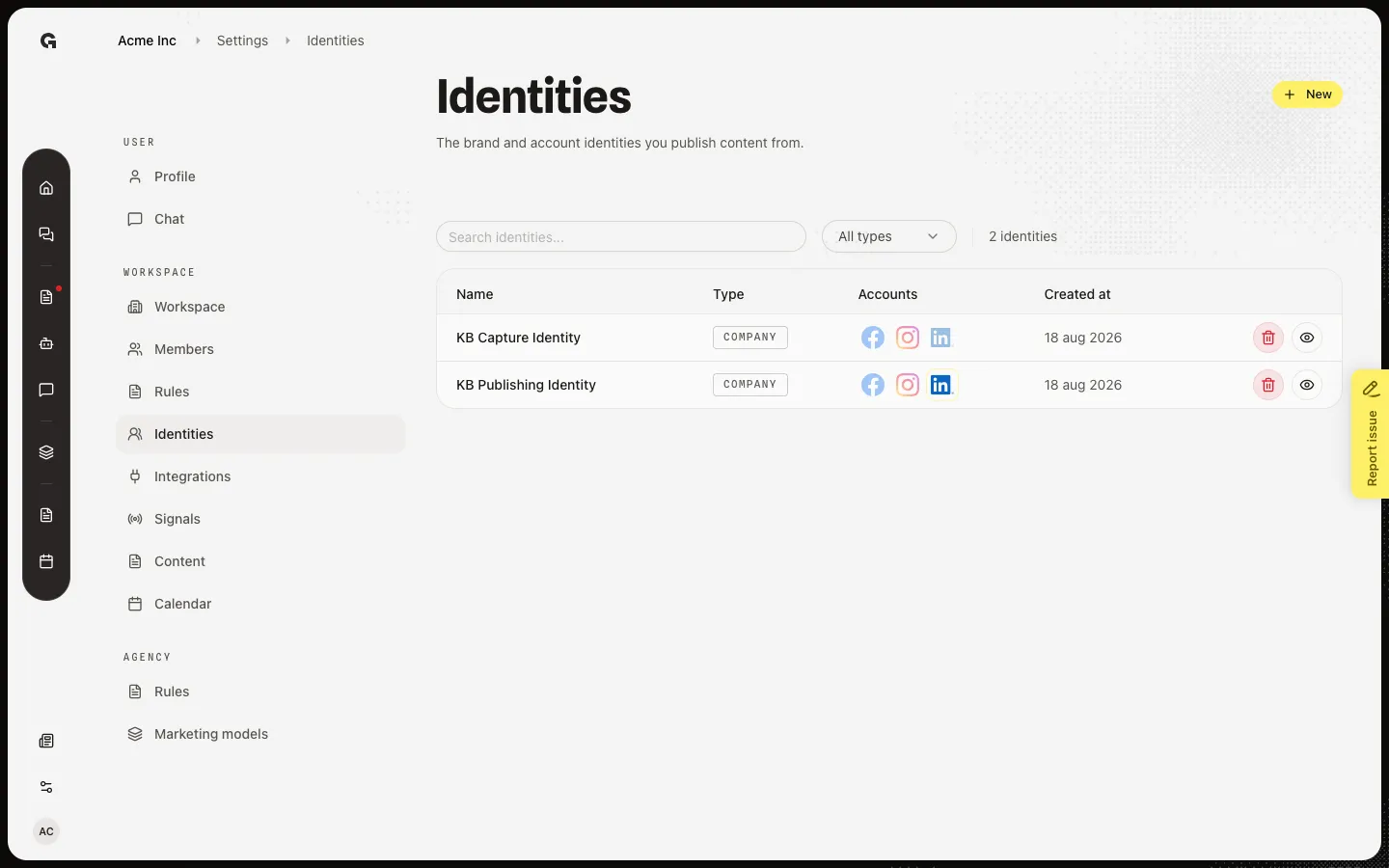
Soft-delete an identity from the list when you no longer publish as that person or company.
Read now →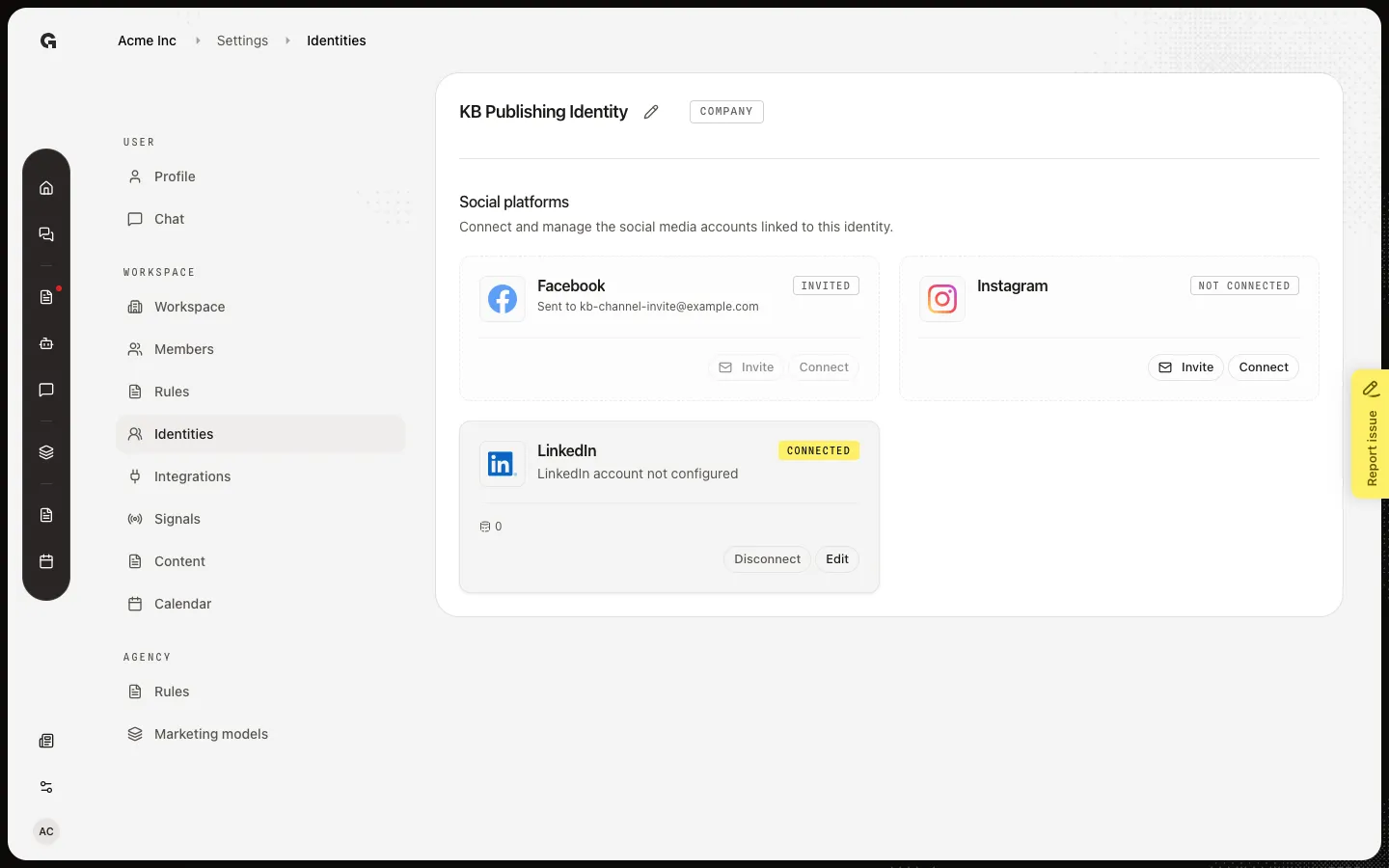
Change the identity name used on the list, in content, and in invites.
Read now →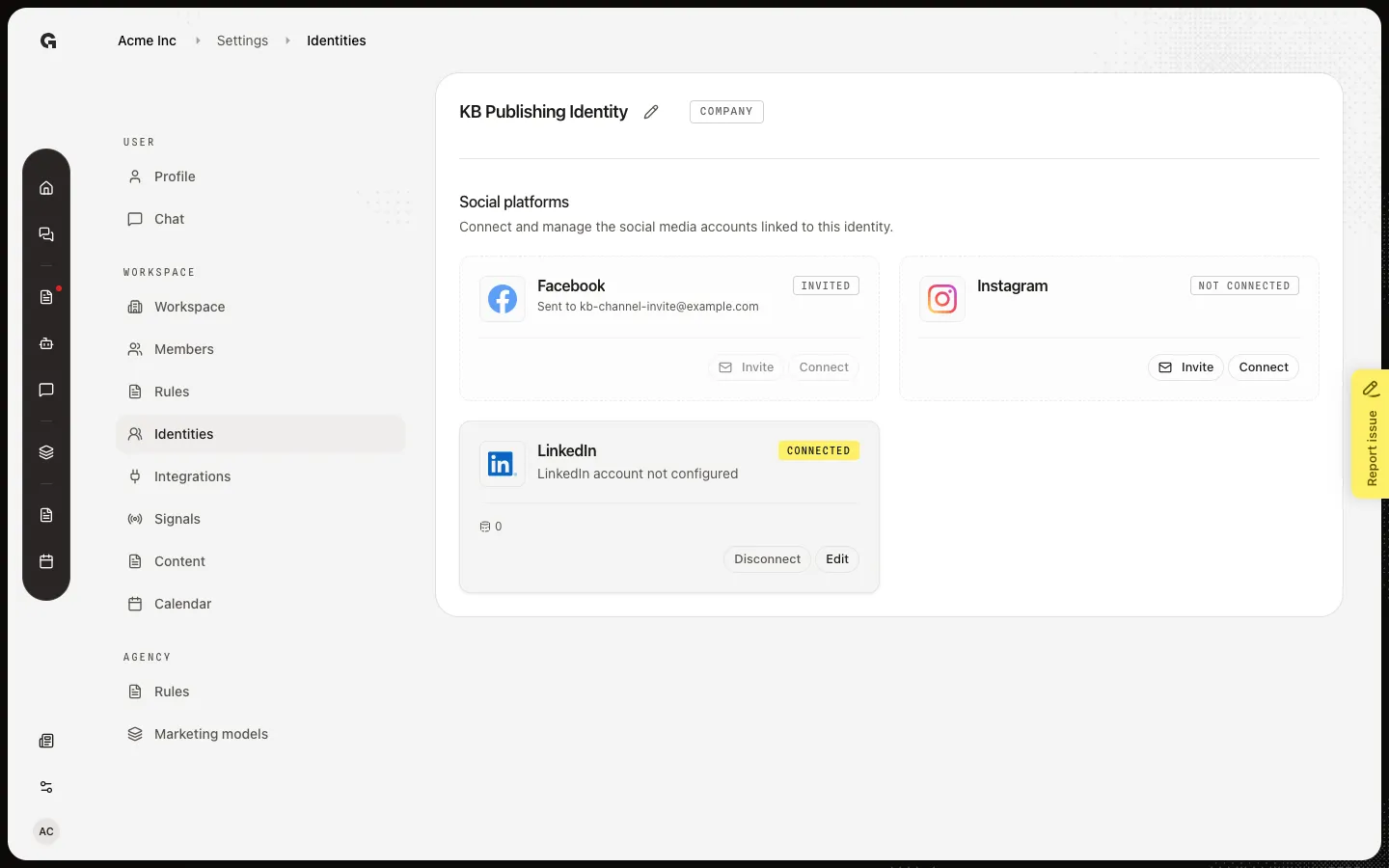
Email a link so a client or teammate can connect LinkedIn, Facebook, or Instagram without a Growf account.
Read now →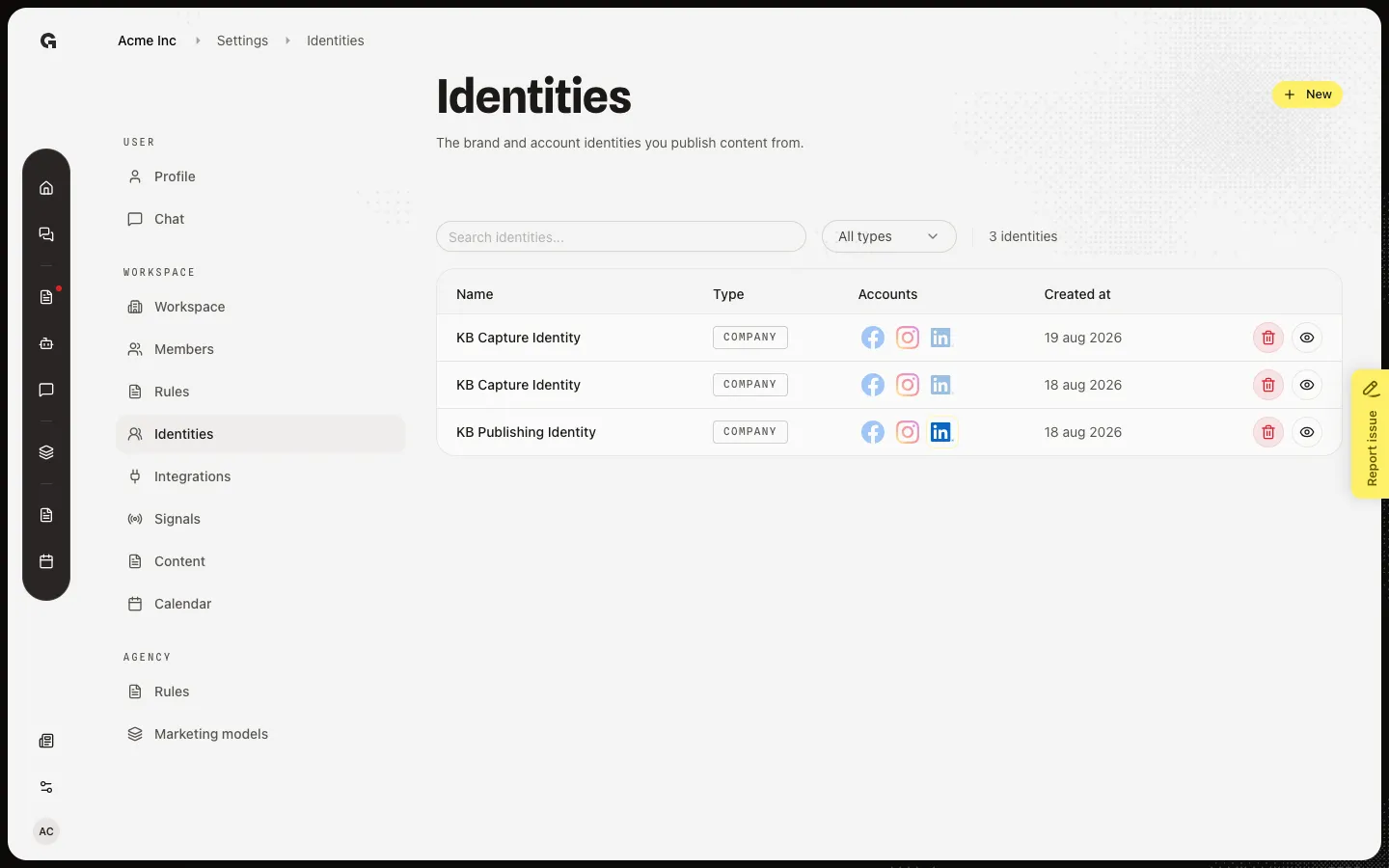
Open the identity list, find who publishes, and jump to create, edit, delete, or channel setup.
Read now →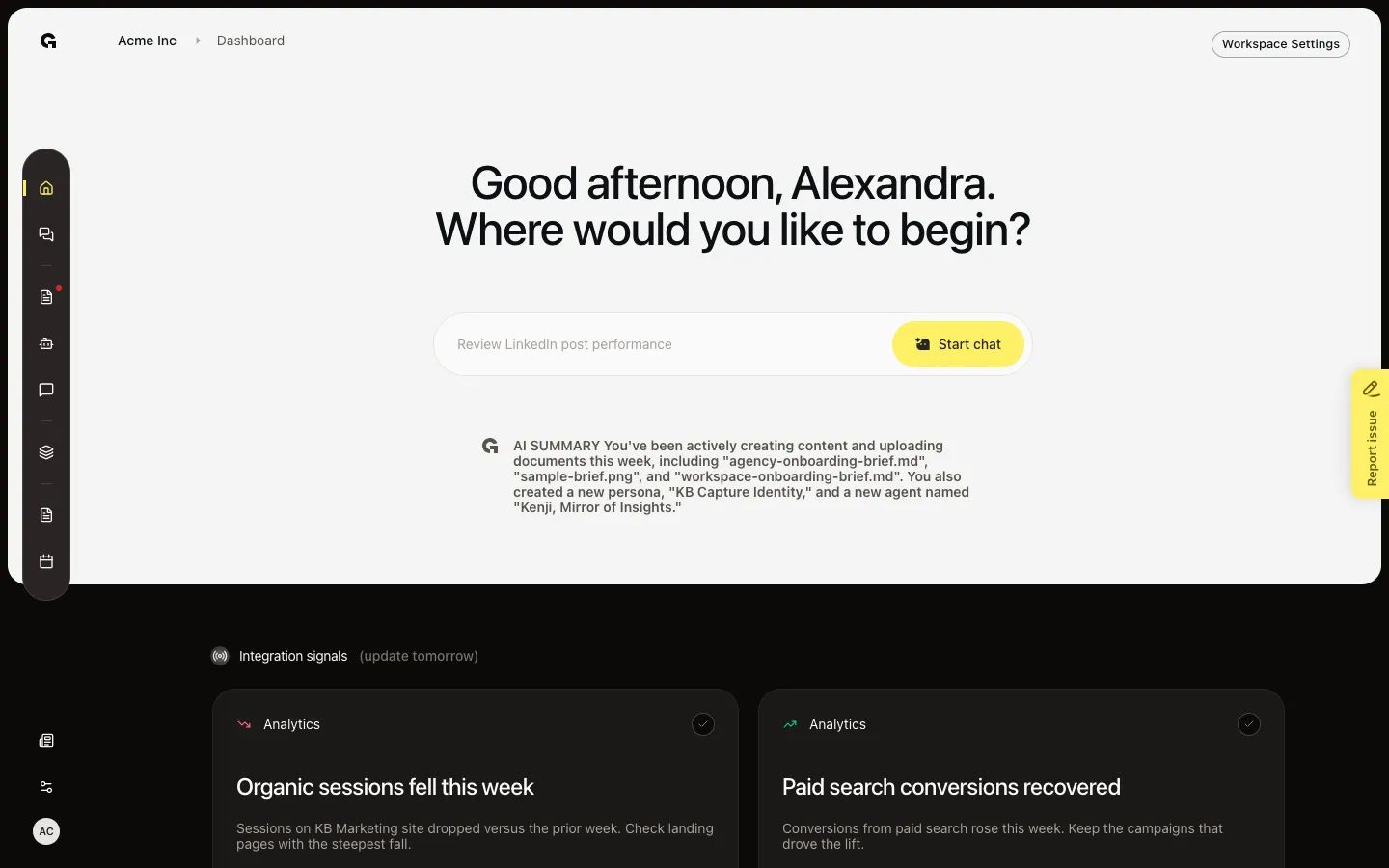
Read this week’s integration findings on Home and mark the ones you have handled.
Read now →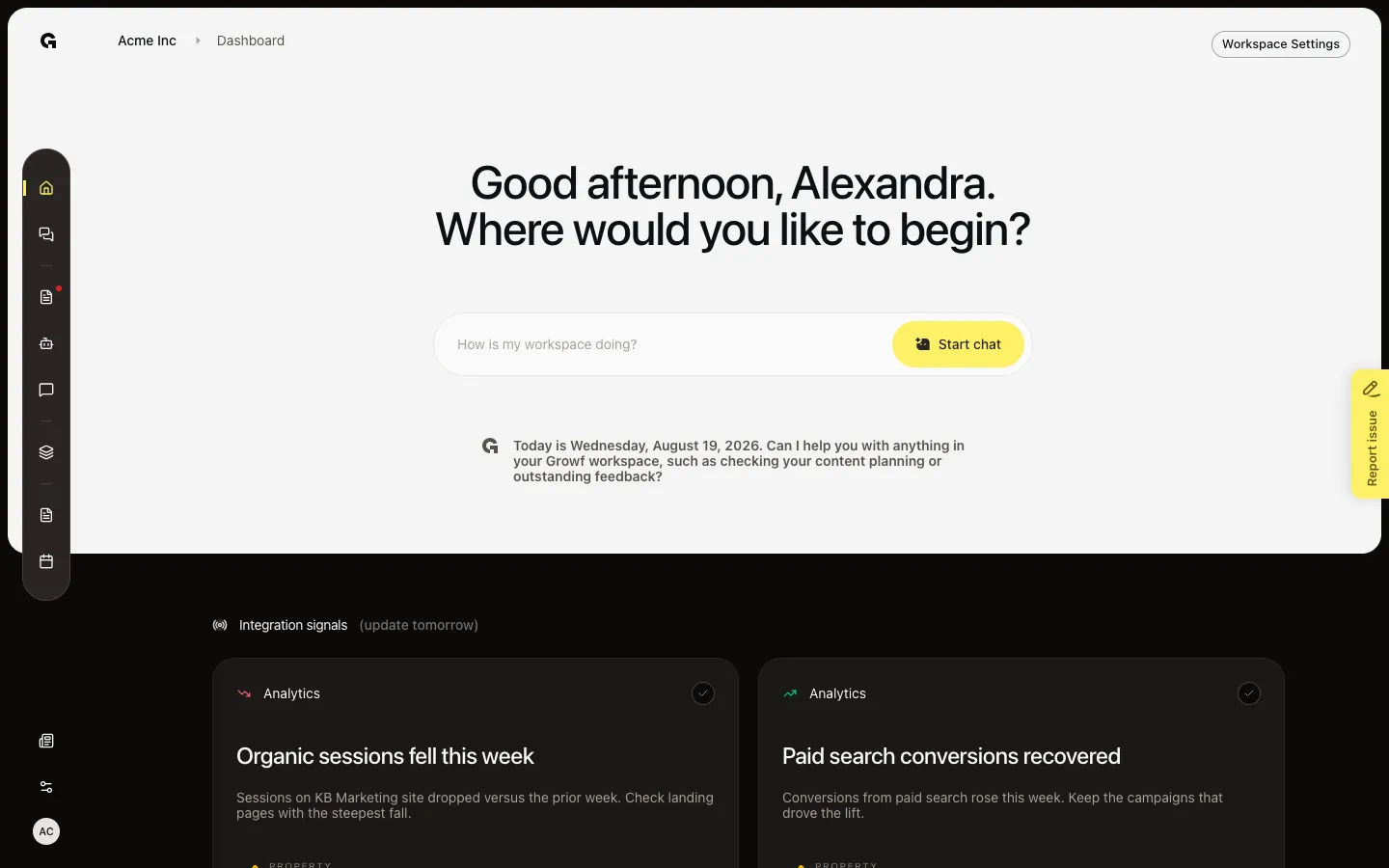
Open this week’s suggested next steps on Home, mark them done, or jump to the work.
Read now →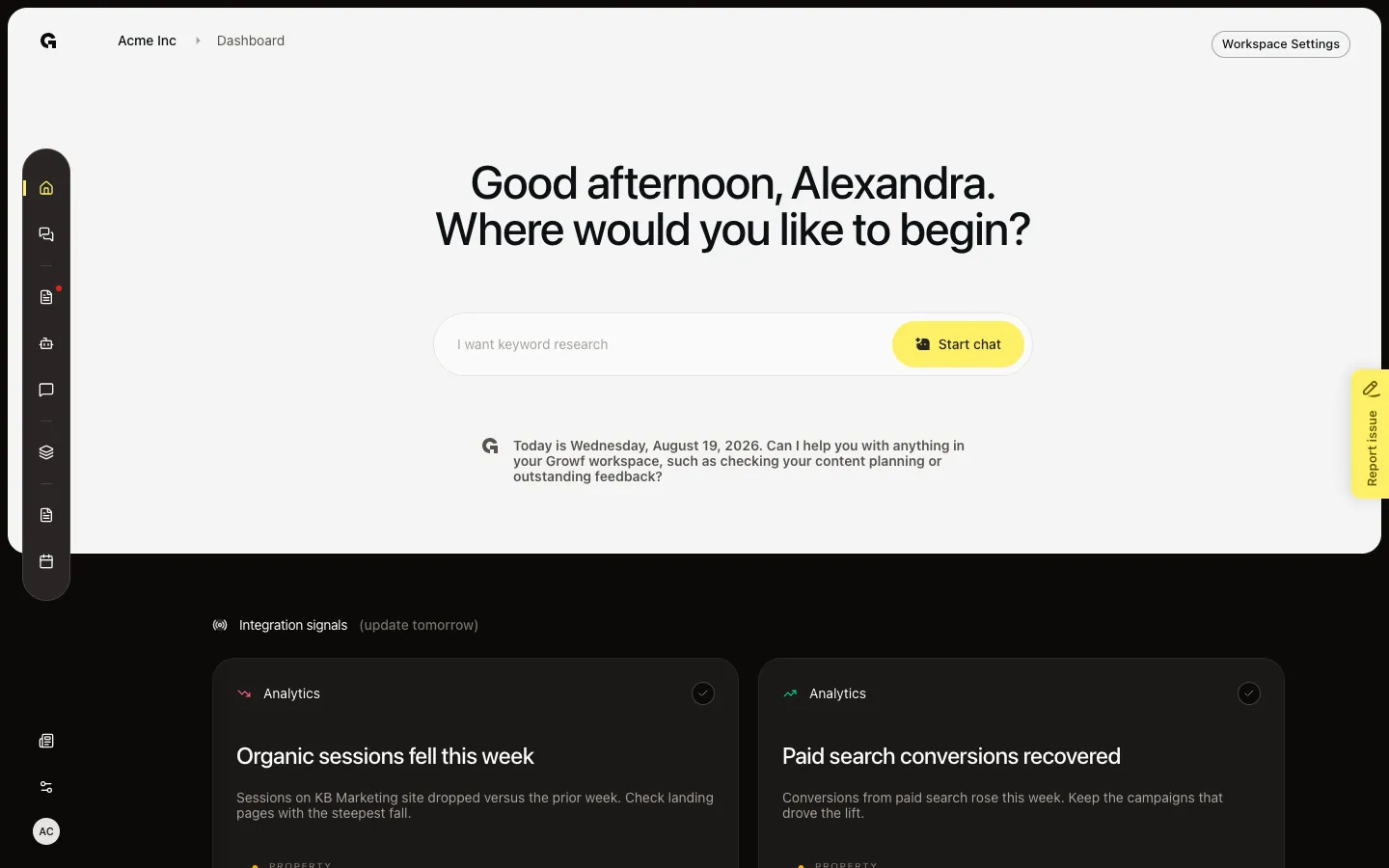
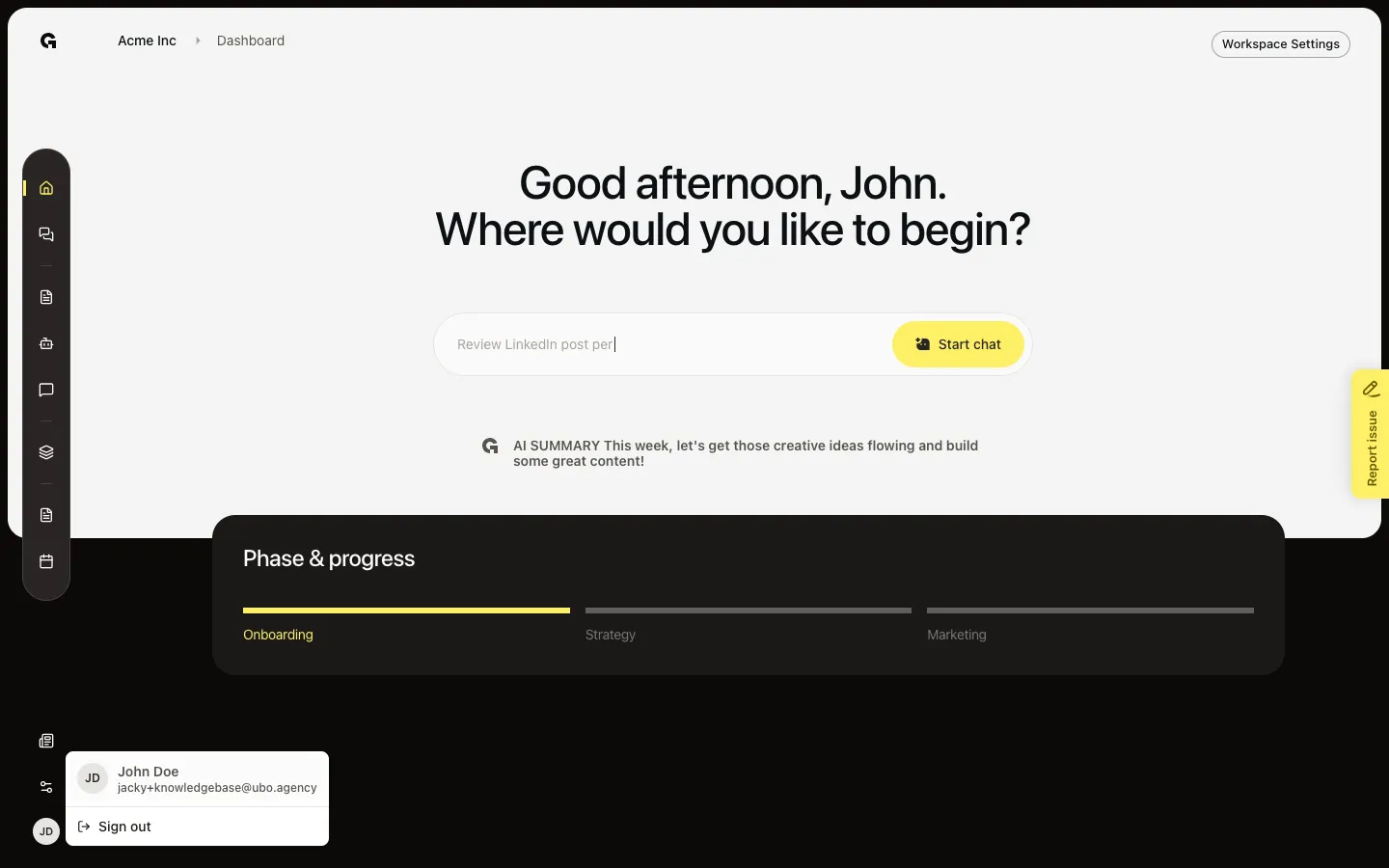
Open Home after you switch workspace, start a chat, and continue setup from Phase & progress.
Read now →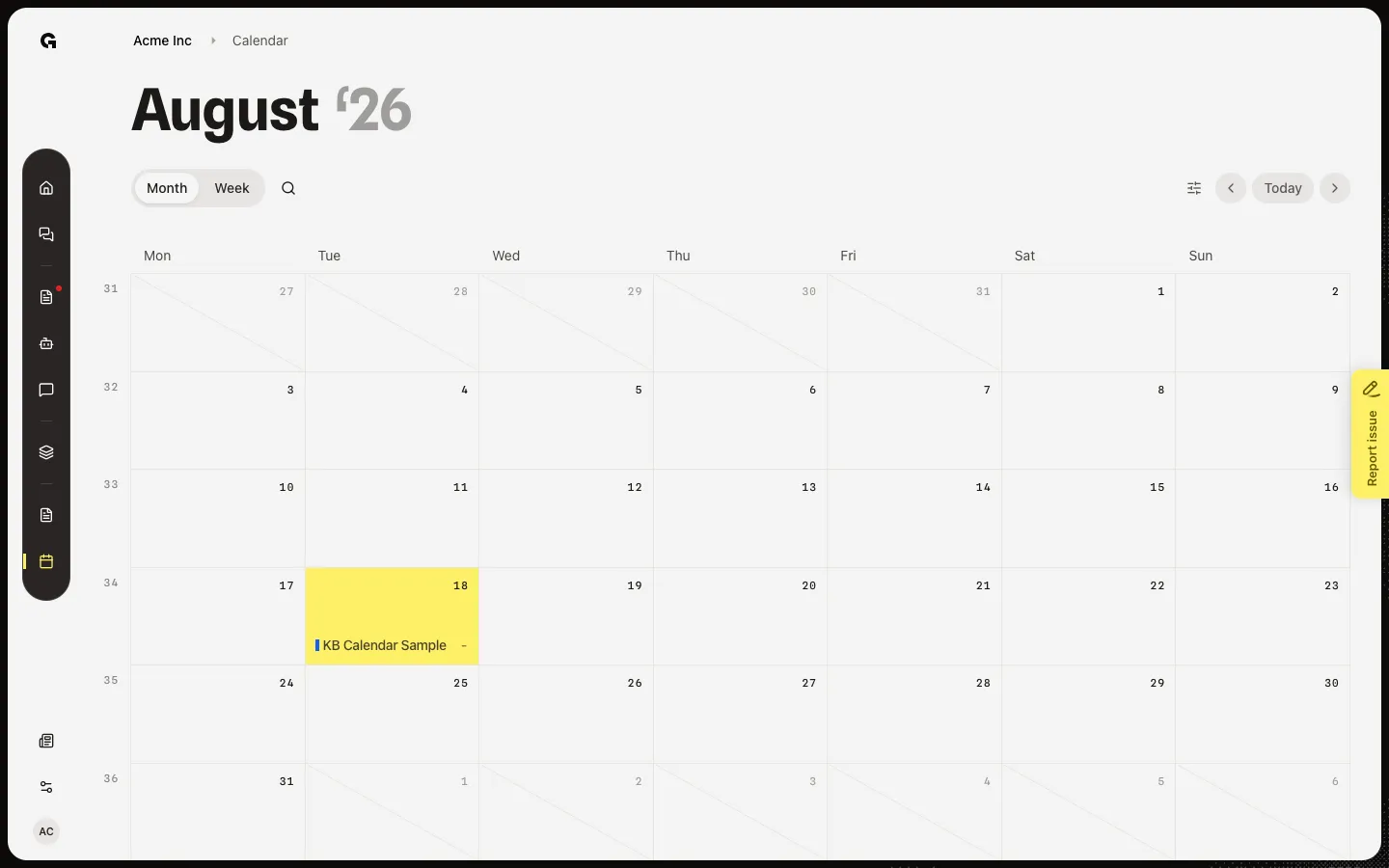
See scheduled and posted work by day, filter the grid, and start a piece from a date.
Read now →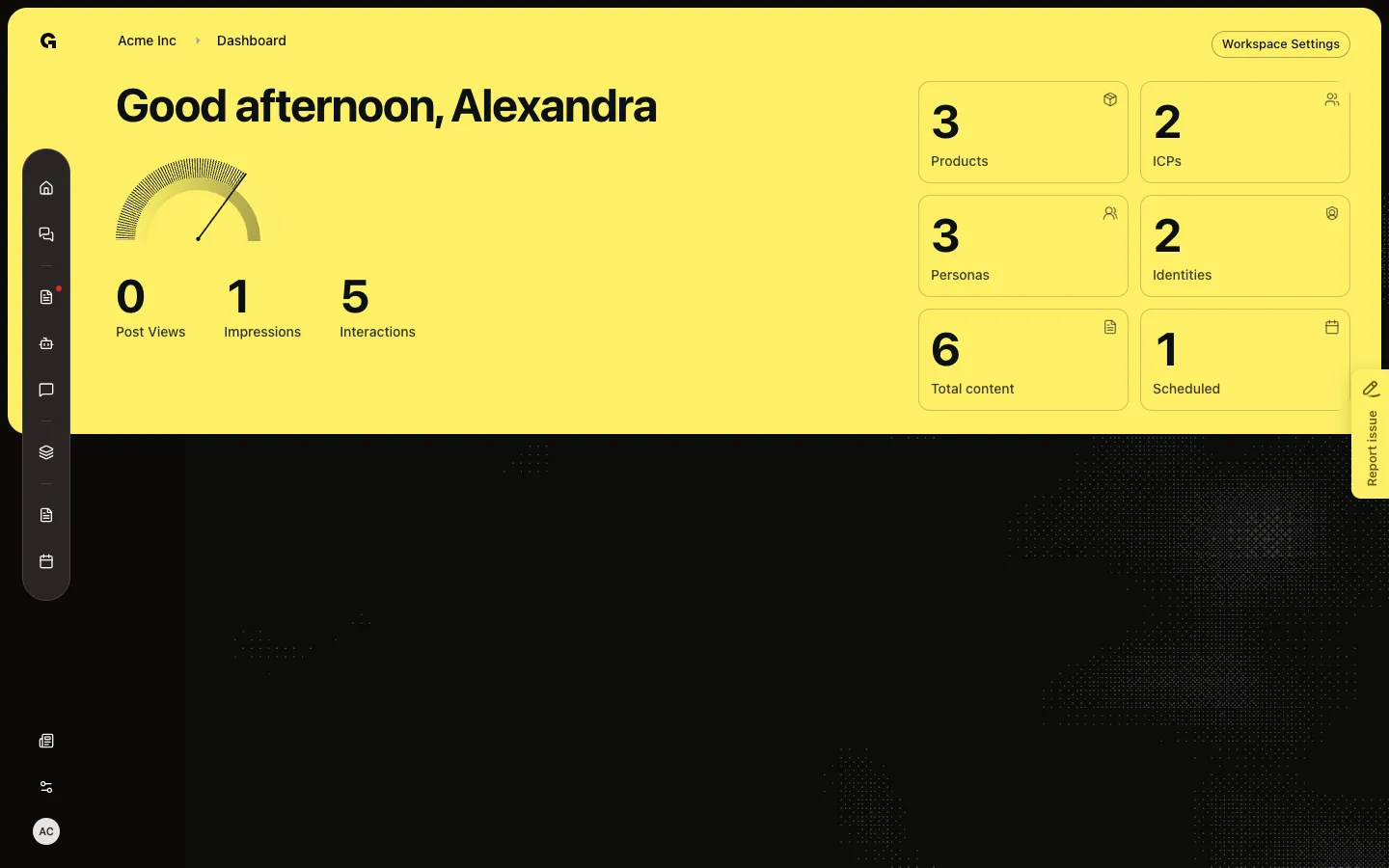
Read workspace counts for products, identities, and marketing content, or finish the setup checklist first.
Read now →49
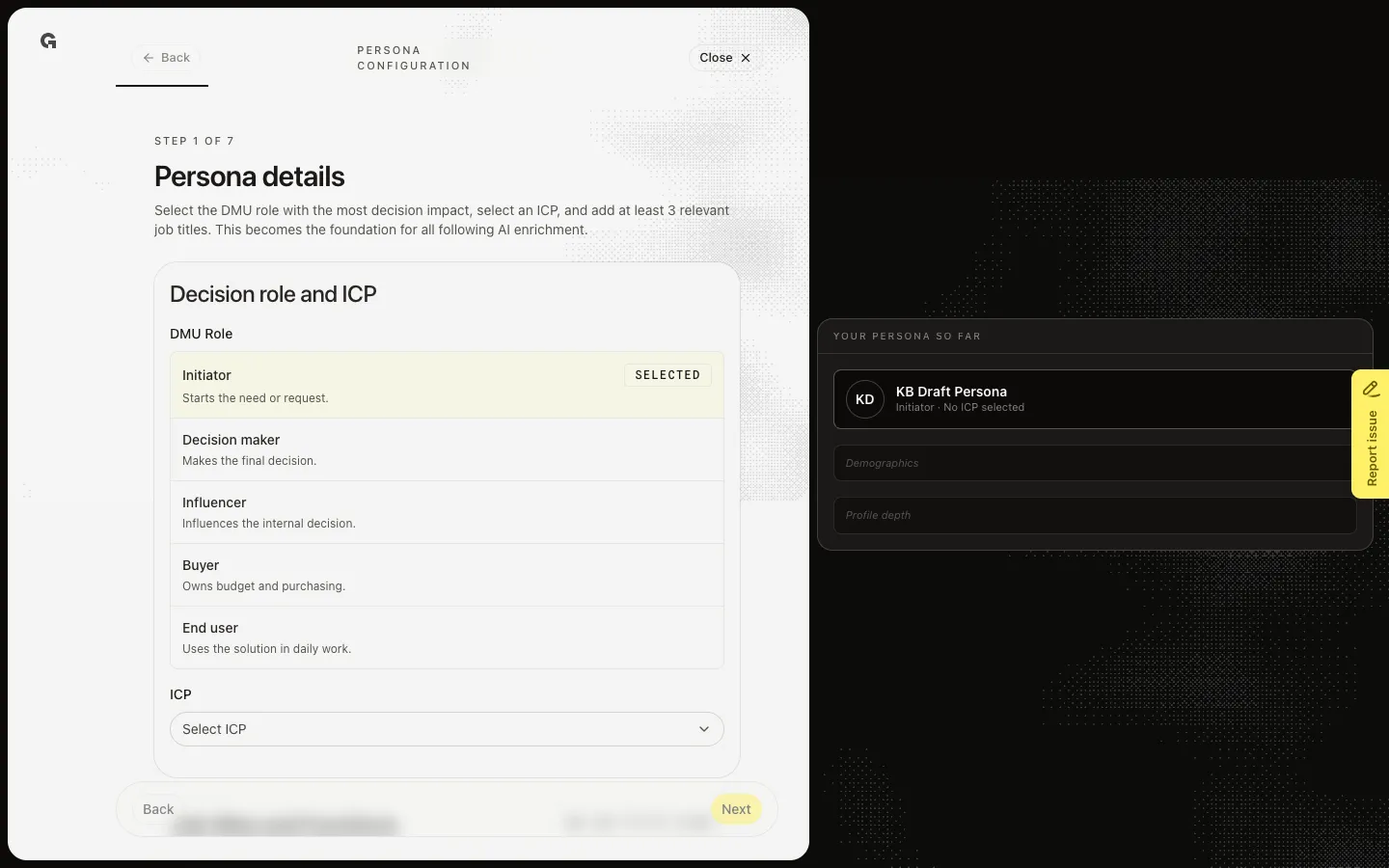
Open a New persona and complete the wizard: decision role, ICP, job titles, then the later profile steps.
Read now →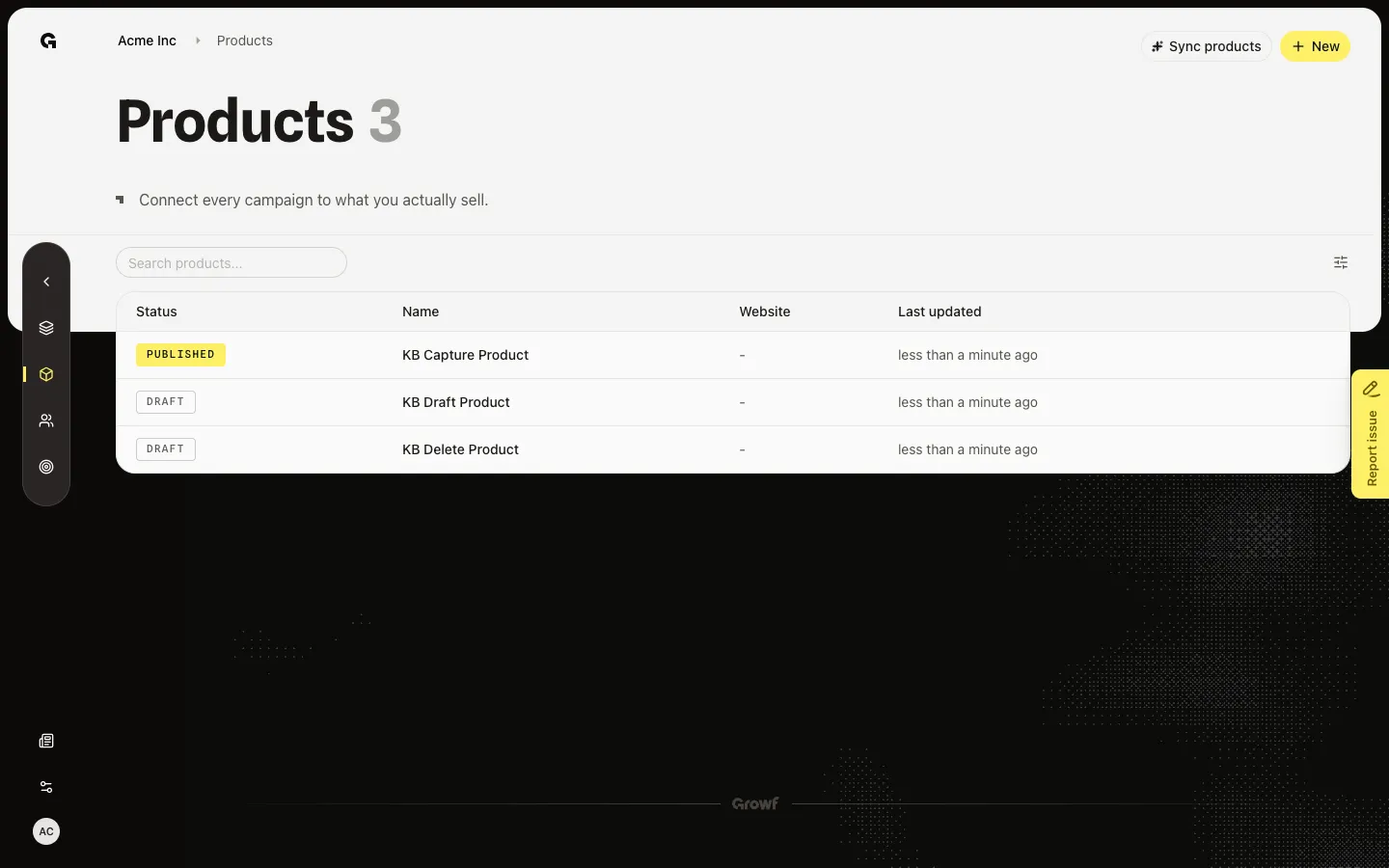
Open a draft product, add the briefing from a page or pasted text, then save and enrich so Features and Description appear.
Read now →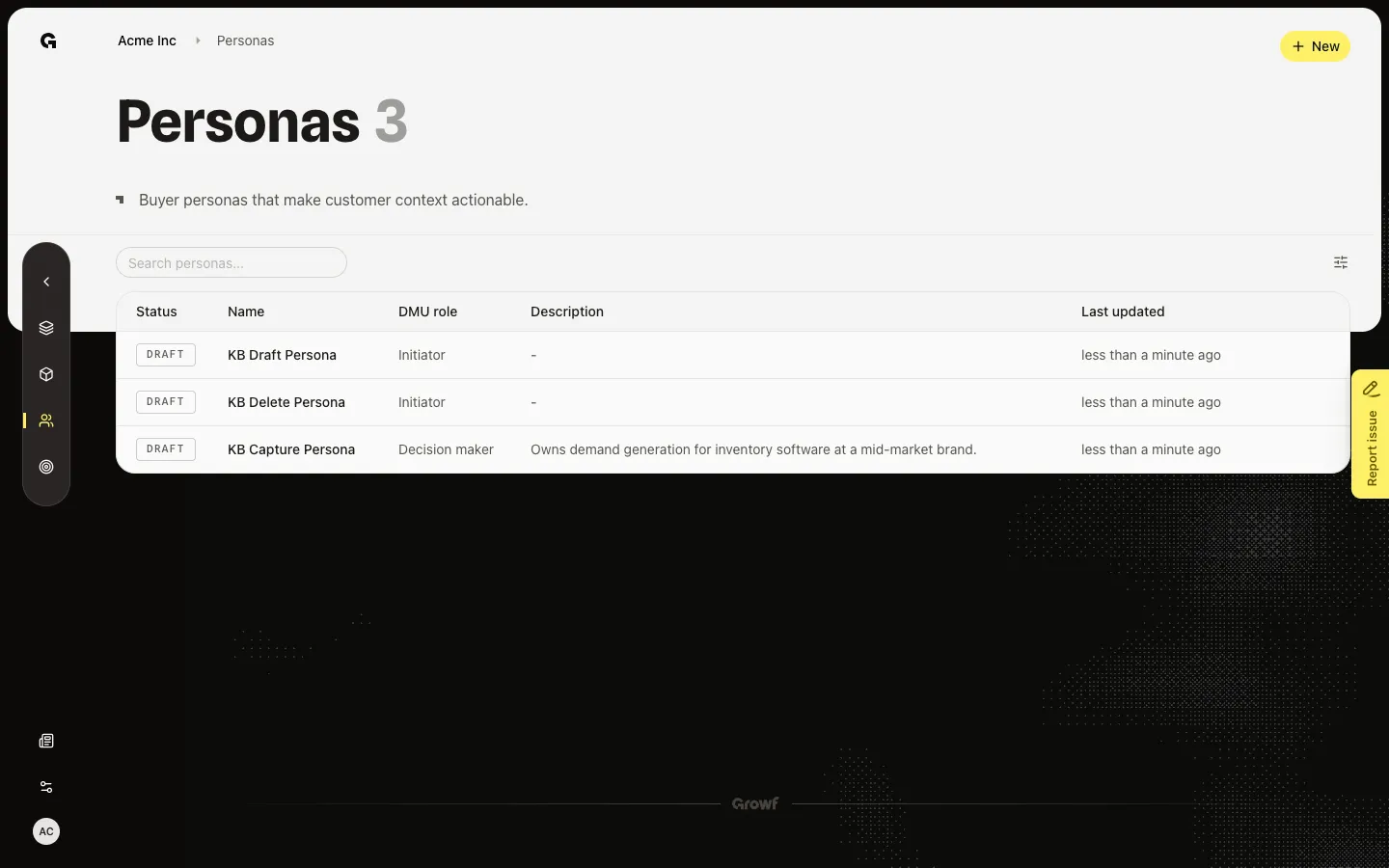
Choose New on Personas to create an Untitled persona and open Configure.
Read now →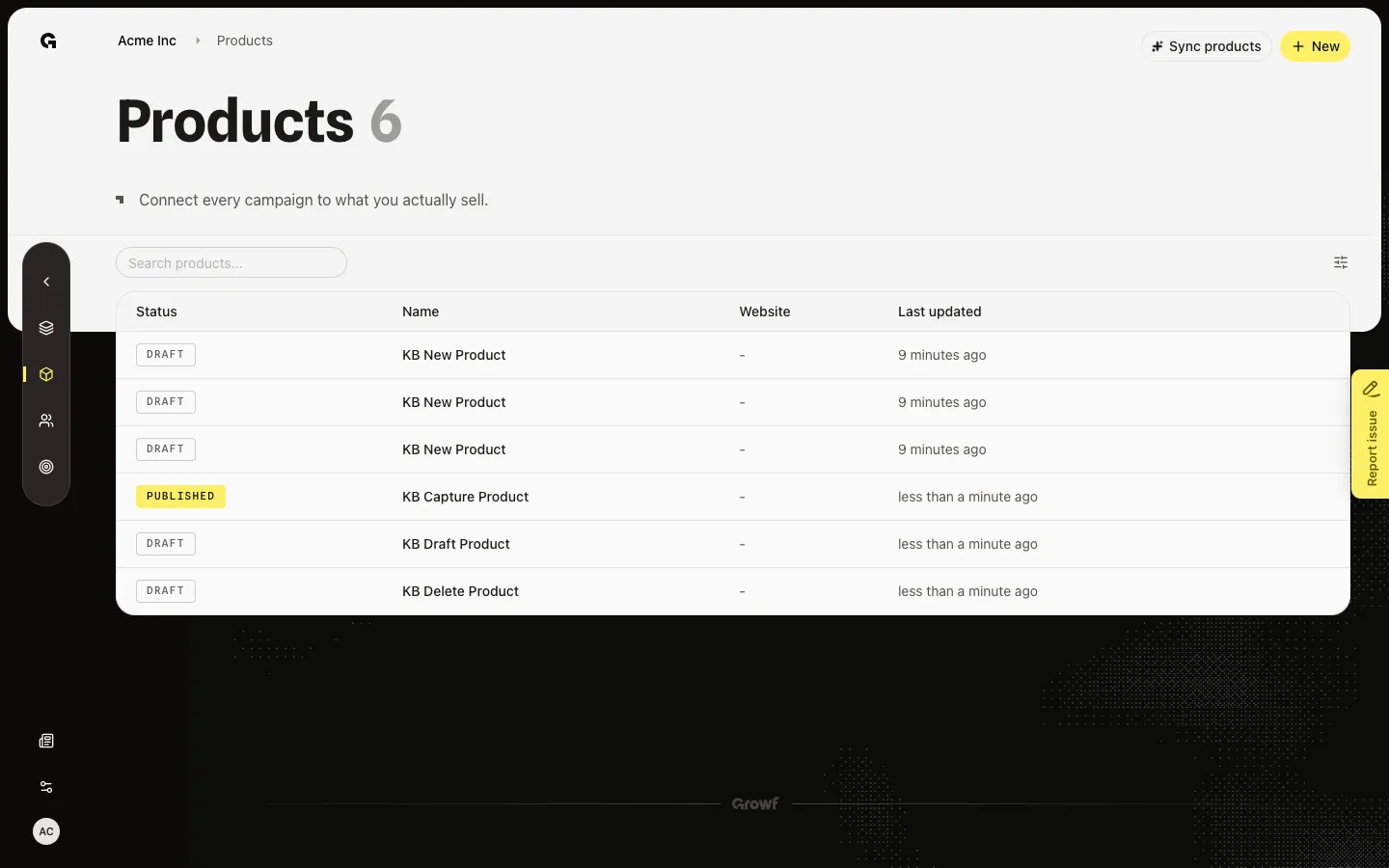
Add a product from New, pick a website page or pasted text, then continue to Configure.
Read now →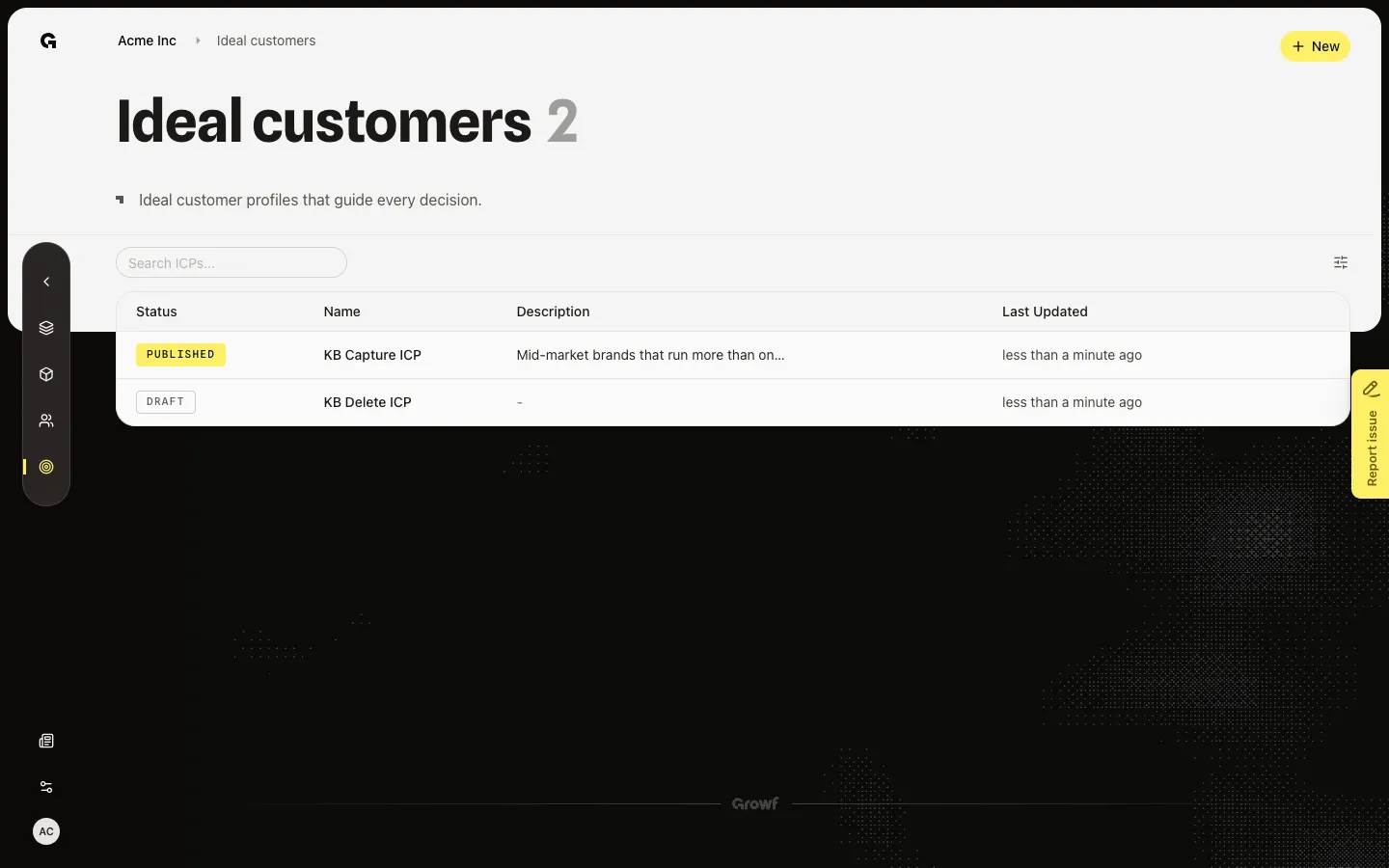
Choose New on Ideal customers, pick a published product, then add example companies before you create the profile.
Read now →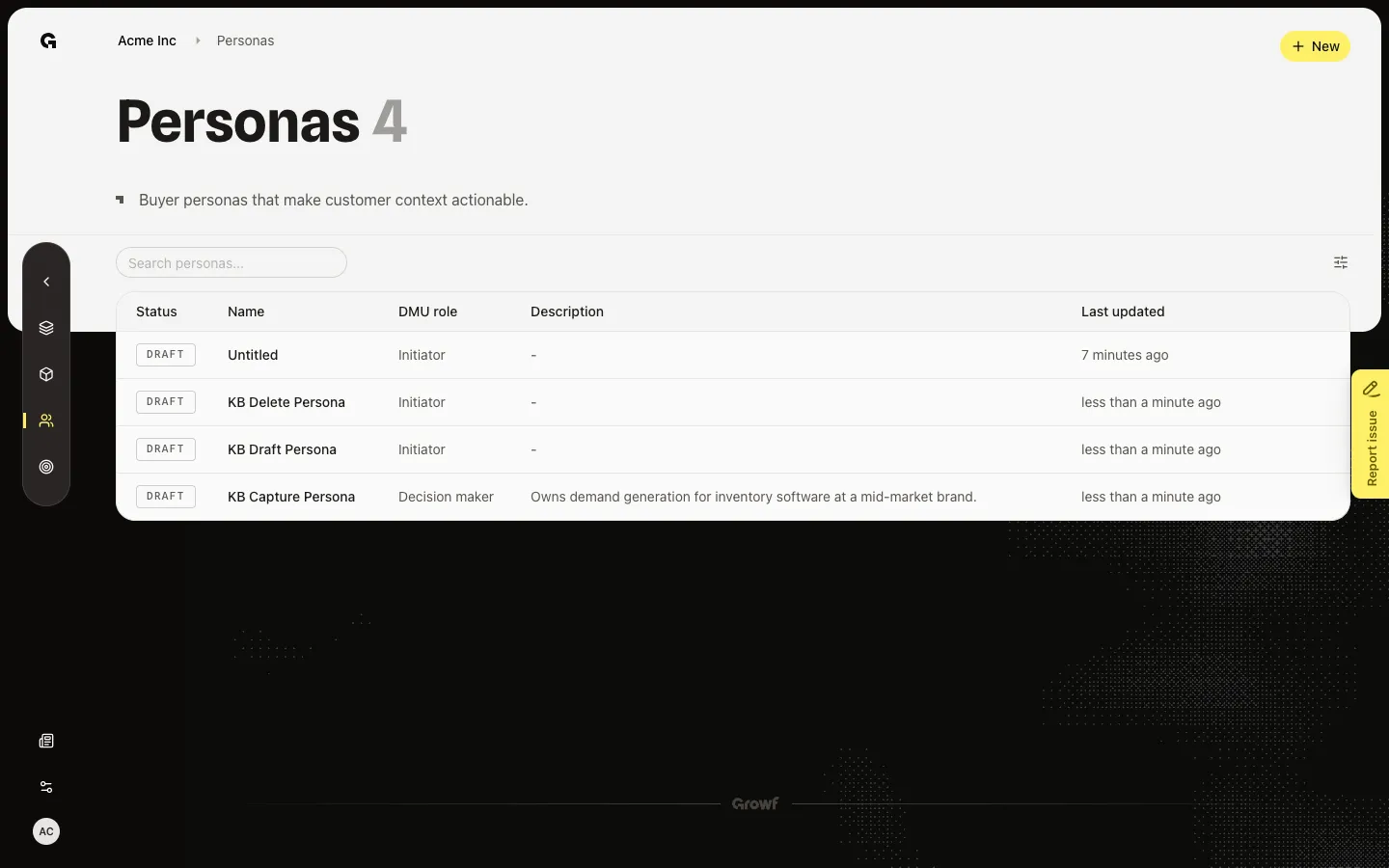
Remove a persona you no longer need. List trash appears on drafts; the overview also has Delete.
Read now →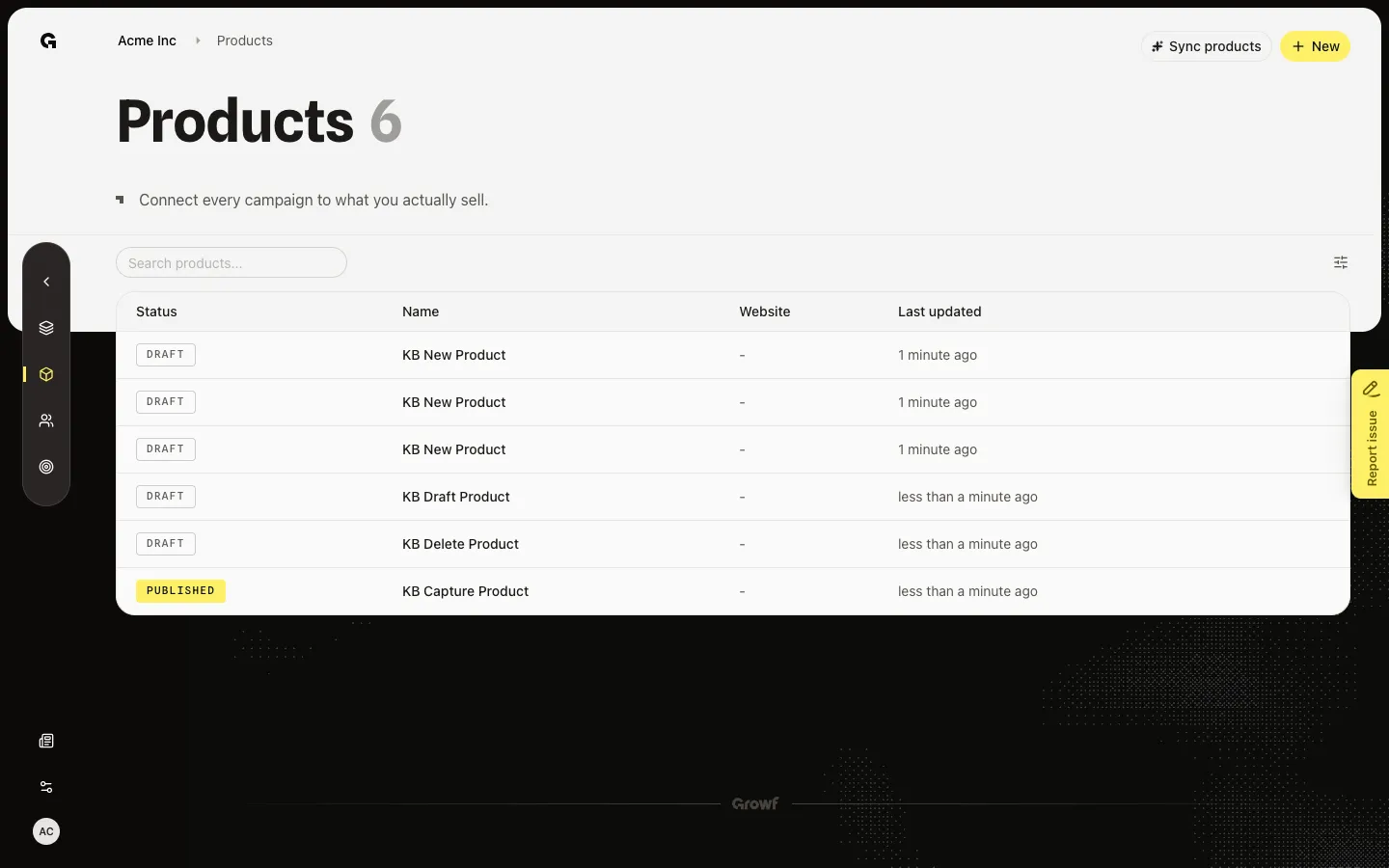
Remove a product you no longer need. List trash appears on drafts; the product page also has Delete.
Read now →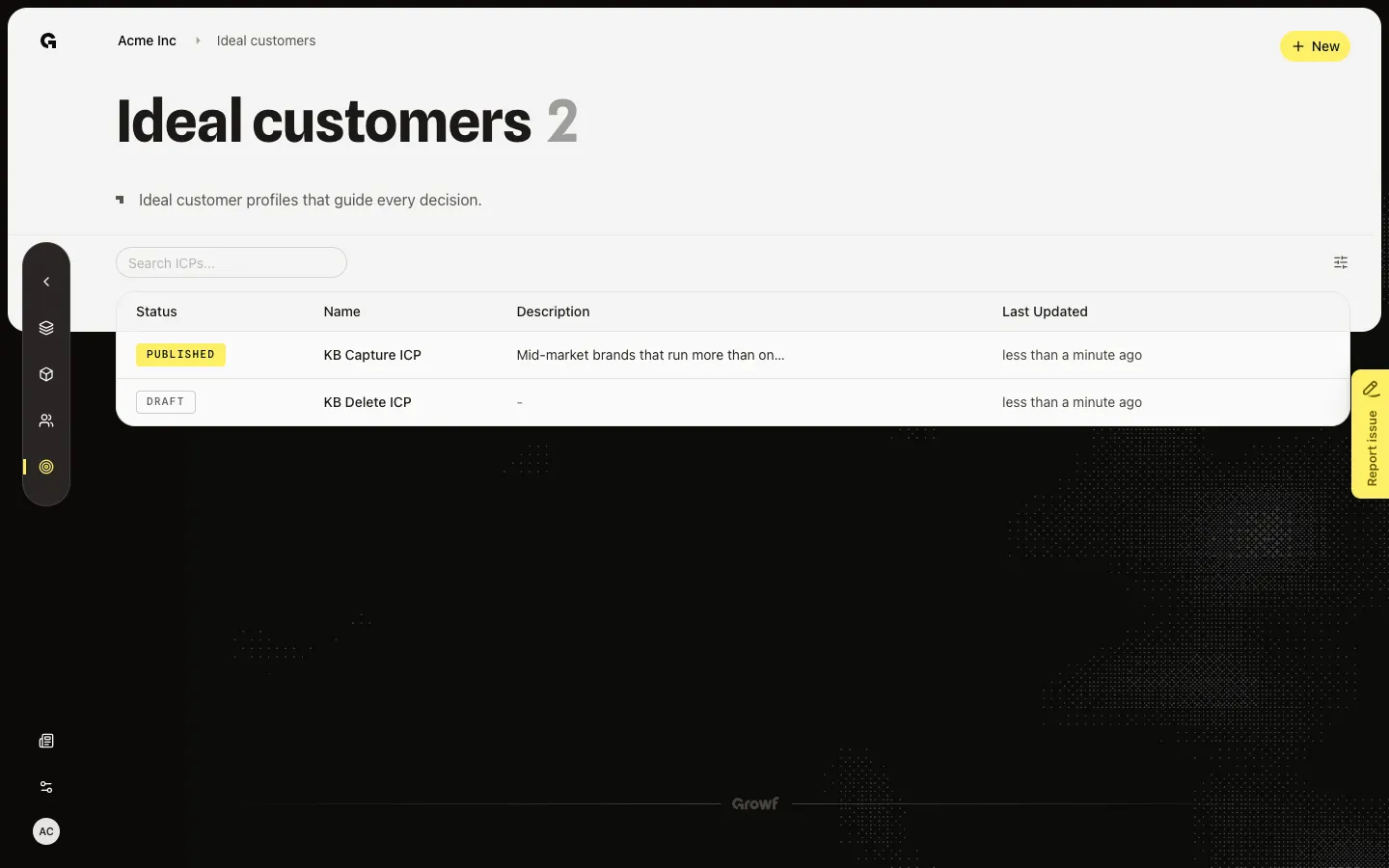
Remove a draft ICP from the list. Only drafts can be deleted.
Read now →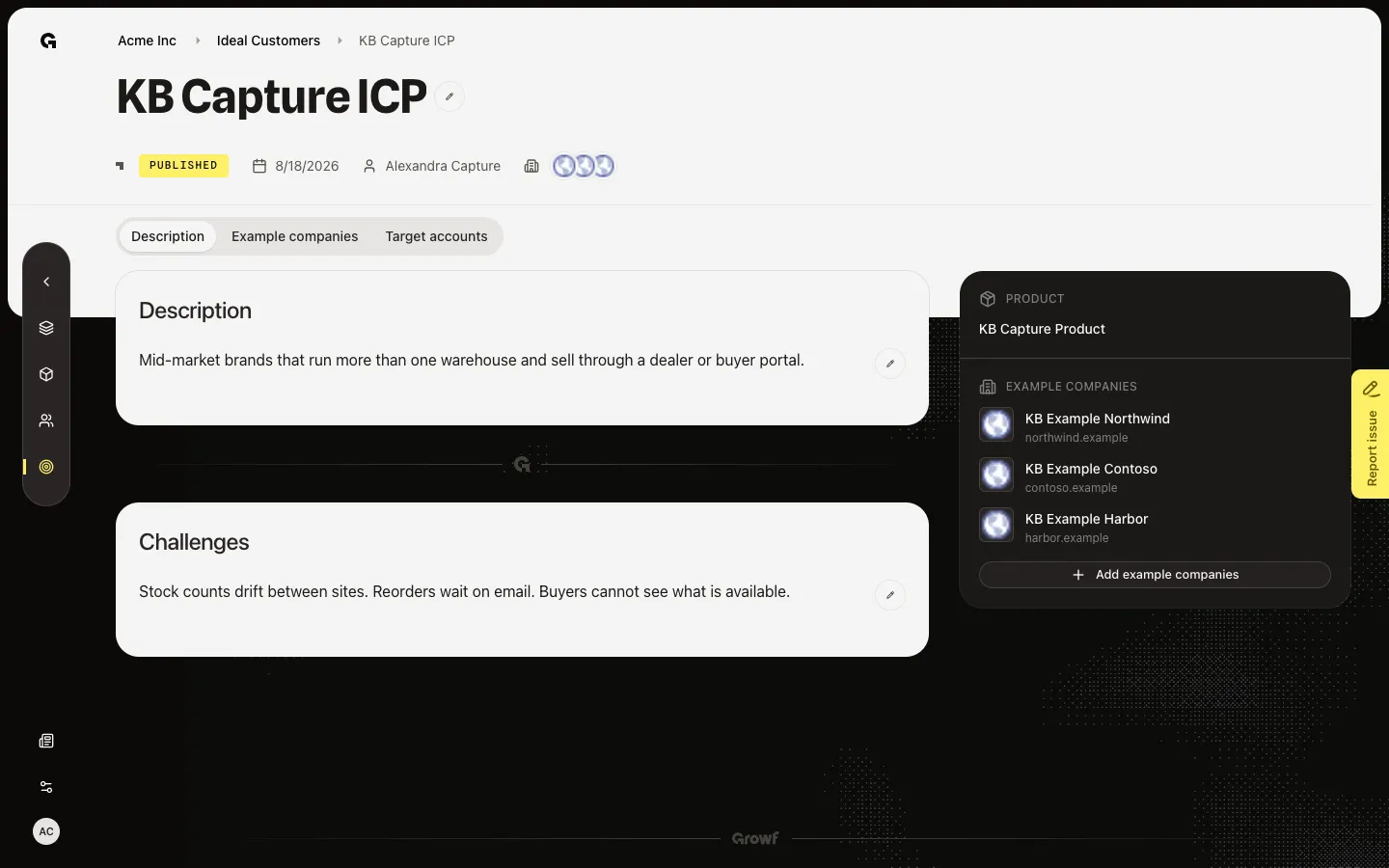
Open Description on a published ICP and edit the profile text and challenges.
Read now →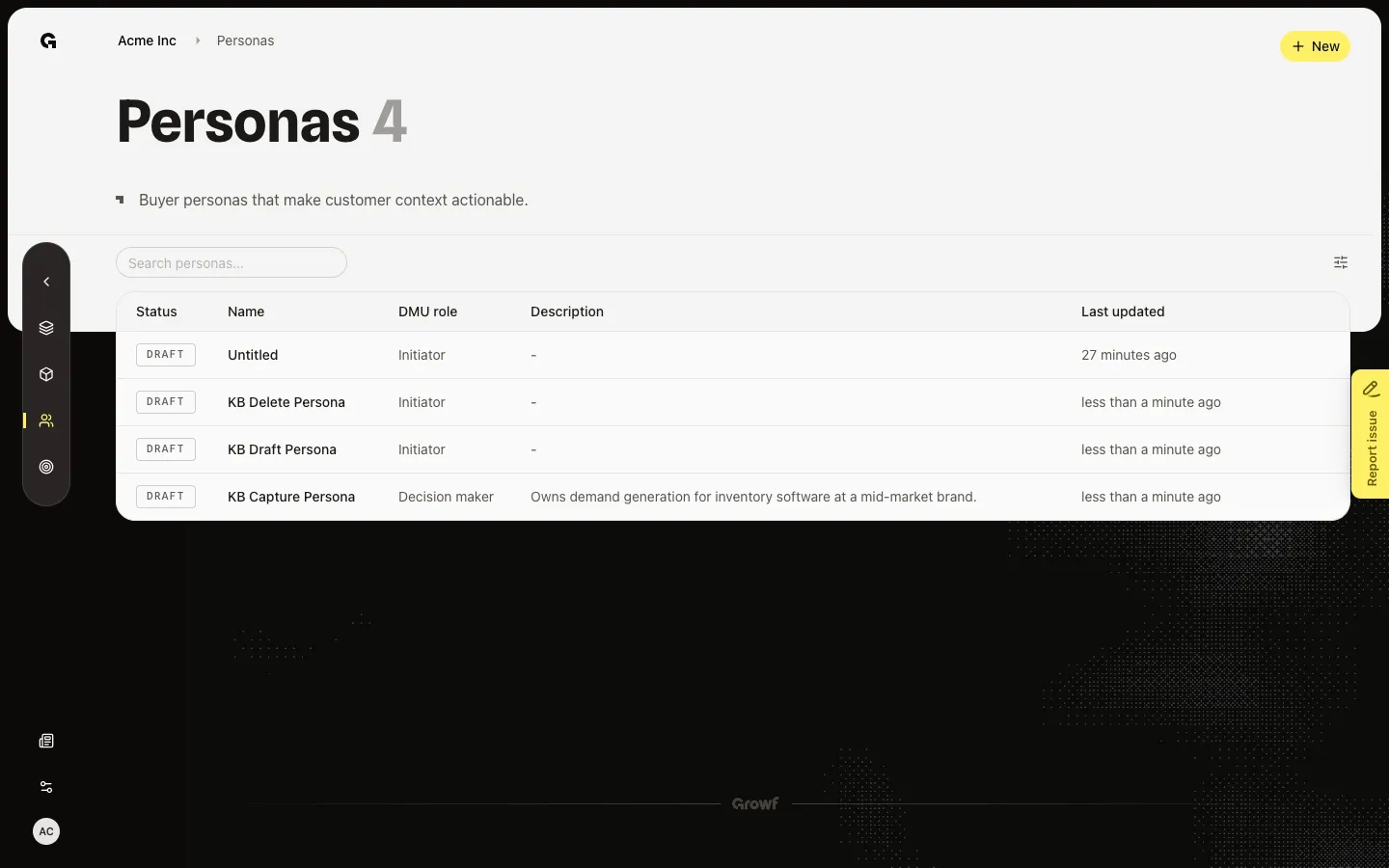
Open the jobs page and choose Export to download the titles as a CSV.
Read now →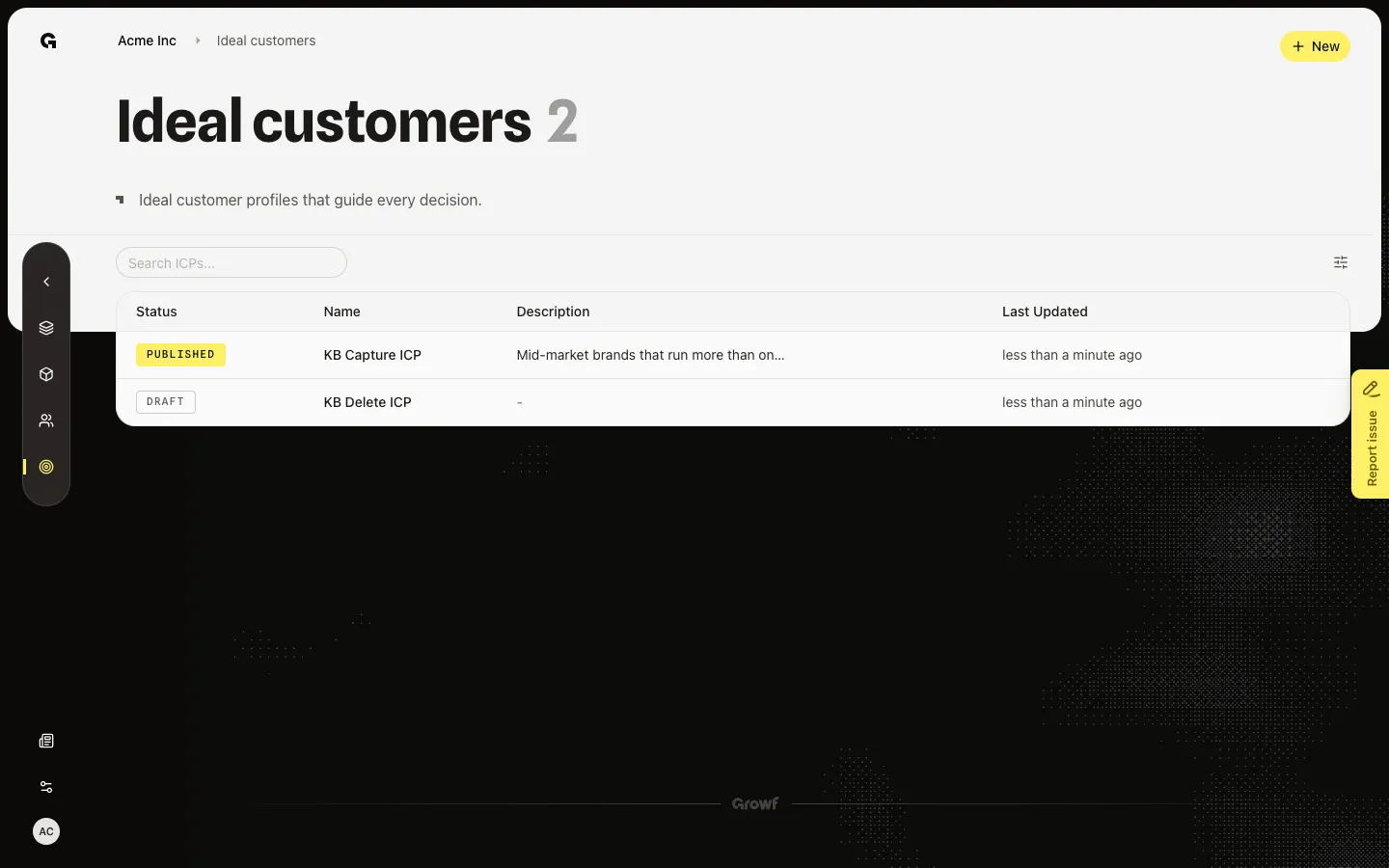
Open Selected on Target accounts and choose Export to CSV to download the saved companies.
Read now →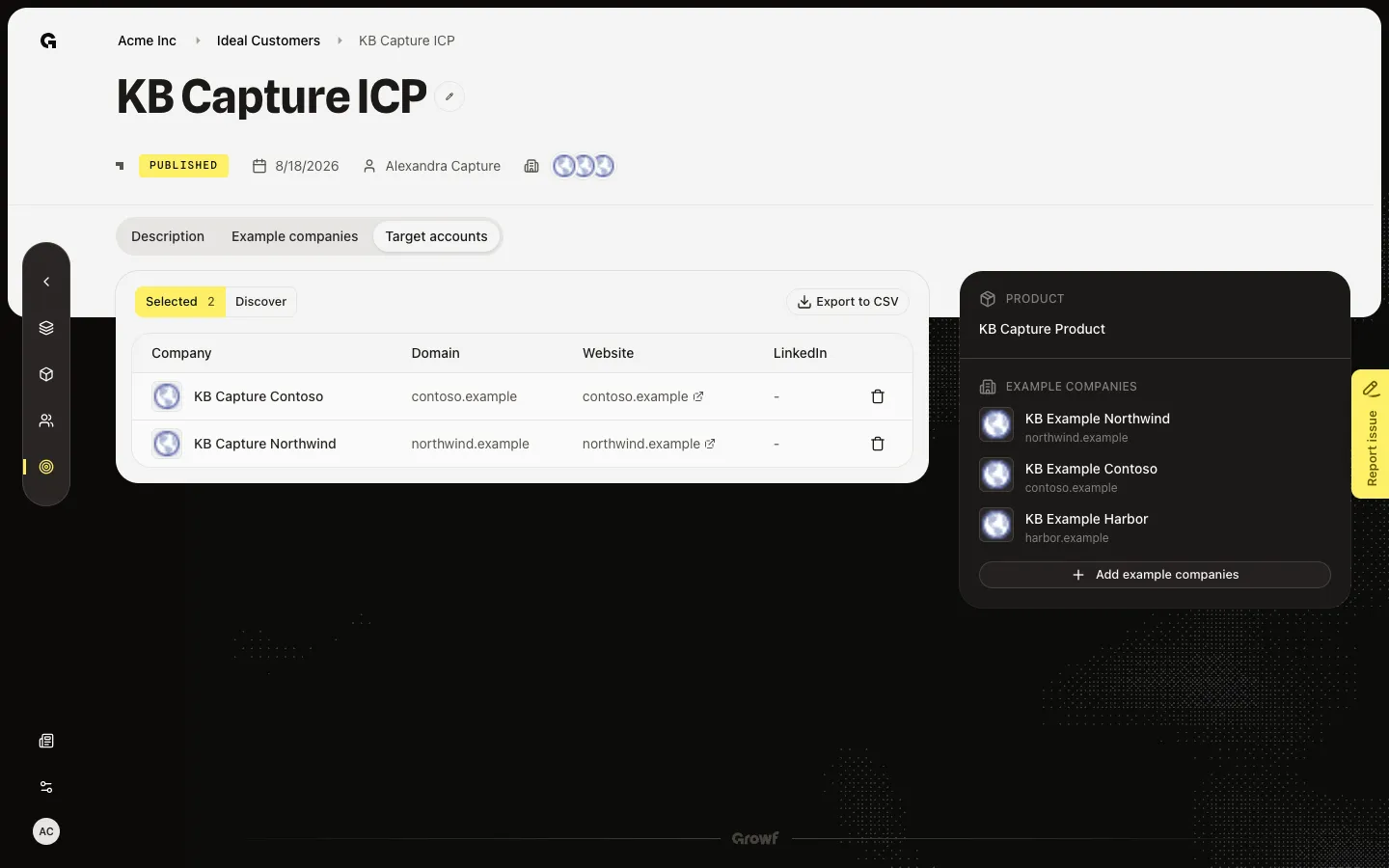
Open Target accounts on a published ICP and use Discover to search for companies that match the profile.
Read now →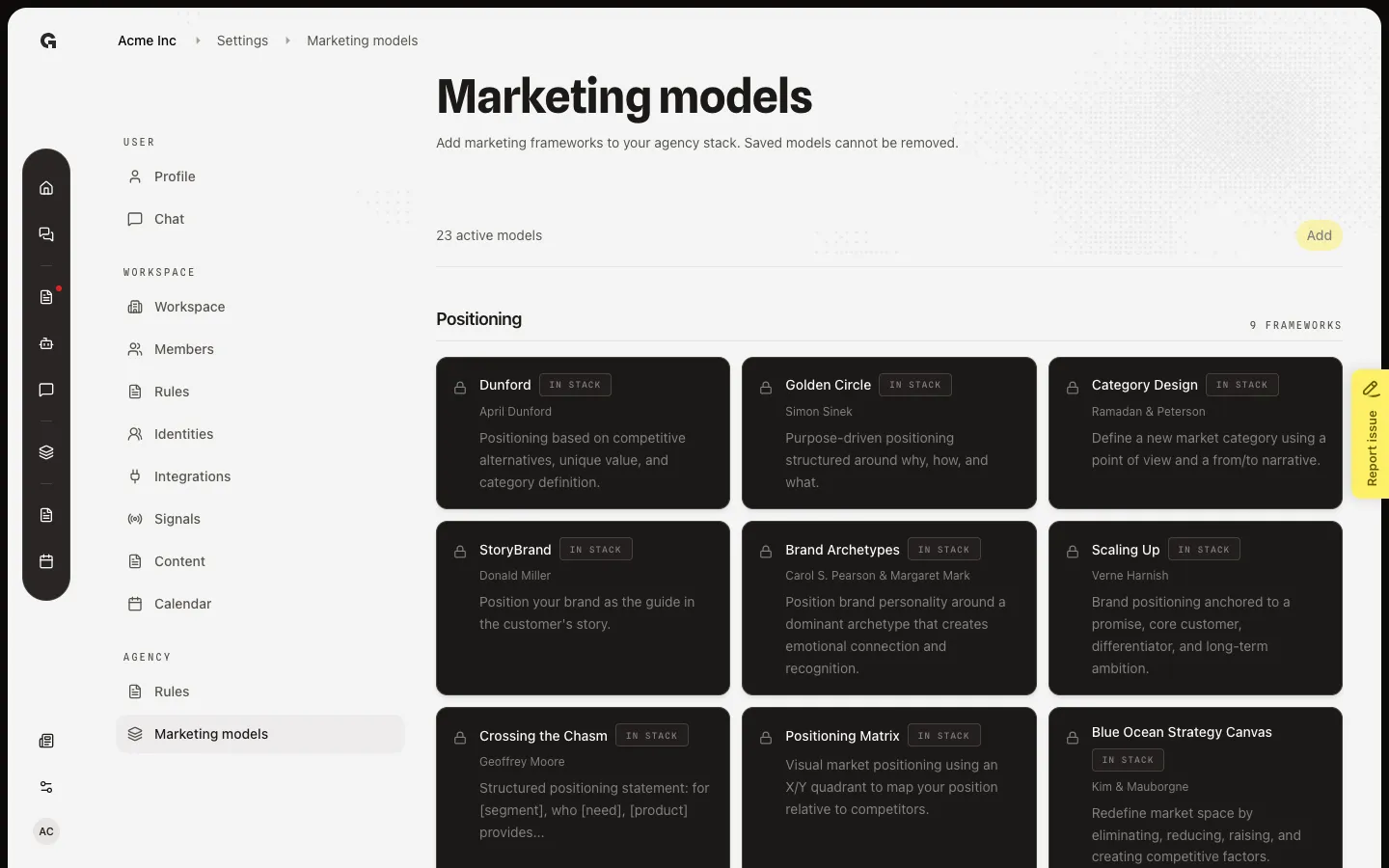
Add frameworks to the agency stack so every workspace can fill them. Saved models stay.
Read now →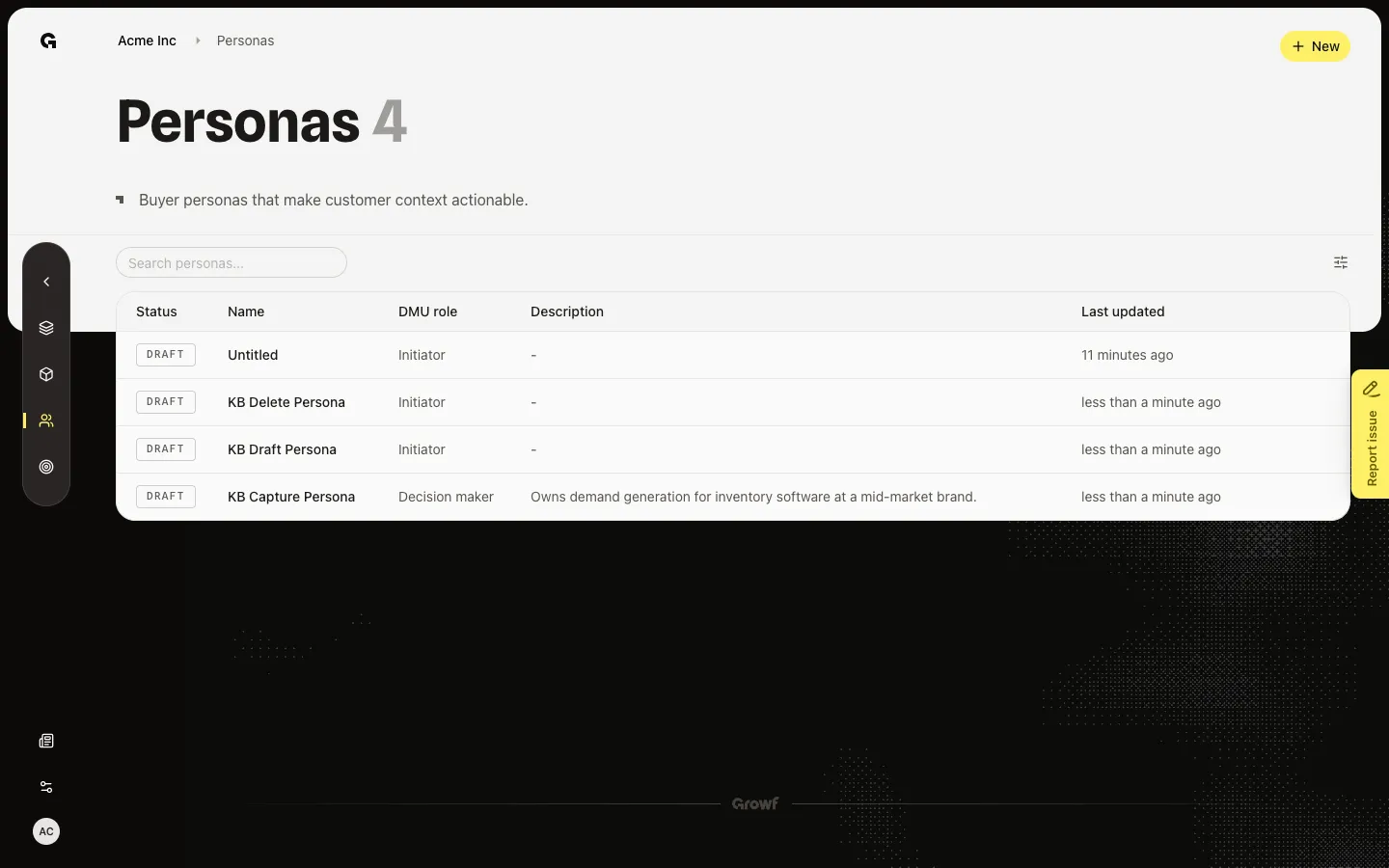
Open Personas to see buyer roles, search or filter the list, and open a persona to finish setup or review the profile.
Read now →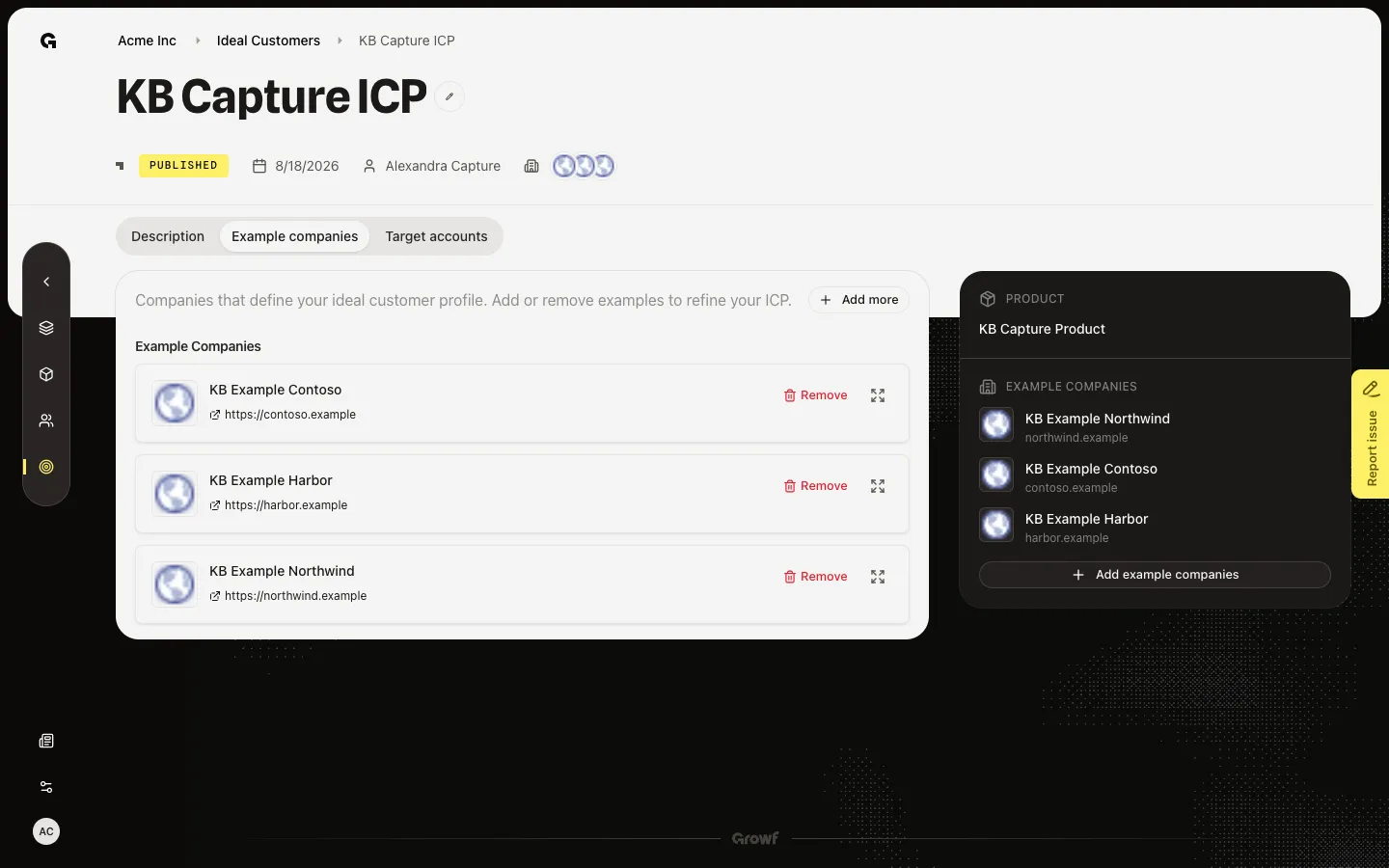
Open Example companies on a published ICP to review the 3–6 accounts that define the profile, then add more if needed.
Read now →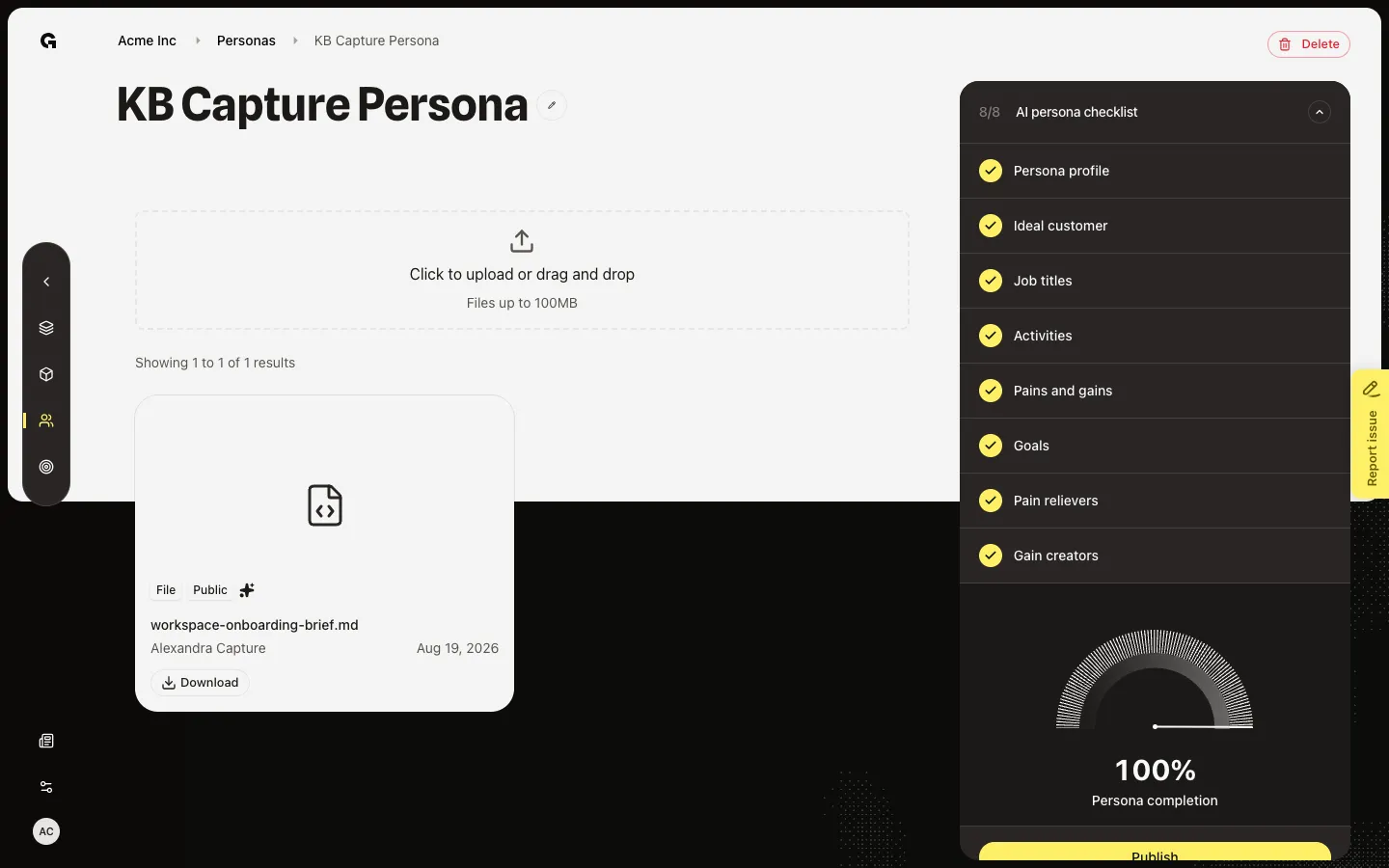
Open a persona’s documents page to see files from the linked product, and upload when exactly one product is linked.
Read now →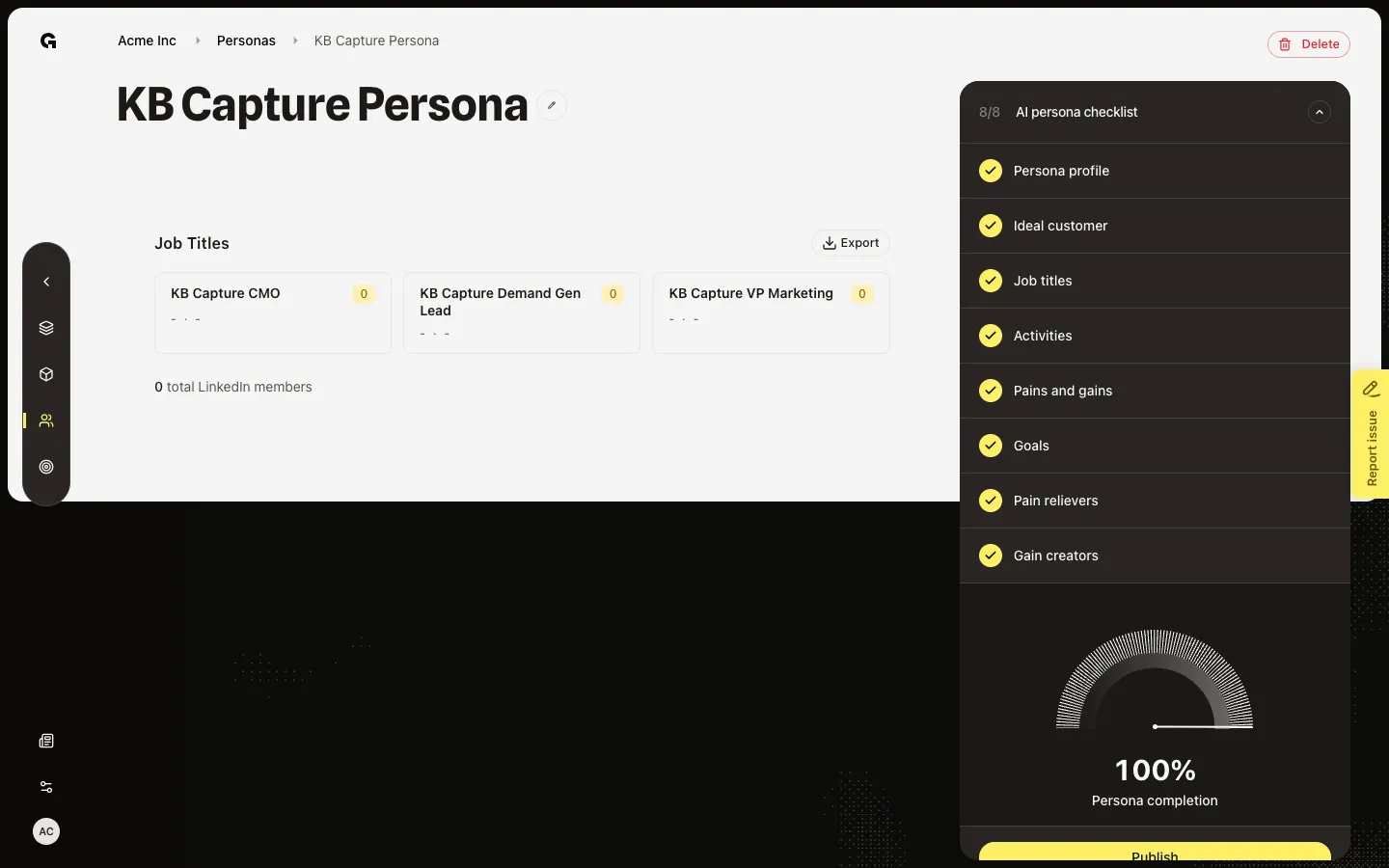
Open the jobs page to review the titles linked to a buyer persona.
Read now →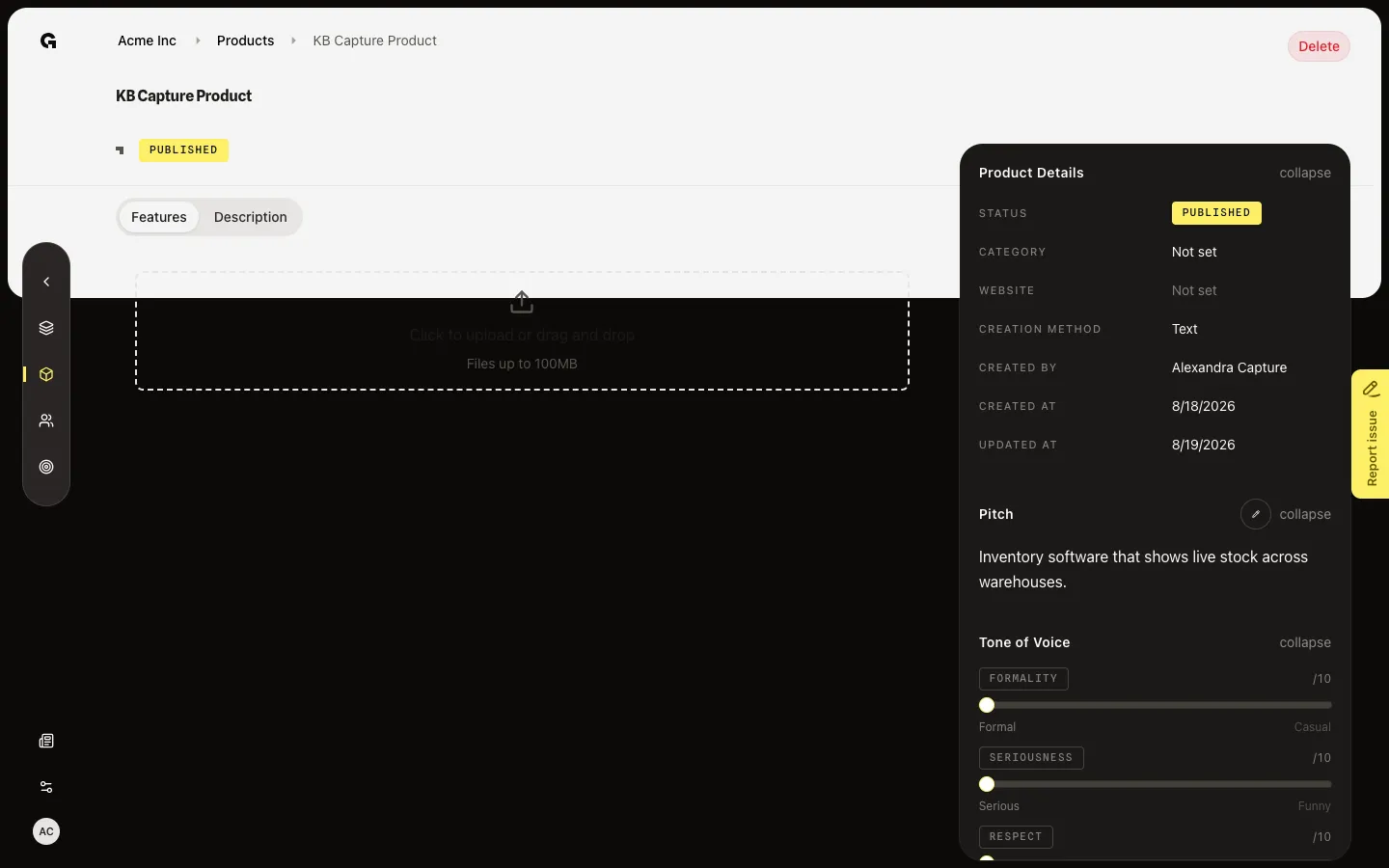
Open a product’s documents page and drop files so Growf can use them as offer context.
Read now →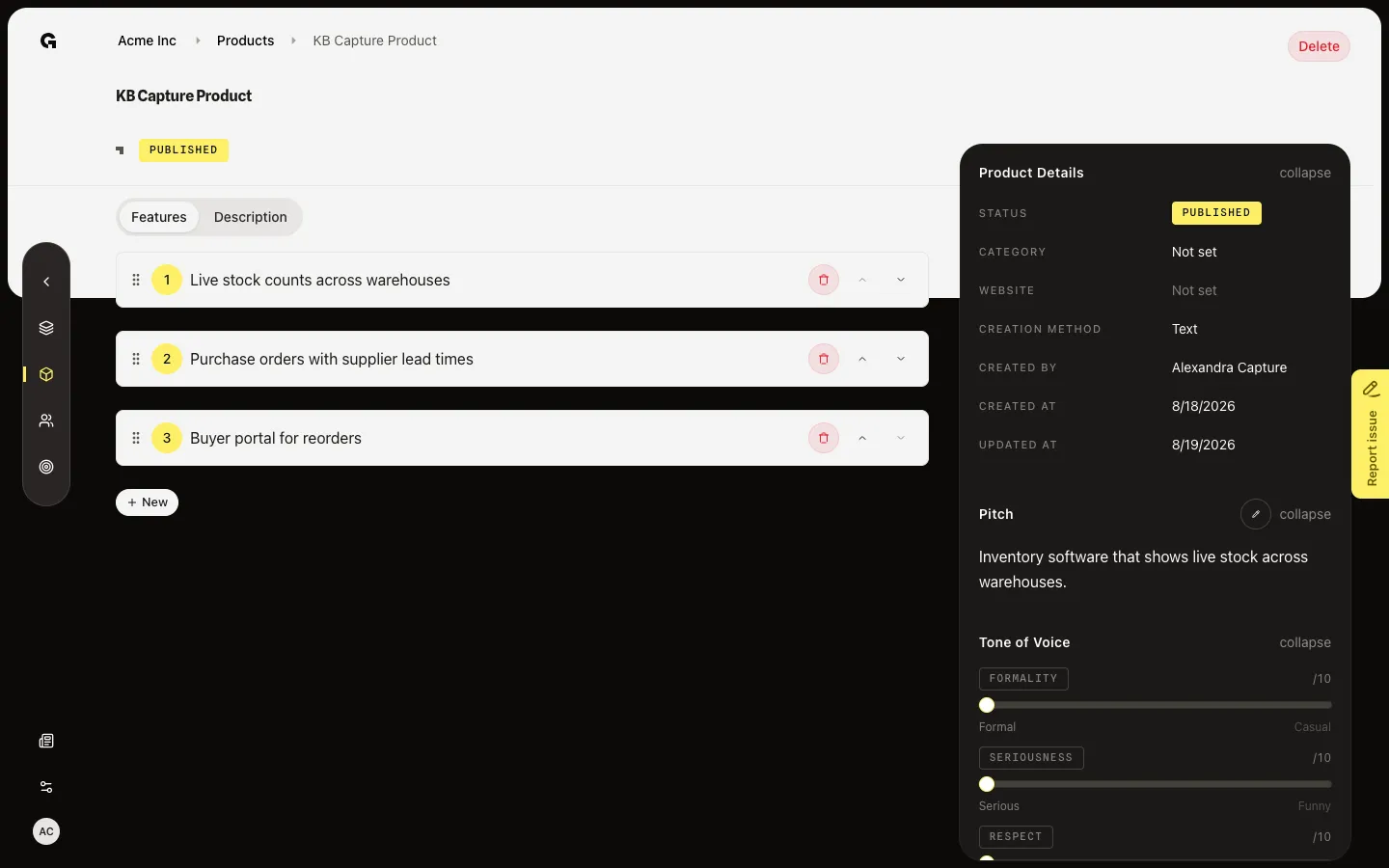
Open Features on a configured product, then add, edit, reorder, or delete the points that define the offer.
Read now →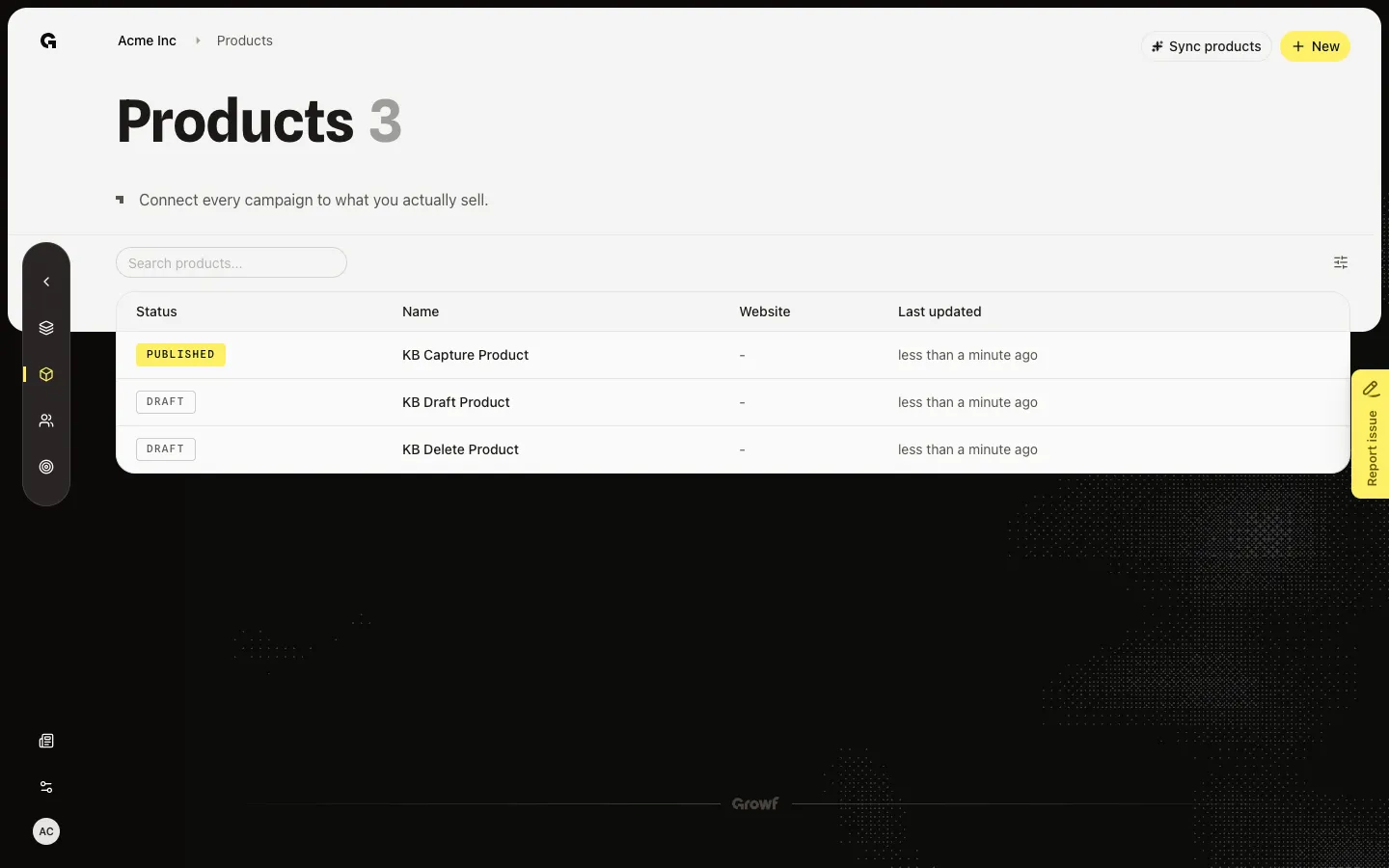
Open Products to see what the workspace sells, search or filter the list, and open a product to finish setup or edit features.
Read now →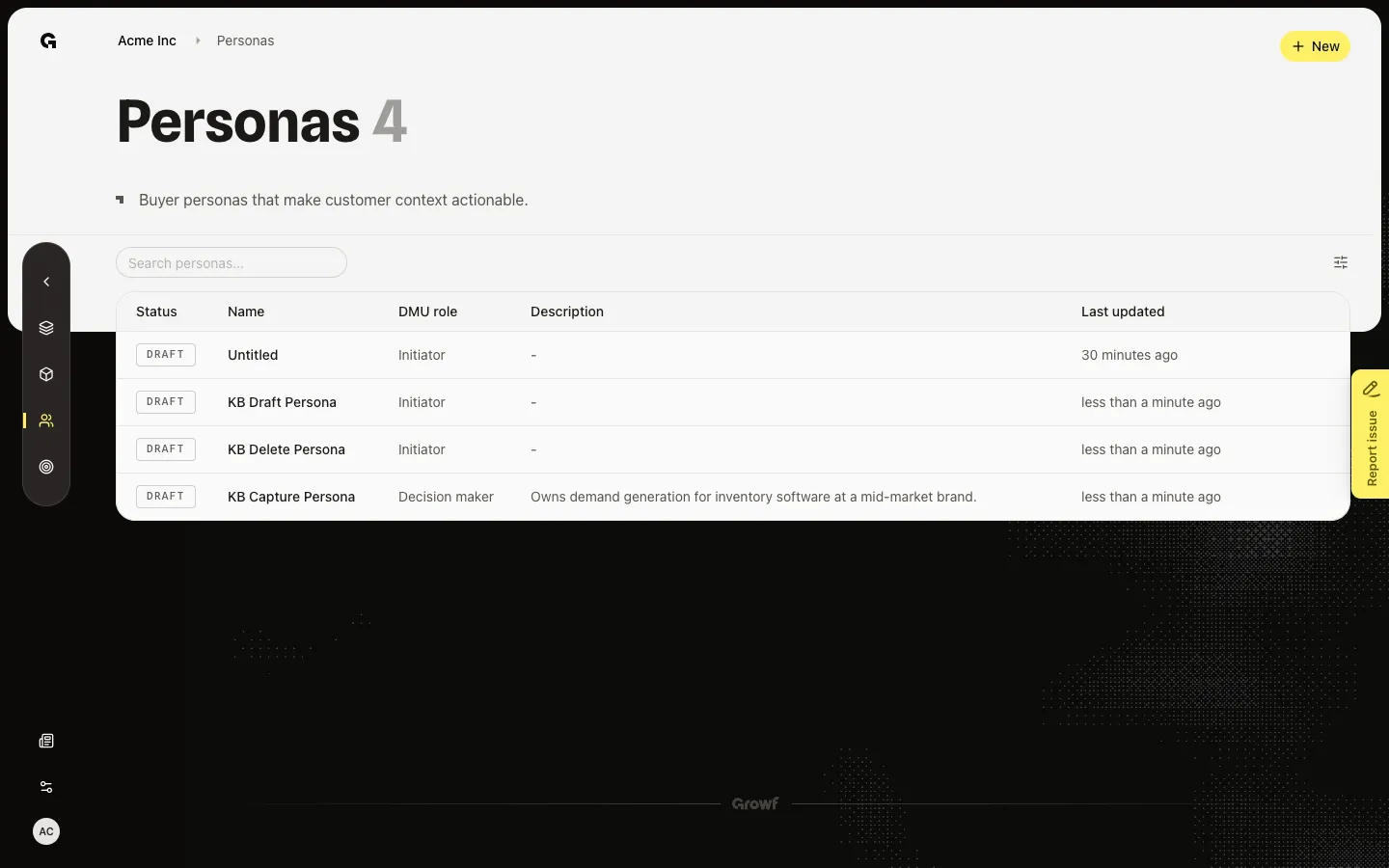
Open the overview and choose Publish when the AI persona checklist is complete.
Read now →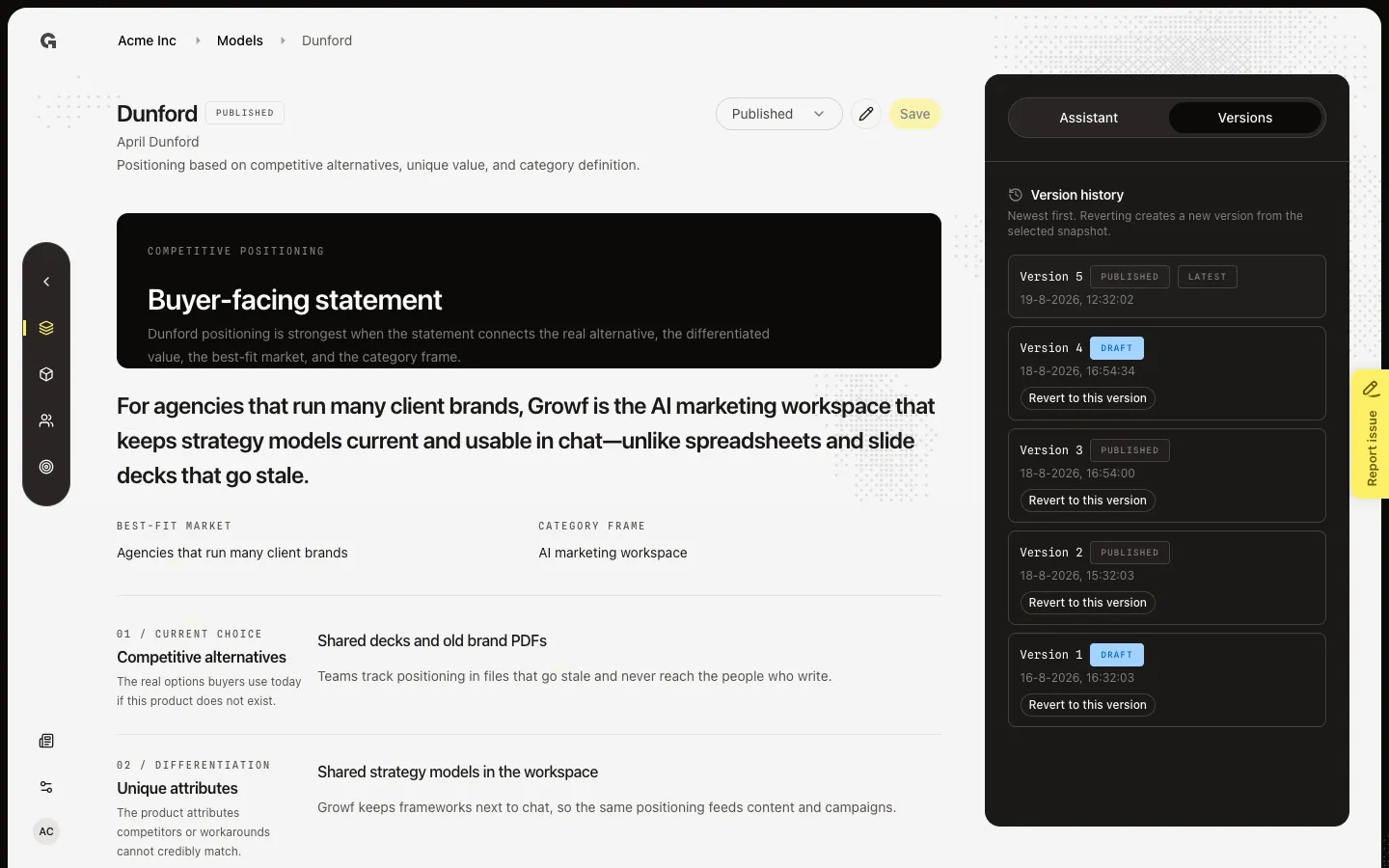
Open Versions and restore an older snapshot as a new draft without deleting history.
Read now →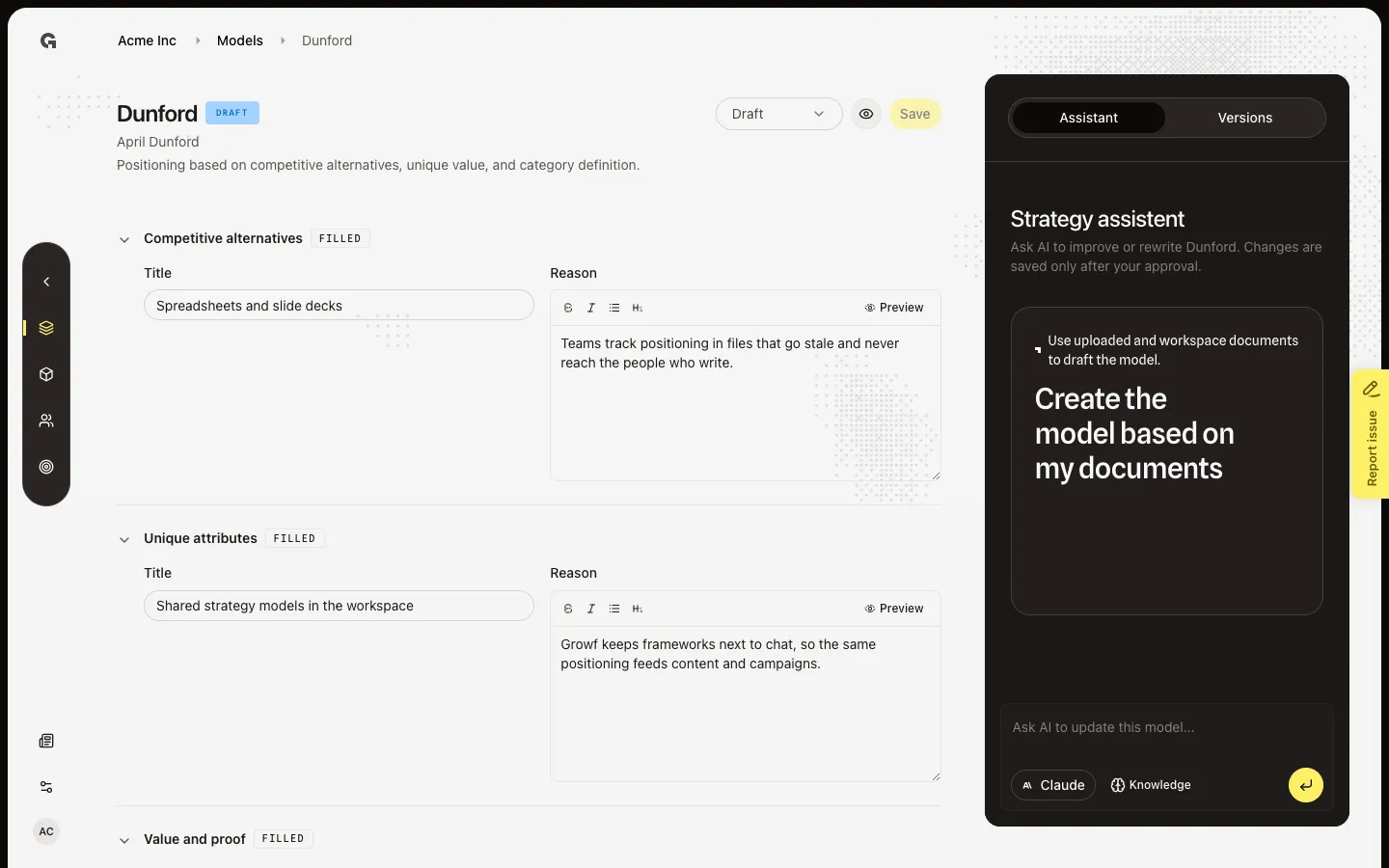
Edit a framework, save a new draft version, then publish it for chat and mentions.
Read now →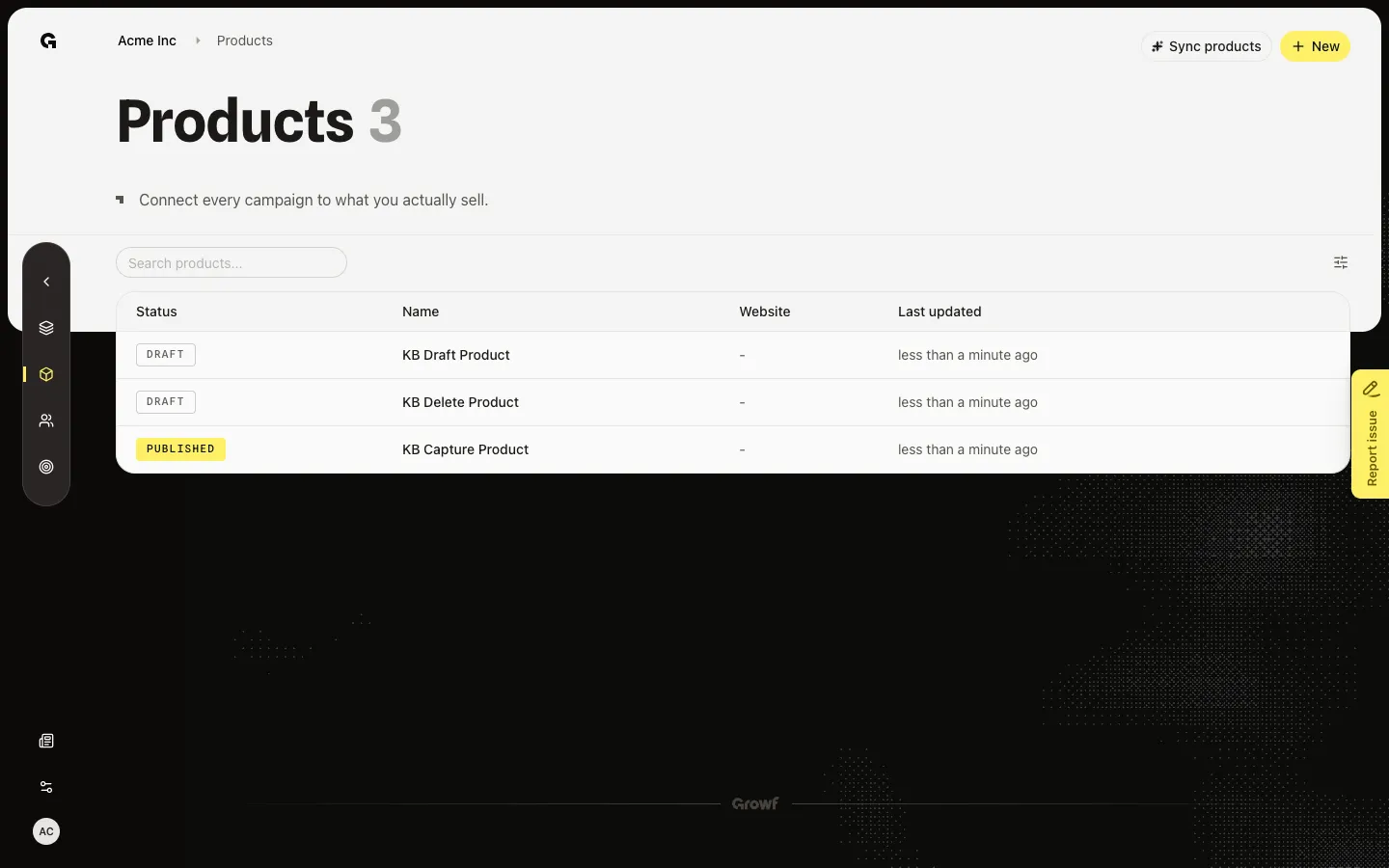
Start Sync products so Growf can look for product pages on the workspace domain.
Read now →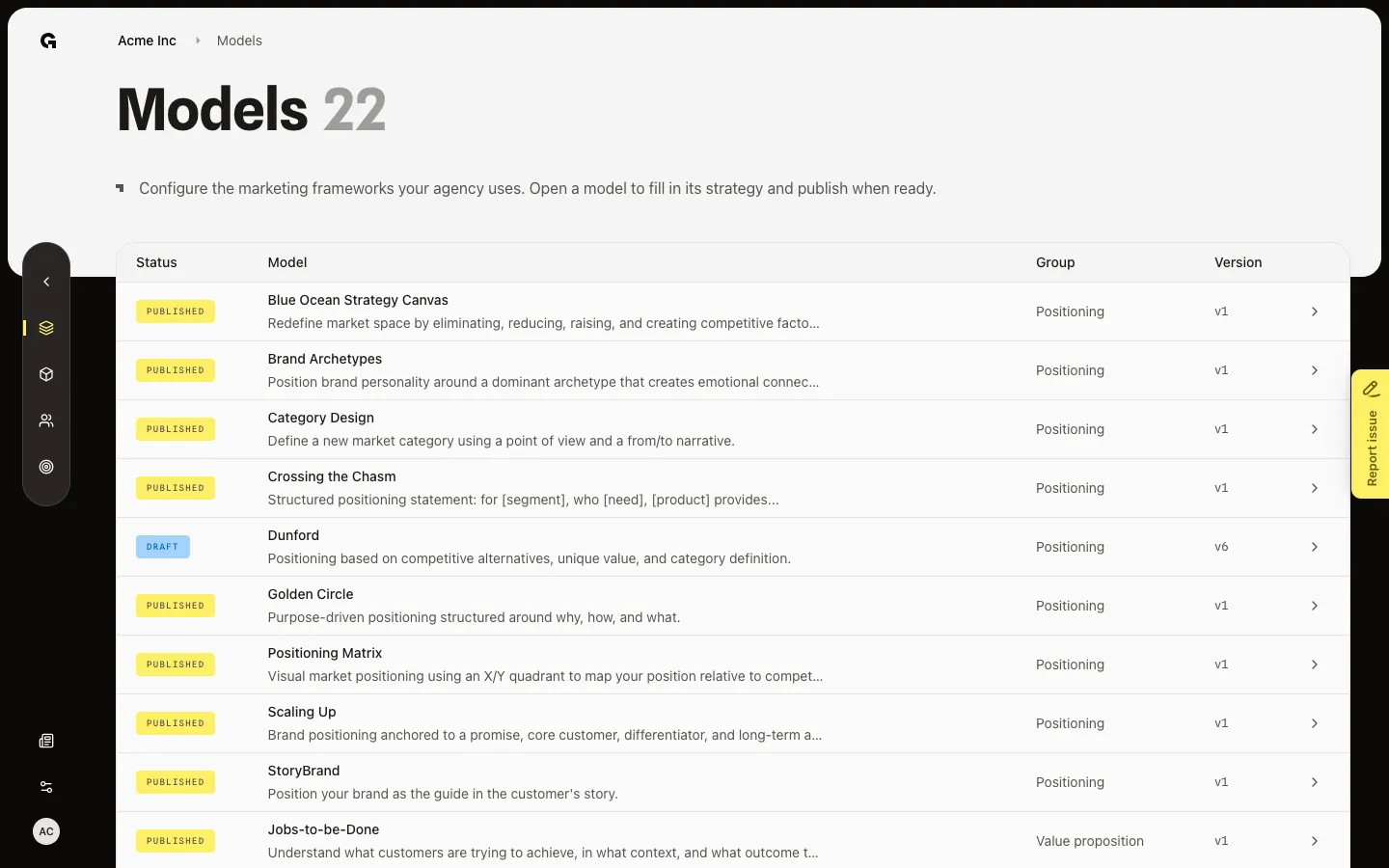
Open the Models list, read each framework’s status, and pick a model to preview or edit.
Read now →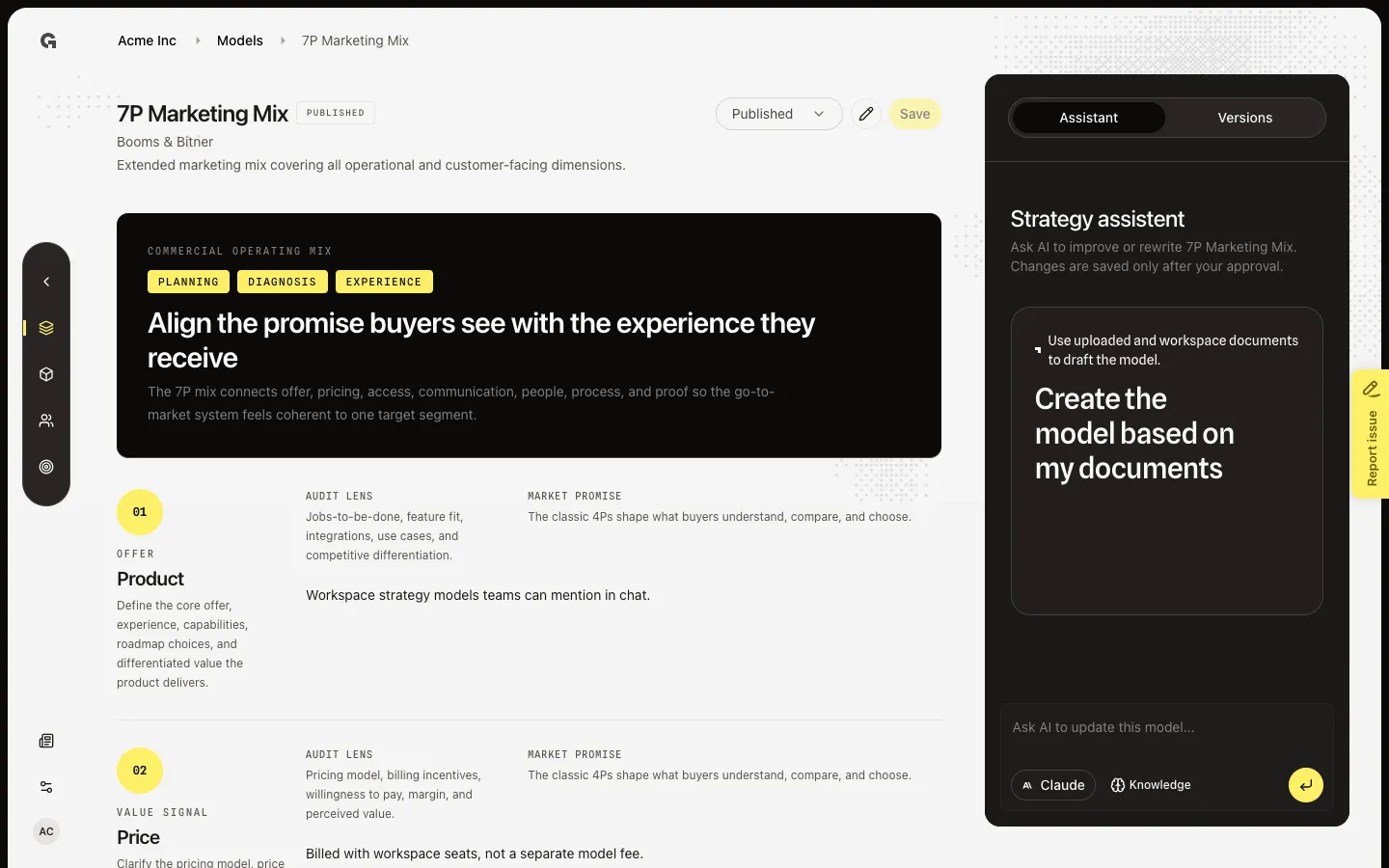
Add 7P to the agency stack if it is missing, then edit Product through Physical evidence and preview the mix.
Read now →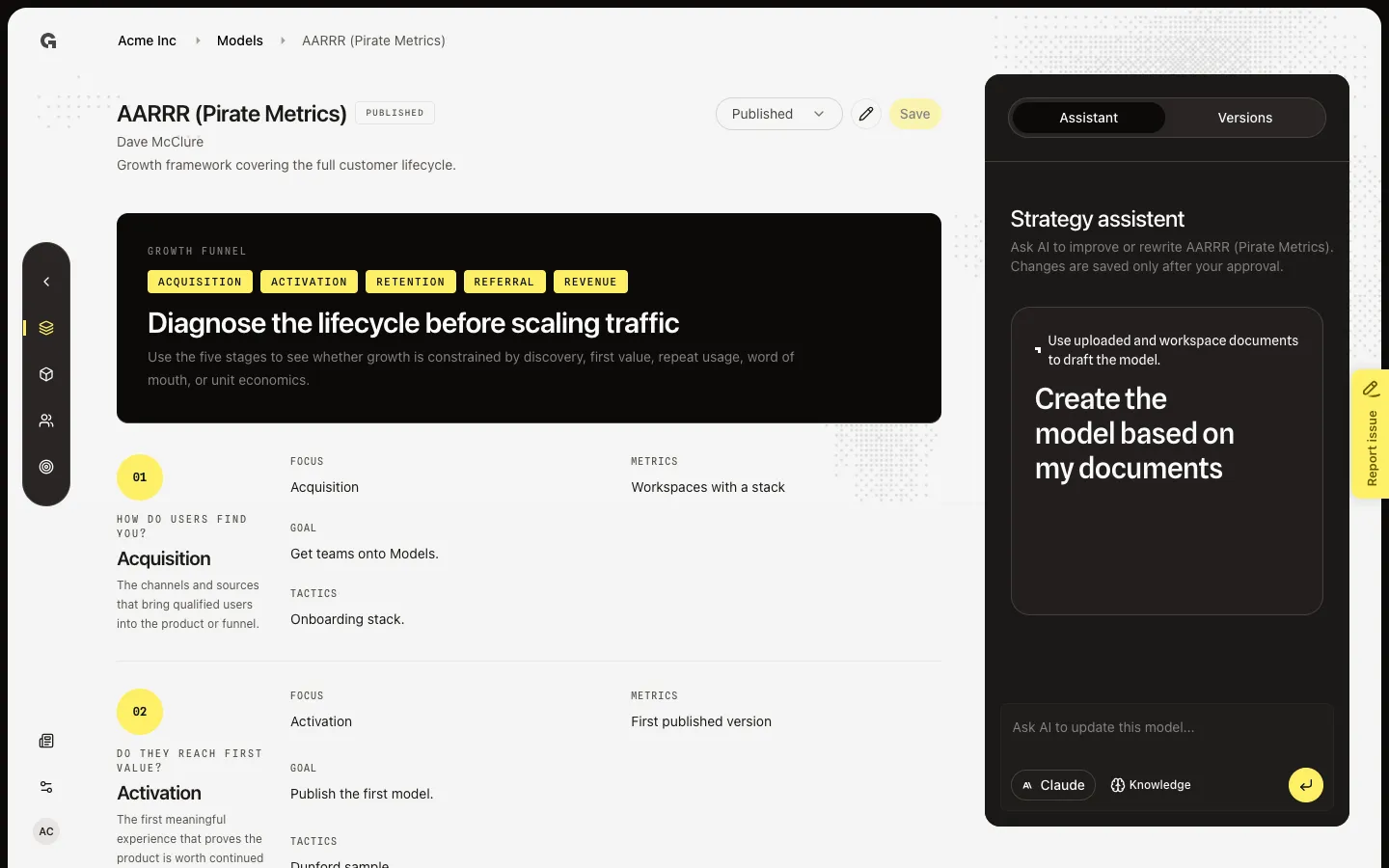
Preview the five growth stages, then open Edit to set focus, goal, tactics, and metrics for each.
Read now →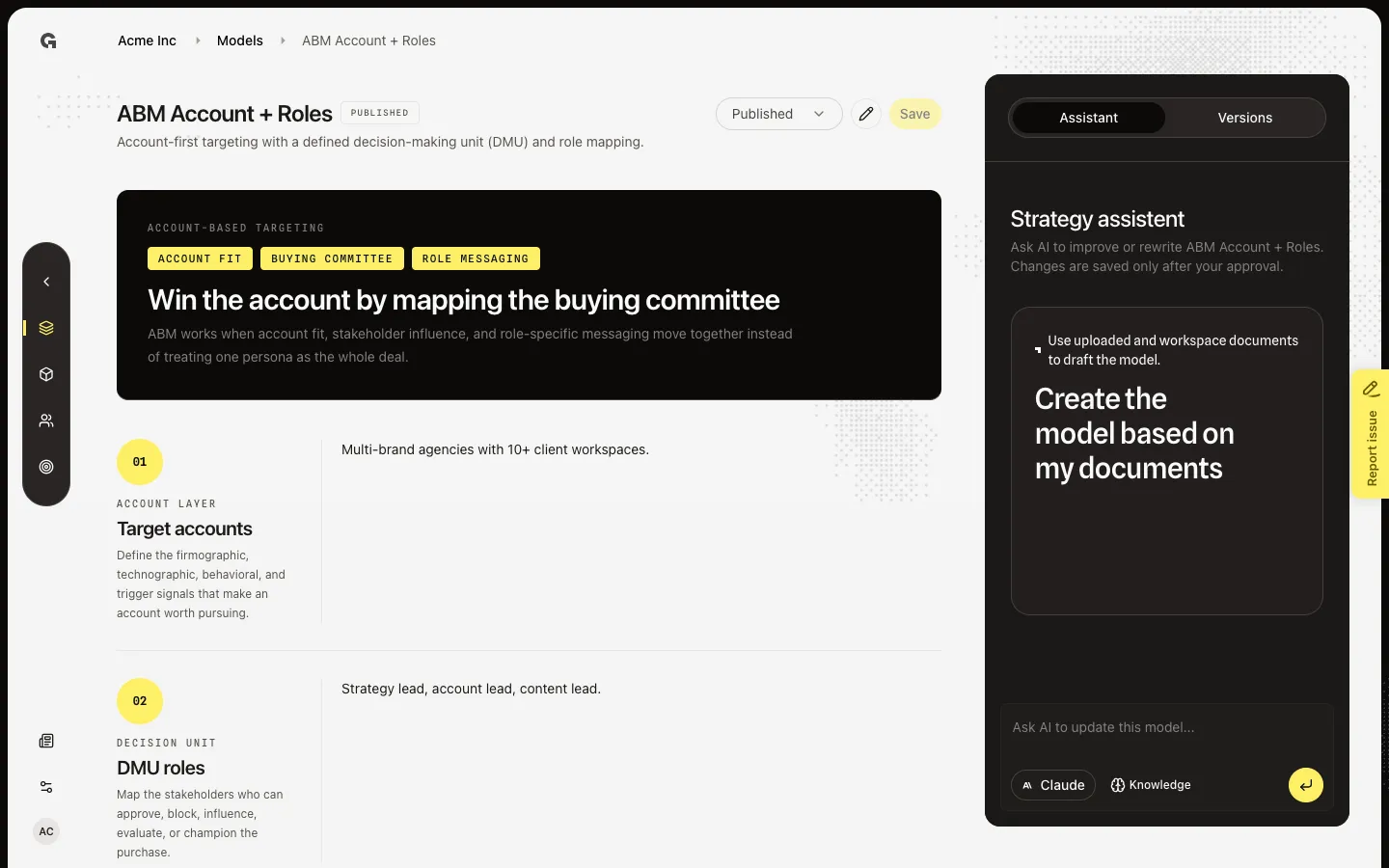
Preview target accounts and the buying committee, then open Edit to change accounts, DMU roles, and role-specific messaging.
Read now →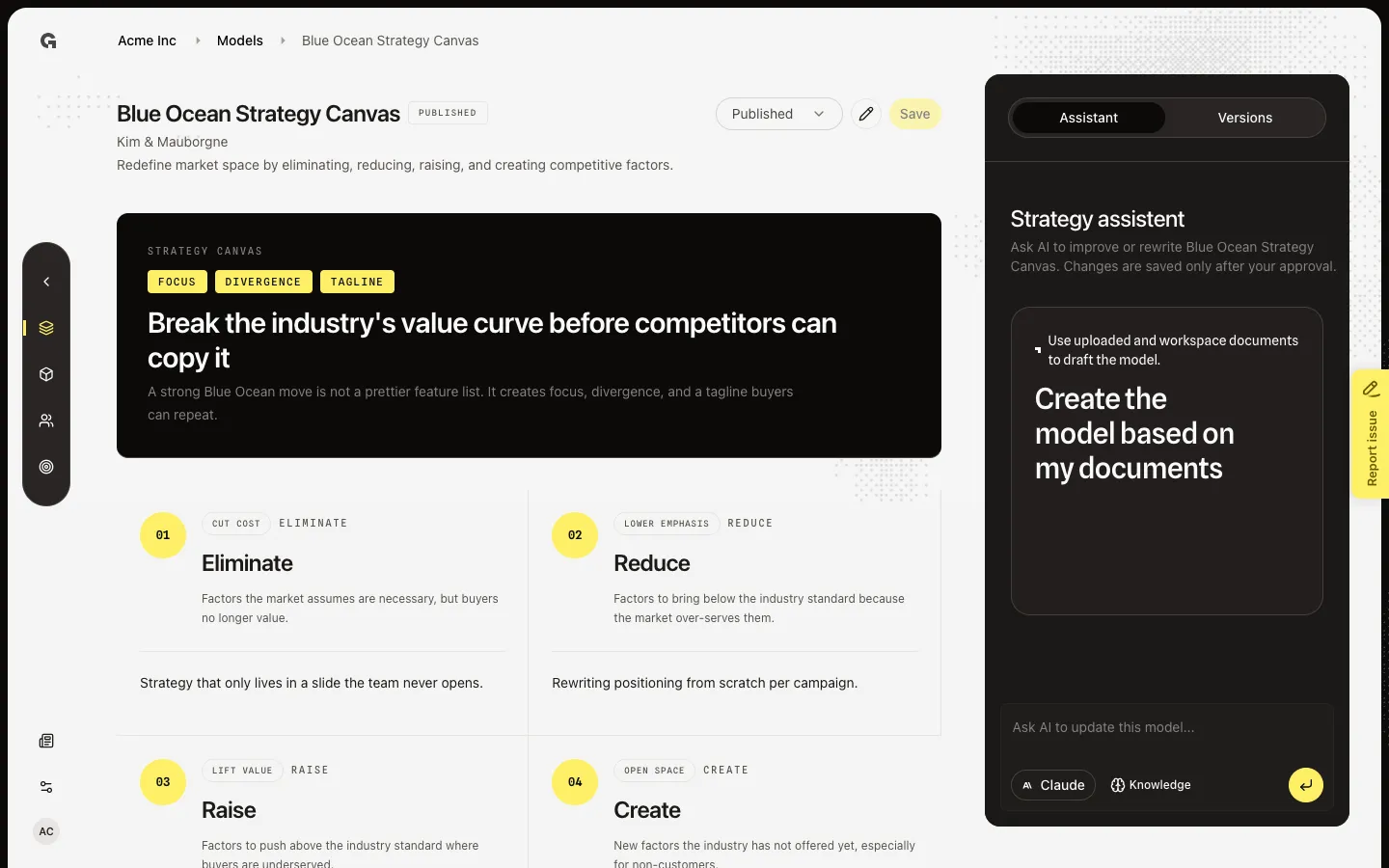
Preview Eliminate, Reduce, Raise, and Create, then open Edit to change those four moves.
Read now →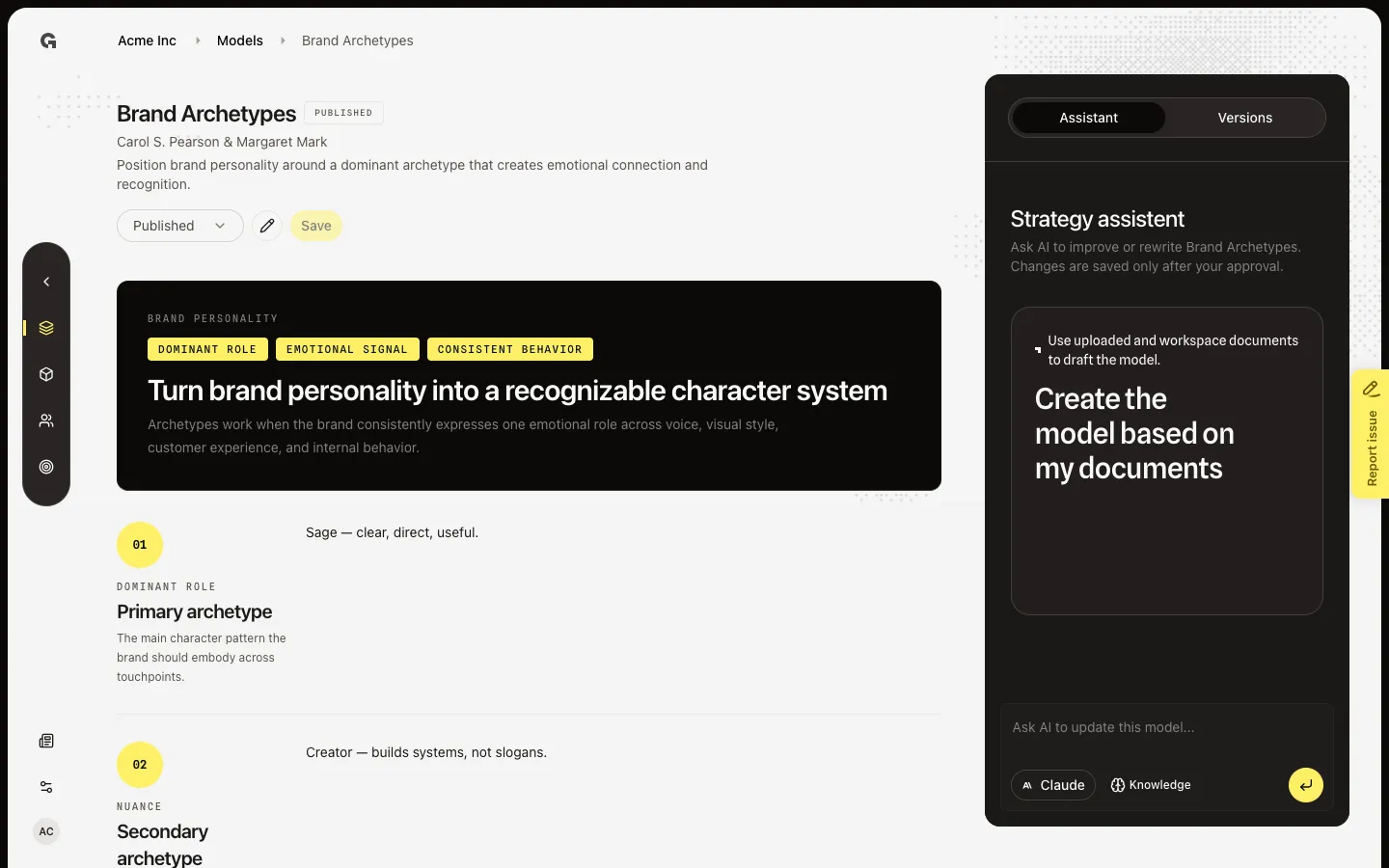
Preview the archetype system, then open Edit to set primary and secondary archetypes, motivation, tone, and guardrails.
Read now →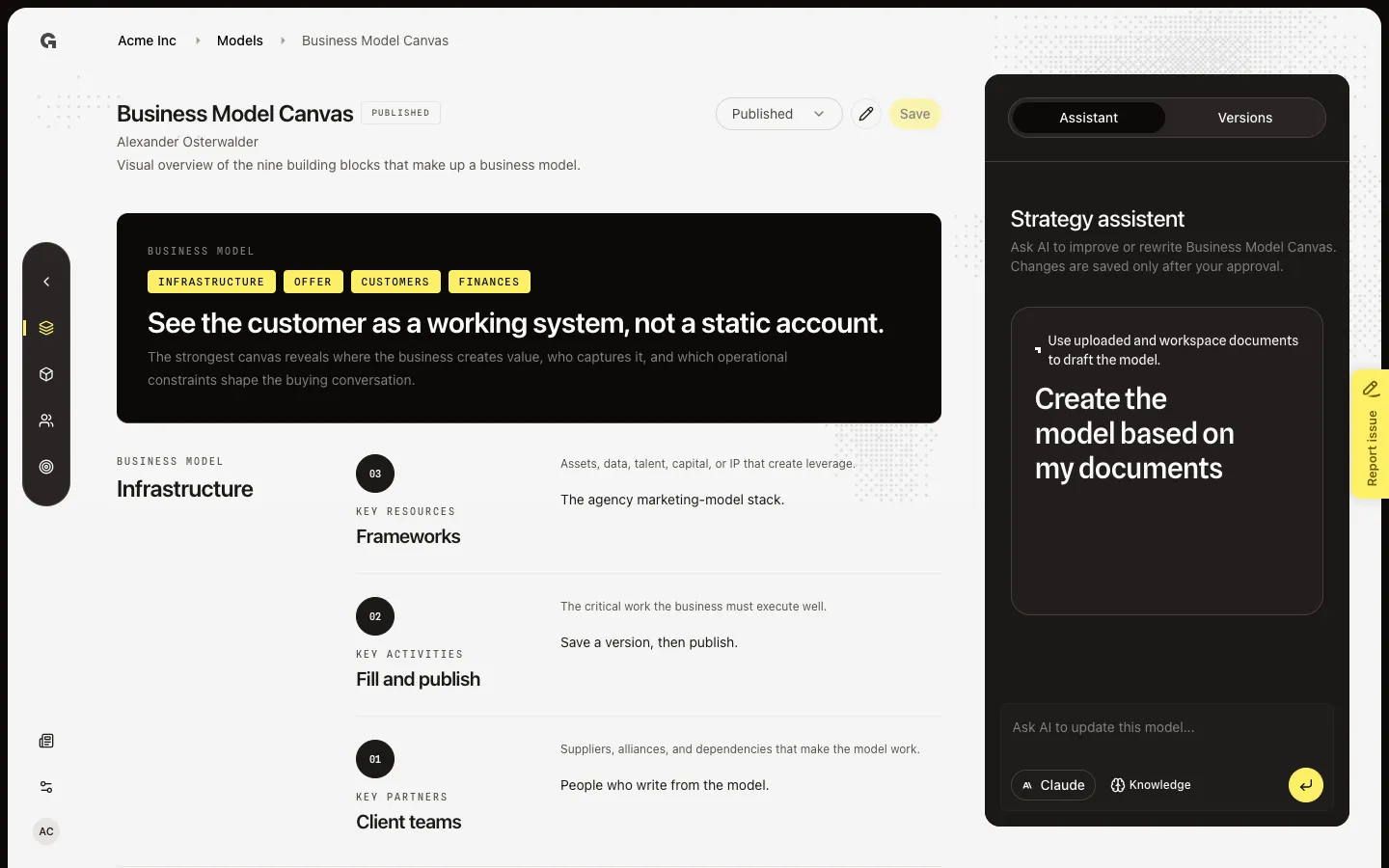
Preview the nine blocks, then open Edit to change segments, offer, channels, and the rest of the canvas.
Read now →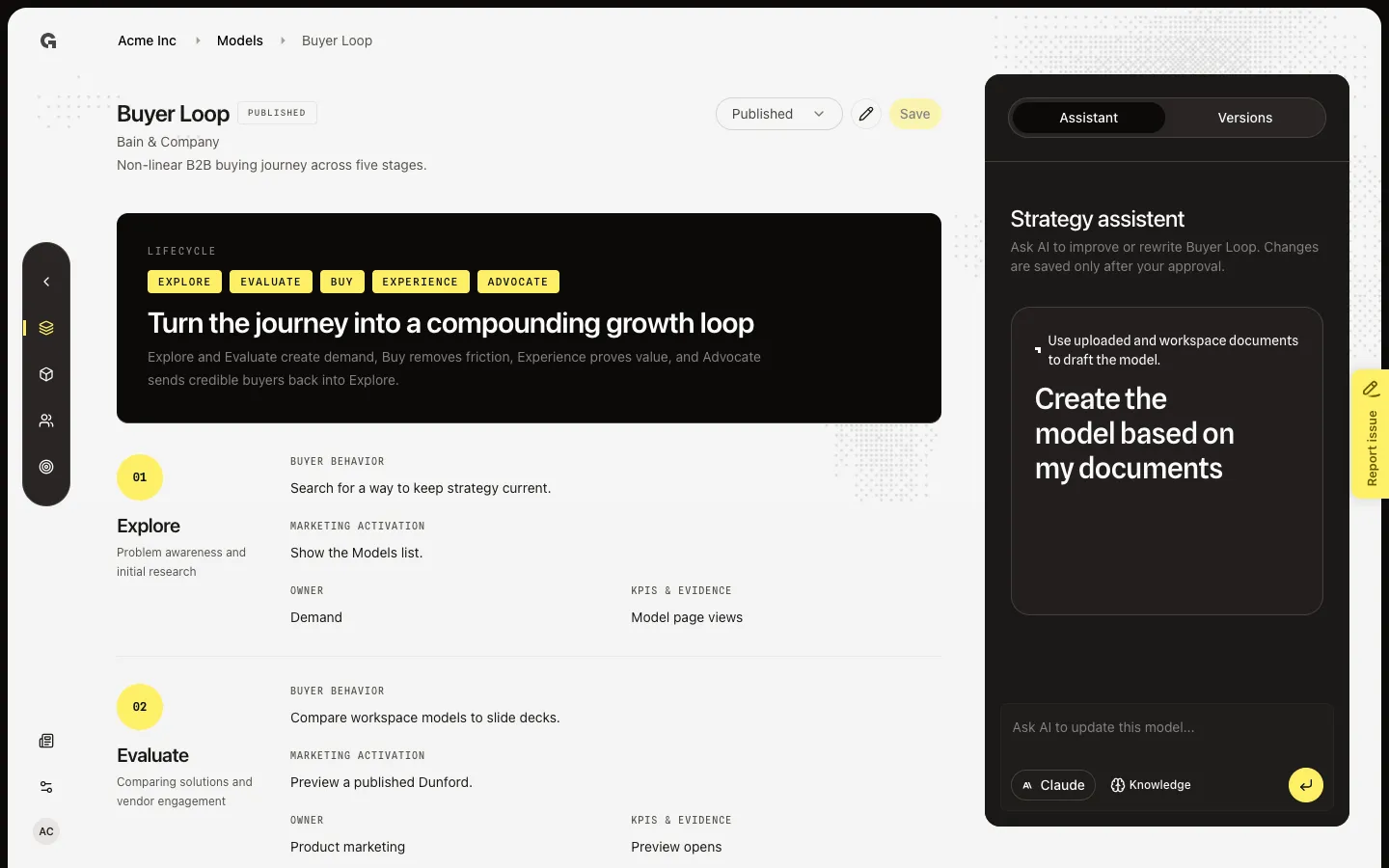
Preview the five B2B stages, then open Edit to set buyer behavior, activation, owner, and KPIs per stage.
Read now →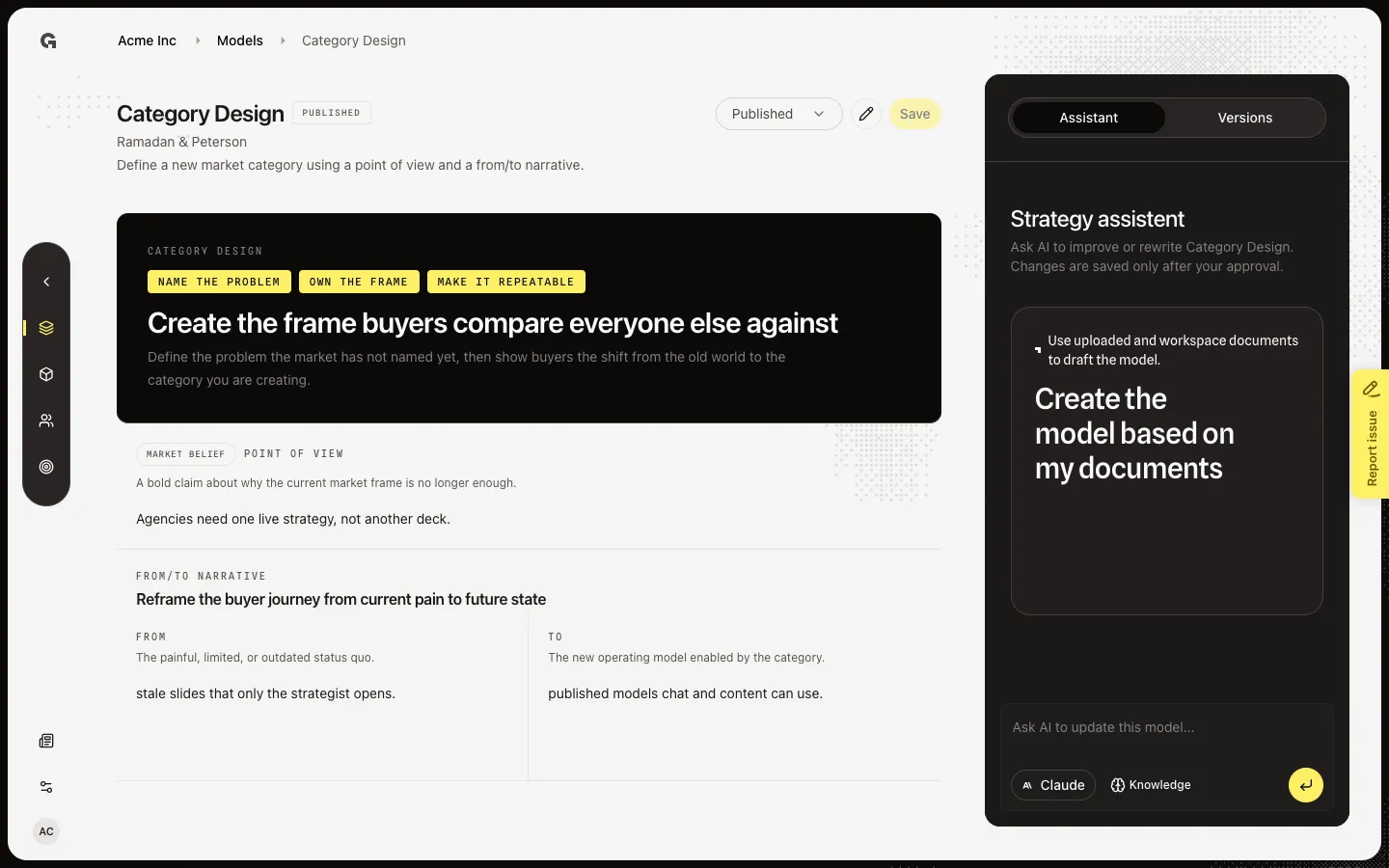
Preview the point of view and from/to narrative, then open Edit to change those fields.
Read now →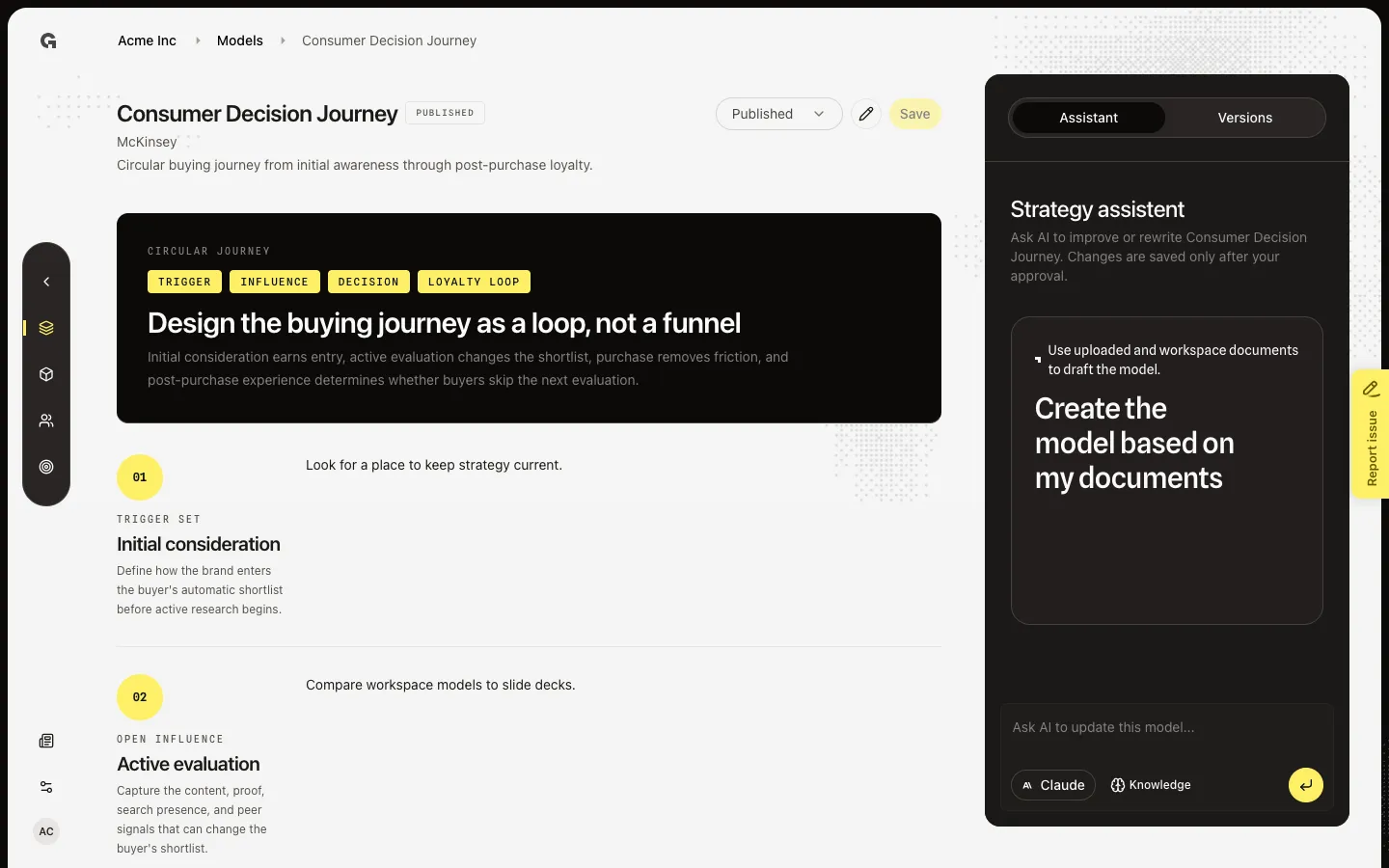
Preview the circular consumer journey, then open Edit to set consideration, evaluation, purchase, and the post-purchase loop.
Read now →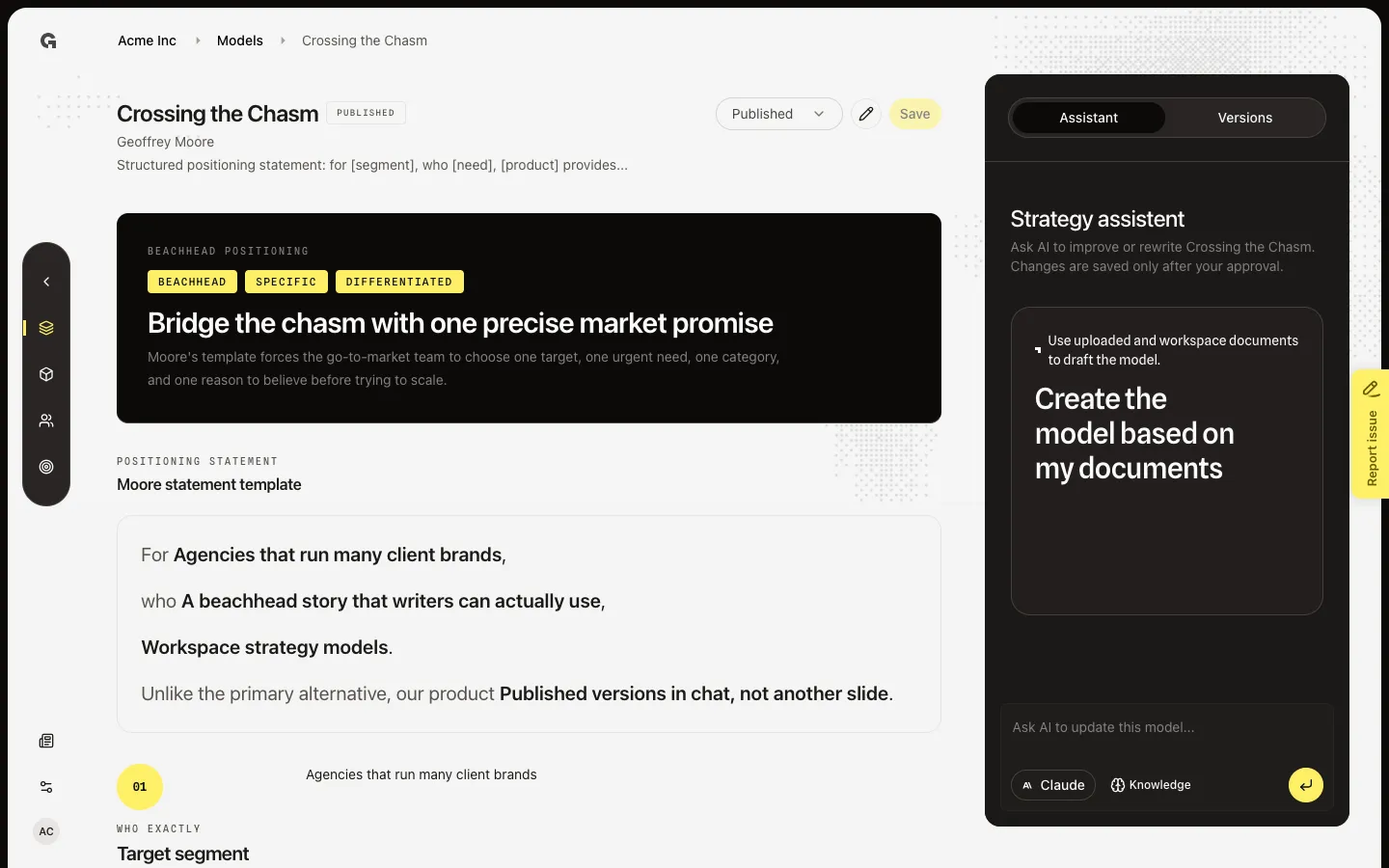
Preview the beachhead statement, then open Edit to set segment, need, offer, and differentiator.
Read now →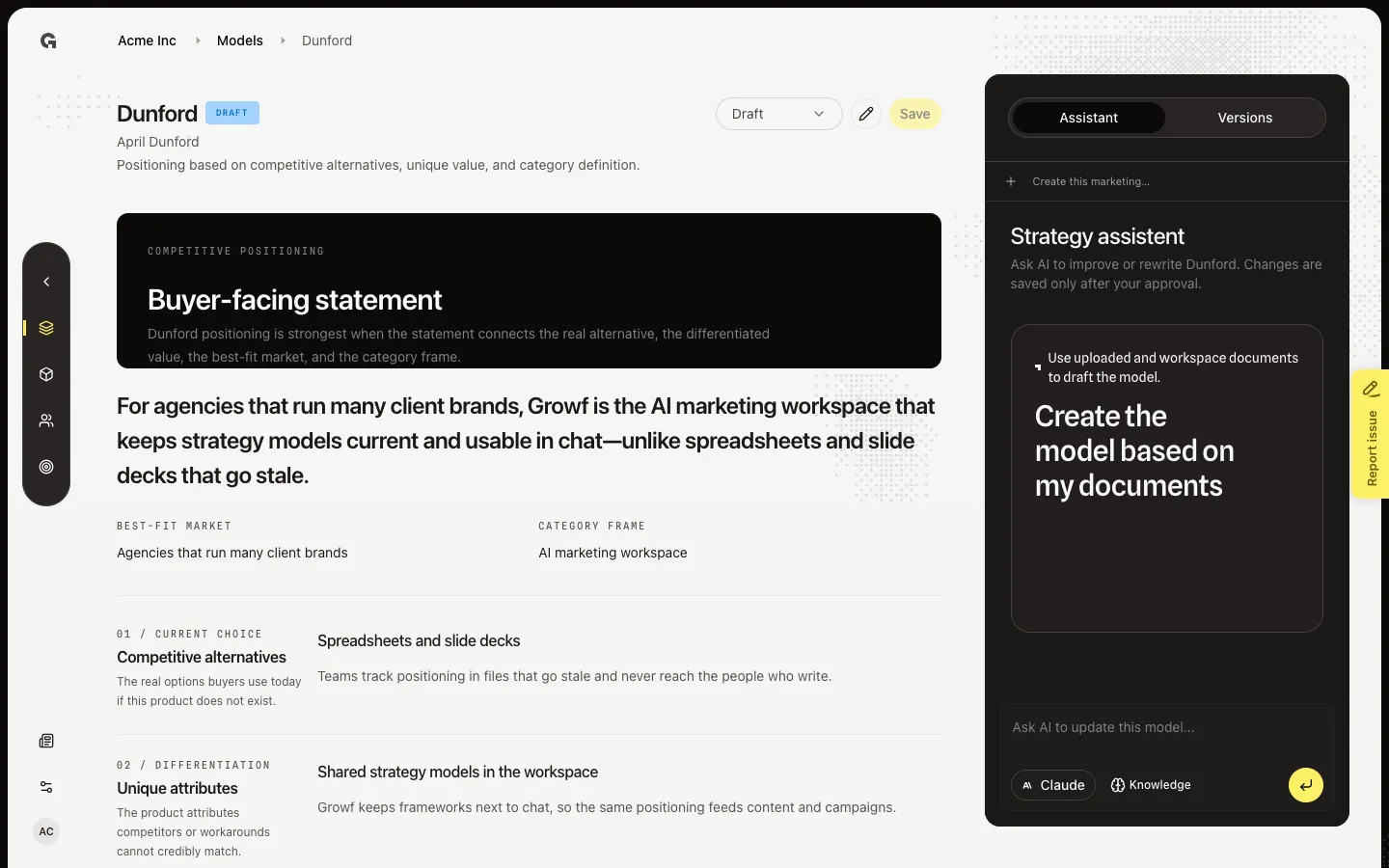
Preview the published Dunford canvas, then open Edit to change alternatives, value, market, and category.
Read now →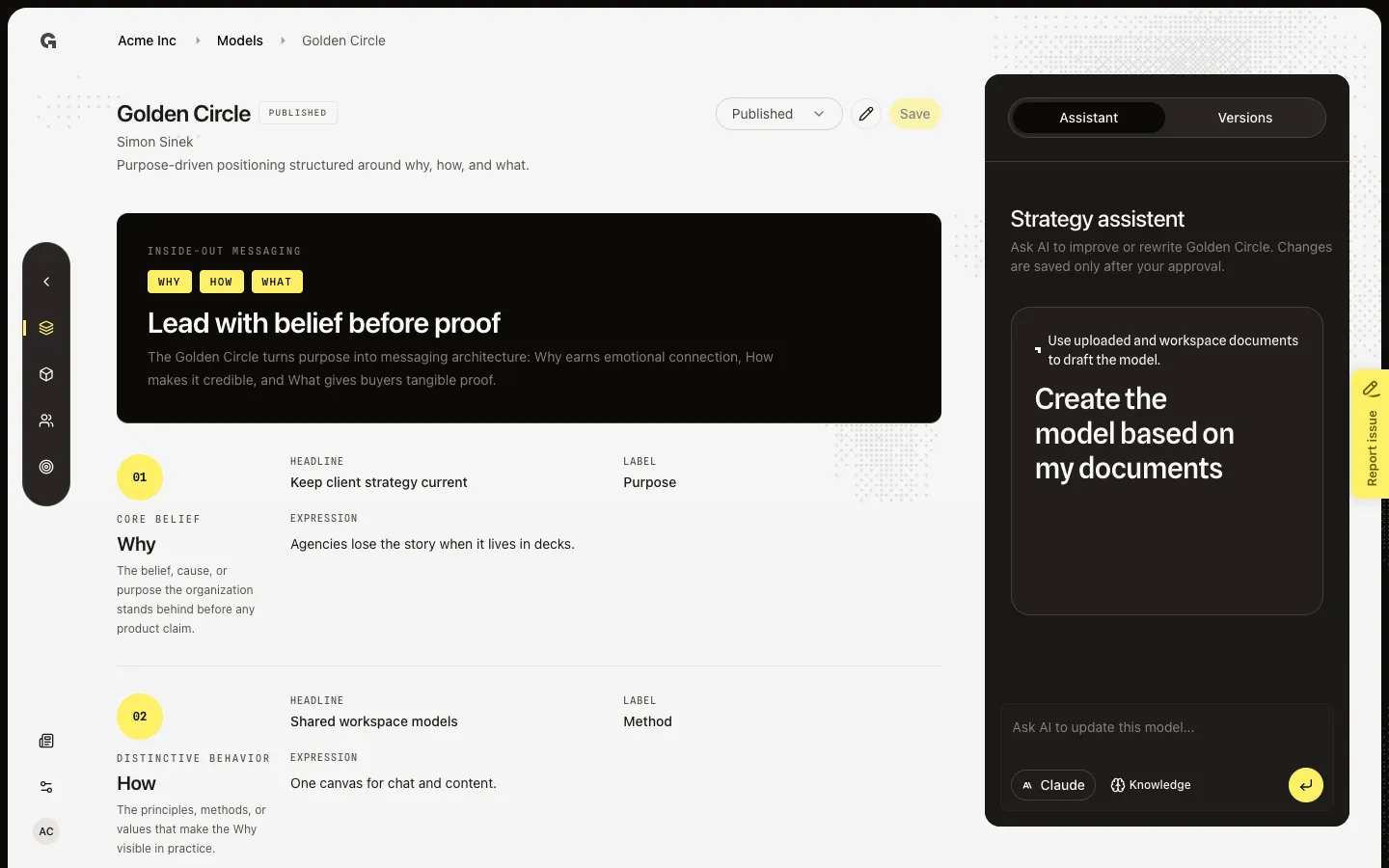
Preview Why, How, and What as a purpose story, then open Edit to change each ring.
Read now →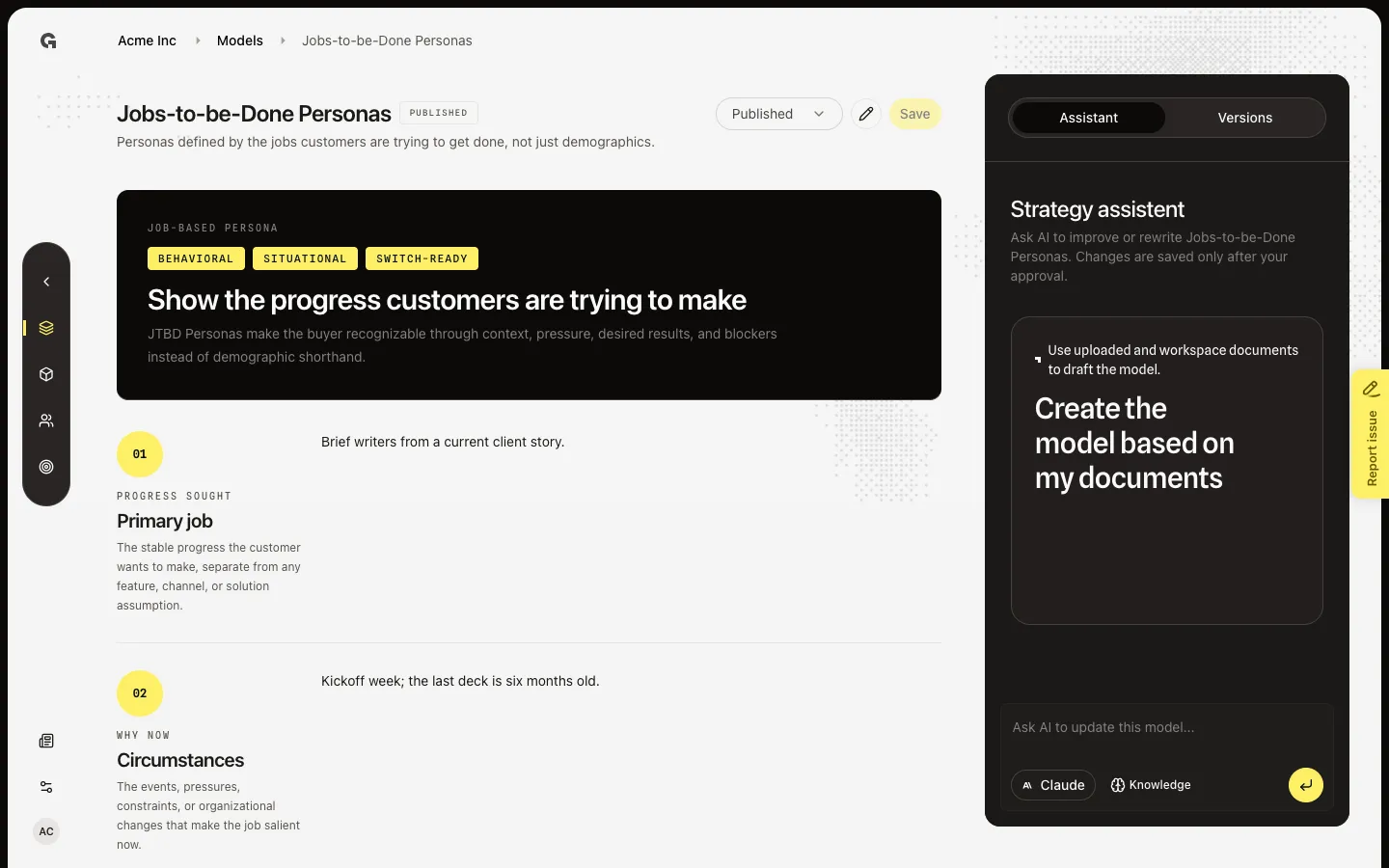
Preview personas built from jobs, then open Edit to set the primary job, circumstances, outcomes, and obstacles.
Read now →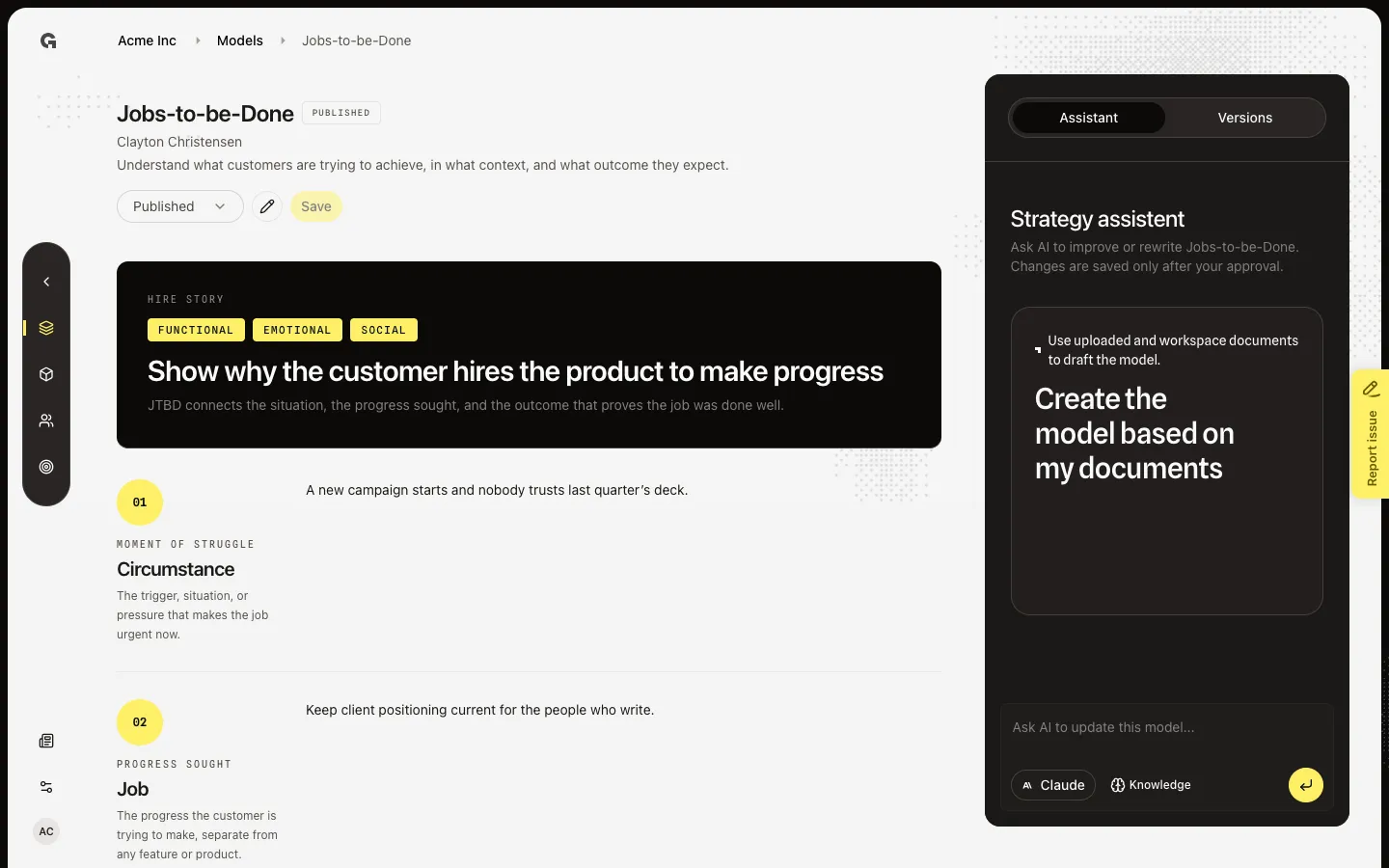
Preview the job story, then open Edit to set the job, desired outcome, and circumstance.
Read now →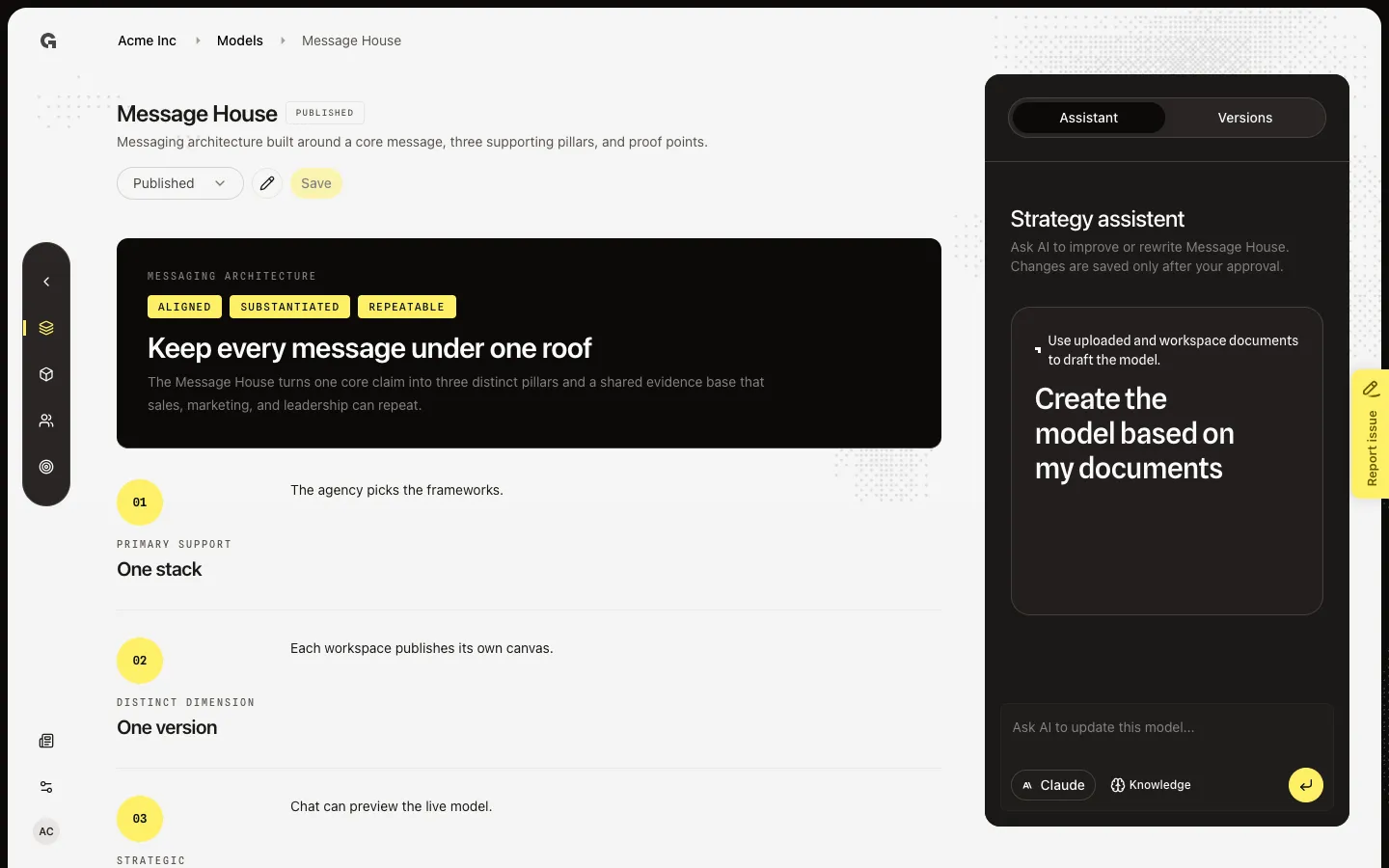
Preview the core message and three pillars, then open Edit to change the roof, pillars, and proof points.
Read now →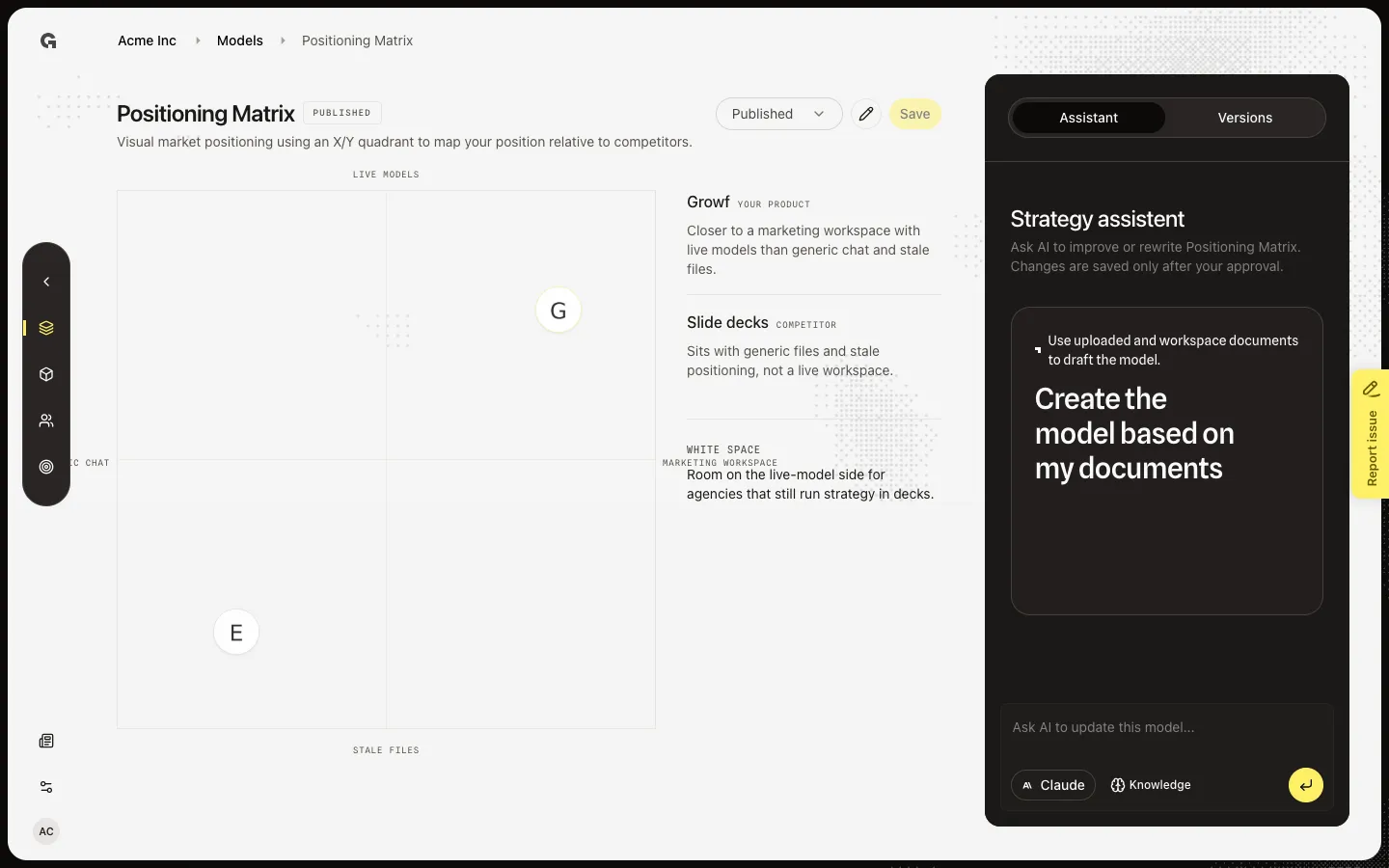
Preview the X/Y perceptual map, then open Edit to rename axes and plot your product and competitors.
Read now →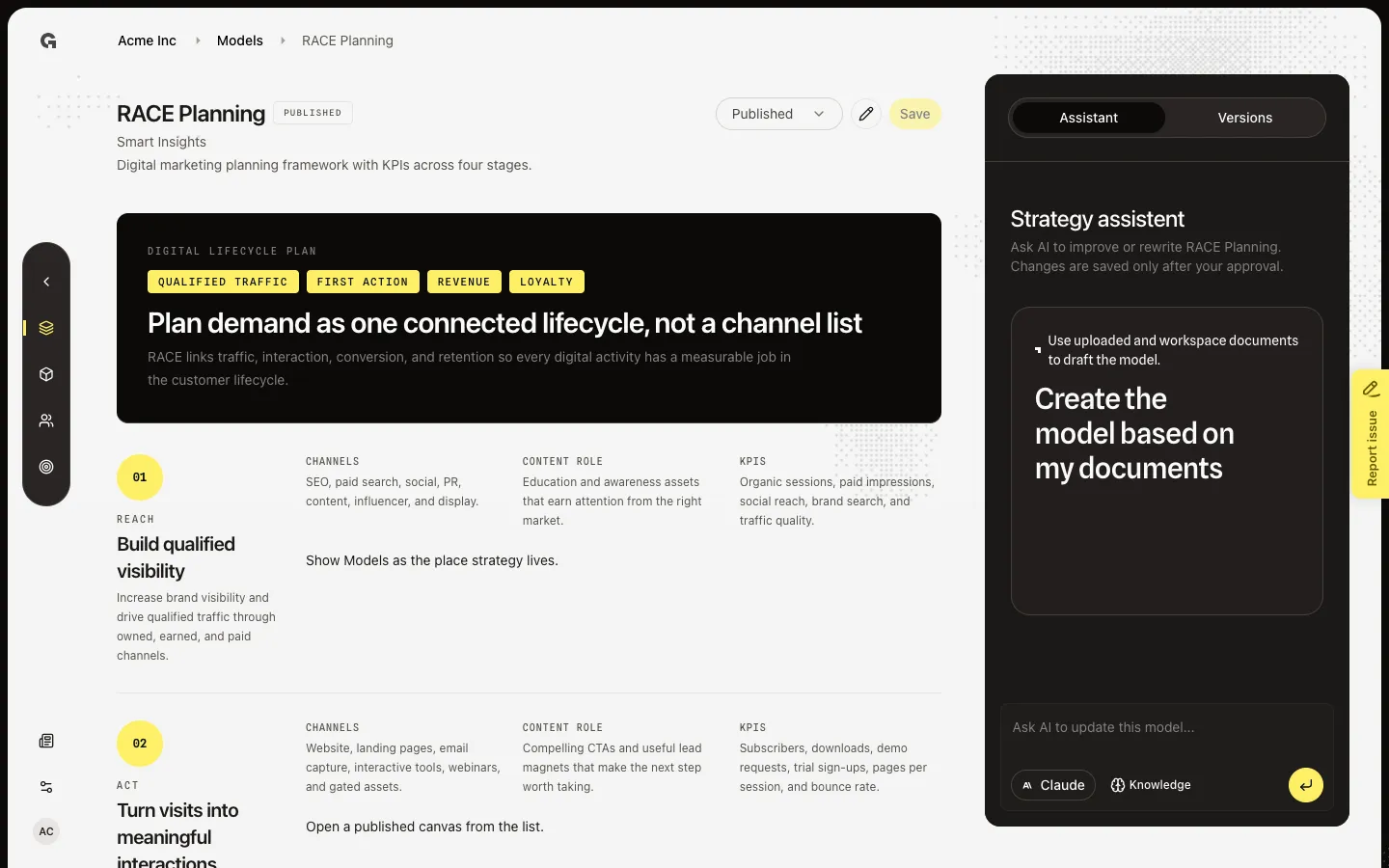
Preview Reach, Act, Convert, and Engage, then open Edit to plan each digital stage.
Read now →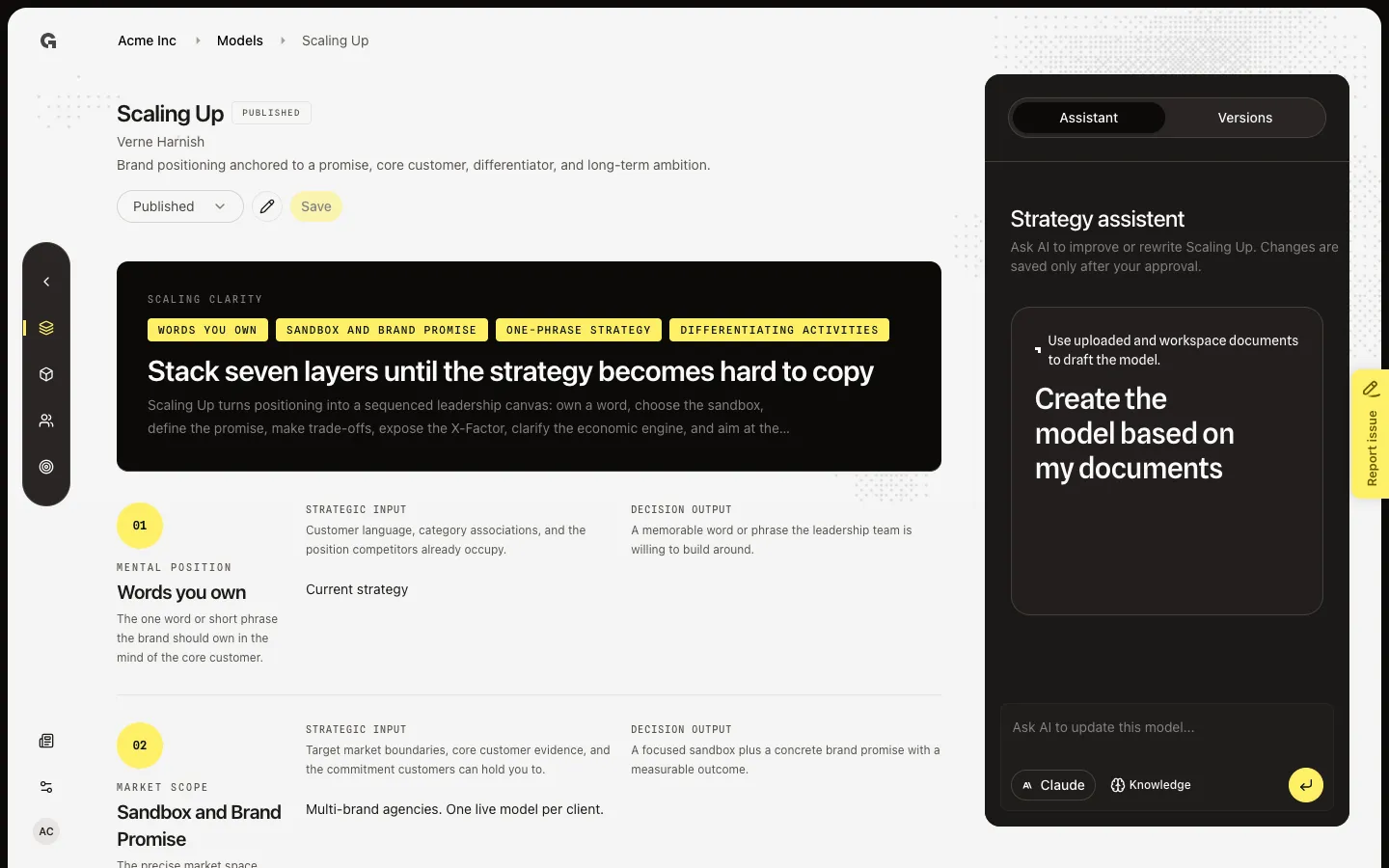
Preview the seven Scaling Up layers, then open Edit to change the word you own, sandbox, activities, and BHAG.
Read now →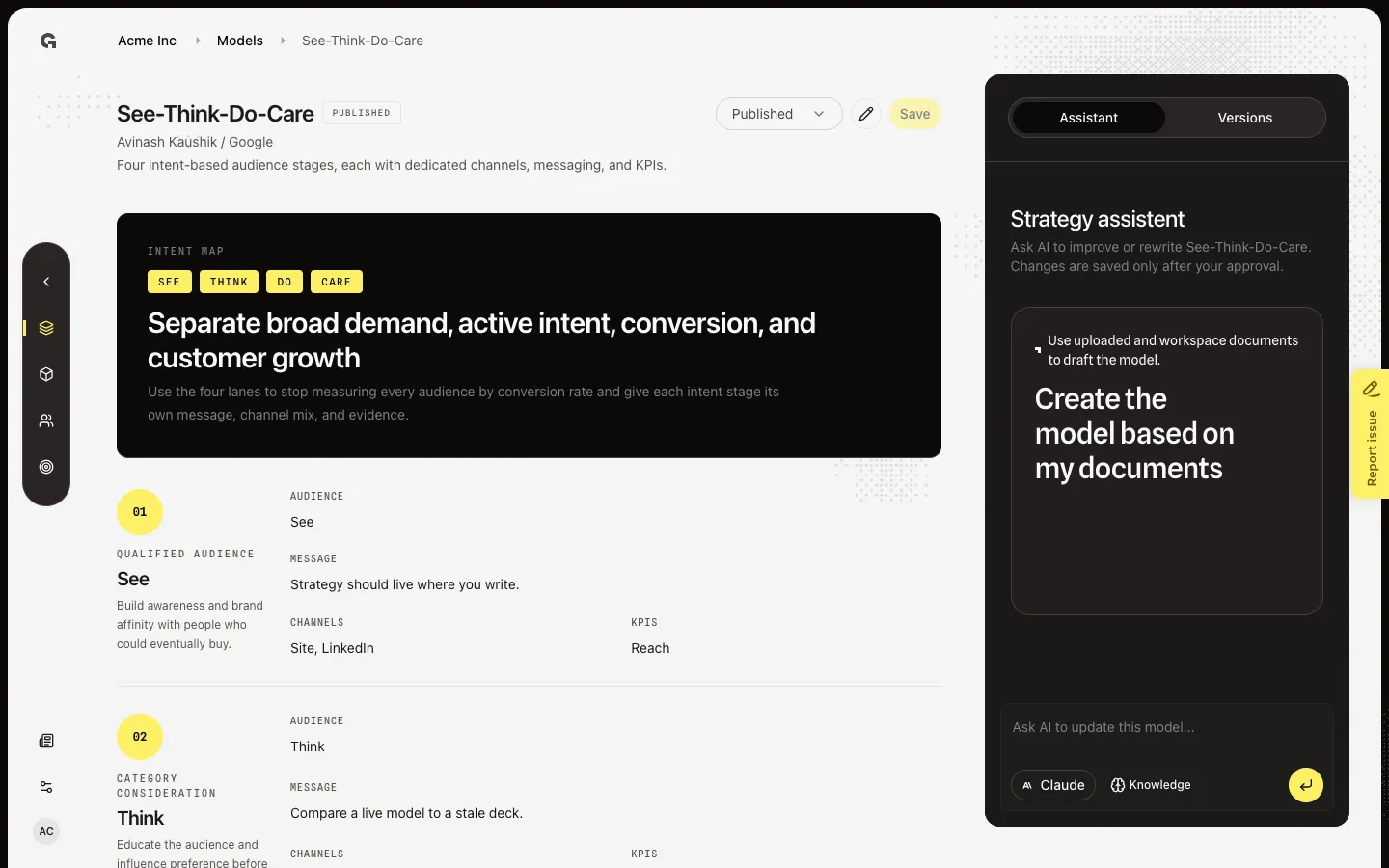
Preview the four intent stages, then open Edit to set audience, message, channels, and KPIs for each.
Read now →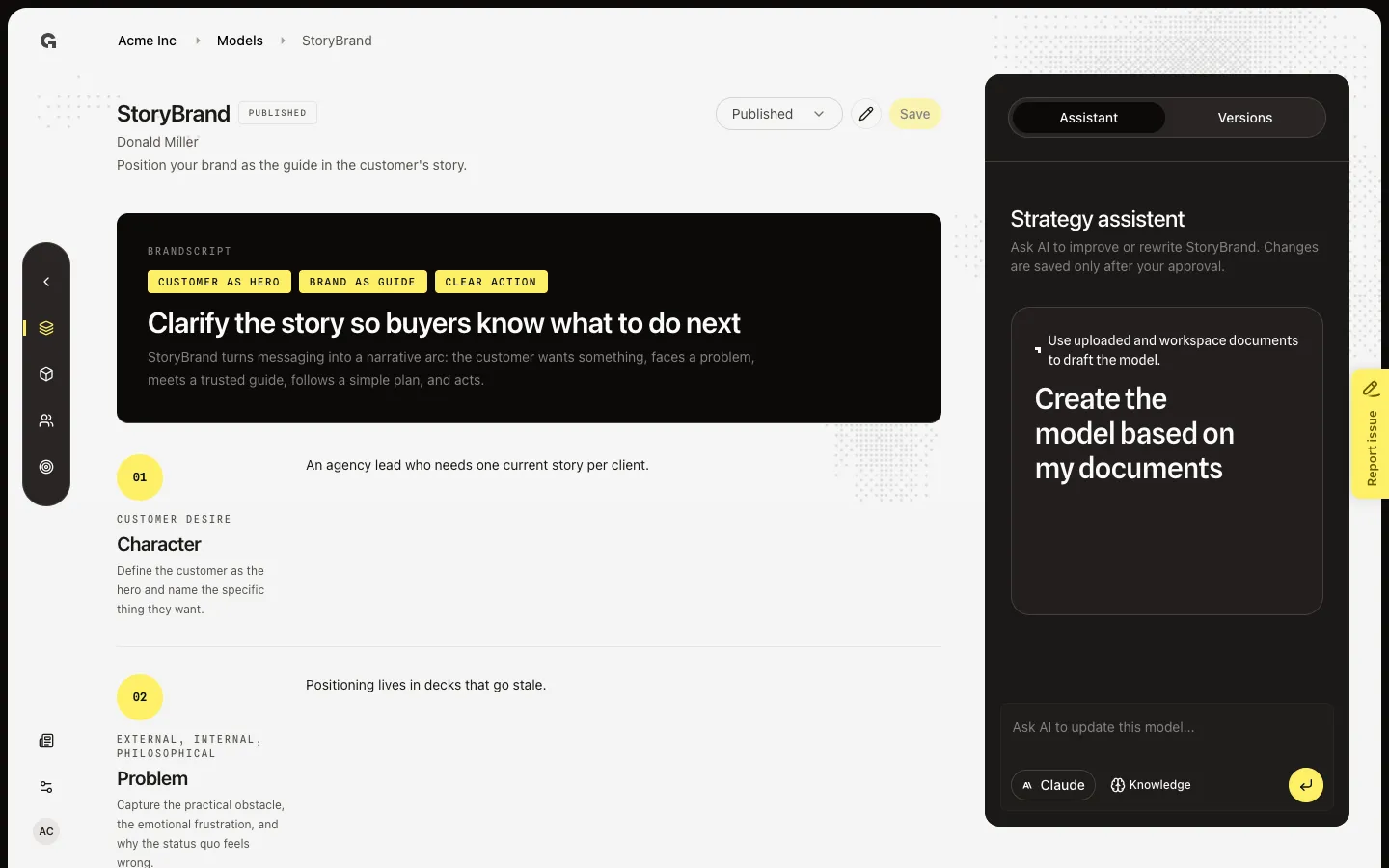
Preview the BrandScript canvas, then open Edit to change character, problem, guide, plan, and CTA.
Read now →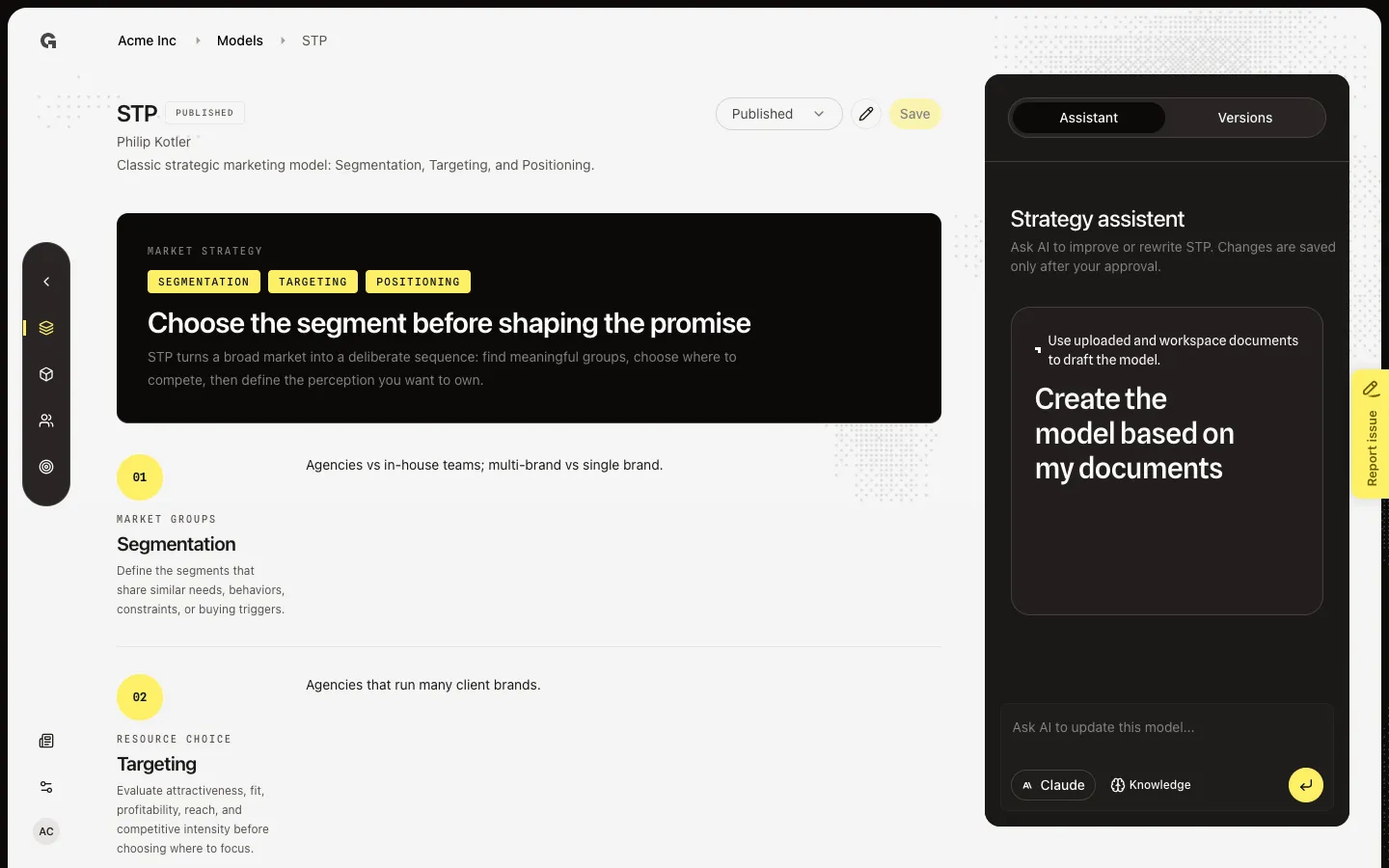
Preview Segmentation, Targeting, and Positioning, then open Edit to change those three choices.
Read now →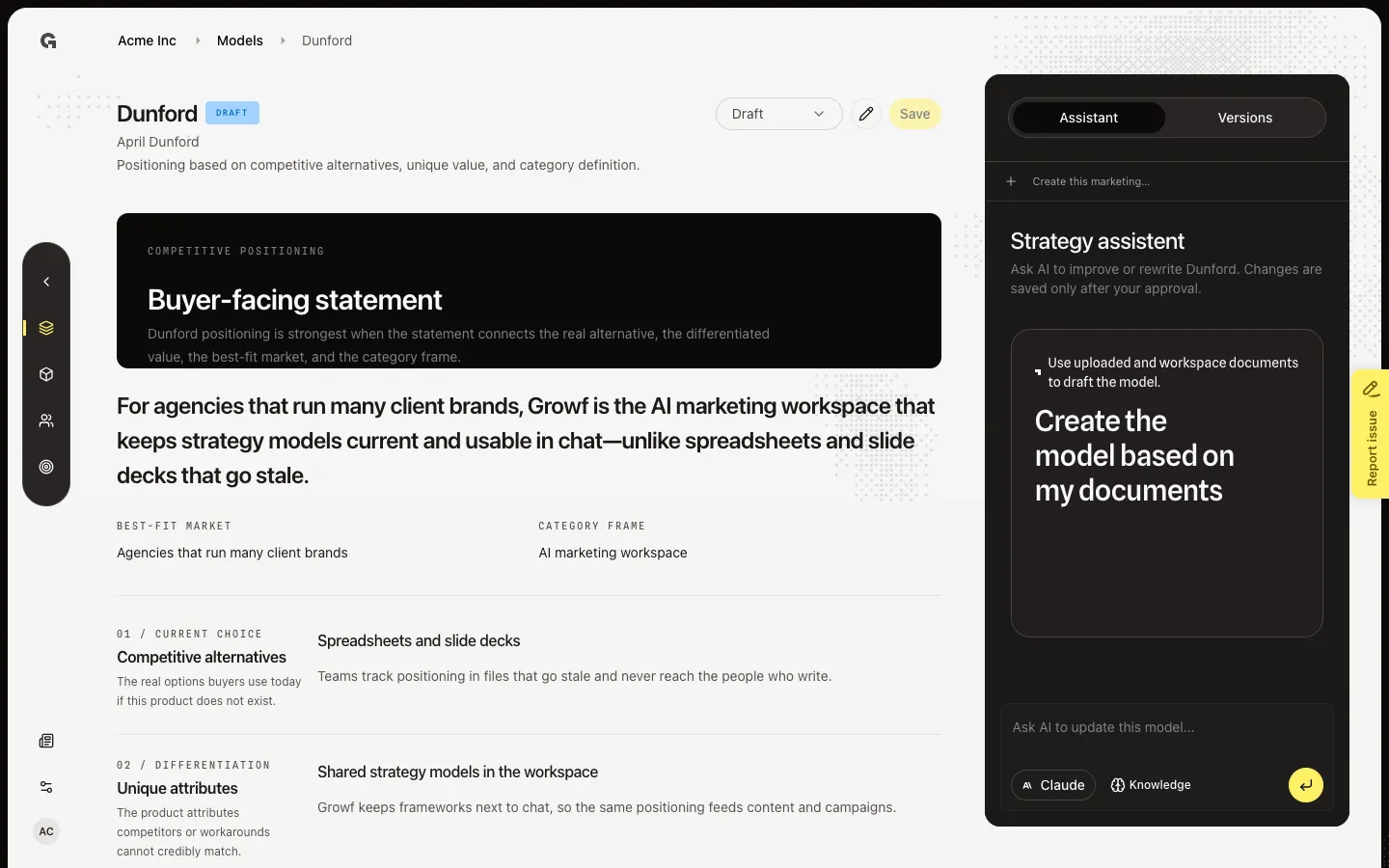
Ask Growf AI to draft or rewrite the open framework, then Apply or Discard the proposed version.
Read now →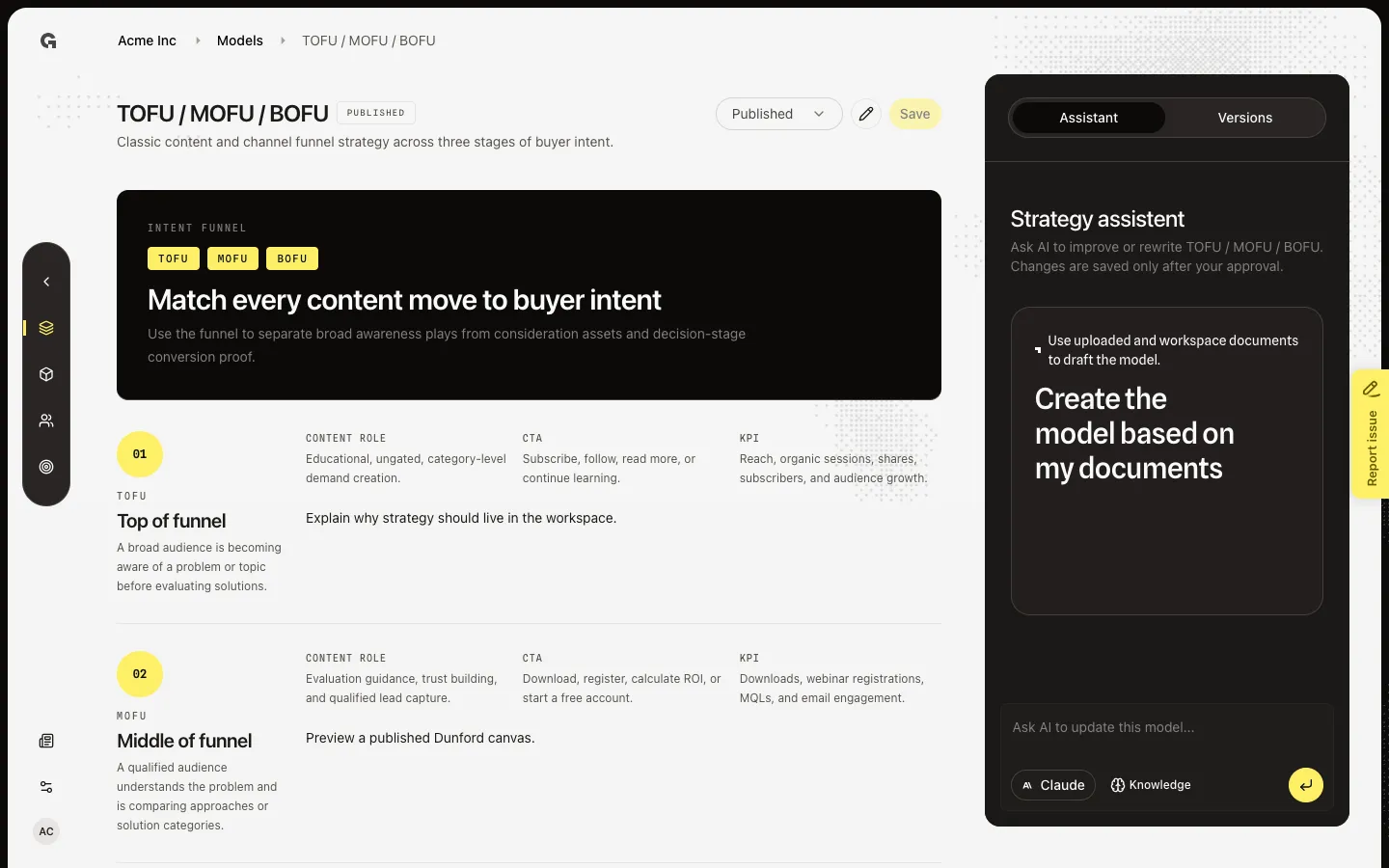
Preview top, middle, and bottom of funnel, then open Edit to plan content and channels per stage.
Read now →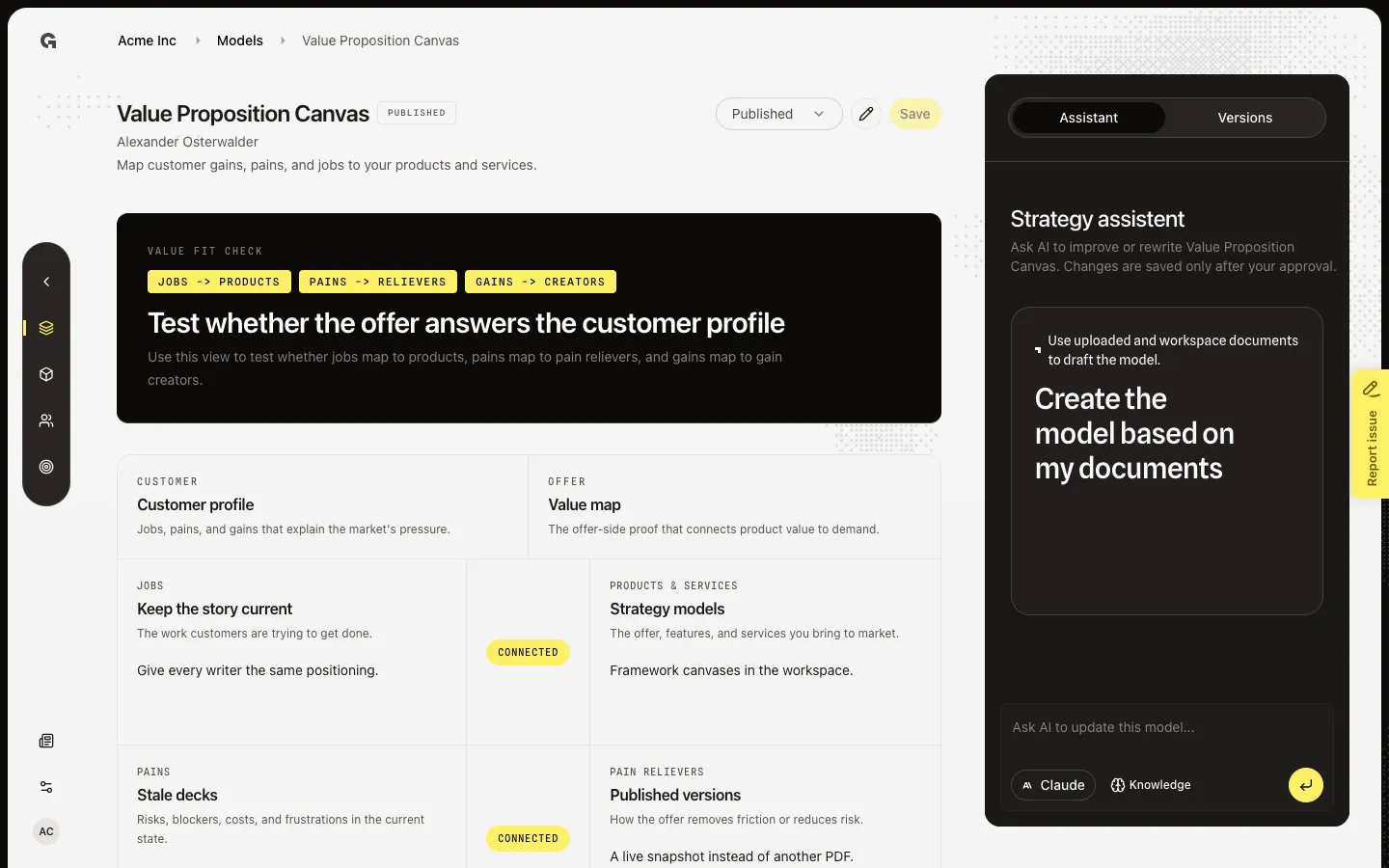
Preview jobs, pains, and gains against the offer, then open Edit to change the customer profile and value map.
Read now →27
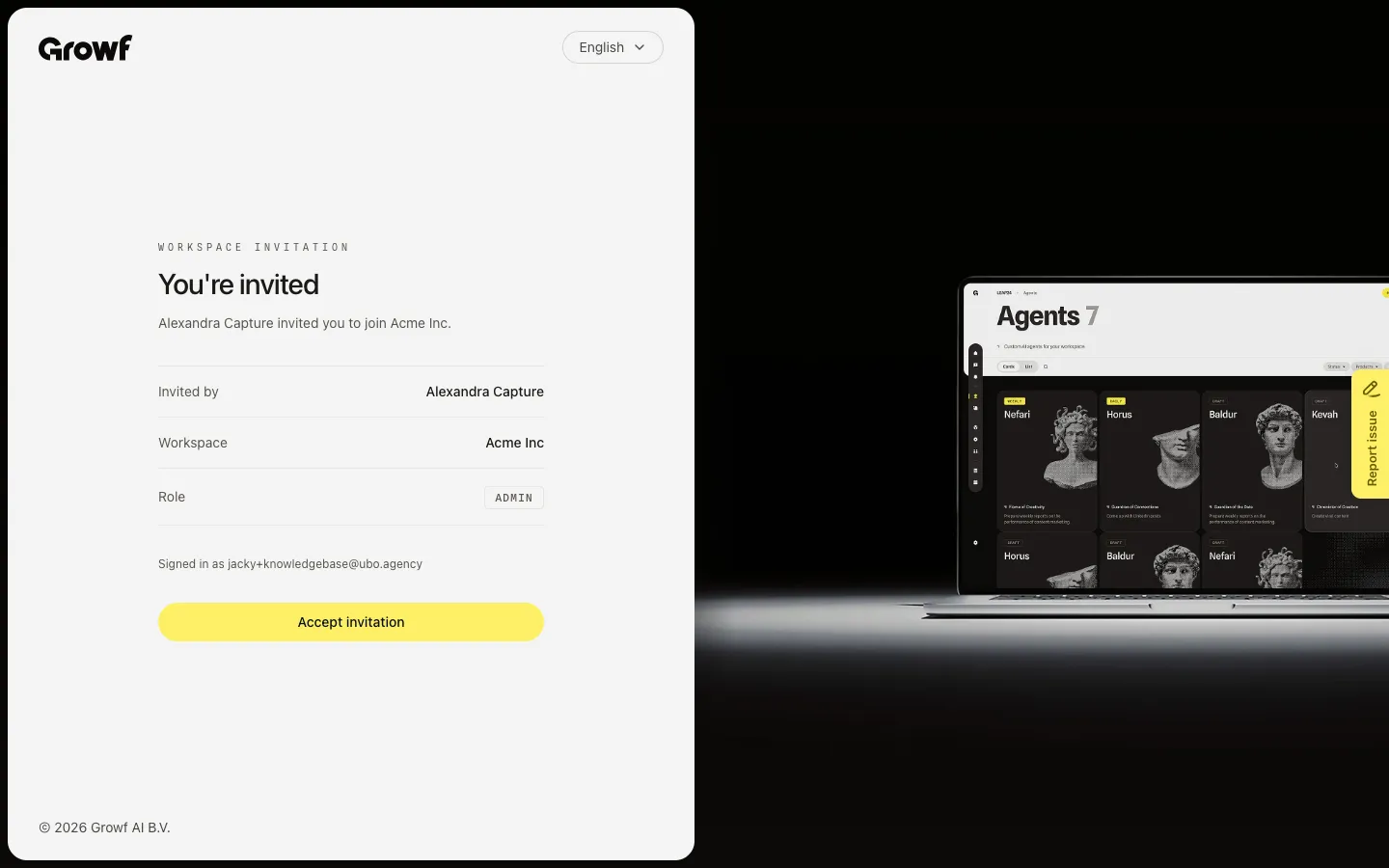
Open your invite link or Invites, review the workspace and role, and join.
Read now →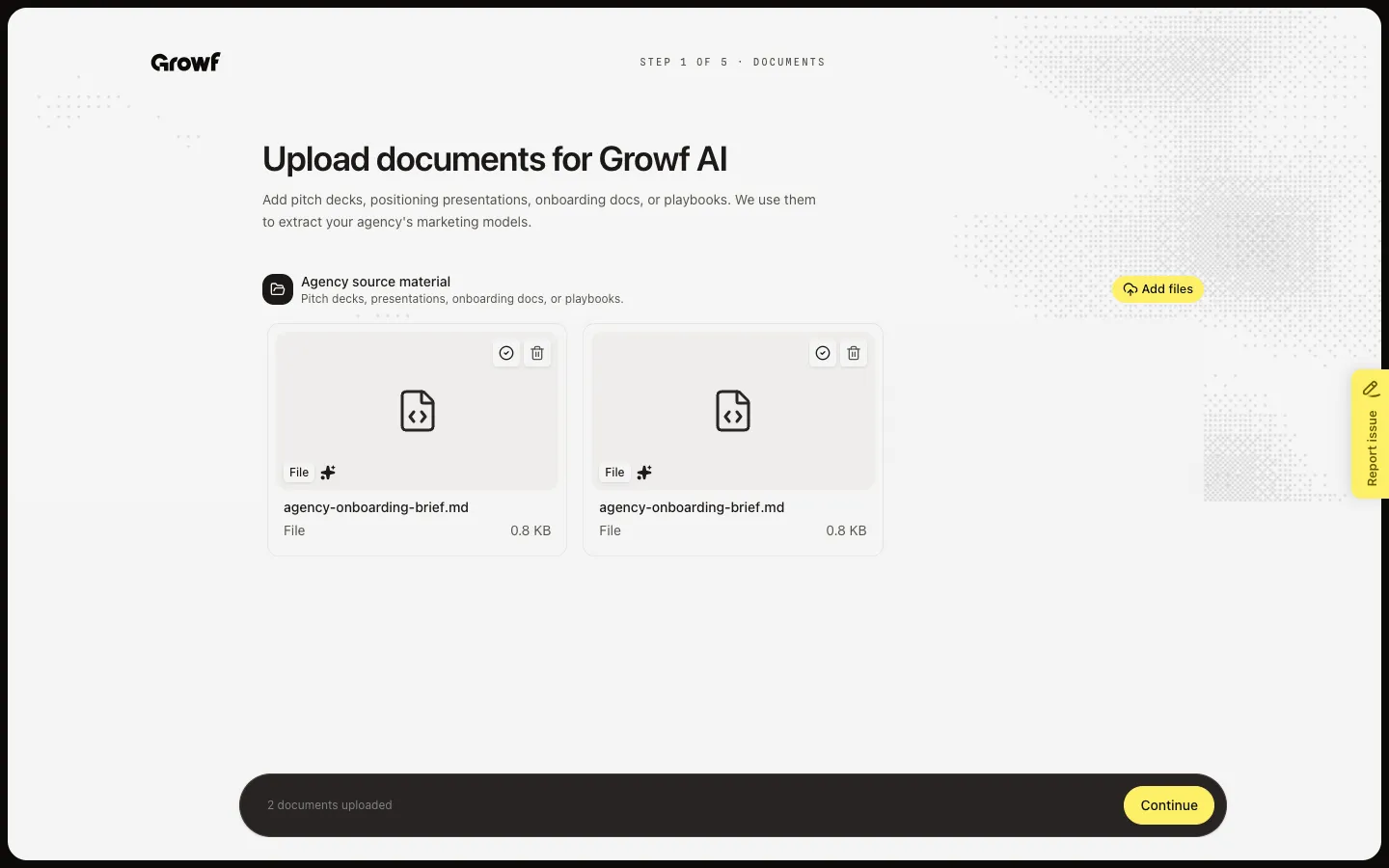
Upload agency material, confirm your marketing models, and add client workspaces after you create your agency.
Read now →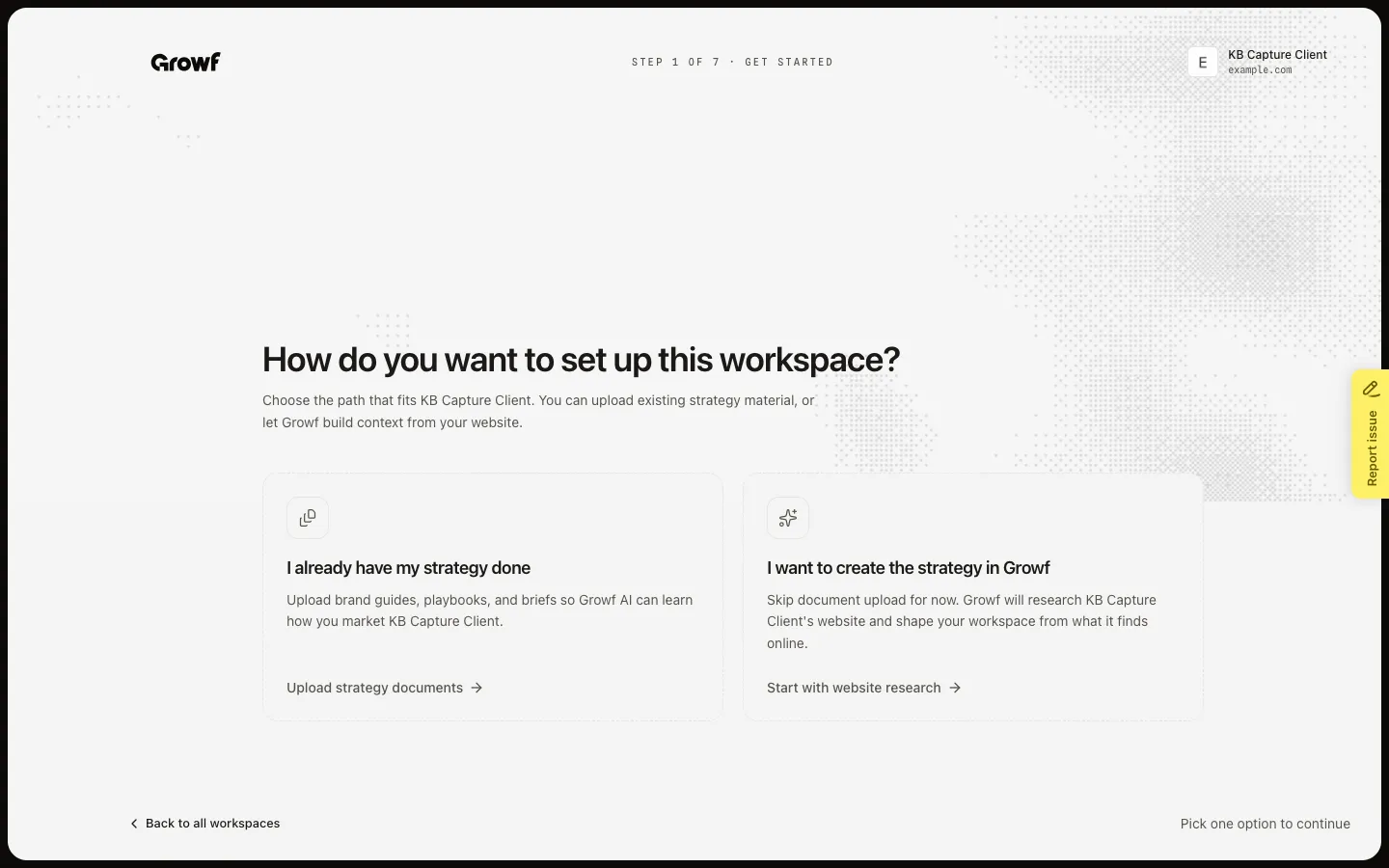
Set up a client workspace with documents, website research, rules, products, ICPs, and personas.
Read now →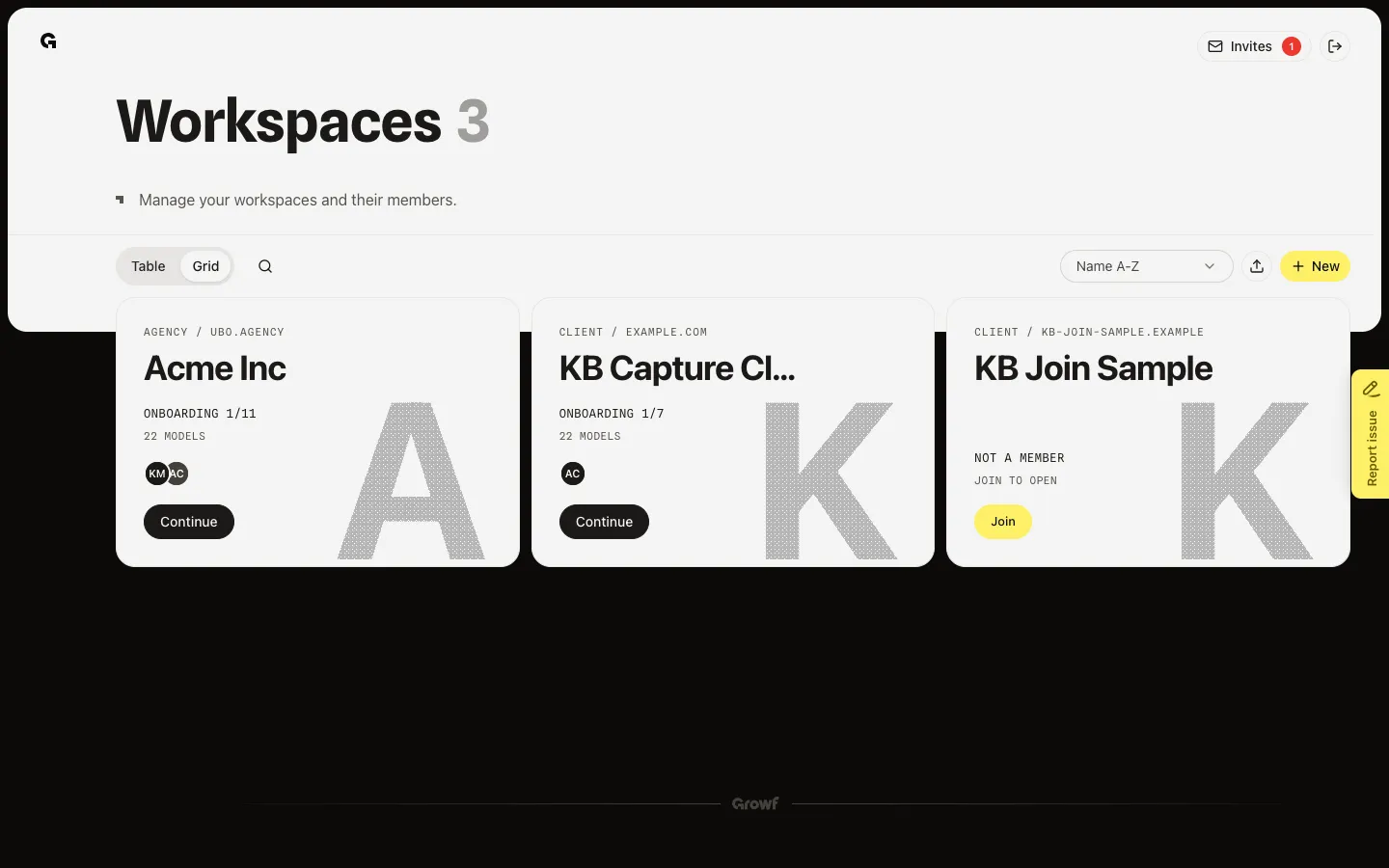
Add one client workspace from Workspaces with New.
Read now →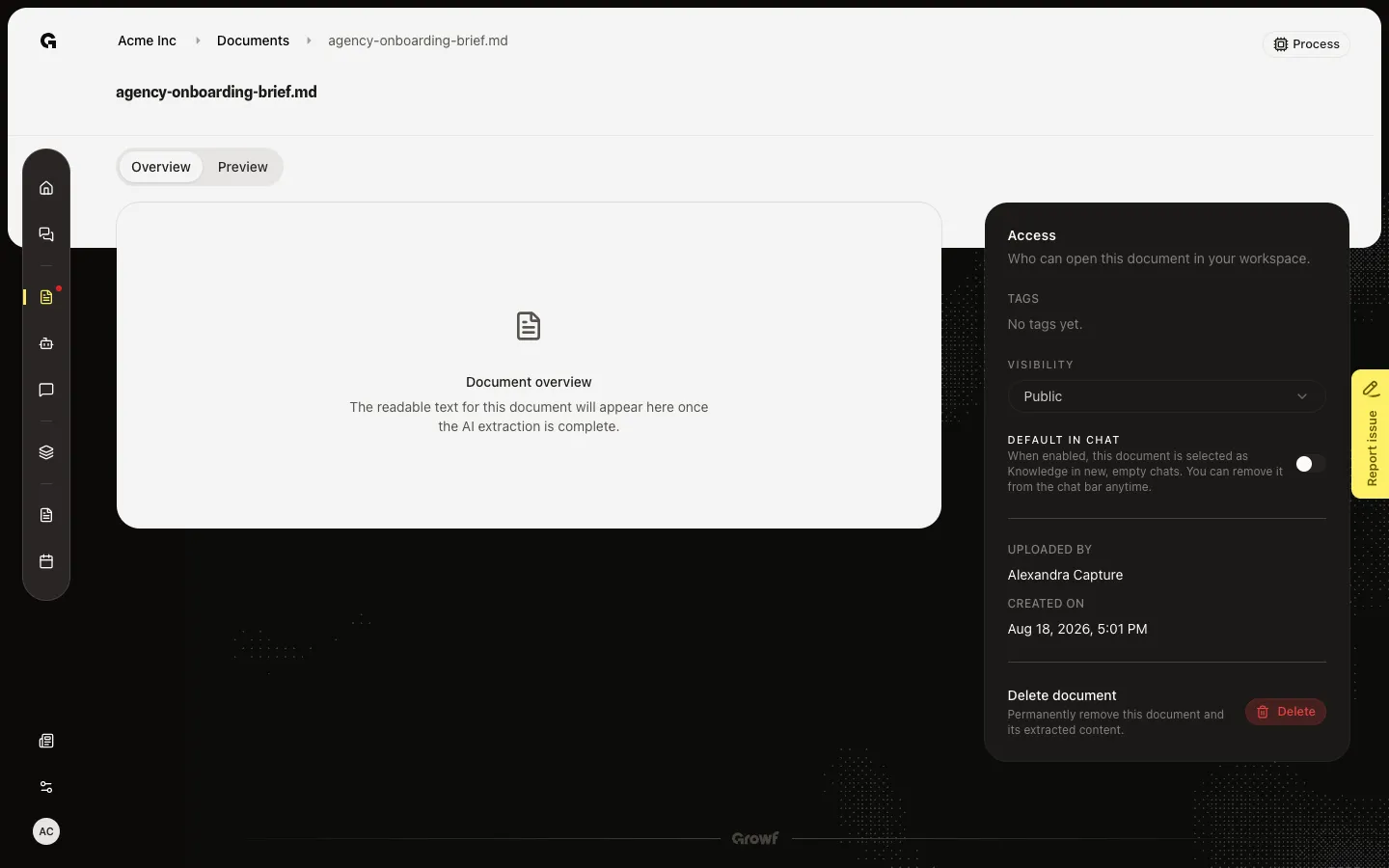
Remove a knowledge file and its extracted text from the workspace.
Read now →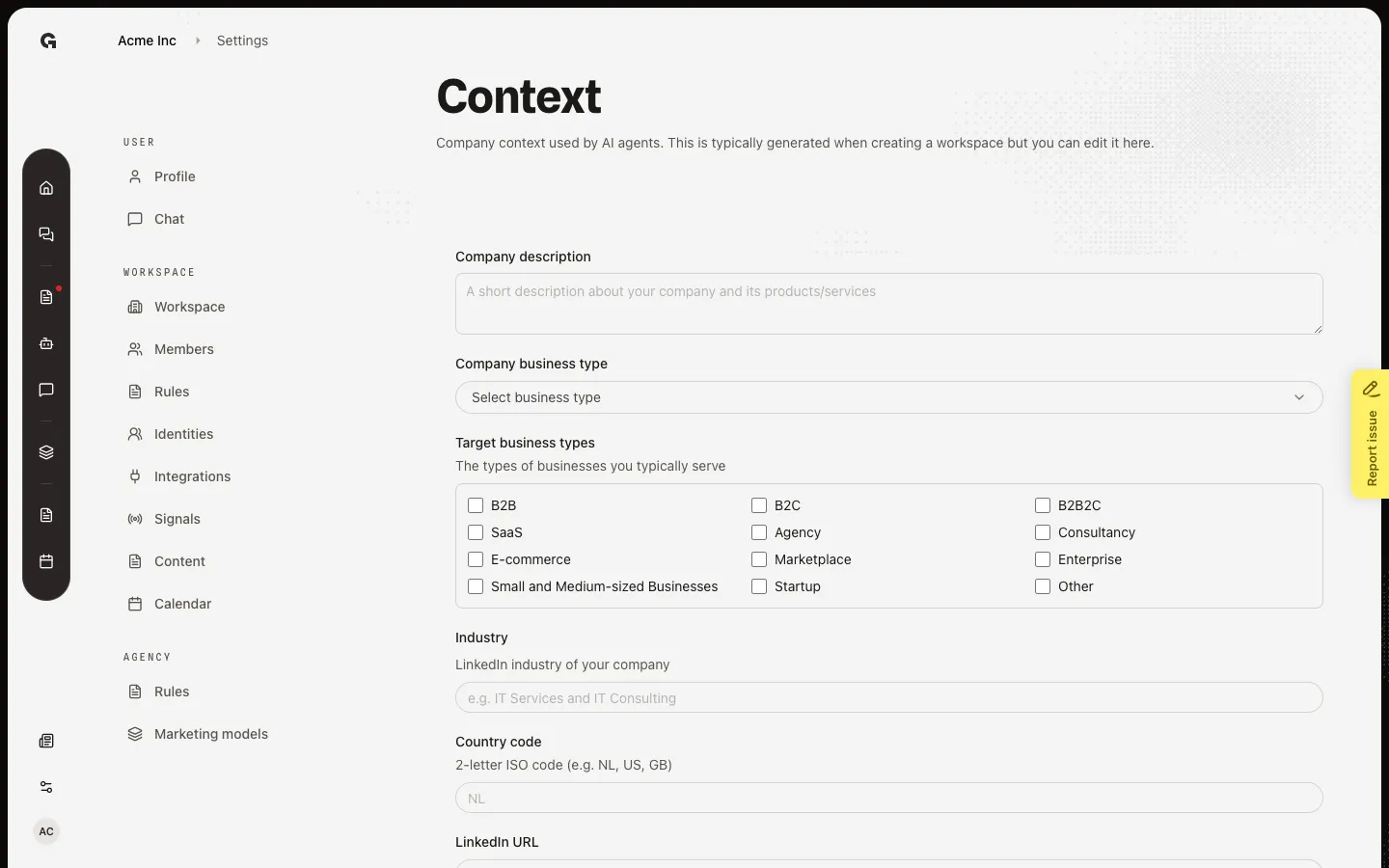
Update the company description, business types, industry, country, and social URLs that AI uses.
Read now →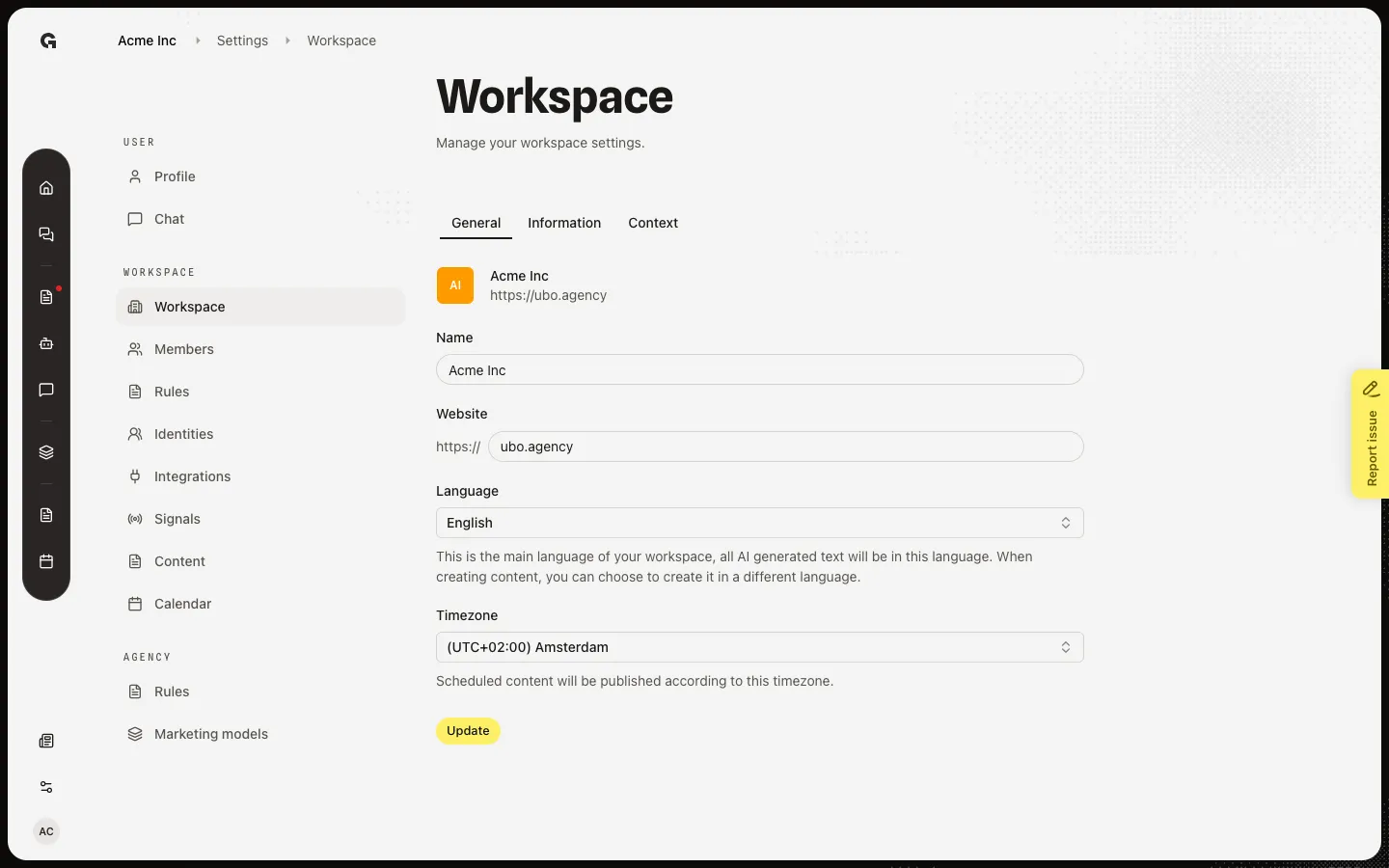
Change the workspace name, website, language, and timezone, and read owner and status on Information.
Read now →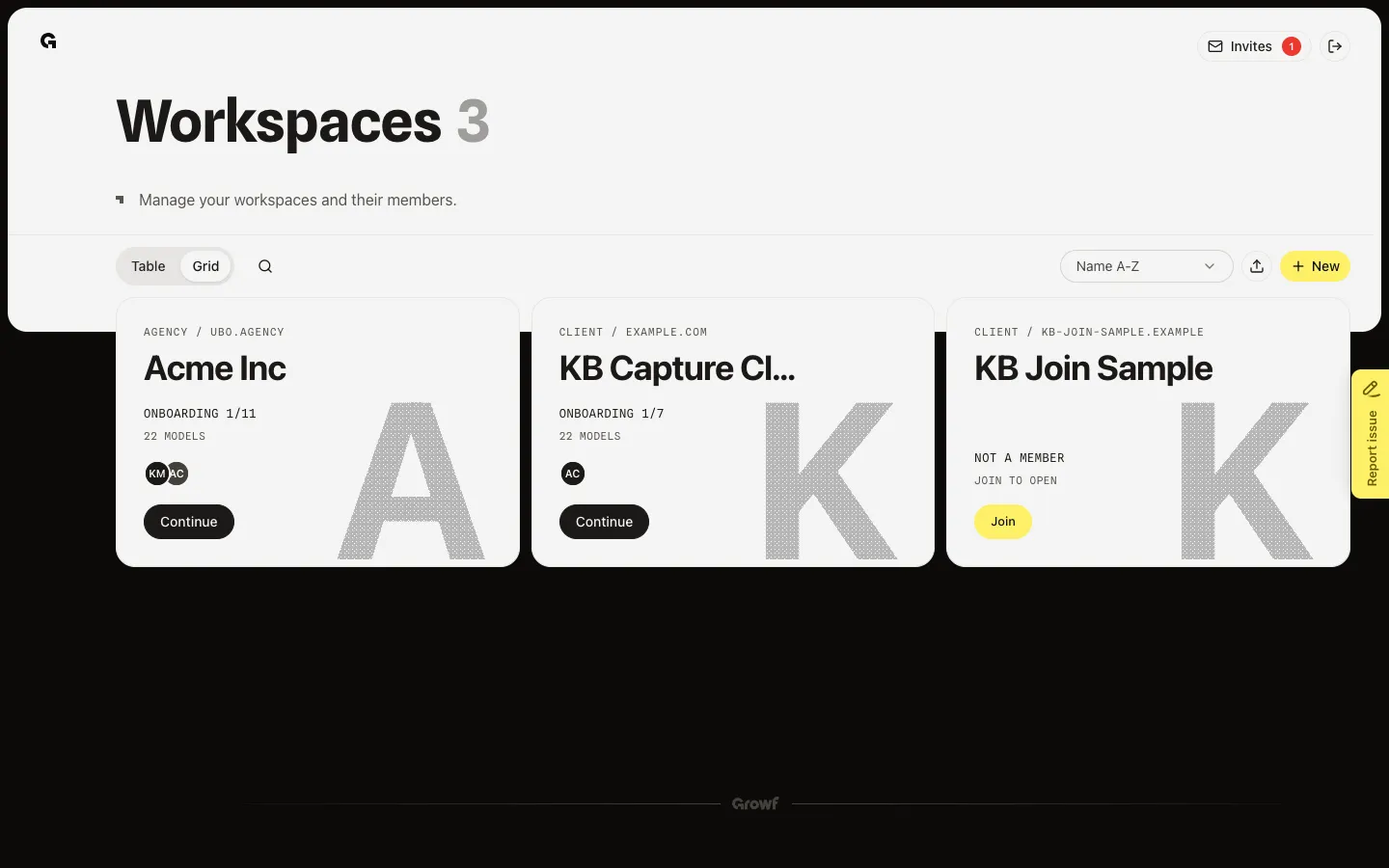
Pin workspaces you use often so they stay at the top of the list and the picker.
Read now →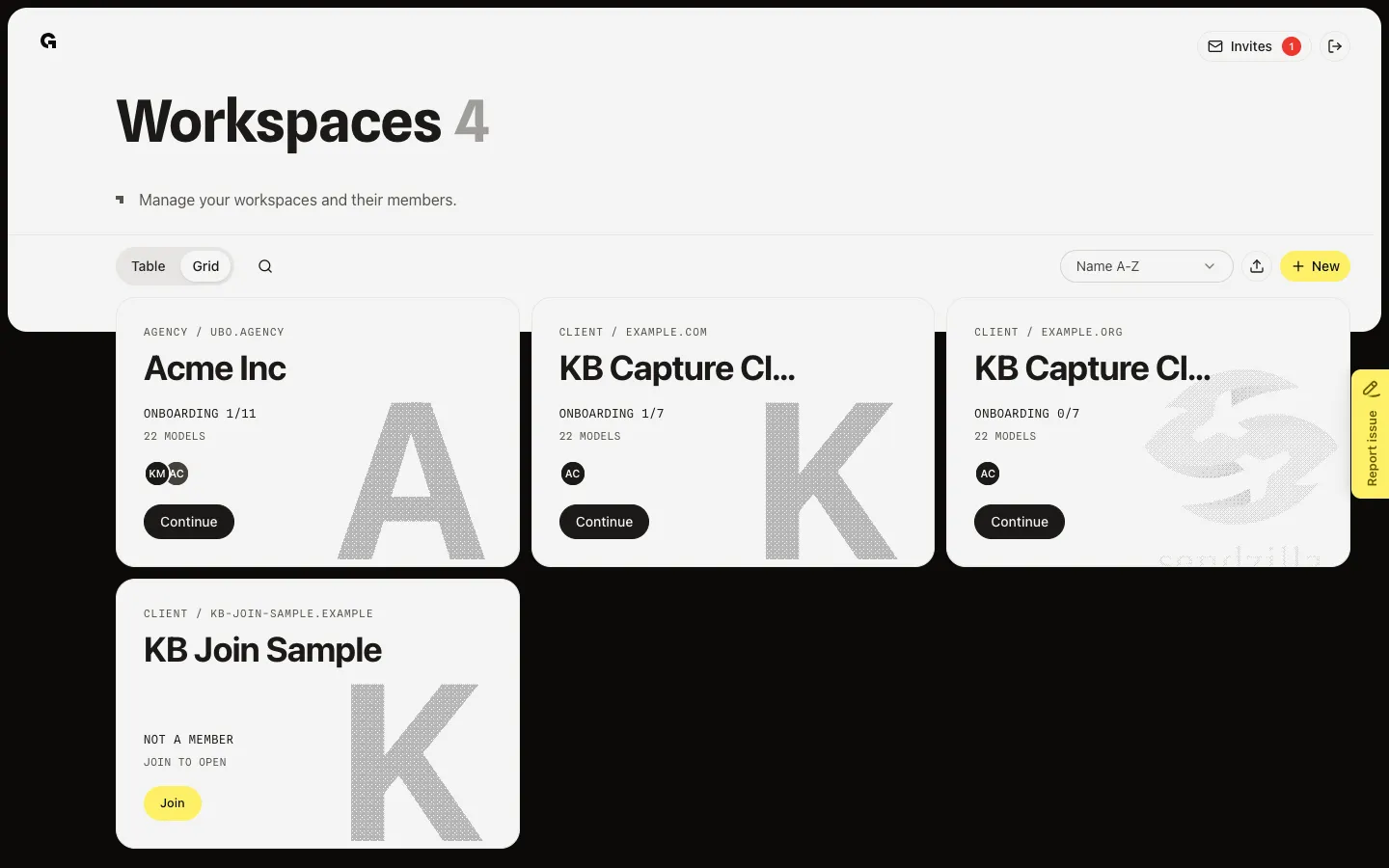
Create many client workspaces from an Excel file on Workspaces or during agency onboarding.
Read now →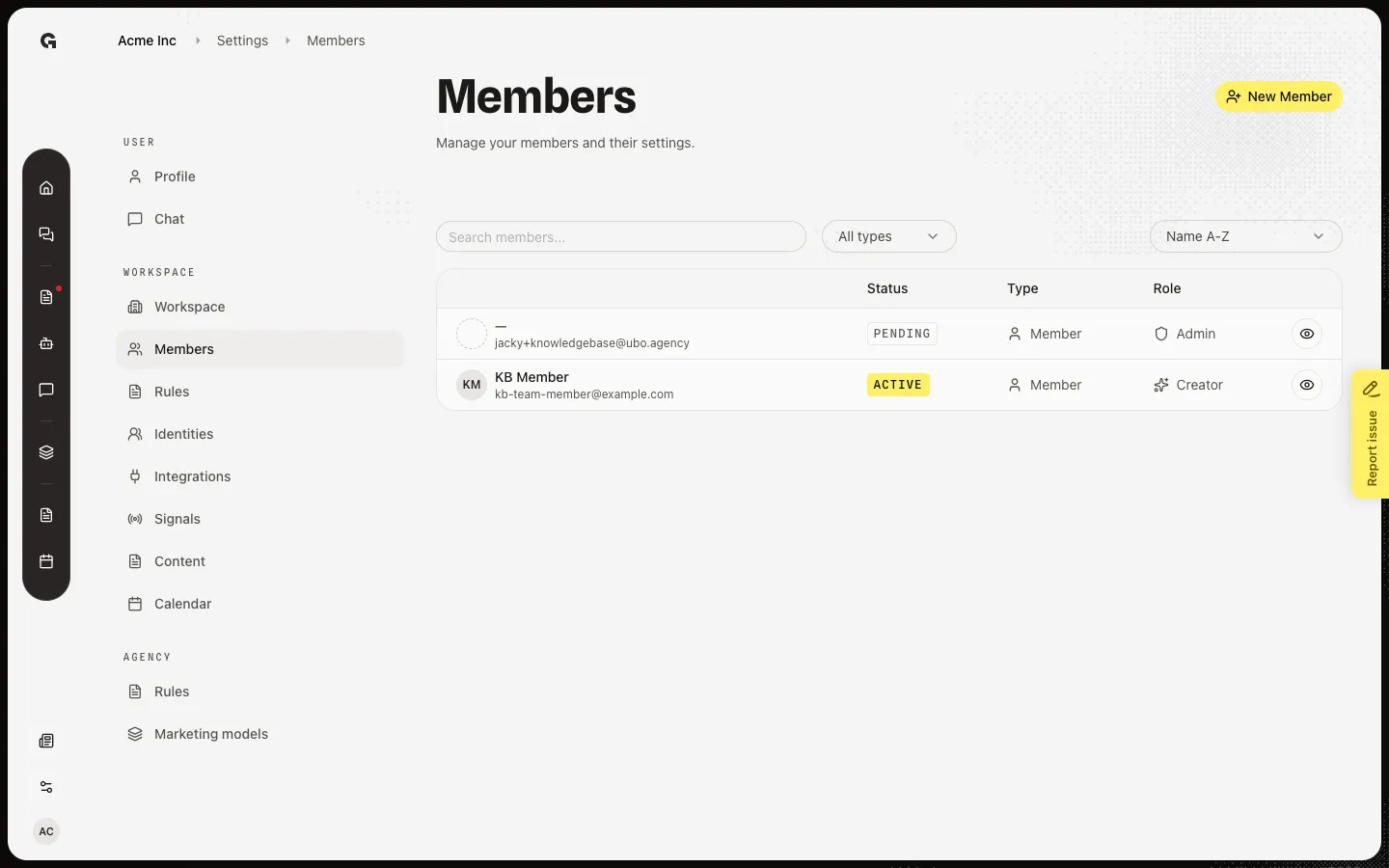
Invite people by email, choose Admin or Client, and review pending or active members.
Read now →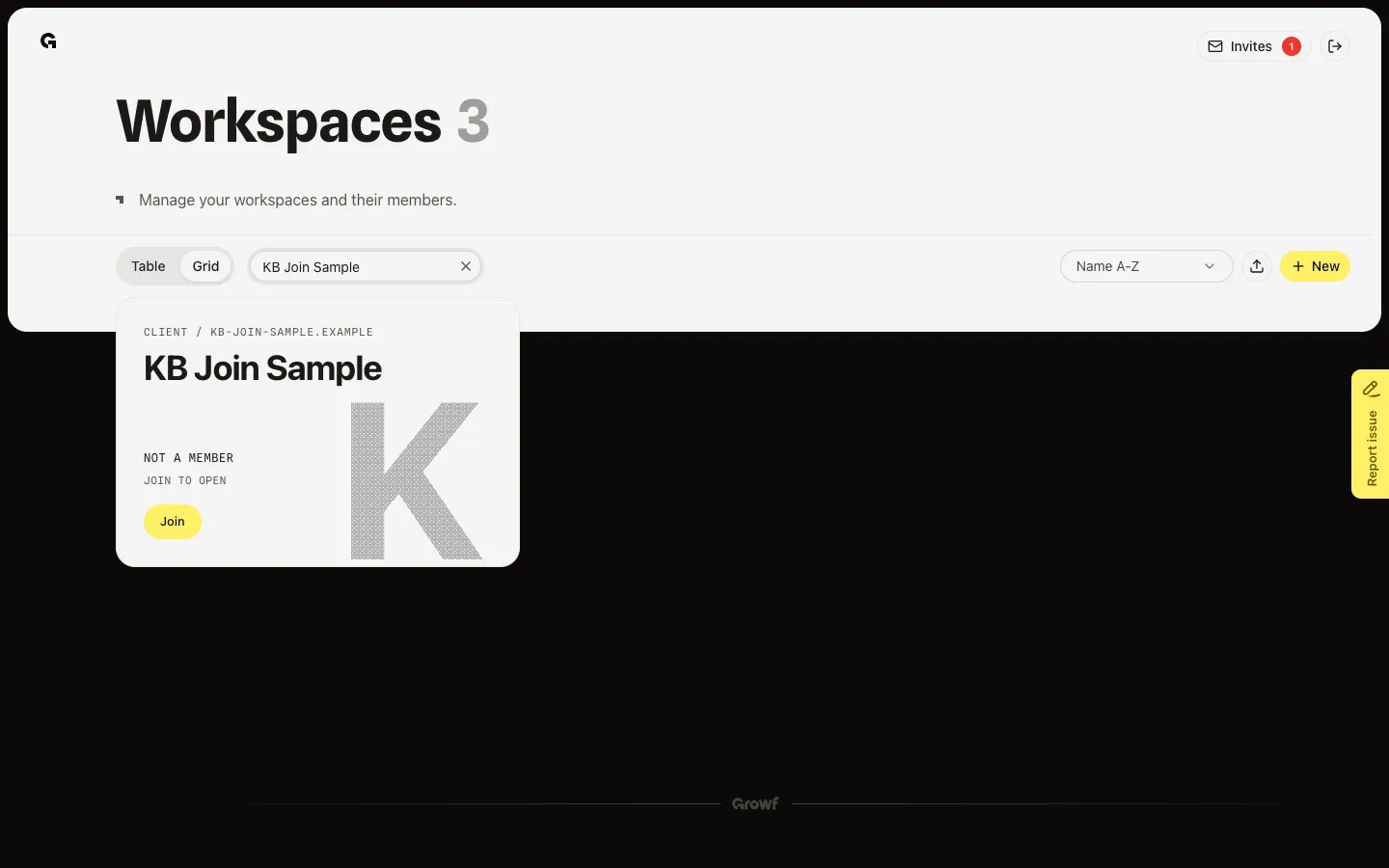
Join a client workspace your agency already manages, without an invite.
Read now →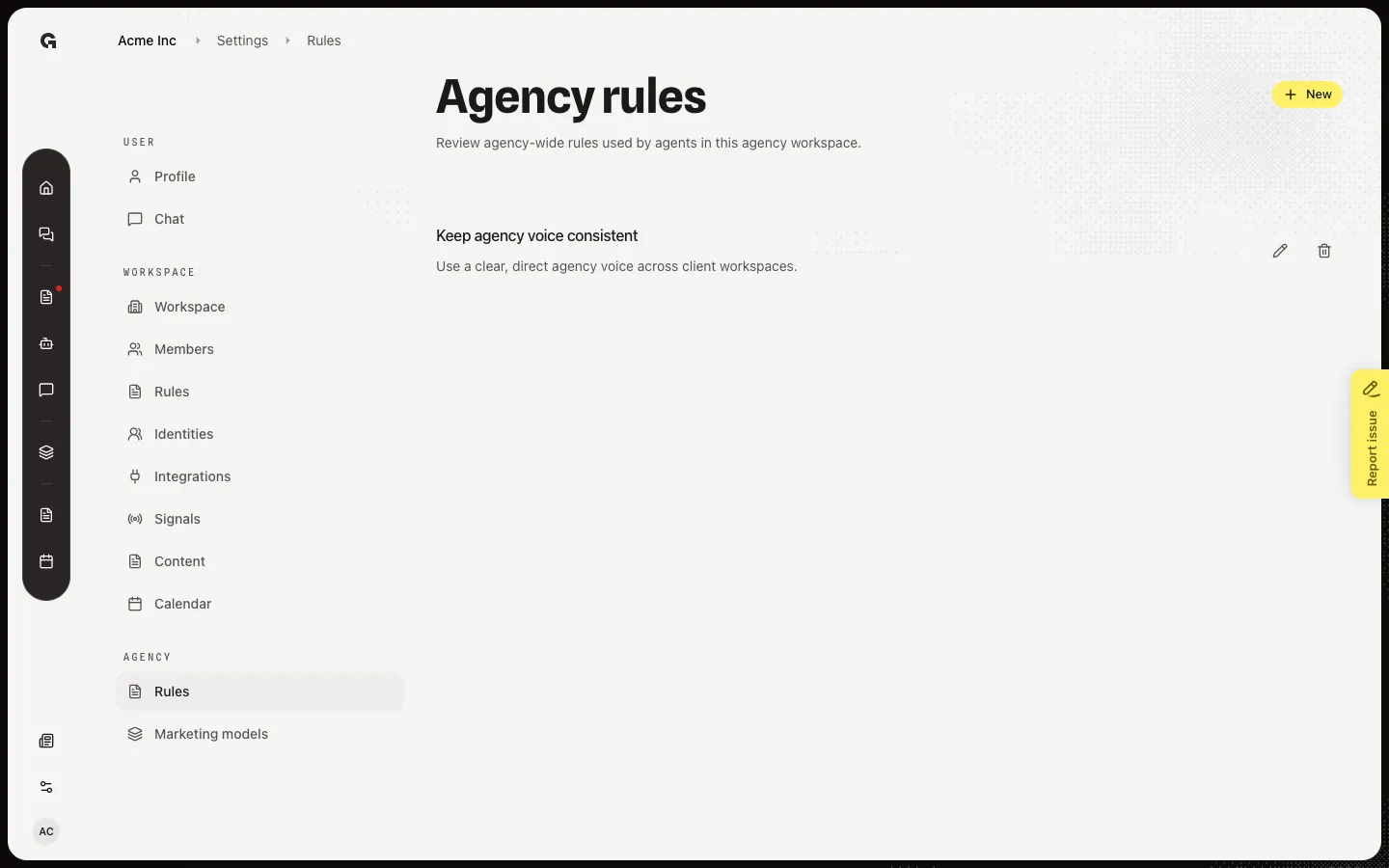
Add, edit, and remove agency rules that agents follow across client workspaces.
Read now →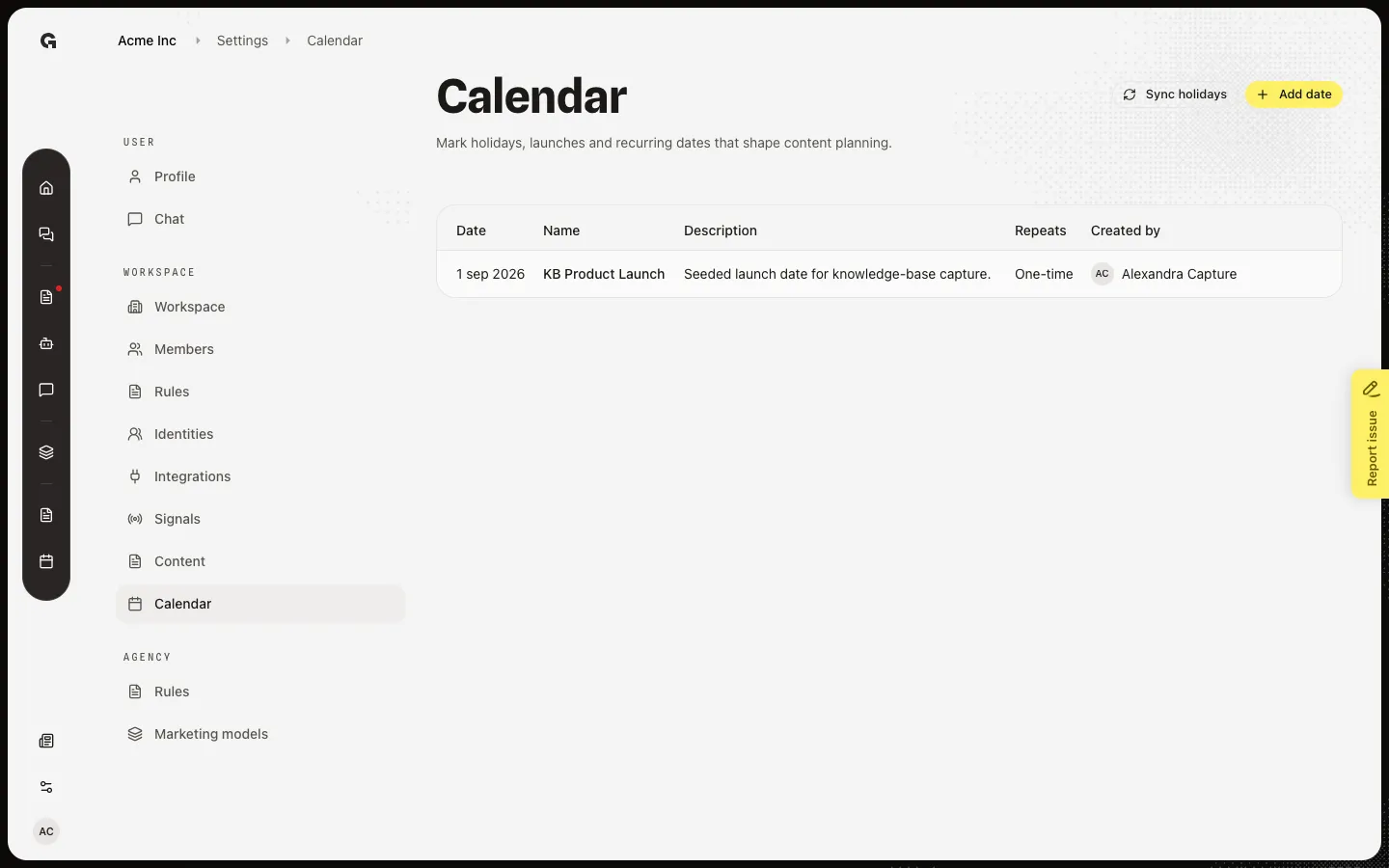
Add launches and holidays, sync public holidays, and edit dates that shape content planning.
Read now →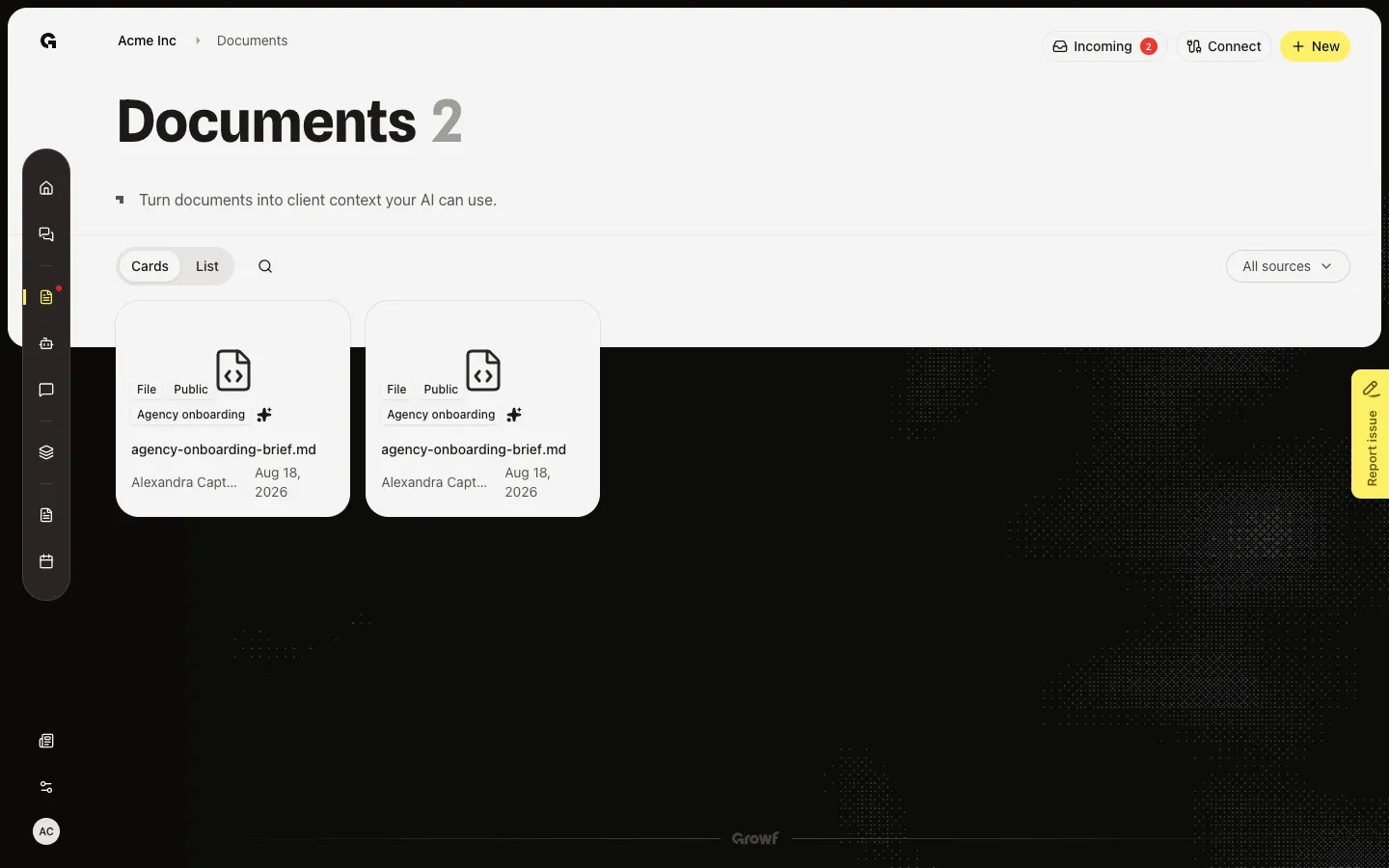
Open Documents to see the files Growf can use as workspace knowledge, then upload a file so the library is not empty.
Read now →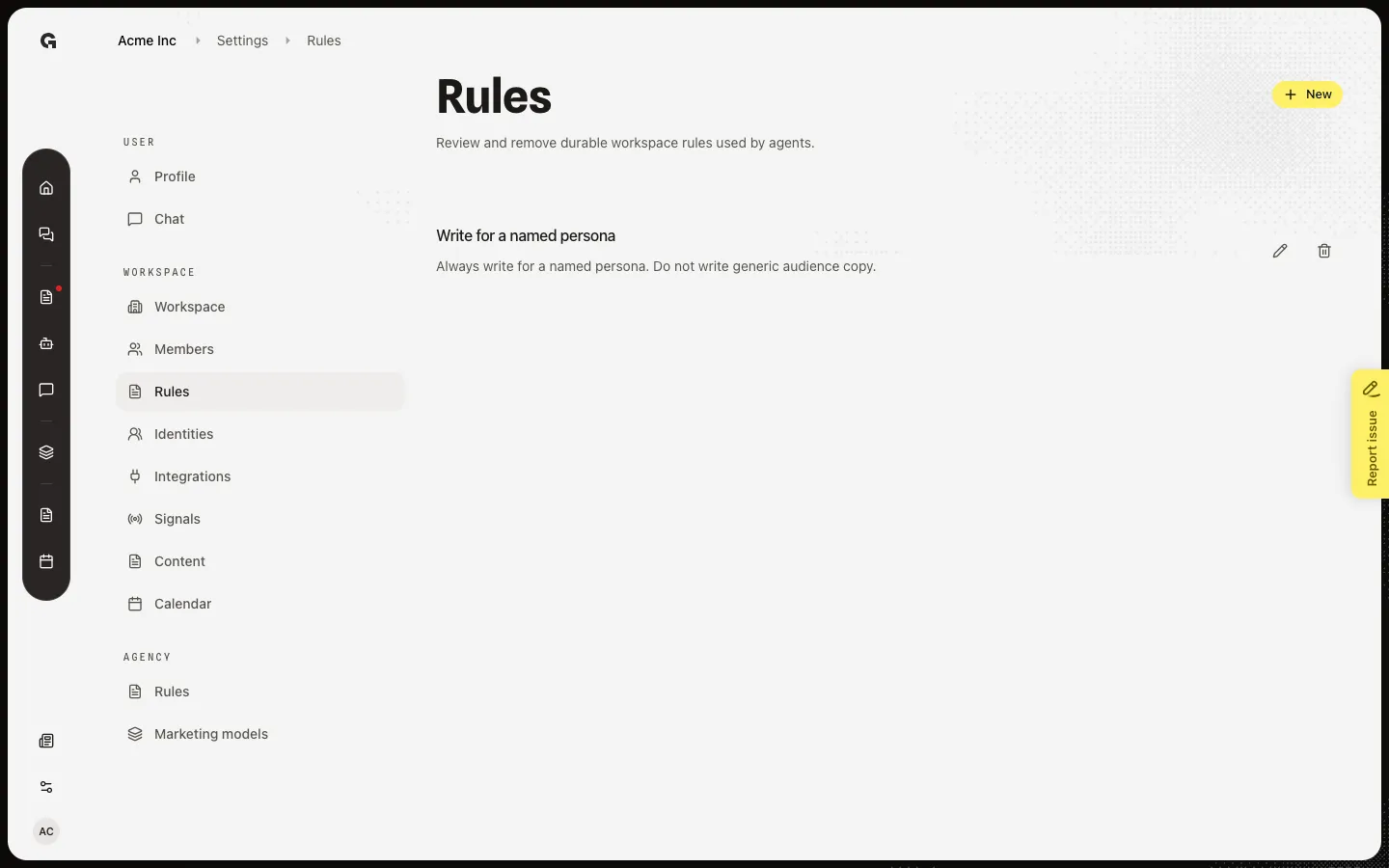
Add, edit, and remove workspace rules that agents follow in this workspace.
Read now →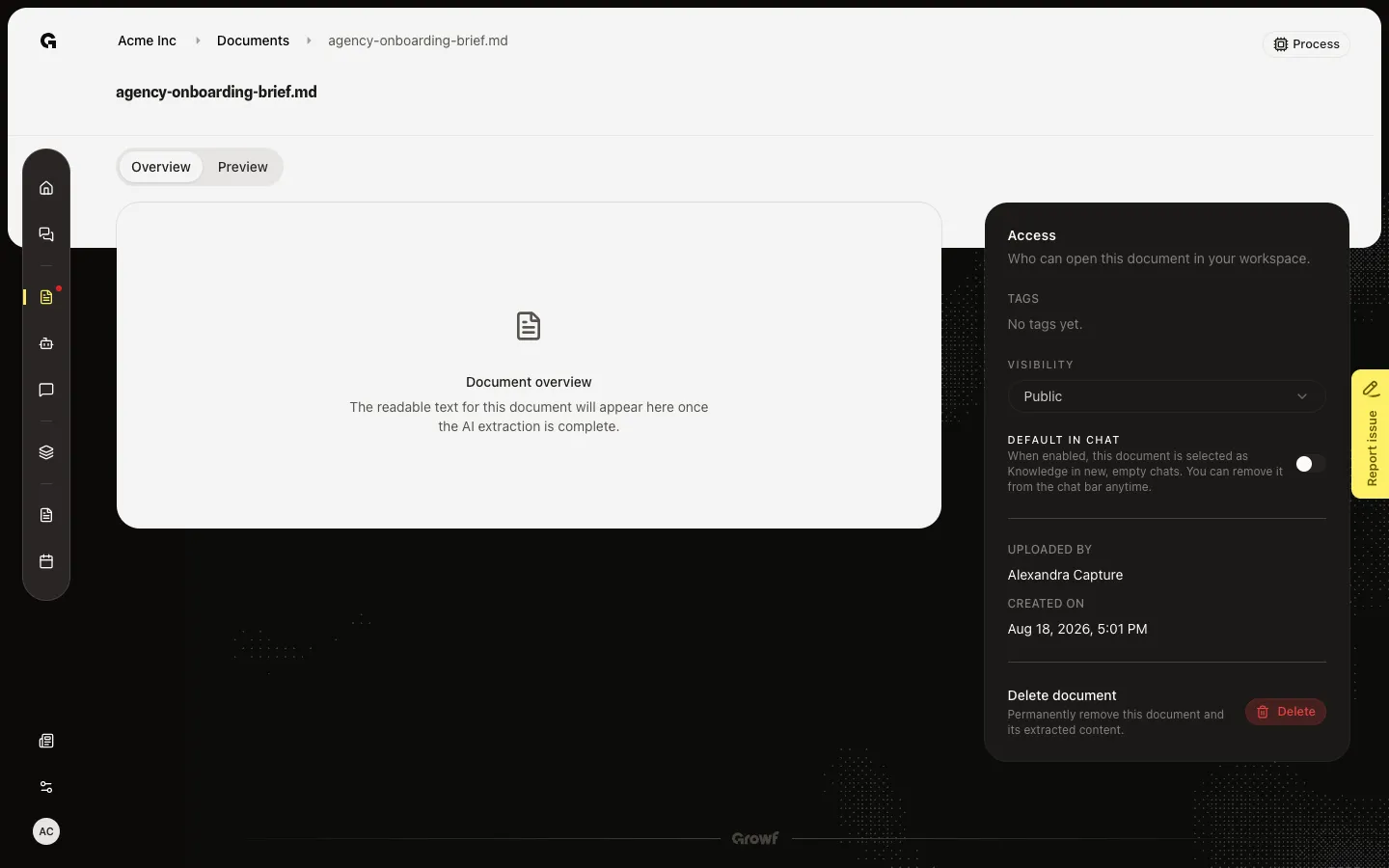
Open a knowledge file to read the extracted text, then use Preview to see the original or download it.
Read now →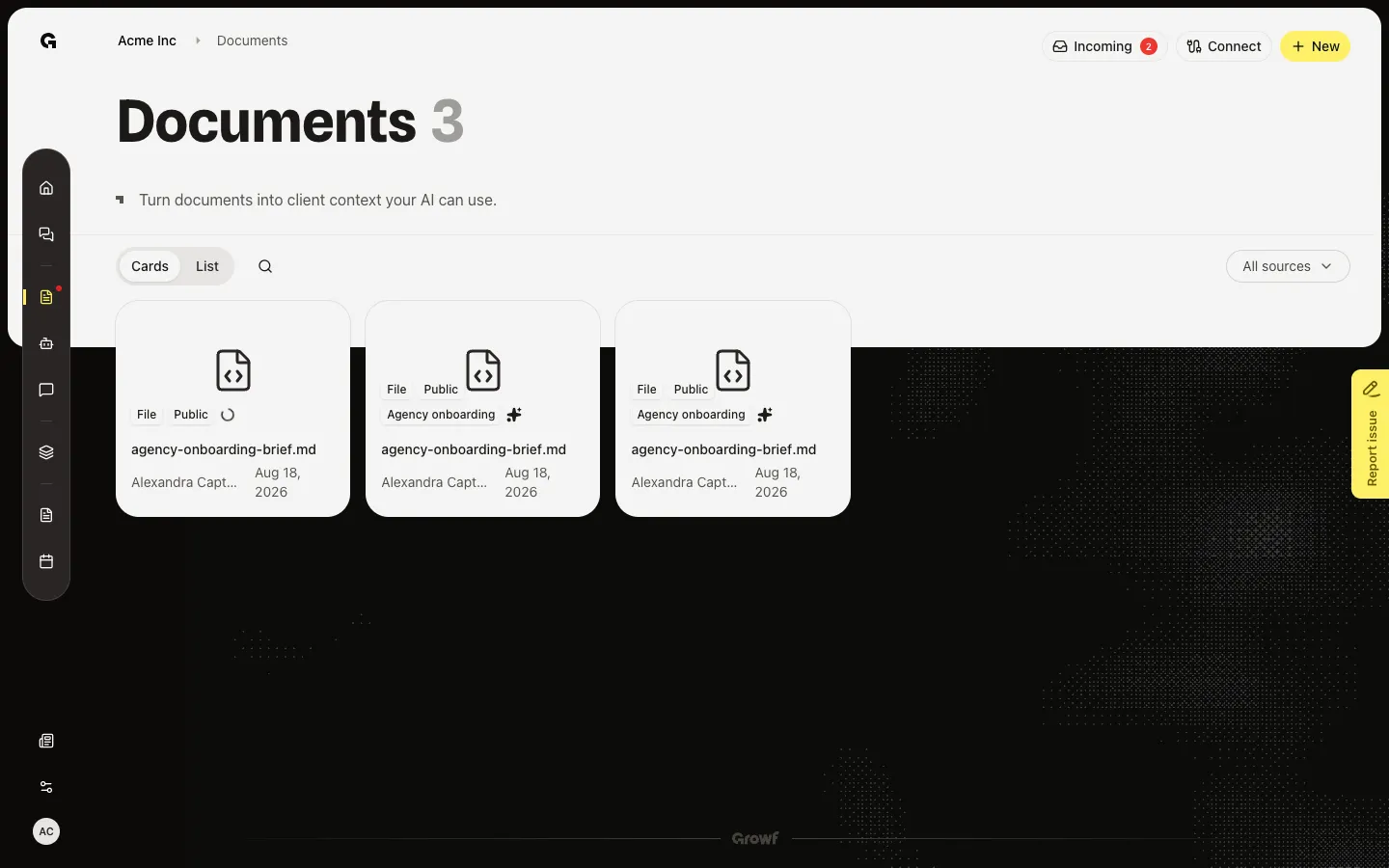
Re-run extraction on a file you uploaded so Overview and chat can use its text.
Read now →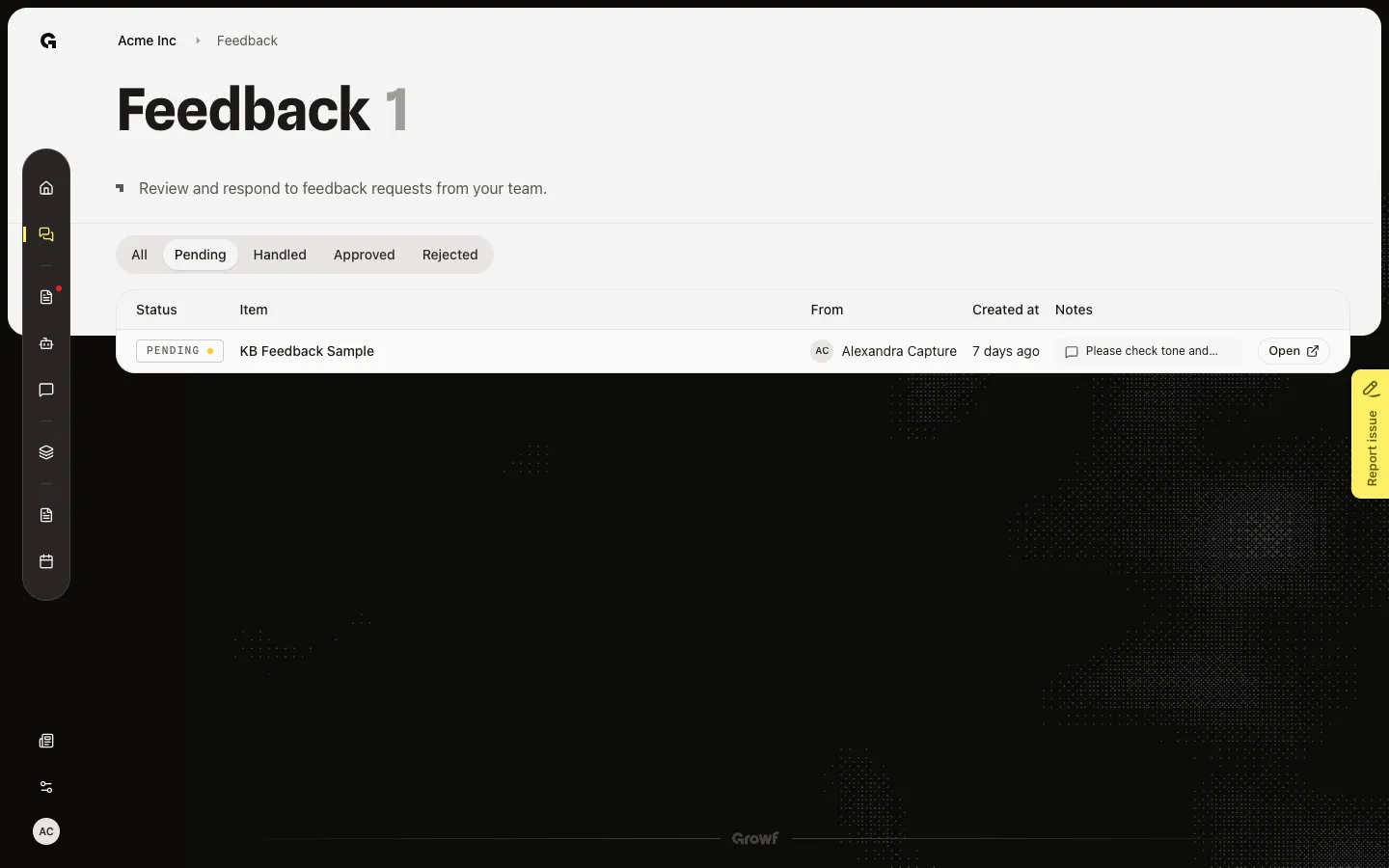
Open Feedback, read a pending request, then Approve or Reject with an optional note.
Read now →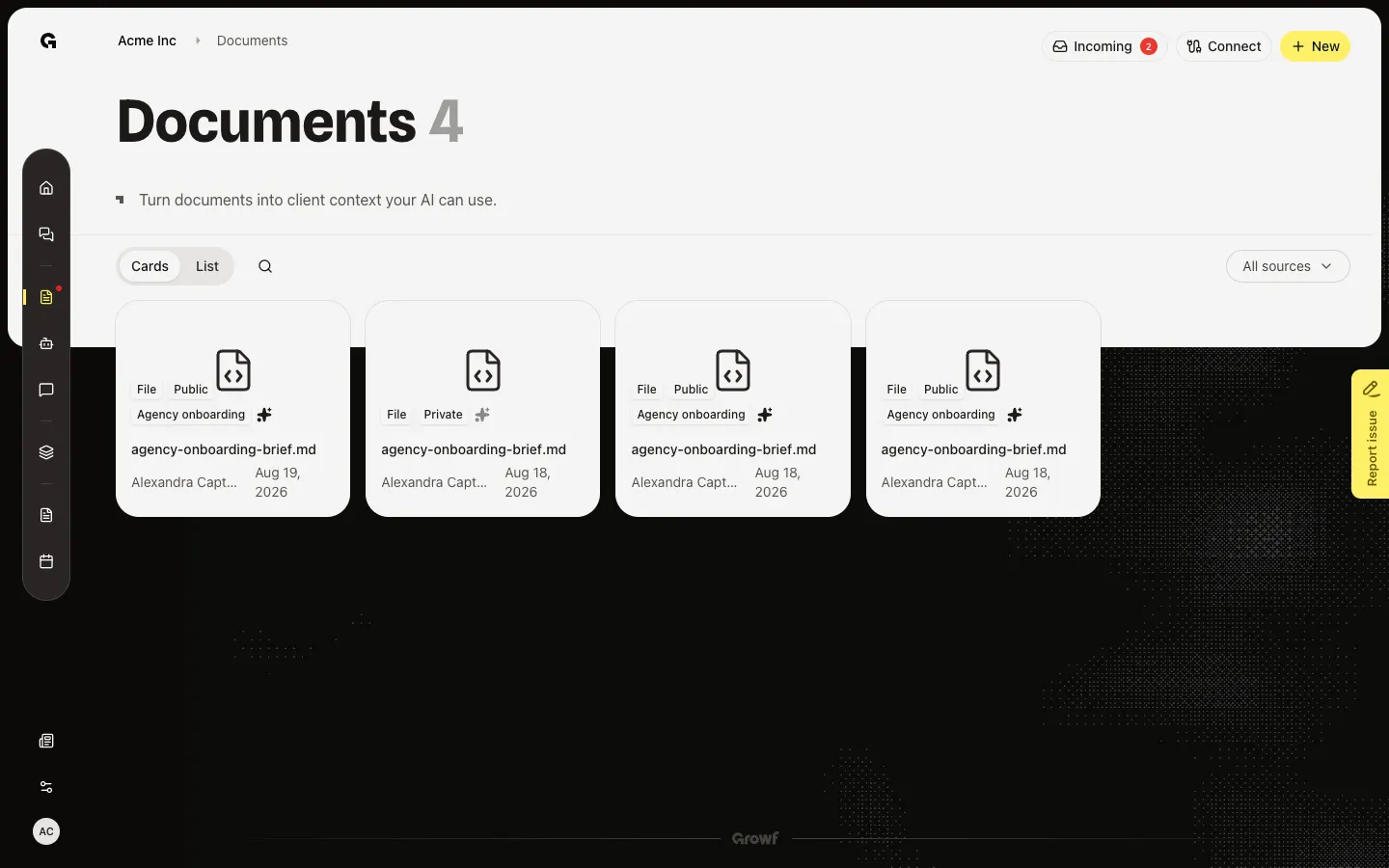
Accept or discard synced transcripts before they become workspace documents.
Read now →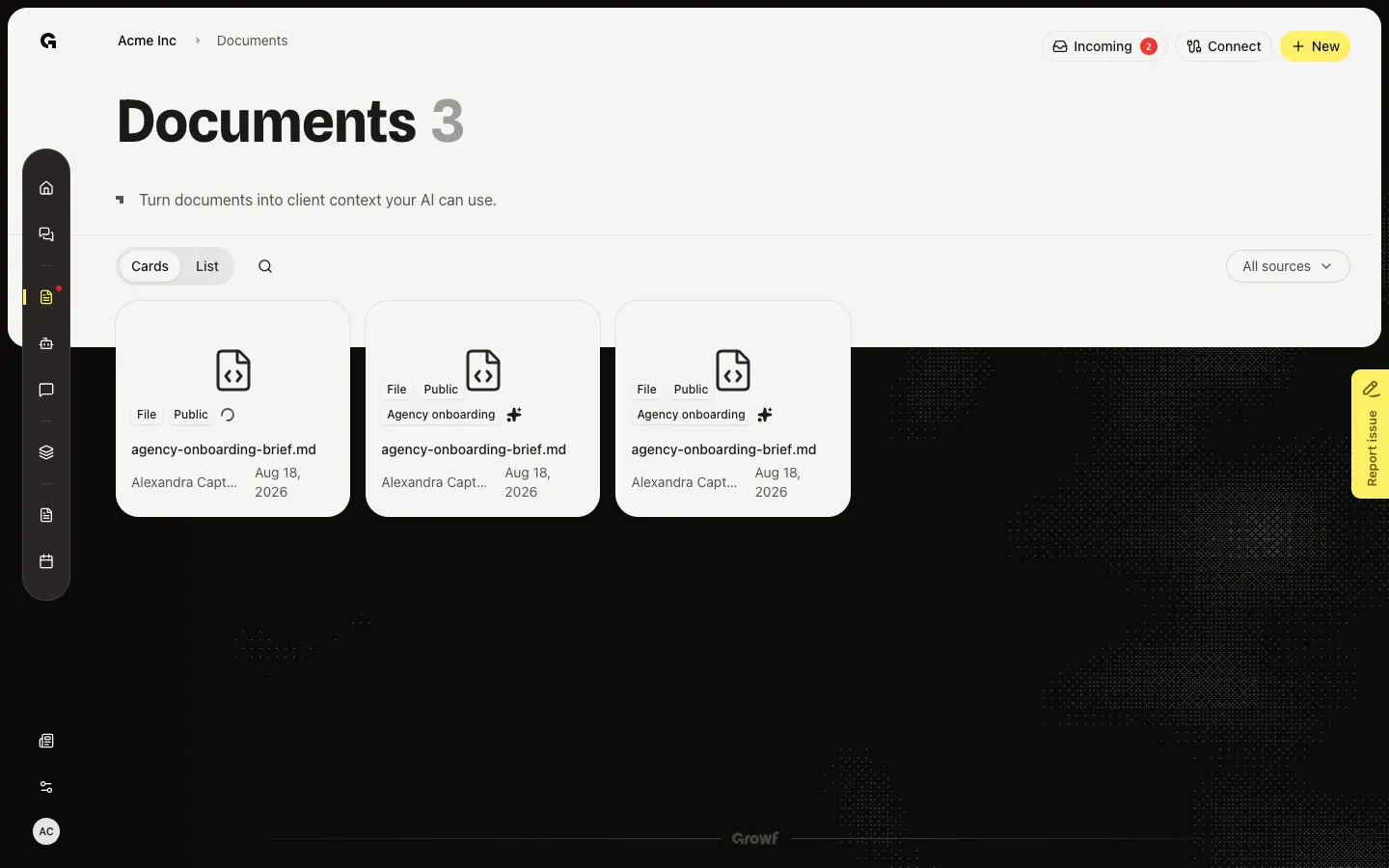
Mark a file you uploaded so new empty chats start with it already selected as Knowledge.
Read now →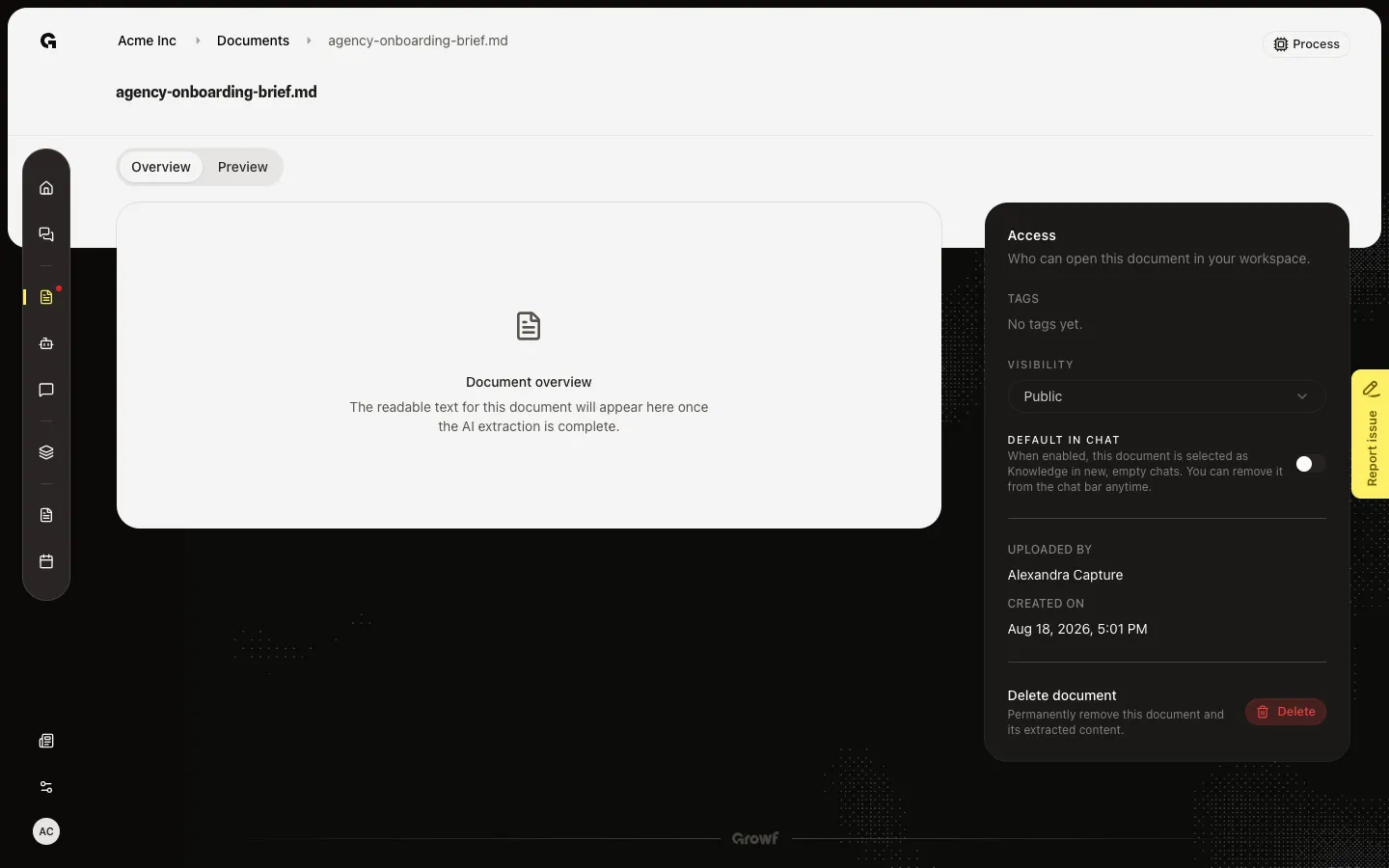
Choose Public or Private for a file you uploaded so the workspace, or only invited people, can open it.
Read now →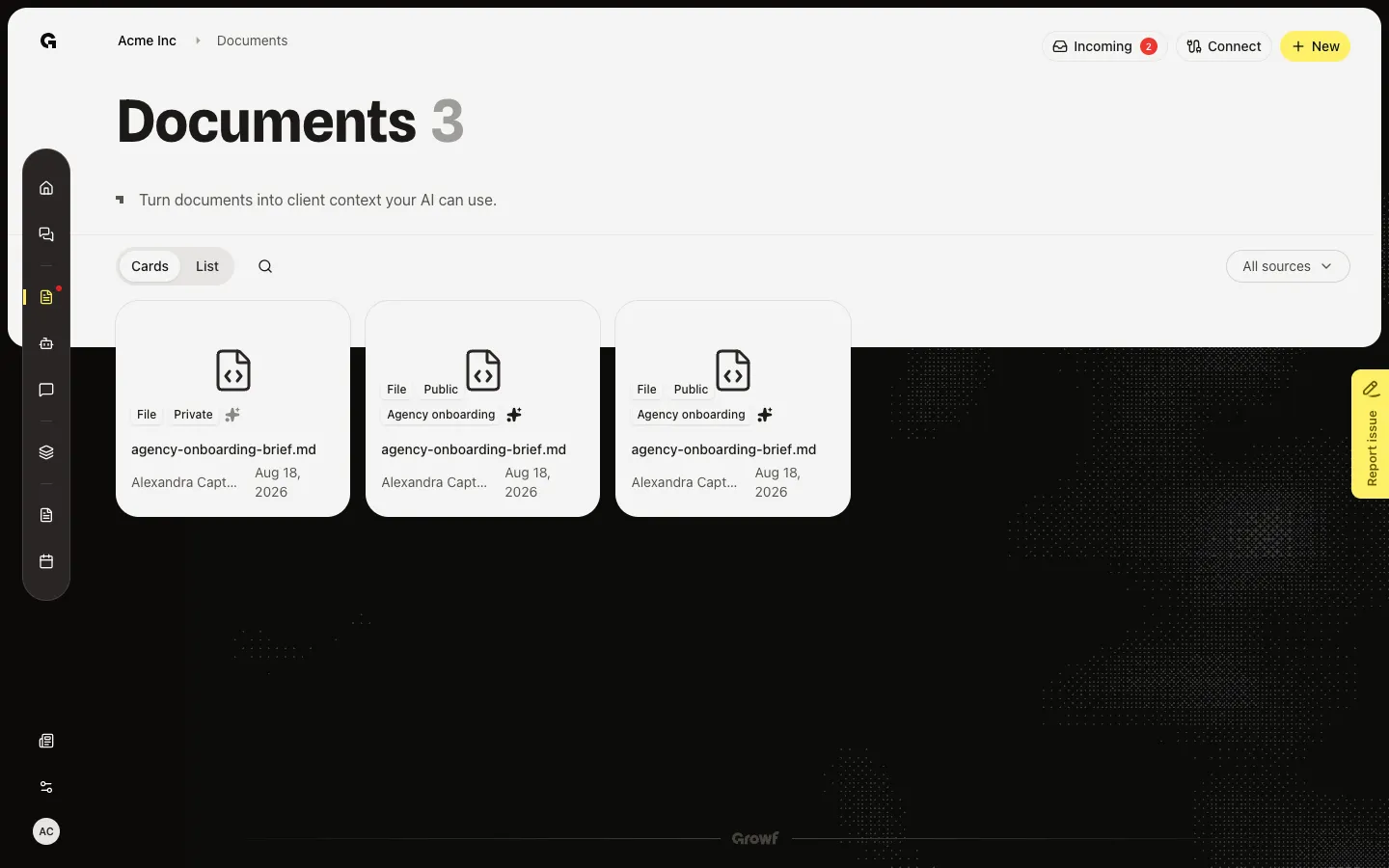
Set a file to Private, then invite workspace members so only they can open it with you.
Read now →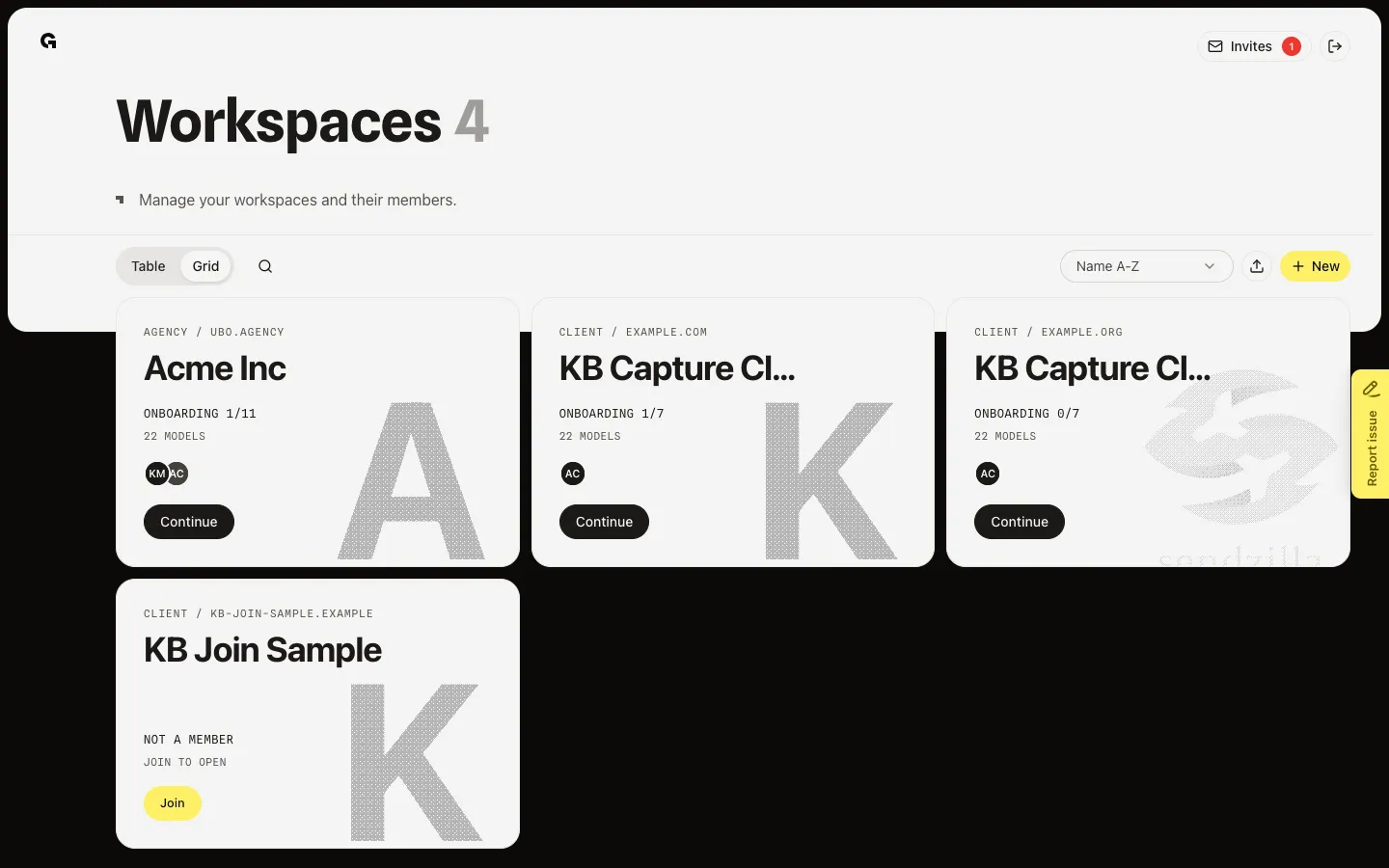
Open another workspace from the Workspaces list or the breadcrumb picker.
Read now →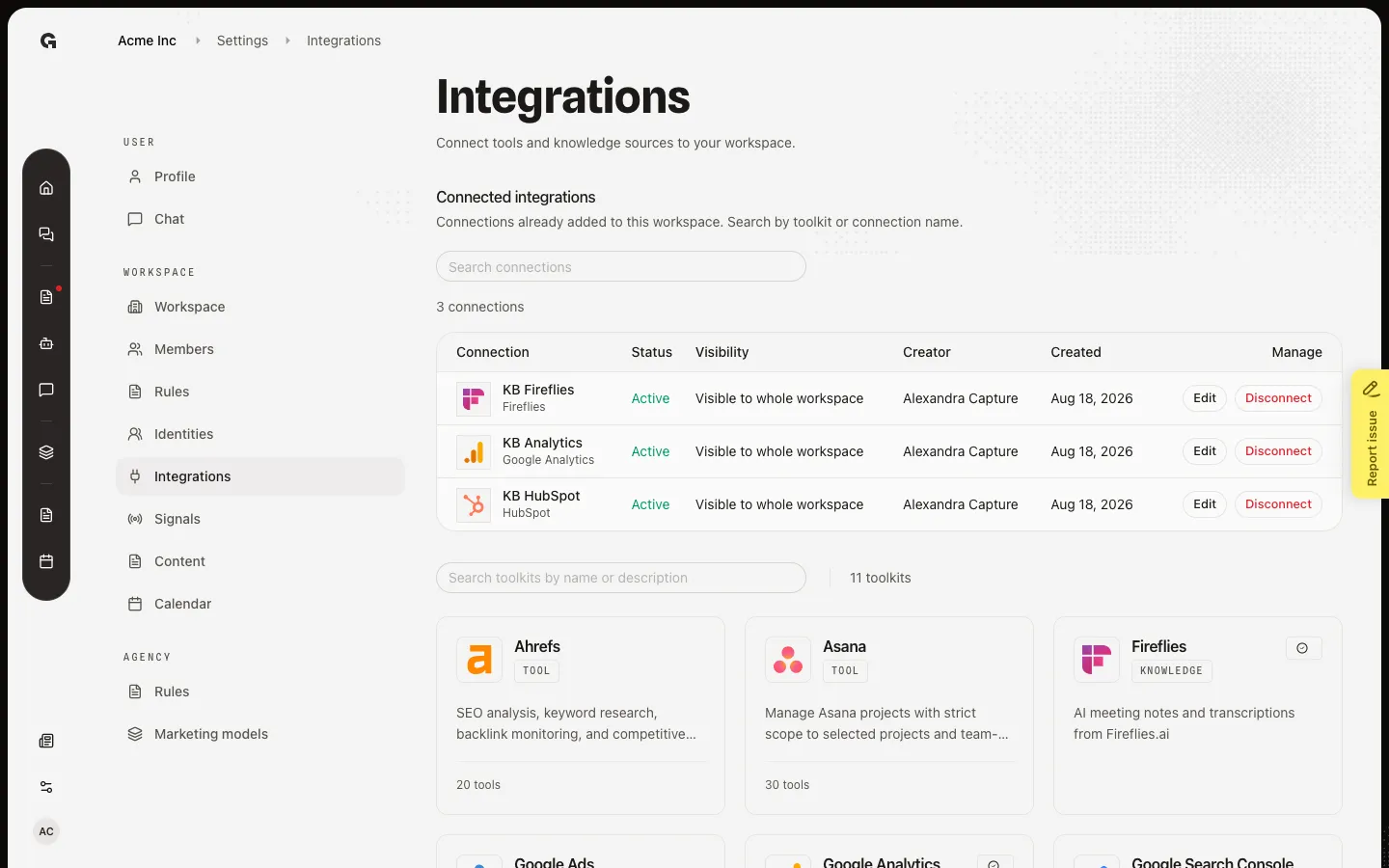
Pull Fireflies transcripts into Incoming so the team can accept them as workspace knowledge.
Read now →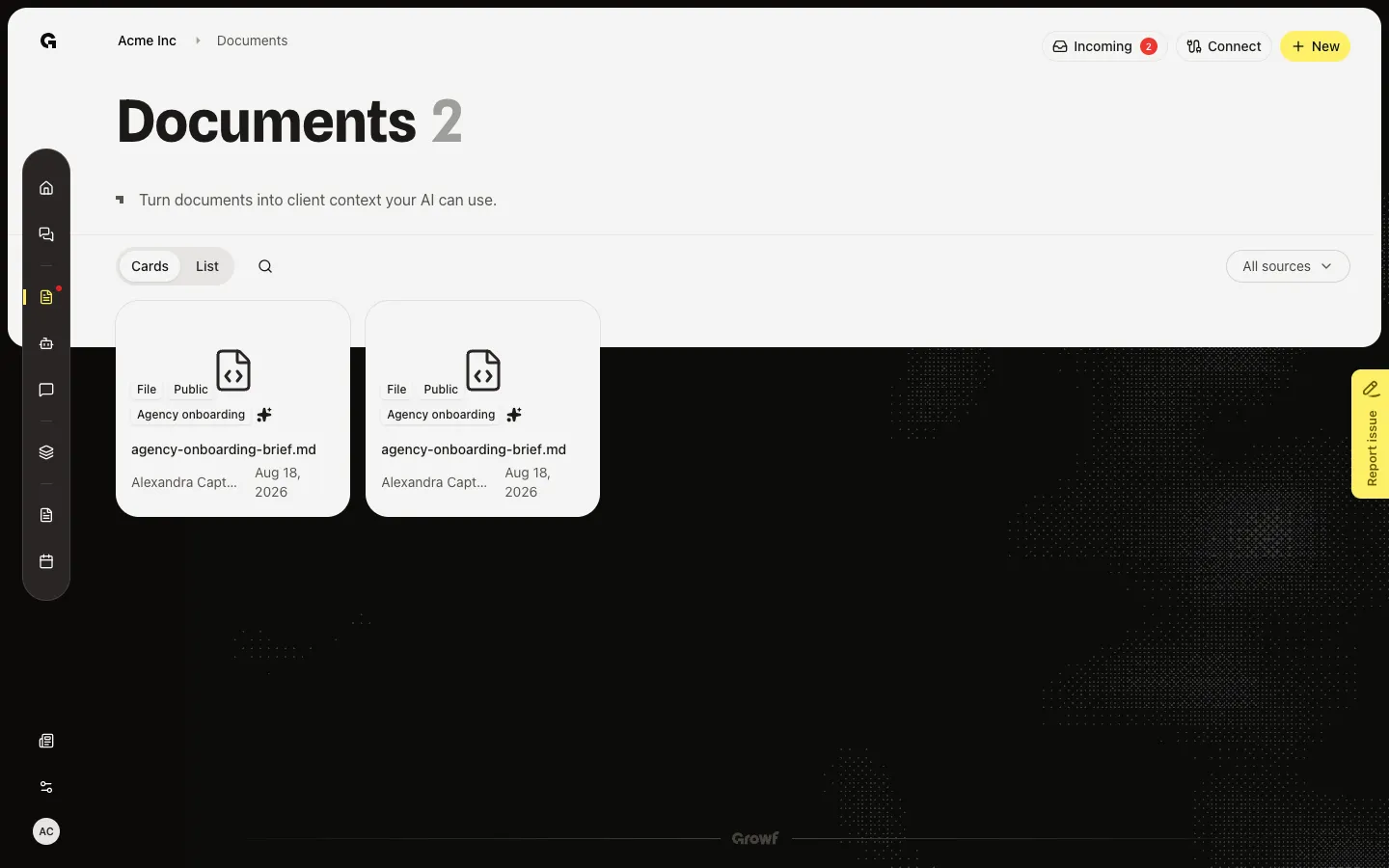
Add a knowledge file from Documents so Growf can read it and use it in chat.
Read now →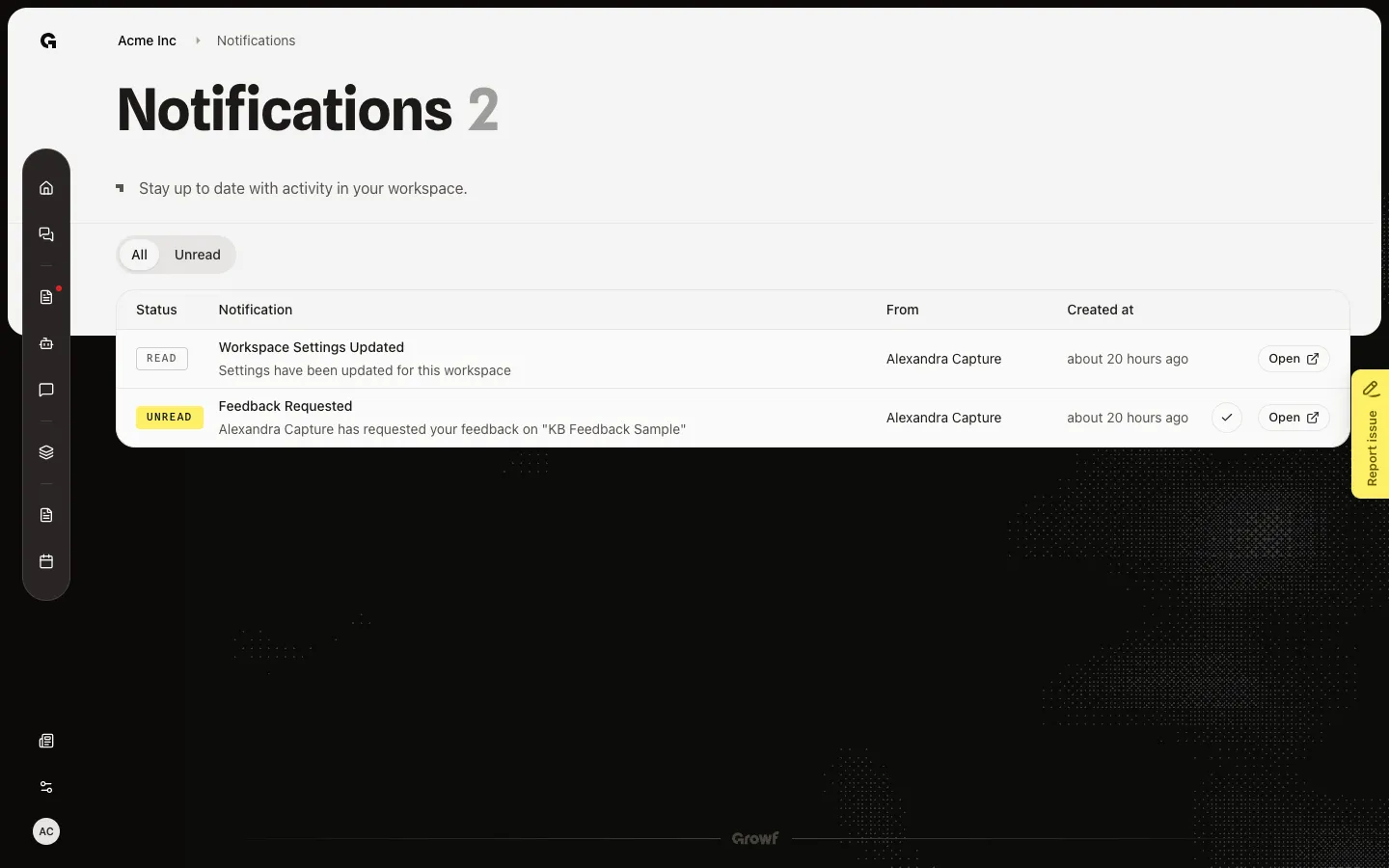
Open the workspace notifications list, filter unread items, mark them read, and open the linked page.
Read now →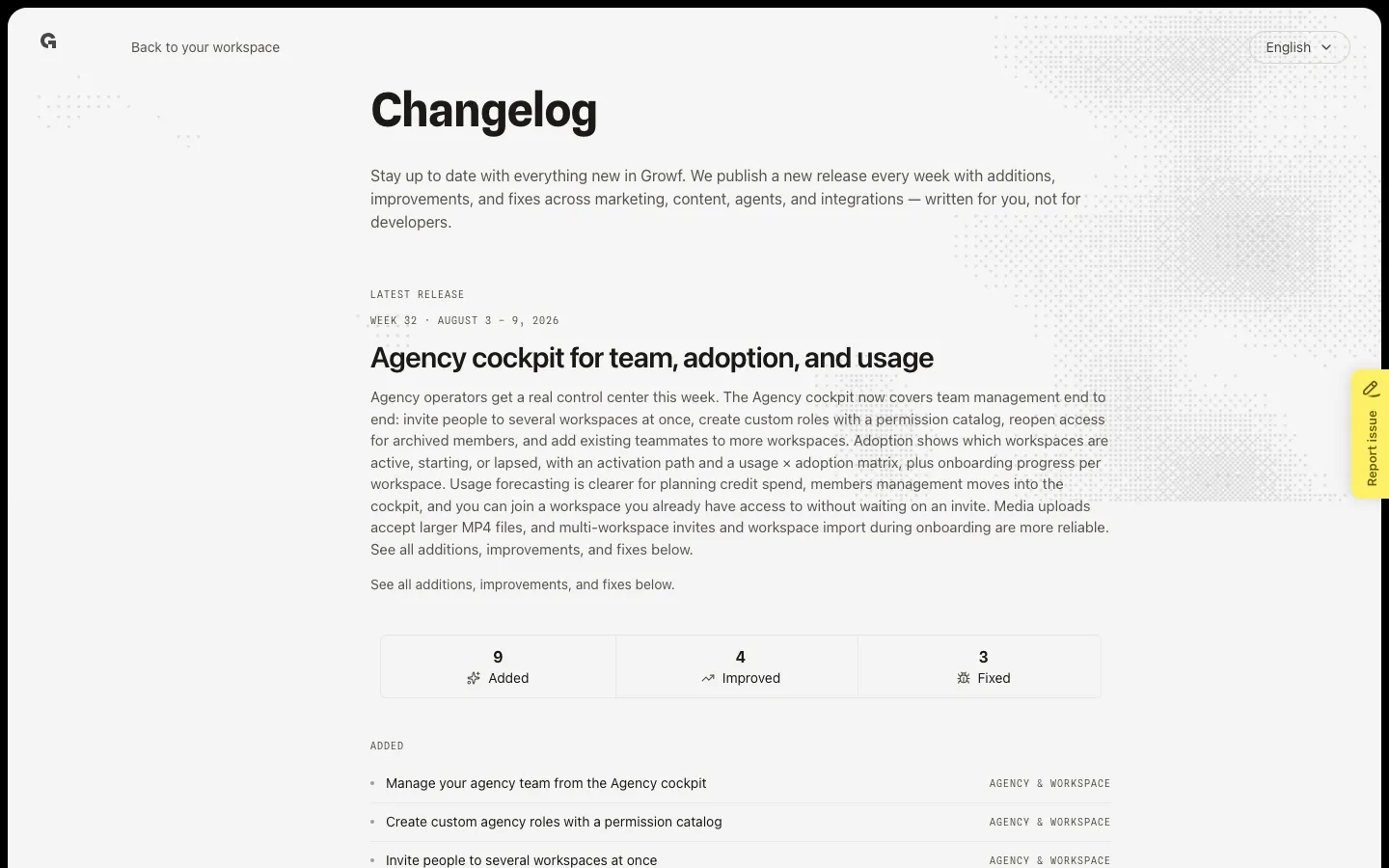
Open What’s new to read the latest Growf release and older weekly notes.
Read now →