Use the agency cockpit
Open the agency cockpit to review team, AI usage, and adoption across your agency and client workspaces.
The agency cockpit is the agency-wide hub for people, AI credits, and adoption. It is for the agency owner and agency admins. Members who only work in a client workspace do not get in.
3 steps · About 3 minutes
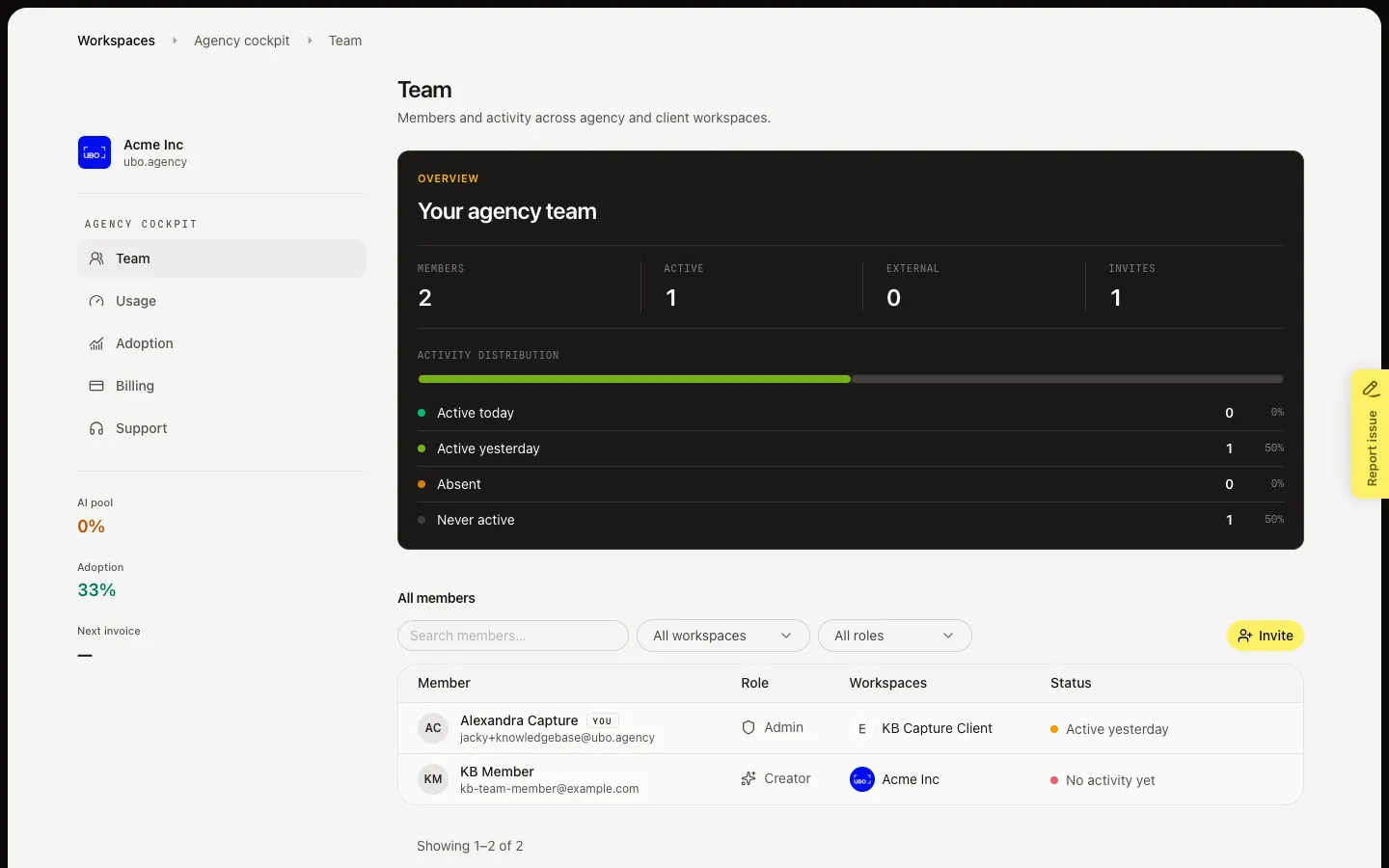
Open Team
Open Agency cockpit from Workspaces when the button is there, or go to /app/agency-cockpit. Growf sends you to Team. You need to own the agency workspace, or be an admin on it. Other people land back on Workspaces. The sidebar shows your agency name, Team, Usage, Adoption, Billing, and Support, plus AI pool, Adoption, and Next invoice. Next invoice stays blank until billing ships.
Open Usage
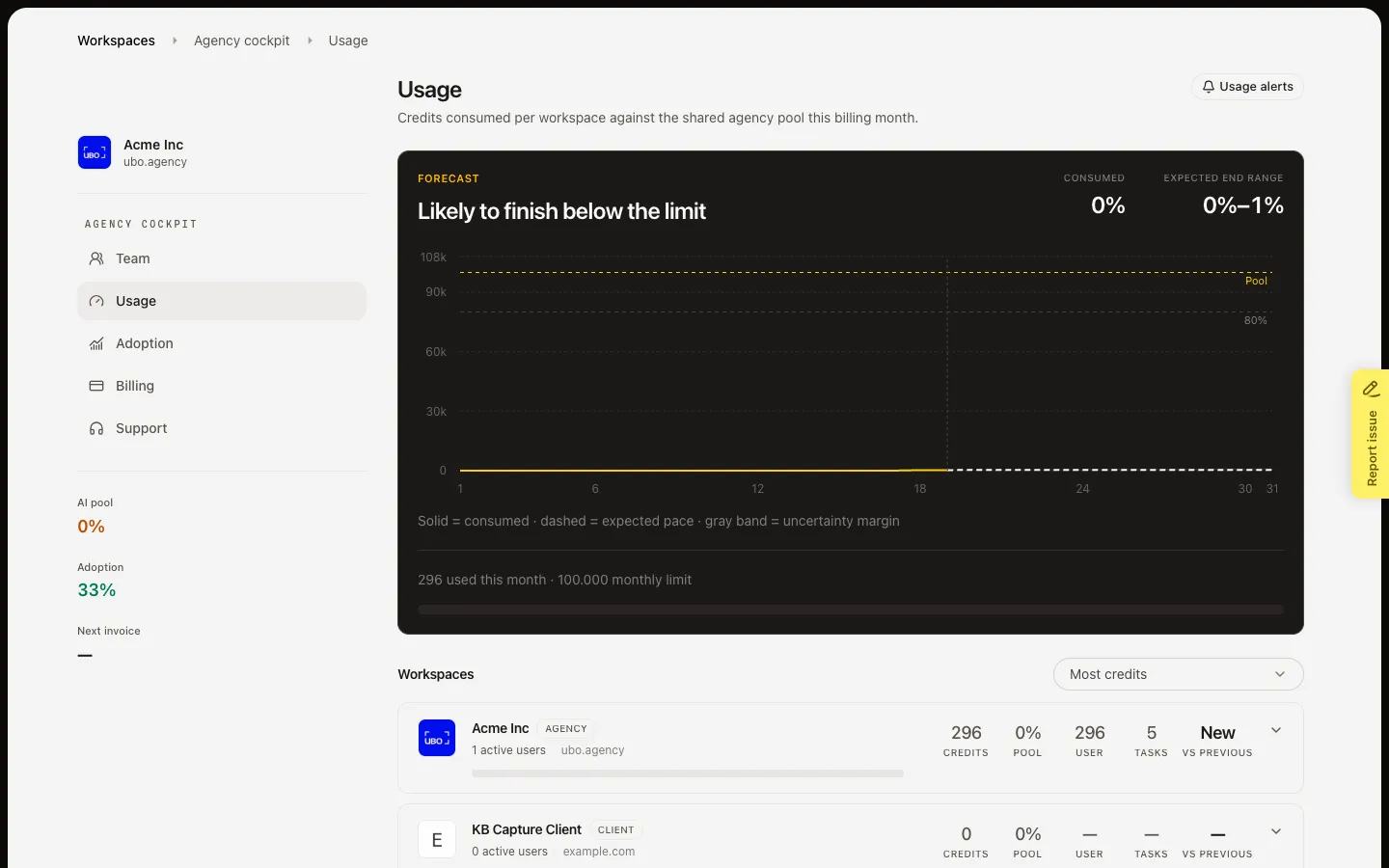
In the sidebar, choose Usage. This page tracks credits against the shared agency pool for the billing month. Use it to see which workspaces spend most, set caps, turn on alerts, or open chargeback for a client. See Monitor agency AI usage for the walk.
Open Adoption
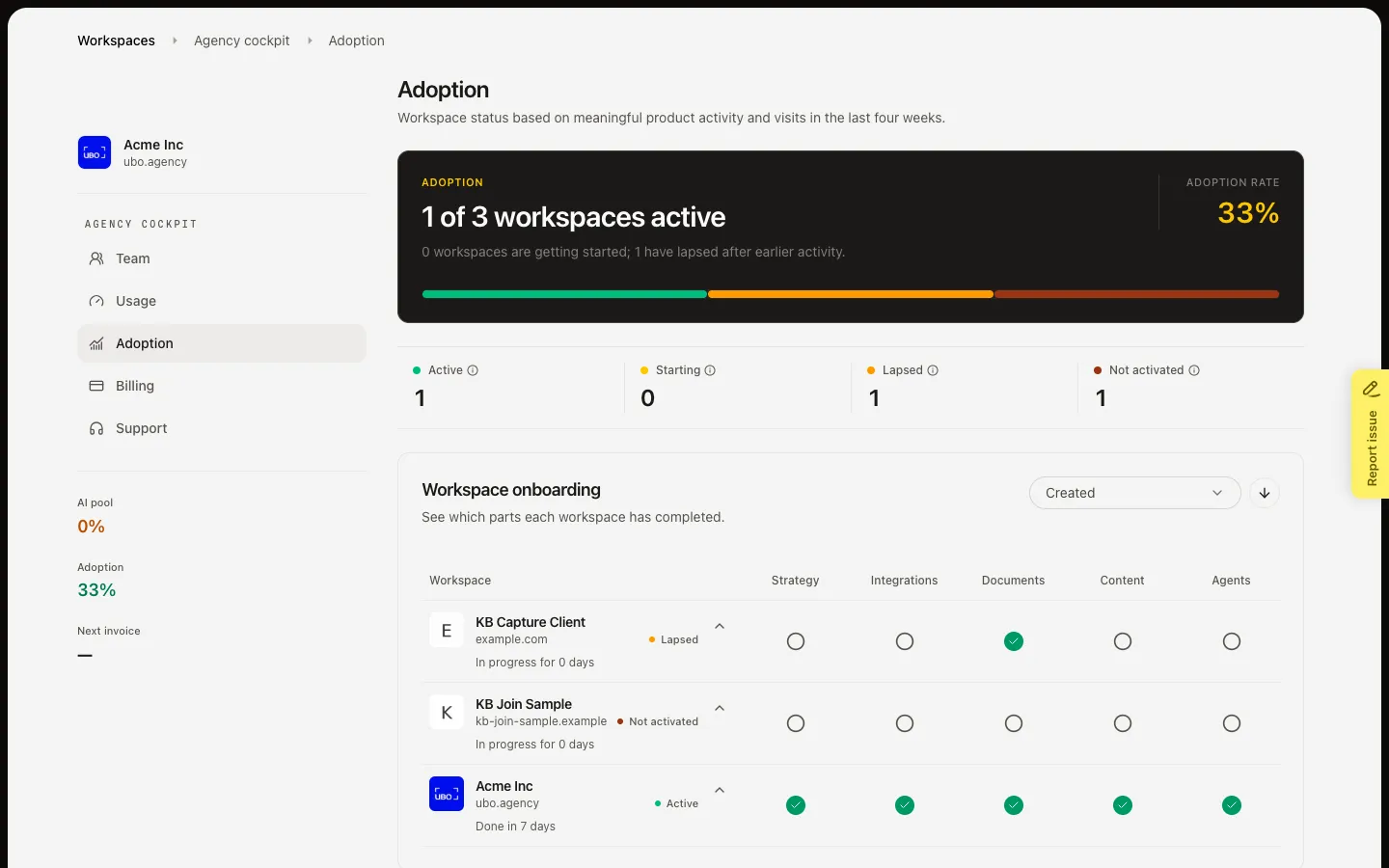
Choose Adoption. The page rates each workspace as Active, Starting, Lapsed, or Not activated from visits and real product work in the last four weeks. See View agency adoption for the walk. Billing and Support are in the sidebar but have no screens yet.
FAQ
I do not see Agency cockpit on Workspaces.+
The cockpit is for the agency owner or an admin on the agency workspace (your origin workspace). Everyone else is sent back to Workspaces. The header button can be missing even when /app/agency-cockpit still opens for you.
What belongs on Team, Usage, and Adoption?+
Team is people, invites, and roles. Usage is credits, caps, alerts, and client chargeback. Adoption is whether workspaces and people actually use the product. Agency rules and marketing models live in agency workspace Settings, not here.
Why are Billing and Support empty?+
Those tabs are reserved. Next invoice in the sidebar stays blank. Use Usage for credit spend and chargeback notes you invoice outside Growf.
How do I leave the cockpit?+
Choose Workspaces in the breadcrumb to return to the workspace list.