Give a chat folder instructions and skills
Tell a folder what its chats are for and which skills they use, so every new chat in it starts from the same goal and steps.
A folder can do more than hold chats. Give it a goal, and Growf follows that goal in every conversation in the folder. Add skills in order, and every conversation goes through them step by step while the folder's home shows how far each one is. This works for folders in My work, which are only yours, and for folders in the Chat of a workspace, which everyone in the workspace shares.
5 steps · About 4 minutes
Make a folder in My work
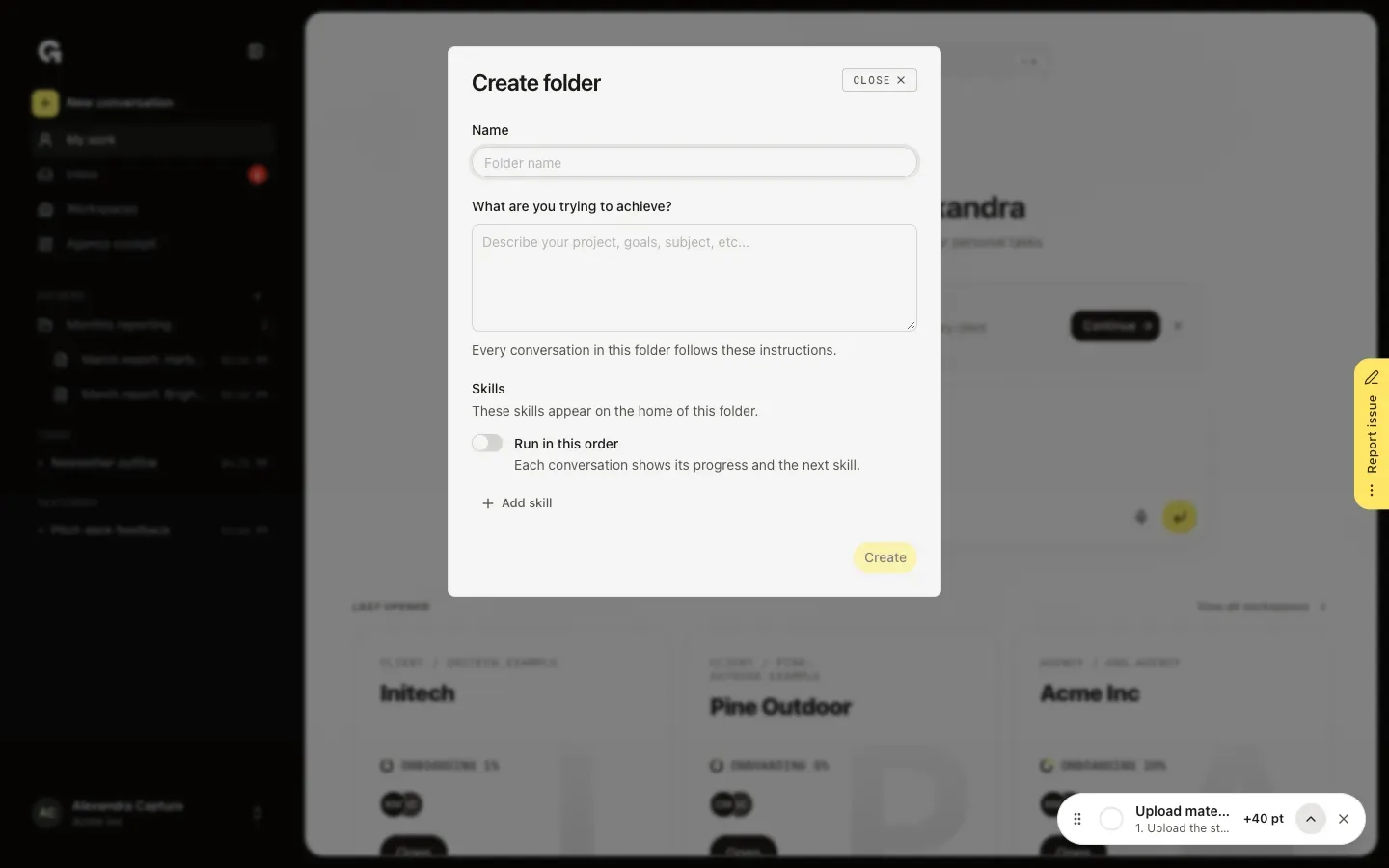
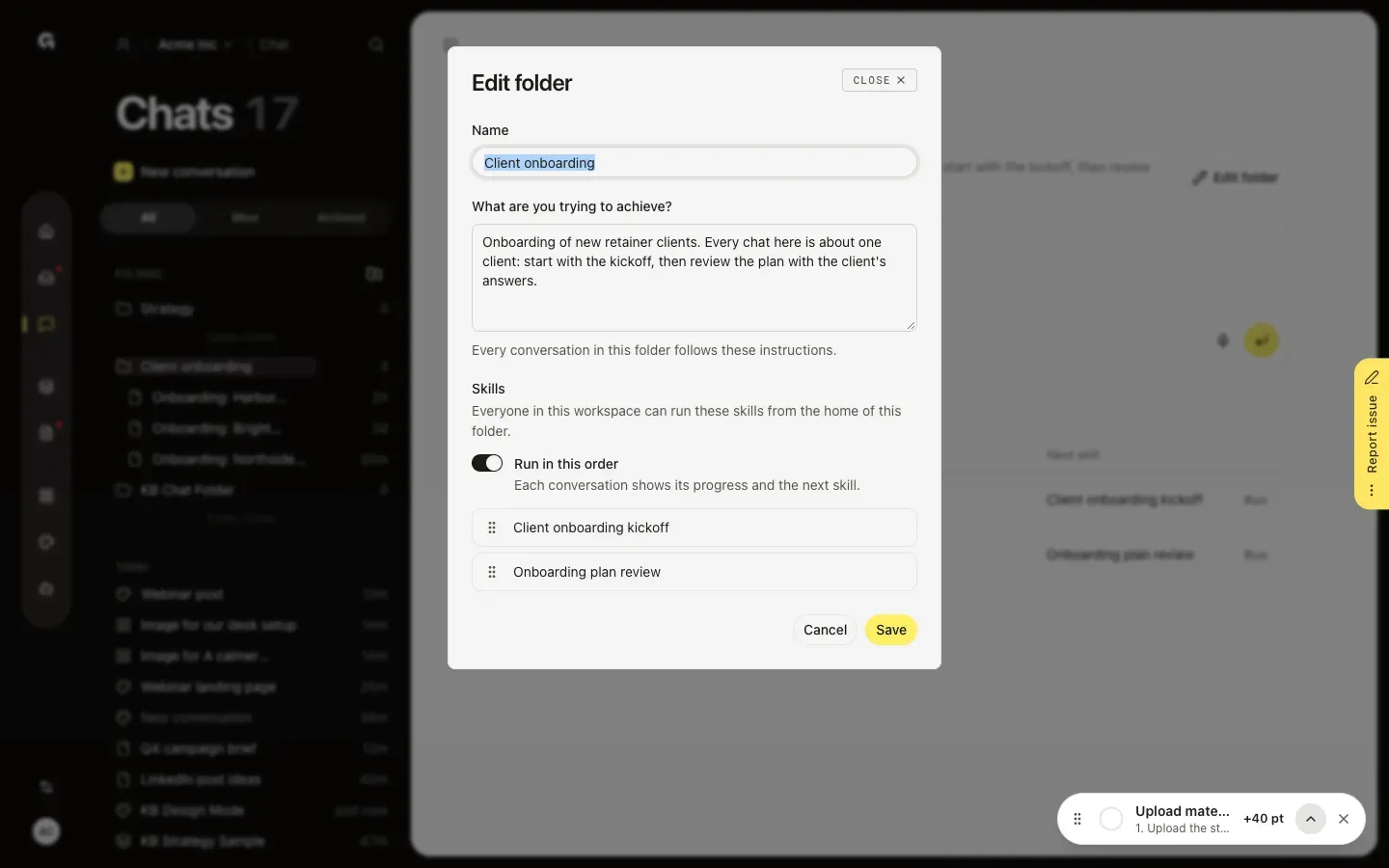
In My work, click the plus beside Folders in the sidebar, or New folder when you have no folders yet. Create folder asks for a Name and, under What are you trying to achieve?, the goal of the folder, such as the client, the subject or the tone. Every conversation in the folder follows these instructions. Click Create.
Add skills in order
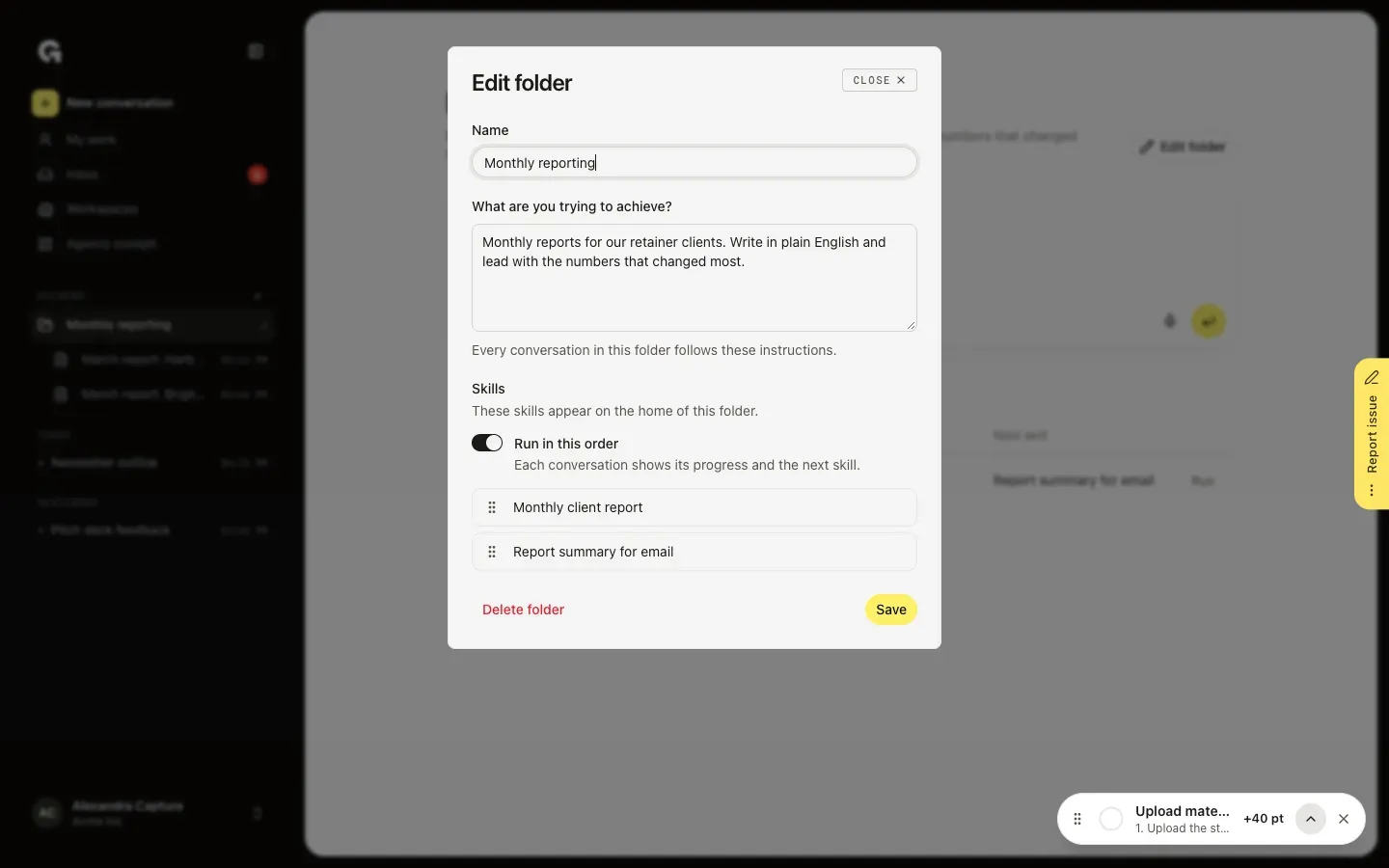
Under Skills, click Add skill and pick the skills the folder is for; they appear on the home of the folder. Drag them into the order of the work. Switch on Run in this order to have each conversation go through them one after another and show how far it is. Click Save. To change a folder later, click Edit folder on its home, or the pencil beside it in the sidebar.
Start a chat from the folder
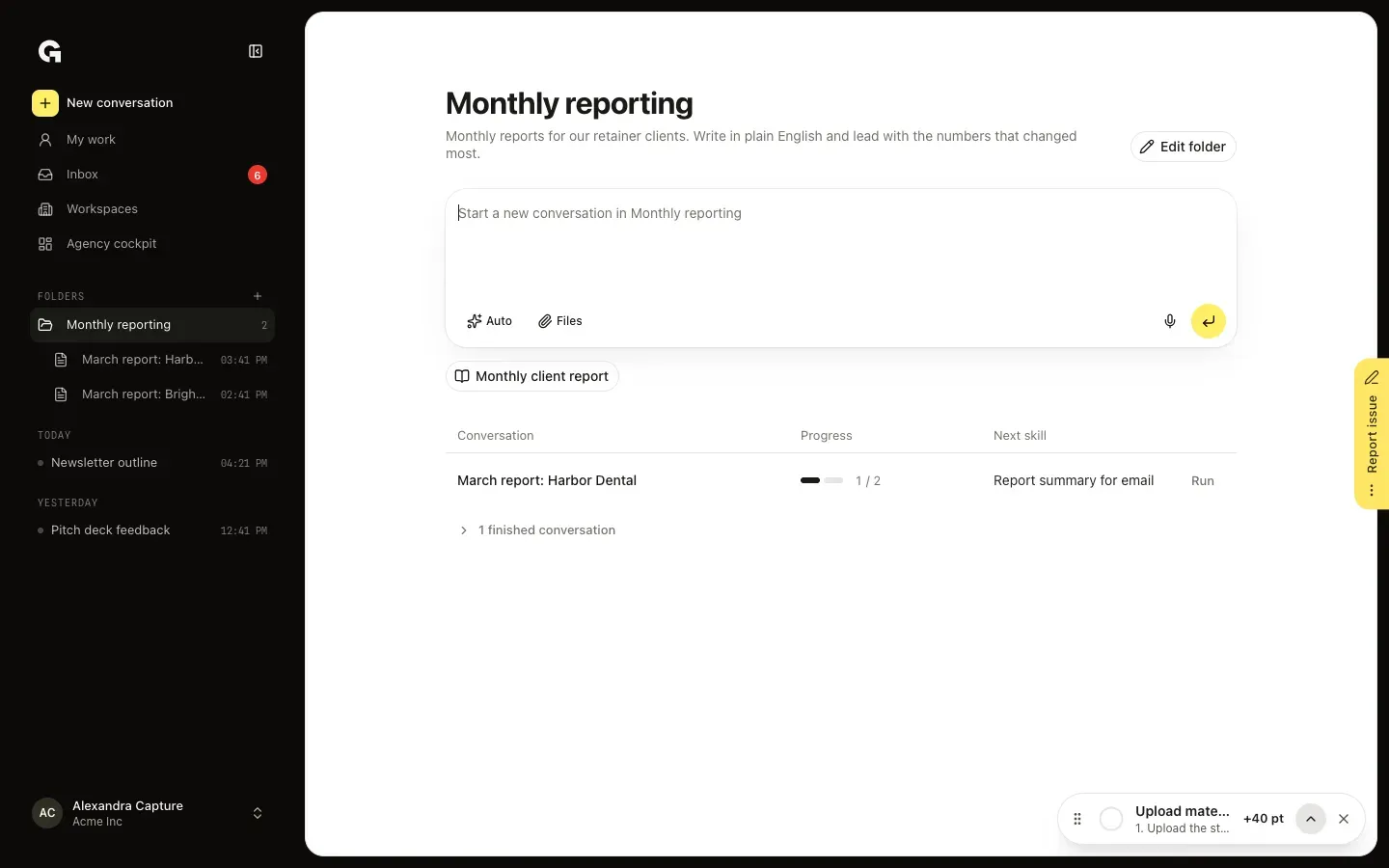
Click the folder in the sidebar to open its home: its name and goal, a box to Start a new conversation in the folder and, under it, its skills. Type in the box, or click a skill first to start with that skill; with Run in this order on, only the first skill shows there. Below, every conversation in the folder shows its Progress and its Next skill.
Run the next skill
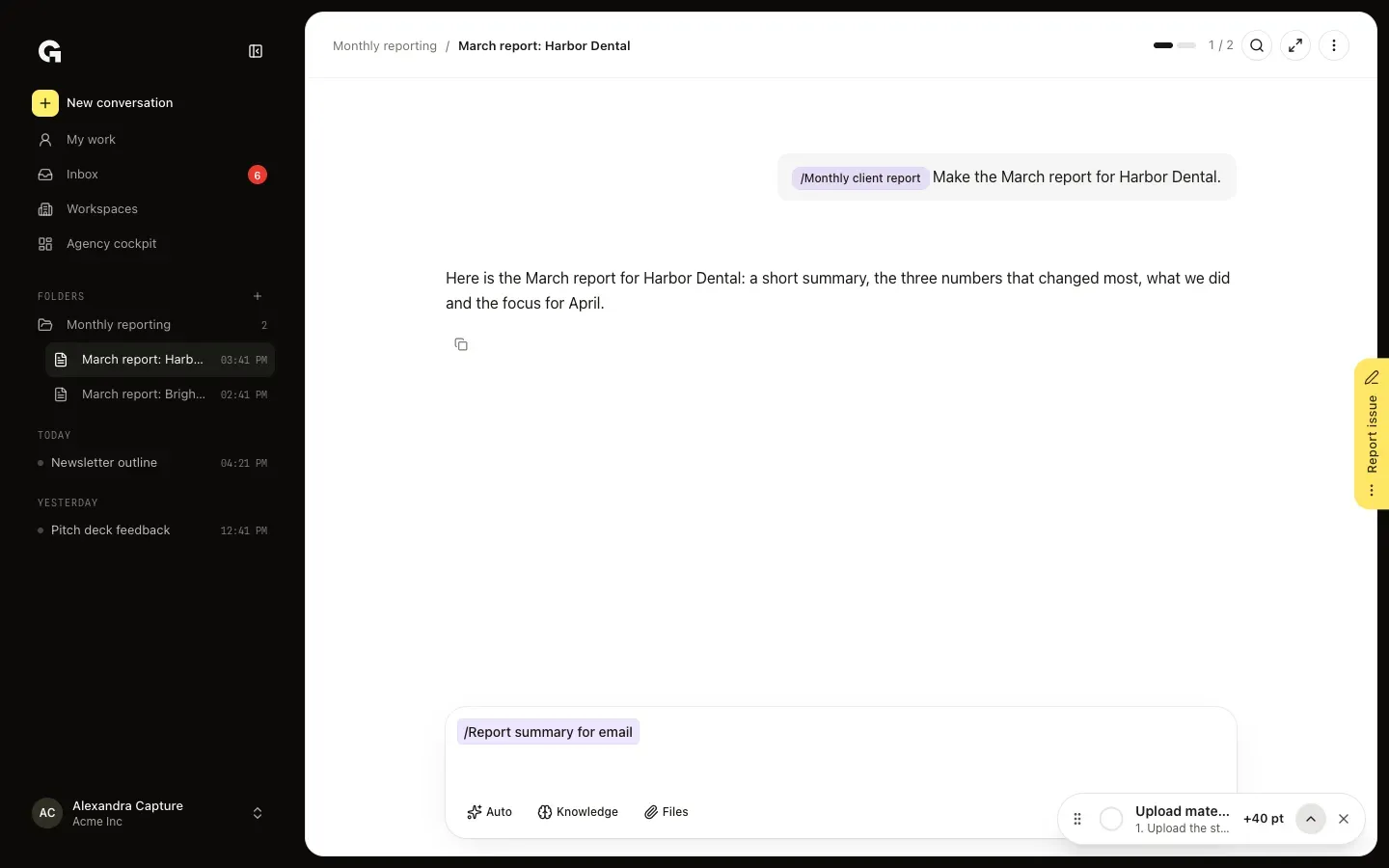
Click Run beside a conversation. It opens with its next skill already in the box, and the top of the conversation shows how many of the folder's skills it has done. Add what the skill needs and press Enter. A conversation that has run every skill moves under finished conversations on the home of the folder.
Set up a folder in a workspace
A folder in the Chat of a workspace works the same, for everyone in the workspace. Open the folder's home from the Chats list and click Edit folder. Its skills come from the skills of the workspace, and everyone in the workspace can run them from the home of the folder.
FAQ
What do the instructions of a folder do?+
Growf follows them in every conversation in the folder, from the first message on, so you don't have to repeat the goal, the client or the tone each time. They hold when you write in another language, too. You can write up to 10,000 characters.
Which skills can I add to a folder?+
In My work, your own personal skills that are switched on. In a workspace, the skills of that workspace, including skills your agency shares with it. A folder holds up to 20 skills. A skill that is switched off disappears from the folder until it is on again. **Create and test a skill** explains how to make one.
When does a skill count as done in a conversation?+
Once the chat has answered a message that used the skill. A reply you stopped, or one that failed, doesn't count.
What happens to the chats when I delete a folder?+
In My work they stay: click Edit folder, then Delete folder and Delete, and the chats and subfolders move to where the folder was. In a workspace you can only delete a folder that is empty, see **Organize chats in folders**.
Who can change a folder in a workspace?+
Everyone with permission to edit chats, which Admin and Strategist have by default. Others see the folder's home and can start chats from it when they can start chats. A folder in My work is only yours.