Review integrations across your agency
See every integration in your agency and client workspaces on one page, and find the connections that expired or failed.
Integrations in the agency cockpit lists every connection in your agency: the tools connected in the agency workspace and in each client workspace, by the team or by single people. It shows straight away which connections expired or failed, so you can fix them before an agent or report runs without data.
3 steps · About 3 minutes
Open Integrations
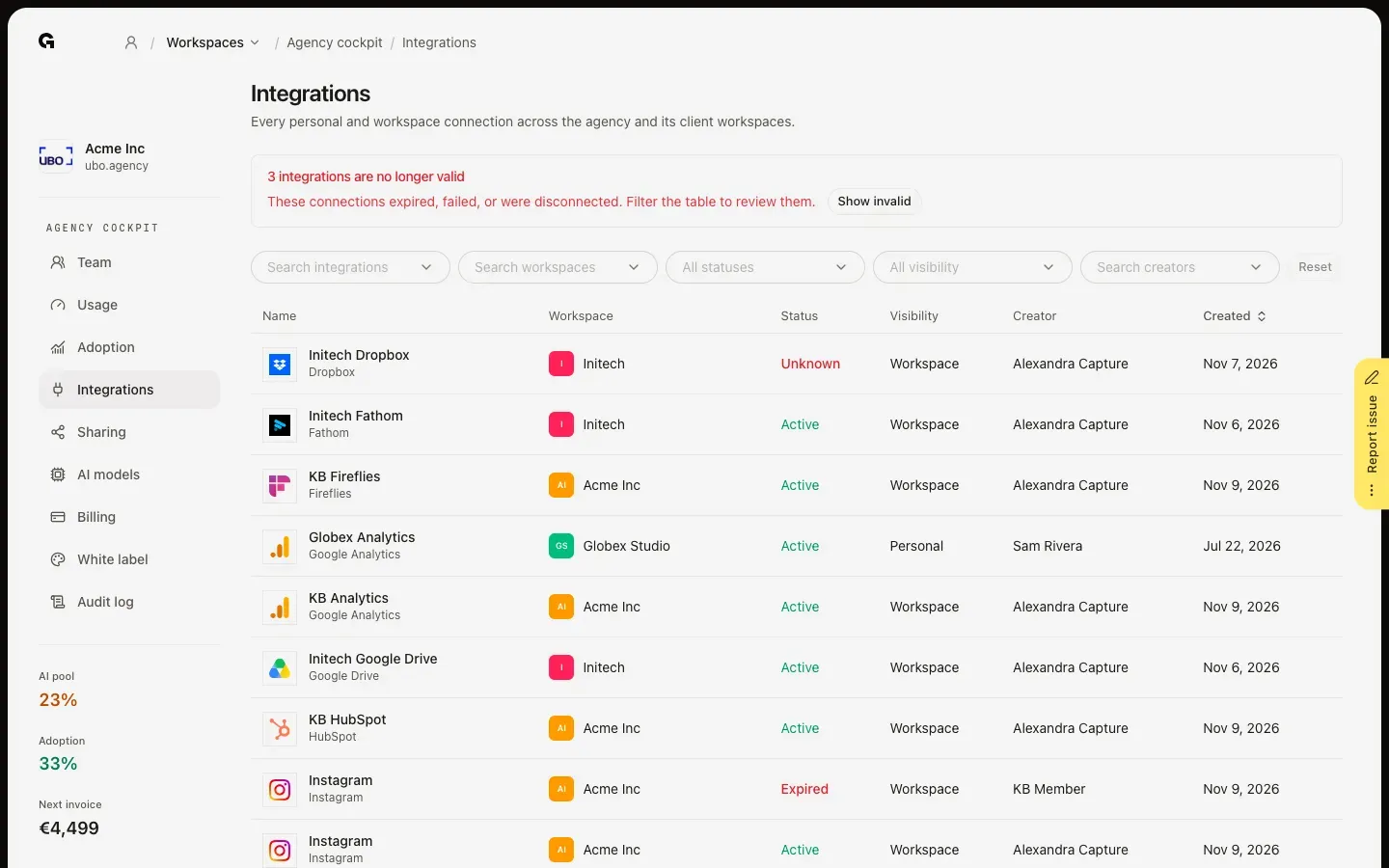
In the agency cockpit, click Integrations. The table lists every integration in the agency workspace and all client workspaces: its Name and tool, the Workspace, its Status, its Visibility, who made it under Creator, and when it was Created. Workspace means everyone in that workspace can use the connection; Personal means it belongs to the person who made it. When connections stopped working, a red notice above the table says how many.
Find the connections that stopped working
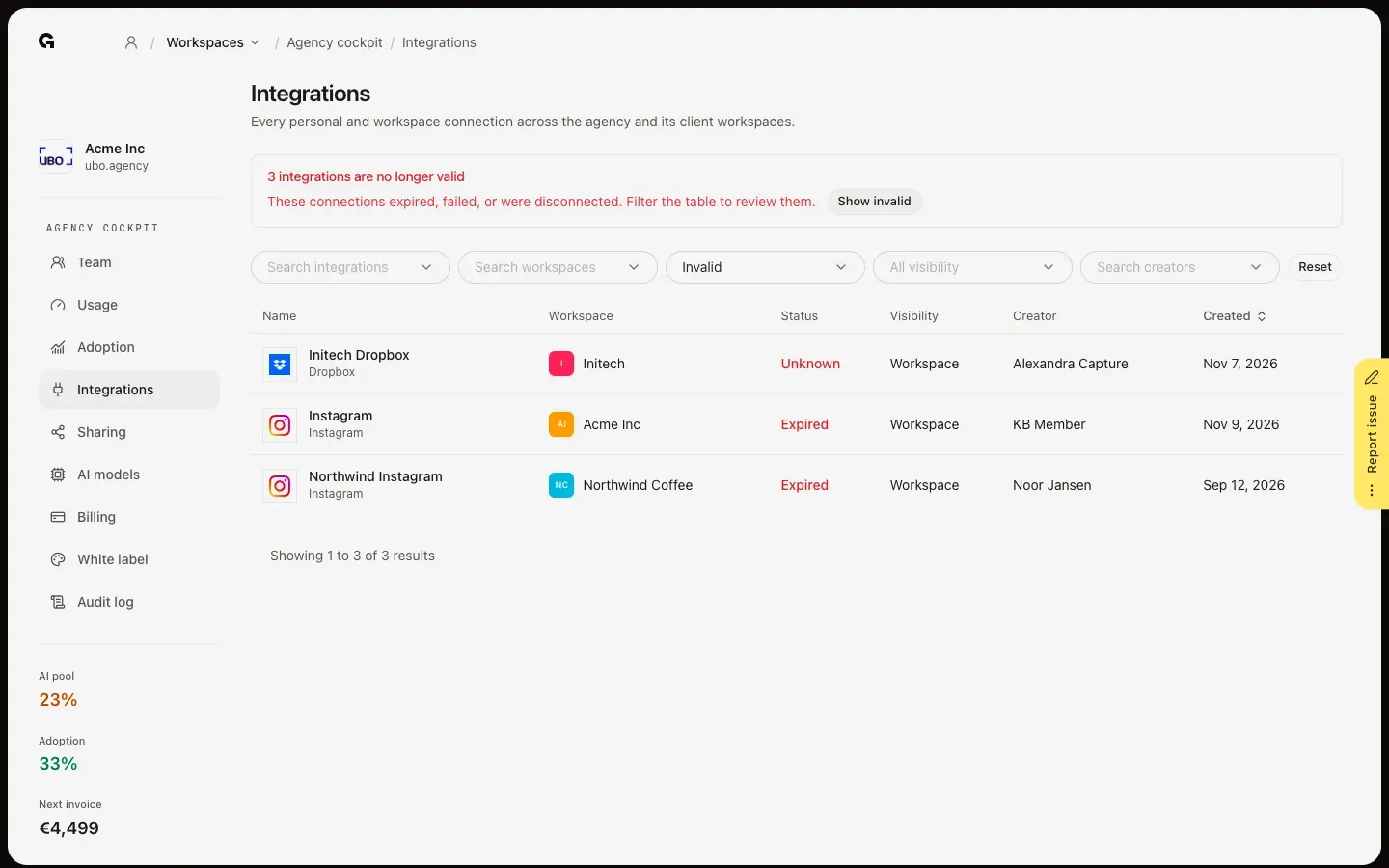
Click Show invalid in the notice. The table then only lists the connections that expired, failed or were disconnected, with their workspace and who made them. Reconnect them in that workspace's Settings, under Integrations, or ask the person under Creator to do it when it is a personal connection.
Filter the list
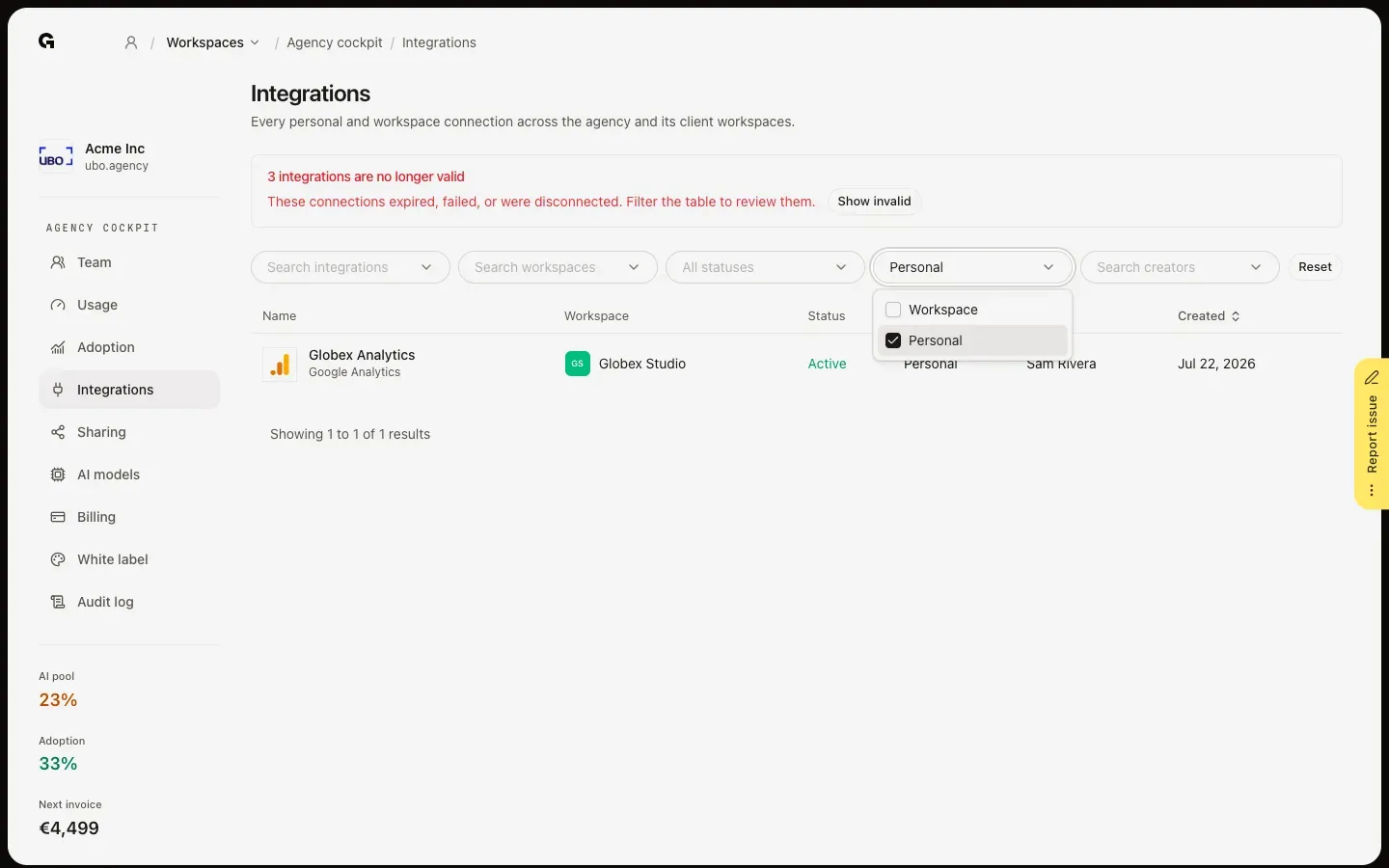
Use the filters above the table to narrow it down by integration, workspace, status, visibility or creator; Personal, for example, shows only the connections that belong to one person. You can pick several values in each filter, and search in the ones for integrations, workspaces and creators. Click Created to sort by date. Reset clears every filter.
FAQ
Can I reconnect or remove an integration from this page?+
No. The overview only shows the connections. Open the workspace, go to Settings and choose Integrations to reconnect, change or disconnect one. See **Edit an integration connection** and **Disconnect an integration**.
Does it show workspaces I'm not a member of?+
Yes. It covers the agency workspace and every client workspace linked to your agency, so you also see connections in workspaces you haven't joined.
What do Unknown and Not set mean?+
Every connection that is not Active counts as invalid. Unknown is shown for a state Growf has no name for, such as a connection whose setup was never finished; open it in its workspace to check. Not set under Visibility means no visibility is stored for that connection.
Who can see this overview?+
The agency owner and people with the Admin role on the agency workspace, from the agency cockpit.