Attach files in chat
Add an image, PDF, Office file, or text file to the next chat message so the model can read it.
Files on the composer adds a document or image to the next message so the model can read it. Anyone who can send in the thread can attach.
2 steps · About 2 minutes
Find Files
Open a conversation. Files sits on the composer footer next to Knowledge. You can also drop a file on the composer or paste an image. The model reads images, PDFs, Office files, and text files. One file cannot be larger than 20MB.
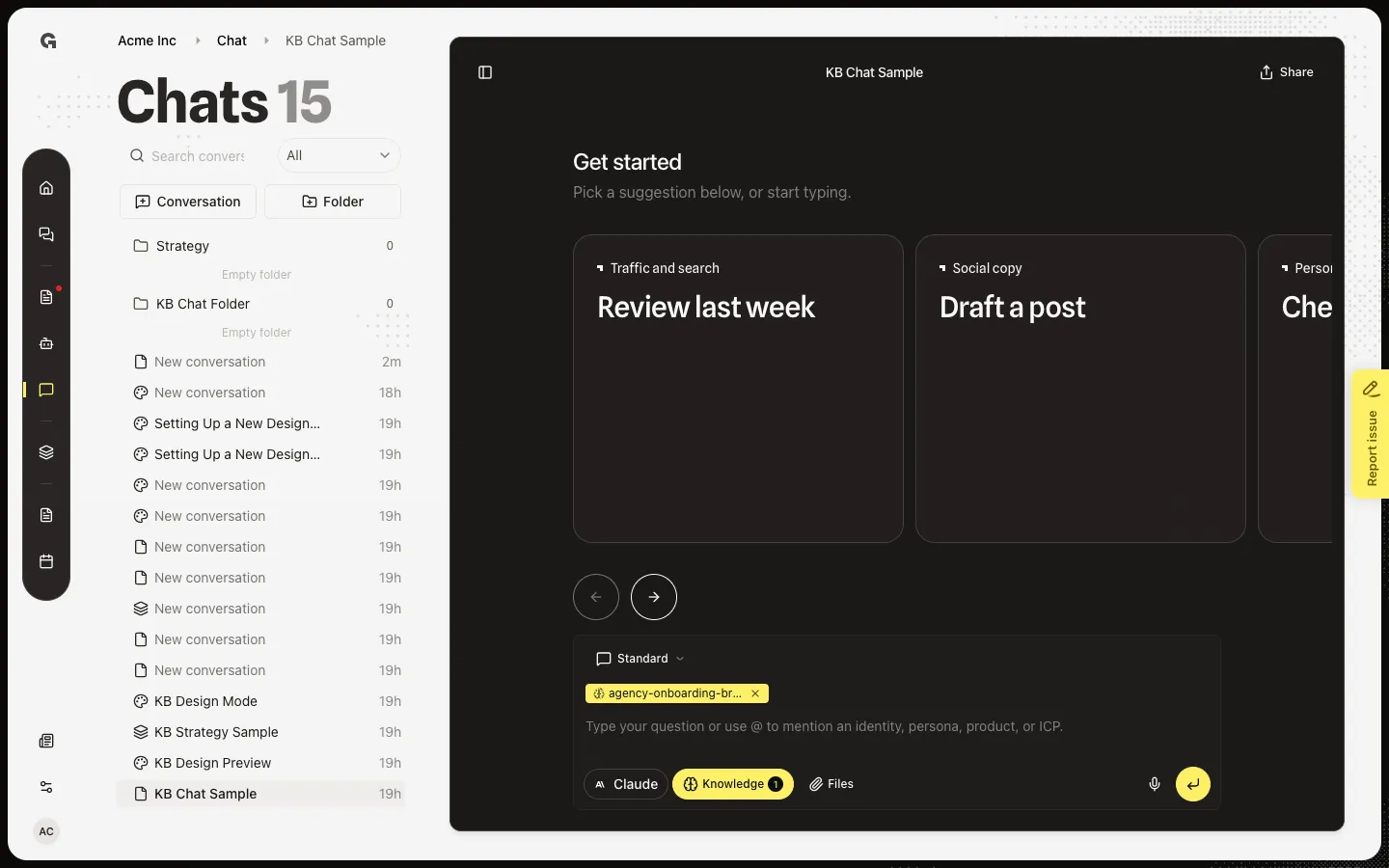
Attach a file
Choose Files and pick a file, or add it through the upload field. A chip with the file name appears on the composer. Remove it before you send if you picked the wrong file. The file is stored with the conversation and sent with the next message. Workspace knowledge is a different control — see Link knowledge in chat.
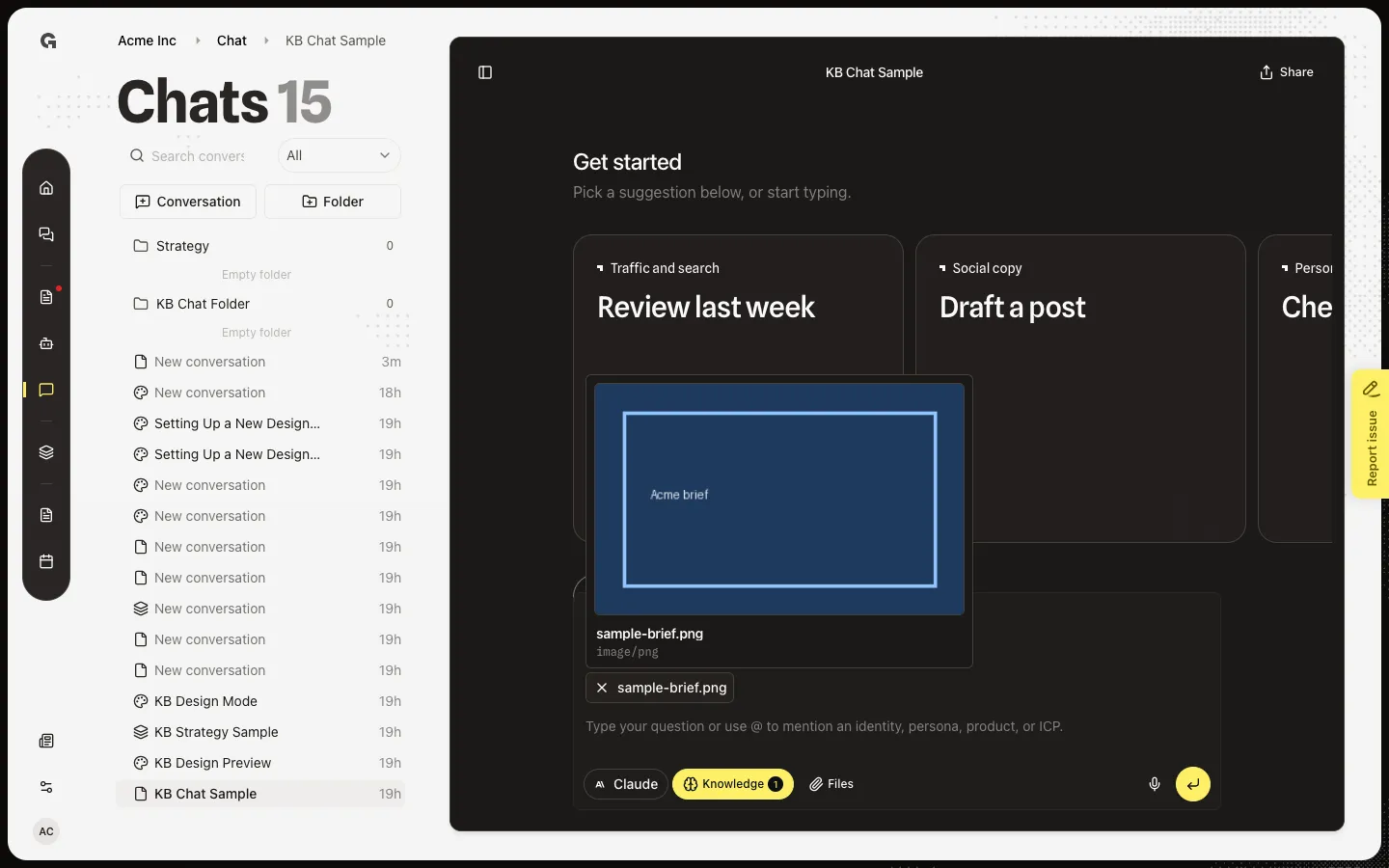
FAQ
Which files can I attach?+
Images (PNG, JPEG, WebP, GIF, SVG), PDF, Office files, and text files such as .md, .csv, .json, and common source files. Other types show isn't a supported file type. A file over 20MB shows is larger than 20MB.
Should I attach a file or add Knowledge?+
Attach a file when it belongs to this message only. Add Knowledge when the file already lives in Documents and you want workspace context on this turn. See Link knowledge in chat and Manage workspace knowledge.
I see Couldn't upload or Couldn't read.+
Retry the file. Office files must not be empty, damaged, or password-protected. Check the size and type, then attach again.