Complete workspace onboarding
Set up a client workspace with documents, website research, rules, products, ICPs, and personas.
Workspace onboarding is the setup for a **client** workspace after you create or import it. It is for the person who owns that setup — usually the agency admin who added the client. The same start page also opens if you choose Start onboarding on the agency row; agency documents and marketing models are a different article.
7 steps · About 6 minutes
Choose how to set up the workspace
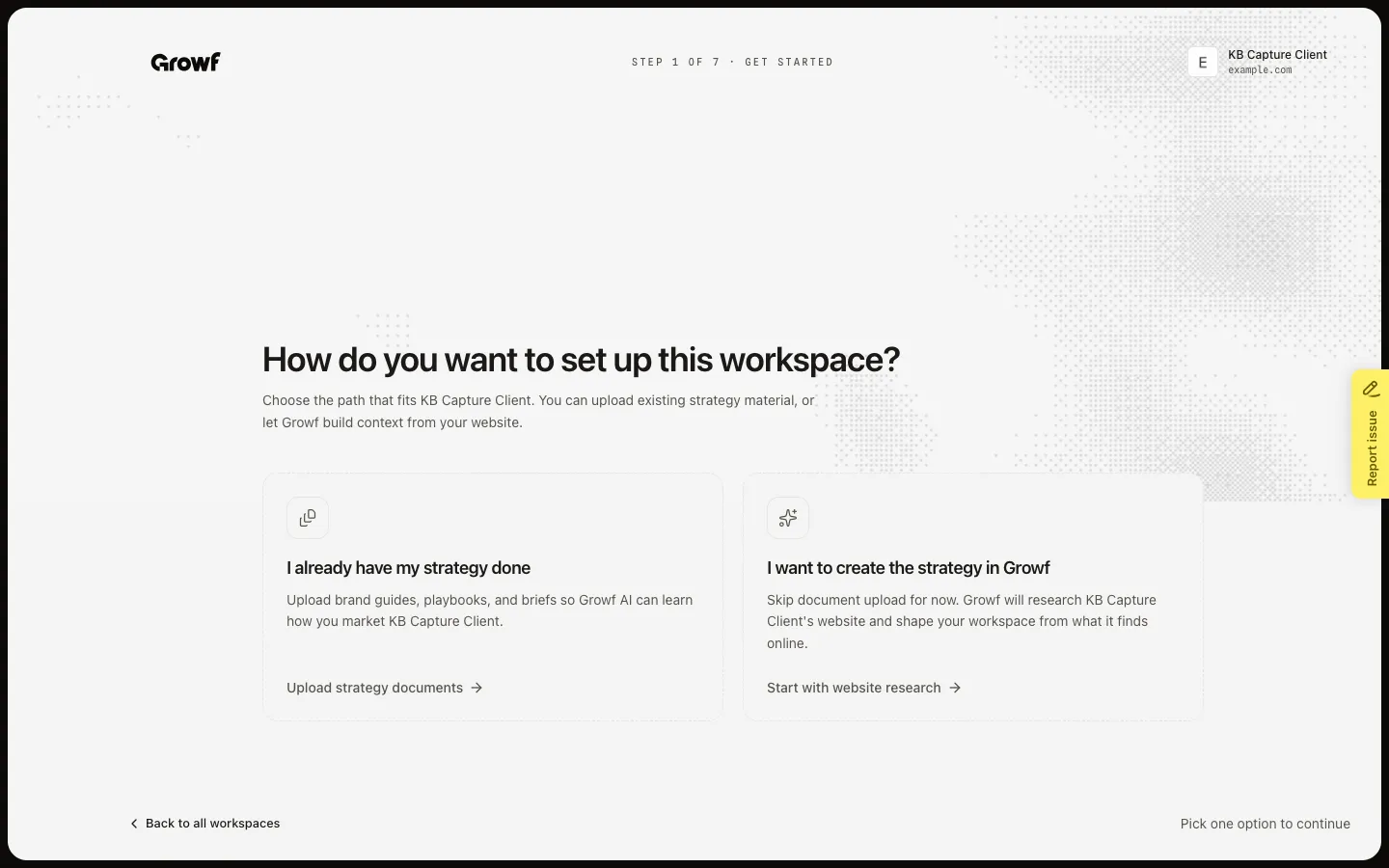
How do you want to set up this workspace? (Step 1 of 7) opens after Continue on a Client card, or Start onboarding on Agency onboarding is done. Pick I already have my strategy done to upload files, or I want to create the strategy in Growf to skip upload and start website research. The short path skips rules, products, ICPs, and personas.
Upload workspace documents
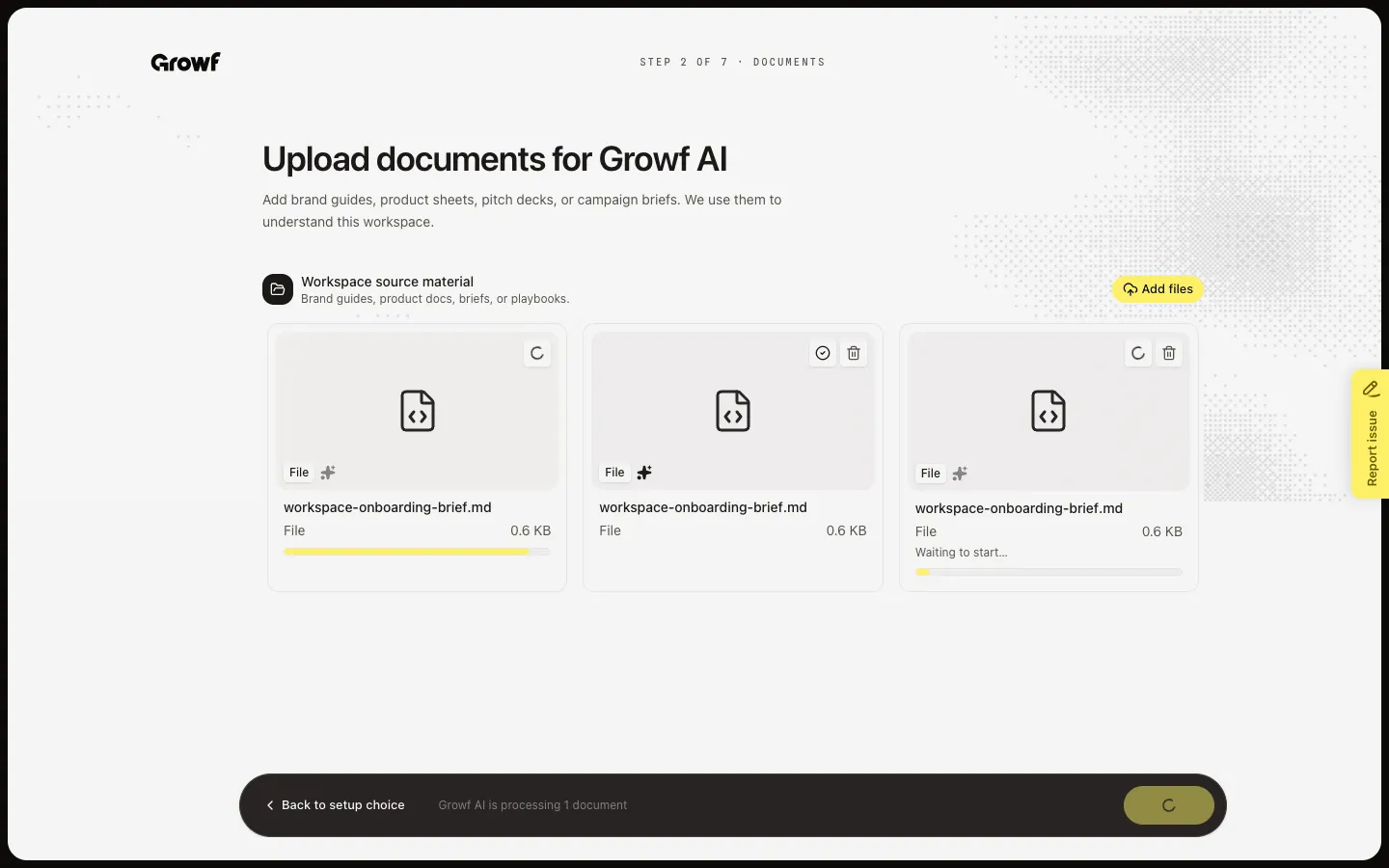
Upload strategy documents opens Upload documents for Growf AI (Step 2 of 7). Add brand guides, product sheets, or briefs. Growf accepts PDF, DOCX, PPTX, XLSX, CSV, TXT, and MD, up to 100MB each. Continue stays off until at least one file is uploaded. You can continue while Growf is still reading the file.
Let Growf research the website
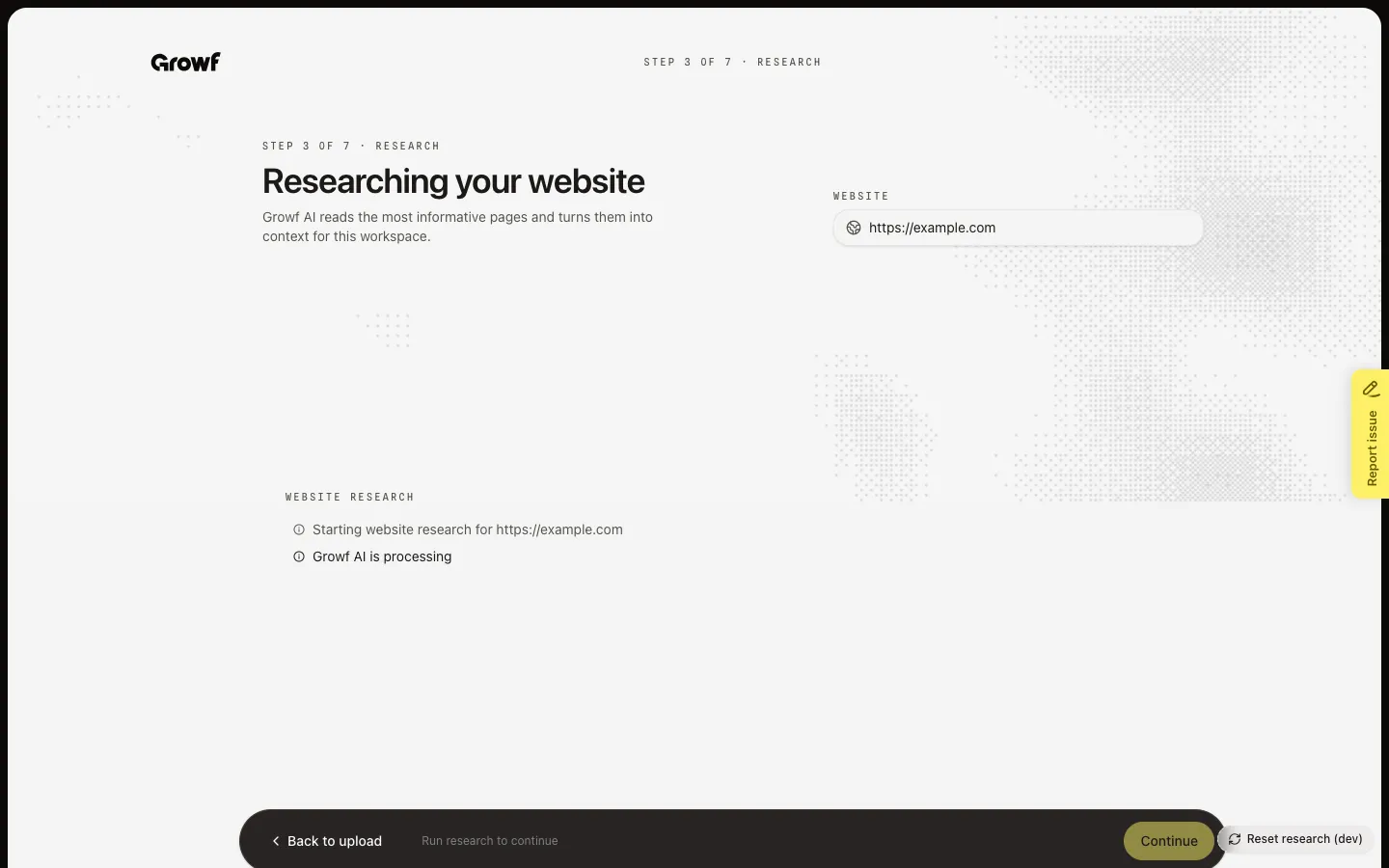
Continue opens Researching your website (Step 3 of 7). The URL comes from the workspace website and is locked. The scan starts on its own. Keep pages that explain the brand and exclude the rest, then choose Continue. If the scan fails, choose Skip website research. On the short path this step is Step 2 of 2 and Continue opens Home.
Approve or reject agent rules
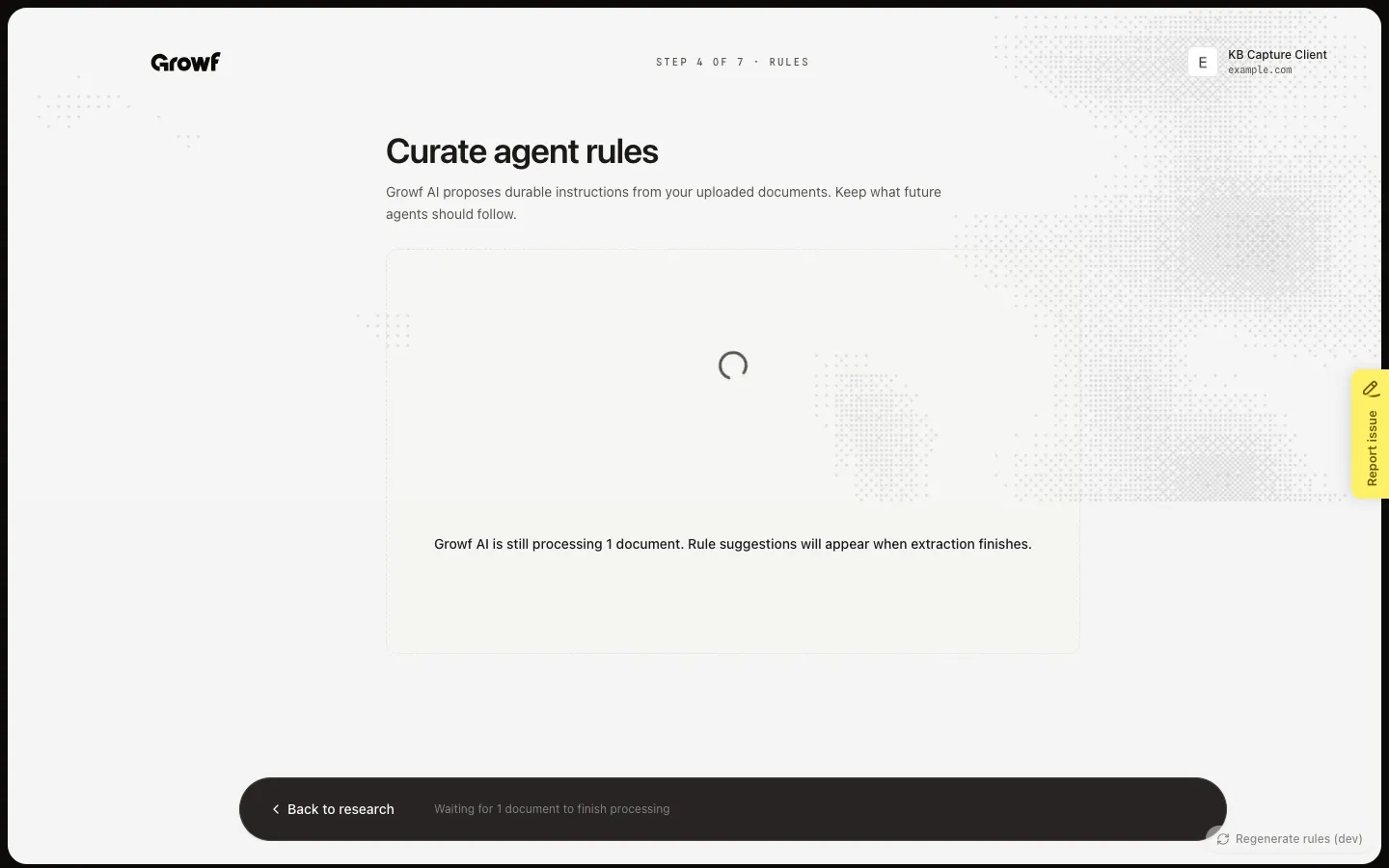
Continue opens Curate agent rules (Step 4 of 7). Growf waits until your files are processed, then proposes instructions. Approve keeps a rule for future agents. Reject drops it. Choose Continue to save approved rules, or Skip for now. If nothing is proposed, go back to upload or skip.
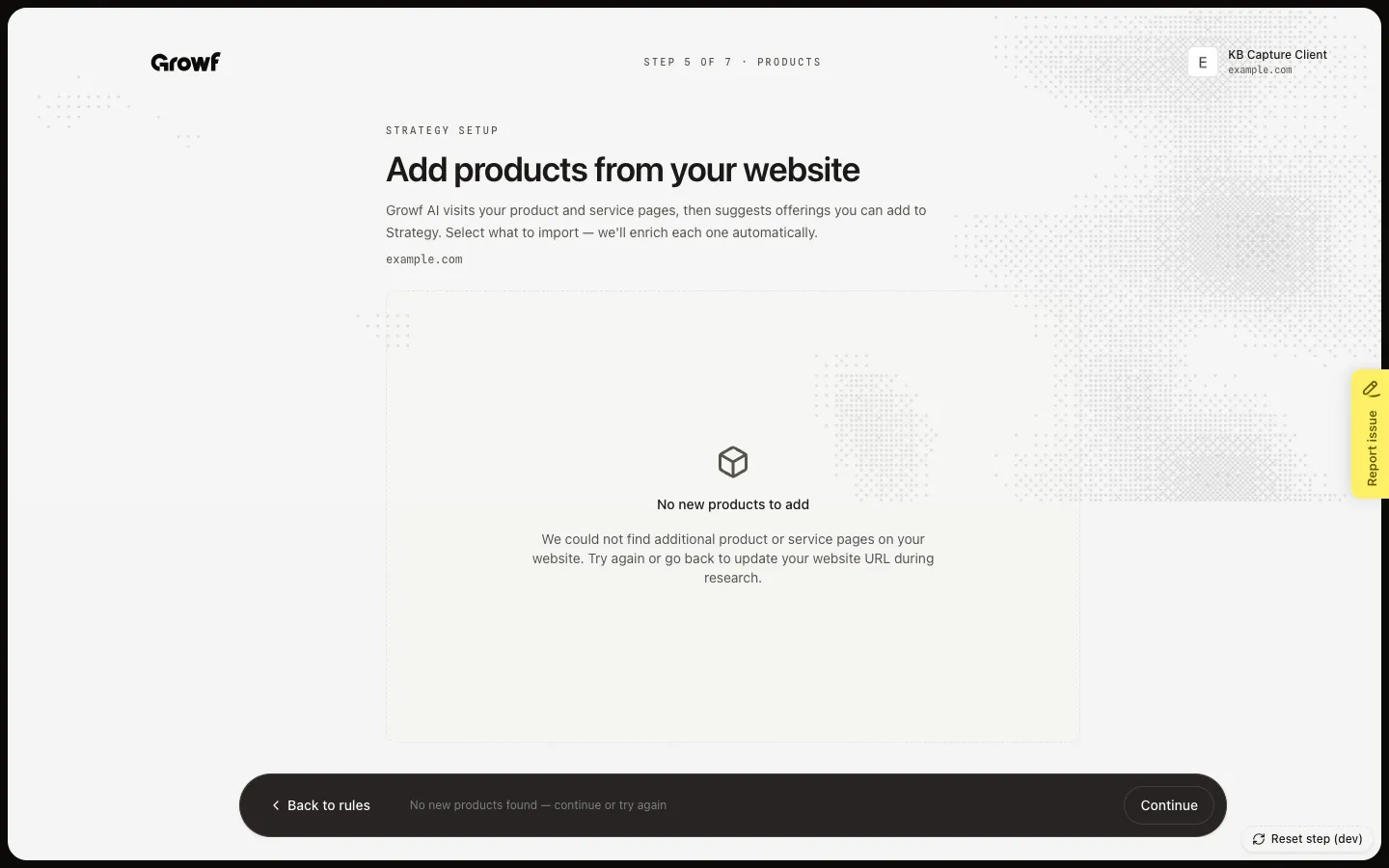
Add products from the website
Continue opens Add products from your website (Step 5 of 7). Growf scans product and service pages and lists suggestions. Select what to import, then Continue. If none are new, choose Continue to go on without products. A missing website URL blocks discovery — set it on the workspace first.
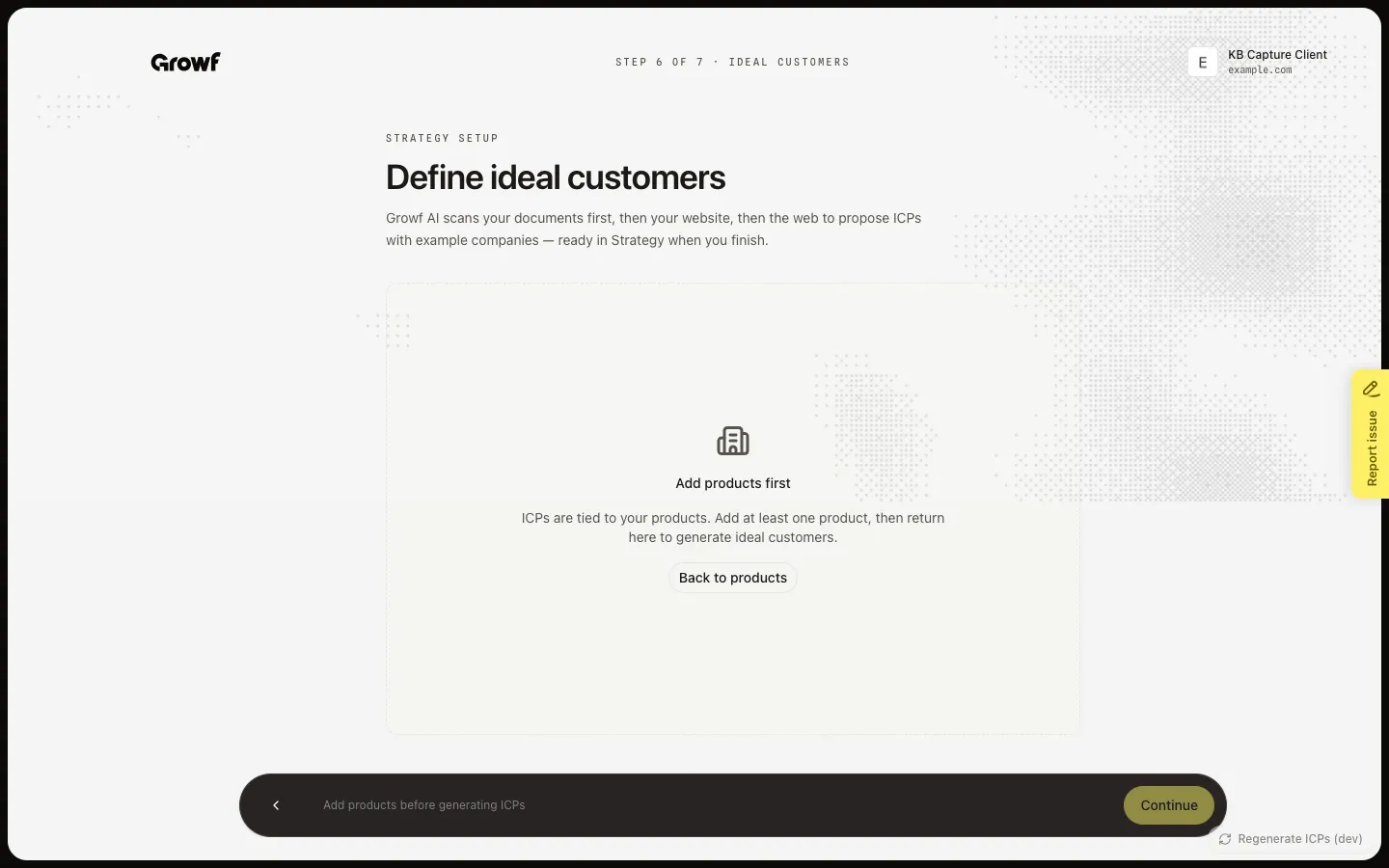
Define ideal customers
Continue opens Define ideal customers (Step 6 of 7). ICPs are tied to products. Growf reads your documents, then the website, then the web, and lists profiles with example companies. Select the ones to keep. Each selected ICP needs at least three example companies. Choose Continue, or Skip for now. If you have no products, go back to products first.
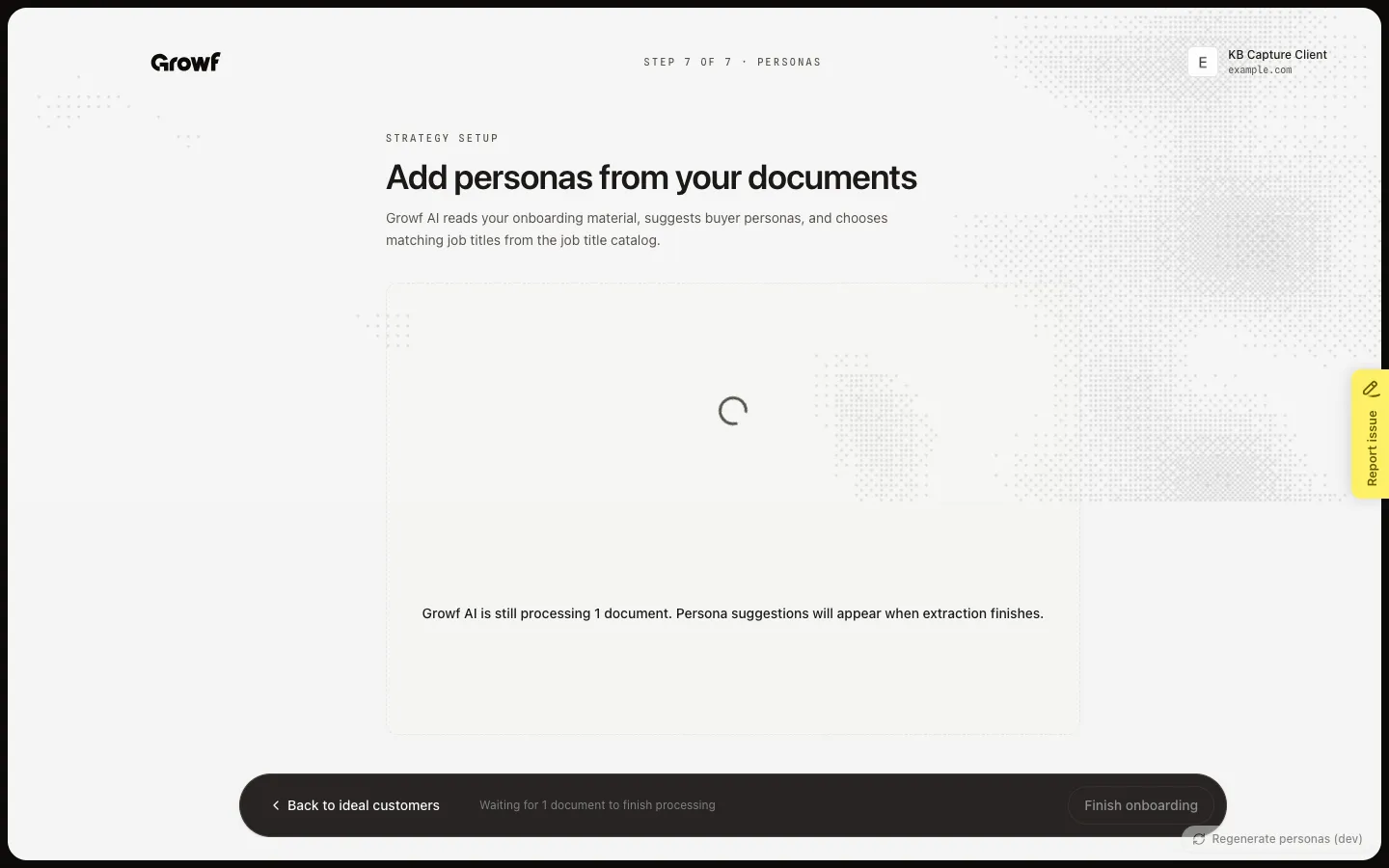
Add personas and finish
Continue opens Add personas from your documents (Step 7 of 7). Growf suggests buyer personas and matching job titles. Select who to add. Each selected persona needs at least three job titles. Choose Finish onboarding, or Skip for now. Both open Home. You can change products, ICPs, and personas later in Strategy.
FAQ
How do I reach this setup?+
Create or import a client, then choose Continue on that card. After agency setup, Start onboarding on a client (or on the agency row) opens the same start page. Agency upload, models, and client import are a different flow — see Complete agency onboarding.
Should I upload documents or start with website research?+
Upload if you have brand or strategy files — rules and personas come from those files. Start with website research if you do not. That short path only researches the site, then opens Home.
Can I skip rules, products, ICPs, or personas?+
Yes. Use Skip for now or Continue without items on those steps. Finish onboarding or Skip for now on personas both open Home. Add the missing pieces later in Strategy.
Growf will not build ICPs.+
Add at least one product first. ICPs map to products. If discovery found nothing, go back to products or skip ICPs.