Manage publishing identities
Open the identity list, find who publishes, and jump to create, edit, delete, or channel setup.
A publishing identity is who posts: a person or a company. Content, calendar, and agents use it. This list is the home for those identities.
2 steps · About 2 minutes
Open Identities
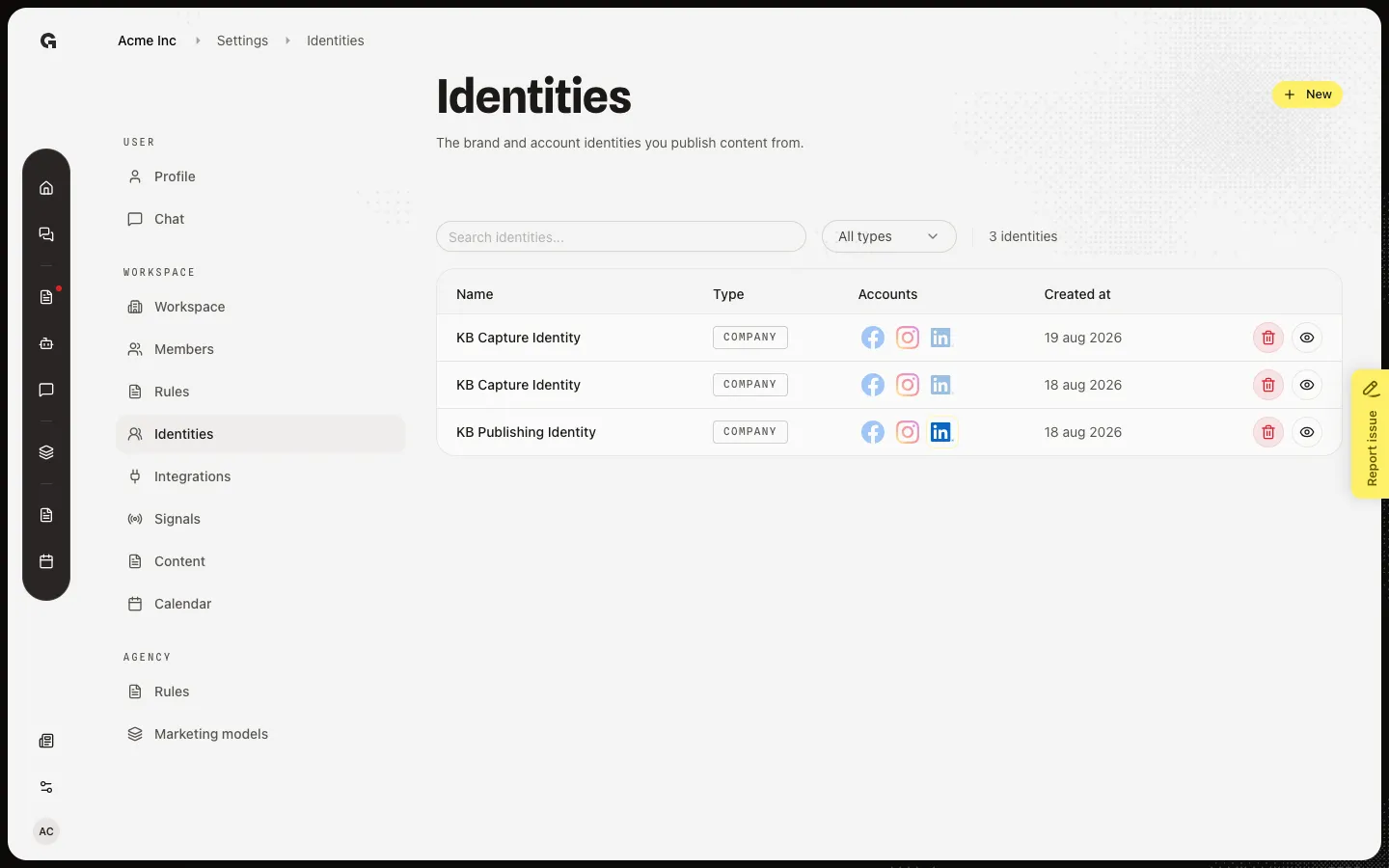
In Settings, under Workspace, choose Identities. The page is for people who can update the workspace and create content. Each row is a brand or person you publish as: Name, Type (Person or Company), Accounts (connected channels), and Created at. Capture seed includes KB Publishing Identity. The eye icon opens that identity. Trash is Delete identity — see Delete a publishing identity.
Search the list
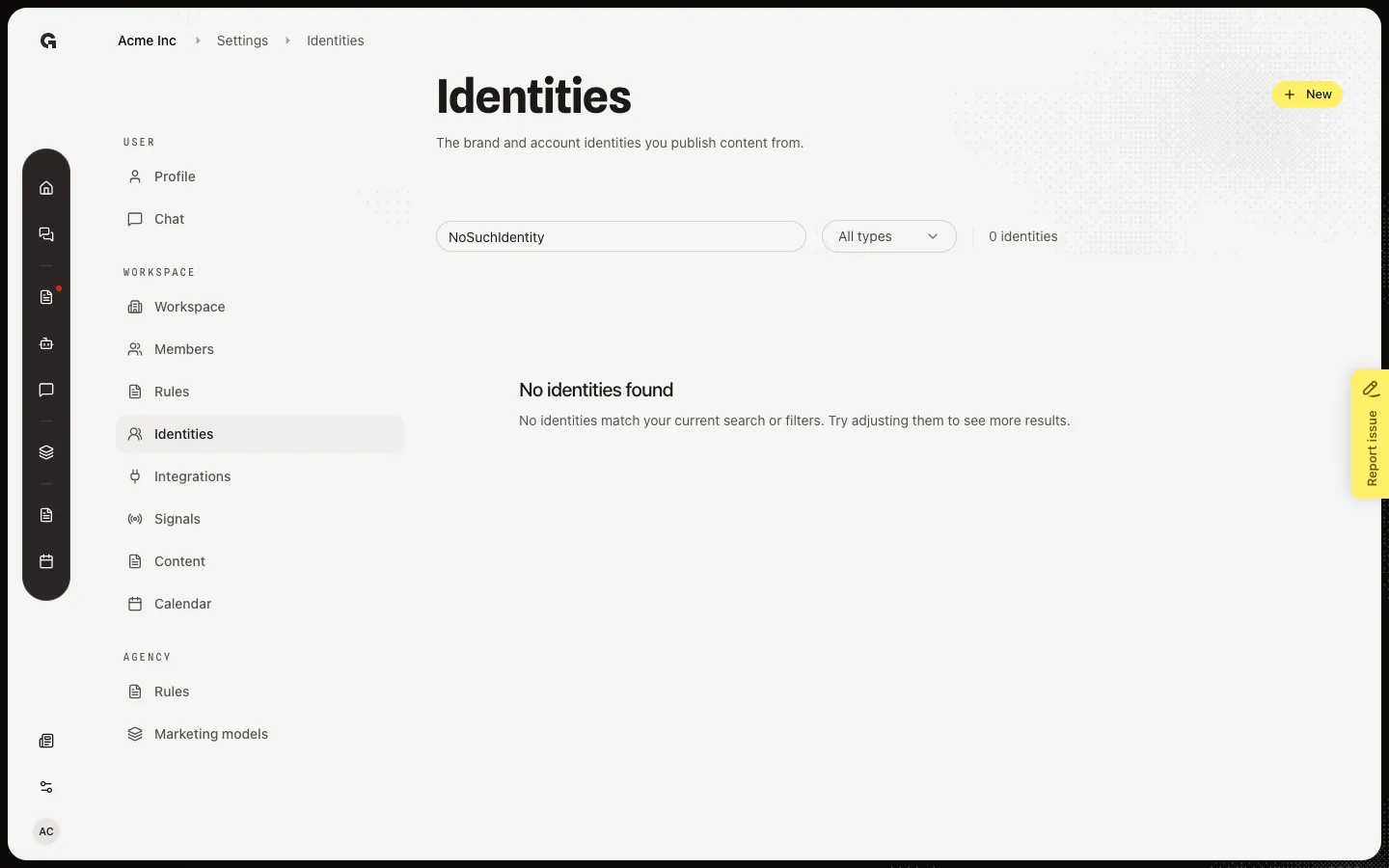
Use Search identities... to match a name. All types, Person, or Company narrows the table. The count after the filter is how many rows match. A search with no match shows No identities found — that is a filter miss, not an empty workspace. Clear the search to see the list again.
FAQ
I do not see Identities in Settings.+
Identities needs permission to create content. The page also needs permission to update the workspace. Ask an admin if either is missing.
I see How to use Identities instead of a table.+
This workspace has no identity yet. Choose New and follow Create a publishing identity. After the first identity, the table and search appear.
What do I do after I open an identity?+
Connect LinkedIn, Facebook, or Instagram, or invite someone else to connect. Then pick the identity on a social post. See Connect a publishing channel, Invite someone to connect an identity channel, and Assign identity and channels to content.
Accounts shows a dash.+
That identity has no connected channel. Open it and connect or invite. Logos appear once a channel is linked.