Manage AI models for your agency
Choose which AI models your agency uses, which models Auto and Instant pick, where requests are processed and which roles may pick a model.
AI models in the agency cockpit decides how your whole agency works with AI: which models are available in the chat and for agents, which models Auto and Instant use, in which region requests are processed, and which roles may choose a model themselves. The settings apply to the agency workspace and every client workspace.
4 steps · About 3 minutes
Choose the models your agency uses
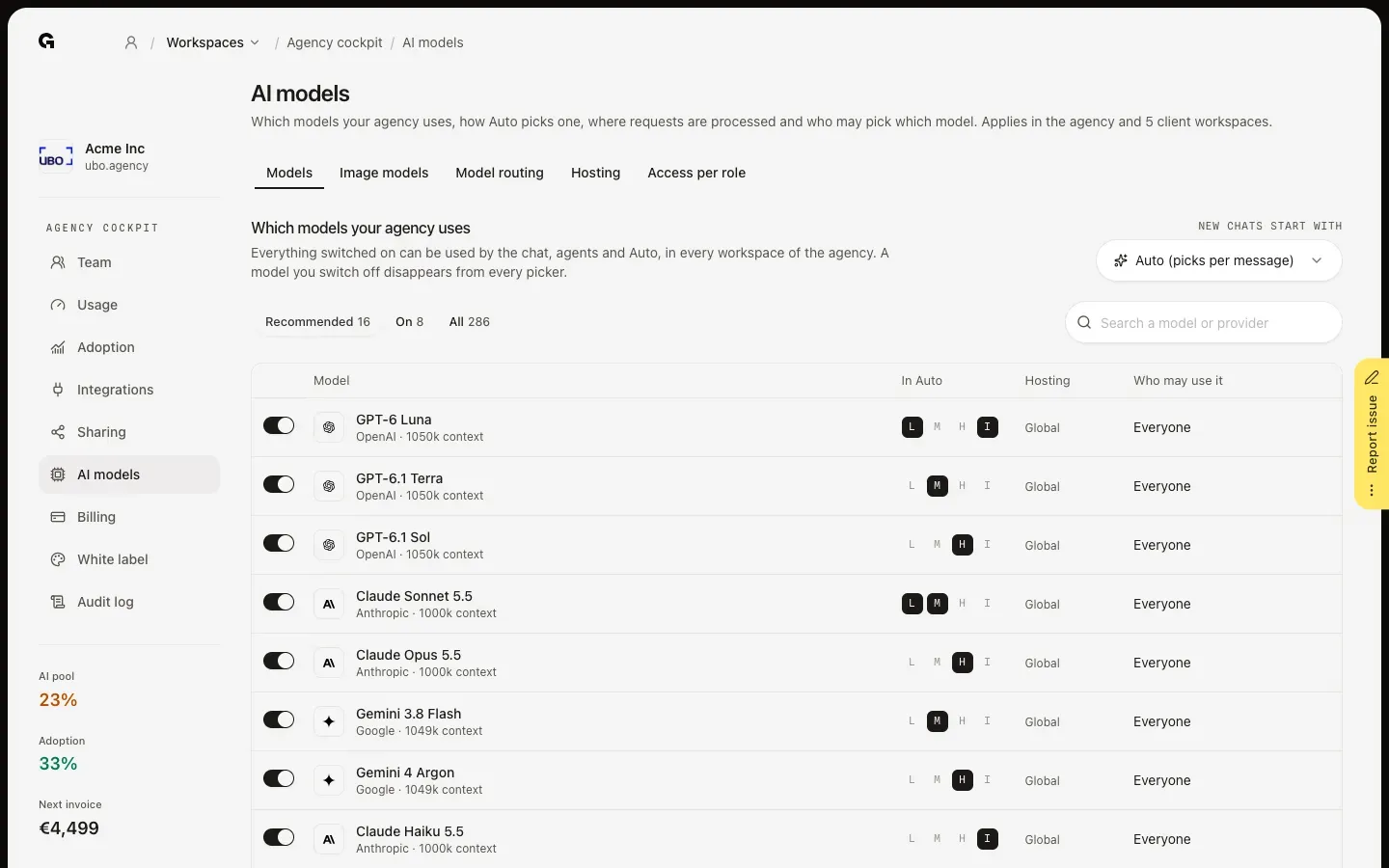
In the agency cockpit, click AI models. On Models, switch on the models the chat, agents and Auto may use in every workspace of your agency; a model you switch off disappears from every picker. New chats start with sets the model new chats open with, such as Auto (picks per message). Recommended, On and All filter the list, and In Auto shows for which questions Auto uses a model. Image models works the same way for the models that generate images. Changes are saved as you make them.
Set how Auto and Instant pick a model
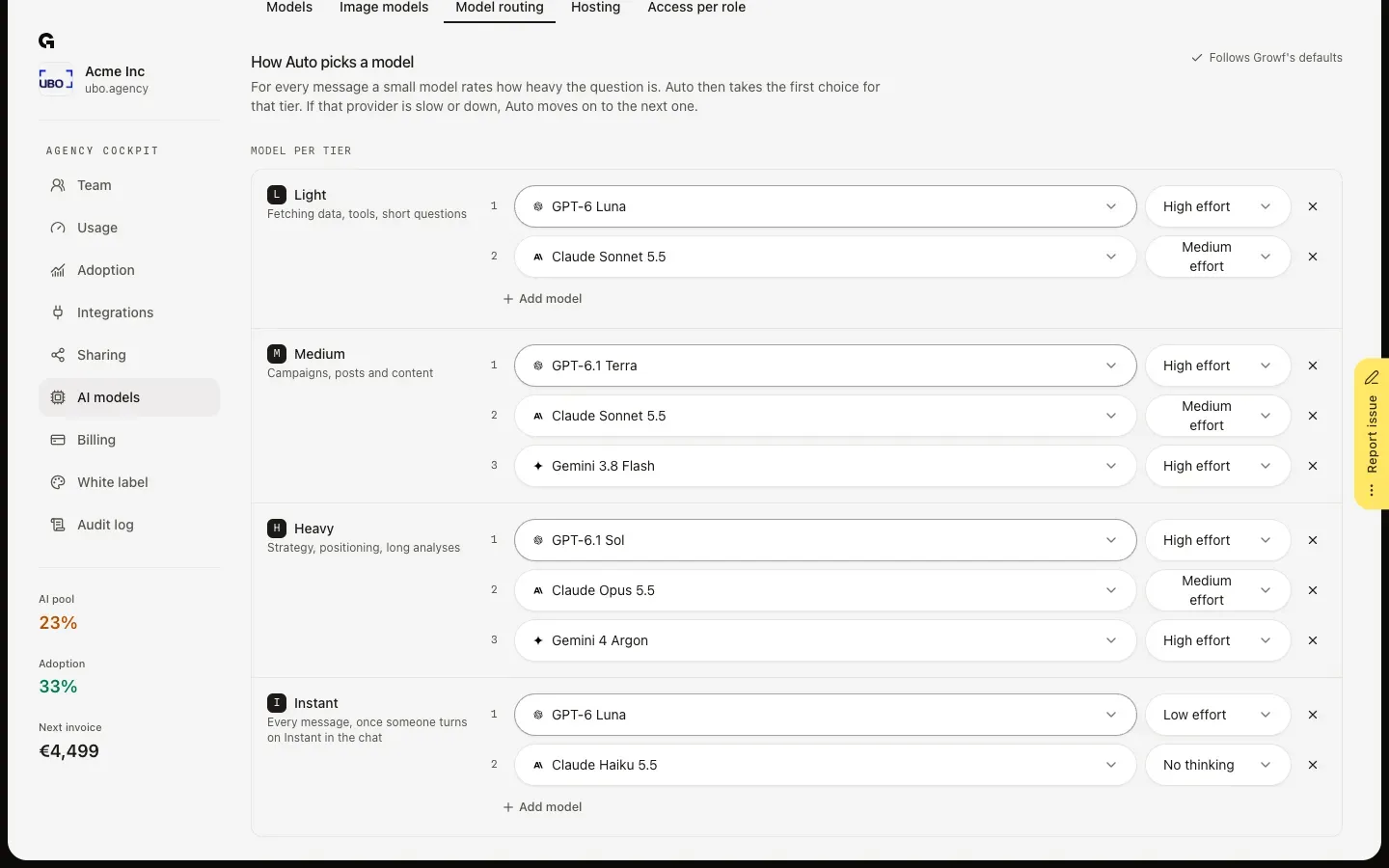
On Model routing, Auto rates every message as Light, Medium or Heavy and takes the first model for that tier; when that provider is slow or down, it moves on to the next. Instant is the tier for every message once someone turns on Instant in the chat, for fast answers. Per tier, pick the models in order, set their effort, use Add model for a backup from another provider, or remove one. Follows Growf's defaults shows while you keep the standard choice; Restore Growf defaults brings it back.
Choose where requests are processed
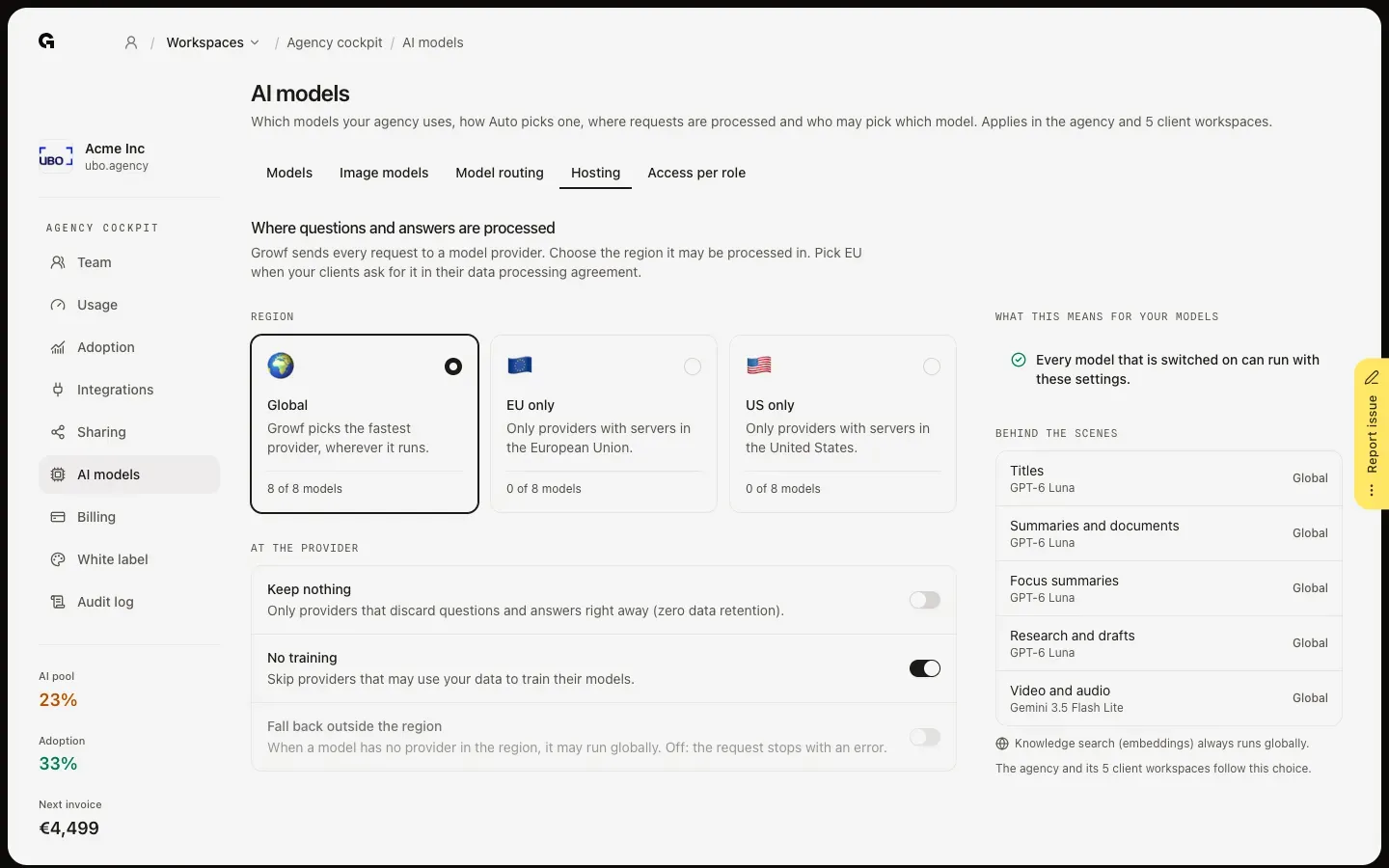
On Hosting, choose the Region: Global, EU only or US only; each shows how many of your models can run there. Pick EU only when your clients ask for it in their data processing agreement. Under At the provider, Keep nothing allows only providers that discard questions and answers right away, No training skips providers that may train on your data, and Fall back outside the region lets a model without a provider in the region run globally. What this means for your models lists any model that stops working with your choice.
Decide who may pick which model
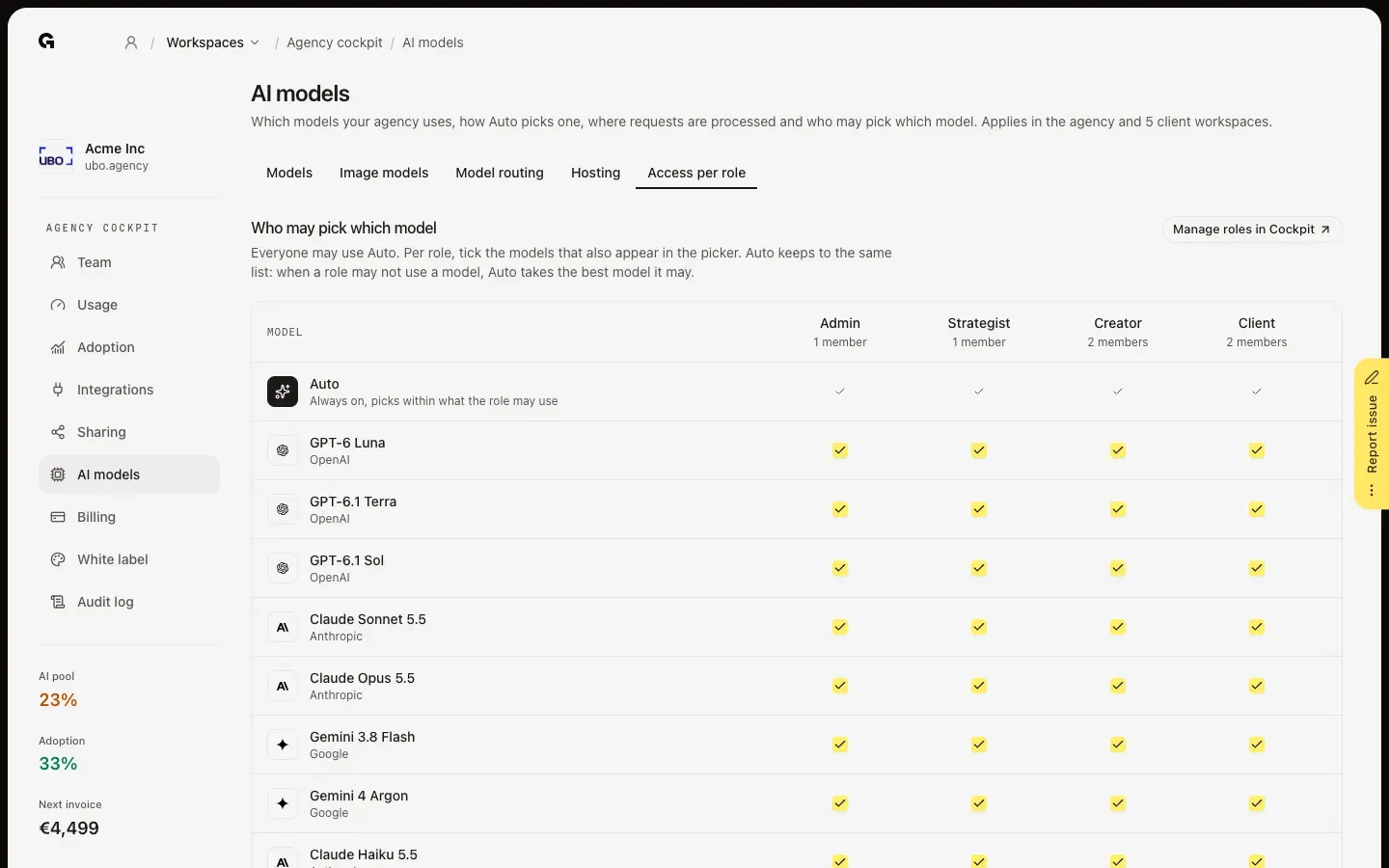
On Access per role, everyone may use Auto. Per role, tick the models that also appear in their model picker; Auto then also keeps to those models. Switch off Pick a model themselves for a role to show it only Auto. Manage roles in Cockpit takes you to the roles on Team. The agency owner may always use every model.
FAQ
What does Auto do?+
For every message, a small model rates how heavy the question is: Light for fetching data and short questions, Medium for campaigns, posts and content, Heavy for strategy and long analyses. Auto then uses the first model you set for that tier, and moves on to the next one when that provider is slow or down. With one model in a tier, Growf warns you to add a backup.
Why can't someone pick a model in the chat?+
The model is switched off under Models, their role may not use it under Access per role, or their role may not pick a model at all. A model also disappears when it can't run with your hosting choice. Auto keeps working with the models that are left.
Does EU only cover everything Growf does with AI?+
It covers the chat and agents. Behind the scenes on Hosting shows where the background tasks run with your choice, such as titles, summaries and research. Knowledge search (embeddings) always runs globally. Every change on AI models is recorded in the Audit log as Changed AI hosting and privacy.
Who can change the AI models?+
The agency owner and people with the Admin role on the agency workspace. The settings apply to the agency workspace and every client workspace linked to it.