View notifications
Open the workspace notifications list, filter unread items, mark them read, and open the linked page.
Notifications is your list of workspace activity: invites, feedback, comments, and settings changes. Anyone in the workspace who can read notifications can use it.
3 steps · About 3 minutes
Open Notifications
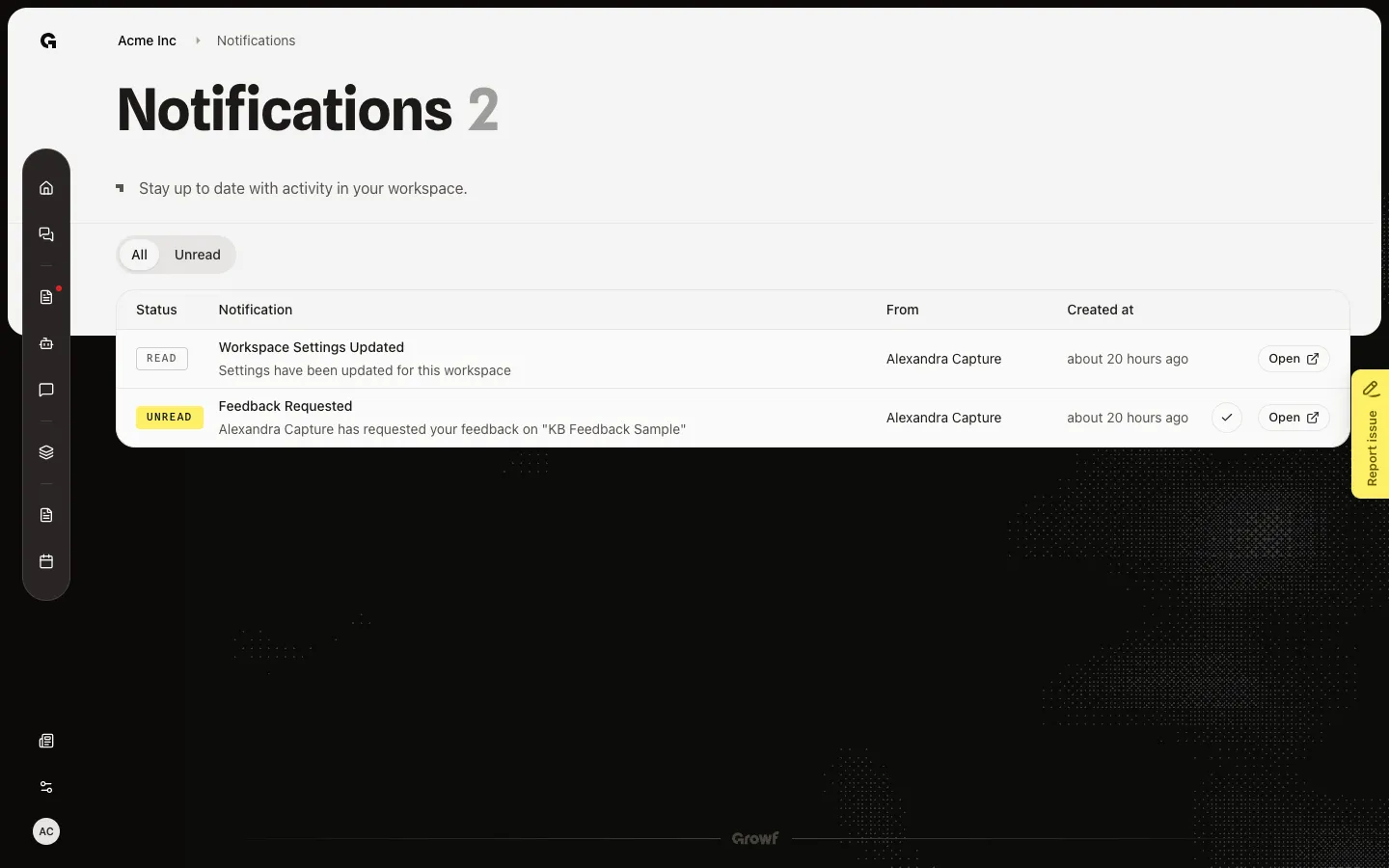
Notifications is not in the sidebar. Open `/app/{workspace}/notifications` from the address bar, or from a bookmark. The page lists activity for you in this workspace: invites, feedback, comments, and workspace changes. Each row shows Unread or Read, title, message, who it is from, and when it was created.
Show unread only
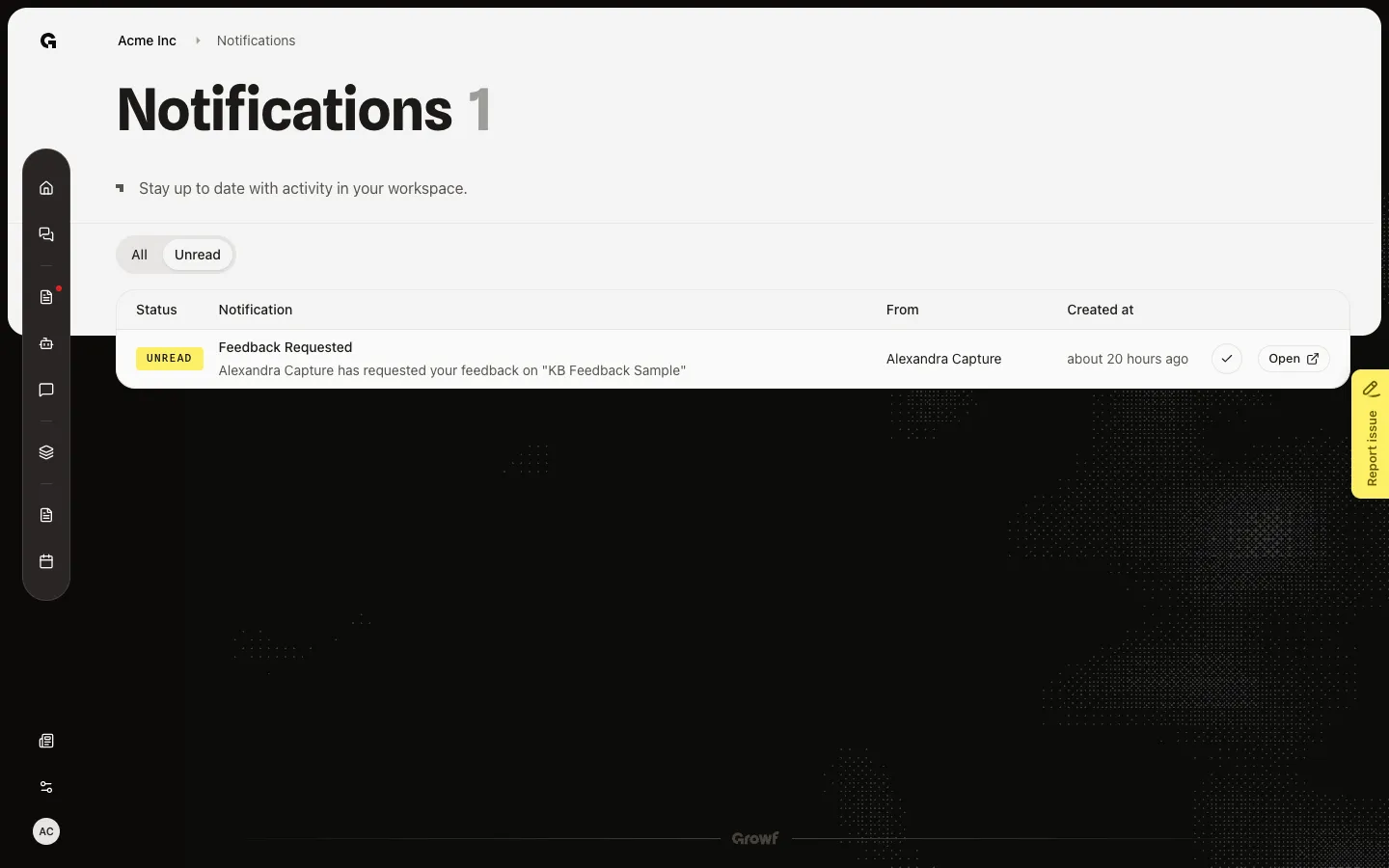
Choose Unread to hide items you already marked read. Choose All to see both. The Unread tab can be empty while All still has older items. New rows appear when someone invites you, asks for feedback, replies to feedback, comments, or changes workspace settings.
Mark as read or open
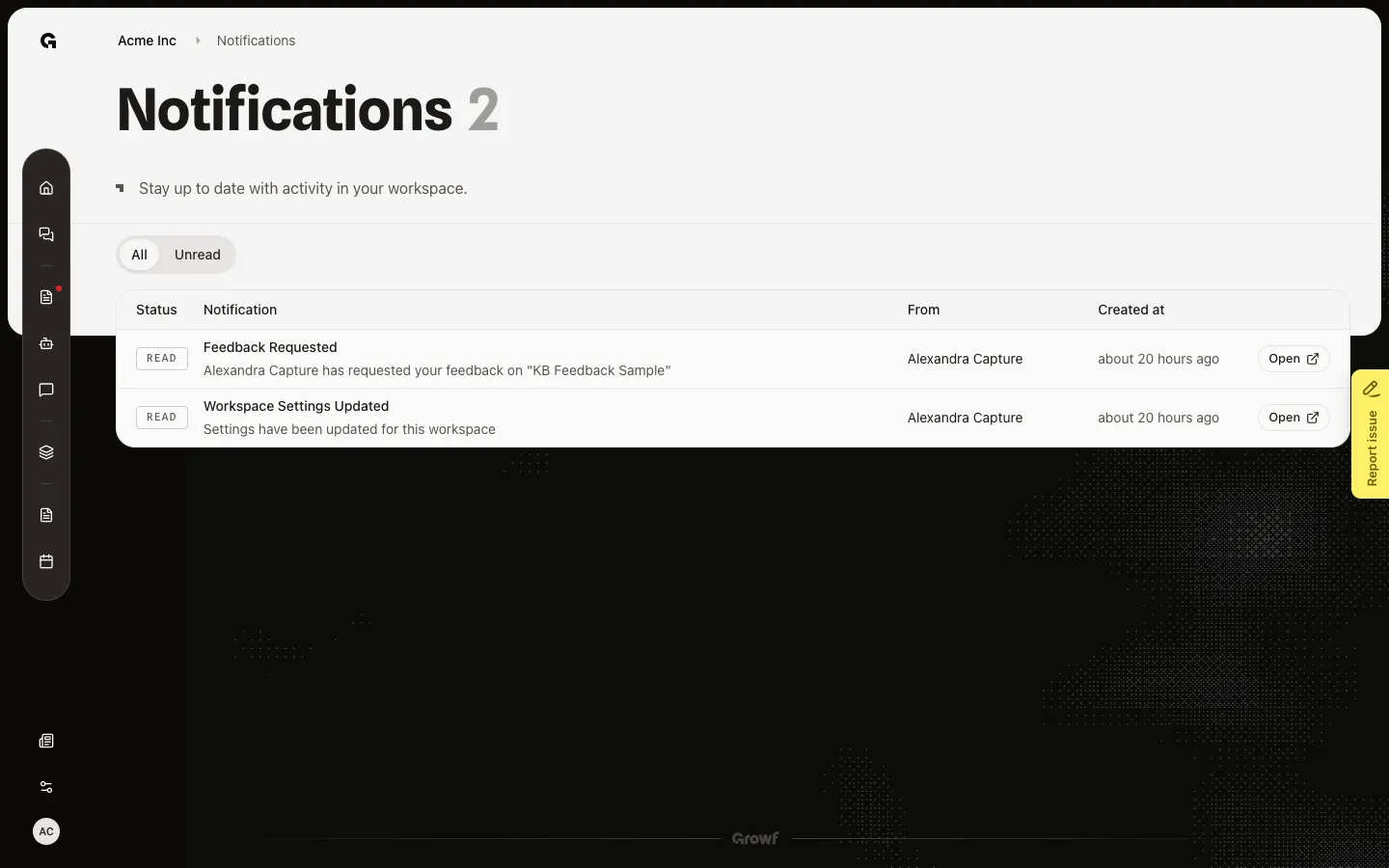
On an unread row, choose the check control to mark it read. Open follows the link: Home, Feedback, content, or Workspace settings, depending on the item. Rows without a link have no Open. Marking read does not open the item.
FAQ
I do not see Notifications in the sidebar.+
The sidebar item is hidden. Open the notifications page from the address bar: `/app/{workspace}/notifications`. There is no bell in the live sidebar.
Why is the list empty?+
You only see items sent to you. Invites, feedback requests and verdicts, comments, and some workspace changes create rows. Unread is empty when everything is already read. Switch to All.
Can I mark every notification read at once?+
Not on this page. Mark one unread row at a time with the check control.
I cannot open the notifications page.+
You need permission to read notifications in this workspace. Ask an admin.