Manage chat settings
Set your default chat provider, blocked words, custom instructions, and default knowledge for this workspace.
Chat settings are your personal chat defaults for this workspace: the default provider, words to avoid, extra instructions, and which Documents open as Knowledge on a new empty thread.
3 steps · About 3 minutes
Open Chat settings
In workspace Settings, choose Chat. The page title is Chat. Default provider is the AI family new conversations use — Claude, Gemini, or OpenAI. You can still change the provider on one thread. See Choose a chat model.
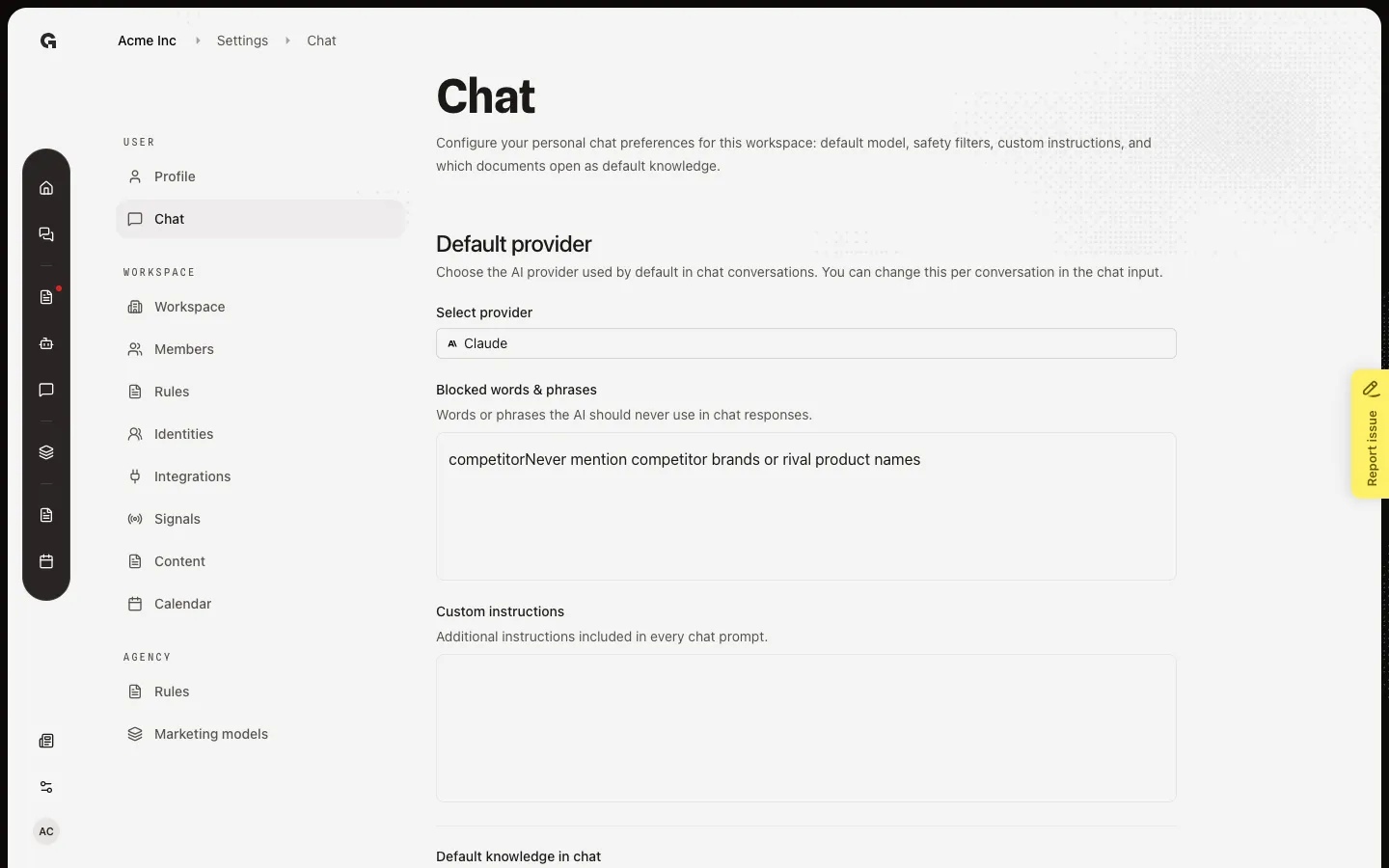
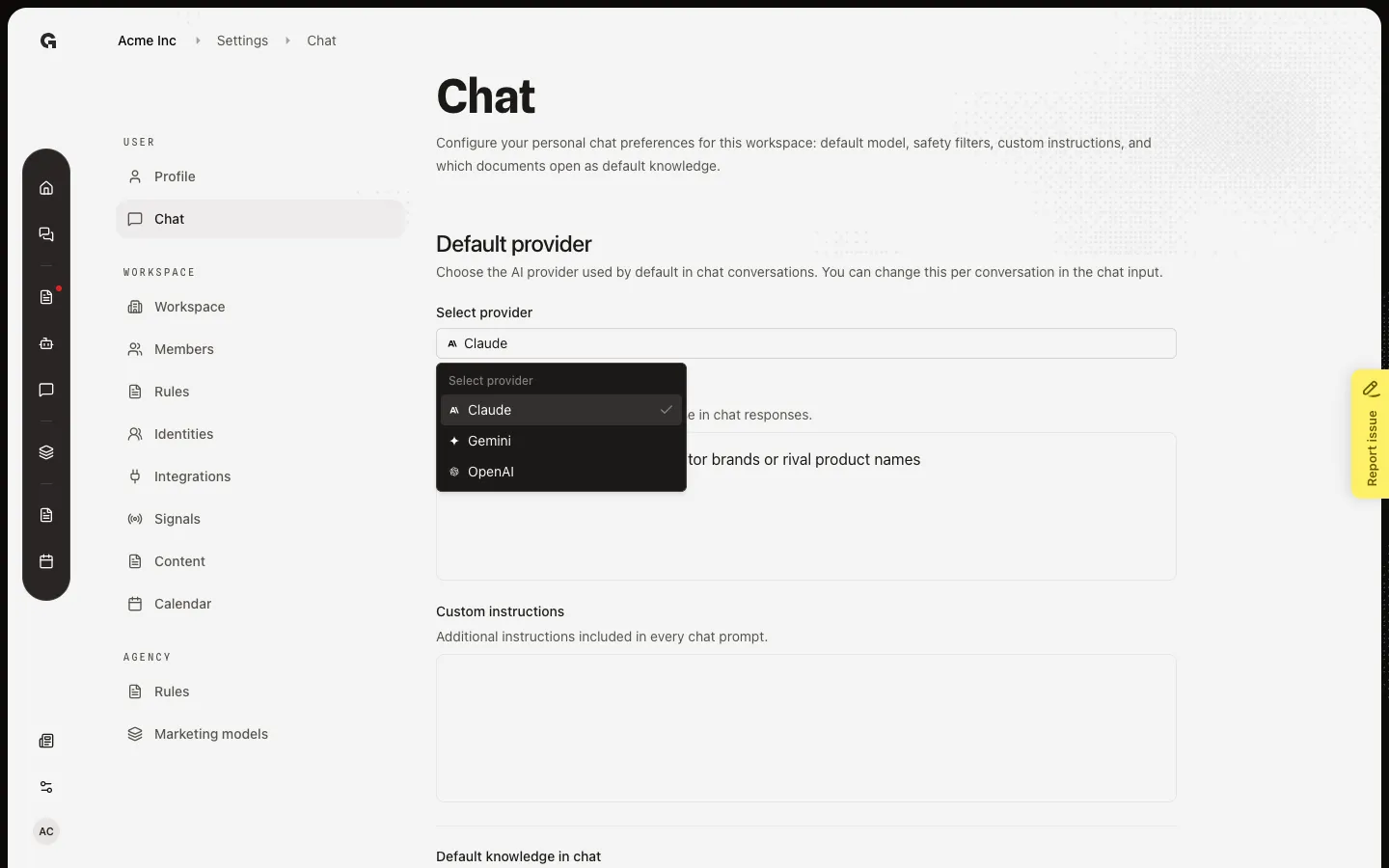
Change Default provider
Open Select provider. Choose Claude, Gemini, or OpenAI. Growf saves after you pick. The next new chat uses that provider. Open threads keep the provider they already have until you change it on the composer.
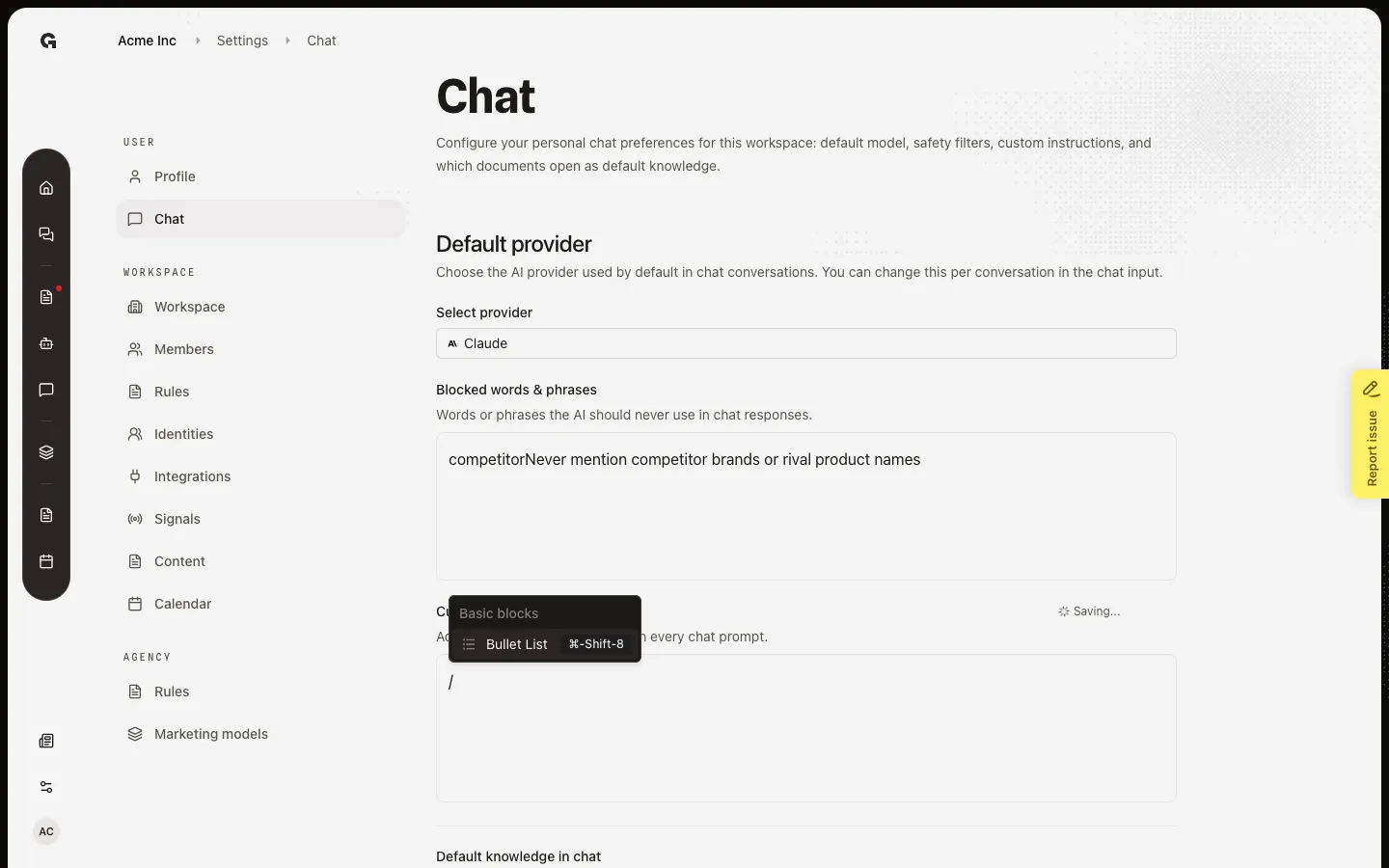
Edit blocked words and instructions
Blocked words & phrases lists words the AI should never use in chat replies. Custom instructions are added to every chat prompt. Both save a moment after you stop typing. Default knowledge in chat lists Documents that open already selected on a new empty thread. Only the document owner can remove a file here. Turn Default in chat on from the document — see Set default chat knowledge.
FAQ
Do these settings apply to the whole workspace?+
Default provider, blocked words, and custom instructions are yours in this workspace. Other members have their own. Default knowledge is a list of documents marked Default in chat — anyone opening a new empty chat sees those files.
I see No documents are set as default knowledge.+
No file is marked Default in chat yet. Open a document and turn that on. See Set default chat knowledge and Manage workspace knowledge.
I see Saving… then Saved.+
The field is writing to your settings. Wait until Saved before you leave if you just typed. The provider saves as soon as you pick a row.