Use a chat suggestion
Pick a starter card on an empty Standard chat, or browse the carousel, instead of writing the first prompt yourself.
Starter cards sit on an empty Standard chat so you can send a useful first prompt without writing it. Growf writes them for you from workspace context and connected tools.
2 steps · About 2 minutes
Open an empty Standard chat
Open a Standard conversation that has no messages yet. The heading is Get started. The line under it says Pick a suggestion below, or start typing. Cards show a title and a short tagline. Growf builds these prompts for you from the workspace and the tools you connected. Design Mode does not use these cards. It shows format templates instead — see Use Design Mode. Strategy Mode uses the same composer without this carousel — see Use Strategy Mode.
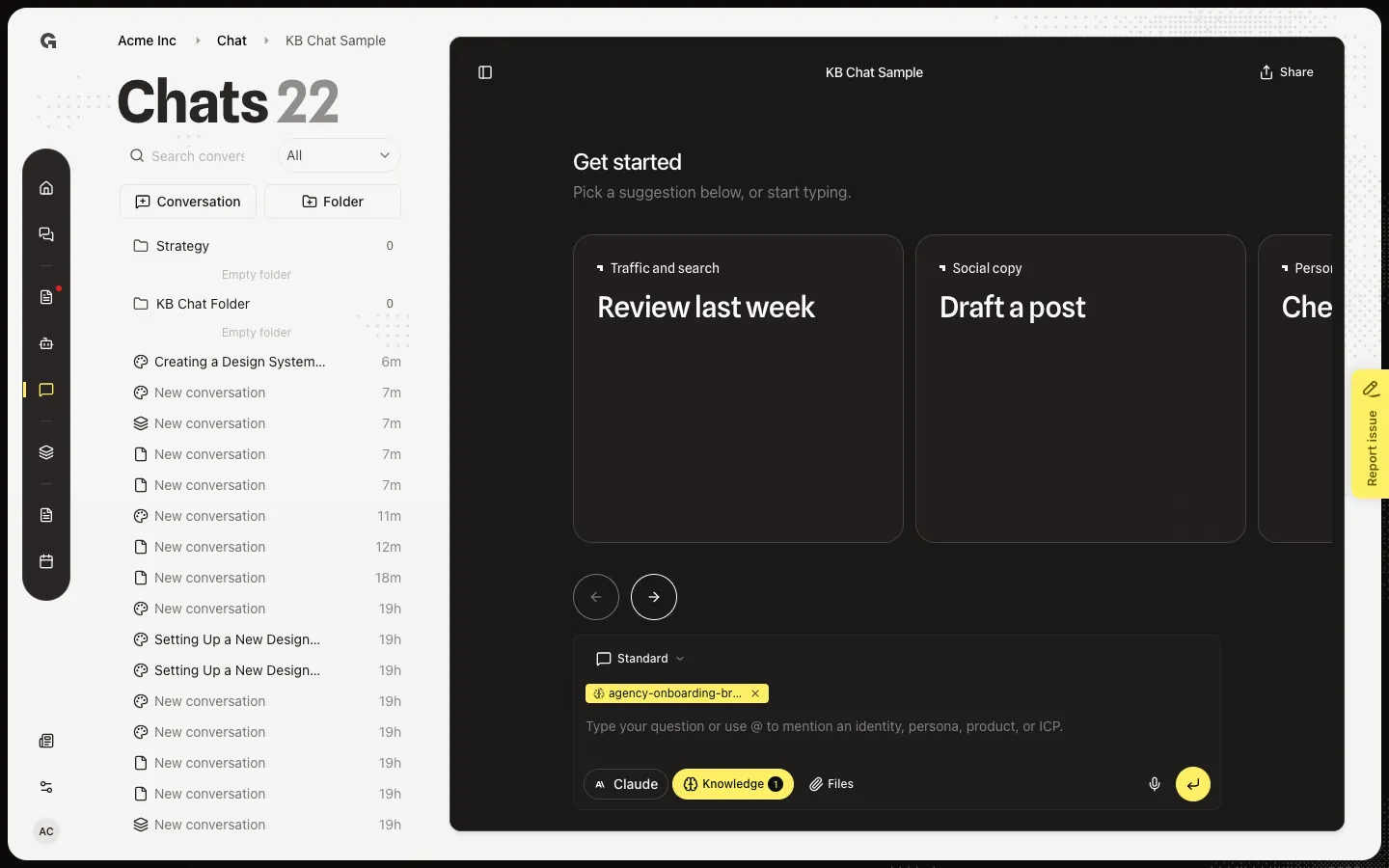
Browse the carousel
When there is more than one card, Previous suggestions and Next suggestions sit under the row. Use them to see the rest. Click a card only when you want to send that prompt as the first message. Sending marks the card used and starts a live reply.
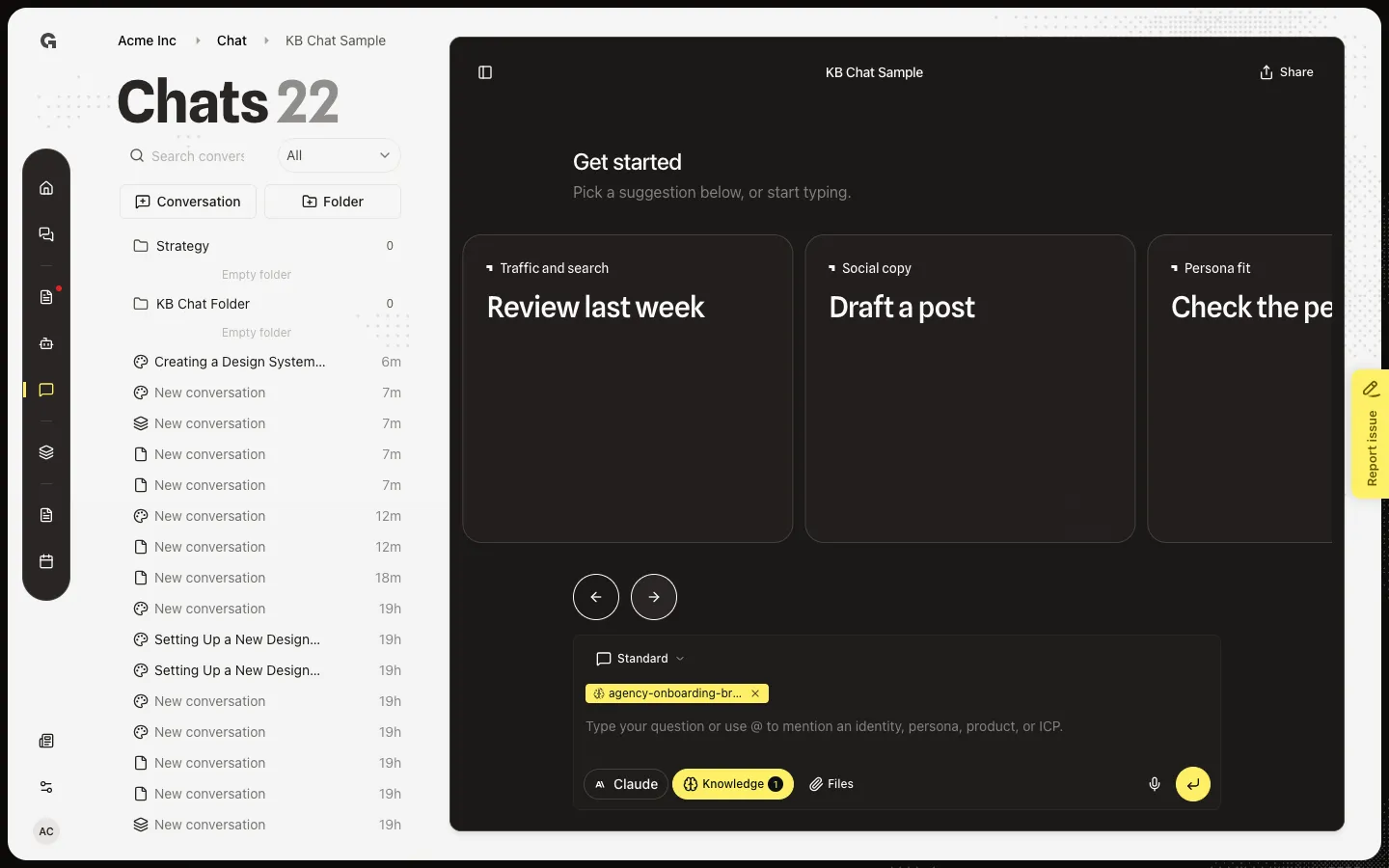
FAQ
I do not see suggestion cards.+
Cards appear only on an empty Standard chat, and only after Growf has prompts for you. If the list is empty, the hint says Start typing to begin. Connecting tools can refresh the set. Design Mode shows templates instead.
What happens when I click a card?+
Growf sends that prompt as your first message, with any mentions or tools tied to the card. The card is then marked used. Type in the composer instead if you want to edit the wording first.
Can I ask for a new set of cards?+
In development, Regenerate suggestions queues a new set. In production, Growf refreshes unused cards when your connected tools change. Used cards stay in history and do not block new ones.