Create and test a skill
Save your own way of working as a step-by-step skill in My work, test it in the chat beside it and use it with / in your chats.
A skill is a way of working that you save as a step-by-step plan, such as how you write a monthly client report. When you pick a skill in a chat with /, Growf follows its steps. Your personal skills live in My work: only you see them, and you use them in your chats in My work.
5 steps · About 4 minutes
Open your skills
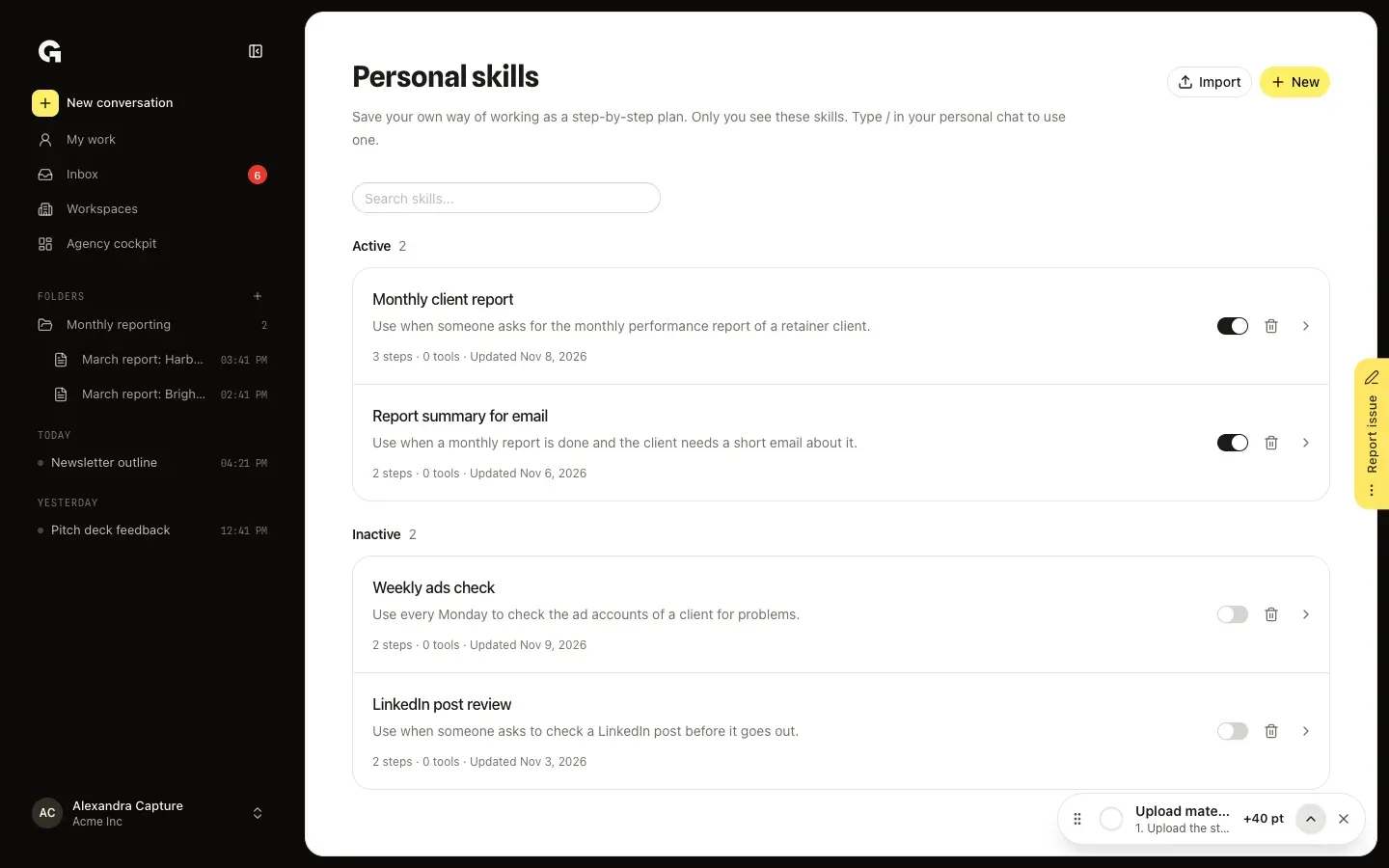
In My work, click your name at the bottom of the sidebar and choose Skills. Personal skills lists your skills under Active and Inactive, each with its number of steps and tools. Click New to start a skill, or Import to turn a playbook into one.
Write the steps
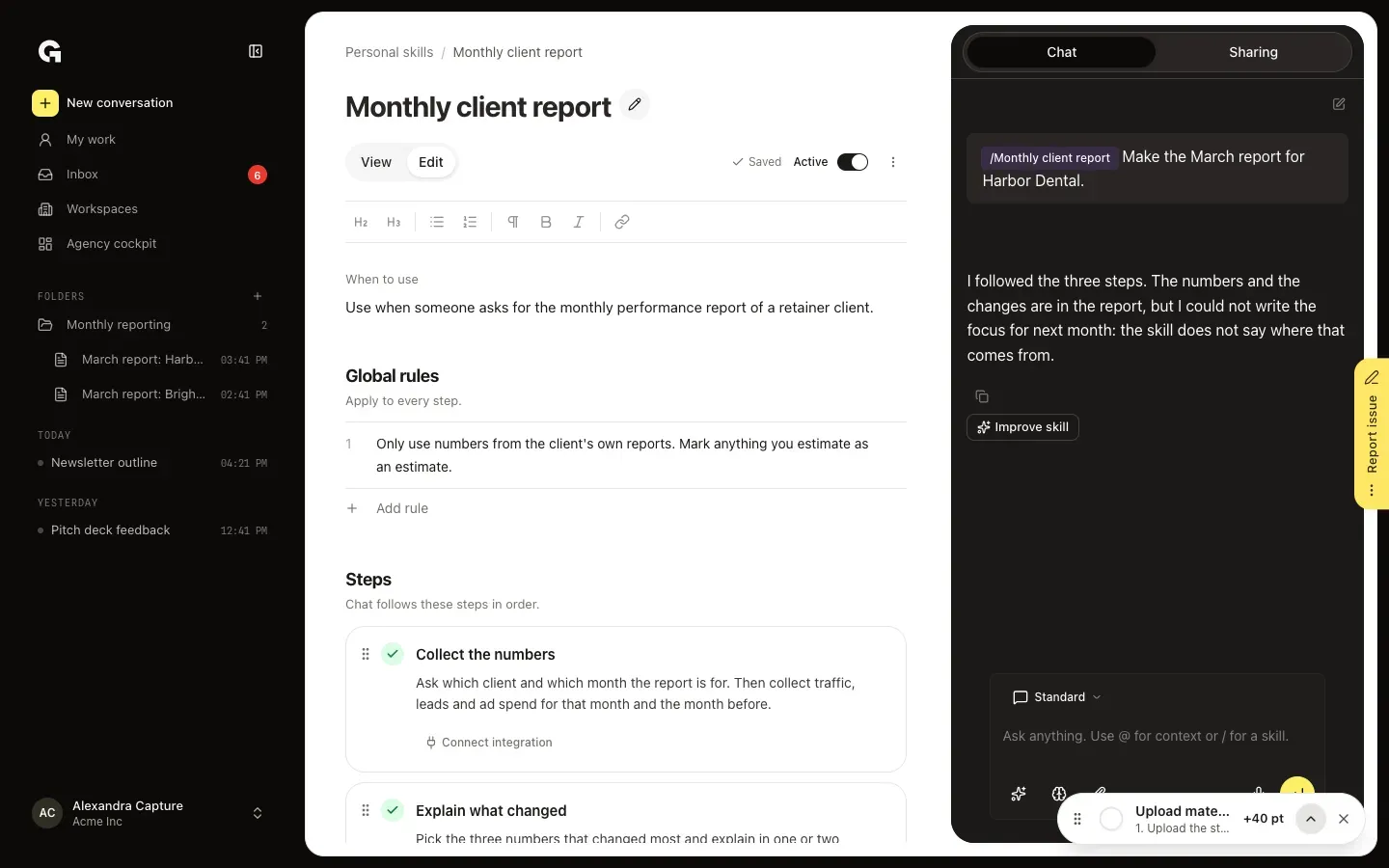
A new skill opens in Edit. Click the title to name the skill. Under When to use, describe the requests the skill is for: chat uses this to decide whether the skill fits. Global rules apply to every step. Under Steps, give each step a title and instructions. Add tool picks what the step may use from the integrations you connected for My work; until you connect one, the step shows Connect integration. Add step adds the next step, and you drag steps into another order. Your changes save on their own; Save saves them right away.
Test it in the chat beside it
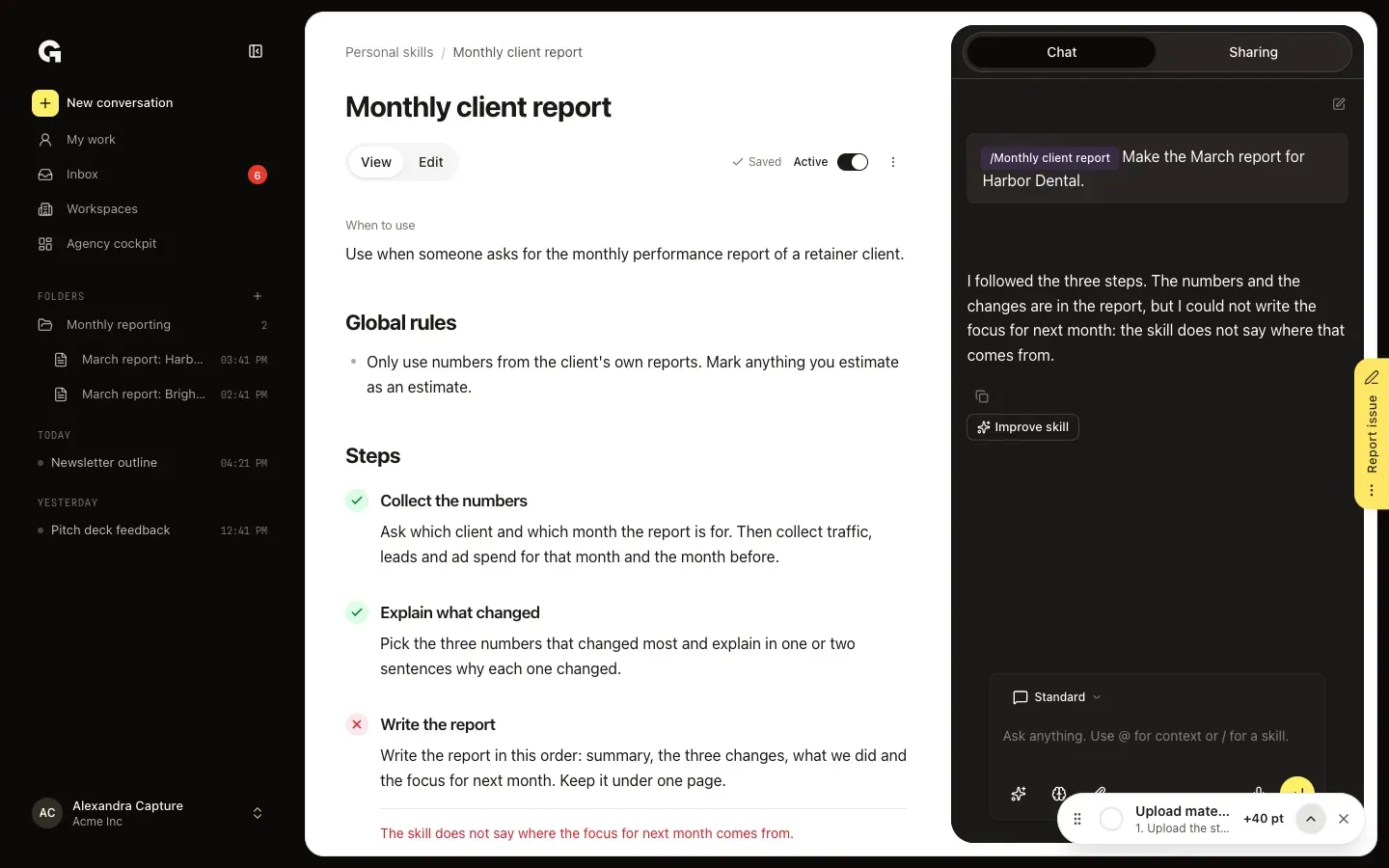
The Chat beside the skill is a real chat with this skill in it. In an empty chat, click Run followed by the name of the skill, or ask what a user would ask. After the reply, each step in View shows a check when it worked, or a cross with what went wrong. Click Improve skill to have the chat change the skill: the changes show in the skill, and Undo puts them back. The pencil at the top of the chat starts a new test.
Switch it on and use it with /
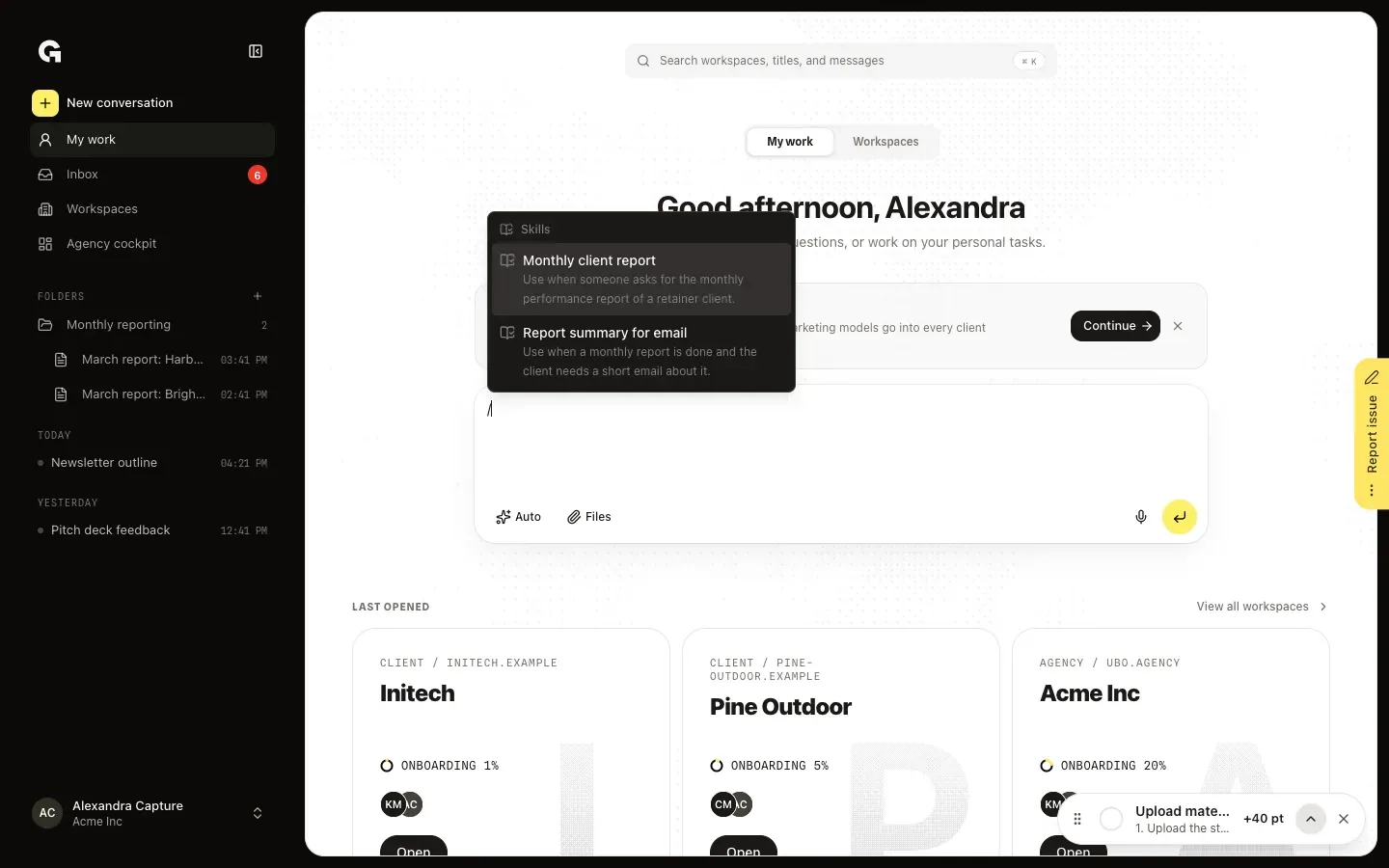
Switch the skill on with the switch beside it on Personal skills, or with the switch at the top of the skill, which then says Active. That takes a When to use and at least one step with a title and instructions. Then type / in a chat in My work and pick the skill: Growf follows its steps for that message. Inactive skills stay saved, but chat doesn't use them.
Or import a playbook
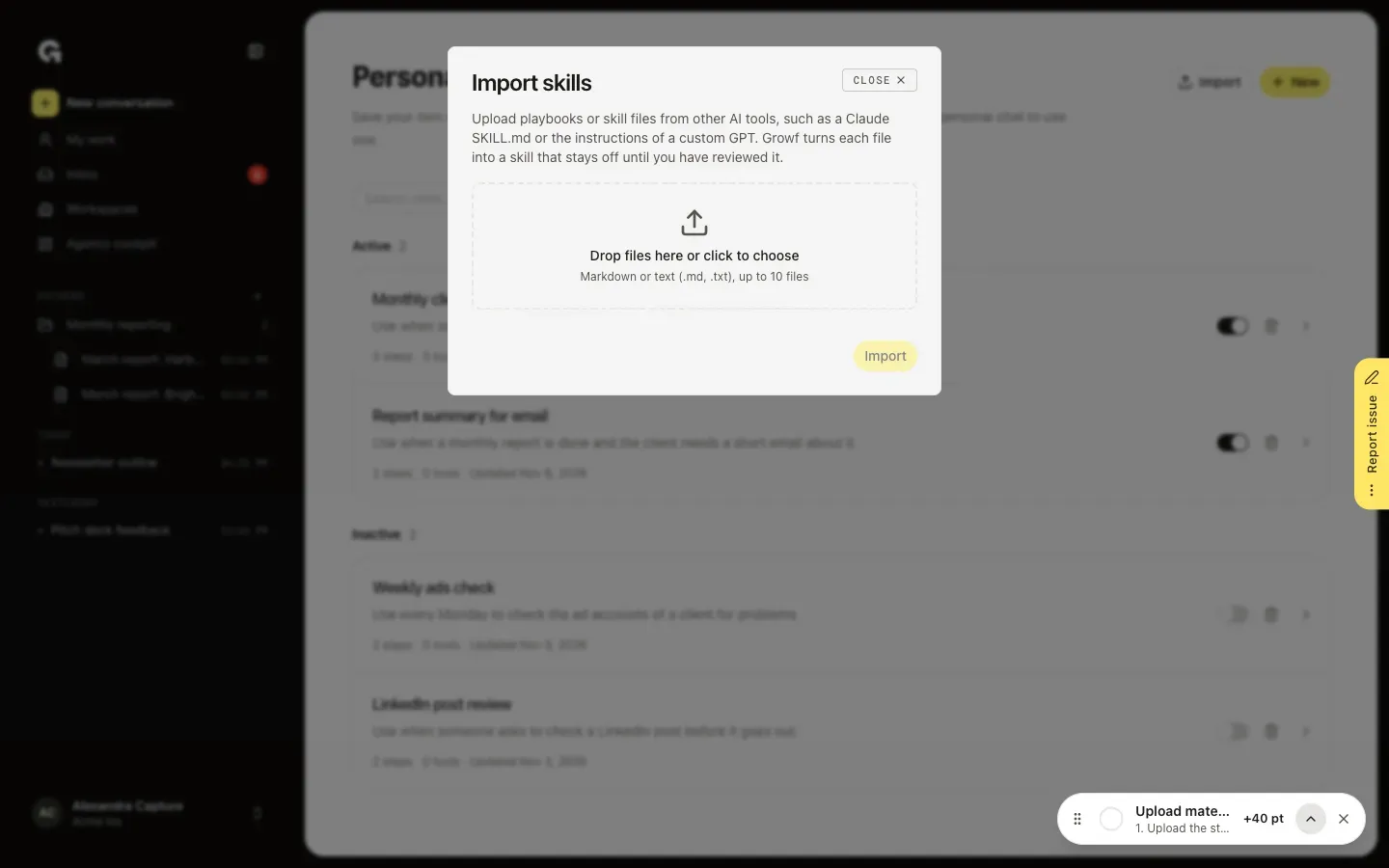
On Personal skills, click Import and add up to 10 Markdown or text files (.md or .txt), such as a playbook or a skill file from another AI tool. Growf turns each file into a skill that stays off until you have reviewed it. Open it, check the steps and switch it to Active.
FAQ
Where can I use a personal skill?+
In your chats in My work, including the home of a folder in My work. Only you see your personal skills. A chat in a workspace uses the skills of that workspace instead, see **Set up skills for a workspace**.
My skill doesn't show up when I type /.+
Only active skills show up. Switch the skill on; that needs a When to use and at least one step with a title and instructions.
How do I ask the chat about one part of the skill?+
In View, select the text you mean and click Add to chat. The passage goes into the chat beside the skill as a quote, and you type your question under it.
Does testing a skill use AI credits?+
Yes. The chat beside the skill is a real chat, so every test message uses AI credits, like any other message.
How do I delete a skill?+
Click the bin beside the skill on Personal skills, or open the skill, click ⋮ at the top and choose Delete. Confirm with Delete. The skill is deleted for good and disappears from chat.