Use the Blue Ocean Strategy Canvas
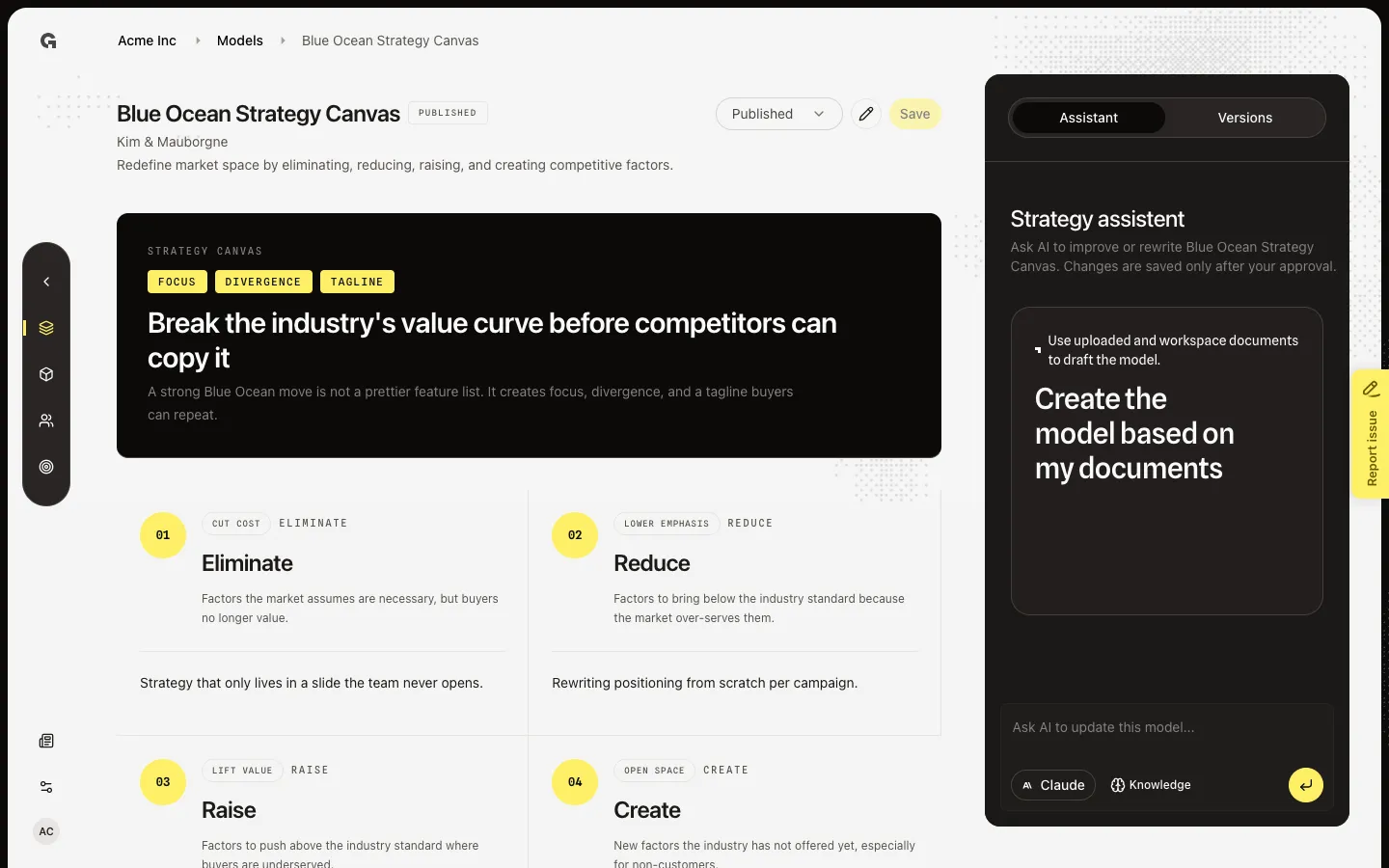
Preview Eliminate, Reduce, Raise, and Create, then open Edit to change those four moves.
Blue Ocean redraws the value curve: factors to eliminate, reduce, raise, and create so you stop competing on the industry’s default list. This is Kim & Mauborgne’s framework in the Positioning group.
2 steps · About 2 minutes
Preview Blue Ocean Strategy Canvas
Open Blue Ocean Strategy Canvas from Models. A saved version starts in Display: the read-only canvas, not the form. Anyone with strategy read can view it. This is the same published view chat preview uses. You cannot save here — choose Edit (pencil) to change fields.
Edit Blue Ocean Strategy Canvas
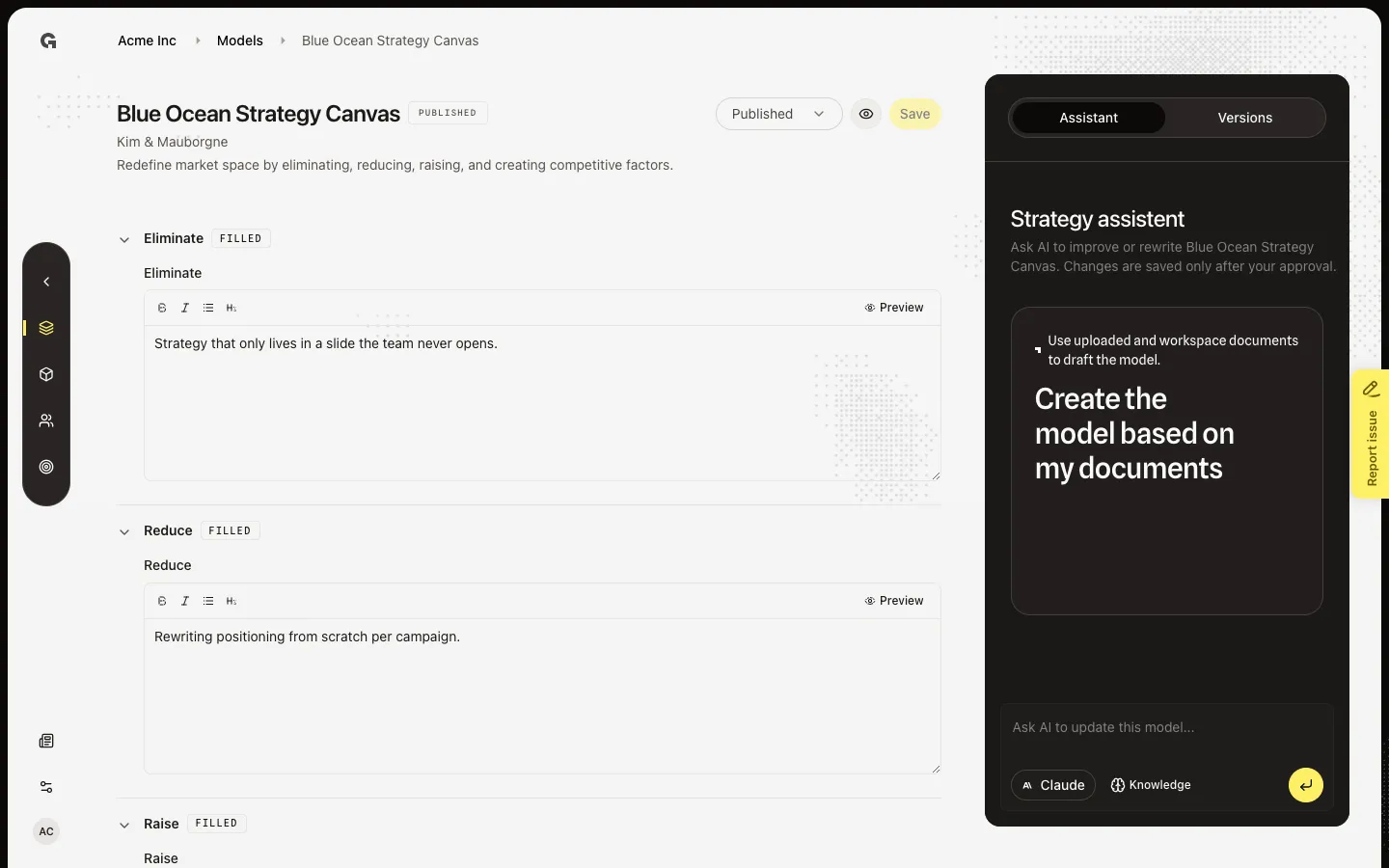
A saved Blue Ocean Strategy Canvas model starts in Display. Choose Edit (pencil) to show the form. Change the Eliminate field (or any other), then use Save if you have strategy update. Save writes a new draft version. Publish is a separate job — see Save and publish a strategy model.
FAQ
All four moves are empty. Is that Not configured?+
Yes, until you save. Fill at least one of Eliminate, Reduce, Raise, or Create, then save. Chat preview needs a saved version.
If I fill Blue Ocean Strategy Canvas here, does it change other workspaces?+
No. The agency picks which frameworks exist (Settings → Agency → Marketing models). Each workspace saves its own versions. Filling Blue Ocean Strategy Canvas for this client does not overwrite another client.
Does Edit also publish Blue Ocean Strategy Canvas for chat?+
No. Edit then Save writes a draft version. Chat preview and @mentions of strategy models use a published version. See Save and publish a strategy model. Revert a strategy model version and Use the strategy model assistant are separate jobs on the same page.
I can preview Blue Ocean Strategy Canvas but I cannot save. Why?+
Viewing needs strategy read. Save, publish, unpublish, and revert need strategy update. Ask an admin. The assistant on the right can draft a change; applying it also needs strategy update.