Select elements in the design preview
Point at a part of the live preview so your next message talks about that element.
Select lets you point at a part of the live preview so the next Design Mode message is about that element. Anyone who can update the chat can use it.
2 steps · About 2 minutes
Find Select
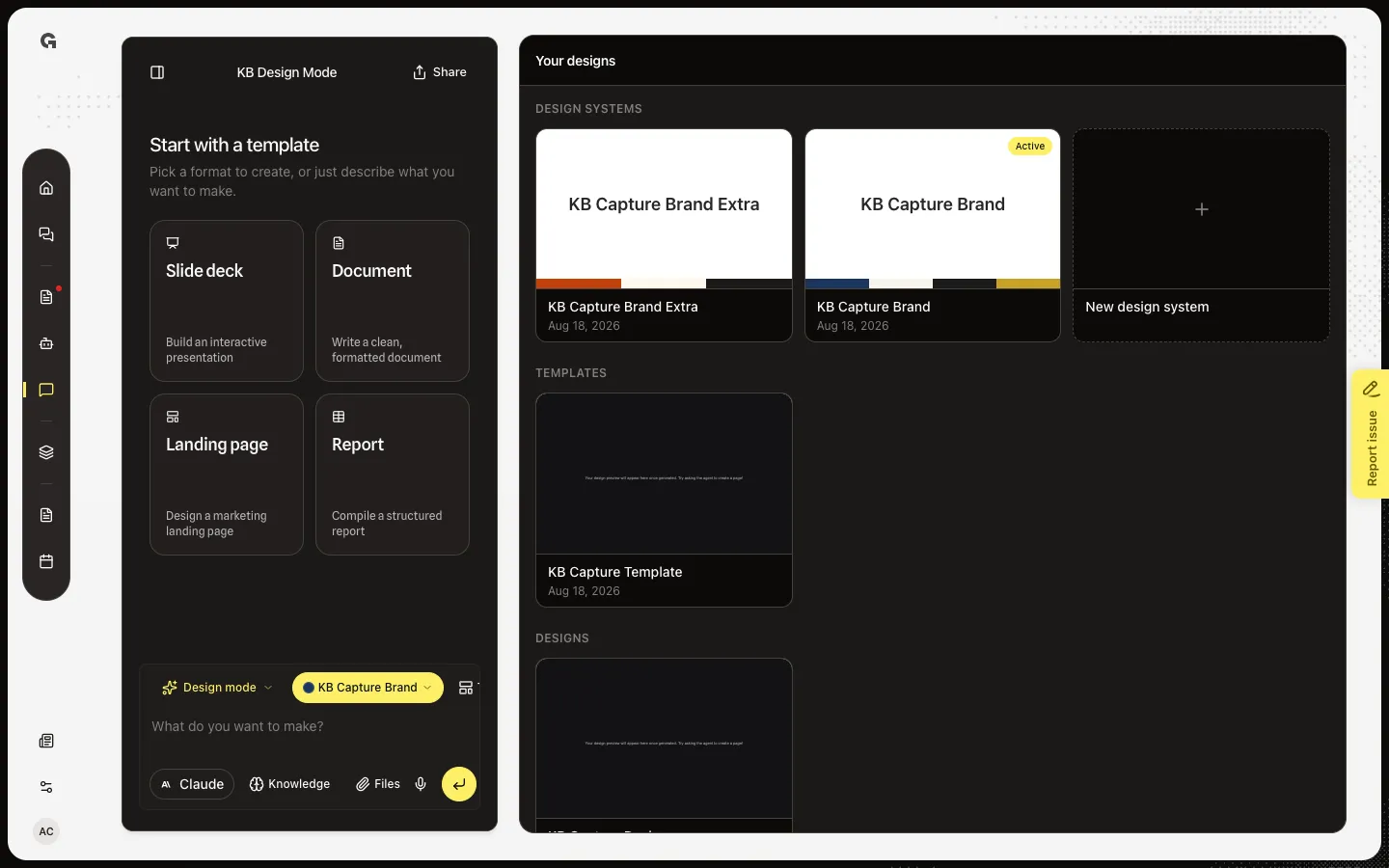
Open Design Mode. Your designs lists KB Capture Design. Open that card to reach the live preview. Select sits in the preview header with Download. Use it when you want the next message to change one heading, button, or block instead of the whole page. It stays off while a build is running, because the document is being replaced.
Turn pick mode on
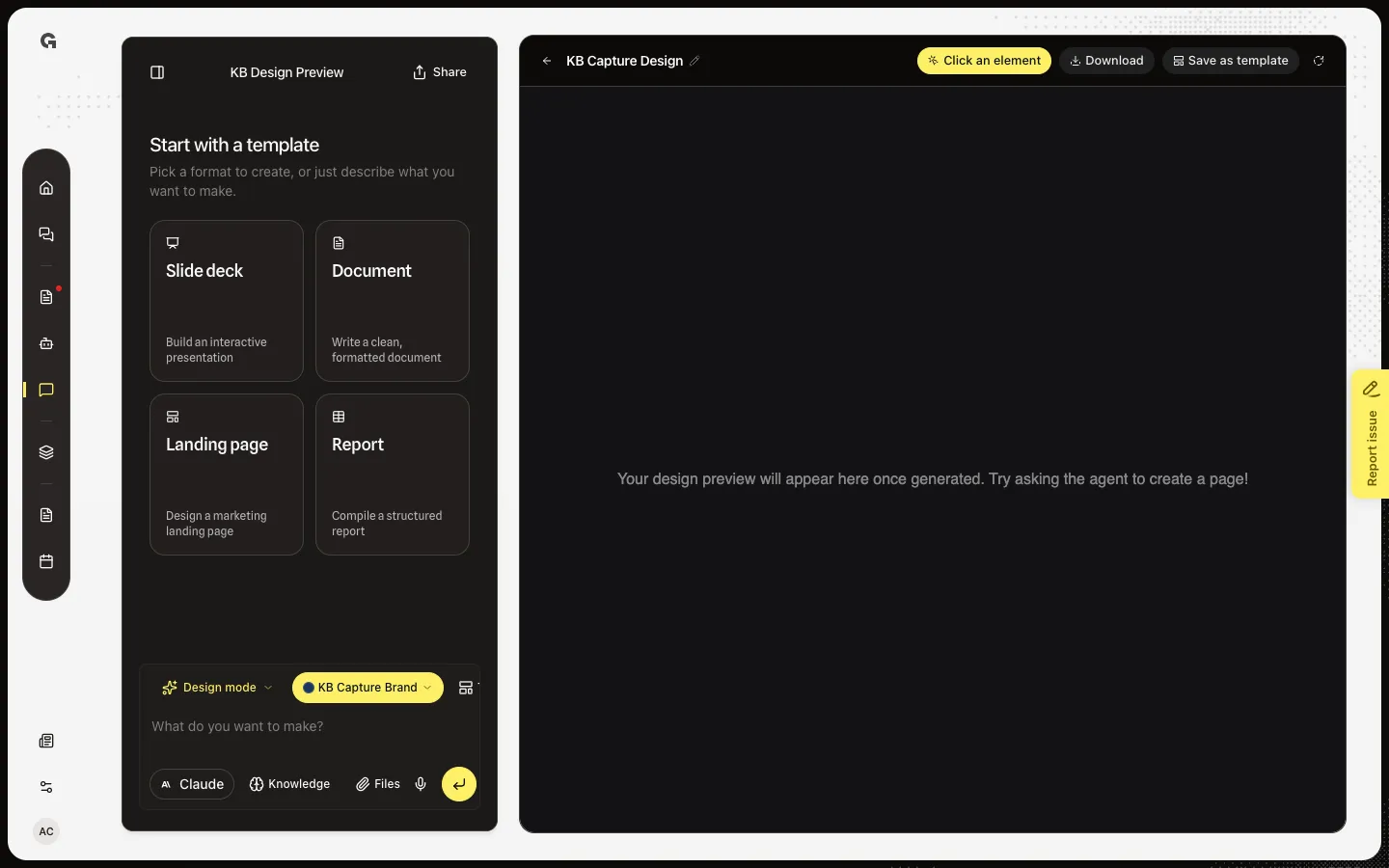
Choose Select. The button reads Click an element and stays pressed. Click once in the preview. That element becomes a chip on the composer. Pick mode then turns off so links and slides work again. Choose Select again to add another element. Remove a chip with its × if you pointed at the wrong thing.
FAQ
Why not just describe the element in the message?+
You can. Select is for when the page has many similar blocks. The chip tells the builder which node you mean, including the slide number on a deck.
Why did Click an element disappear after one click?+
One click, one element. Staying in pick mode would block links and slide paging. Choose Select again to add a second chip.
Select is grey.+
A build is in progress. Wait until it finishes. Chips from before the run are also cleared, because that markup may be gone.
Do the chips stay after I send?+
They apply to that message. After you send, pick again if the next turn is about a different element.