Copy agents and documents to other workspaces
Make an agent or upload a document once, and copy it to your other workspaces from Sharing in the agency cockpit.
Sharing in the agency cockpit lets you reuse your work across clients. Build an agent or upload a document once, for example a reporting agent or your agency's brand guidelines, and copy it to as many of your other workspaces as you need.
3 steps · About 3 minutes
Open Sharing
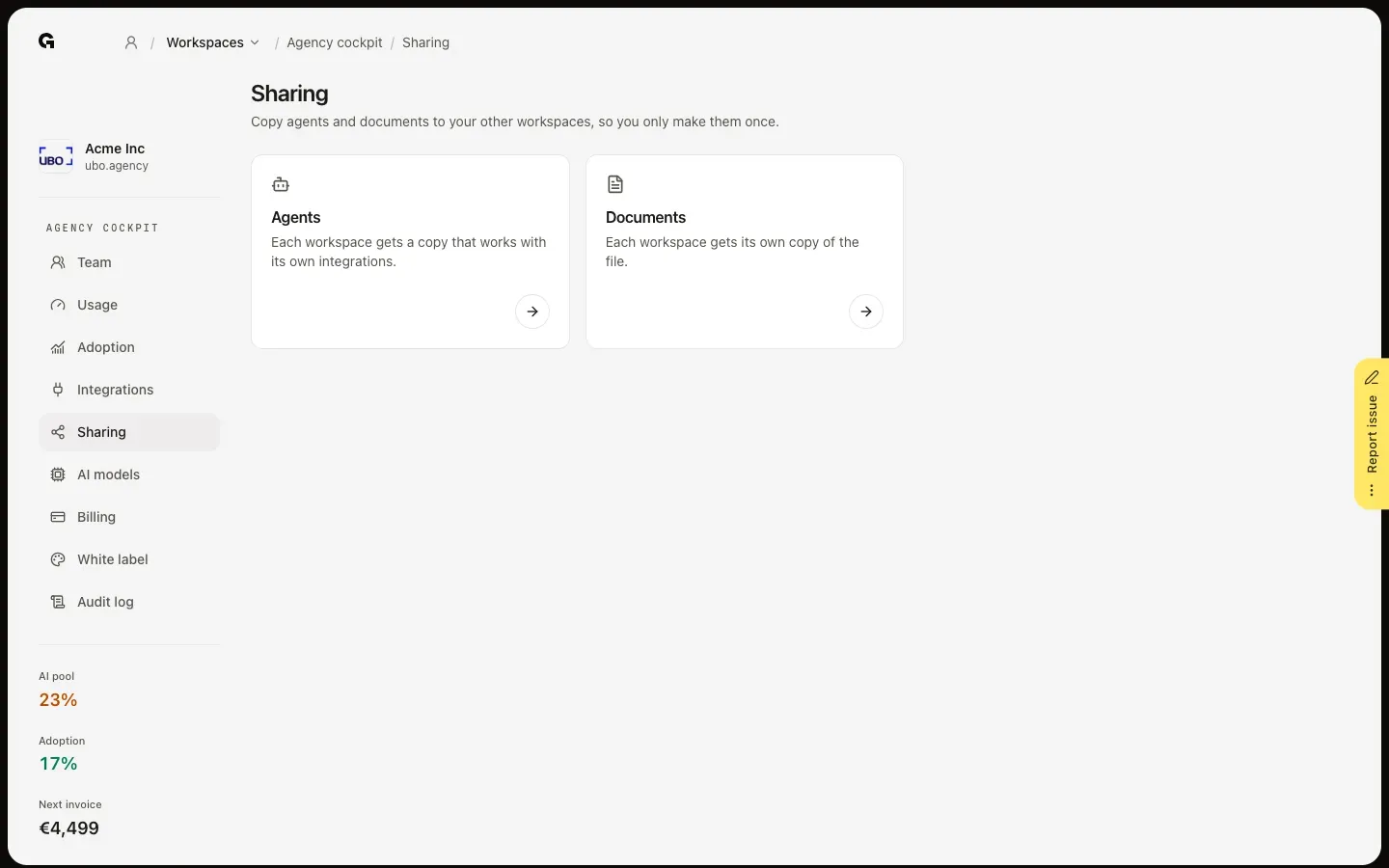
In the agency cockpit, click Sharing. It lets you copy what you made in one workspace to your other workspaces, so you only make it once. Choose Agents or Documents. Each list shows everything of that kind in your workspaces, with the workspace it is in; search it by name, or pick one workspace in All workspaces.
Copy an agent
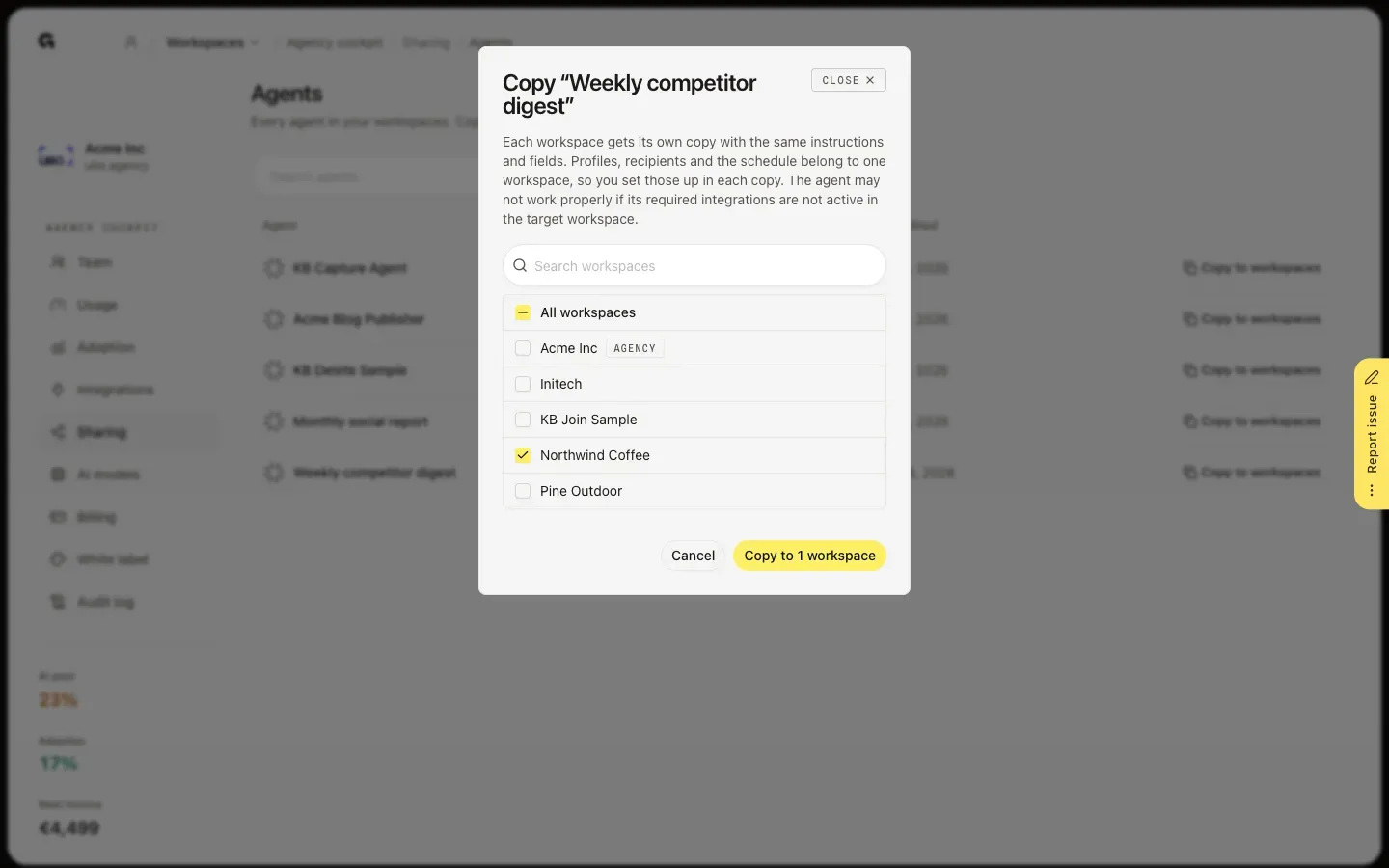
In Agents, click Copy to workspaces next to the agent. Tick the workspaces that should get it, or All workspaces, and click Copy to 1 workspace, or the number you picked. Each workspace gets its own copy with the same instructions and fields. Profiles, recipients and the schedule belong to one workspace, so set those up in each copy. The copy only works fully once the integrations it needs are connected in that workspace.
Copy a document
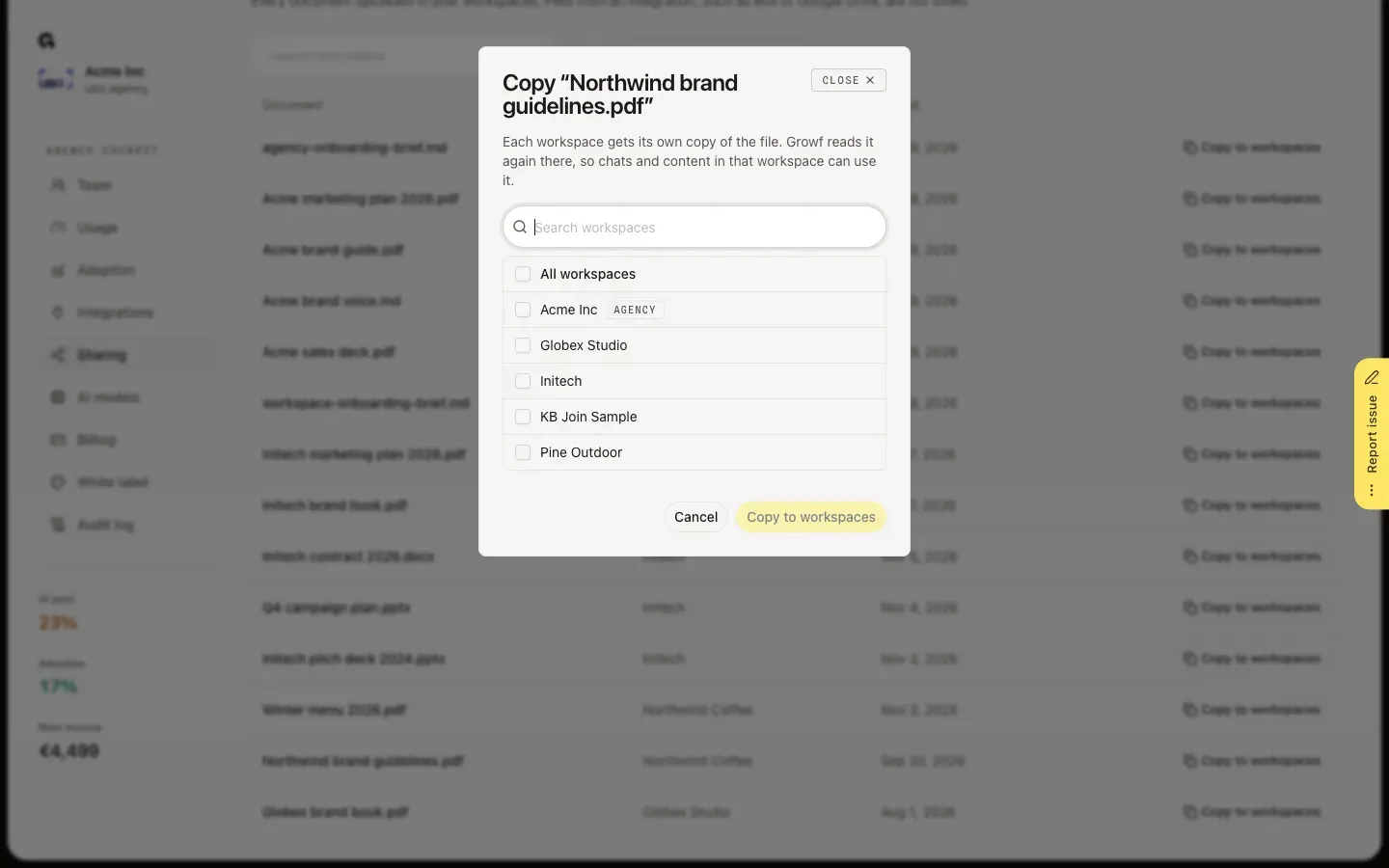
In Documents, click Copy to workspaces next to a document, tick the workspaces and confirm the same way. Each workspace gets its own copy of the file, which Growf reads again there, so chats and content in that workspace can use it. Only documents that were uploaded are listed: files that come from an integration, such as Box or Google Drive, stay in their own workspace.
FAQ
Does a copy stay linked to the original?+
No. Every workspace gets its own copy, which you can change without affecting the original or the other copies. Change the original later, and copy it again to pass the change on.
Why can't I copy to some workspaces?+
You can only copy to workspaces where you may add agents or documents yourself, and the lists only show what you may see. Admins can do both by default. If a copy fails for some workspaces, Growf tells you how many it reached; check your role in the others.
What do I set up after copying an agent?+
Its profiles, the recipients of its output and its schedule, because those belong to one workspace. Also connect the integrations the agent uses in that workspace, or it may not work properly. See **Manage agent tools and profiles**, **Manage agent output recipients** and **Schedule agent runs**.
Who can use Sharing?+
The agency owner and people with the Admin role on the agency workspace, from the agency cockpit.