Manage special dates
Add launches and holidays, sync public holidays, and edit dates that shape content planning.
Special dates are holidays, launches, and other days you want agents and content planning to respect. They are for people who can update the workspace.
4 steps · About 3 minutes
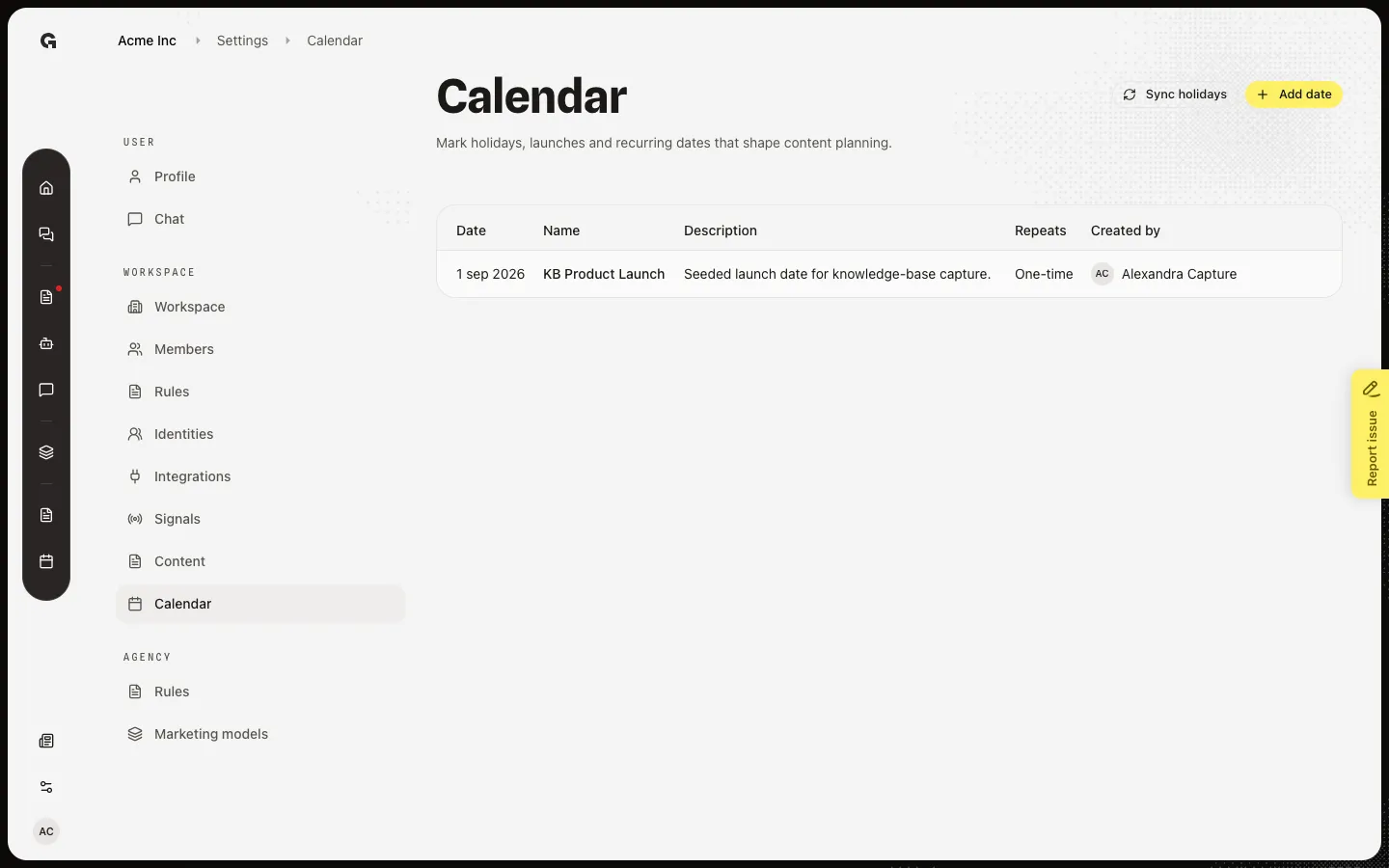
Open Calendar
In Settings, under Workspace, choose Calendar. This list is special dates: holidays, launches, and other days that should shape planning. It is not the Marketing calendar where you schedule posts. Each row shows date, name, description, whether it repeats every year, and who added it.
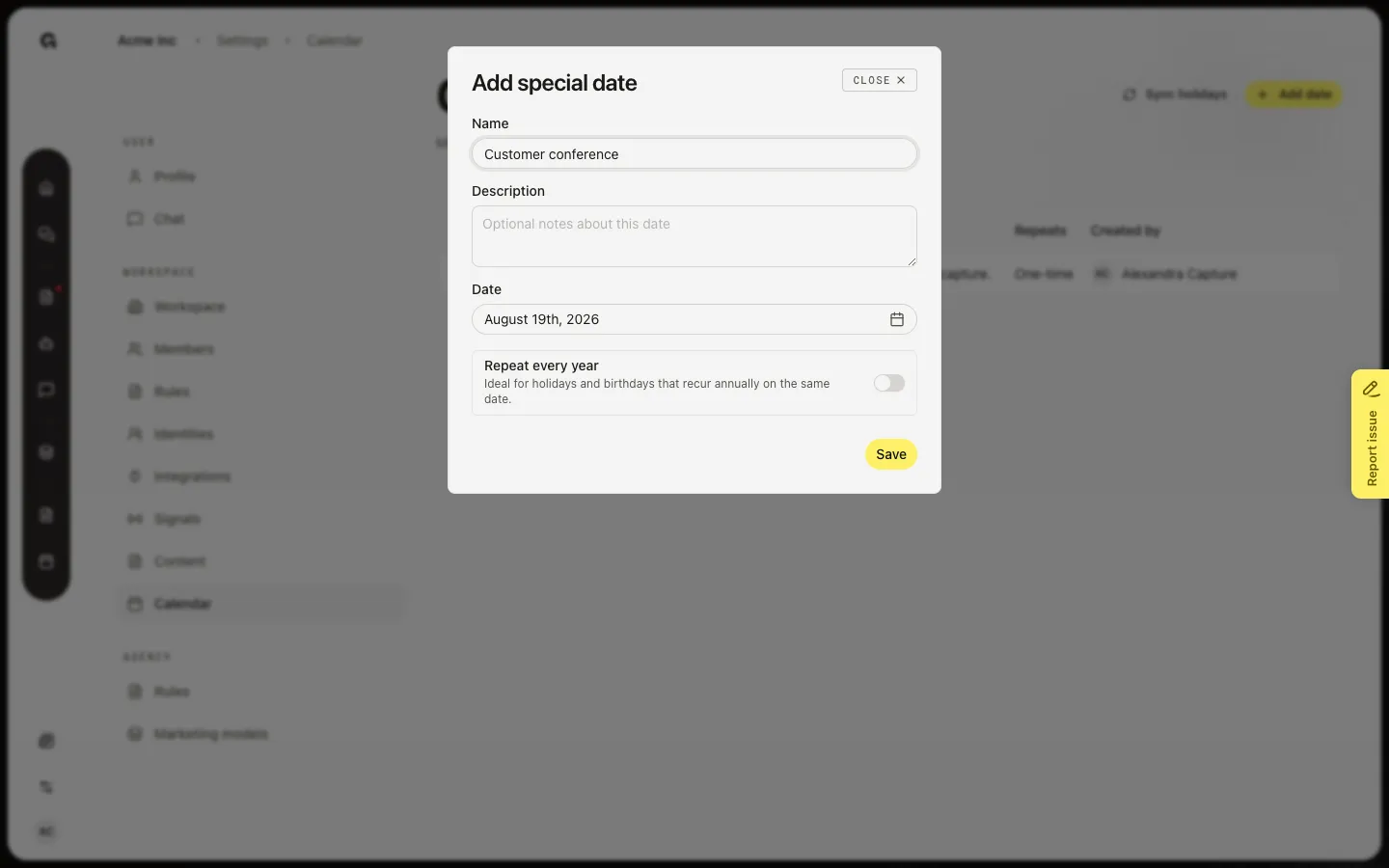
Open Add special date
Choose Add date. Name the day (a launch, birthday, or holiday). Description is optional. Date is required. Repeat every year is for the same date each year. Save adds the row. Agents and scheduling use these dates so plans do not clash with a launch or holiday.
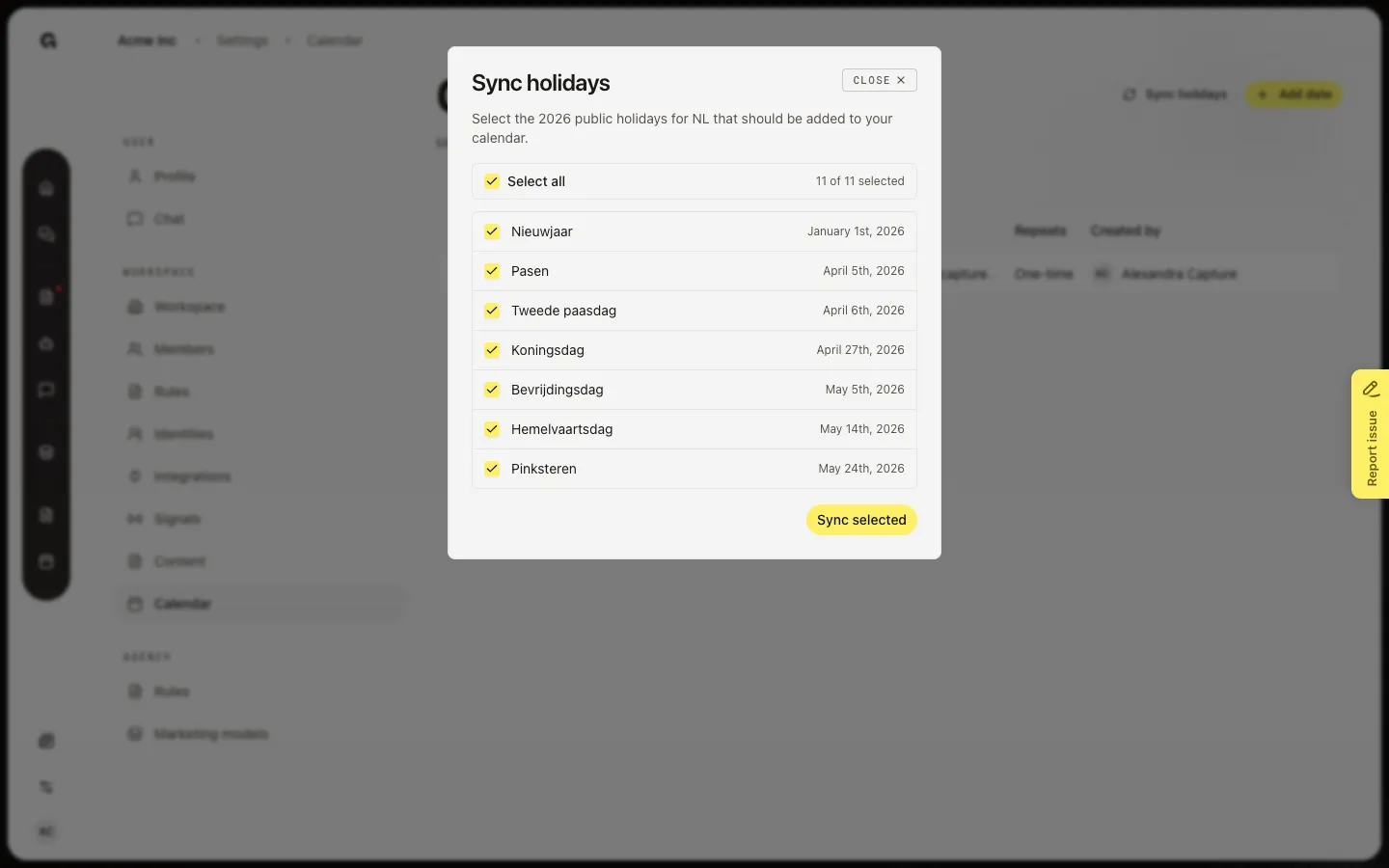
Open Sync holidays
Choose Sync holidays. Growf loads this year’s public holidays for the workspace country. Select the days to add, or Select all, then Sync selected. Days already on the list are skipped. If Growf cannot find a country, set Country code on Edit company context first.
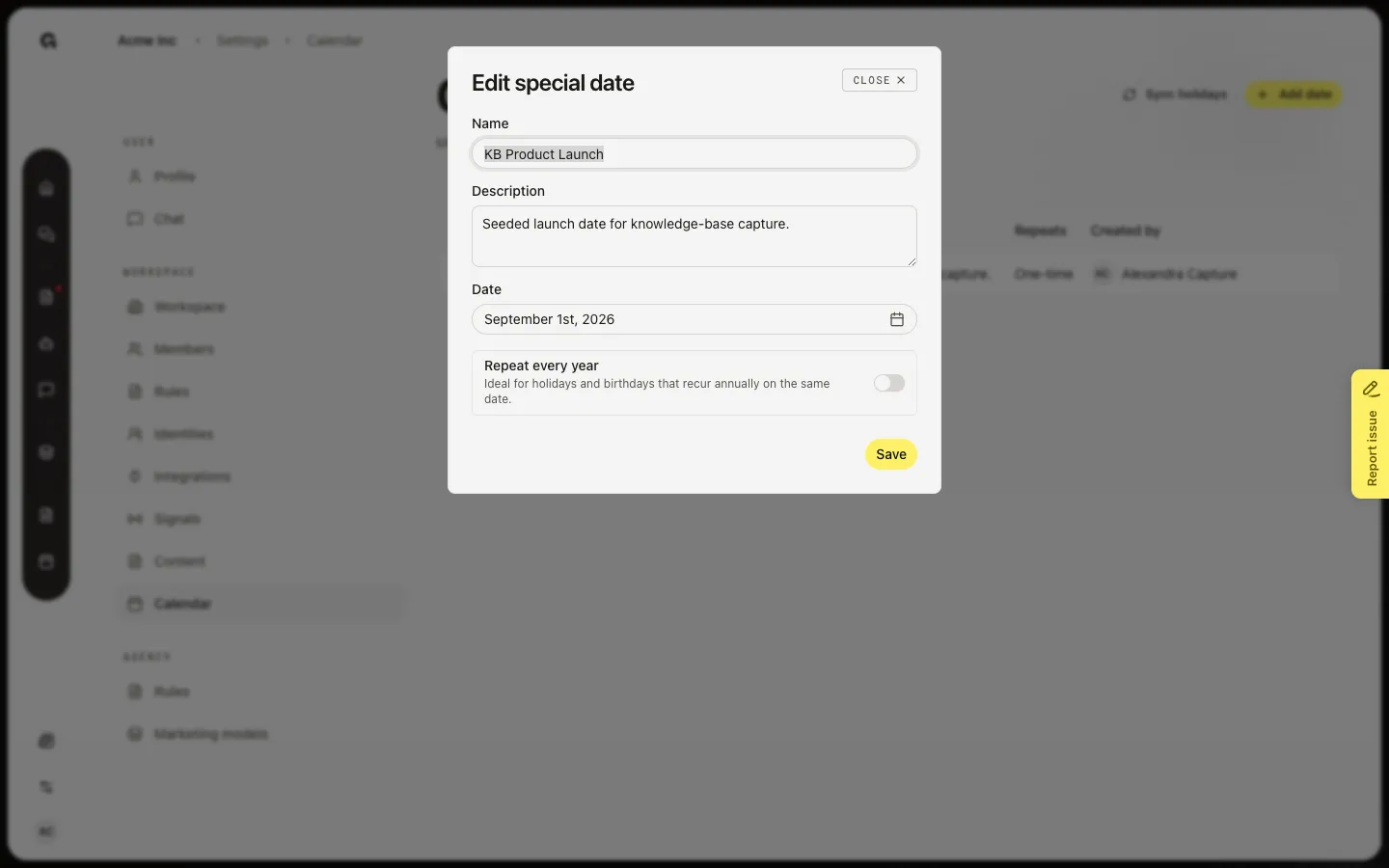
Edit a special date
Hover a row and choose Edit. Change the name, notes, date, or Repeat every year, then Save. Delete asks you to confirm and cannot be undone. Edit and Delete need permission to update the workspace.
FAQ
Is this the calendar where I schedule posts?+
No. Settings Calendar is special dates for planning. Scheduled posts live on the Marketing calendar in the sidebar.
Sync holidays says it cannot determine a country.+
Set Country code on Edit company context, or pick a timezone that maps to a country on Edit workspace settings. Then open Sync holidays again.
I do not see Calendar or the edit controls.+
Calendar in Settings needs permission to update the workspace. Edit and Delete on a row use the same permission. Ask an admin.
When should I turn on Repeat every year?+
Use it for holidays and birthdays that return on the same date. Leave it off for a one-time launch or event.