See the steps behind a chat reply
Open the steps above a chat reply to see which tools the chat used, what it sent to them and what came back.
Above a reply in which the chat used tools, a line sums up its steps. Open it to see which integrations the chat used, what it sent and what came back, so you can check where an answer comes from. Everyone who can open the chat can open the steps; Admin, Strategist and Creator can by default.
3 steps · About 3 minutes
Find the steps above the reply
When the chat used tools for a reply, a line above the reply sums up what it did: the number of steps, the logos and names of the integrations it used, Thought when it thought first, and how long it took, such as 4 steps Google Analytics and Thought 3.5s. The line can also count the skills and memories it used.
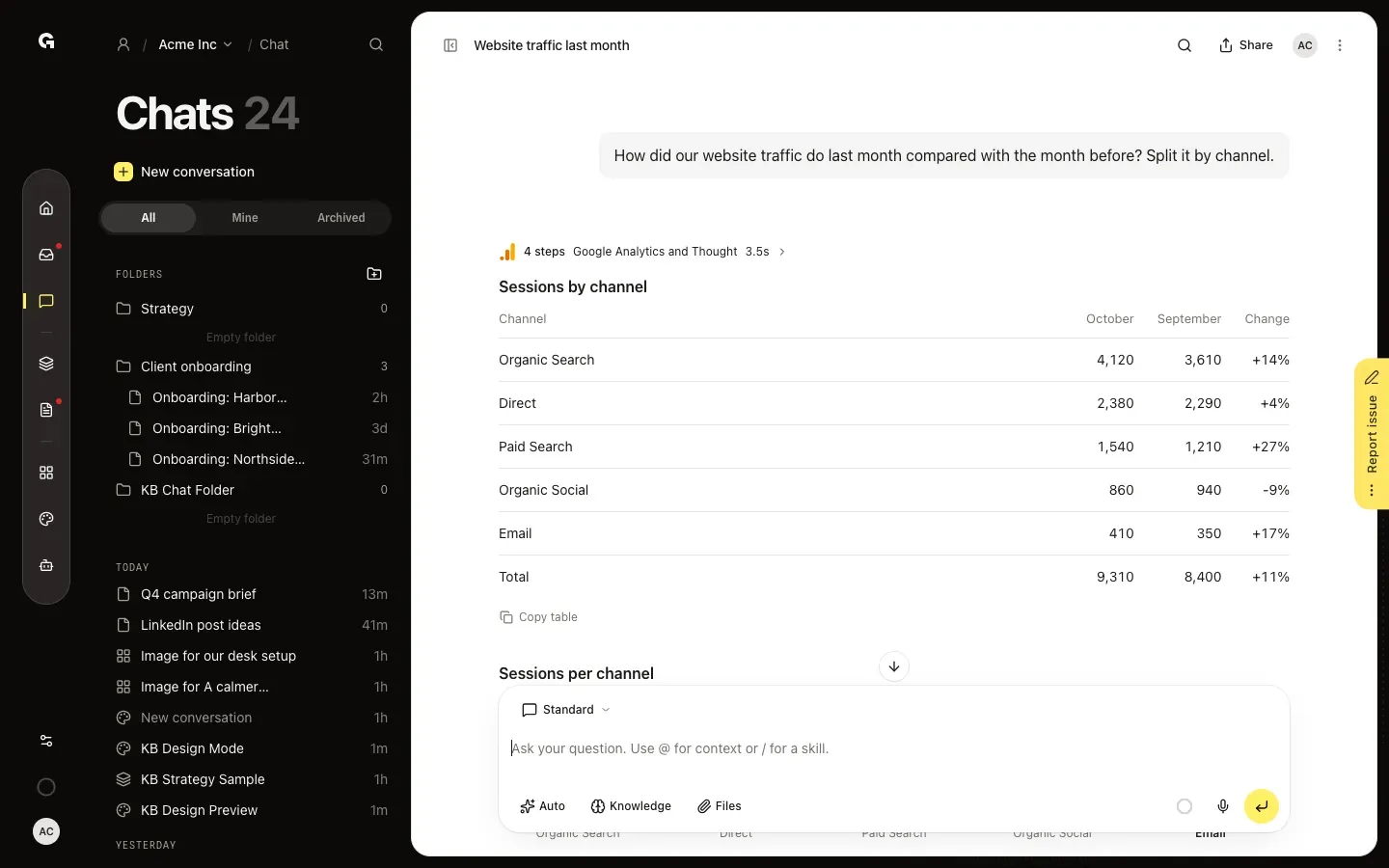
Open the list of steps
Click the line. The list shows every step in order, with the integration and the time it took. Thought shows what the chat considered before it started; Building view is the table or chart it made for you.
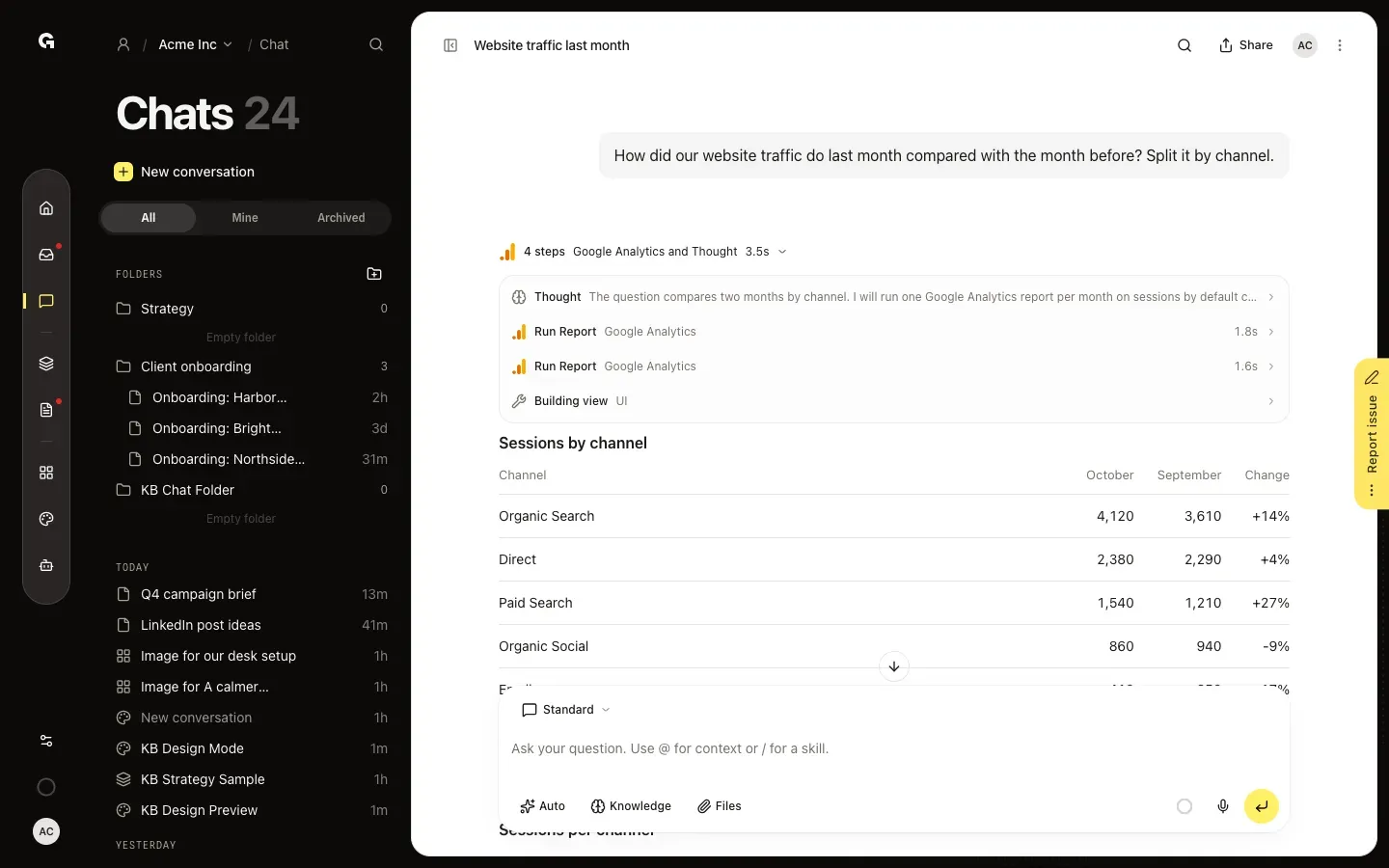
Open a step
Click a step to see the details: Input is what the chat sent to the tool, such as the period and figures it asked for, and Output is what came back. When a step failed, Error tells you why. This is how you check where the figures in a reply come from.
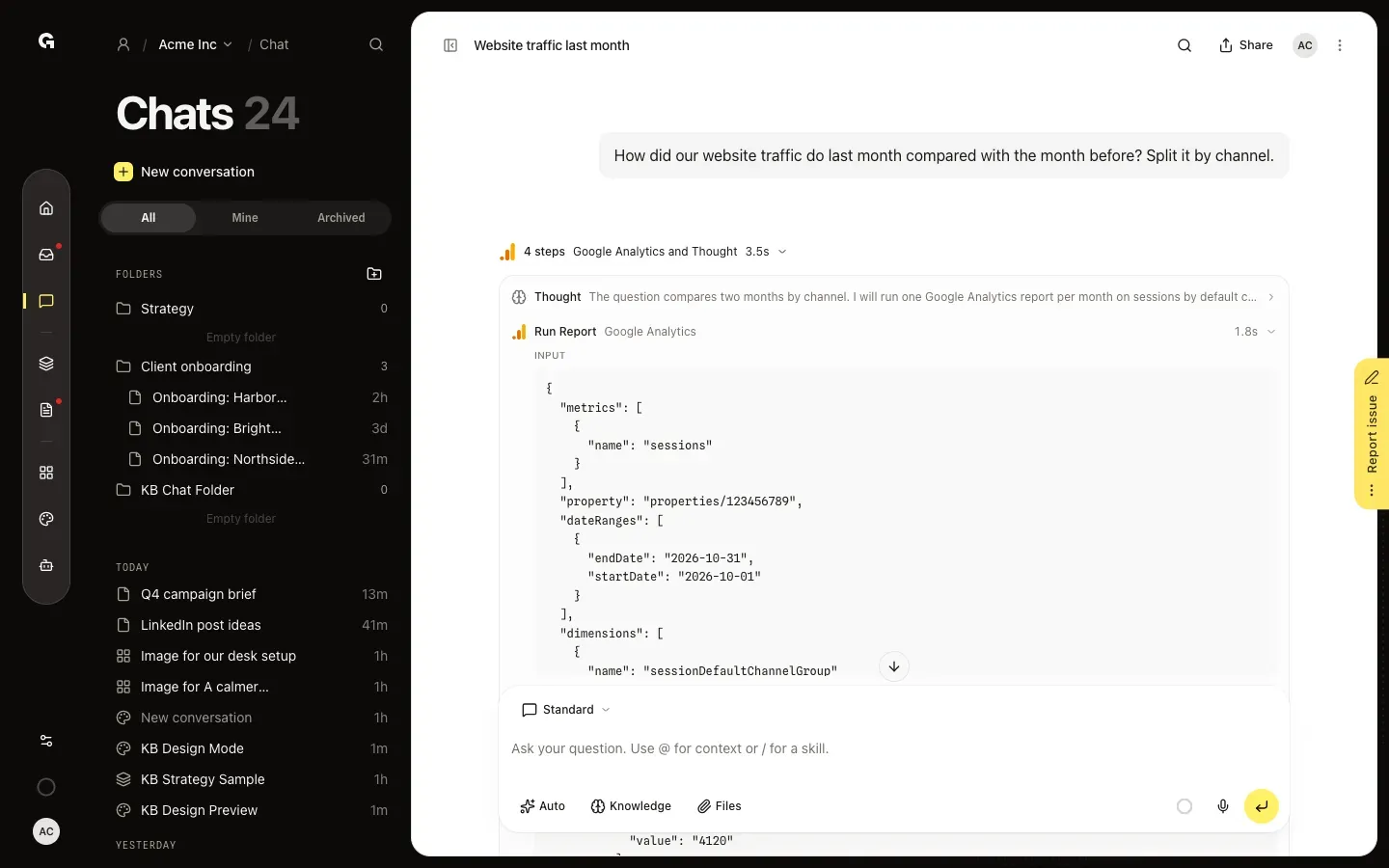
FAQ
What does the chat show while it works?+
The line shows the current step, or Thinking… and Working…, with progress such as Step 2 of 4. On longer tasks the chat writes a short update between steps and ends with what it did. You can keep typing: a message you send while it works is read along the way, or answered right after.
What do memories and skills mean in the steps?+
They show what the chat had to go on. Memories provided lists the memories it was given, with Manage memories to review them; personal memories of colleagues only count as a number. Skills applied lists the skills it followed. See **Manage what the chat remembers**.
A step says Failed, Declined or Stopped.+
Failed: the tool returned an error; open the step to see Error. The line above the reply counts failed steps too. Declined: someone rejected the action when the chat asked to confirm it. Stopped: the reply was stopped before the step finished.
A step says Awaiting confirmation.+
The chat wants to change something in a connected tool and waits for your approval. See **Approve what the chat does in your tools**.