Hand a post to an agent
Add an agent as a channel of a post, email, article or web page and tell it what to do. At the publish moment the agent picks the item up.
An agent channel hands a post, email, article or web page in Content mode to one of your custom agents. At the publish moment the agent gets the item as a task, with your instructions on top of its own, does the work with its own tools and reports back. A social post can go out on its own accounts and through agents; an email, article or web page goes out only through agents. You need permission to edit content and to use the chat; Admin, Strategist and Creator have both by default.
3 steps · About 3 minutes
Open the channels of the post
Open the post, email, article or web page you want to hand over: click it on a calendar or in its project, or find it with Search projects and items… on Content projects. Channels in the properties panel on the right shows where it goes out. On a social post that is Posting as and a switch per account, with the agents below them; an email, article or web page goes out only through agents. Agents that work for the post's profile and take its type are listed there already, switched off. Click Add agent as channel to see the other agents.
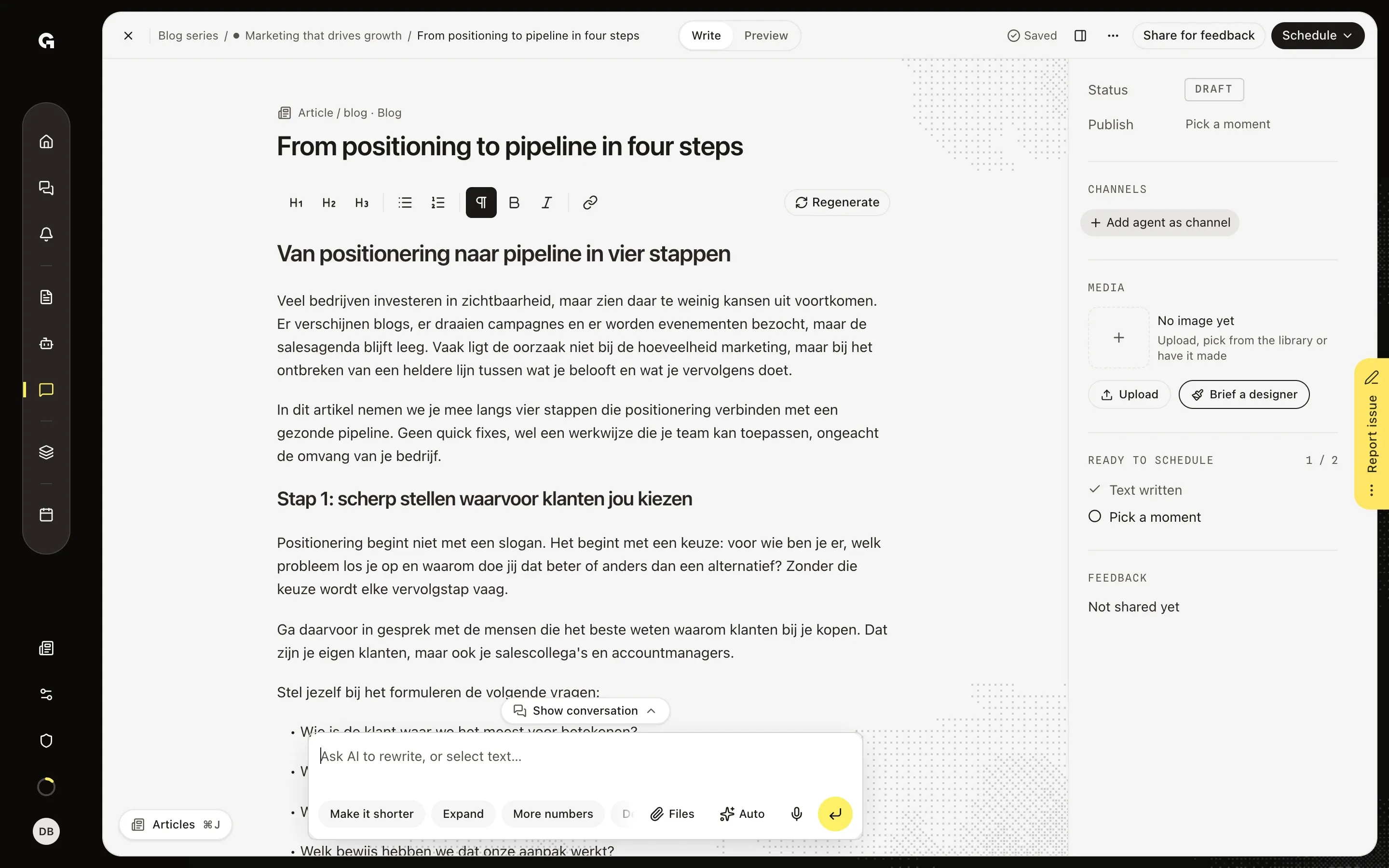
Pick an agent
The list shows every other agent that takes this type of content, under a heading such as Takes blog articles, each with its tagline. Click the agent you want, here KB Capture Agent. An agent with an empty required setting is greyed out with Fill in its settings first to use it as a channel. When no agent takes the type yet, the list says so, for example No agent takes blog articles yet. Tick Blog article under an agent's content types. Go to agents takes you to the agents to do that.
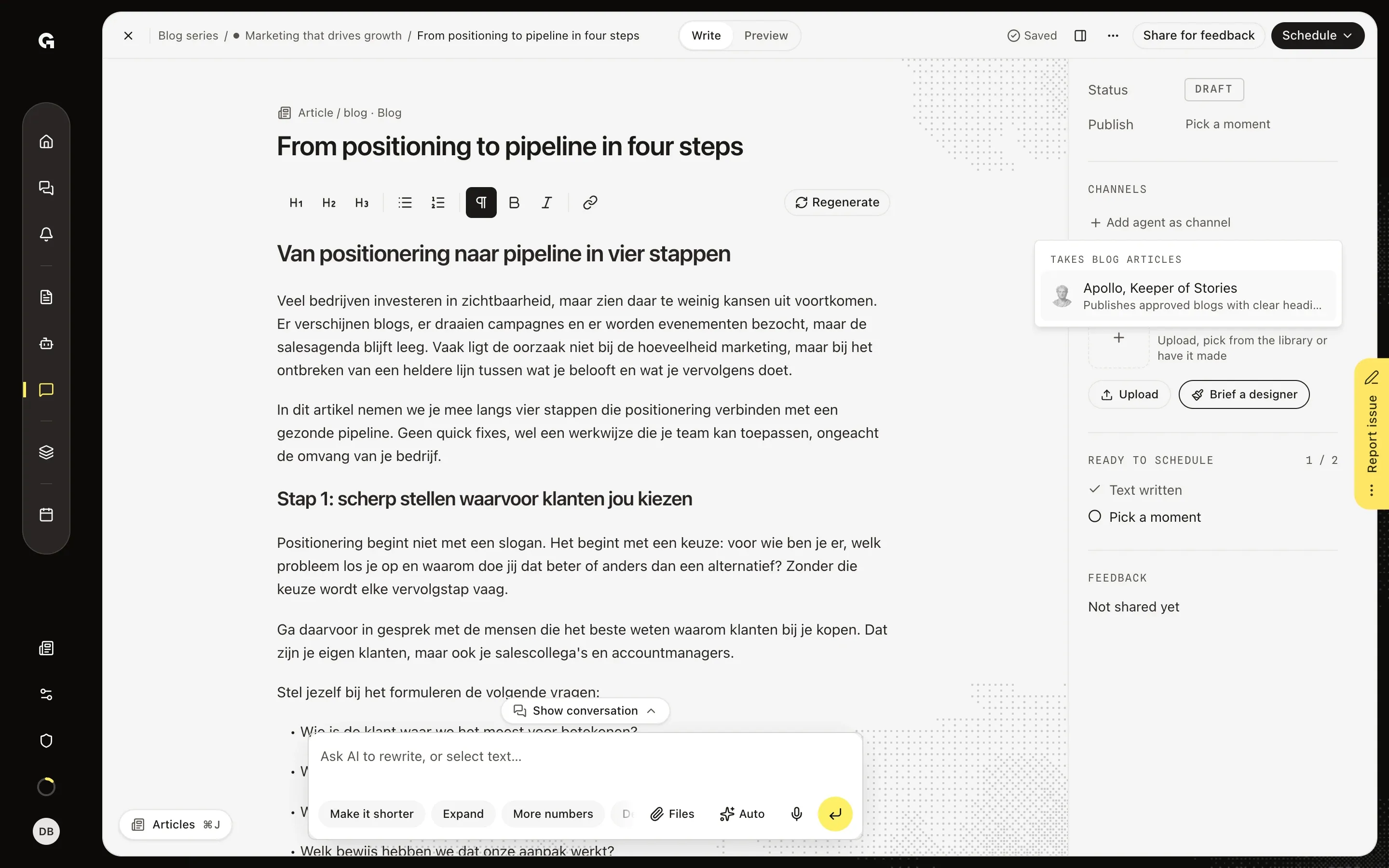
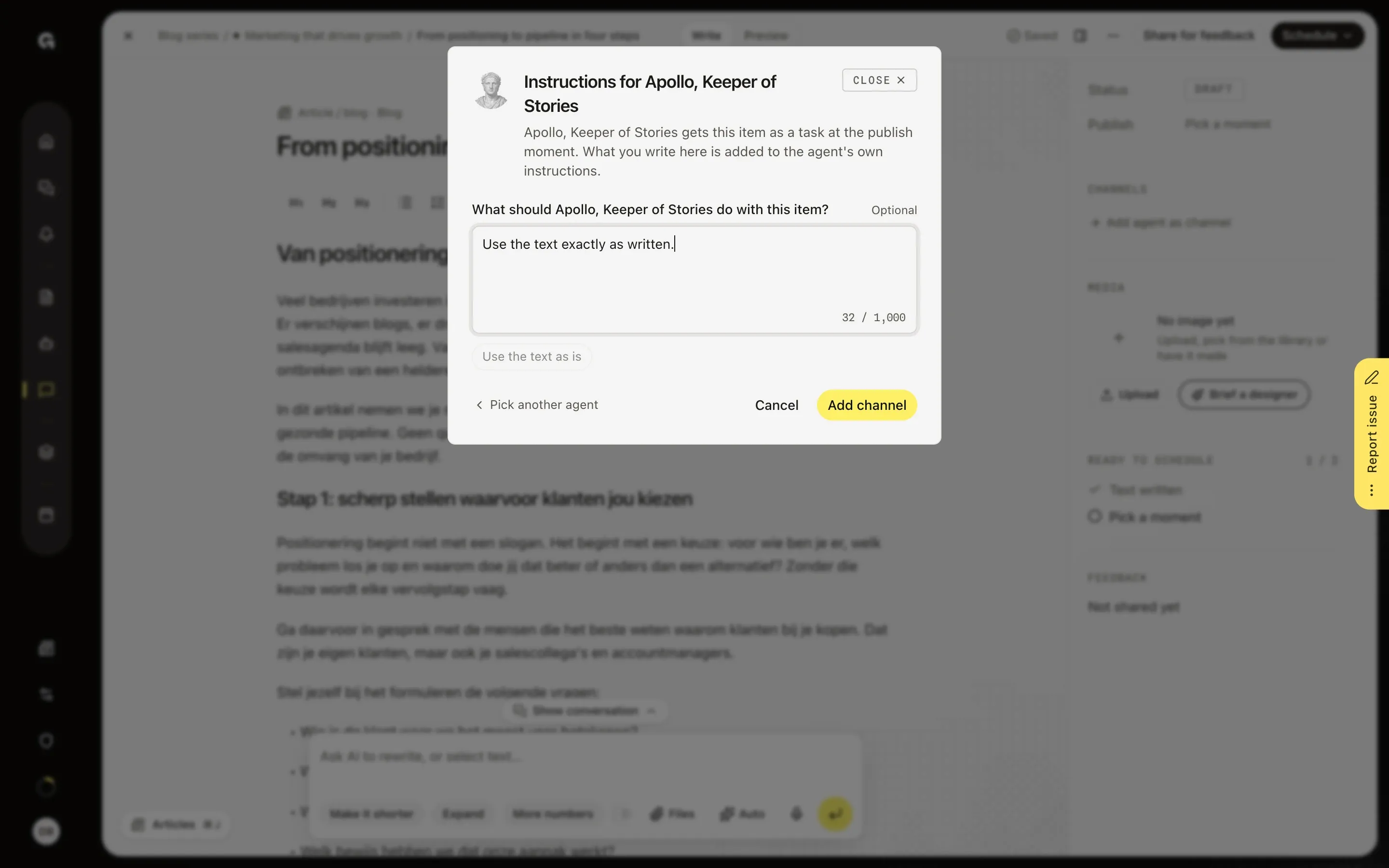
Tell the agent what to do
Instructions for KB Capture Agent asks What should KB Capture Agent do with this item? The field is optional: the agent gets the item as a task at the publish moment, and what you type here comes on top of its own instructions. Type up to 1,000 characters, or click a suggestion such as Use the text as is; a social post also offers Post as a thread and Link in first comment. Click Add channel, or Pick another agent to go back to the list. The row of the agent then reads Goes out through the agent, or Goes out through the agent, with instructions when you wrote any, and Ready to schedule shows KB Capture Agent is ready.
FAQ
Why can't I pick an agent?+
An agent is only offered when Content types under Gets work from includes the type of the item, such as Blog article for an article. **Let an agent work on its own** explains how; you need permission to update agents for that. Without such an agent the list reads, for example, No agent takes social posts yet. Tick Social post under an agent's content types. Go to agents only shows when you may see agents. An agent greyed out with Fill in its settings first to use it as a channel has an empty required setting on Input and output. Add agent as channel is not there on a published item, while feedback locks the item, or once an agent has picked it up.
What does Switched off or not taking this type mean?+
The agent no longer takes this kind of content: its content type was switched off, a required setting is empty, or the agent was removed. Ready to schedule then shows, for example, KB Capture Agent does not take this content right now, and the item cannot be scheduled until you fix it. Fix the settings of the agent, or switch its row off. When it is still like this at the publish moment, the Publication section says KB Capture Agent no longer takes this content. Check its settings, or switch this channel off. Growf does not try again by itself then.
How do I see what the agent does?+
At the publish moment Growf first posts on the accounts of a social post, then hands the item to the agent. Status reads With KB Capture Agent, the text is locked, and the Publication section shows KB Capture Agent is working on it, or the step it is on. When the agent is done, its row shows when the item went live, with View post when the agent reported a link. Members who may see agents click View run to open the run on the page of the agent; the run uses AI credits. When it fails, the row reads Failed and explains why. When the problem can pass, Growf tries again by itself 10 minutes after the first failure and 30 minutes after the second, shown as Failed · next attempt at and a time. You can also click Retry now at any time; you need permission to edit content and the calendar for it. When a connection the agent works with stopped working, a button such as Reconnect Asana takes you to Integrations.
Can I change the instructions or take the agent off?+
Yes, while the channel waits for the publish moment. The speech bubble next to the agent, Edit instructions for KB Capture Agent, opens the instructions again; change them and click Save. Switch the row off to take the agent off the item; a failed agent can be switched off as well. A scheduled item keeps at least one channel: when the agent is its only one, you see The planned post would have nothing left to go out on, so the agent stays on. Switch on another channel or unschedule the post first. Once the agent has picked the item up, its channel stays.