Switch workspace
Open another workspace from the Workspaces list or the breadcrumb picker.
A workspace is one company in Growf: your agency or a client. After you sign in, Growf opens Workspaces so you can pick which company to work in. Opening a workspace sets it as your active workspace and takes you to its Home.
3 steps · About 3 minutes
Open the Workspaces list
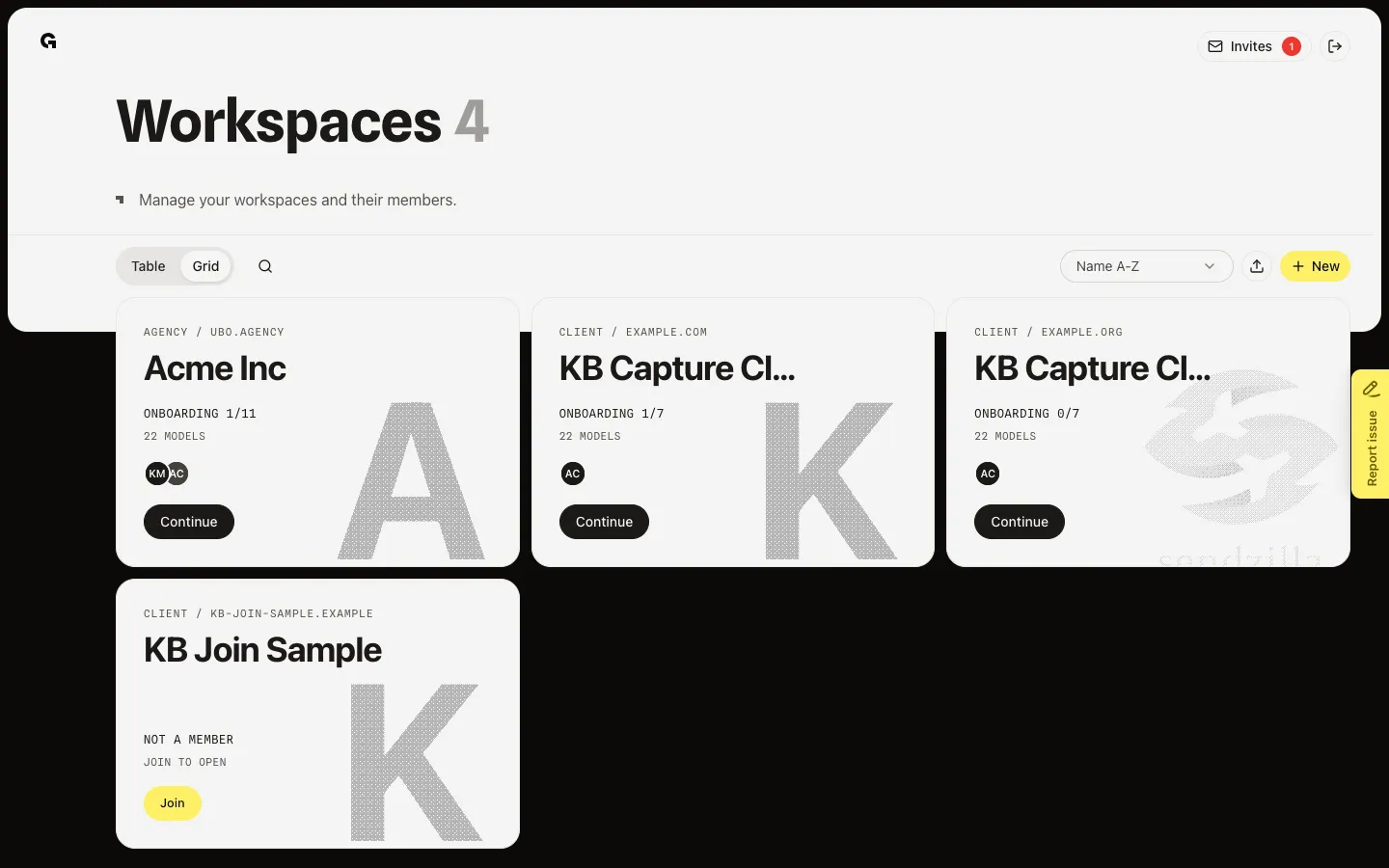
After you sign in, Growf opens Workspaces. Each card is a company you can work in: your agency or a client. Use Grid or Table, search by name or website, and sort by name or date. Favorites stay near the top.
Open a workspace
On a workspace you belong to, choose Open (or click the card). Growf sets that workspace as your active workspace and opens its Home. If setup is not finished, the card may show Continue instead and take you into onboarding. If you are not a member, choose Join first.
Switch from the breadcrumb
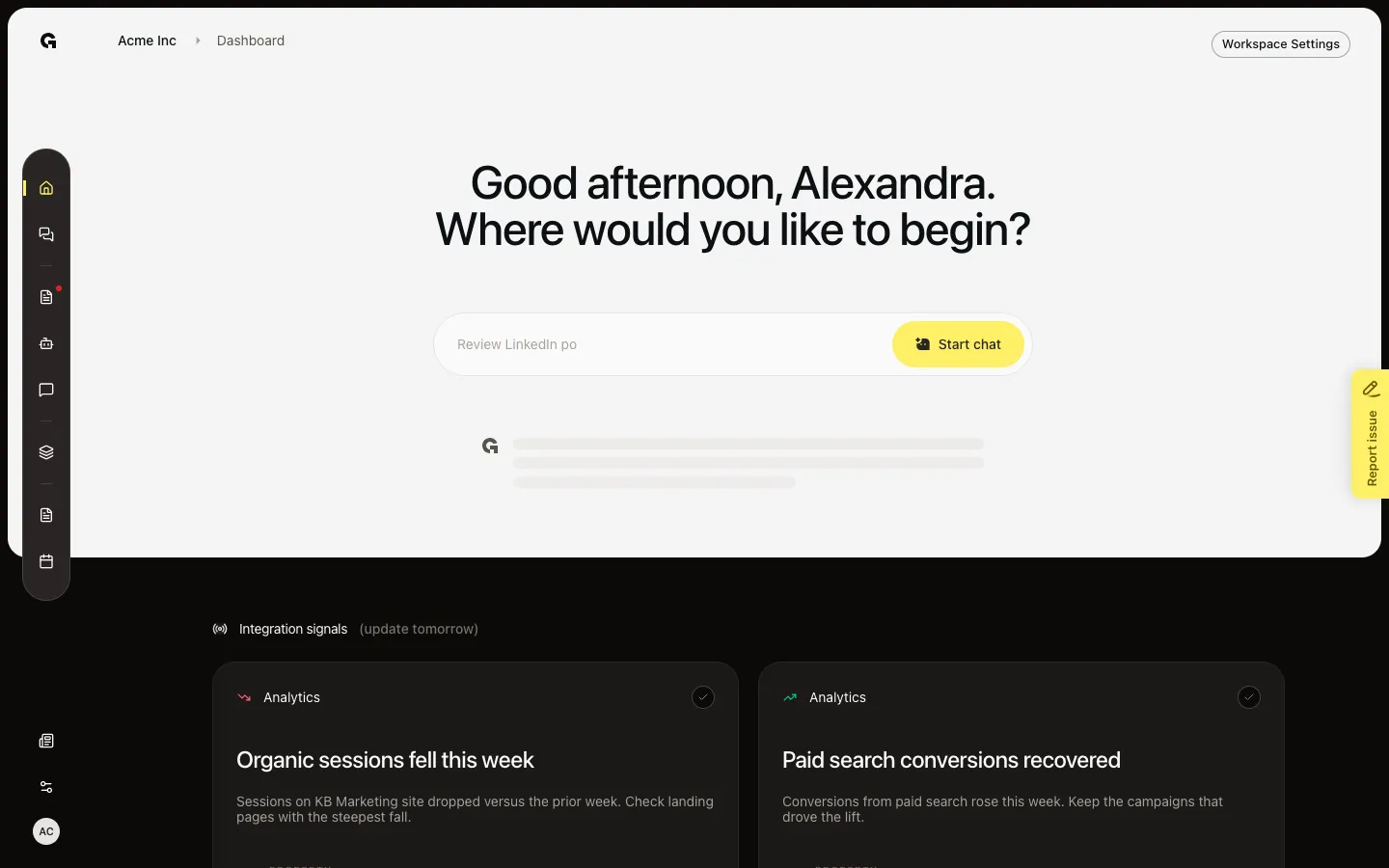
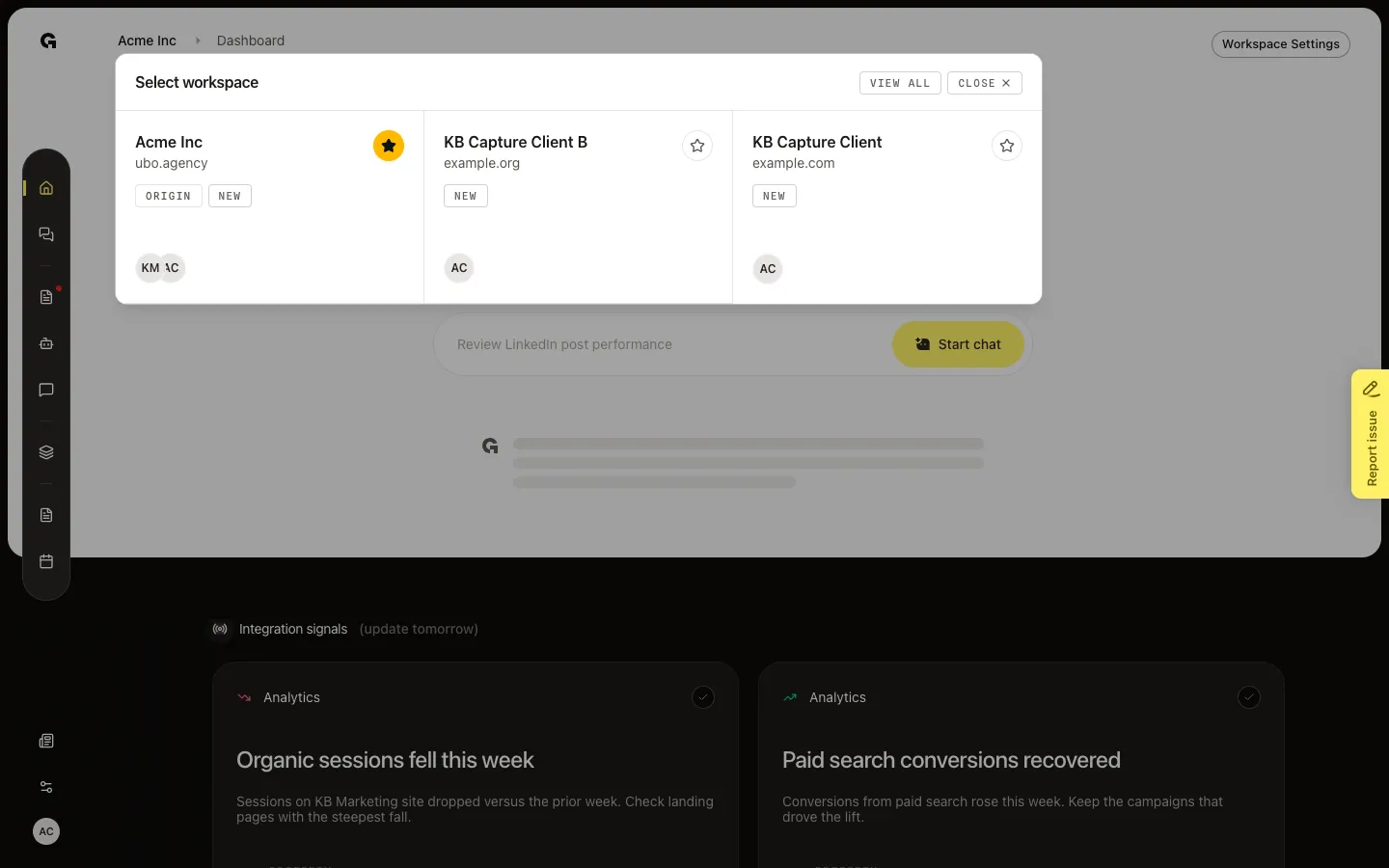
Inside a workspace, click the workspace name in the breadcrumb. Select workspace lists every workspace you own or belong to. Favorites appear first. Pick another workspace to open its Home, or choose View all to return to the full Workspaces list.
FAQ
I do not see a workspace I expect.+
You only see workspaces you own, you belong to as an active member, or you manage as an agency admin. Ask an admin to invite you again if your access was removed.
How do I get back to the Workspaces list?+
Click the workspace name in the breadcrumb, then choose View all. After you sign in, Growf also opens Workspaces first.
I see Join instead of Open.+
That workspace is one you manage but do not belong to yet. Choose Join to become an admin, then Open. The breadcrumb picker only lists workspaces you already belong to.
The card says Continue, not Open.+
That workspace has not finished setup. Continue opens onboarding. Open (or click the card) still sets the workspace as active and takes you to Home when setup is done.