Manage custom agency roles
Turn on custom roles for the agency, then add or edit permissions that apply to every linked workspace.
Custom roles replace Admin, Strategist, Creator, and Client with a catalog you edit. Only the agency owner can turn this on. The change applies to the agency and every linked client as soon as you save.
2 steps · About 2 minutes
Open Roles
Scroll Team to Roles. By default Growf shows Admin, Strategist, Creator, and Client. Those platform roles apply until the agency owner turns custom roles on. Agency admins who are not the owner can read the cards but cannot activate or edit.
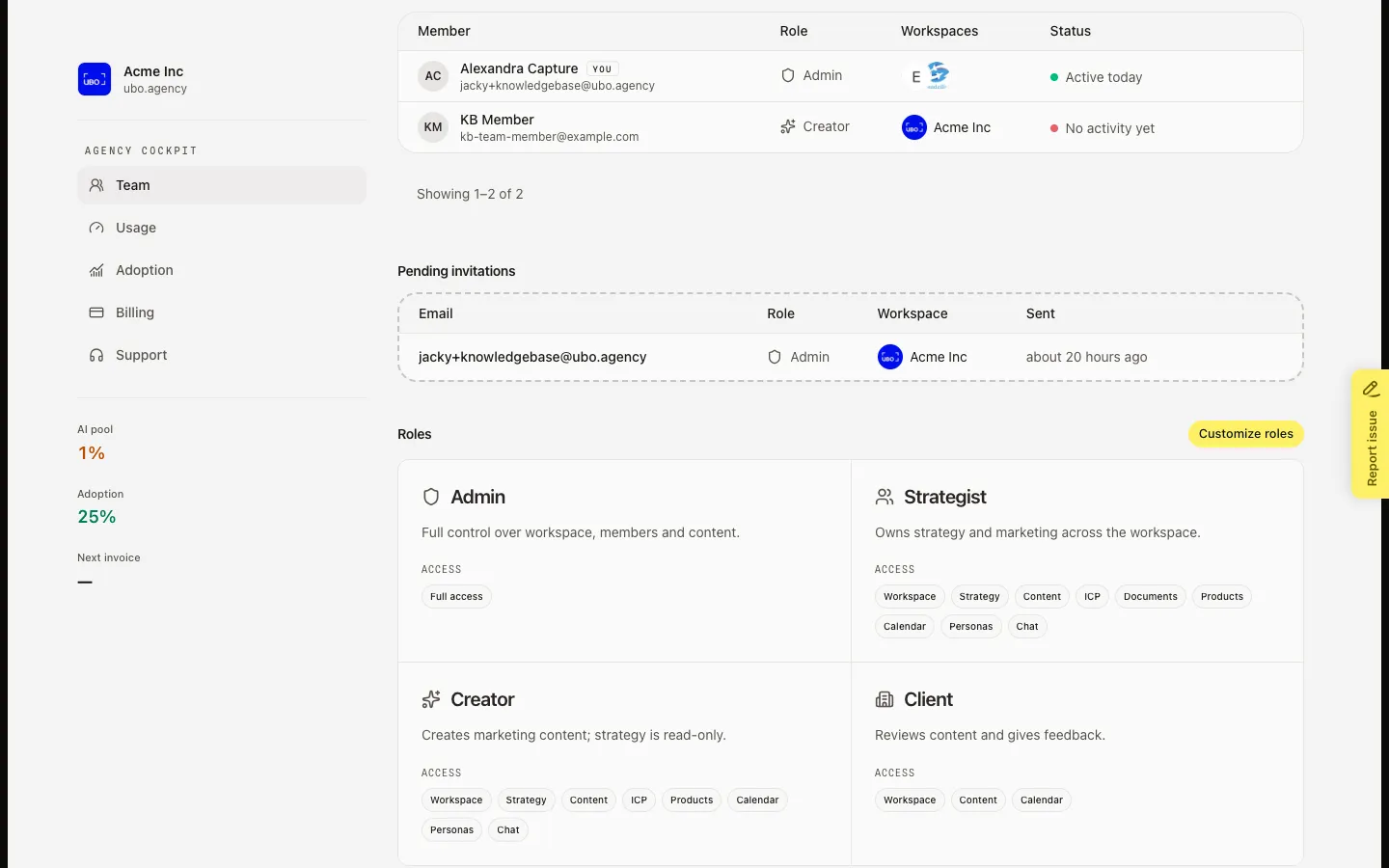
Read Activate custom roles
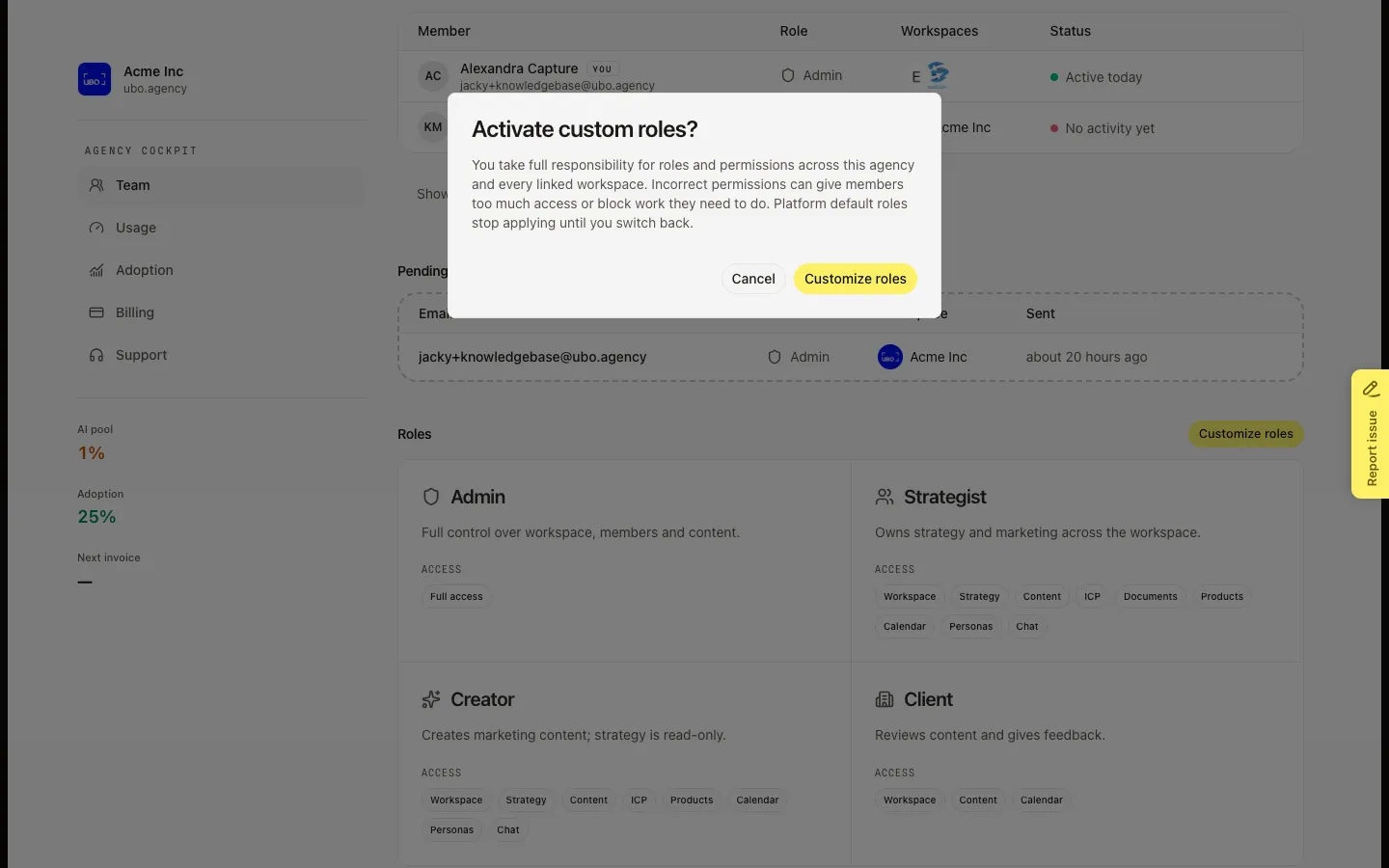
Choose Customize roles. Activate custom roles? warns that you own every permission on the agency and every linked workspace. Platform defaults stop applying until you switch back. Incorrect boxes can lock people out or grant too much access. Cancel leaves platform roles in place. Confirm only when you are ready to edit the catalog.
FAQ
I do not see Customize roles.+
Only the agency owner can turn custom roles on or off. If you already activated them, the buttons are Add role and Use platform roles. If a saved catalog exists but is off, the button is Reactivate custom roles.
Can I go back to Admin, Strategist, Creator, and Client?+
Yes. Use platform roles. Growf keeps your custom catalog so you can reactivate it later. You must first remove or reassign every custom role on members and pending invites, or Growf blocks the switch.
Why can I not delete a role?+
A role that is still on a member or a pending invite cannot be deleted. Move those people first, then delete.
When should I stay on platform roles?+
Stay on the defaults unless you need a role the four cards do not cover. Custom roles apply at once to every linked workspace. Test on one unused role before you change Admin.