Configure content AI settings
Set the default AI provider, words to avoid, and extra instructions for every content generation in this workspace.
Content settings control how Growf writes marketing drafts in this workspace. Admins and anyone with content settings permission can change them. The assistant on each piece uses this default provider, plus blocked words and extra instructions.
3 steps · About 3 minutes
Open Settings → Content
Open Settings, then Content. The page is AI settings for this workspace: the default provider, blocked words, and custom instructions. These apply to the content assistant and generation, not to your personal chat defaults.
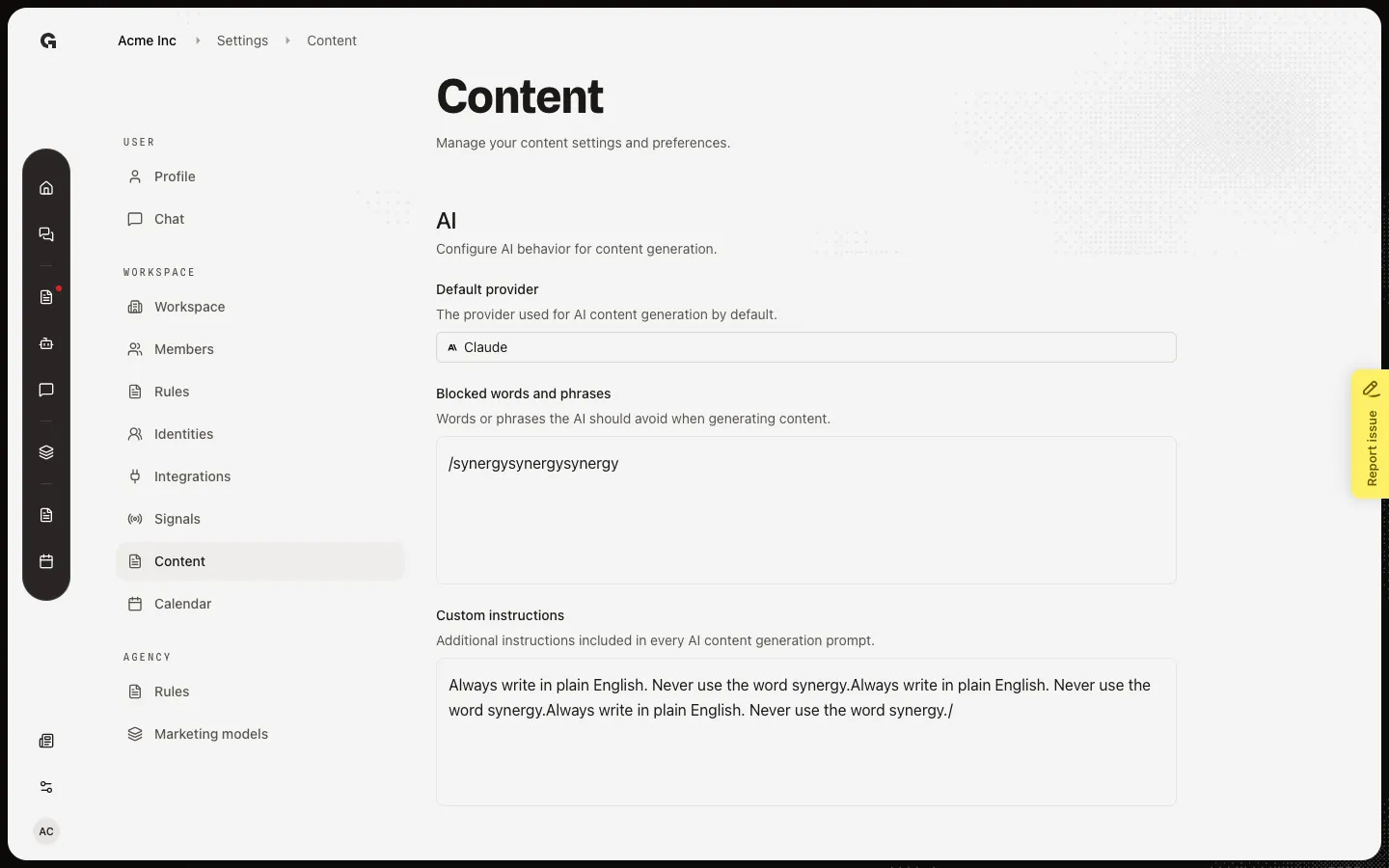
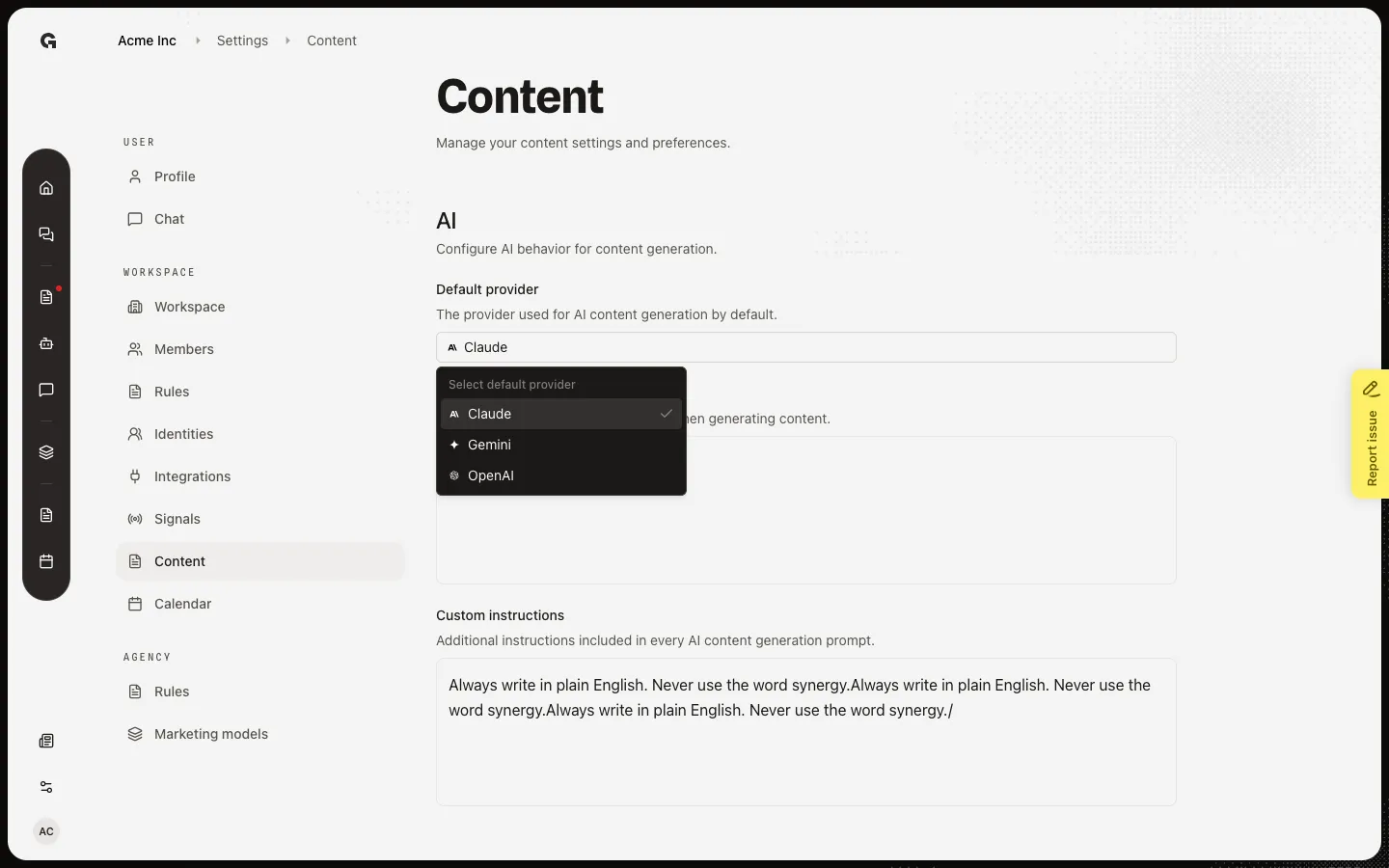
Choose the default provider
Default provider is the model Growf uses for content generation unless the assistant picker overrides it. Open Select default provider and pick one. The choice saves at once.
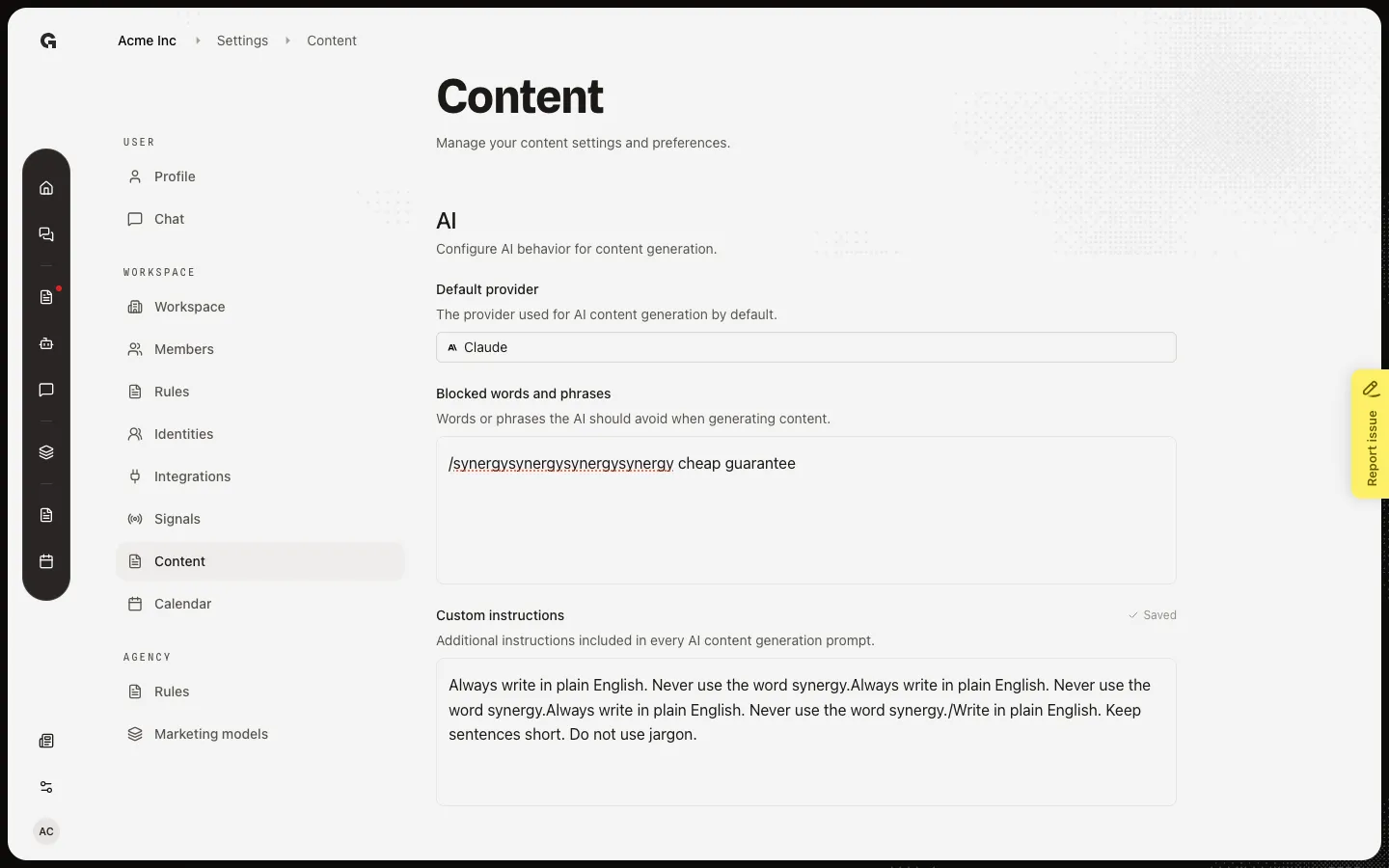
Add blocked words or instructions
Blocked words and phrases are terms the AI should not use. Custom instructions are extra rules added to every content prompt. Both save a moment after you stop typing. Use this for brand terms, legal words, or a house style. Type the words to avoid, then add a standing instruction.
FAQ
I cannot open Content in Settings.+
You need permission to create content. Ask an admin.
Does this change Chat on Home?+
No. These fields are for content generation. Personal chat model and knowledge defaults live under Settings → Chat.
When do blocked words take effect?+
On the next assistant or generation run. Open drafts keep their current text until you ask the assistant again or Apply a new version.