Edit an integration connection
Rename a connection, choose who can use it in chat, and set toolkit options such as a property or page.
After you connect a toolkit, Edit integration is where you finish setup and keep the account usable. The same people who can connect integrations can edit them.
3 steps · About 3 minutes
Open Connected integrations
Open Settings → Integrations. The table lists each connection, its status, visibility, and who created it. Capture includes KB HubSpot, KB Analytics, and KB Fireflies. Status Active means Growf can use the account. Inactive, Expired, or Failed means you should Reconnect before you edit options. Visibility is Visible to whole workspace or Visible only to you.
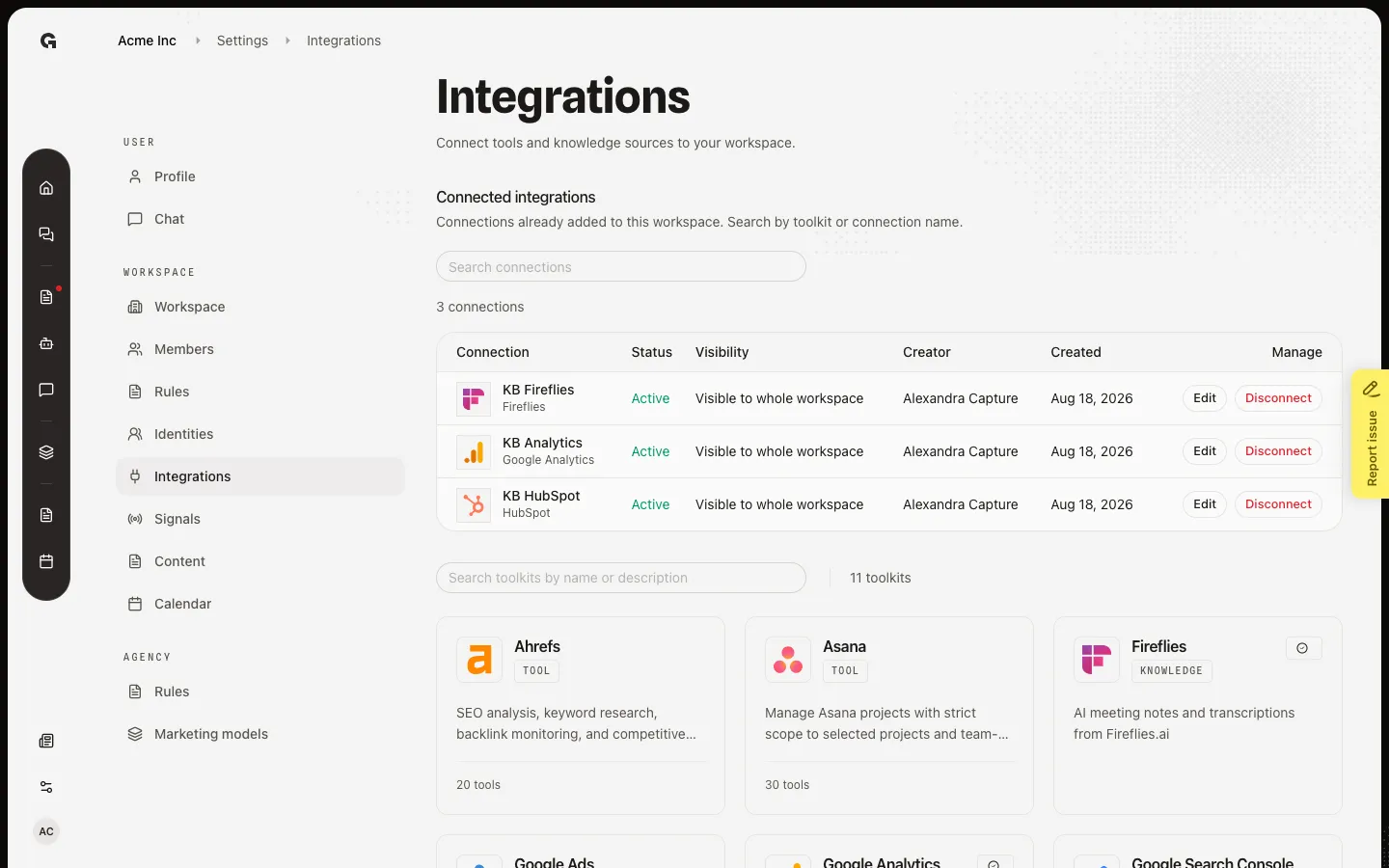
Open Edit for KB HubSpot
On the KB HubSpot row, choose Edit. Edit integration is where you change the label and, for chat toolkits, who can use the connection. Only me keeps it private to you. Whole workspace lets everyone in the workspace use it in chat. Knowledge-only connections such as Fireflies hide that choice and stay workspace-wide.
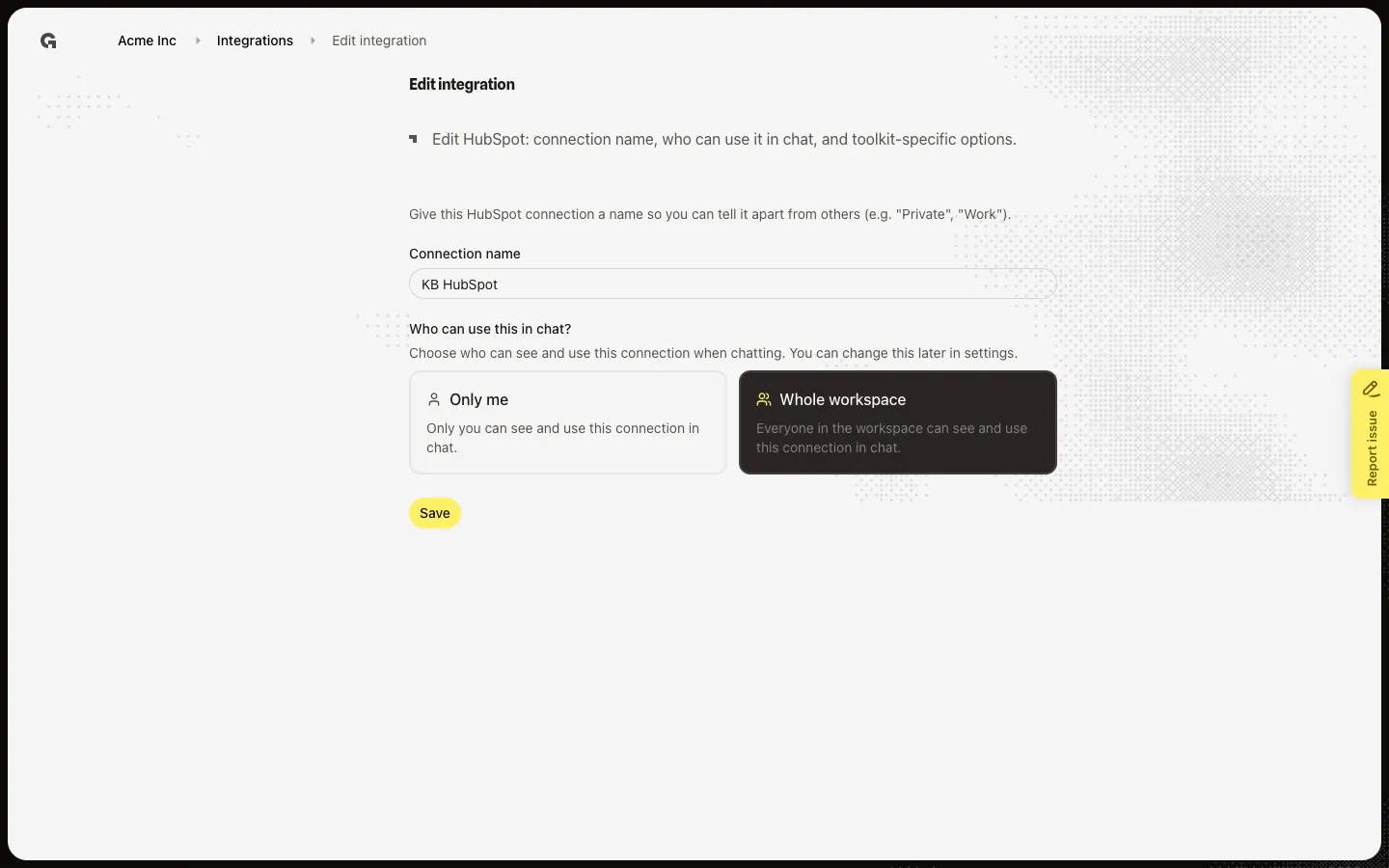
Change the connection name
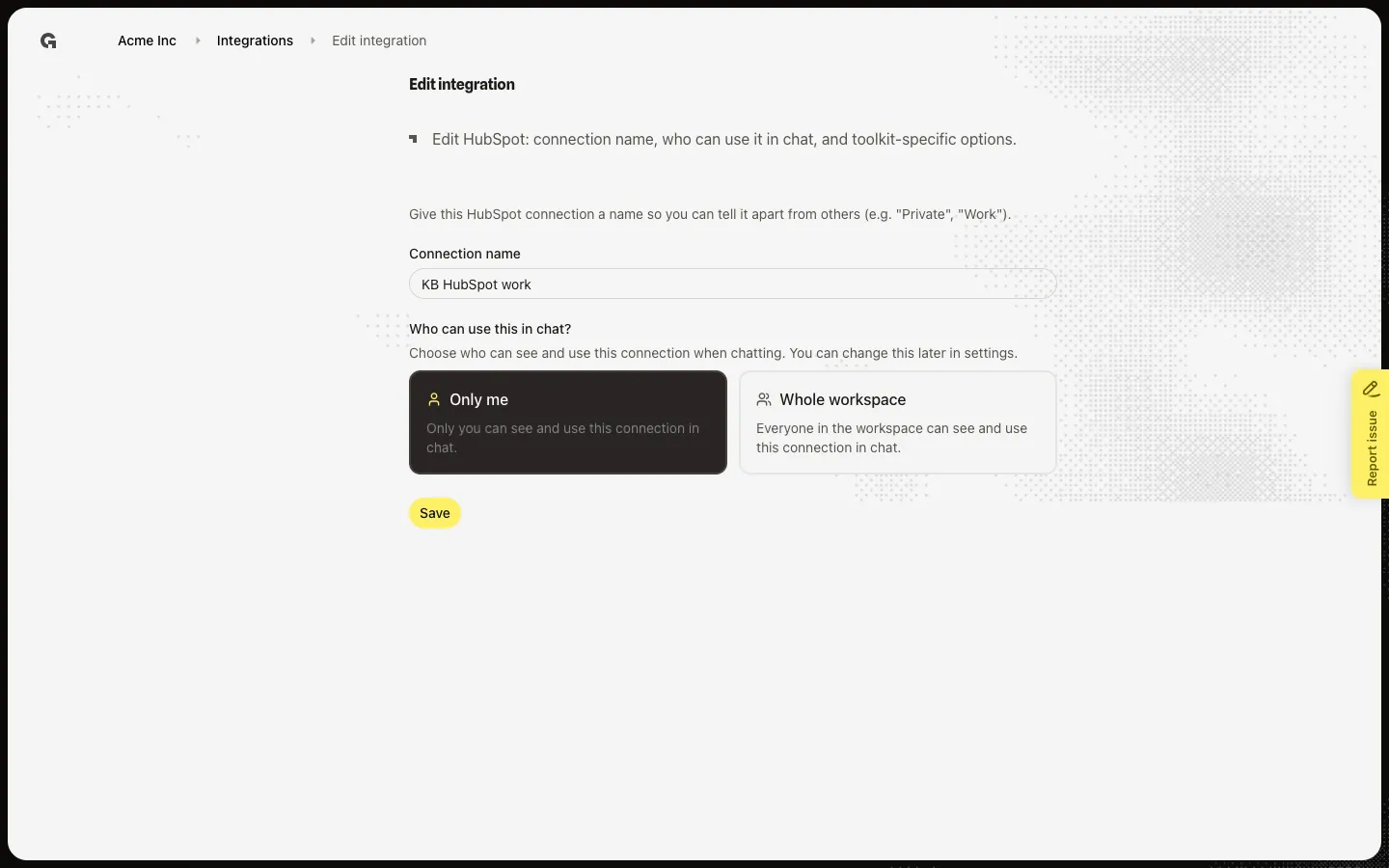
Type a label you will recognise later, such as a brand or client name. Choose Only me or Whole workspace for chat. Save writes the name and visibility, then returns you to Integrations. Some toolkits add extra fields on this same page: a Google Analytics or Search Console property, an Ads customer, an Ahrefs project, an Asana team or project, a Facebook page, or a LinkedIn profile or company page. Refresh data reloads those lists from the provider.
FAQ
I see Reconnect instead of Edit.+
The provider connection is no longer Active (expired, failed, or removed). Reconnect opens the provider again. After it succeeds, Edit comes back so you can set the name, visibility, and toolkit options.
Should I pick Only me or Whole workspace?+
Pick Only me if the account is personal or contains data others should not use in chat. Pick Whole workspace if the team should share the same HubSpot, Analytics, or Asana account. You can change this later. Fireflies and other knowledge sources do not show this control.
Why does Google Analytics ask for a property, but HubSpot only asks for a name?+
Each toolkit has its own complete step. Analytics, Search Console, Ads, Ahrefs, Asana, Facebook, LinkedIn, Meta Ads, and Teams need a property, page, customer, project, or channel. HubSpot and most other tools only need a name and chat visibility.