Sign up for Growf
Create a Growf account and start agency setup.
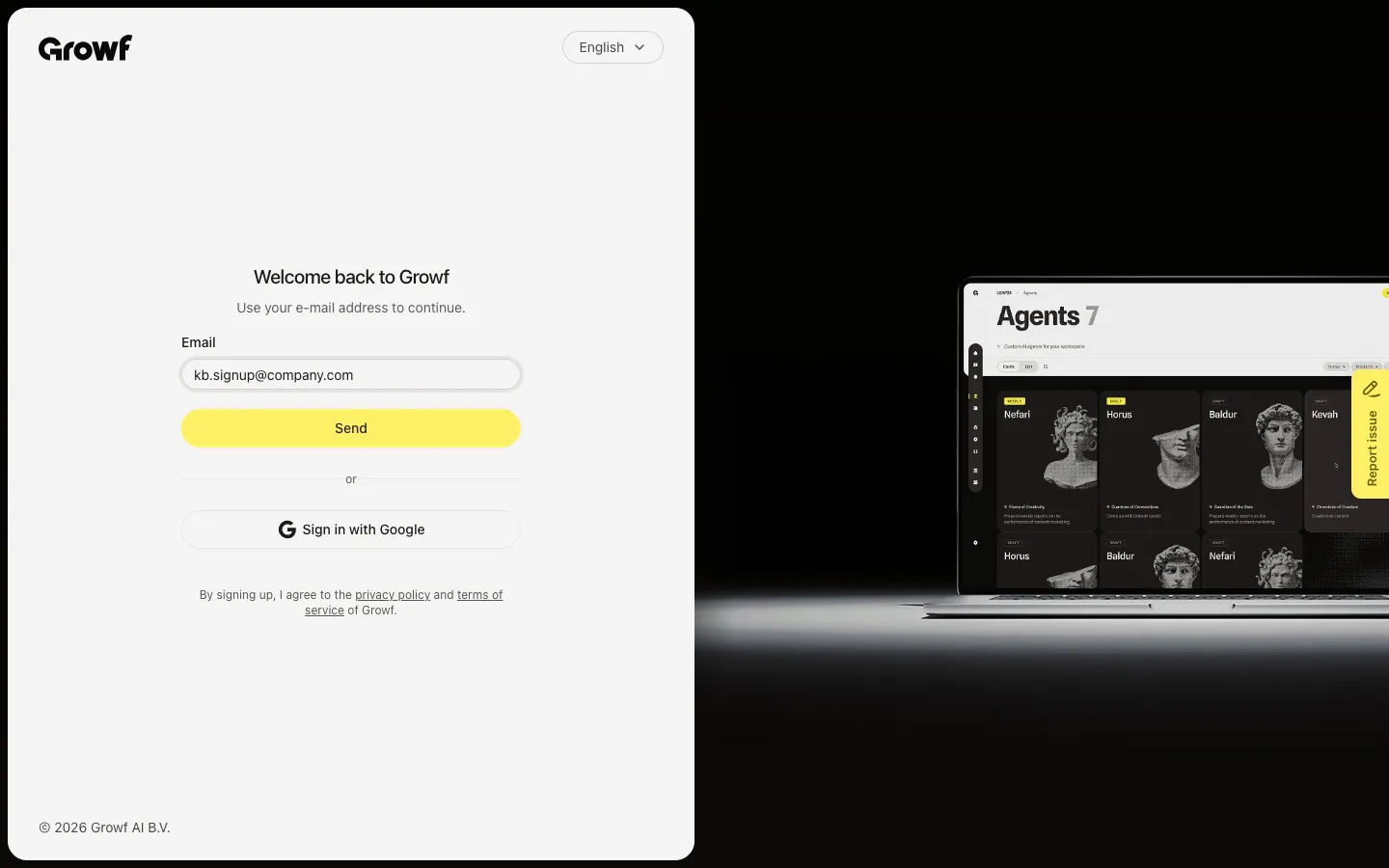
Sign up is for people who do not have a Growf account or workspace yet. You enter an email on Welcome back to Growf, confirm a 6-digit code, add your name, then tell Growf about your agency.
4 steps · About 3 minutes
Enter your email and send a code
On Welcome back to Growf, type your Email, then choose Send. Growf emails you a 6-digit code. Sign in with Google is on the same page when it is enabled. After the code, a new account opens Welcome to Growf, not Workspaces.
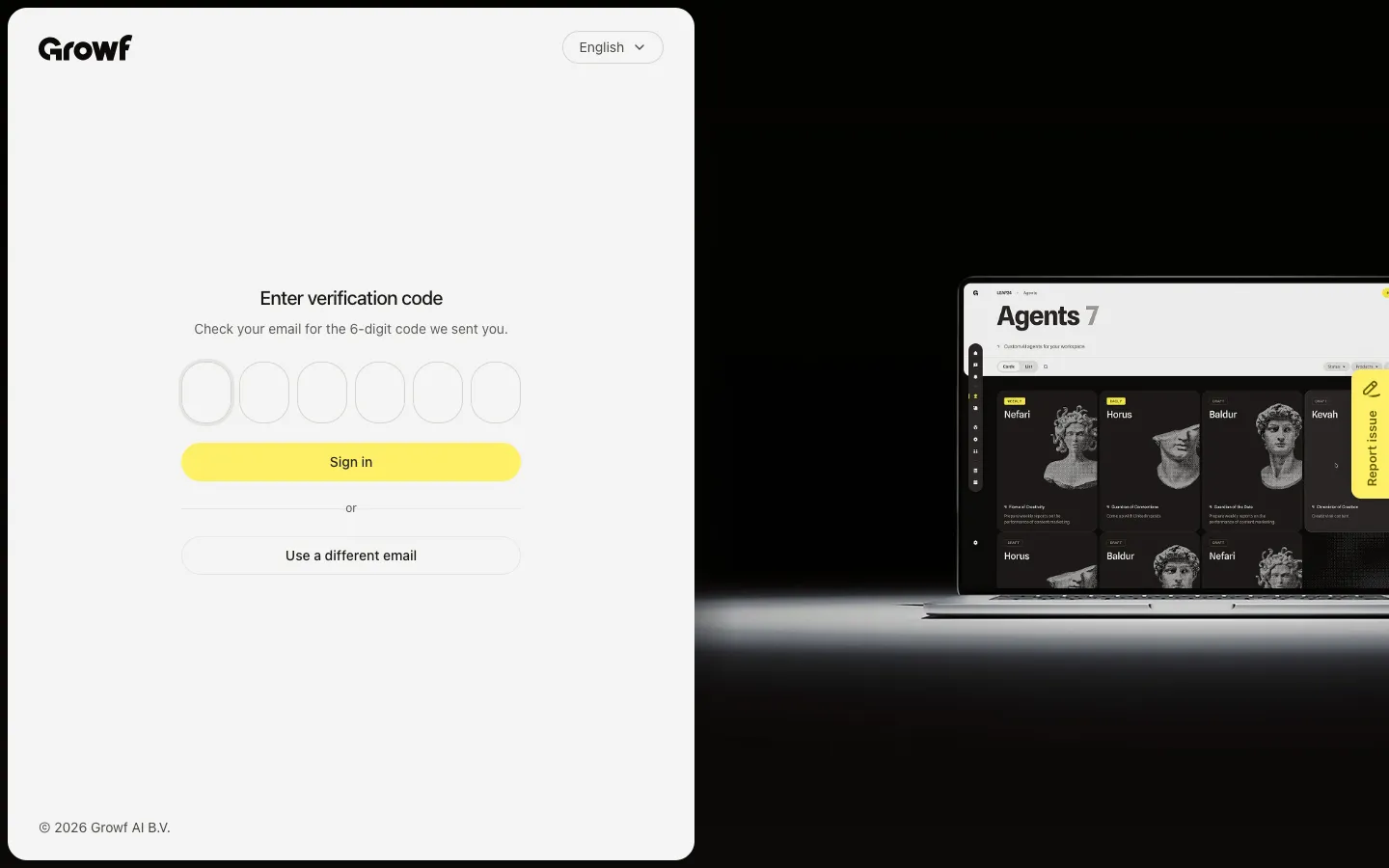
Enter the verification code
Open the email, type the 6-digit code on Enter verification code, then choose Sign in. Growf creates your account and opens Welcome to Growf. Use a different email if you typed the wrong address.
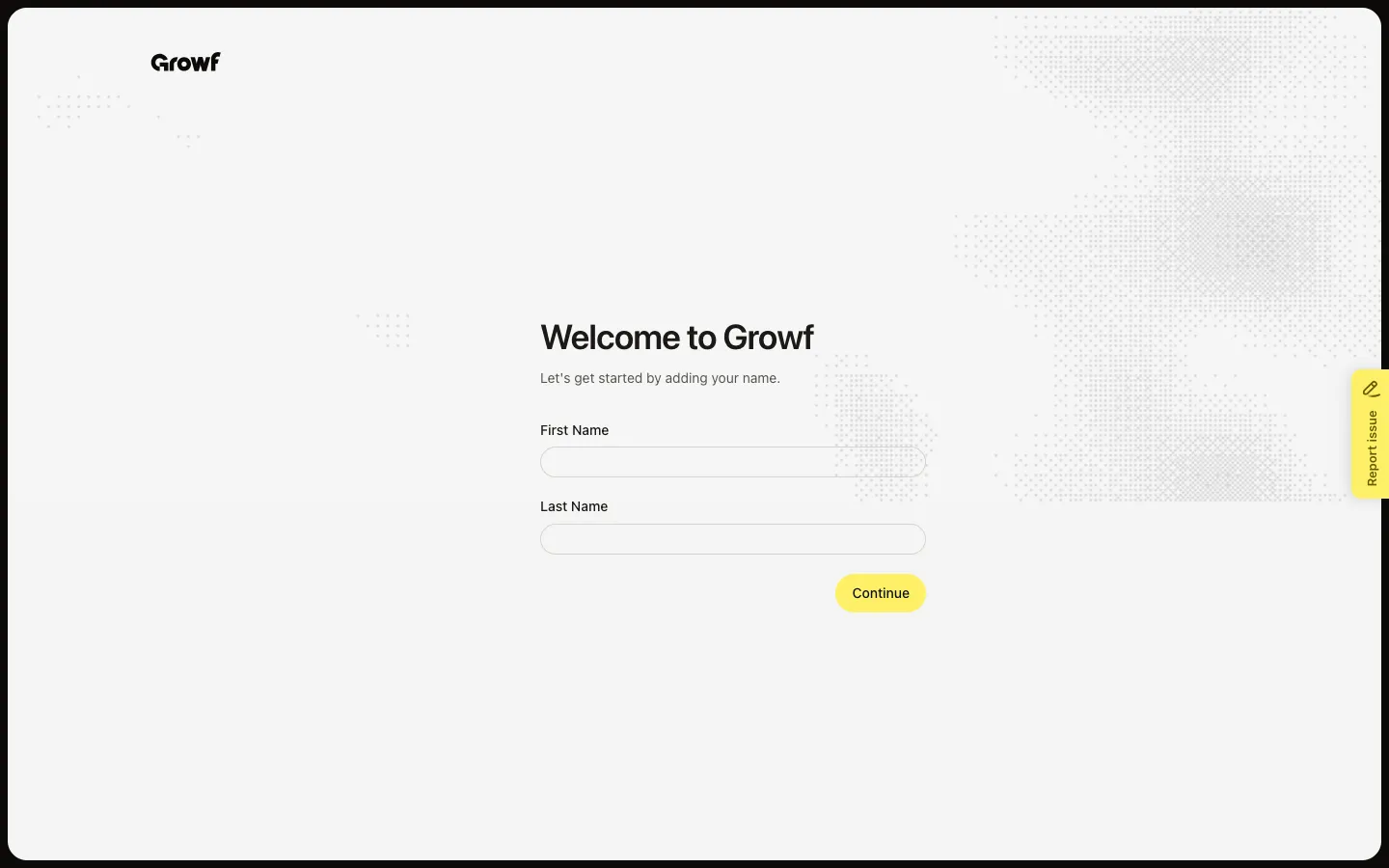
Add your name
After Sign in, Growf opens Welcome to Growf. Read Let's get started by adding your name. Fill First Name and Last Name, then choose Continue. Existing accounts skip this and open Workspaces.
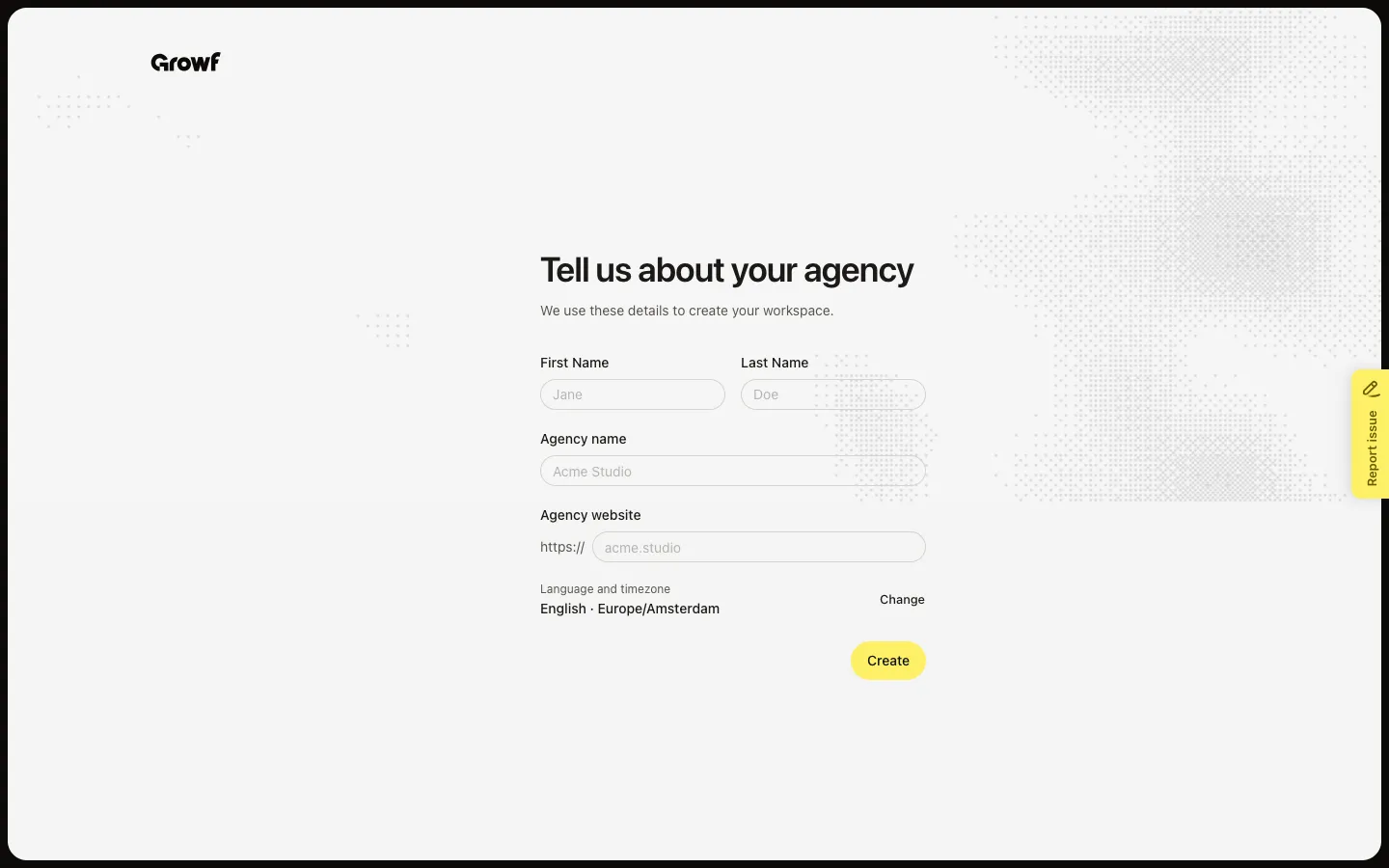
Open agency details
Continue opens Tell us about your agency. Growf uses these details to create your workspace. Fill First Name, Last Name, Agency name, and Agency website. Language and timezone default to English and Europe/Amsterdam — choose Change to edit them. Choose Create to start agency onboarding on the upload step.
FAQ
How is this different from Sign in with email?+
The email and code screens look the same. After Sign in, a new account with no workspace opens Welcome to Growf, then Tell us about your agency. An existing account opens Workspaces.
Can I sign up with Google instead of email?+
Yes, when Sign in with Google is shown. After Google confirms, a new account still opens Welcome to Growf. An existing Google account opens Workspaces.
I already have a Growf account. Should I sign up again?+
No. Use Sign in with email or Sign in with Google. Growf will open Workspaces.
What happens after I choose Create on Tell us about your agency?+
Growf creates your agency workspace and opens the upload step. See Complete agency onboarding.