Process feedback on a post
Read the feedback on a post in Content mode, then let the chat work the requested changes into the text, or reply to the comments and handle them yourself.
Feedback on a post lands in the Feedback section of its properties in Content mode: who reviewed it, what they decided and the comments they left on the text. Anyone who can edit content, such as an Admin, Strategist or Creator, can reply to the comments and mark them as handled. Process feedback with AI also needs permission to write in the chat.
3 steps · About 3 minutes
Find posts with feedback to handle
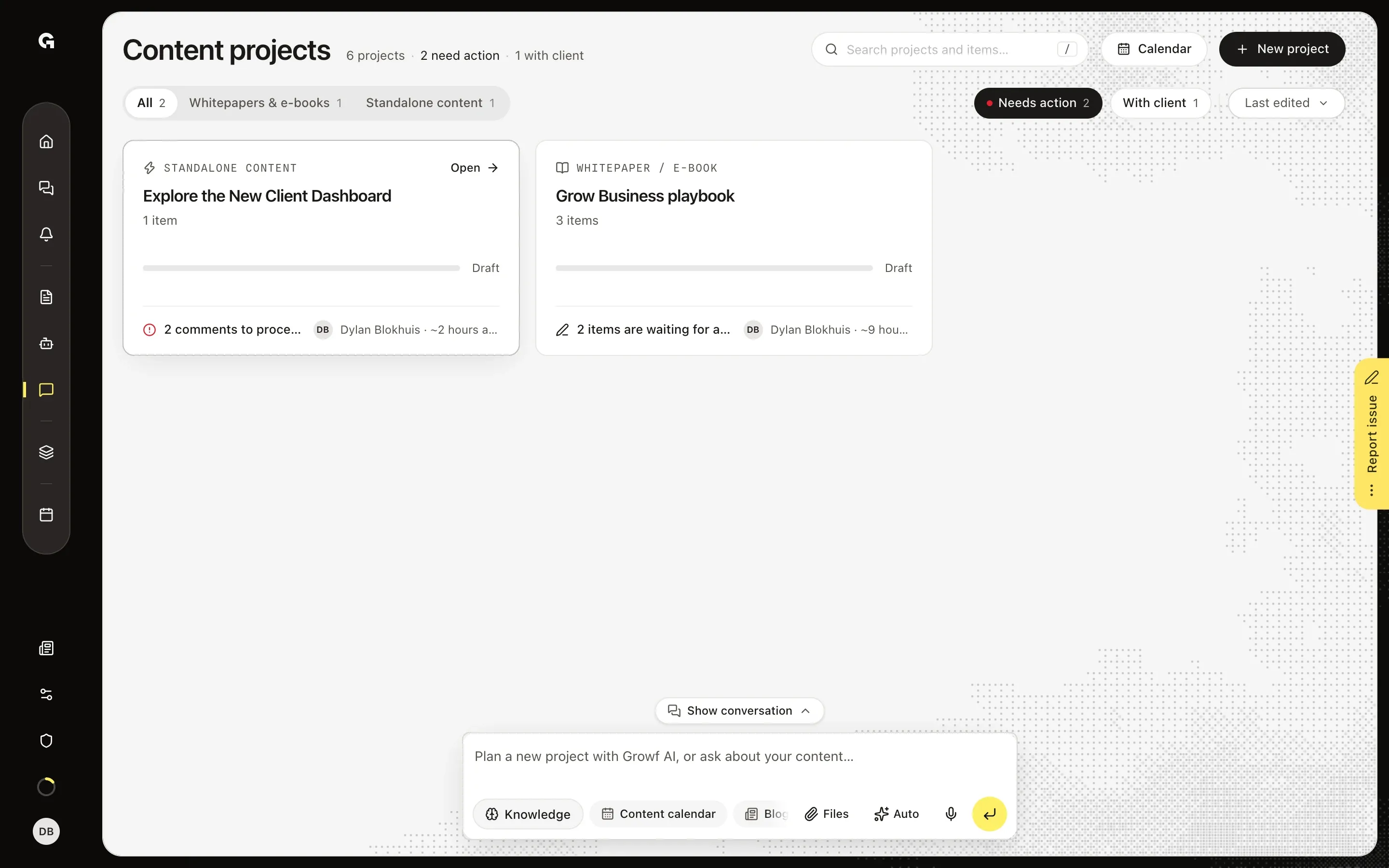
When a reviewer asks for changes, you get a notification and an email with a link to the post. In Content mode, Needs action on the Content projects overview shows the projects that wait for you, and a card with open comments says how many. Click the card to open the project; a Standalone content project with just that post opens the post straight away.
Read the feedback on the post
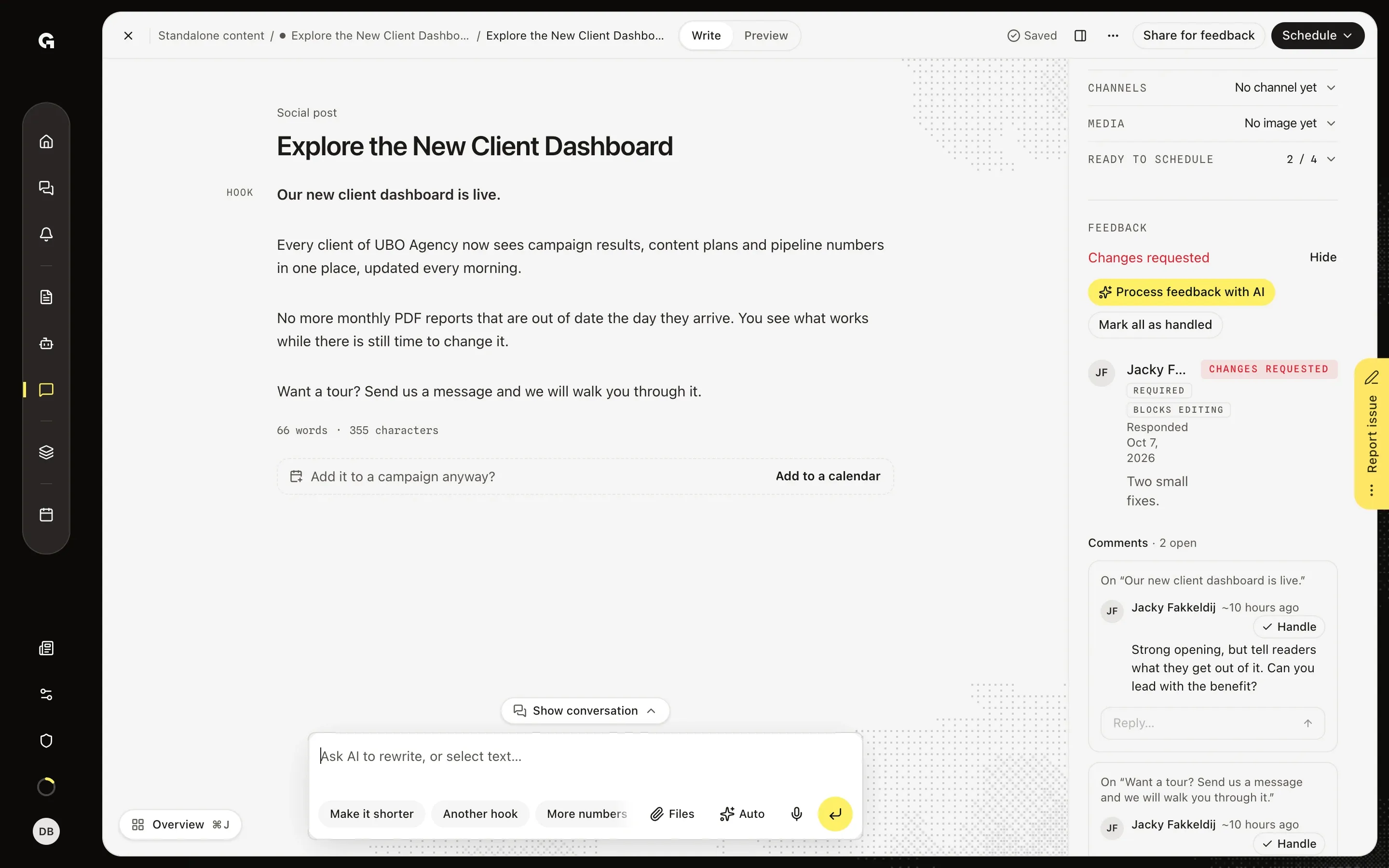
Open the post. While feedback waits to be handled, the Feedback section at the bottom of its properties opens by itself and the sections above it, such as Channels and Ready to schedule, fold into one line each; at other times, View opens the details and Hide closes them. The top line says where it stands, here Changes requested, with a row per reviewer under it: when they were asked or responded, their verdict, such as Pending, Approved or Changes requested, and the message they sent with it. Required and Blocks editing show how the review was asked for; the text unlocks once the reviewers have responded. Under Comments, each comment shows the words it is about after On. Reply… under a comment sends an answer, Handle marks that one comment as handled, and Mark all as handled does that for every open comment at once.
Let the chat process the feedback
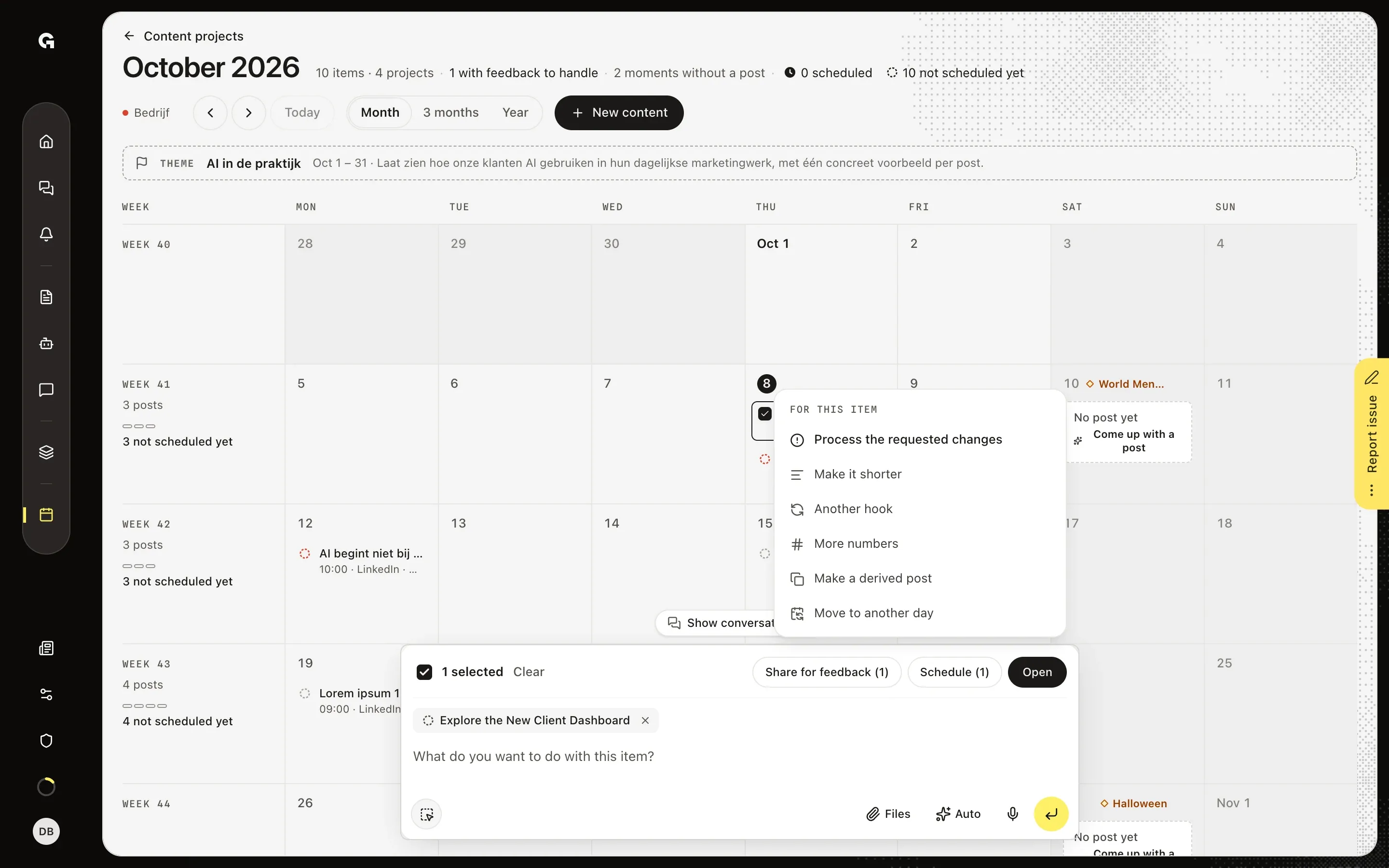
In a calendar, the line under the title counts the posts with feedback to handle. Point at a post and tick its checkbox: the menu For this item opens with Process the requested changes on top. Clicking it asks the chat to work the open feedback into the text of that post. This needs permission to write in the chat, and the request uses AI credits like any chat message.
FAQ
What happens to the comments when I accept or decline the chat's changes?+
On its card, a change the chat made for a comment says Marked as handled when you accept. Accept it, or click Accept all, and the comments it answers are handled. Once you have decided on every change and accepted at least one, every comment the chat worked on is handled. Decline them all and the text and the comments stay as they were; ask the chat again in your own words, or handle the comments yourself. The chat's own card says Revision proposed for the feedback when it proposes changes. When it finds nothing to change, that card says Feedback read, the text stays as it is, and the comments stay open. **Rewrite a post with the chat** explains how to step through the changes.
Why don't I see Process feedback with AI?+
It needs permission to write in the chat, which Admin, Strategist and Creator have by default, and it only shows while comments are open or a reviewer asked for changes. If the details of the Feedback section are closed, click View first. Mark all as handled only shows while there are open comments. Without permission to write in the chat you can still reply to the comments and handle them yourself. In a calendar, For this item only opens when exactly one post is selected and the post is not locked: a post is locked, for example, while a review that locks it is still pending or after it is published. Click elsewhere and the menu stays closed until you change the selection.
Why can't the chat change the text?+
The text is locked. While a review shared with Lock while awaiting feedback, or any client review, has no answer yet, the post says Locked while feedback is pending. It unlocks once the reviewers have responded. A scheduled post unlocks with Unschedule, and a published post stays locked. You can still reply to comments and handle them while the text is locked.
What changes once every comment is handled?+
The top line of Feedback says Handled, and so does the reviewer's row in the details; click View if they are closed. The sections above Feedback unfold again, and Ready to schedule no longer asks you to handle comments. On the Feedback page the request moves to Handled. To have the reviewer look at the new text, share the post for feedback again; see **Share a post for feedback**.
A reviewer has not answered yet. What can I do?+
Click View in the Feedback section. If you asked for the review, their row shows Remind and Withdraw while it is Pending. Remind sends them a reminder, and Growf confirms it with Reminder sent to, followed by their name. Withdraw asks you to confirm and then cancels the request. The reviewer can no longer respond, and if the request locked the post, it unlocks.