Favorite a workspace
Pin workspaces you use often so they stay at the top of the list and the picker.
Favorites pin workspaces you use often to the top of your Workspaces table and the Select workspace picker. The list is yours only. Teammates do not see your stars.
4 steps · About 3 minutes
Open the Workspaces list
Open Workspaces. Favorites are yours alone. They do not change what teammates see. Grid does not show a star. Switch to Table, or open Select workspace from the breadcrumb, to pin a workspace.
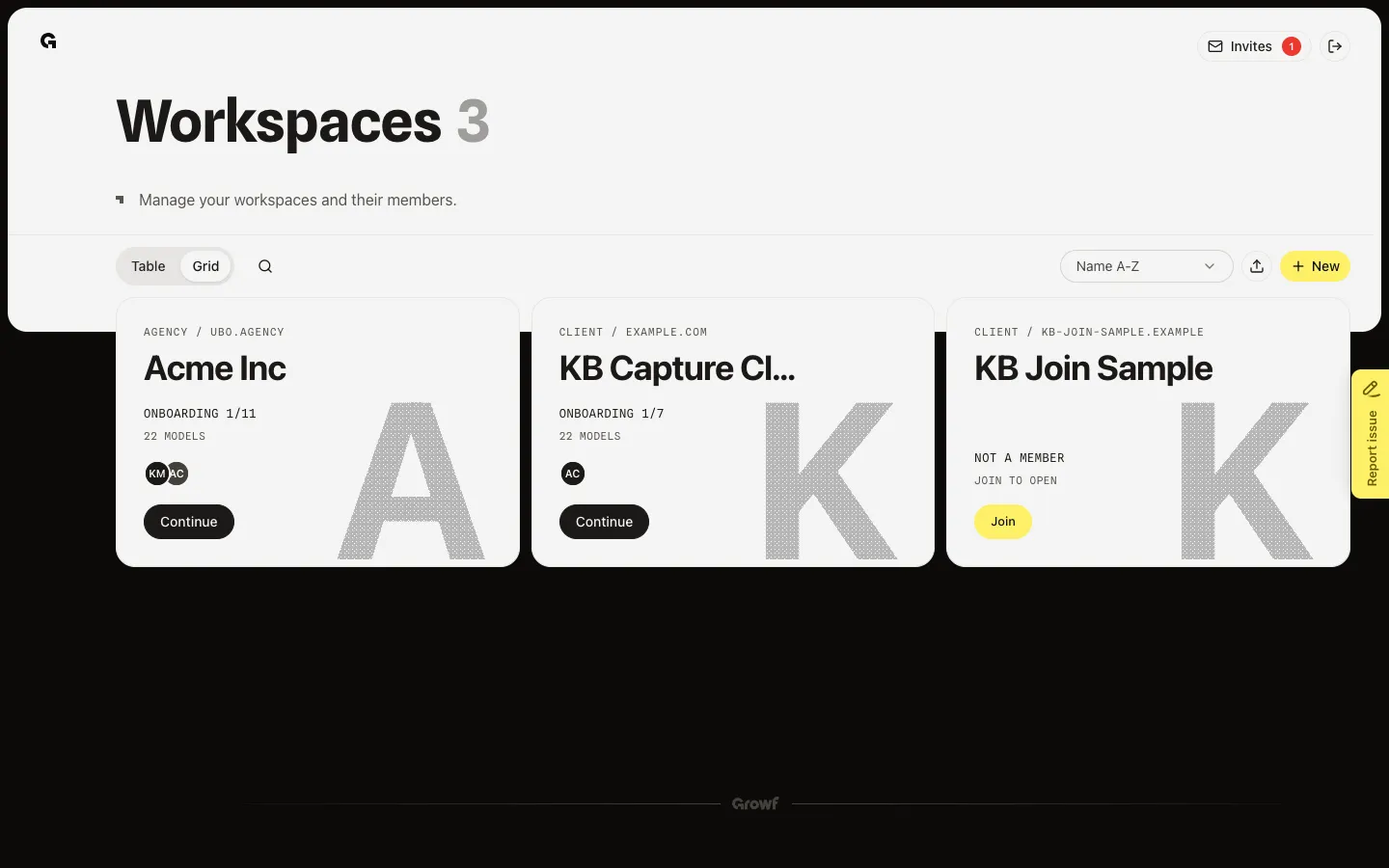
Switch to Table
Choose Table. The first column is a star. Workspaces you belong to sort first, then favorites, then the sort you picked (name or date).
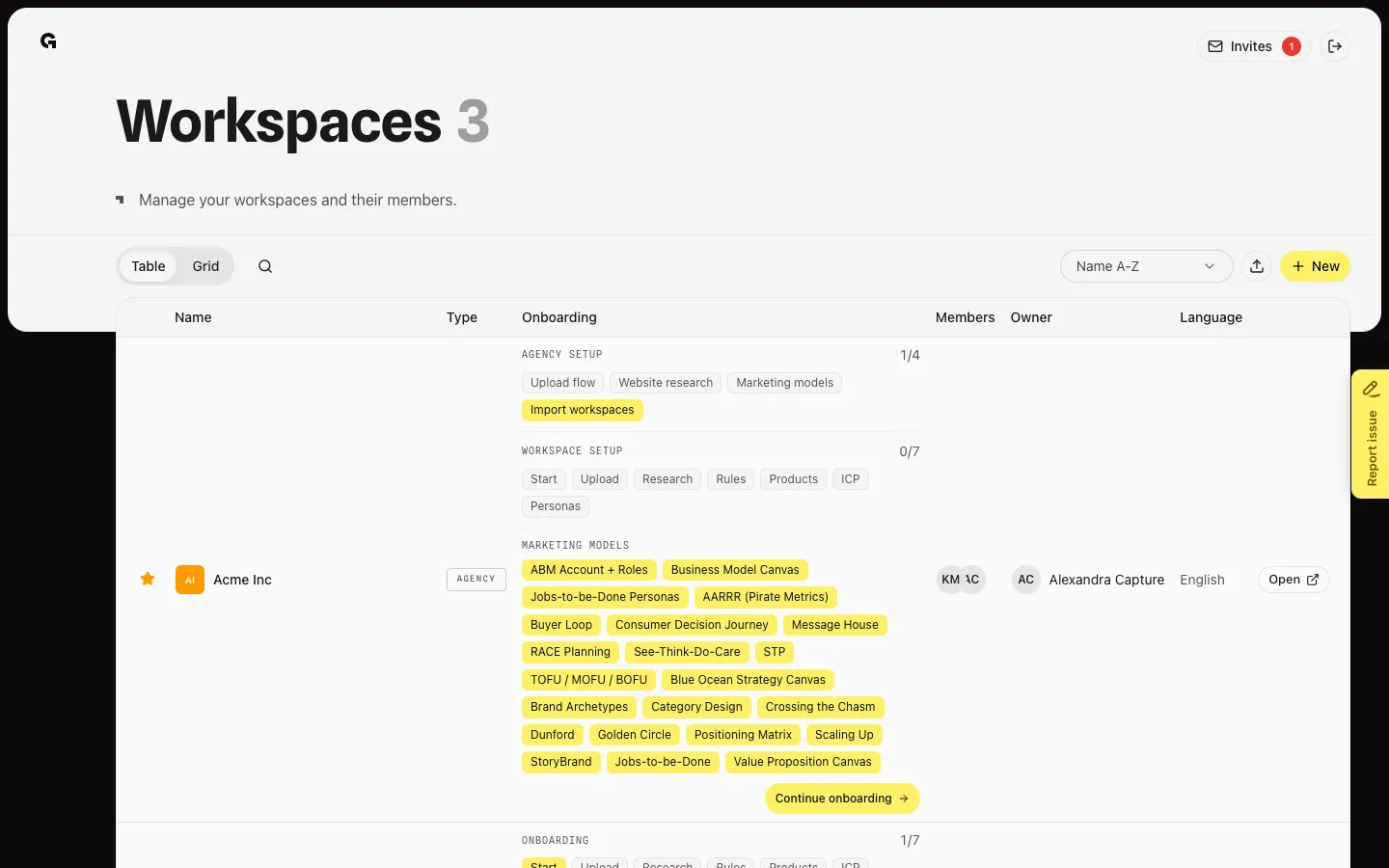
Star a workspace
Click the star to add the workspace to your favorites. The star fills and the row moves up. Click the star again to remove it. You can only favorite workspaces you belong to.
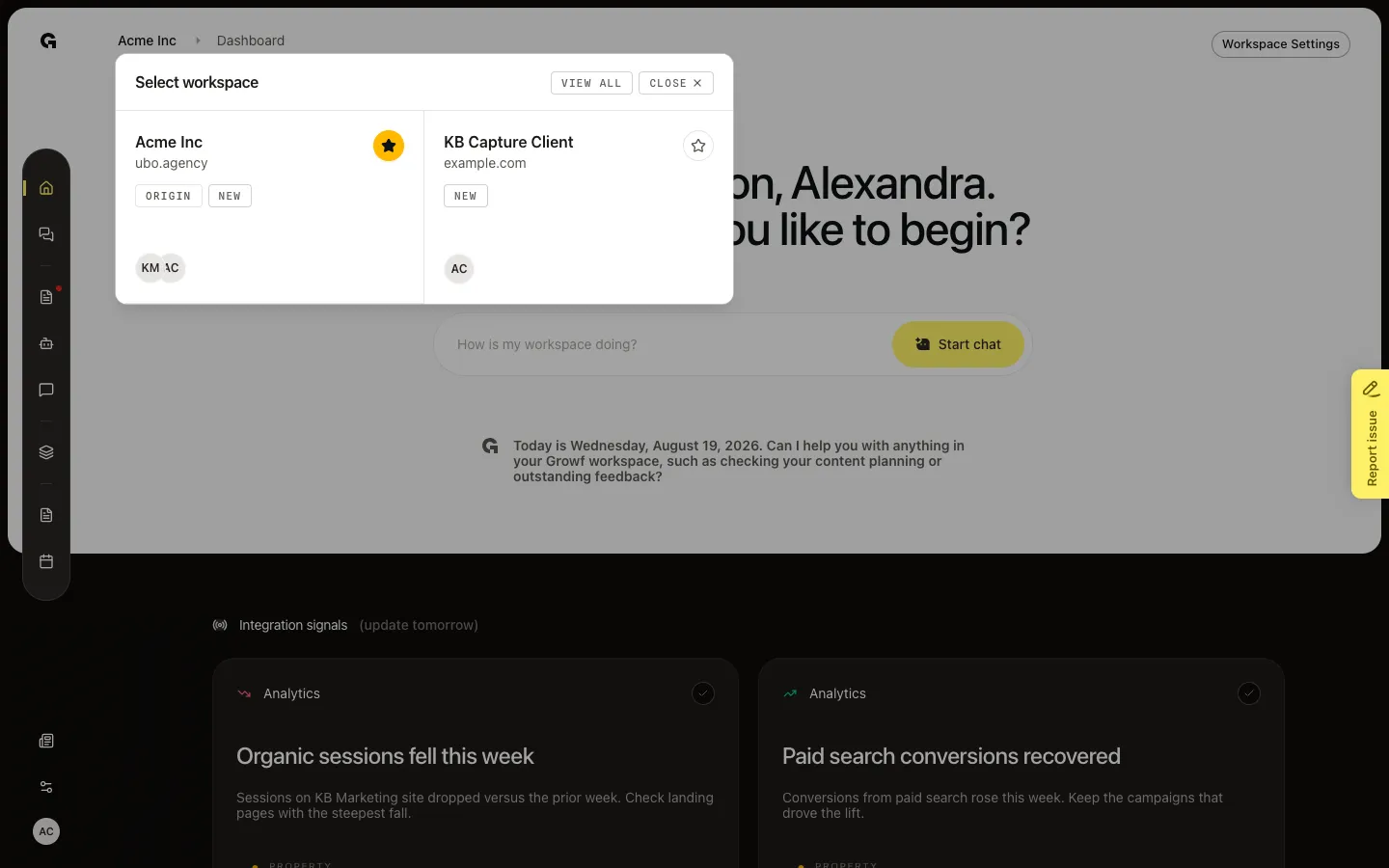
Star from Select workspace
Inside a workspace, click the workspace name in the breadcrumb. Select workspace shows your favorites first. Use the star on a card to pin or unpin. Choose a workspace to open it, or View all to return to the list.
FAQ
I do not see a star on the workspace cards.+
Grid has no star. Choose Table on Workspaces, or click the workspace name in the breadcrumb and use the star on Select workspace.
What does favoriting a workspace change?+
It pins that workspace near the top of your list and first in Select workspace. Only you see your favorites.
The star does nothing, or I cannot favorite a workspace.+
You can only favorite a workspace you own or belong to. If you only manage it as an agency admin, choose Join first, then star it.
How do I remove a workspace from favorites?+
Click the filled star again (Remove from favorites) in Table or in Select workspace. The workspace stays on your list; it just drops below your other favorites.