Complete agency onboarding
Upload agency material, confirm your marketing models, and add client workspaces after you create your agency.
Agency onboarding is the setup after you create a Growf agency account. It is for the person who just chose Create on Tell us about your agency. Sign-in does not open this flow.
6 steps · About 5 minutes
Open the document step
After Create on Tell us about your agency, Growf opens Upload documents for Growf AI (Step 1 of 5). This step is for the person who just created the agency, not for someone who only signs in. The page lists what to upload. Files you already added show as cards. Continue stays off until at least one file is uploaded.
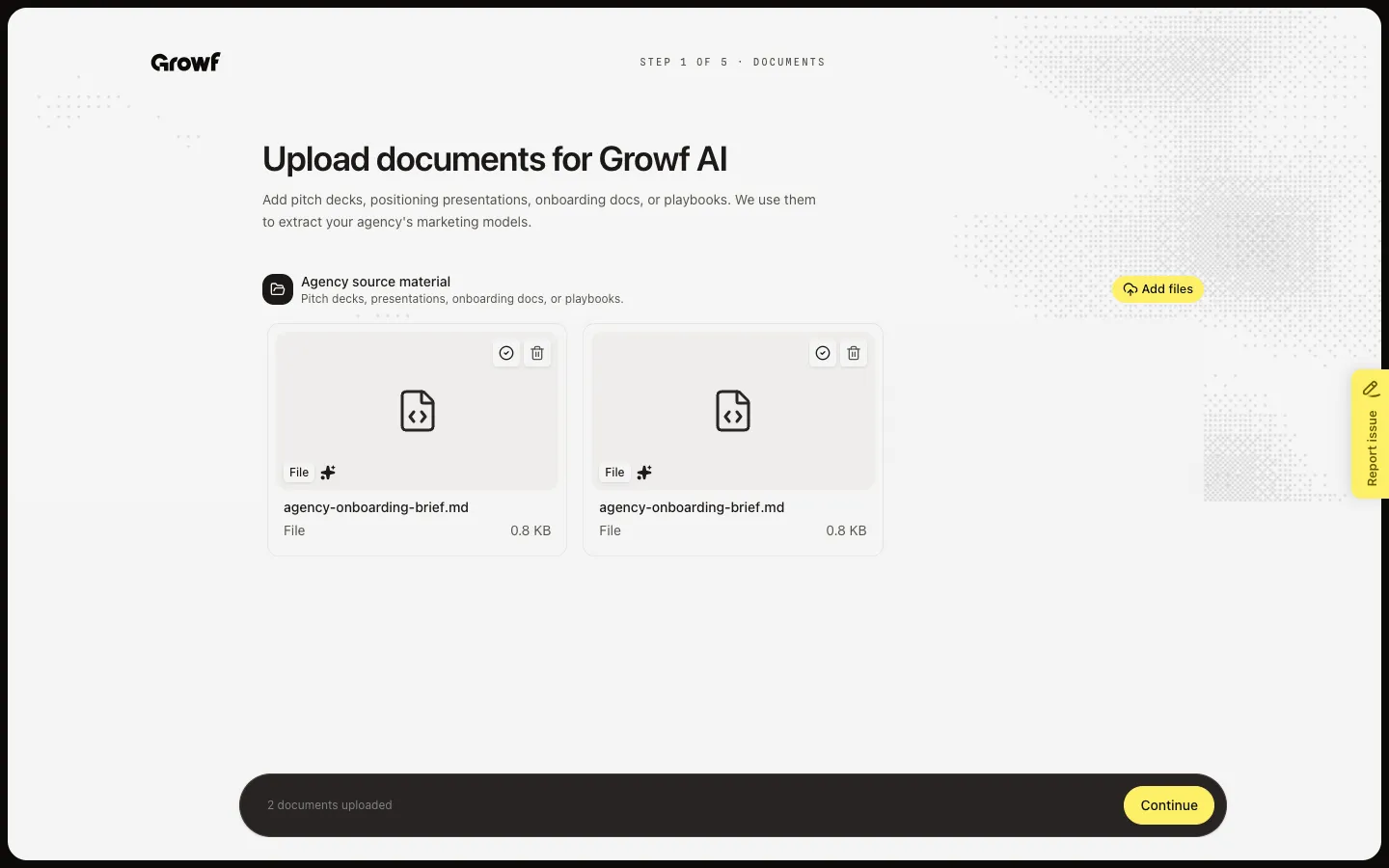
Upload at least one file
Choose Add files or drop files on the page. Growf accepts PDF, DOCX, PPTX, XLSX, CSV, TXT, and MD, up to 100MB each. Continue stays disabled until one file is uploaded. You can continue while Growf is still reading the file — the models step waits if it needs to.
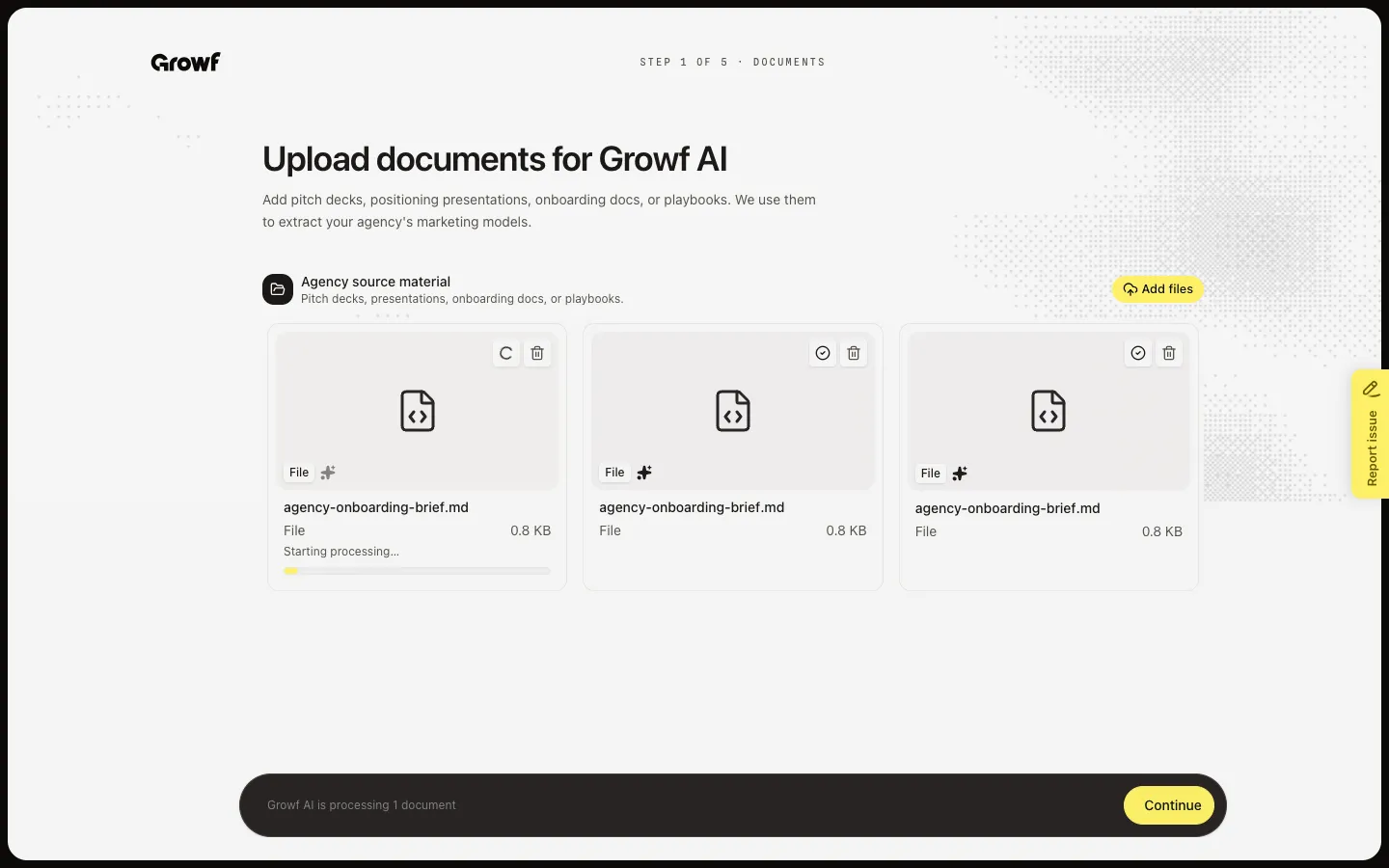
Let Growf research your website
Continue opens Researching your website (Step 2 of 5). Growf uses the agency website you entered at sign-up. The URL field is locked. The scan starts on its own. When pages appear, leave in the ones that explain the agency and exclude the rest, then choose Continue. If the scan fails (blocked site or no readable pages), choose Skip website research.
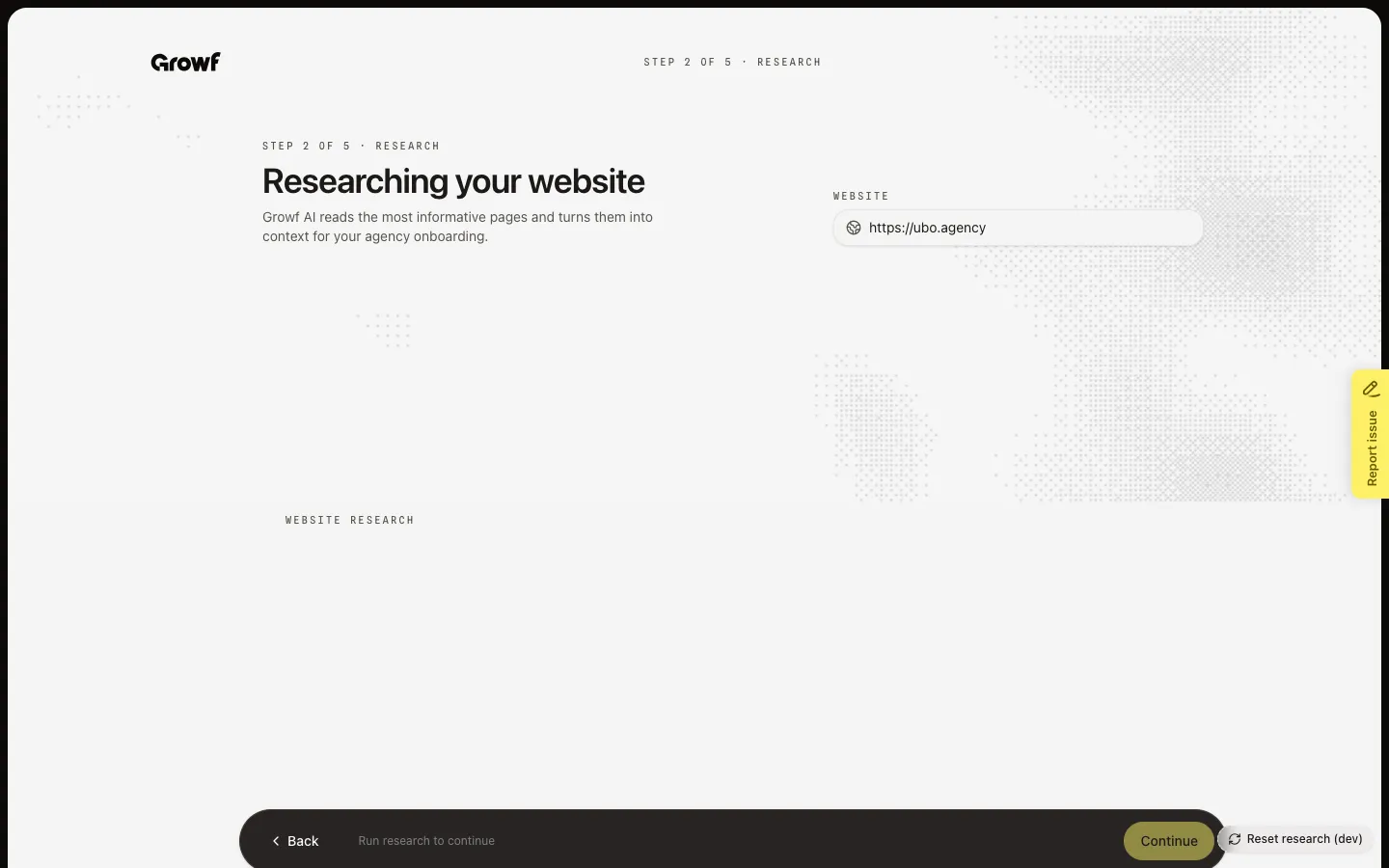
Review the marketing models
Continue opens Marketing models in your stack (Step 3 of 5). Growf waits until your files are processed, then scans them. If you see Nothing detected yet, scroll to Positioning, Value proposition, Ideal customer, and Marketing strategy and pick models yourself, or choose Continue with none selected. Selected cards can show Evidence from documents.
Load your client list
Continue opens Load your client list (Step 4 of 5). Growf creates one workspace per client. Upload an .xlsx or .xls with name and domain columns, or type a Client name and Domain and choose Add. Choose Create when the list has new rows. Choose Skip for now if you will add clients later from Workspaces. You can delete a Created row — that removes the workspace.
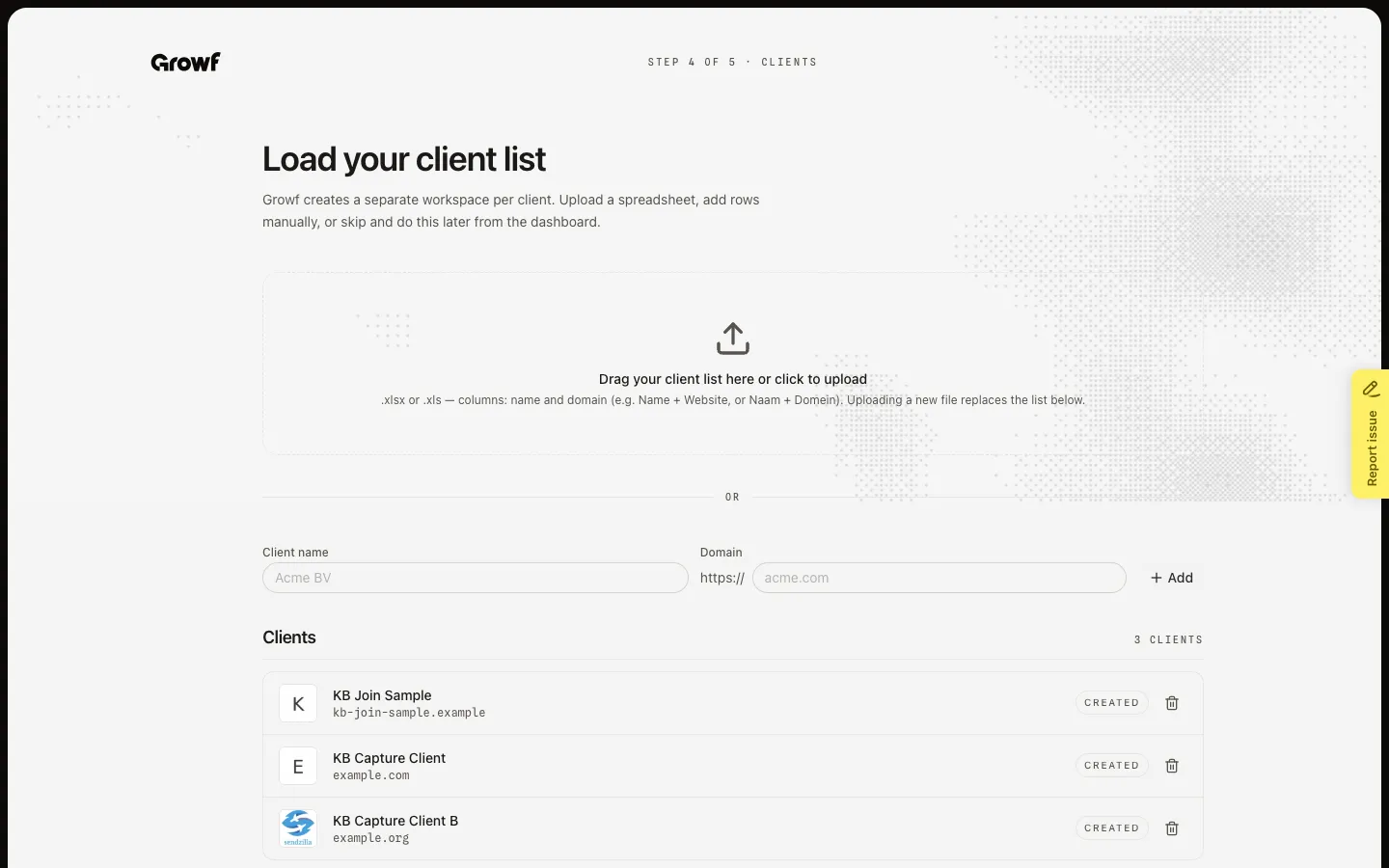
Start workspace onboarding
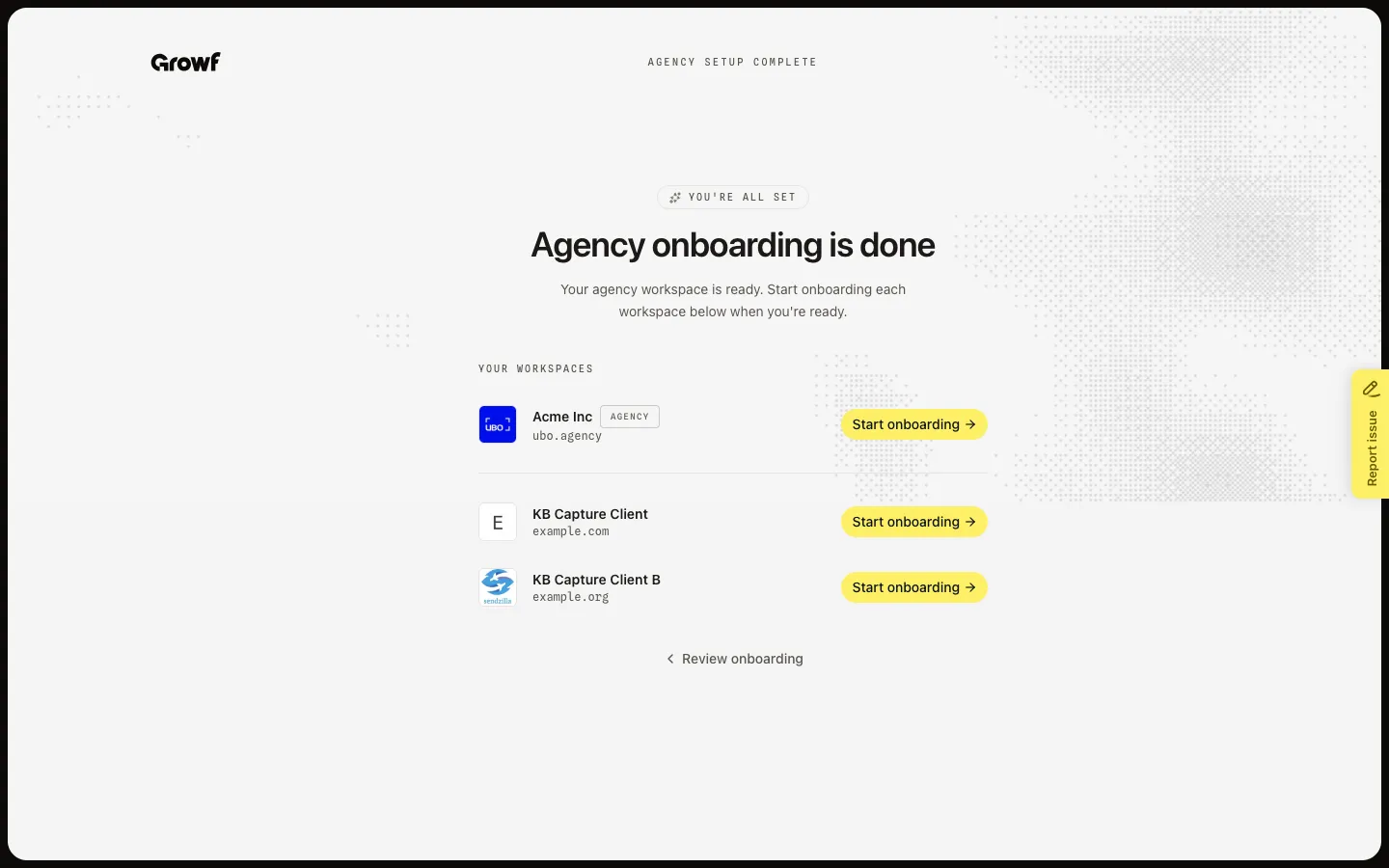
Choose Skip for now (or Create if you added clients). Growf opens Agency onboarding is done. Your agency workspace is ready. Choose Start onboarding on the agency row or on a client to open that workspace’s setup. Choose Review onboarding to return to the document step. You can add more clients later from Workspaces.
FAQ
How do I reach this flow?+
Sign up, add your name, then choose Create on Tell us about your agency. Sign-in for an existing account opens Workspaces and skips this. Invited members accept an invite instead.
Can I skip the document step?+
No. Continue stays disabled until you upload at least one supported file. Use a deck or playbook that states how the agency positions, sells, and delivers.
Website research never finishes. What can I do?+
The URL comes from sign-up and you cannot edit it here. If the site blocks the scan or returns no pages, choose Skip website research when that button appears, then continue to marketing models.
Growf found no marketing models. Should I stop?+
No. Pick frameworks yourself, or choose Continue with none selected. You can change agency models later in Settings.
Do I have to add clients now?+
No. Choose Skip for now. Add clients later from Workspaces with an import or New. See Import client workspaces and Create a workspace.