Manage products
Open Products to see what the workspace sells, search or filter the list, and open a product to finish setup or edit features.
Products are the offers this workspace sells. Chat, content, ICPs, and personas use them so copy stays tied to a real offer.
3 steps · About 3 minutes
Open Products
In the sidebar, choose Strategy, then Products. The page title is Products. The line under it says Connect every campaign to what you actually sell. Anyone who can read products sees the table. New and Sync products appear only if you can create products. Seeded rows such as KB Capture Product (Published) and KB Draft Product (Draft) should already be here. If the workspace has no products, How to use Products explains the job and New sits on that empty state instead of the table.
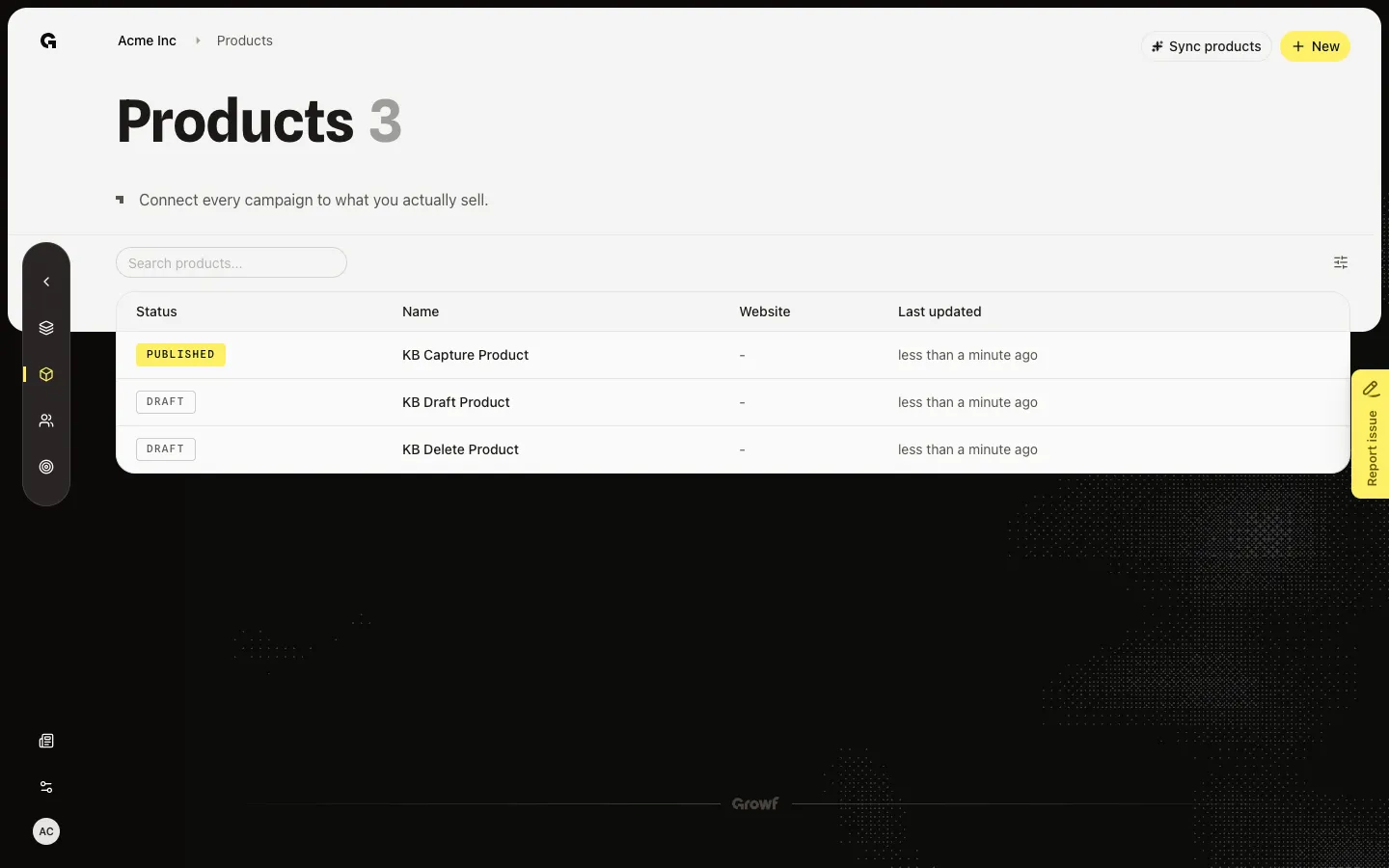
Search or filter the list
Search products… filters by name. Filters opens a Status list: Draft and Published. Use this when the table is long. Clear all filters removes the status chips. Filters hide while Growf is enriching a sync.
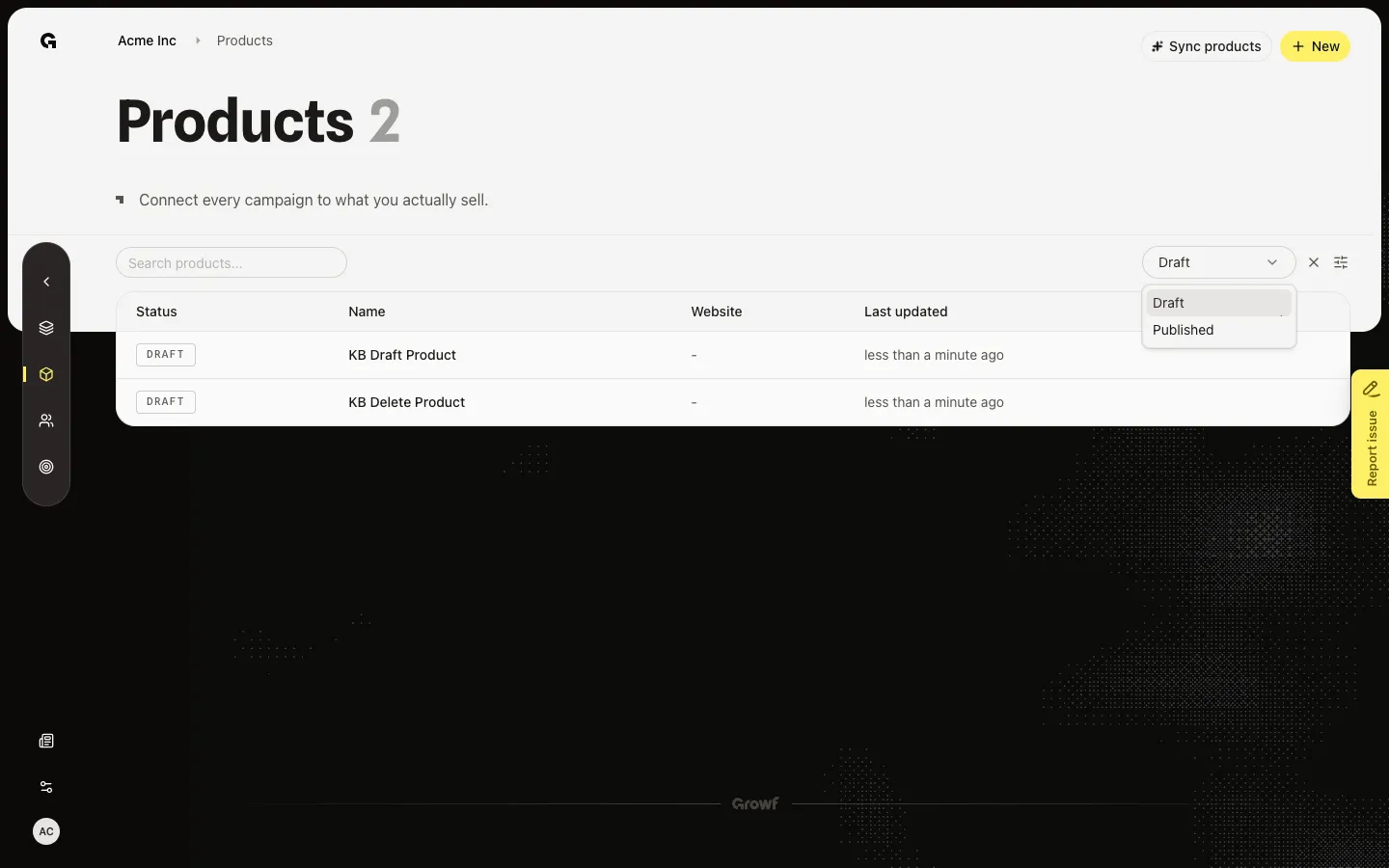
Open a published product
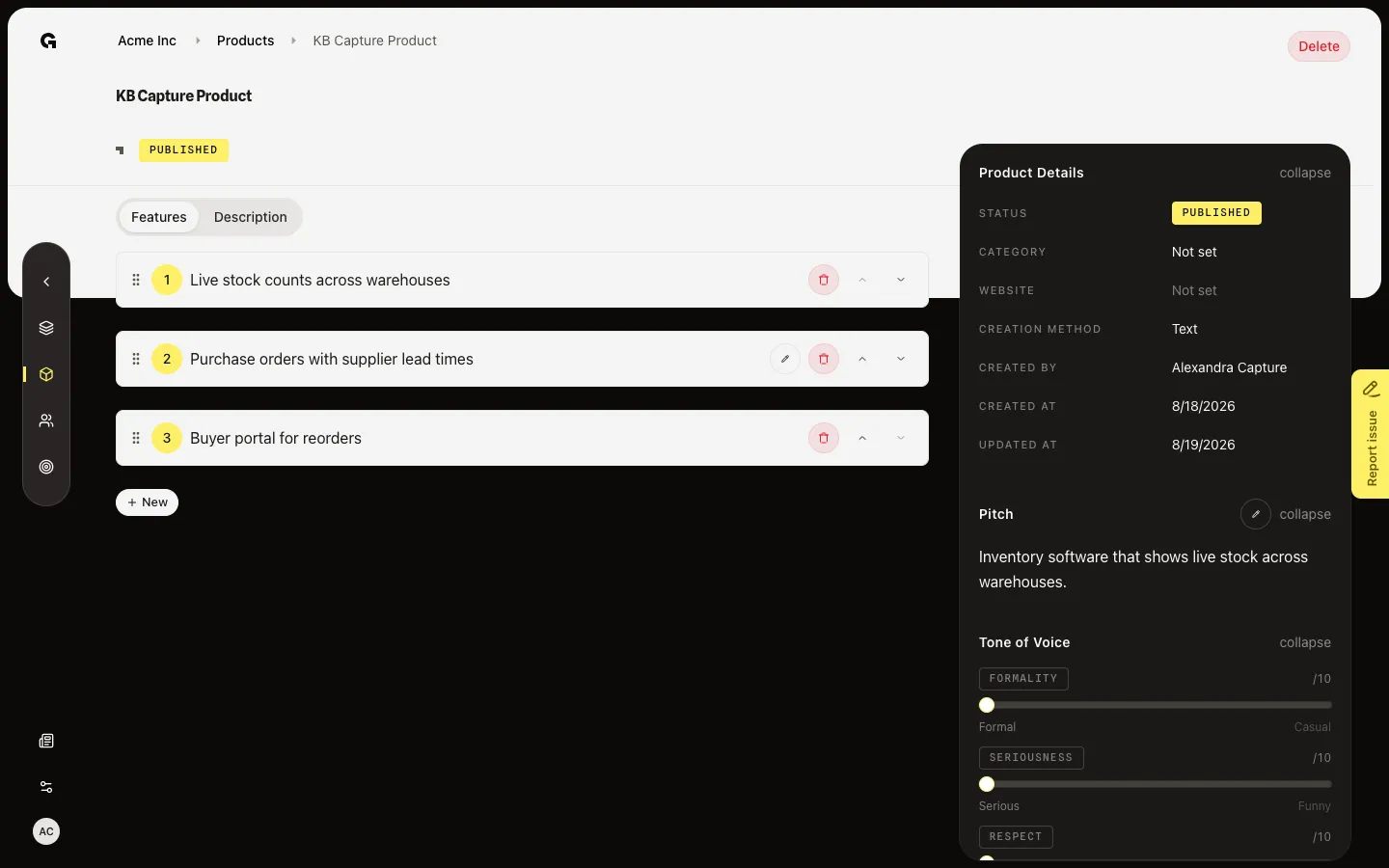
Choose the name of a Published product, or the eye on the row. That opens Features. A Draft name opens Configure instead — finish the briefing there before features and description appear. Hover a Draft row to show Delete product; Published rows do not show trash on the list.
FAQ
I see How to use Products and no table. How do products get on this list?+
Someone with create permission adds them with New, or Sync products reads the workspace website. Workspace onboarding can also create the first products. If you only have read permission, ask an admin to add one.
Why does one name open Configure and another open Features?+
Draft products still need a briefing. Published products open Features. You need product update to open a draft. Without update, a draft name is plain text.
I do not see New or Sync products.+
Those controls need product create. Ask an admin. Sync also disables while a sync or workspace-context job is running.