Preview and download a document
Open a knowledge file to read the extracted text, then use Preview to see the original or download it.
Preview and Download let you check the original file after it is in Documents. Anyone who can open the file can use both tabs. You reach the file from **Manage workspace knowledge** after an upload.
2 steps · About 2 minutes
Open the file
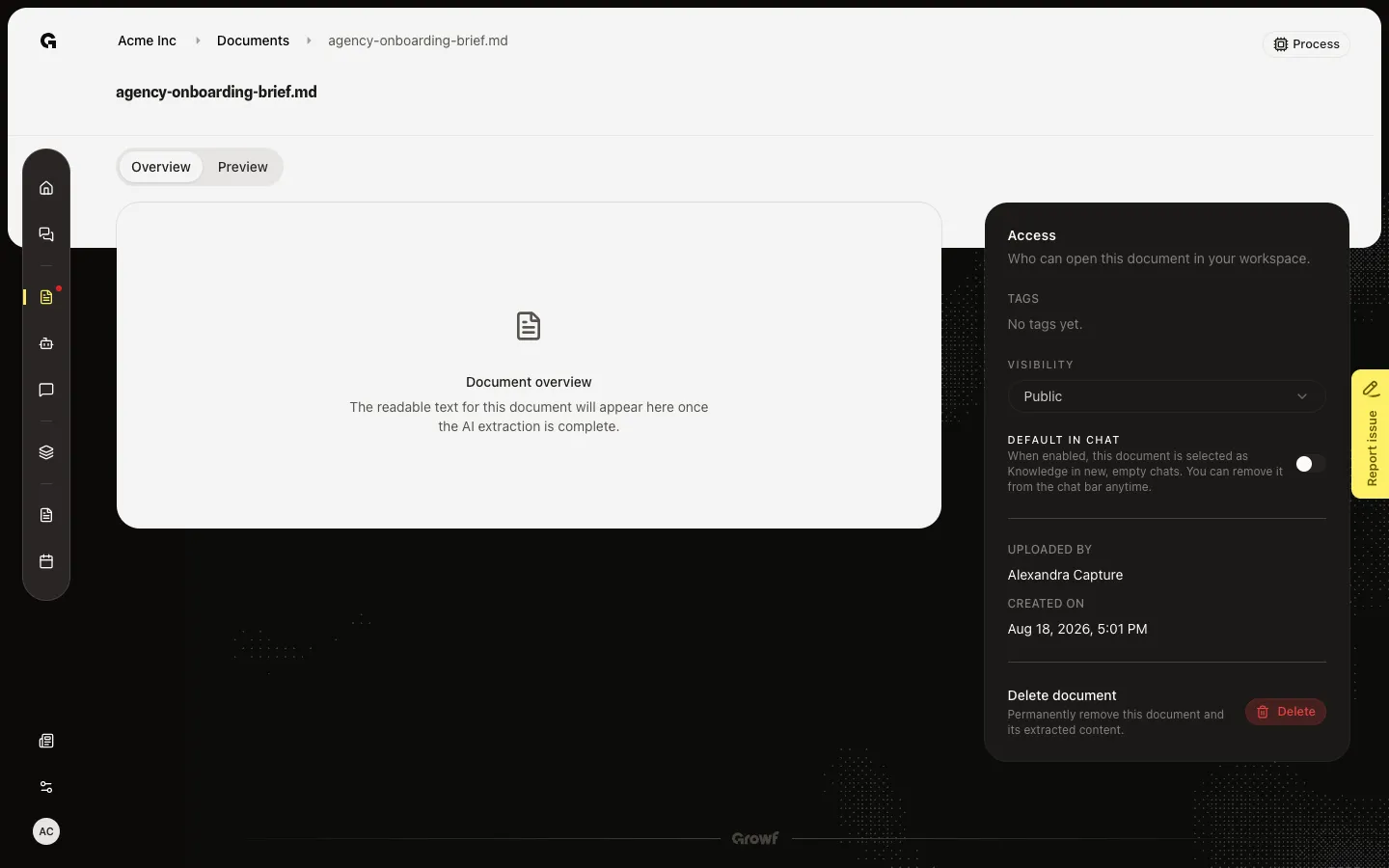
On Documents, choose the file card or its name (this walk uses agency-onboarding-brief.md from Manage workspace knowledge). Overview is the first tab. The main pane shows the extracted text when processing has finished, Currently being processed while Growf is reading it, Extraction failed if that read failed, or Document overview if there is no text yet. The Access sidebar is the same on both tabs.
Open Preview
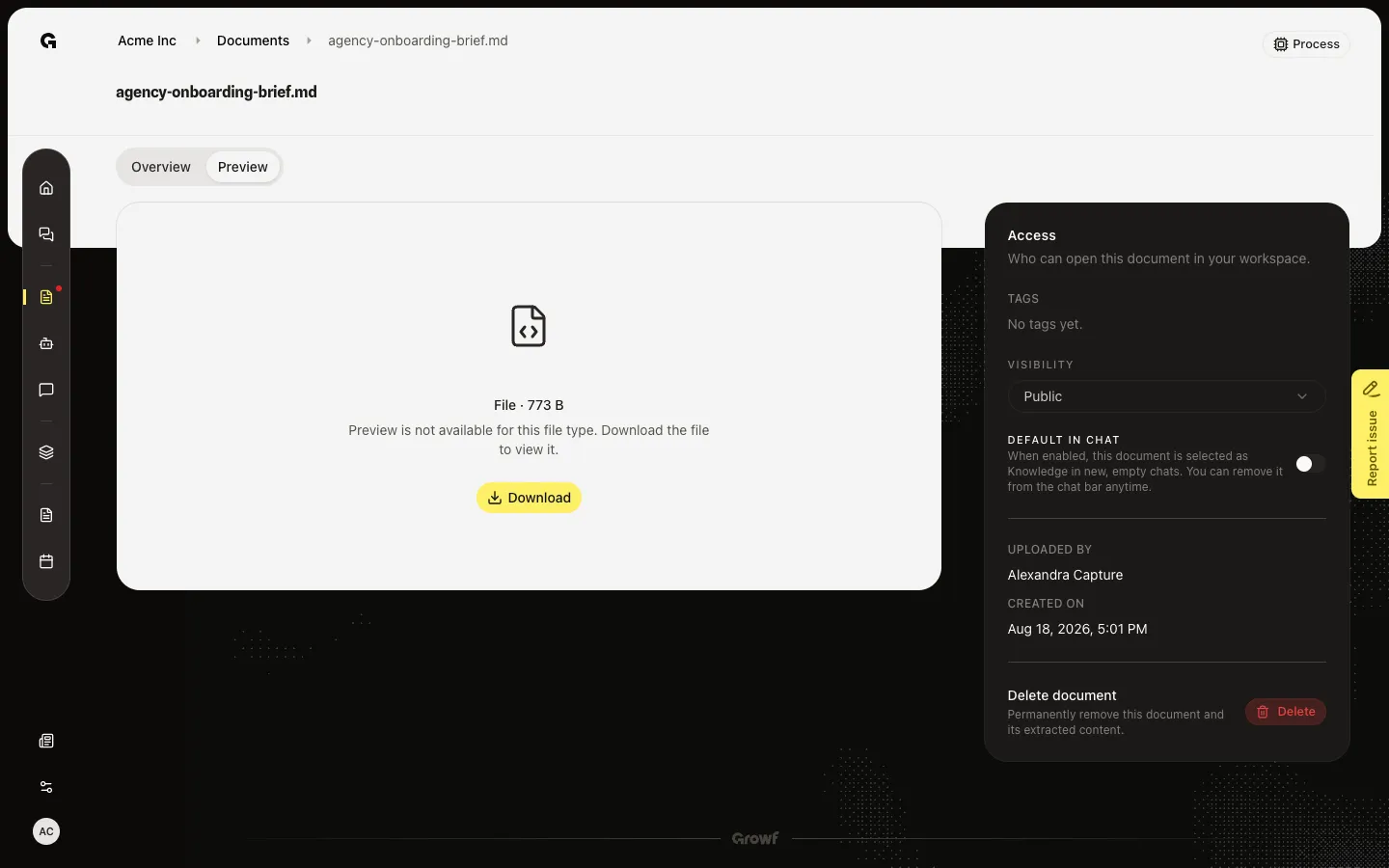
Choose Preview. PDFs open in the page. Images show in the pane. Other types — including Markdown, Word, sheets, and slides — show the type, the size, and Preview is not available for this file type. Download the file to view it. Choose Download to save a copy. That does not change the file in Growf.
FAQ
Preview asks me to download. Is the file broken?+
No. Only PDFs and images preview in the tab. A Markdown brief, Word file, sheet, or deck uses Download. The extracted text, when ready, stays on Overview.
Download failed. What should I try?+
The toast says the file could not be downloaded. Try again. If it still fails, check that you can still open the file — a private file you were not shared will not download.
What is the difference between Overview and Preview?+
Overview is the text Growf extracted for AI and for you to read in the app. Preview is the original file (or a download when the app cannot show it). Process updates Overview, not the file you download.