Use the agent prompt assistant
Ask the sidebar Assistant to draft a better prompt, then Apply before Instructions change.
Assistant is a chat that drafts or rewrites the agent prompt. Anyone who can update agents can use it.
3 steps · About 3 minutes
Open Assistant
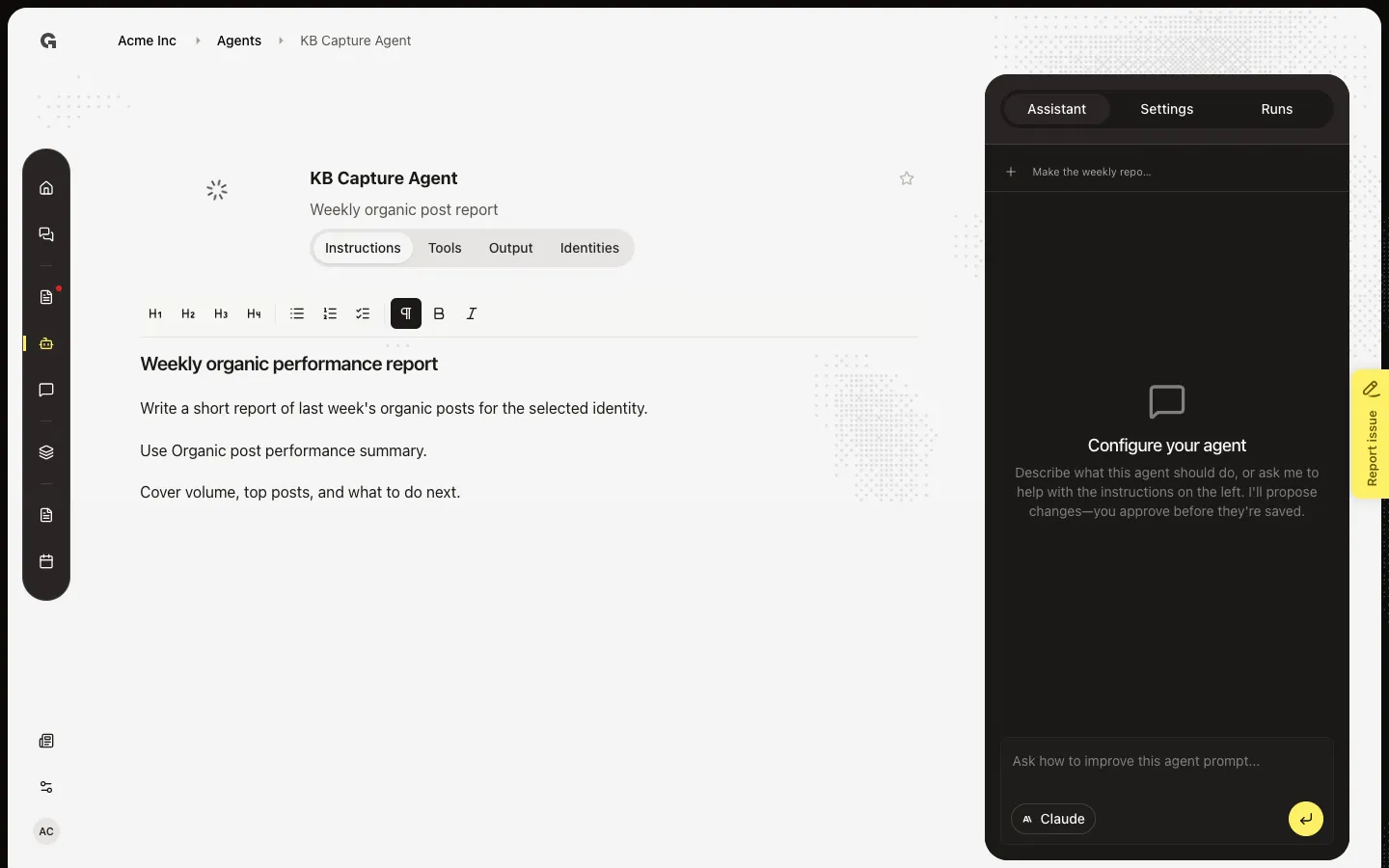
Open **KB Capture Agent**. Assistant is the default sidebar tab. The empty state is titled Configure your agent. It explains that the assistant proposes changes and you approve them before they save. This is not Regenerate from original goal — that replaces instructions and tools from the saved goal in one step.
Ask for a prompt change
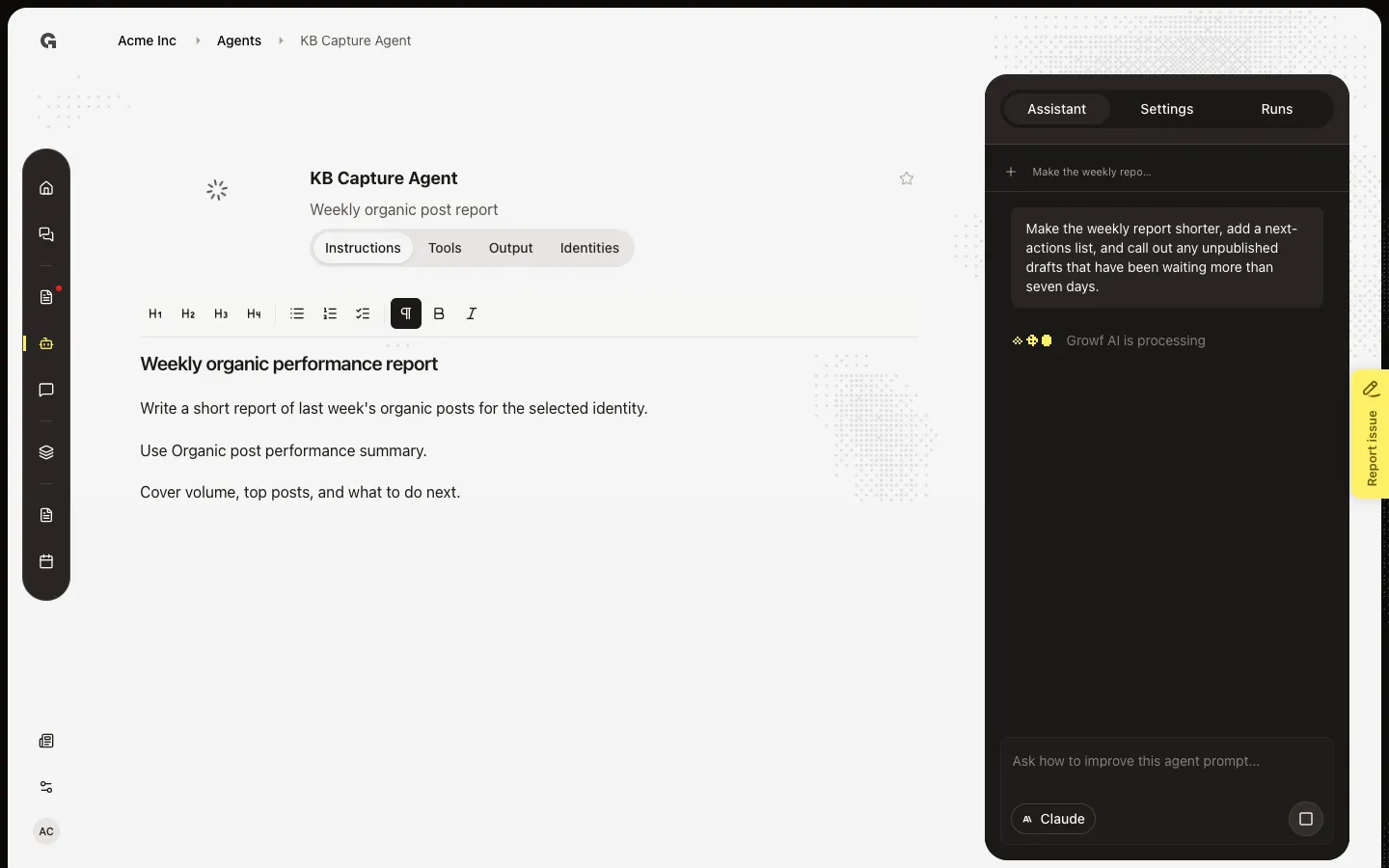
Click Ask how to improve this agent prompt.... Type what should change, such as a shorter weekly report or a new section. The model selector sits on the composer. Send when you want a proposal. Nothing writes to Instructions until you Apply.
Send the request
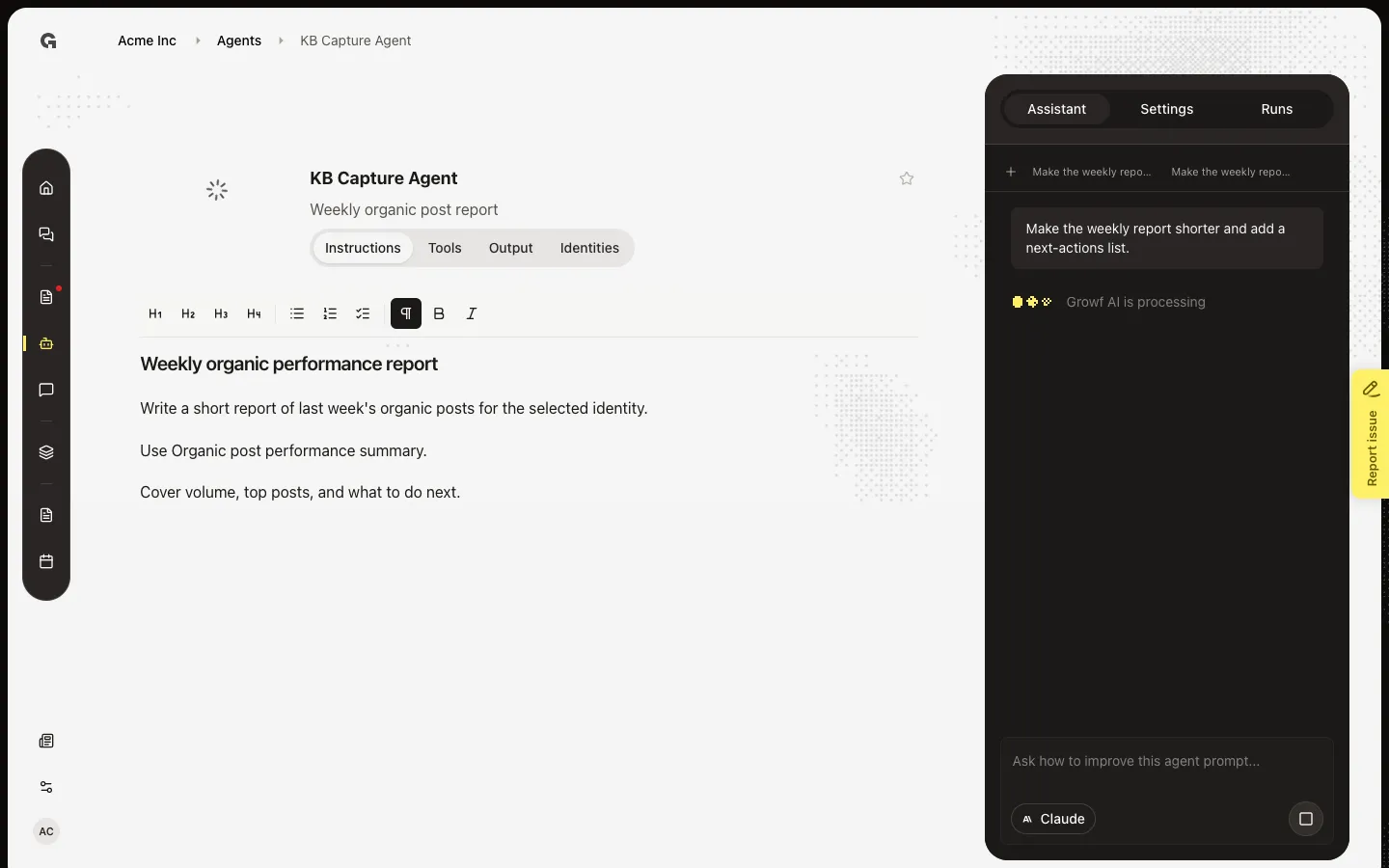
Choose Submit. The assistant can draft a full prompt and recommend tools. When it asks Apply this prompt to the agent? or Apply this prompt update?, choose Apply prompt to write Instructions (and add recommended tools), or Discard to keep the current prompt. After the first chat, New prompt chat starts a clean thread.
FAQ
What is the difference between Apply prompt and Discard?+
Apply prompt writes the proposed instructions on the left and can add recommended tools. Discard keeps the current prompt. Nothing saves until you Apply.
How is this different from Regenerate?+
Assistant is a chat. You review and Apply each change. Regenerate from original goal in Settings replaces instructions and tool picks from the saved goal in one step and cannot be undone. See Regenerate agent instructions.
I sent a message and Instructions did not change.+
Wait for Apply this prompt to the agent? or Apply this prompt update?, then choose Apply prompt. If you only chatted and never applied, the editor stays as it was.
I cannot send a message.+
You need permission to update agents.