Set an agent’s input and output
Use fields on Input and output to tell an agent what it gets with each task, what you fill in once, and what it reports back.
Input and output, on the agent's page, holds the fields of an agent: what you fill in once, what it gets with each task, and what it reports back. Growf suggests fields from the goal when you create an agent, and again when its instructions change. You need permission to update agents; by default only the Admin role has it.
4 steps · About 3 minutes
Open Input and output
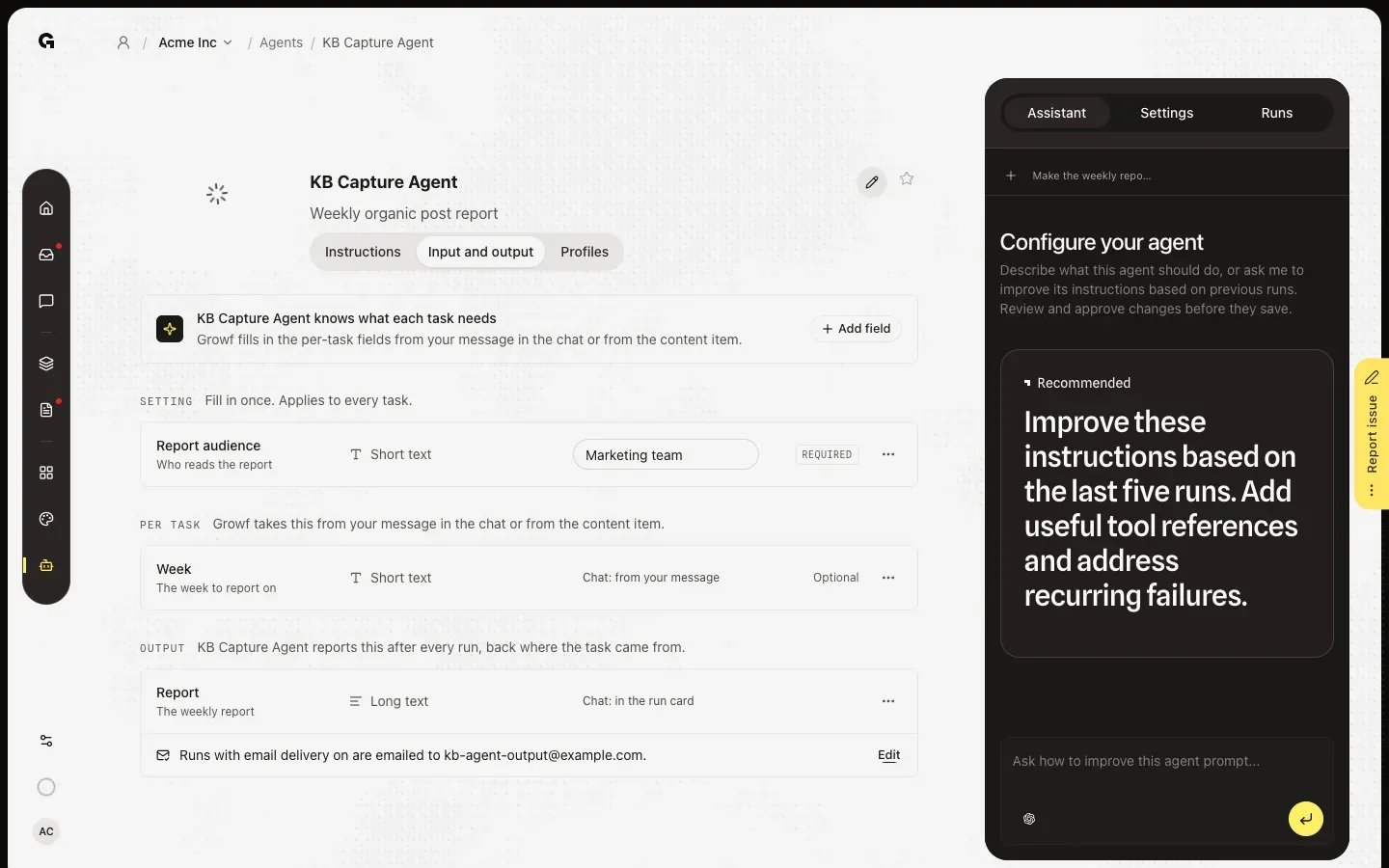
Open the agent and click Input and output. Fields tell the agent what comes in with a task and what has to go back. A Setting you fill in once and it applies to every task. Per task is what Growf takes from your message in the chat or from the content item. Output is what the agent reports after every run, back where the task came from.
Add a field
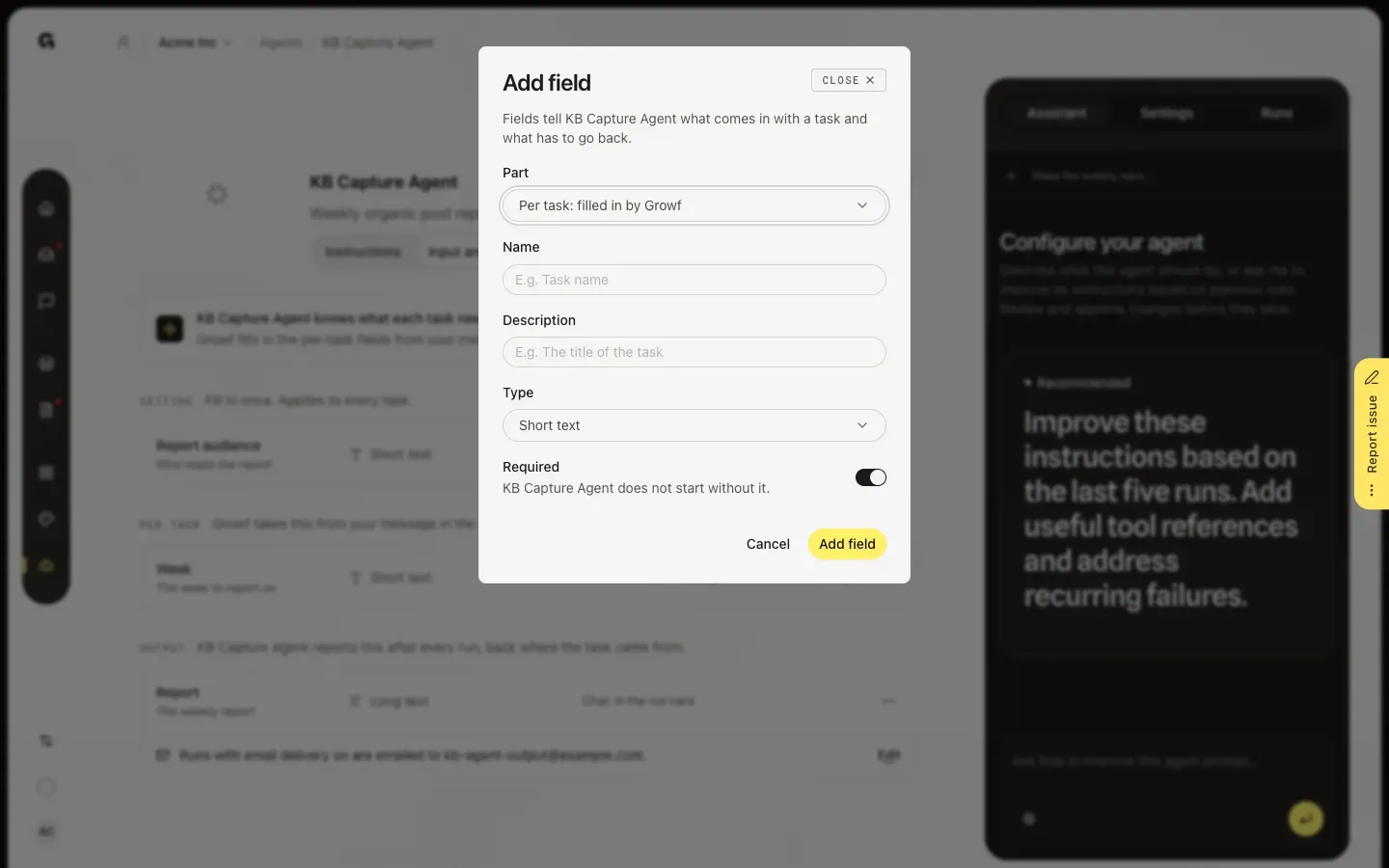
Click Add field. Under Part, choose Setting: filled in once, Per task: filled in by Growf, or Output: reported after the run. Give the field a Name and a Description, so Growf knows what belongs in it, and pick a Type: Short text, Long text, Date, Number or Link. Switch on Required when the agent may not start without it. Click Add field.
Fill in and change fields
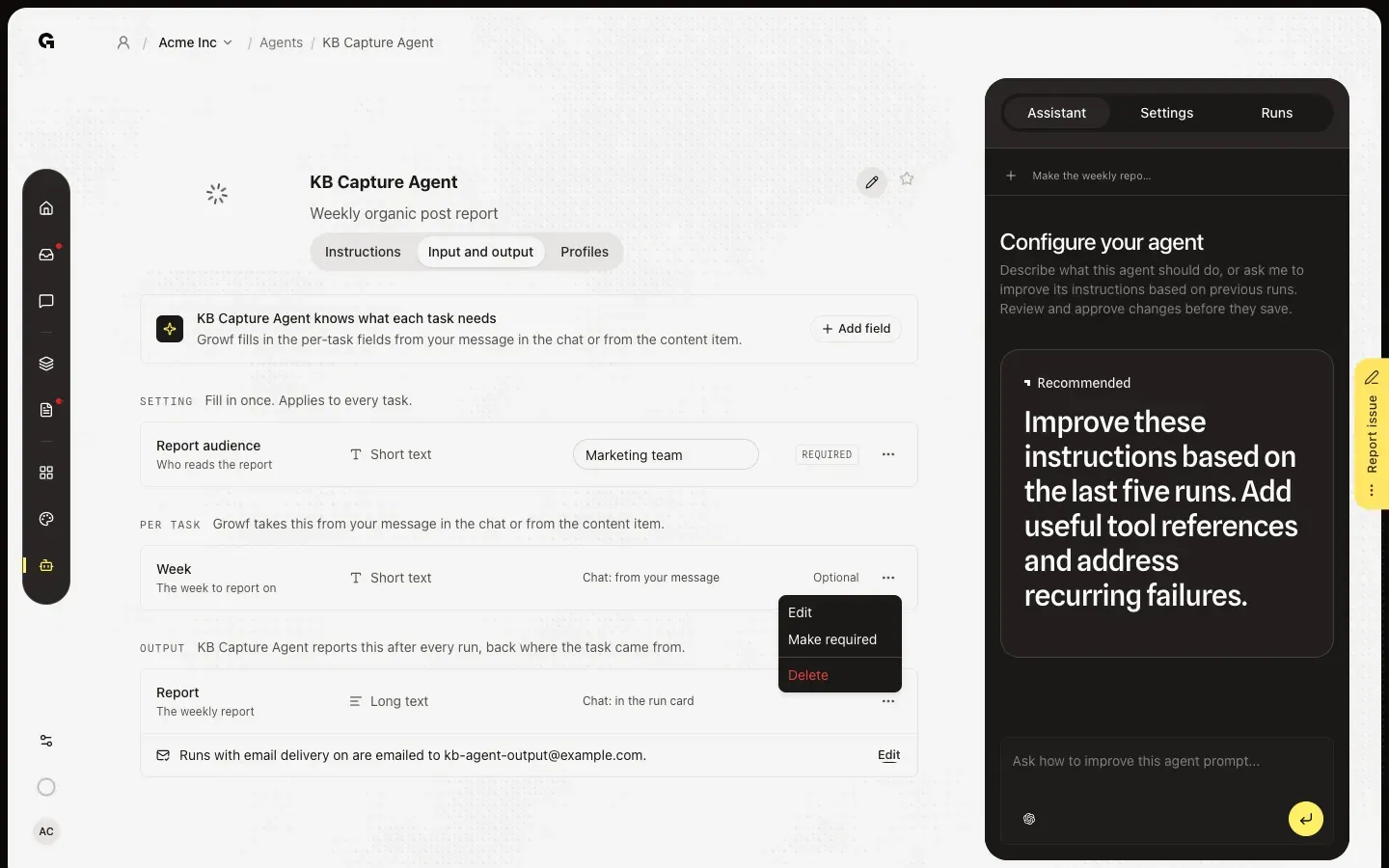
Type the value of a setting in its row, such as Marketing team for Report audience; it saves when you click away. The ⋯ next to a field opens Edit, Make required or Make optional, and Delete. While a setting marked Required is empty, the agent takes no work from the chat, a schedule or content.
Link the fields of content
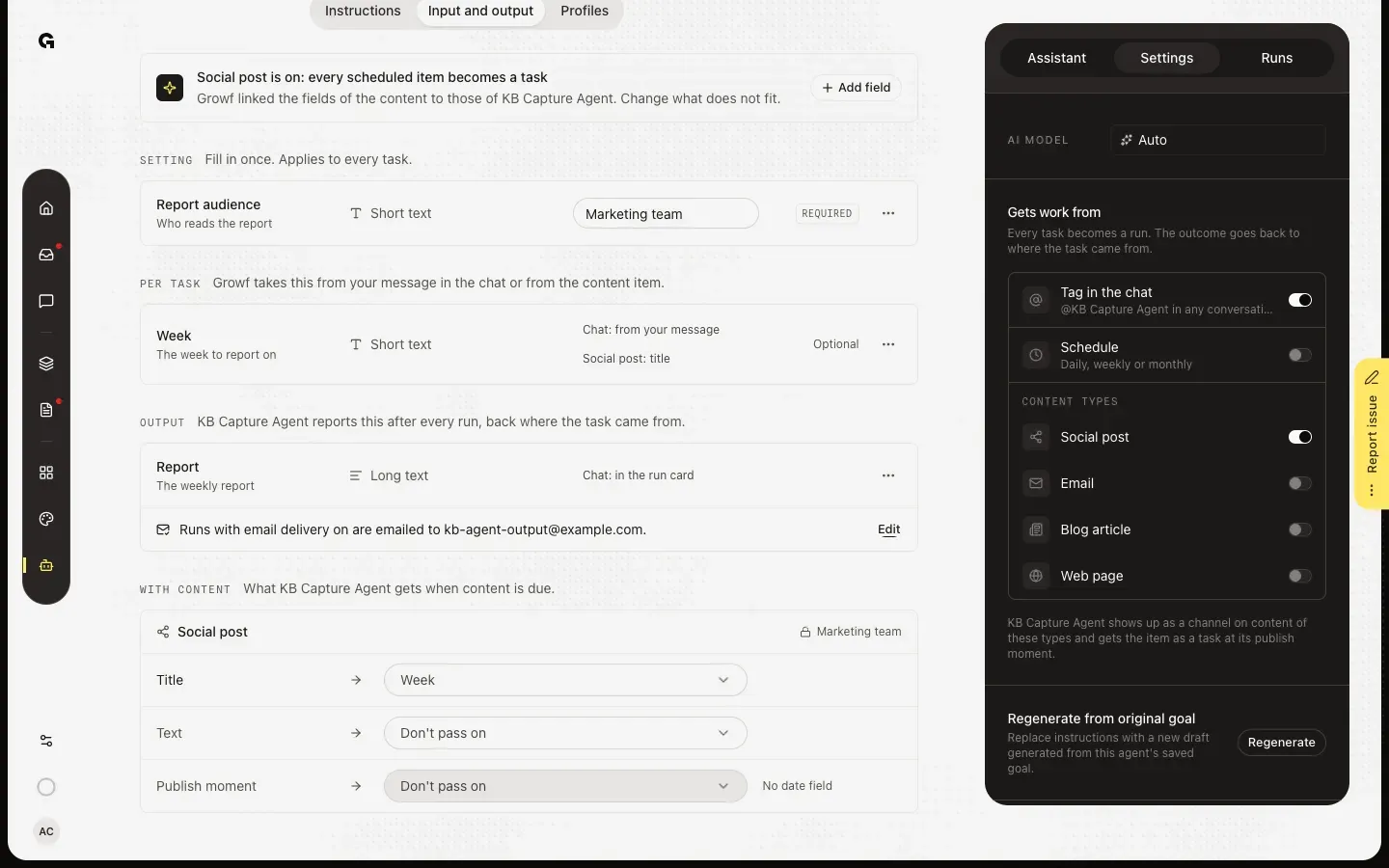
When the agent takes content, With content shows per content type which field of the item goes into which Per task field of the agent. Growf links them by type, such as a title into the first short text field, and says so at the top. Change what does not fit, or choose Don't pass on. No date field next to Publish moment means the agent has no Date field to put it in. Content types are switched on in Settings, under Gets work from.
FAQ
Does every agent need fields?+
No. Many agents work from their instructions alone. Add a field when the agent needs something from you for each task, such as a week or a board, or when its result has to go somewhere, such as a link.
Growf suggests fields. Should I add them?+
When the instructions change, Growf reads them again. If they mention something new, such as a deadline, it shows Your instructions now mention, with the fields to add. Click Add field to keep them, so the agent gets the values instead of having to guess or ask, or Ignore. Without any fields yet, Suggest fields asks Growf to propose some.
What happens when a required Per task field is missing from my message?+
In the chat, the run card asks for it before the run starts. Fill it in and click Start run, or click Cancel.
Can a setting be a choice from another app?+
Yes, for a Setting, when the app is connected. With Asana connected, Type offers Choice and Options from lists Choice from Asana, so you pick a board or a section instead of typing it.
I can't add or change fields.+
You need permission to update agents. By default only the Admin role has it.