Write a blog series, whitepaper or web copy
Plan a blog series, whitepaper or web copy with the chat, work through its articles, chapters or pages and let the AI write each part.
A blog series, a whitepaper or e-book and web copy are content projects made of parts: articles, chapters or pages. You plan them with the chat in Content mode, and the AI writes each part in the background. You need permission to create and edit content and to write in the chat; Admin, Strategist and Creator have these by default.
4 steps · About 3 minutes
Start the project
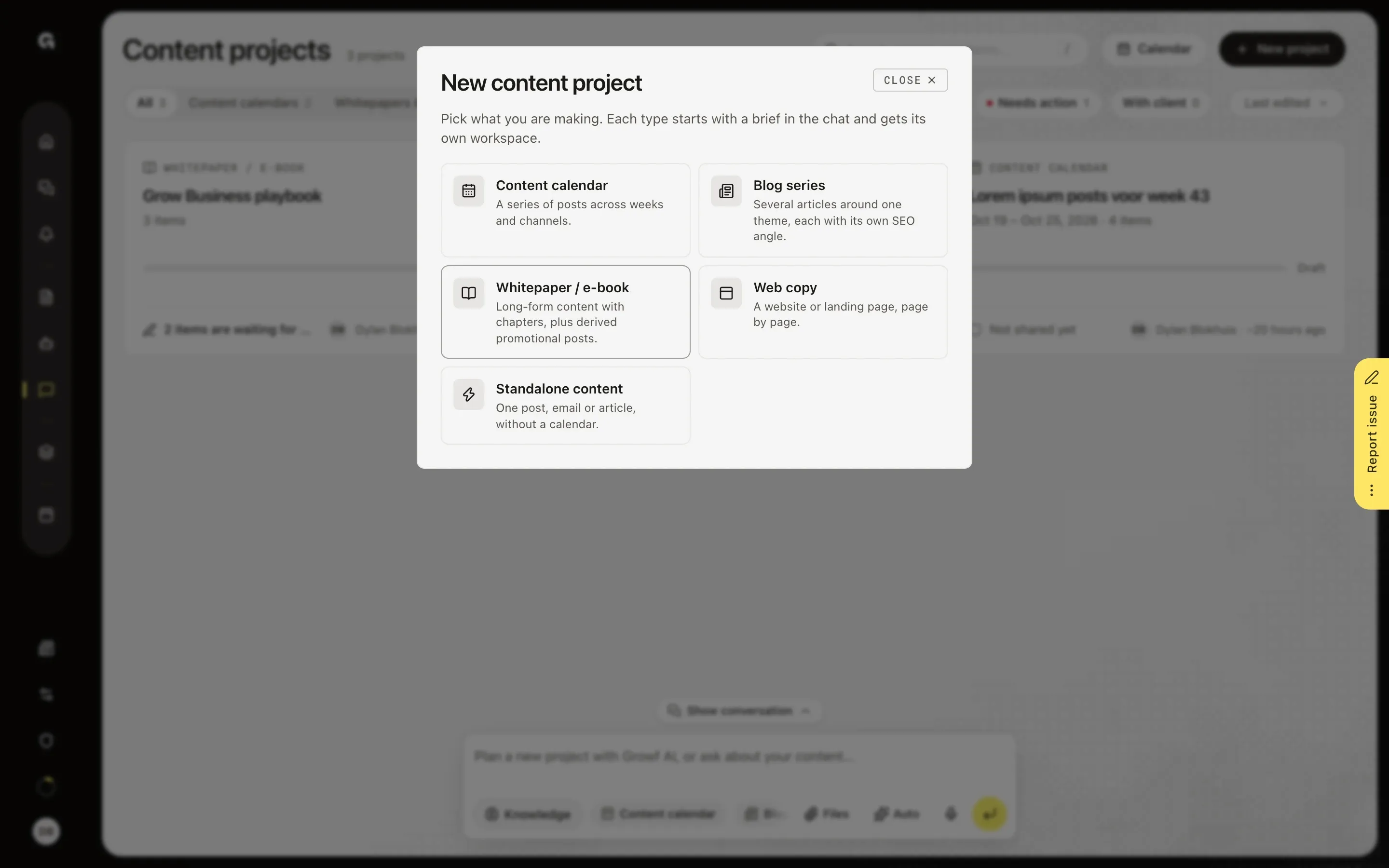
Open Content mode and click New project. Pick Blog series, Whitepaper / e-book or Web copy: Growf creates an empty project of that type and opens it. Then tell the chat in the prompt what you need: the topic, the audience and how many parts you want. In an empty conversation on Content projects, the Blog series, Whitepaper / e-book and Web copy chips under the prompt send such a request in one click. The chat asks a few questions, then shows a Content plan with every part and its keyword or page path. The parts are only created when you click Create.
Work through the chapters, articles or pages
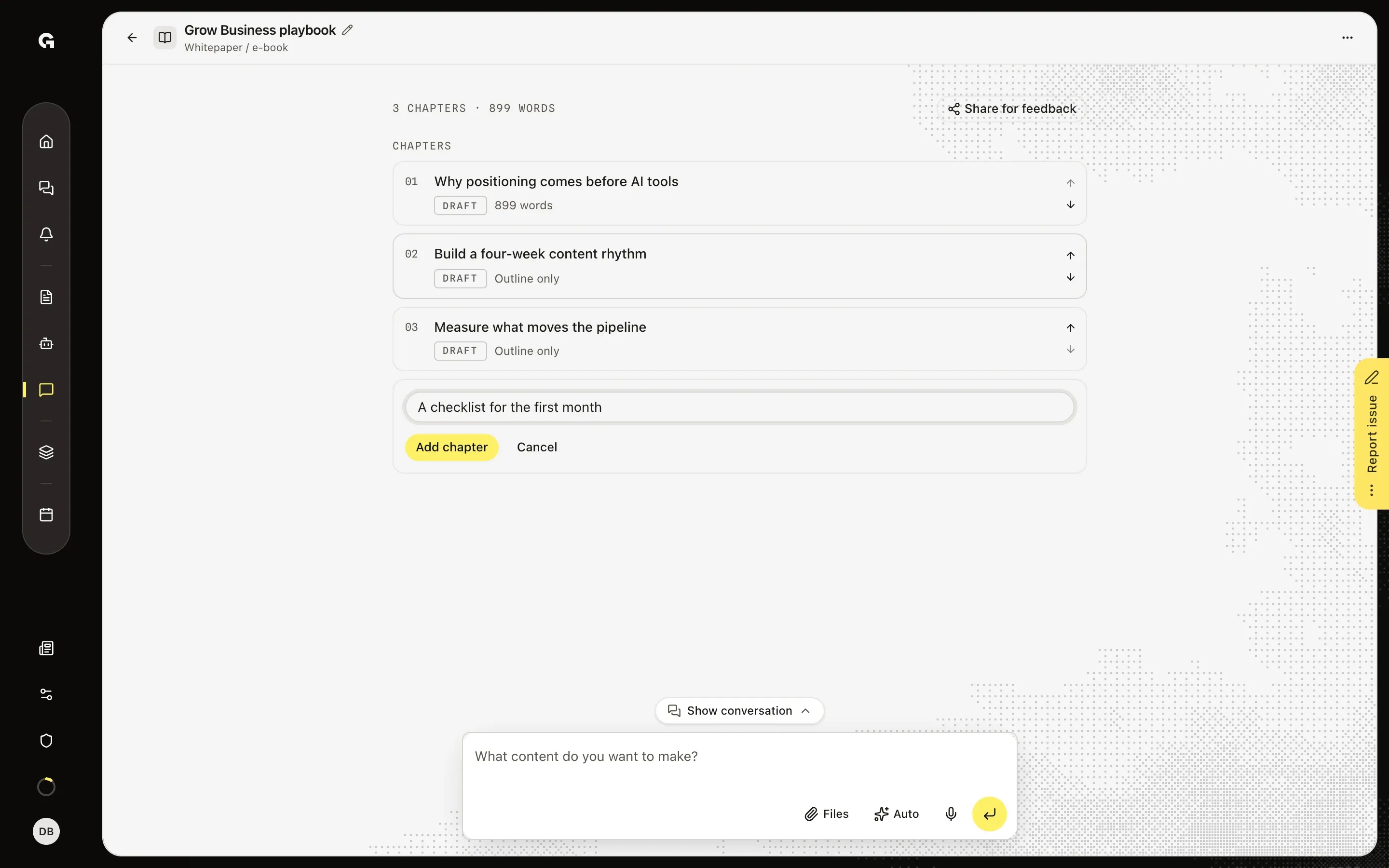
After Create, the project opens as a list: Chapters for a whitepaper, as here, Articles for a blog series and Pages for web copy. Each row shows its status and, for a chapter, the number of words, or Outline only while its text is not written yet. A blog series shows the read time instead, and web copy the page path and the number of sections. Point at a row and use the arrows to move it up or down. Add chapter, Add article or Add page opens a small form: type a title and click the same button again, and the new part opens empty.
Write a part from its outline
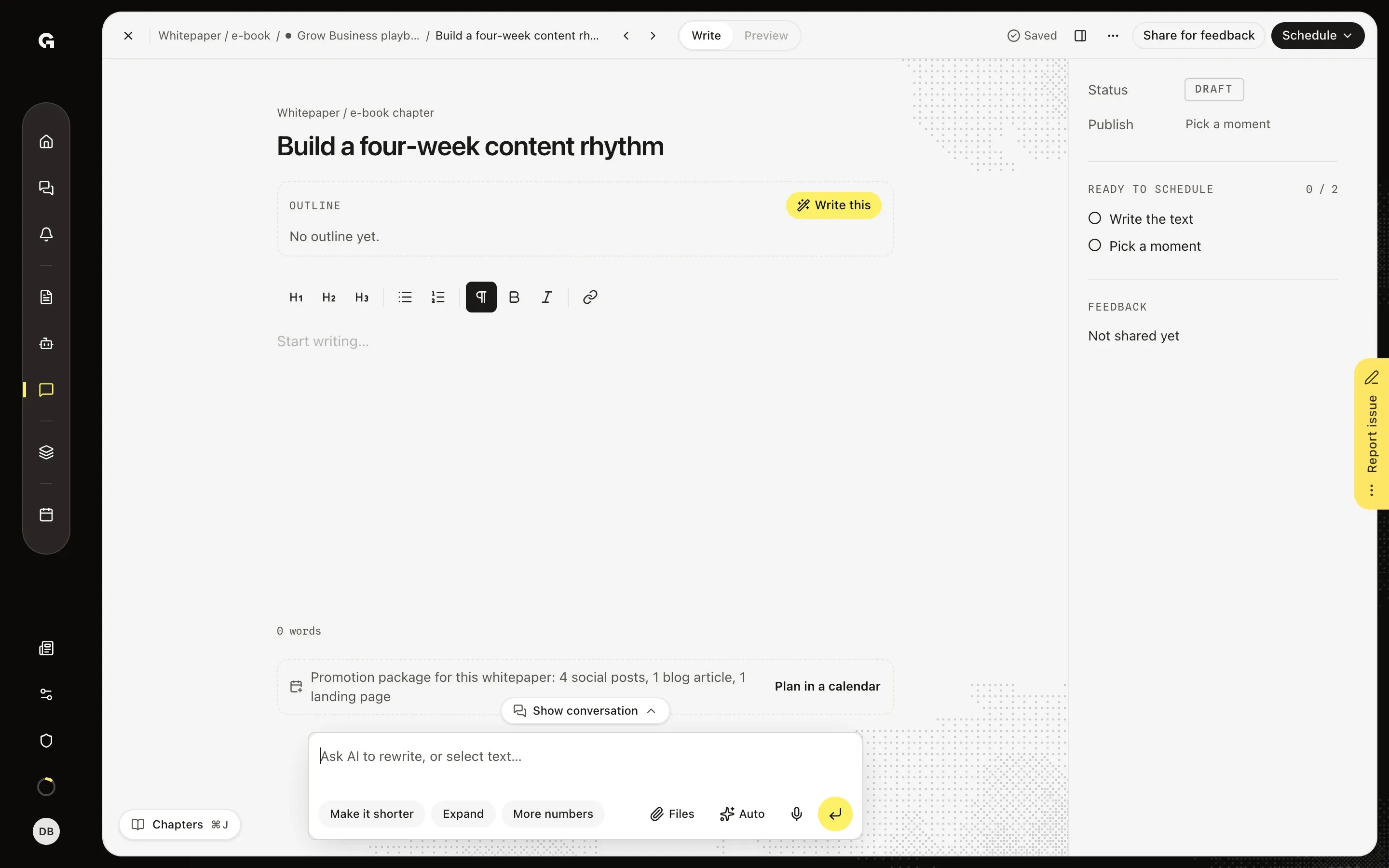
Click a row to open the part over the list. A part without text shows its Outline: the sections the plan gave it. After Create, the AI writes these texts in the background, and The AI is writing this text… shows while it works. When a part still has no text, click Write this and the AI writes it from the outline, the project brief and the other parts, or type the text yourself under the outline. The properties beside the text show the SEO keyword of an article or the Slug of a web page. Close, or Chapters at the bottom left, takes you back to the list.
Rewrite a part and take the next step
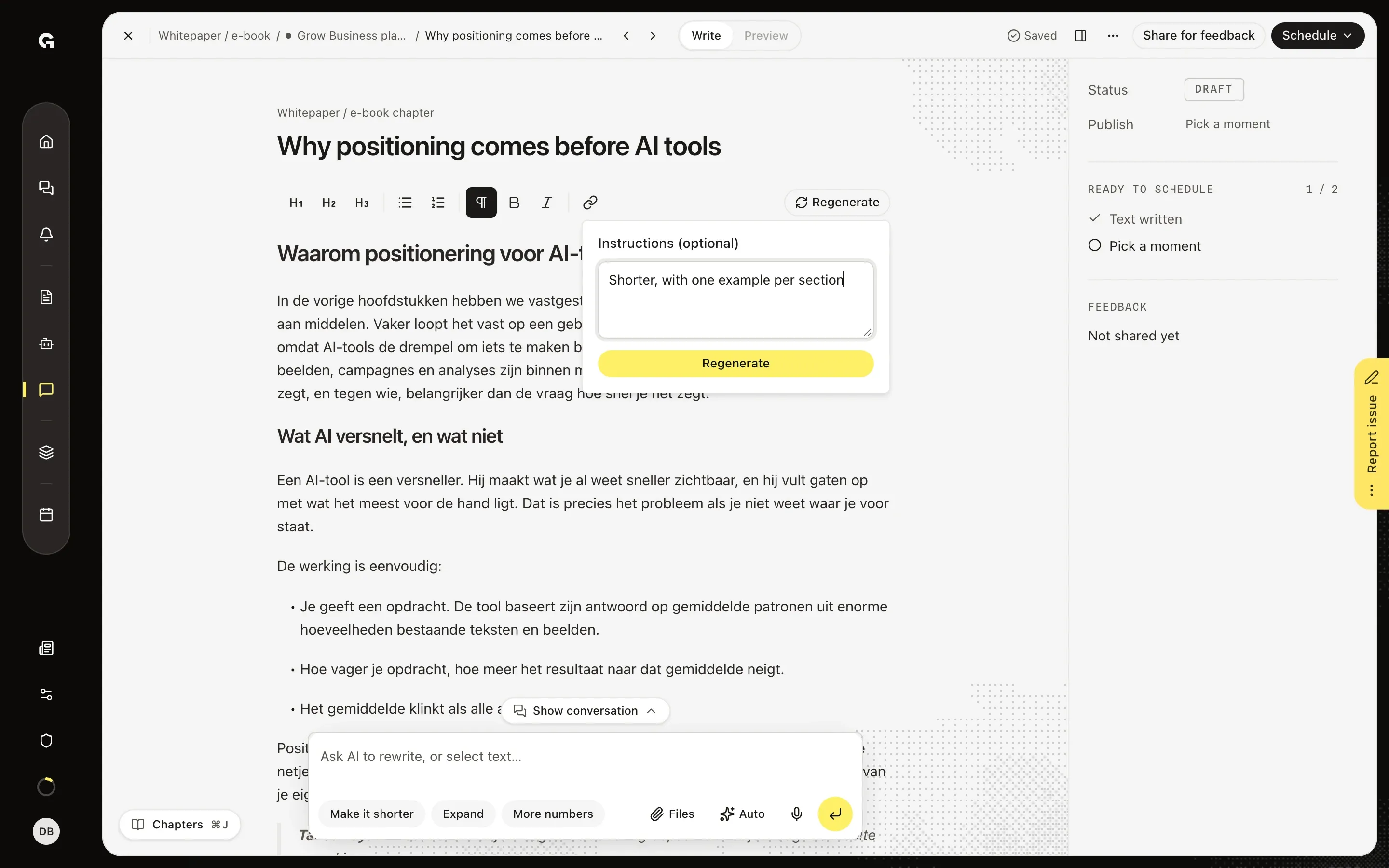
In a written part, Regenerate in the toolbar writes the whole text again. Add Instructions (optional), such as shorter or a warmer tone, and click Regenerate: the new text replaces this one when it is ready. For smaller changes, ask the chat or click a chip under the prompt, such as Make it shorter or Expand. Under the text, each project type suggests a next step: a whitepaper offers Plan in a calendar for a promotion package, a blog article offers Generate for two LinkedIn posts and a newsletter item, and web copy offers Run the check for the same promise on every page. These buttons send their request to the chat right away.
FAQ
How long does writing take?+
The texts are written in the background, one after another, so a whitepaper with many chapters takes longer than a single article. You can keep working in the meantime, also in other parts or other projects. Until a text is there, its row says Outline only and the open part says The AI is writing this text… The text appears in the part as soon as it is ready.
Why does a part stay empty?+
If writing failed, the part says Writing failed. Try again or write it yourself. Click Write this to try again, or type the text yourself. When the workspace is out of AI credits, the part says so and tells you when writing can continue. A part you add with Add chapter, Add article or Add page starts empty, without an outline. Click Write this to have it written from its title, the brief and the other parts, ask the chat, or start typing.
Can these parts go into a calendar?+
These projects have no calendar of their own. Give a part a day and time under Publish in its properties, and it shows on the calendar of every project, which you open with Calendar in the sidebar. A moment alone does not publish anything. For posts around the content, use the step under the text: Plan in a calendar asks the chat for a content calendar that promotes the whitepaper, and Generate adds posts made from a blog article to the series. An item in a Standalone content project offers Add to a calendar instead.
Does this use AI credits?+
Yes. Writing the texts after Create, Write this and Regenerate use AI credits. So does every message to the chat, including the chips under the prompt and the buttons under the text, such as Generate or Plan in a calendar. New project, Add chapter, moving parts and typing yourself cost nothing.