Manage workspace knowledge
Open Documents to see the files Growf can use as workspace knowledge, then upload a file so the library is not empty.
Documents is the workspace knowledge library. Admin and strategist roles can open it on the default permission set. It holds briefs, decks, research, and other files you want Growf to use as context — not images attached to a content draft.
4 steps · About 3 minutes
Open Documents
In the workspace sidebar, choose Documents. The page title is Documents. The line under it says Turn documents into client context your AI can use. Anyone with permission to read documents can open this list. You see public files, files you uploaded, and private files shared with you. You do not see another person’s private file unless they shared it. If the workspace has no files yet, How to use Documents explains the job: keep briefs and research here, give agents that material, and keep strategy grounded in it. New sits in the header (and again on the empty state) when you can upload. Connect opens Integrations if you can update the workspace. Incoming appears only when synced transcripts are waiting — see Review incoming knowledge.
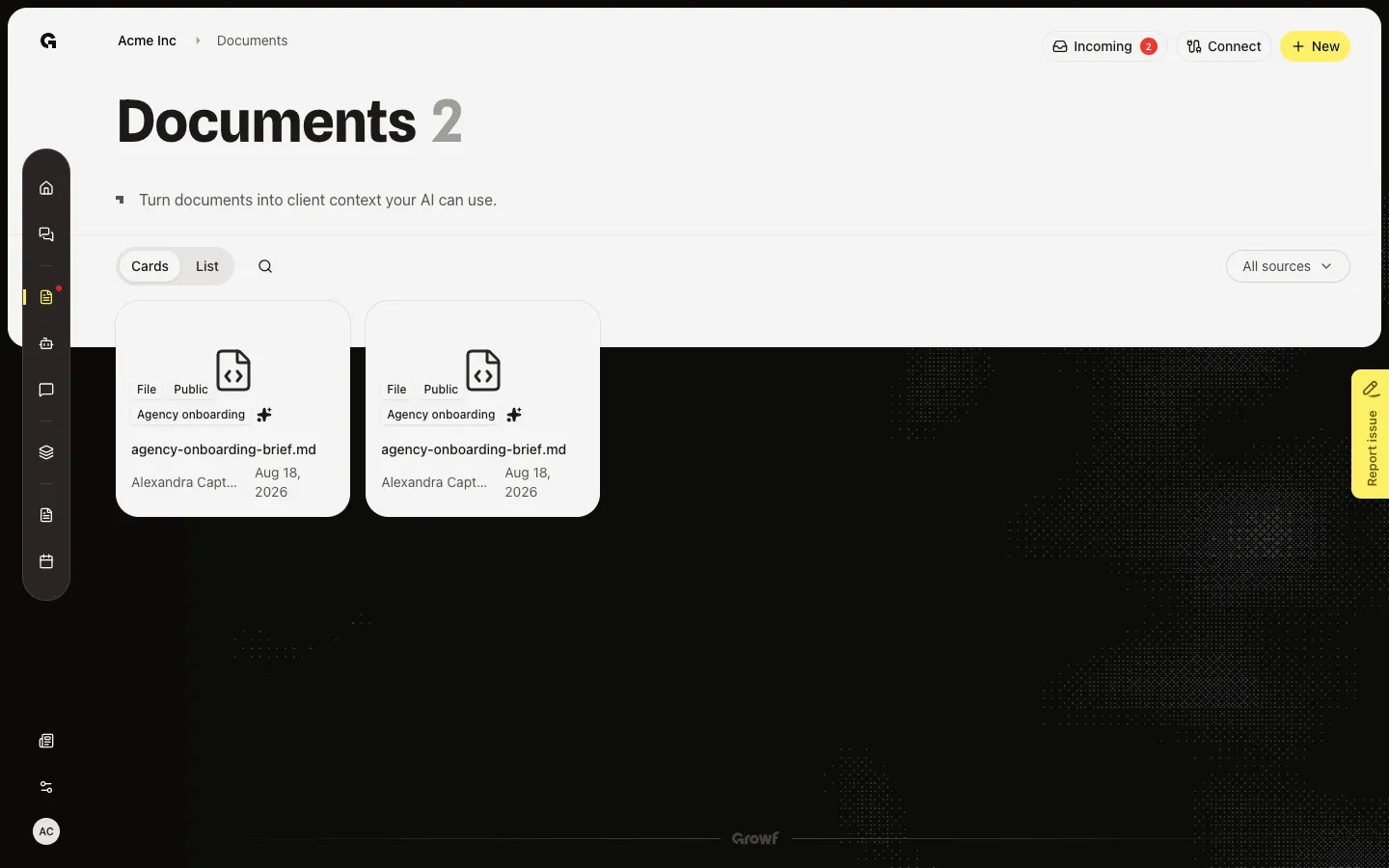
Open Upload documents
Choose New. Upload documents tells you to drop a file or click to browse. The dropzone says Click to upload or drag and drop and Files up to 100MB. This dialog takes one file. To add several files in one go, drop them on the Documents page instead of opening New. Upload from here is covered in Upload workspace documents.
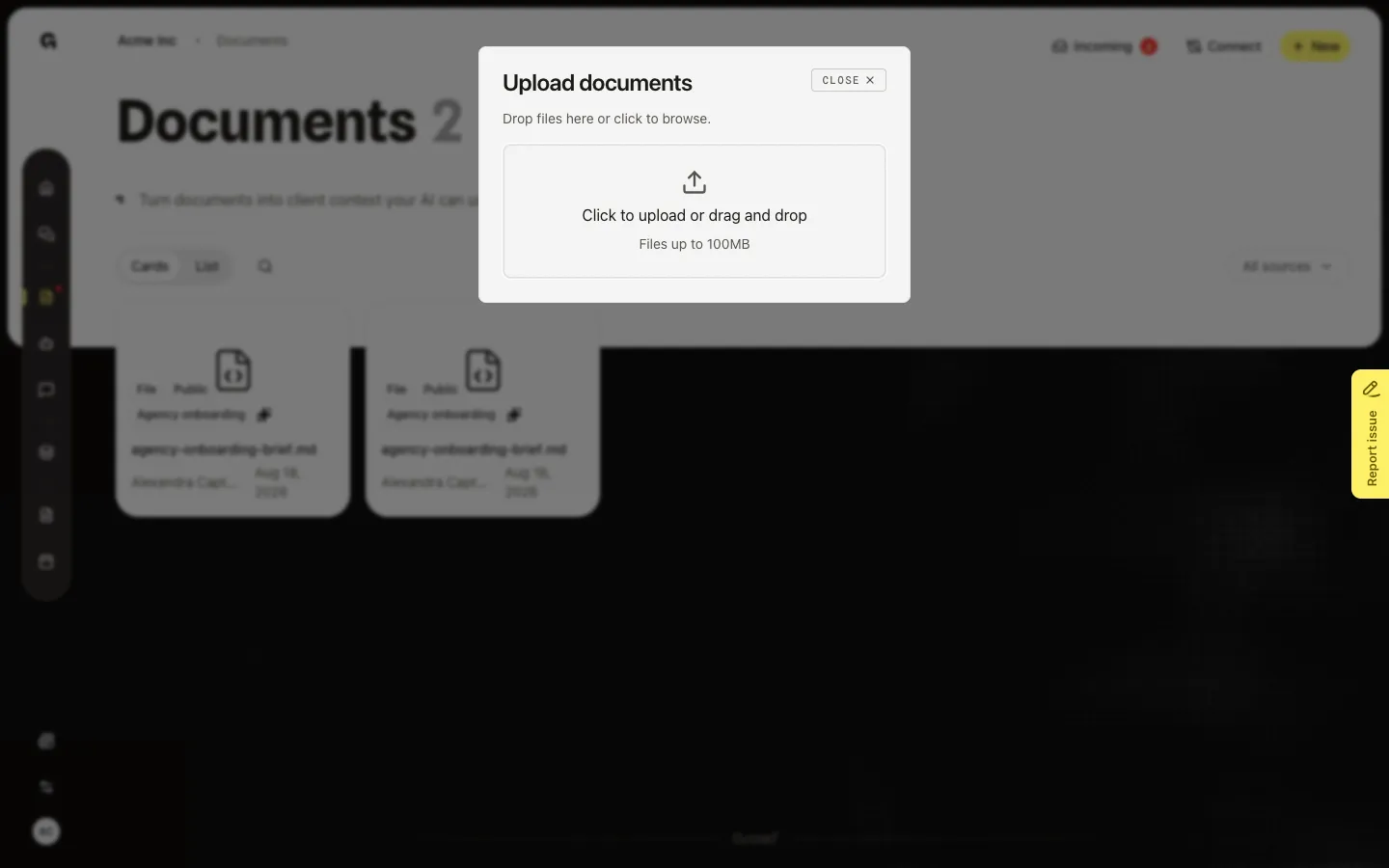
Upload a knowledge file
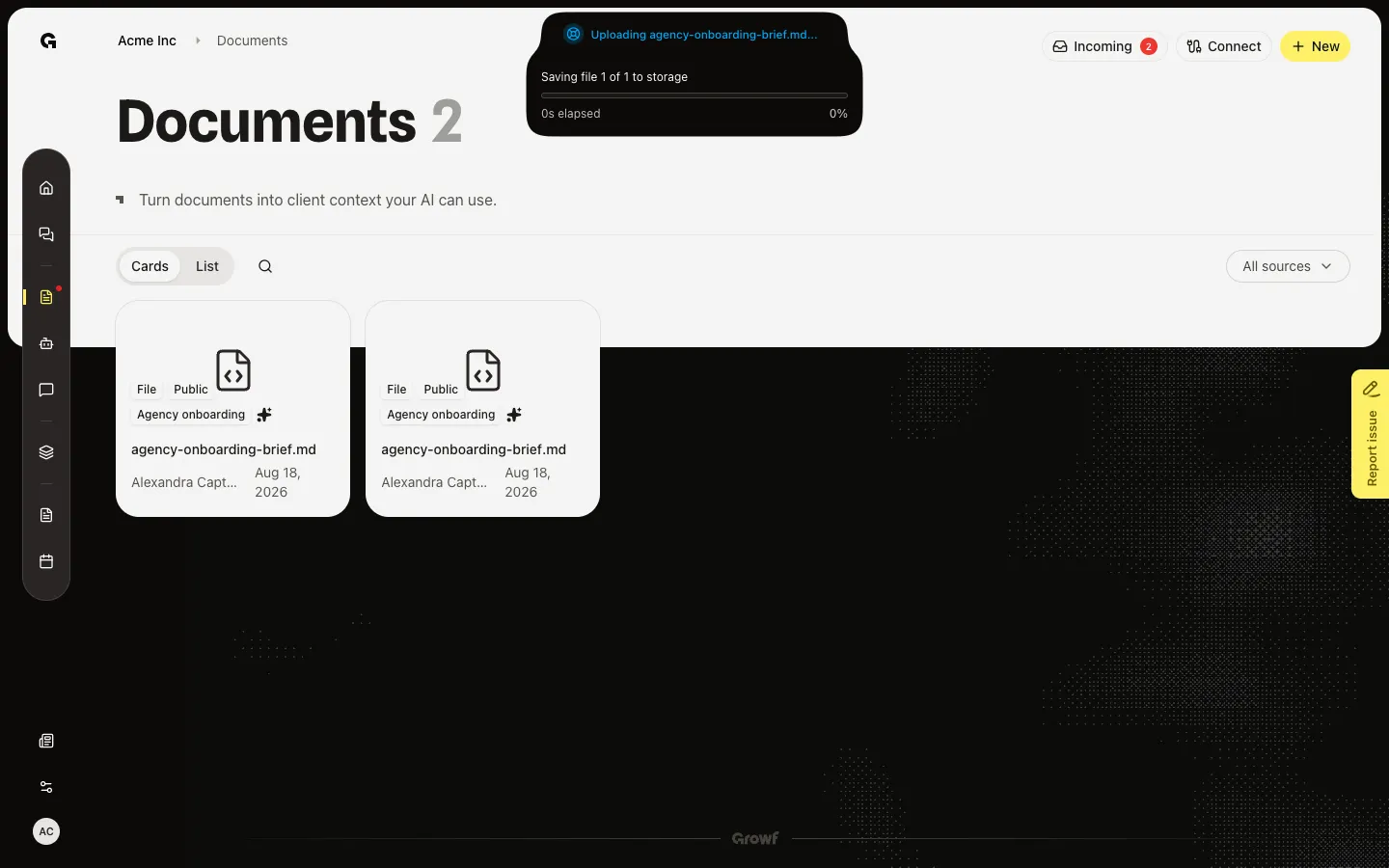
Drop a file or use the dropzone. Growf saves it as knowledge and starts reading it. A toast says the upload finished and processing started. The dialog closes. The file appears as a card with its name, Public, who uploaded it, and the date. A sparkle icon fills in when the file is indexed. Later articles open this file for preview, process, visibility, share, default in chat, and delete.
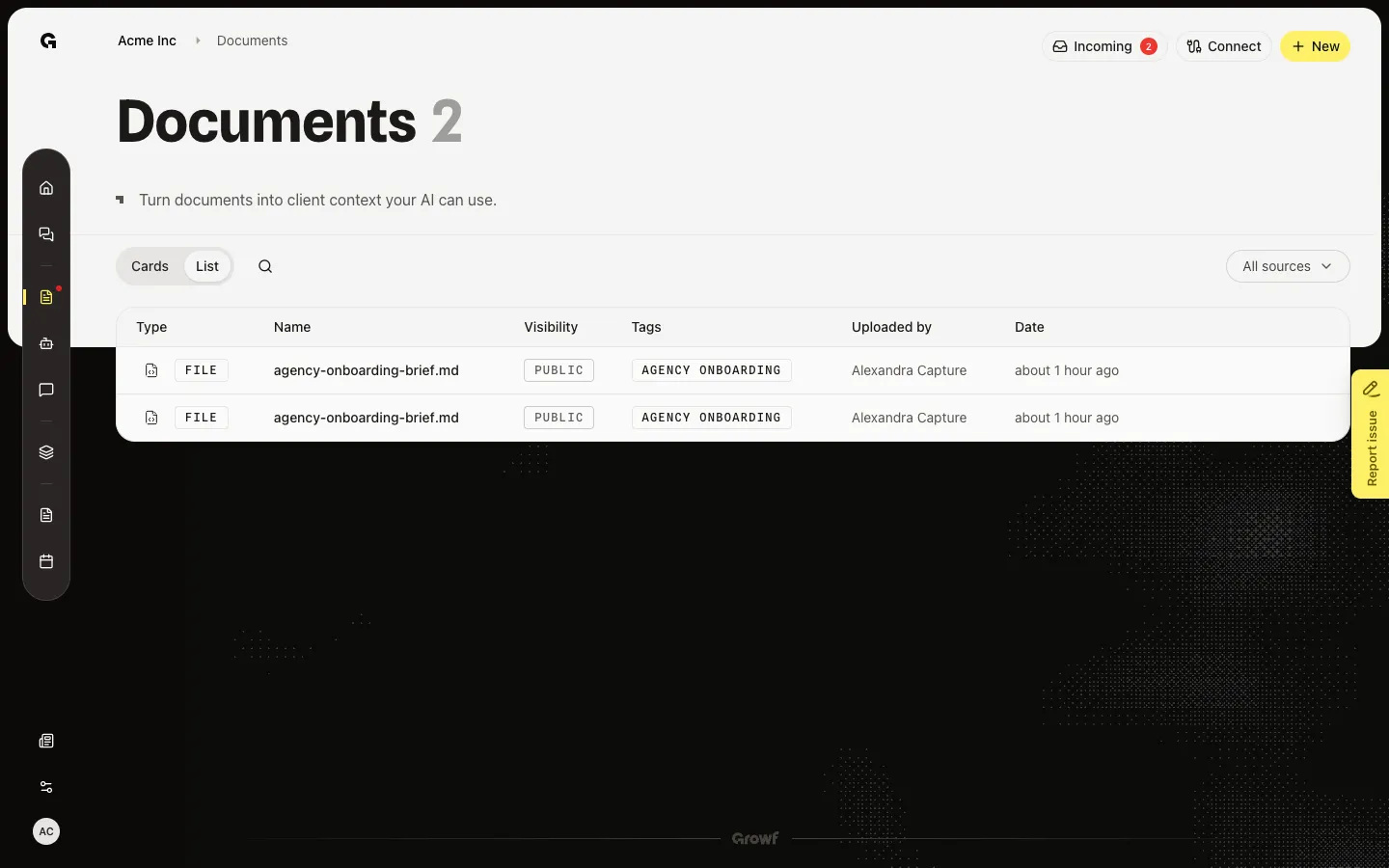
Switch to List
When the library has files, Cards and List appear next to Search documents. Cards is the default. List shows Type, Name, Visibility, Tags, Uploaded by, and Date. Hover a row for View and, if you can delete, Delete. All sources filters My uploads versus files that arrived from a connected tool. Search matches the file name. Open a card or name to reach Overview.
FAQ
I do not see Documents in the sidebar.+
Documents needs permission to read documents. On the default roles, admin and strategist have it. Creator and client do not. Ask an admin to change your role or grant that permission.
Why is New missing?+
New needs permission to create documents (admin and strategist on the default roles). You can still open files you are allowed to see. Connect needs permission to update the workspace.
What files appear here?+
Knowledge you upload, and files accepted from Incoming after a sync. Public files are visible to the workspace. Private files appear only for the owner and people they shared with. Content images used on drafts are not this list.
The page says No documents found but I know files exist.+
Search or All sources is hiding them. Clear the search and set All sources. Private files you were not shared stay hidden.
How does chat use these files?+
New chats can pre-select files marked Default in chat. You can also pick files in the chat knowledge control. See Set default chat knowledge and Link knowledge in chat.