Share a document
Set a file to Private, then invite workspace members so only they can open it with you.
Share gives named workspace members access to a Private knowledge file. Only the person who uploaded it can do this. Public files do not use a share list — the whole workspace can already open them.
3 steps · About 3 minutes
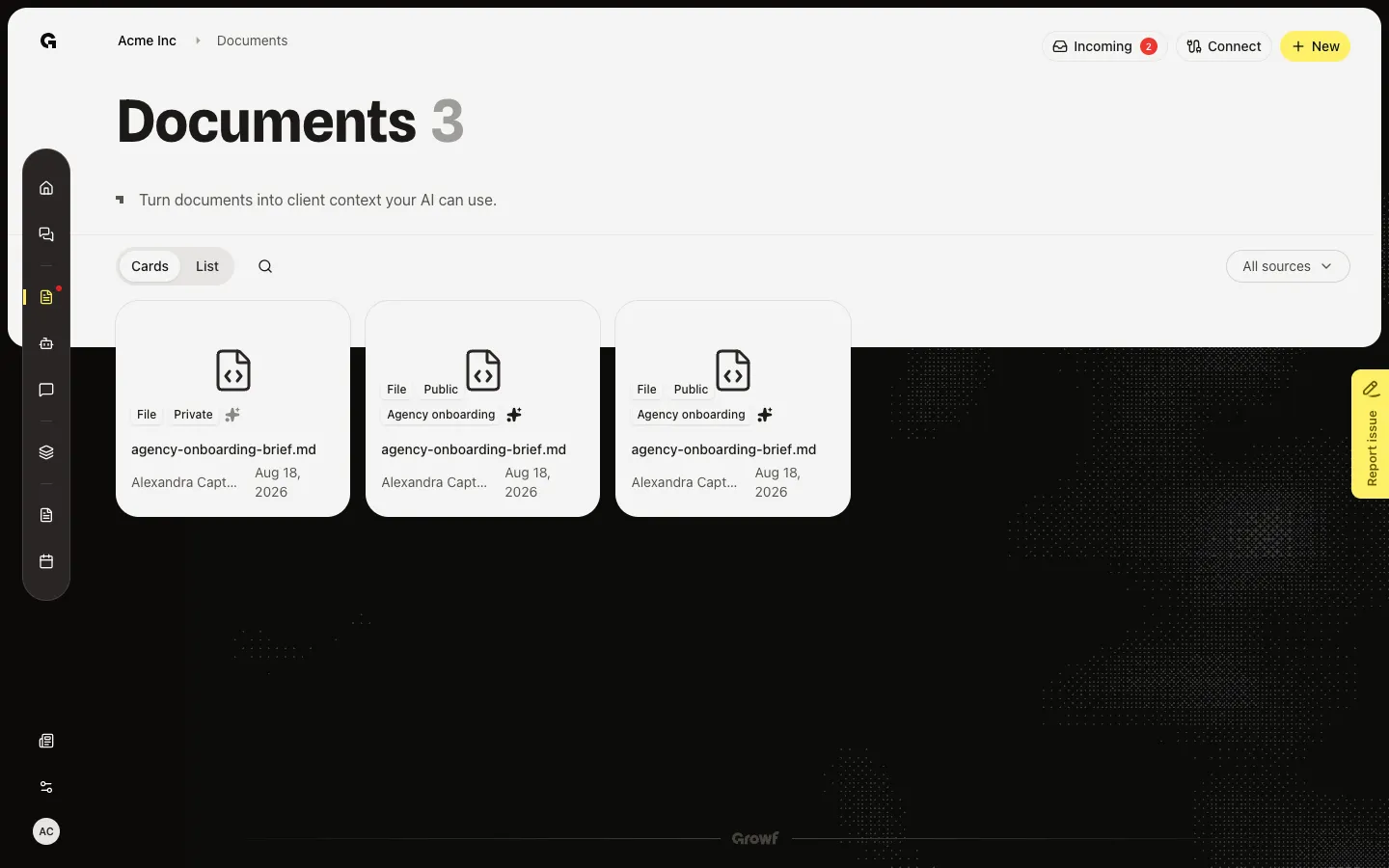
Open the file
On Documents, find a file you uploaded (this walk uses agency-onboarding-brief.md). Open it next. Shared with appears only when Visibility is Private and you are the owner. If the file is still Public, change that first. People you share with see This document is private. You can view it because the owner shared it with you. They cannot change Access.
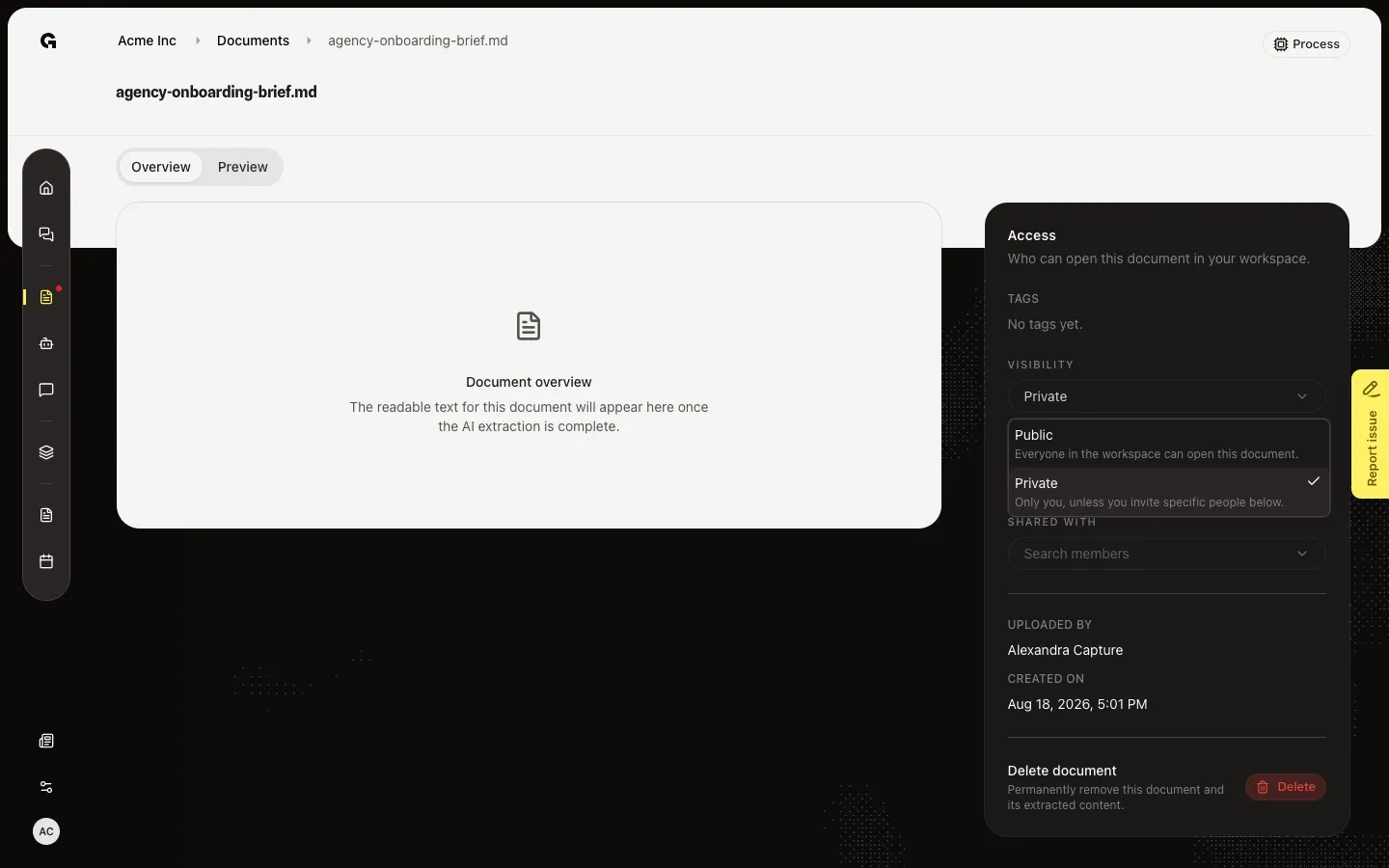
Set Visibility to Private
Open Visibility and choose Private. Shared with appears. Public files cannot be shared — the control is for a short list, not the whole workspace. If you later choose Public, Growf clears that list.
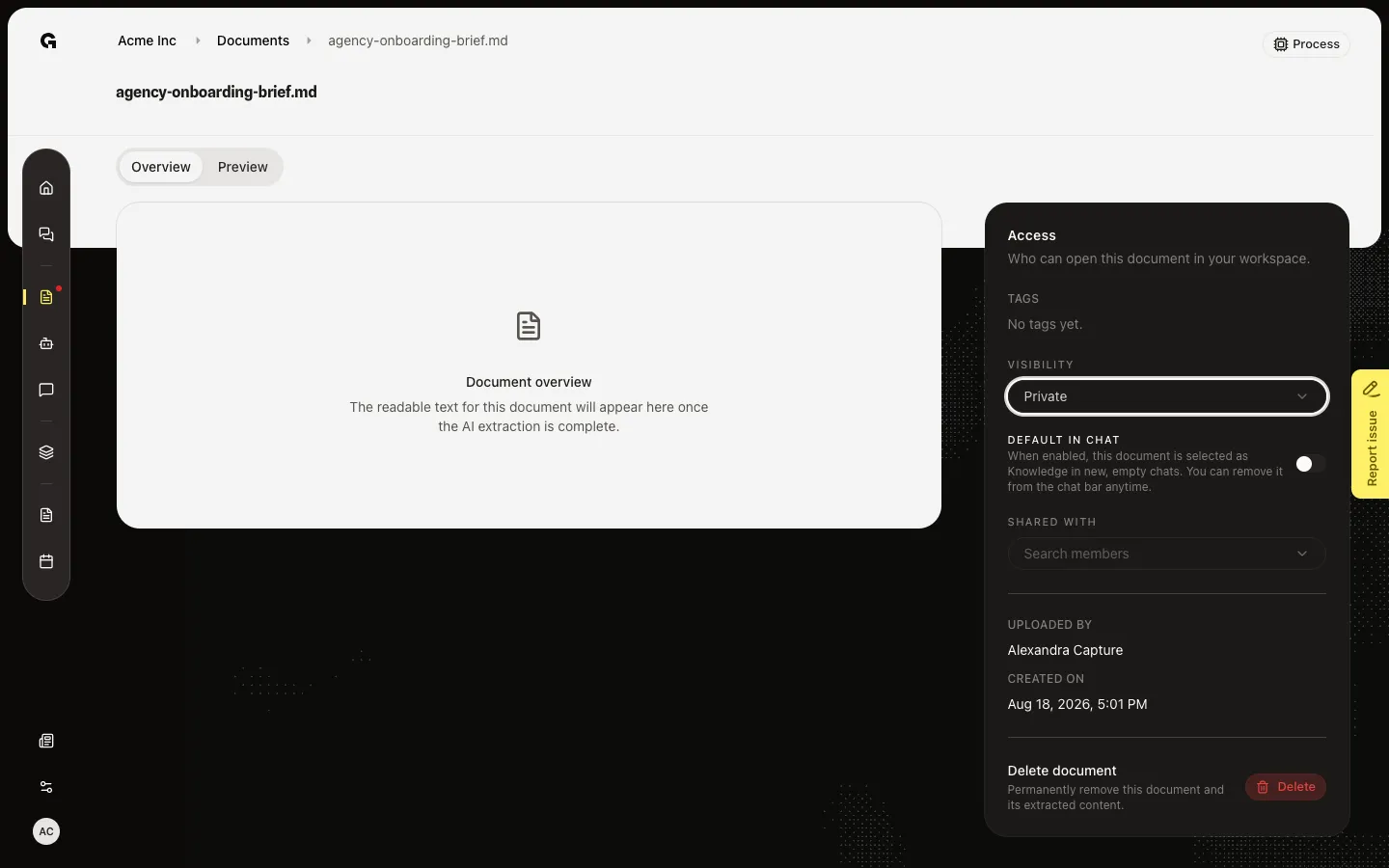
Search members
Choose Search members. Pick people who already belong to this workspace. You cannot add yourself. Each name becomes a chip; remove a chip to take access away. If the list says No more workspace members to add, invite them to the workspace first, then return here. They can then open the file from Documents and use it in chat if you also set Default in chat.
FAQ
I do not see Shared with.+
Set Visibility to Private. Public files are already open to the workspace, so there is no share list. Only the owner sees Shared with.
Search members says No more workspace members to add.+
There is no one else with an active membership, or you already added everyone. Invite people to the workspace first. You cannot share with yourself.
I picked someone and it did not stick.+
They must be an active member. Sharing applies only to private documents. If Access shows an error, set Private again and retry. Switching to Public later removes them.