Use the marketing calendar
See scheduled and posted work by day, filter the grid, and start a piece from a date.
The marketing calendar is the month and week grid of scheduled Growf content and imported posts. Use it to see what goes out, filter by identity or status, and start a piece on a day.
4 steps · About 3 minutes
Open Calendar
In the sidebar, under Marketing, choose Calendar. You need permission to read the calendar. Month is the default. Each day lists Growf pieces and imported posts. A star marks a special date from Settings Calendar (capture includes KB Product Launch). Capture seed places KB Calendar Sample on today.
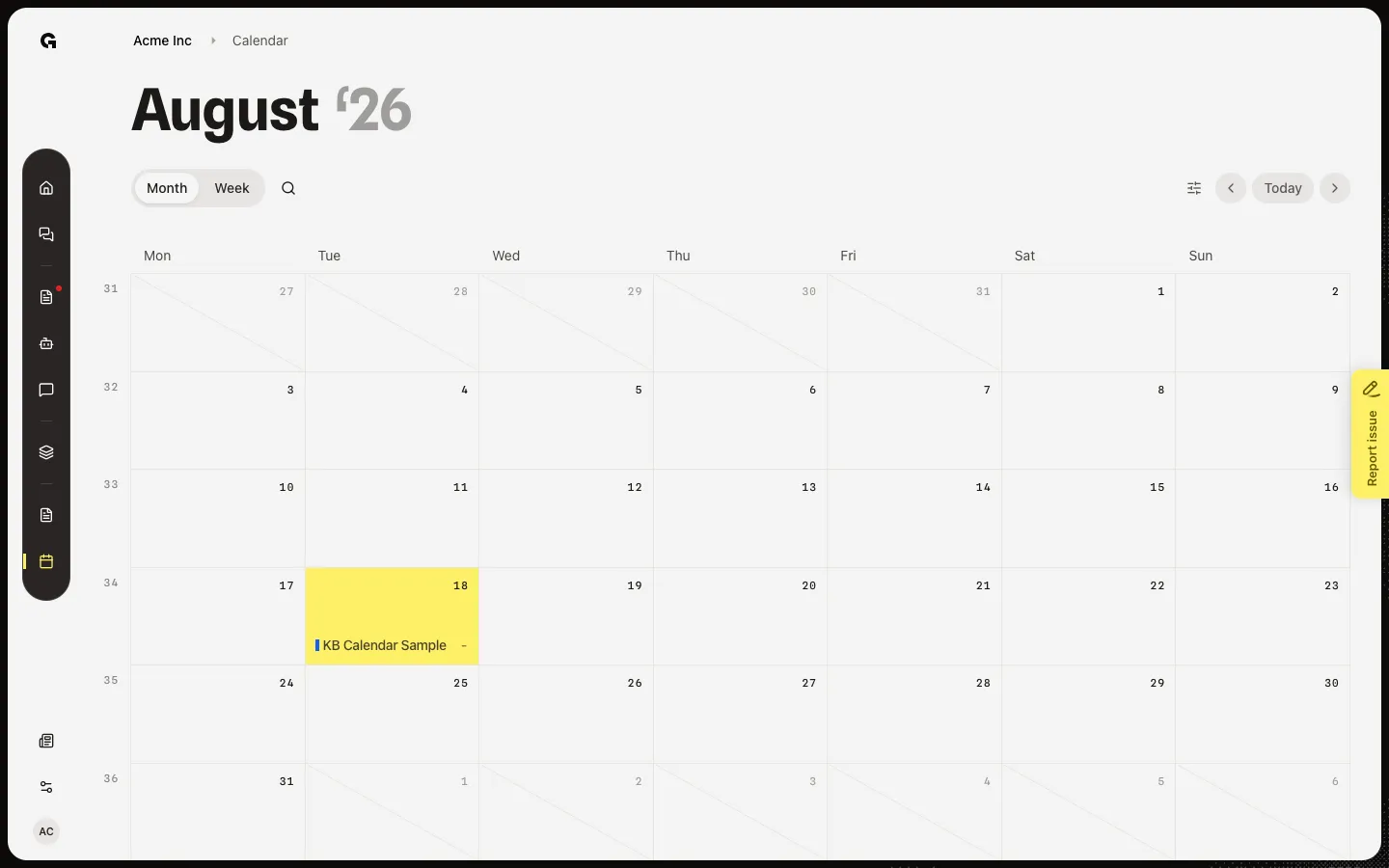
Show Filters
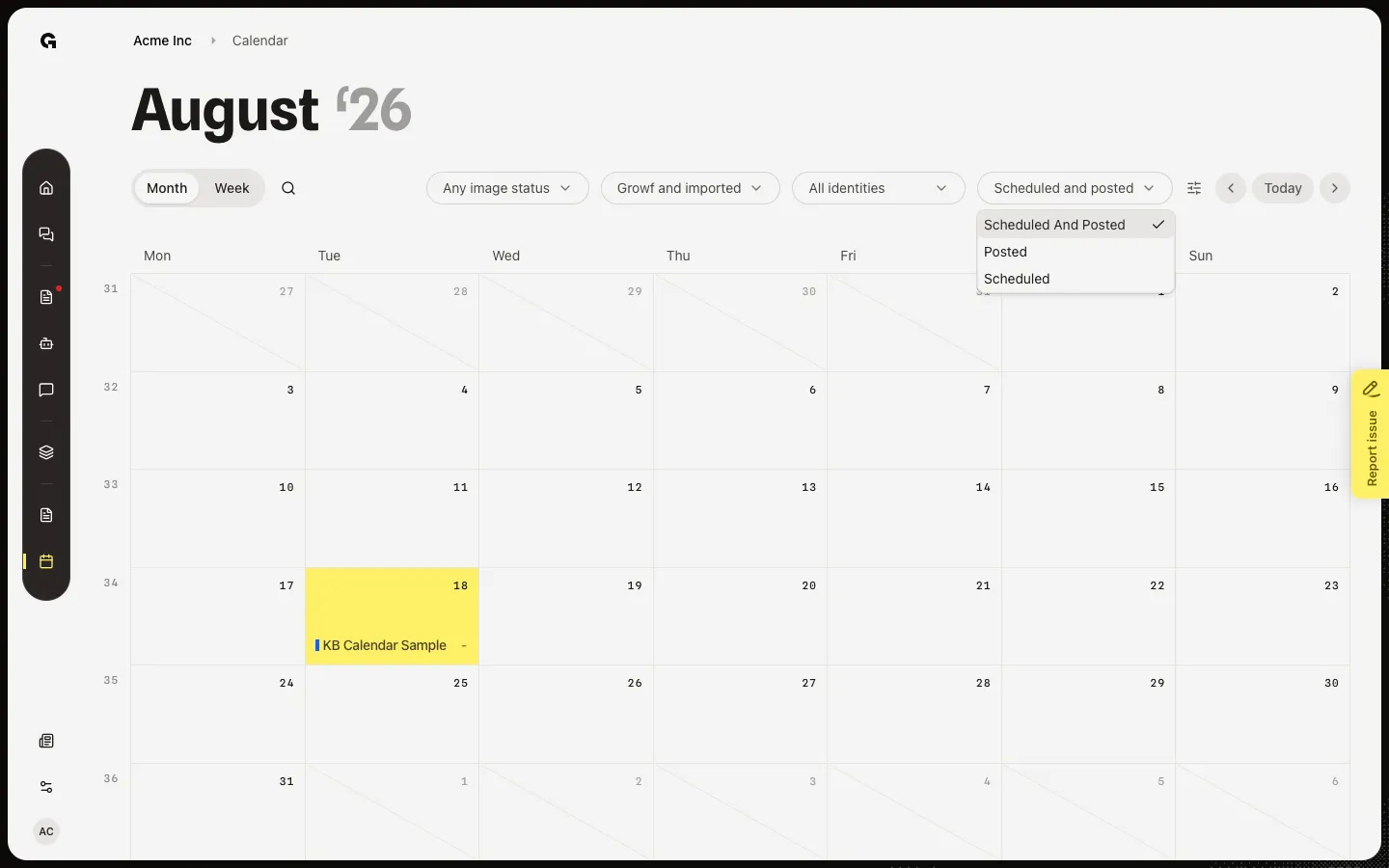
Choose Filters (sliders). You can limit by image (Any image status, With image, No image), source (Growf and imported, Growf content, Imported posts), identity (All identities or one publisher), and status (Scheduled and posted, Posted, Scheduled). Search content... matches names. An empty day reads No content planned.
Open a planned item
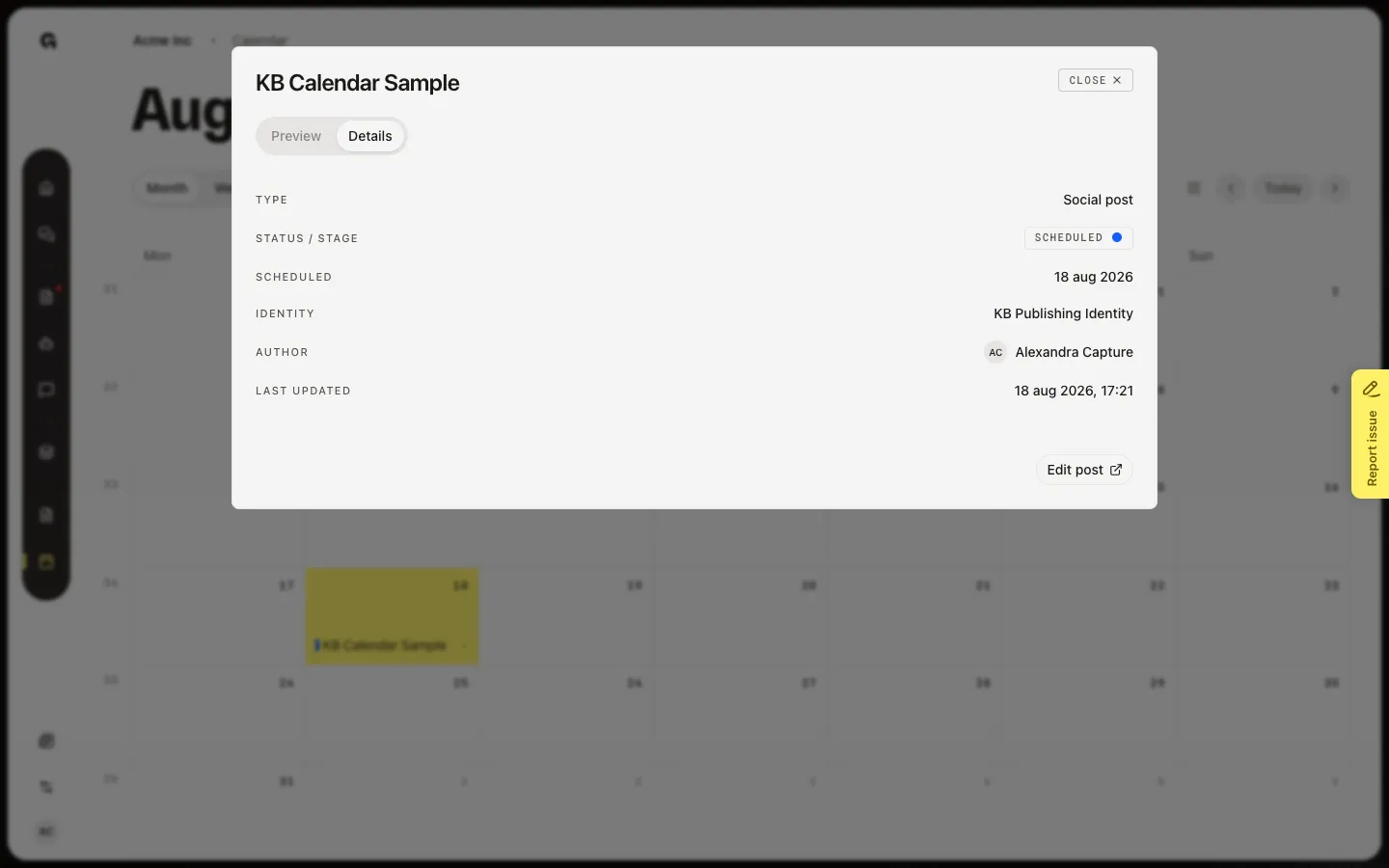
Choose a piece to open its dialog. Preview shows how the post looks when the title and body are set. Details lists type, status, schedule, identity, and author. Drag a scheduled item to another today-or-future day to move it. Past days do not accept new work.
Add content for a day
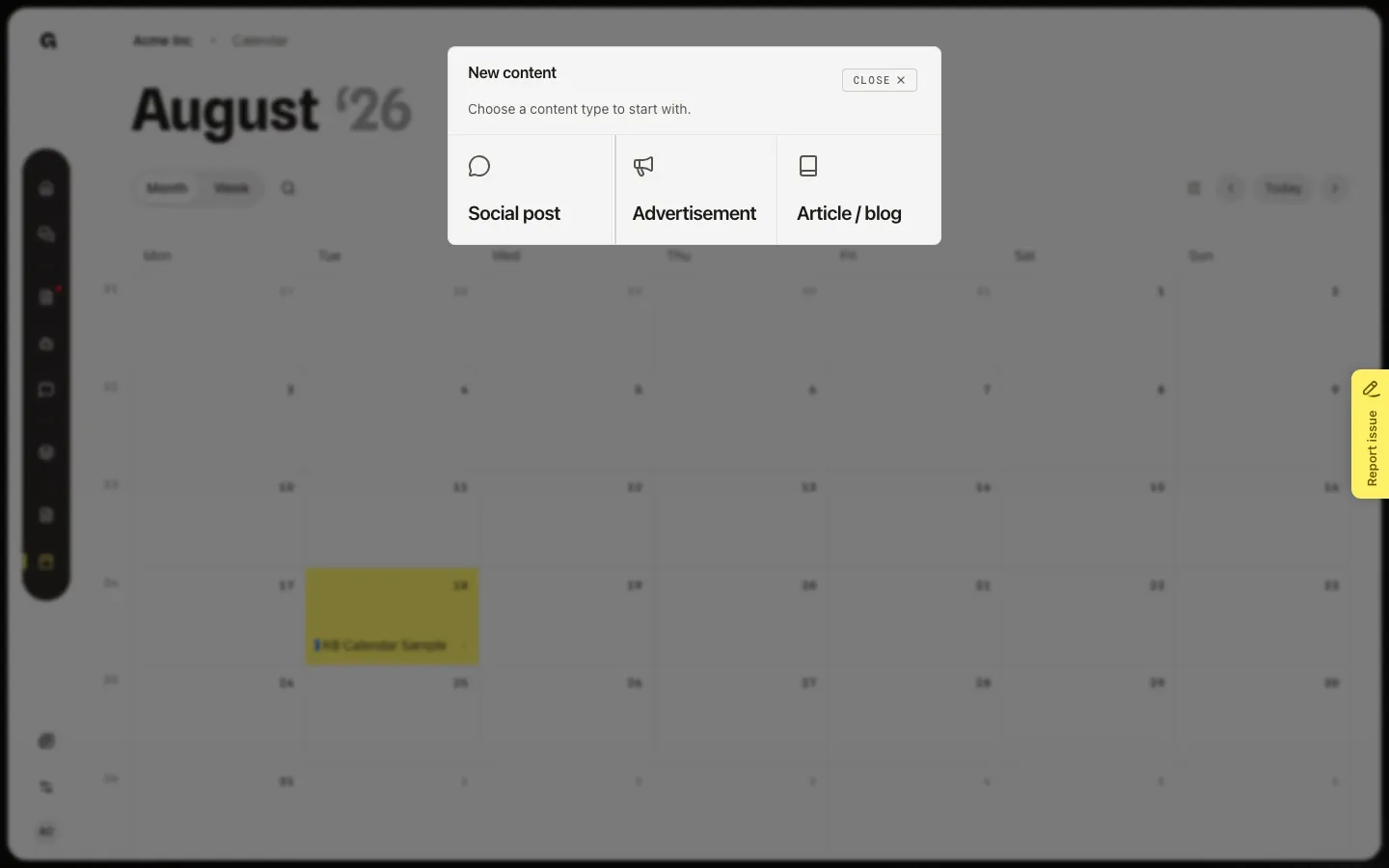
Hover today or a future day and choose + (Add content for {day}). New content is the same type picker as Content. You can also attach an unscheduled draft to that day. The + control is hidden until you hover.
FAQ
Is this the same Calendar as in Settings?+
No. Marketing Calendar is scheduled and posted work. Settings Calendar is special dates (launches and holidays). See Manage special dates.
I do not see Calendar in the sidebar.+
Calendar needs permission to read the calendar. Ask an admin. Adding a piece from + also needs permission to create content.
I do not see + on a day.+
+ only exists on today and future days, and only if you can create content. Hover the day. Past days stay view-only.
How do I put a draft on a day from the editor?+
Open the piece in Content and choose Schedule. See Schedule content to publish. This calendar is for seeing the week and starting work from a date.