Browse designs in the gallery
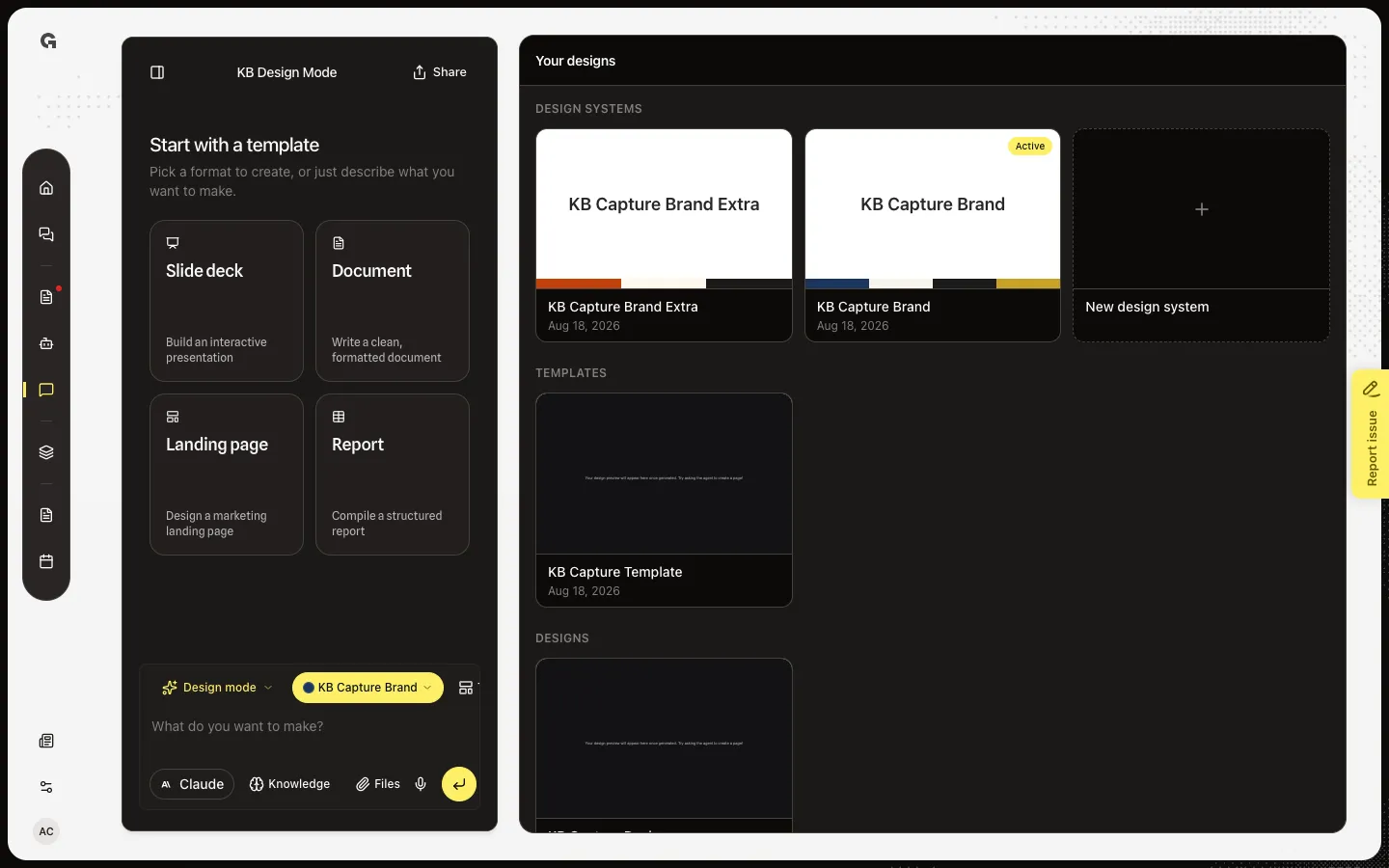
Open Your designs to see design systems, saved templates, and workspace designs.
Your designs is the Design Mode library. Anyone in the workspace can open it. It lists design systems, saved templates, and designs so you can pick what this chat should work on.
3 steps · About 3 minutes
Open Your designs
Open Design Mode. When this chat has nothing open, the right panel is Your designs. Design systems lists workspace brands. Templates lists saved snapshots. Designs lists finished or in-progress work. Cards show a live thumbnail once they scroll into view.
Open a design system card
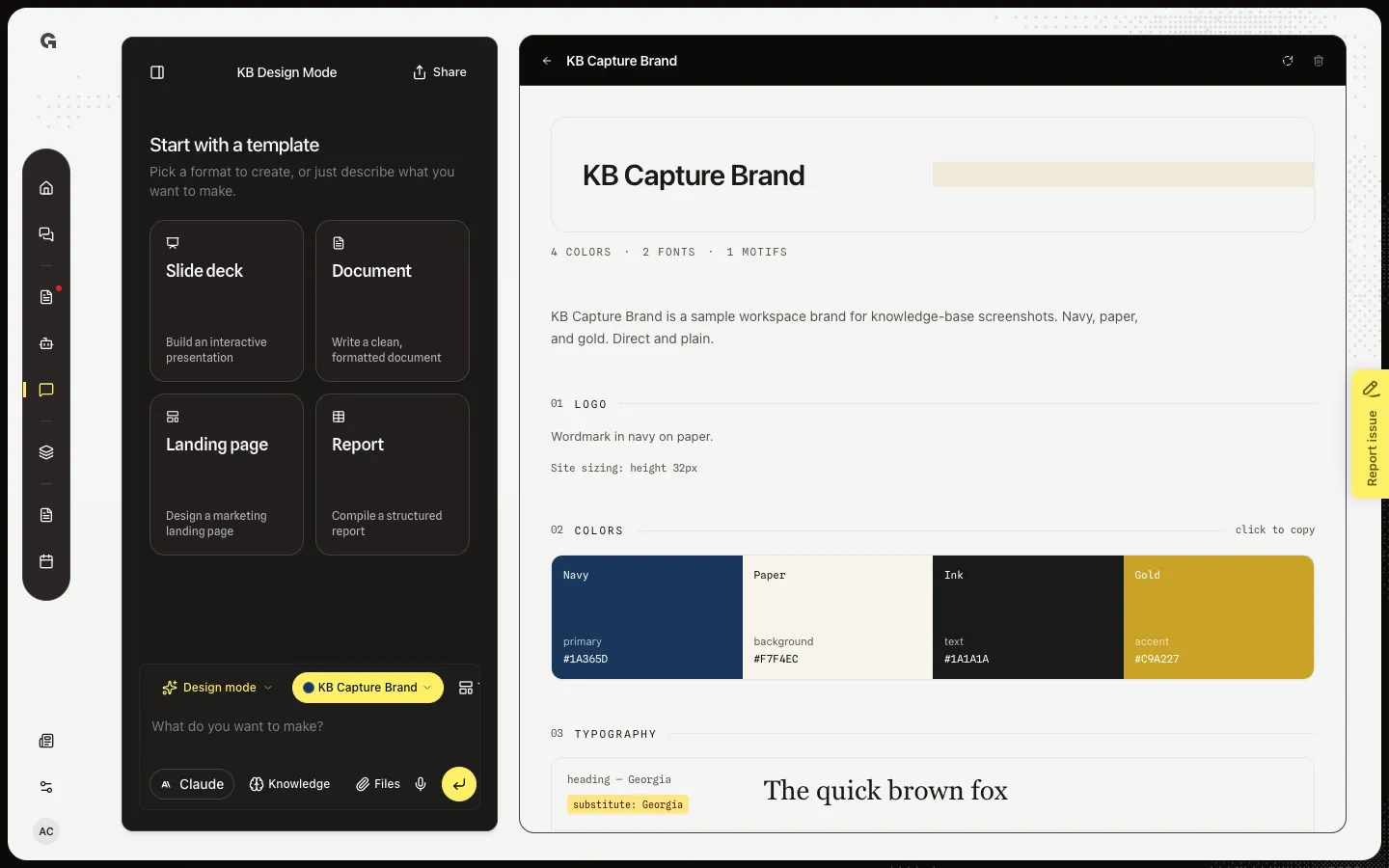
Choose KB Capture Brand. Only design systems open an intermediate screen: the style guide. Designs and templates skip that and attach to this chat so you can edit by talking. Active marks the default brand for new designs. Generating… and Generation failed are status on the card.
Return to Your designs
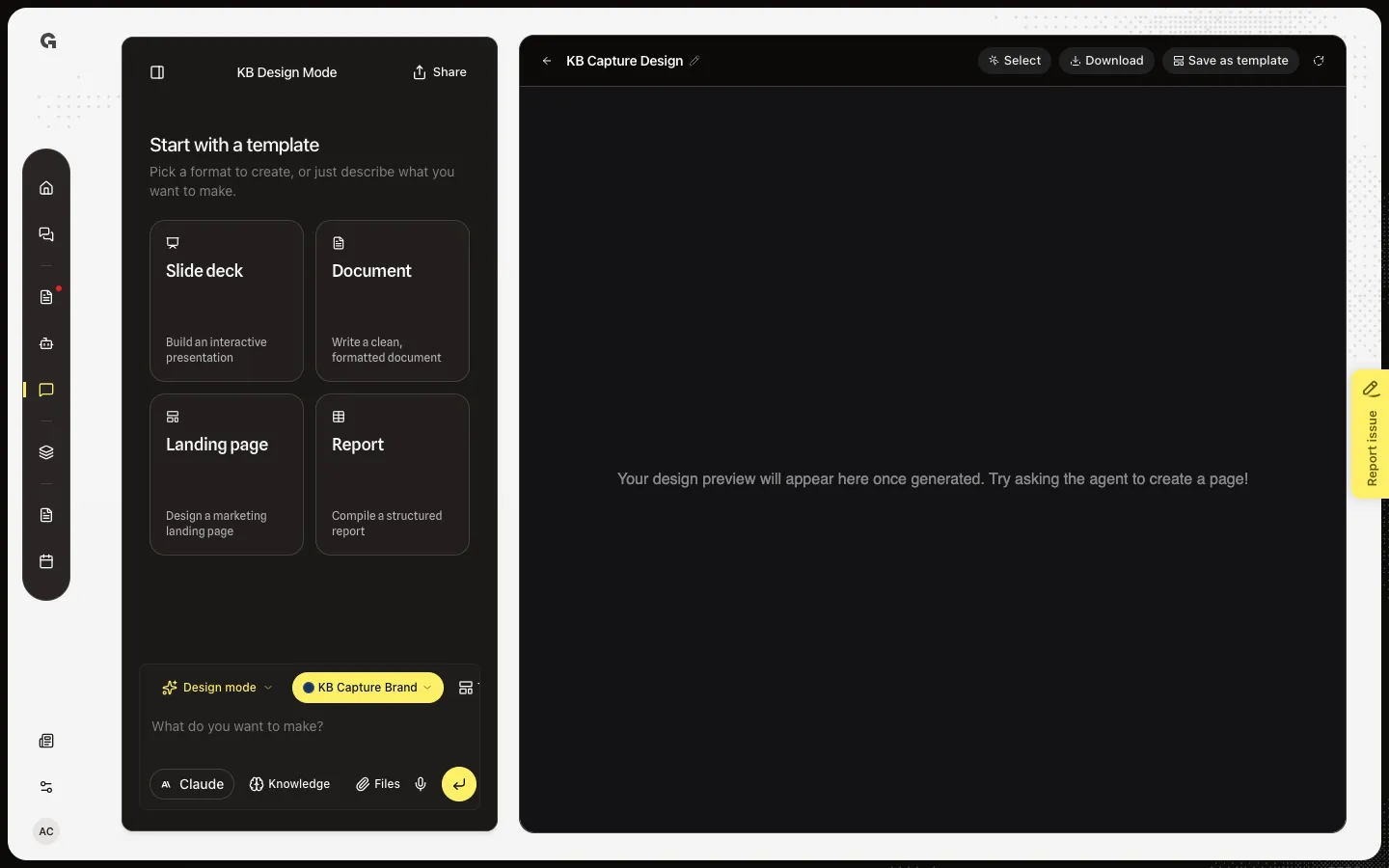
Use the back arrow beside the style guide title. You are back on the three lists. Opening KB Capture Design or KB Capture Template from here points this conversation at that row. Currently open appears on the card this chat is already editing.
FAQ
Templates or Designs says it is empty.+
Designs appear after you send a brief in Design Mode. Templates appear after Save as template. Design systems always include New design system, even when you have none yet.
What happens if I open a design or template?+
This chat starts editing that workspace row. The html is not copied. The same design can move between chats. See Use Design Mode.
I see Couldn't load your designs.+
The gallery request failed. Reload the page. You still need Design mode on for this panel to exist.
I do not see Your designs.+
This chat already has a design or template open, or a build is running. Use the back arrow, or wait until the first design row exists.