Monitor agency AI usage
See how much of the shared AI credit pool each workspace uses this billing cycle, what drives it, which chats use the most, and export it as a PDF.
All workspaces of your agency share one pool of AI credits per billing cycle. Usage in the agency cockpit shows how much of that pool is used, which workspaces and people use it, what they use it for and whether the pool is likely to last until the end of the cycle.
5 steps · About 4 minutes
Open Usage
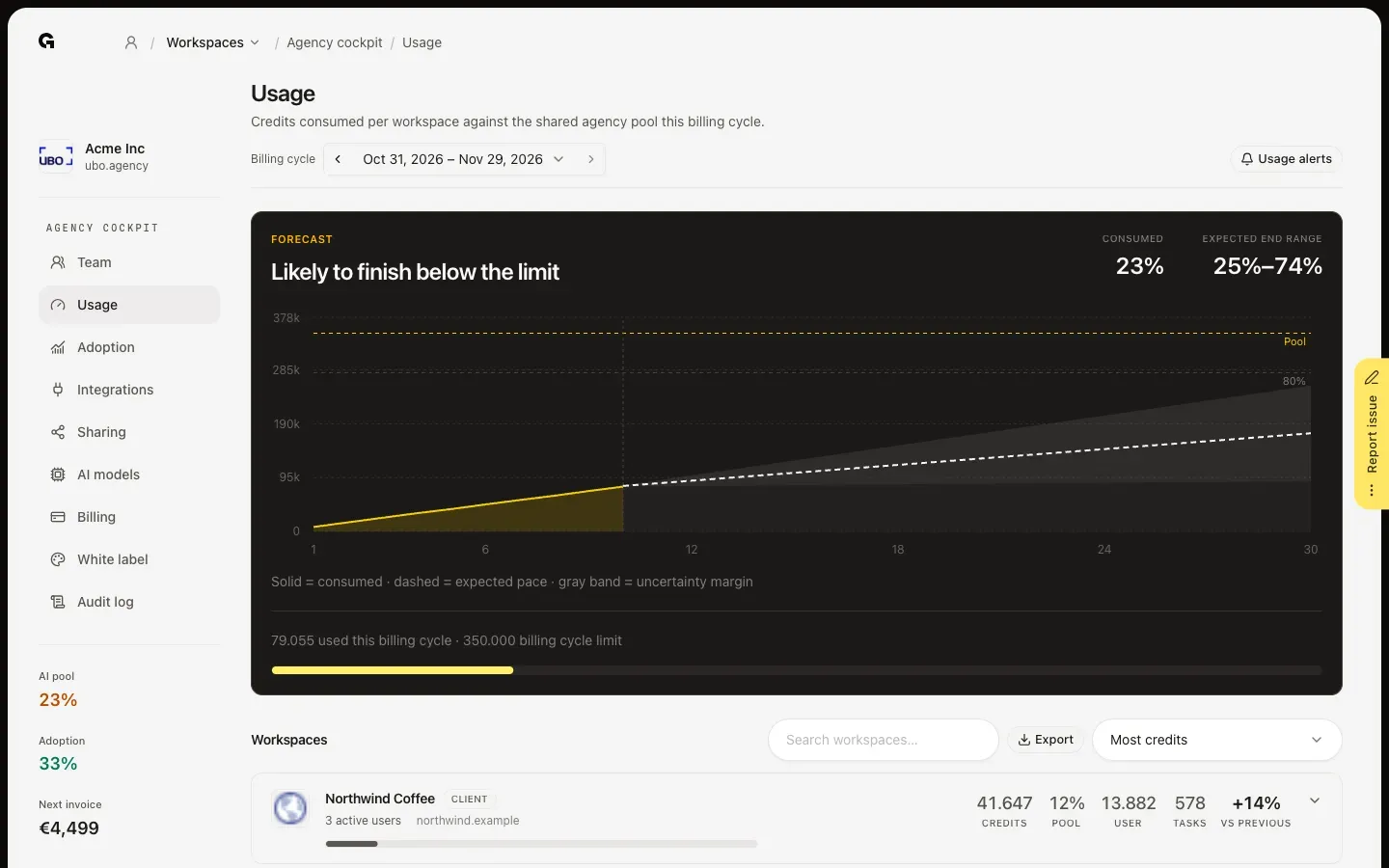
In the agency cockpit, click Usage. The forecast at the top shows how much of the shared AI credit pool your agency has used this billing cycle, under Consumed, and where it is expected to end, under Expected end range. The headline says what that means, such as Likely to finish below the limit. In the chart, the solid line is what you used, the dashed line the expected pace and the gray band the margin around it.
Choose a billing cycle
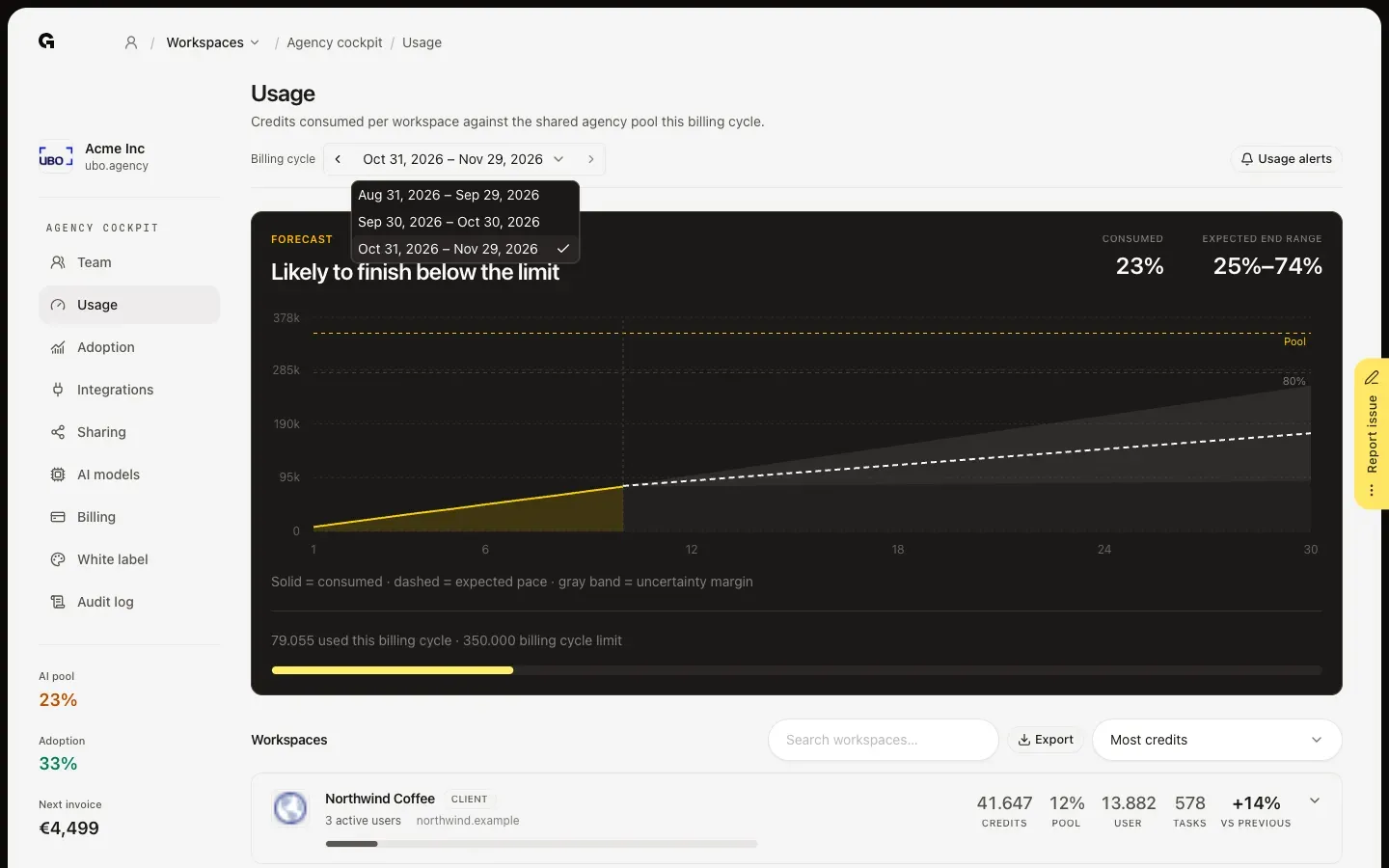
Usage follows the billing cycle of your subscription, not the calendar month. Click the dates next to Billing cycle to pick an earlier cycle, or use the arrows beside them. Everything on the page, from the forecast to the workspaces, then shows that cycle.
Compare workspaces
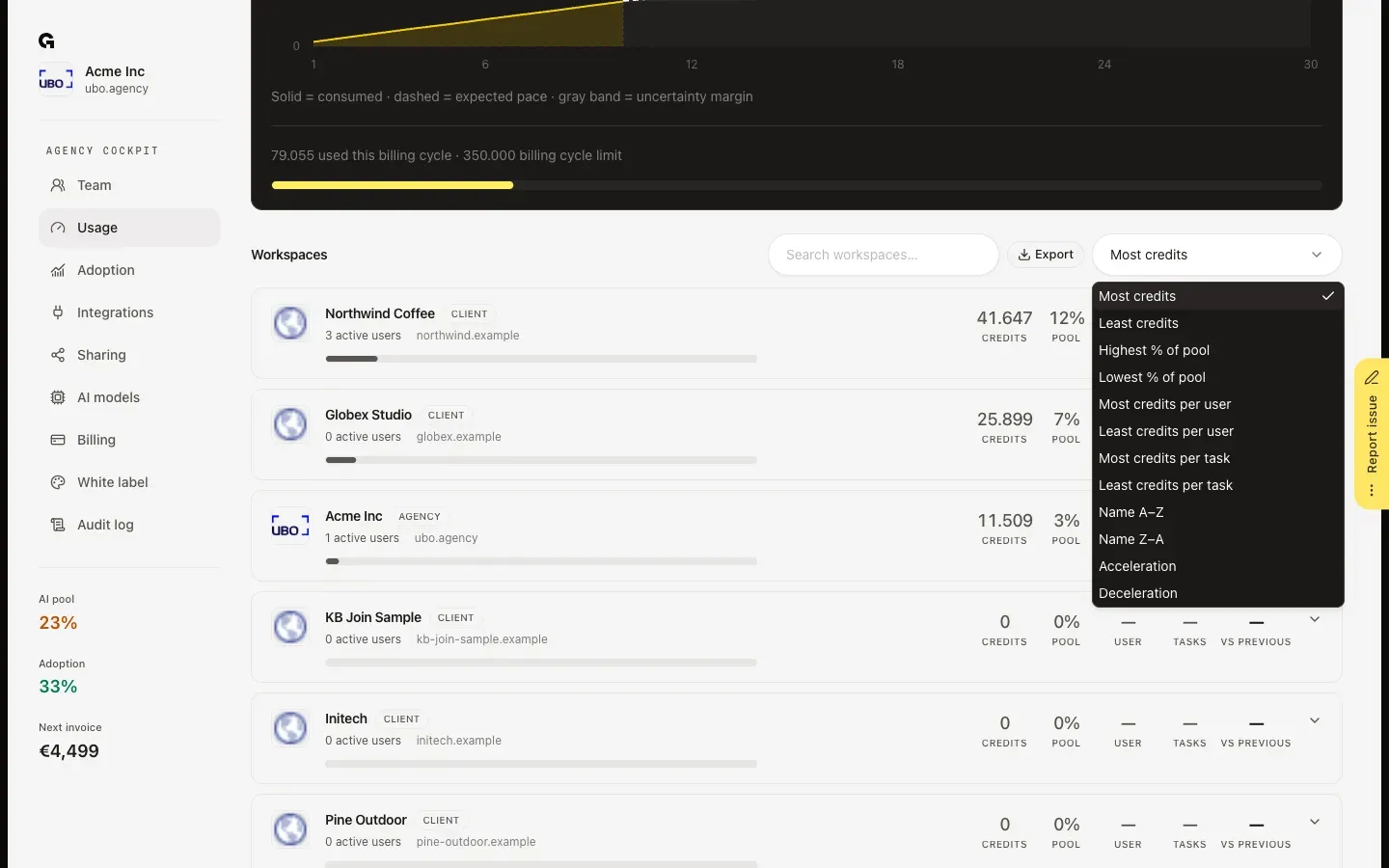
Under Workspaces, every workspace of your agency shows its Credits, its share of the pool, credits per user (User), the number of AI tasks (Tasks) and the change against the cycle before (Vs previous). Search workspaces finds one by name. Most credits sorts the list; choose another order, such as Highest % of pool, Most credits per user or Acceleration to see who sped up most.
See what drives a workspace's usage
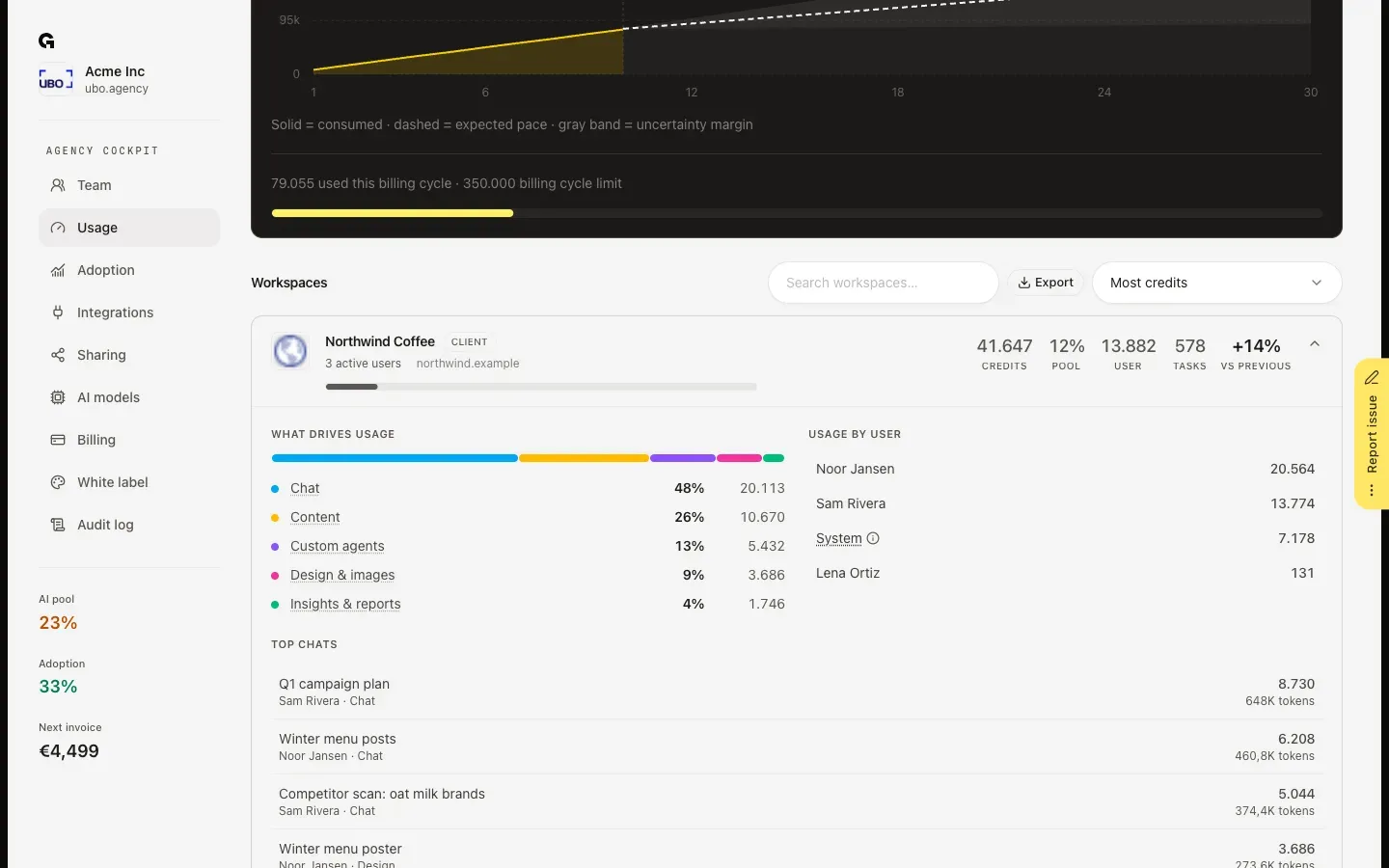
Click a workspace to open it. What drives usage splits its credits into categories, such as Chat, Content, Custom agents and Design & images; point at a category to see what it covers. Usage by user lists the people, and System the automatic background work, which doesn't count as an active user. Top chats lists the conversations that used the most credits, with who started them and how many tokens they used. At the bottom are Chargeback, Usage alert and Set cap.
Export usage as a PDF
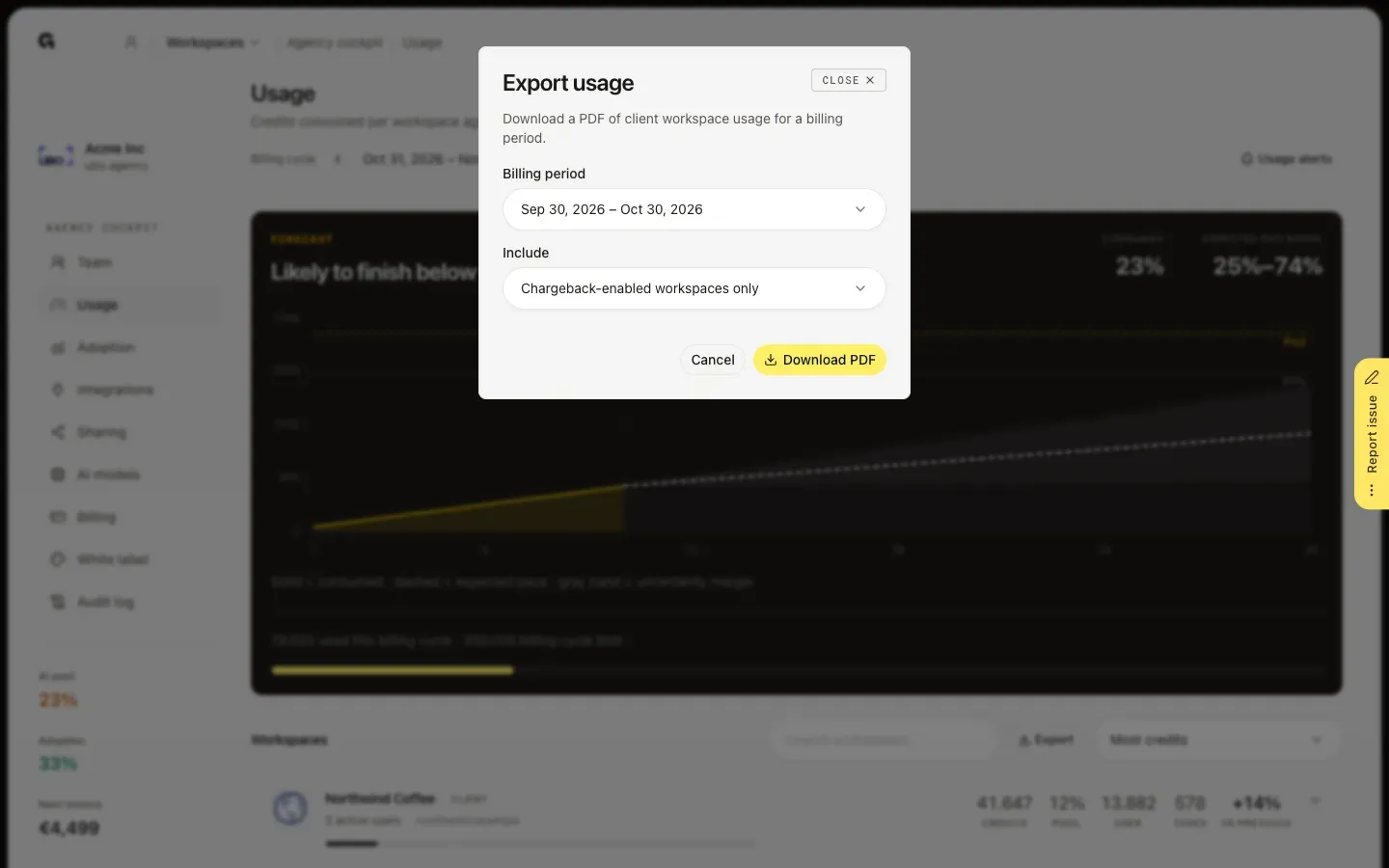
Click Export above the workspace list. In Export usage, choose a Billing period and what to Include: Chargeback-enabled workspaces only, or All client workspaces. Download PDF saves a summary per client workspace with credits, the chargeback amount where it is on, and usage by user, ready to share or attach to an invoice.
FAQ
What counts toward the pool?+
Every AI task in every workspace of your agency: chats, writing content, custom agents, designs and images, insights, prospecting, and setting up workspaces and documents. System covers the tasks Growf runs in the background, such as scheduled jobs. They all draw from one shared pool per billing cycle, set by your plan.
Why does the forecast say it needs recent usage?+
Growf needs at least three completed days in the last 30 days to work out a pace. Until then the chart only shows what you used. Without a pool limit, the headline says No pool limit configured and the chart shows the pace without a limit.
Can I see what a chat in Top chats was about?+
You see the title of chats in the workspace, who started them and what they used. Personal chats from My work show as Personal chat without a title, because they are private, and a deleted chat shows as Deleted chat with its credits.
How do I stop one client from using the whole pool?+
Open the client's row and click Set cap to give it a limit of its own, then Usage alert to get an email before it is reached. To invoice the usage to the client, switch on Chargeback. See **Set workspace credit caps**, **Configure agency usage alerts** and **Configure agency chargeback**.