Manage agent output recipients
Choose who receives scheduled agent emails, set a subject, and check delivery history.
Output is who receives the agent result by email. Anyone who can update agents can change the list.
4 steps · About 3 minutes
Open Output
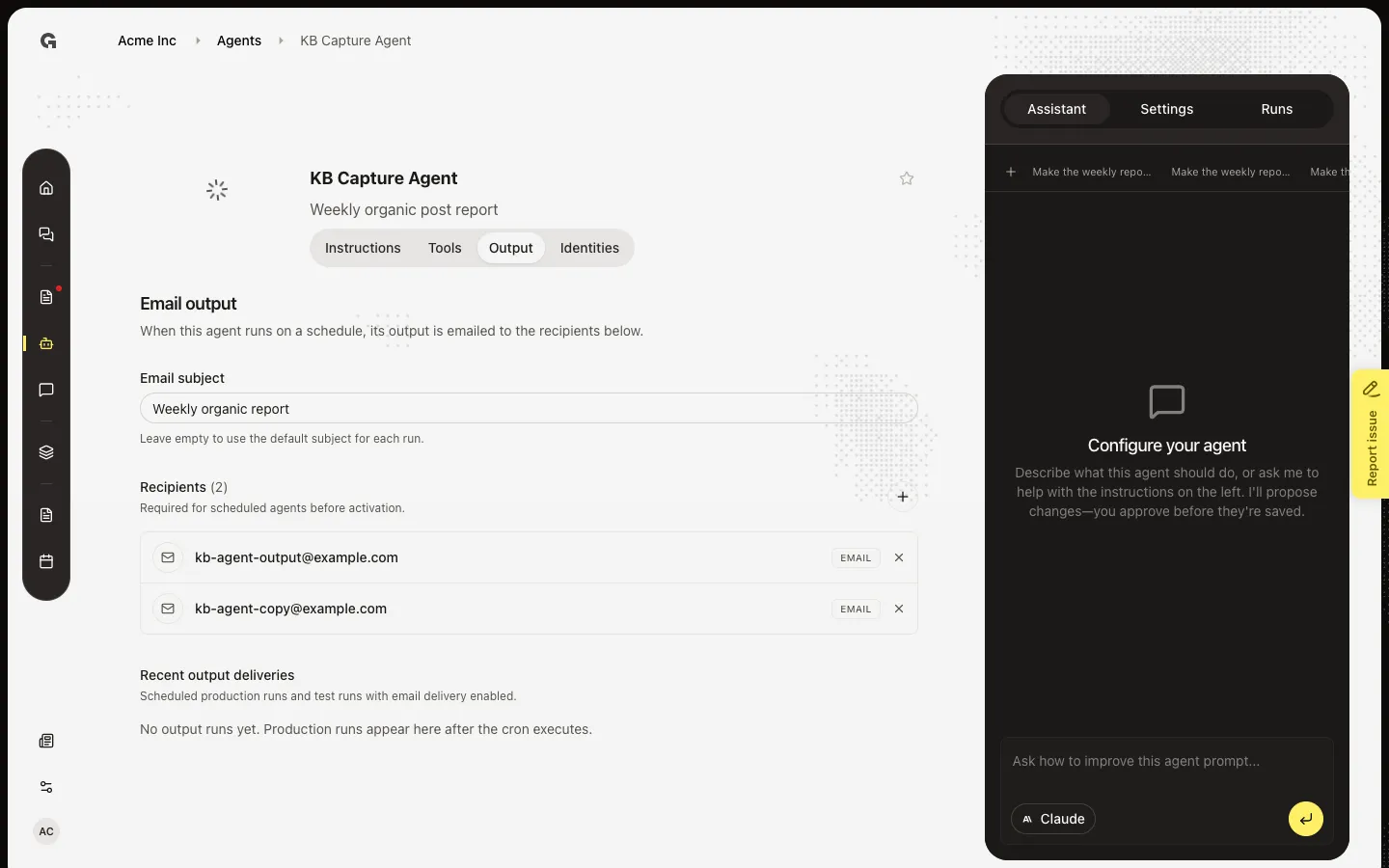
Open **KB Capture Agent**, then choose Output. Email output lists who gets the result when the agent runs on a schedule. A mark on Output means the agent is scheduled and Recipients is empty. Active stays off until you add at least one person.
Set the email subject
Fill Email subject. Leave it empty to use the default, such as KB Capture Agent · new output. The placeholder shows Weekly report · new output as an example. The subject applies to scheduled runs and to Test Run when Send output email is on.
Add a recipient
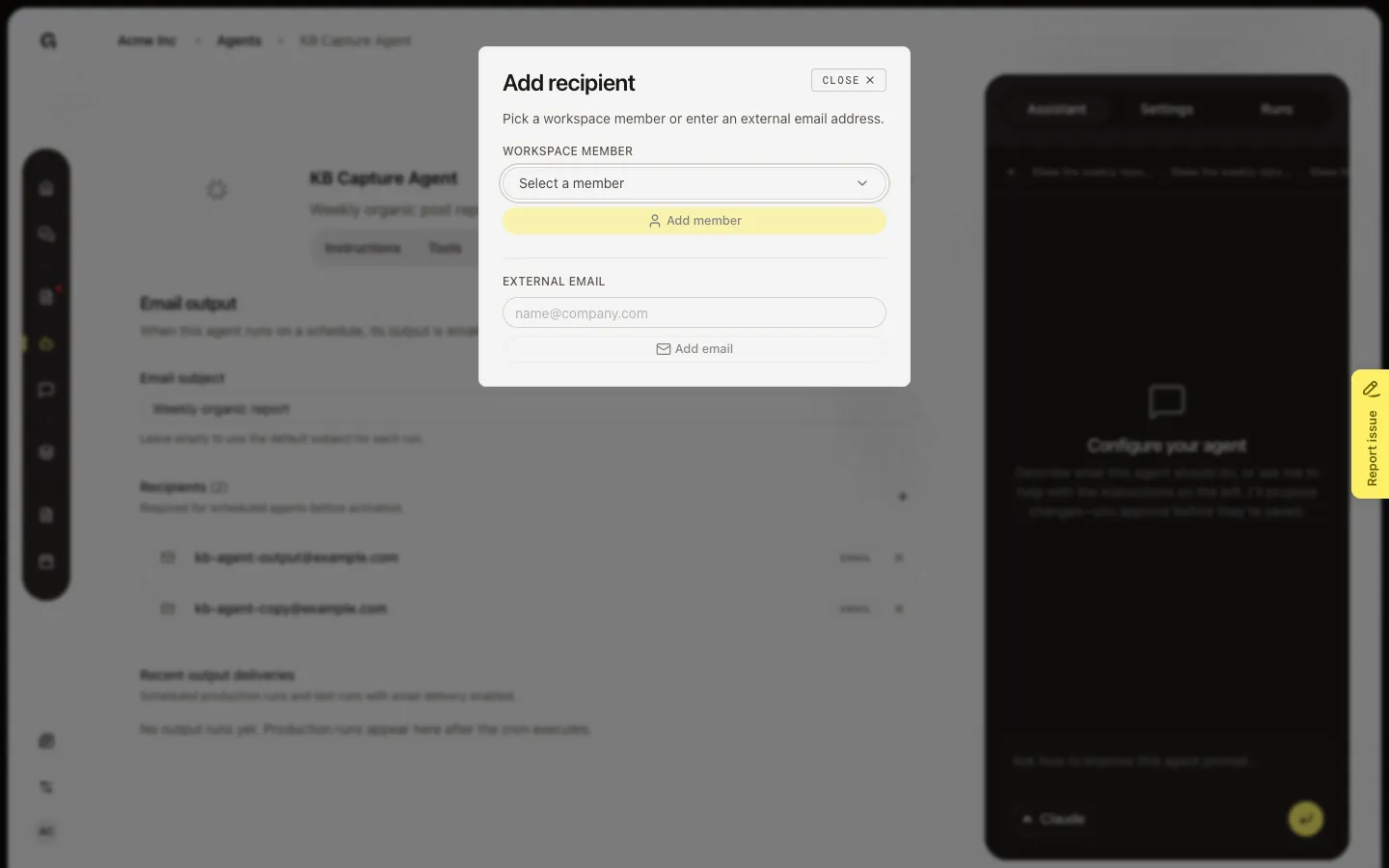
This agent already lists kb-agent-output@example.com. Choose Add recipient. Pick a workspace member and Add member, or enter another email and Add email. Recipients get every scheduled production run, and test runs only when Send output email is on. This walk leaves the dialog open so you can see both options.
Open Runs to send a test email
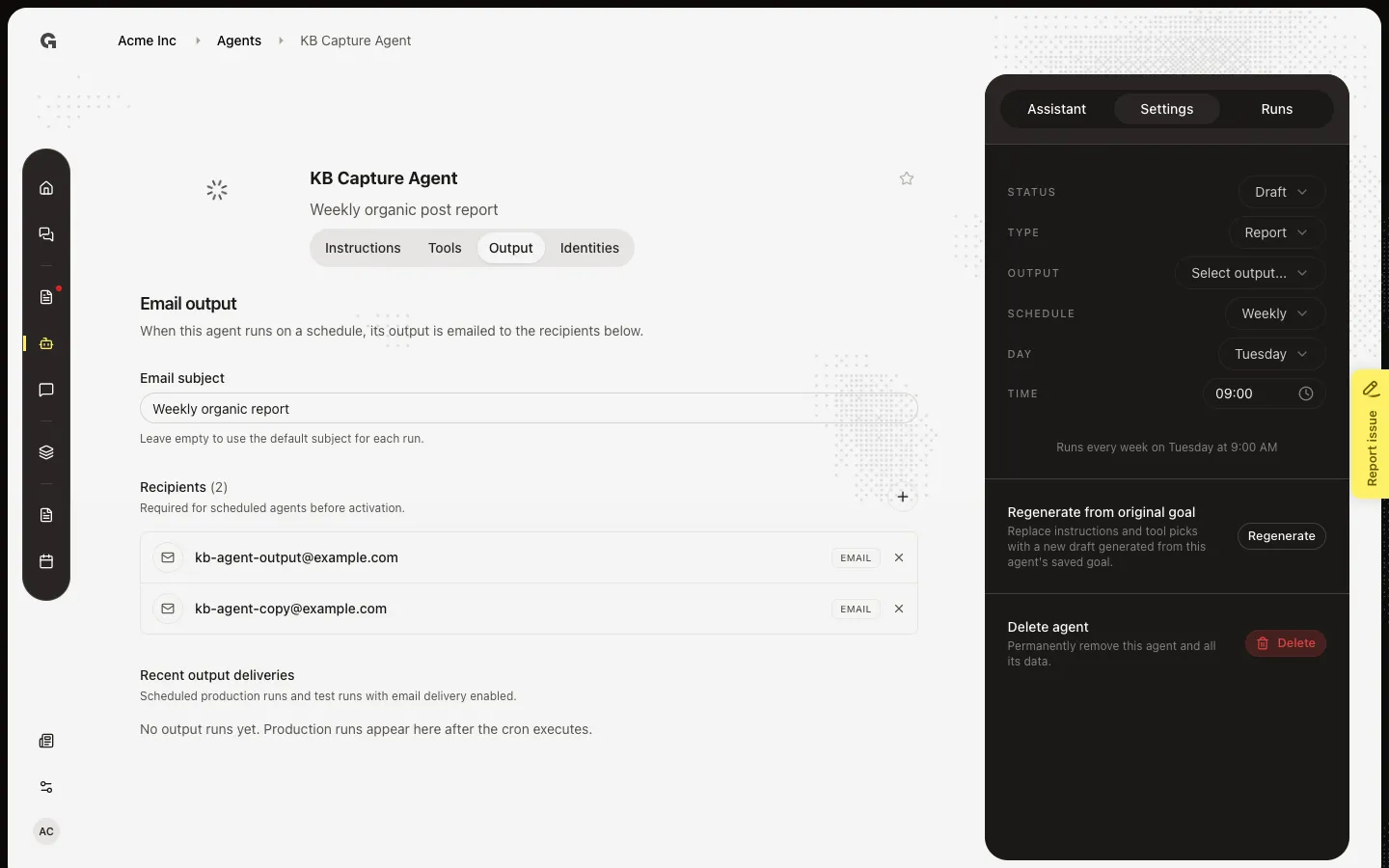
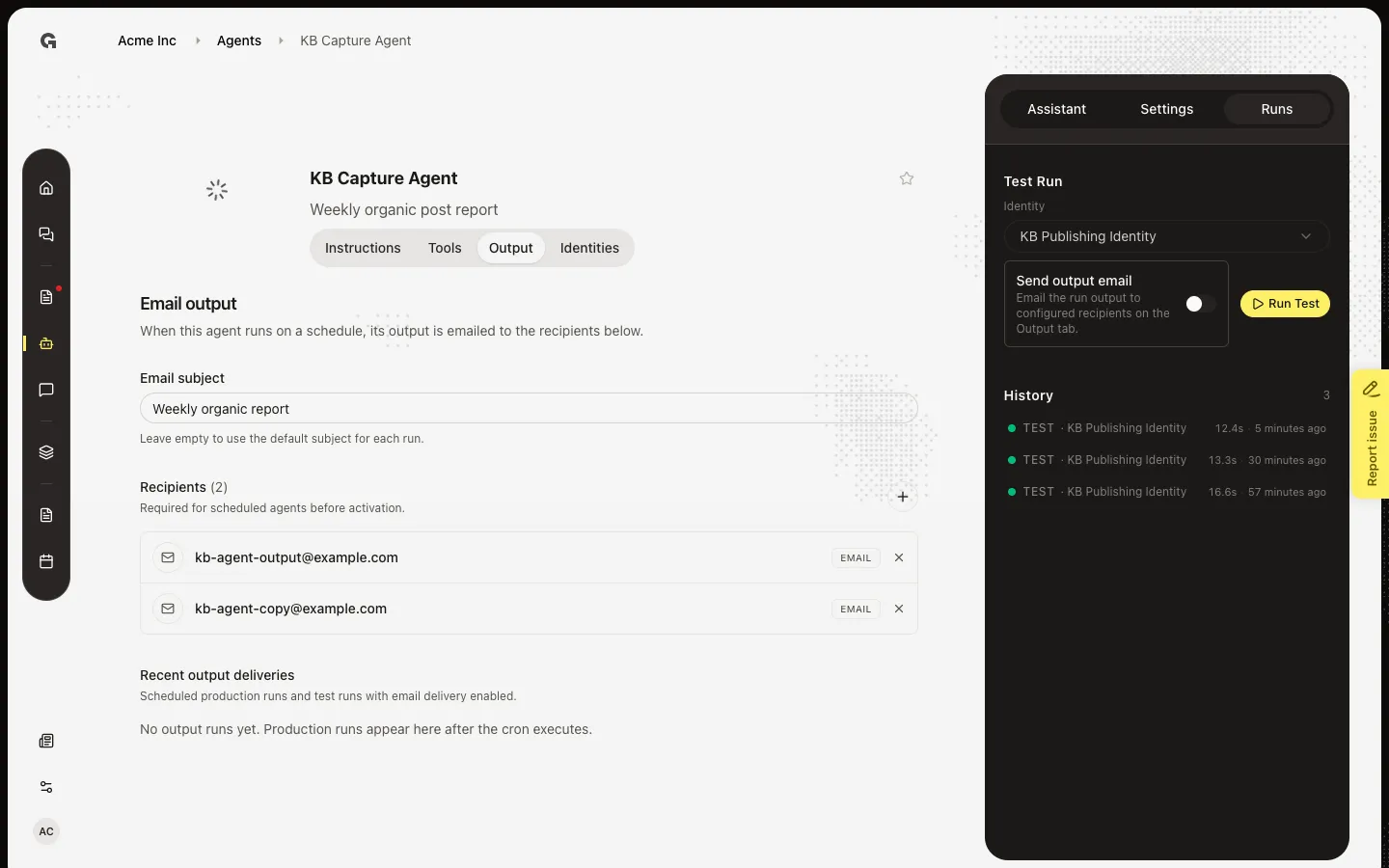
Recent output deliveries lists scheduled production runs and test runs that sent email. Empty means no emailed run has finished yet. On Runs, Send output email includes this test in that list. Scheduled production runs email recipients on their own.
FAQ
Why does Active ask for output recipients?+
A scheduled agent must have at least one recipient before Status can be Active. Add a member or an email here, or set Schedule to No schedule.
Should I add a member or an email?+
Add a member when the person already belongs to the workspace. Use External email for someone outside it. You can mix both.
I ran a test and nobody got mail.+
Test Run emails only when Send output email is on. Scheduled production runs email recipients on their own.
I cannot add recipients.+
You need permission to update agents.