Invite agency team members
Email one role to one or more agency and client workspaces from Team.
Invite from Team emails one person into one or more workspaces with a single role. Agency owners and admins use it when a colleague or client should land in several workspaces at once.
3 steps · About 3 minutes
Open Team
Open Agency cockpit on Team. Invite sits on the right of All members. You need permission to add members on each workspace you pick. The same job does not live in a client workspace Members screen when you want several workspaces at once.
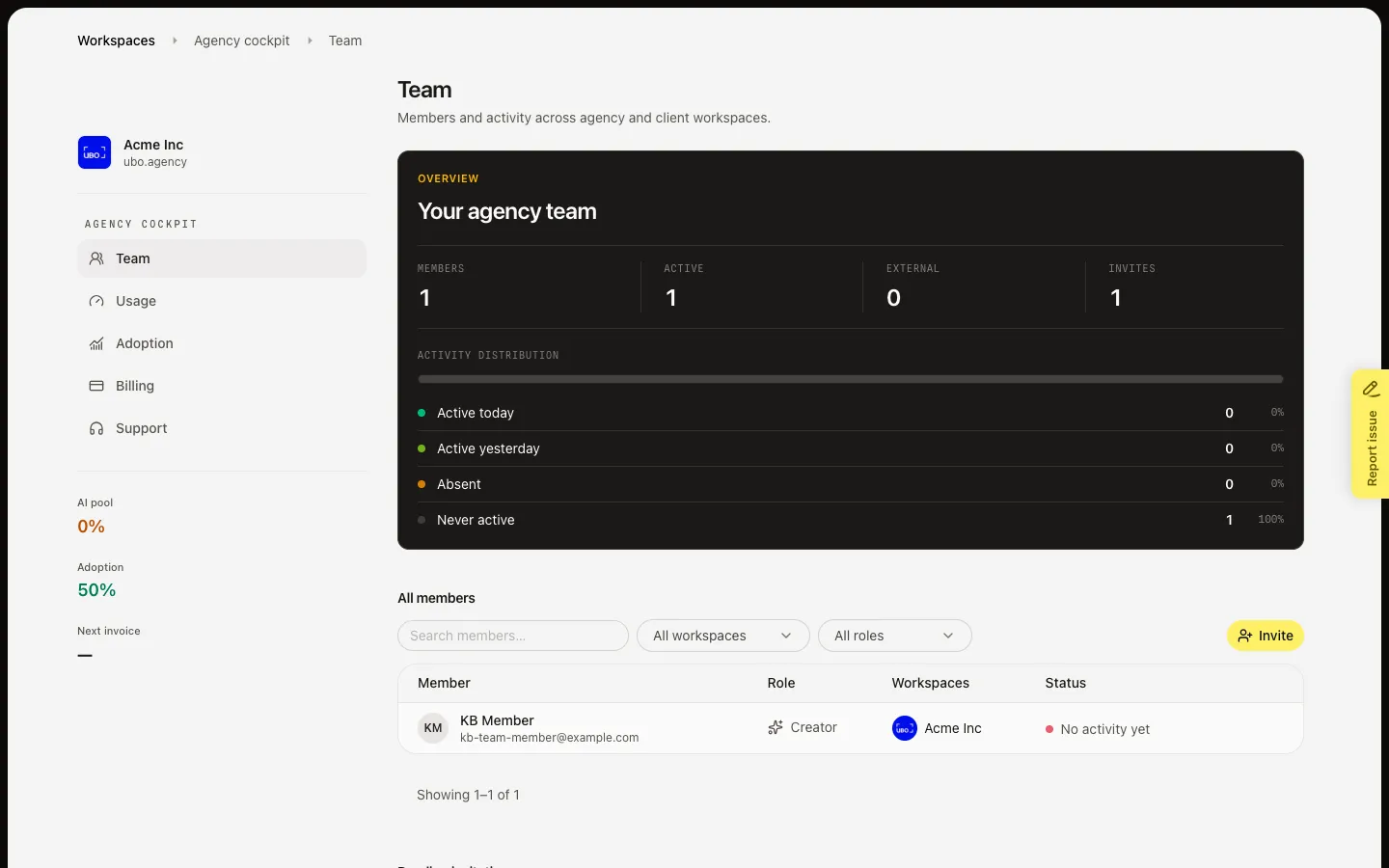
Open Invite members
Choose Invite. Invite members sends one email. You pick one role for every selected workspace. Admin, Strategist, and Creator always include the agency workspace (it stays selected). Client is for a client workspace only — Growf drops the agency from the list.
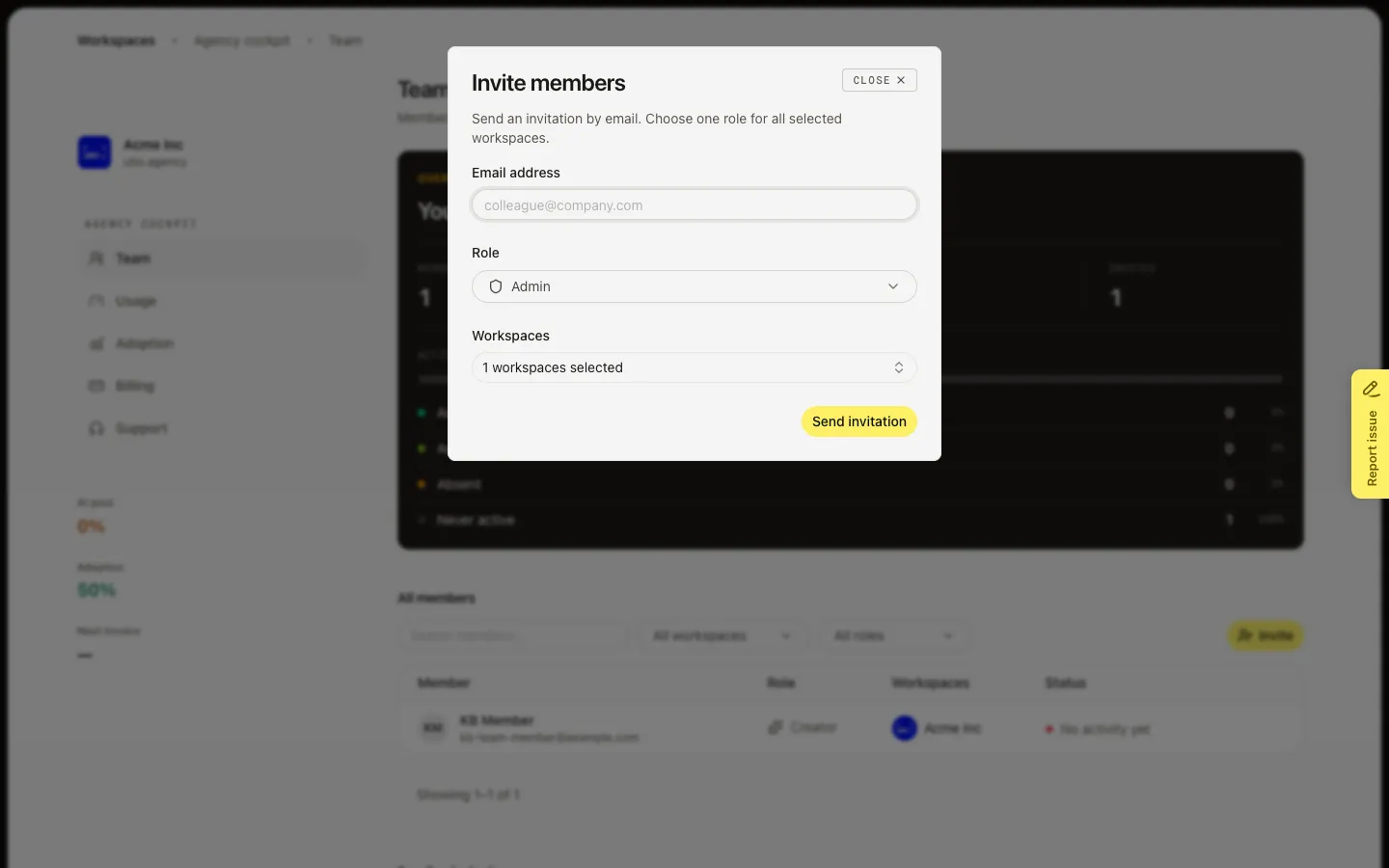
Enter email and workspaces
Type the email. Role defaults to Admin. Open Workspaces to add clients, or use Select all. Growf skips workspaces where this person is already a member or already has a pending invite, and tells you before Send invitation. A person you removed earlier can be invited again. Send invitation mails the same accept link they would get from a workspace invite.
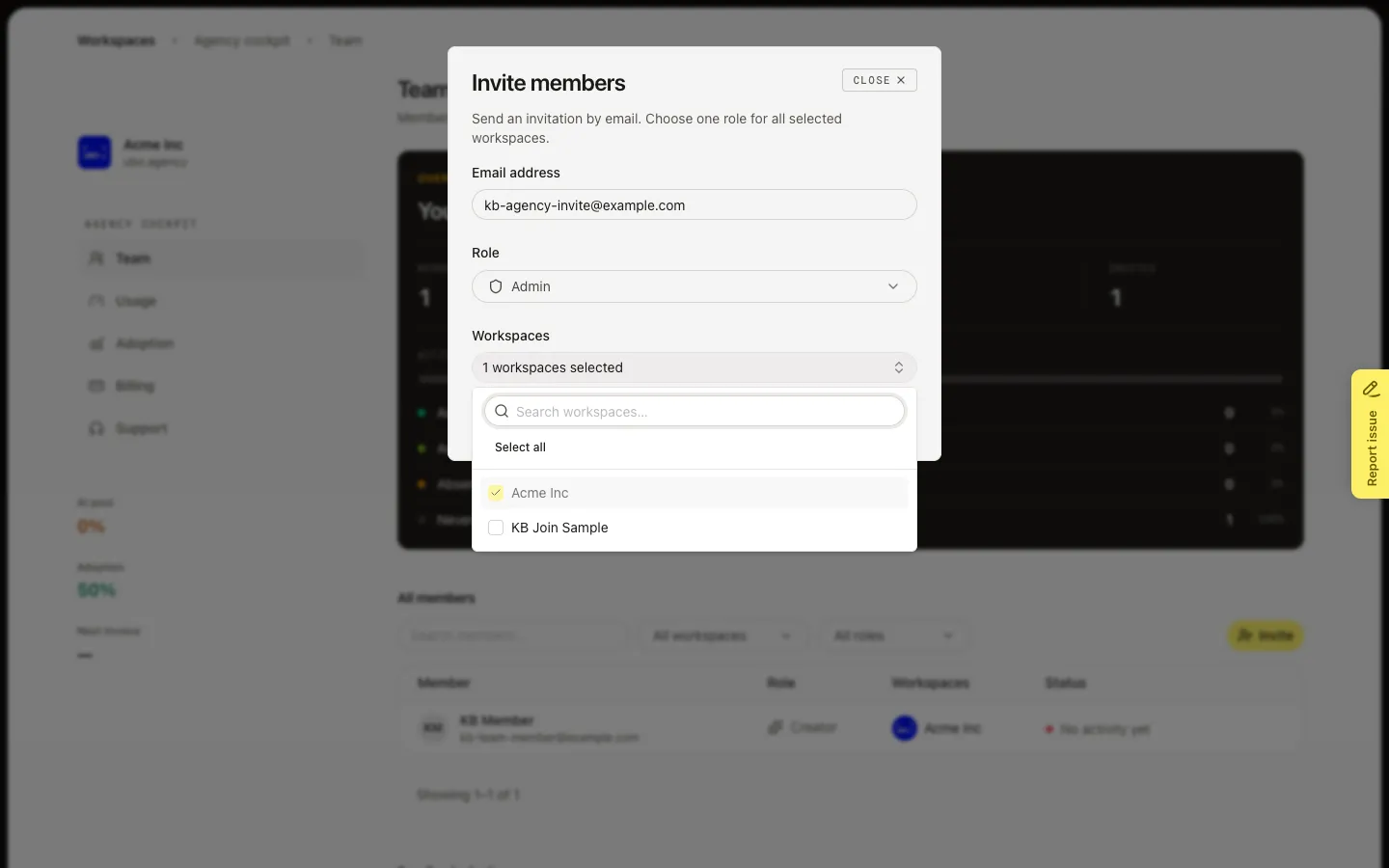
FAQ
When should I pick Client instead of Admin?+
Client is for a reviewer on a client workspace. It cannot include the agency. Admin, Strategist, and Creator always add the agency workspace as well, so that person can work across the agency.
Growf says they are already a member or already invited.+
Send invitation only covers the workspaces that are still free. If every selected workspace is blocked, send stays off. Pick other workspaces or wait until they accept the open invite.
Send invitation says I am not allowed on some workspaces.+
You need permission to add members on each selected workspace. Ask an admin to invite those clients, or drop those rows from Workspaces.
Where does the invite go after I send it?+
It appears under Pending invitations. Hover the row to Resend (same link) or Withdraw (that workspace only). The person accepts from the email — see Accept a workspace invite.