Configure a custom or MCP toolkit
Connect Jobmatix, Livestorm, or Stairoids with an API key or MCP URL instead of a provider sign-in.
Some toolkits never send you to Google or Asana. You paste a key or MCP URL on a Growf form. Anyone who can connect integrations can do this.
3 steps · About 3 minutes
Find Stairoids in the library
Open Settings → Integrations. Use Search toolkits by name or description (not Search connections). Type Stairoids. The card is a Tool. Connect here does not send you to another site. It opens Configure Stairoids so you can paste the MCP URL.
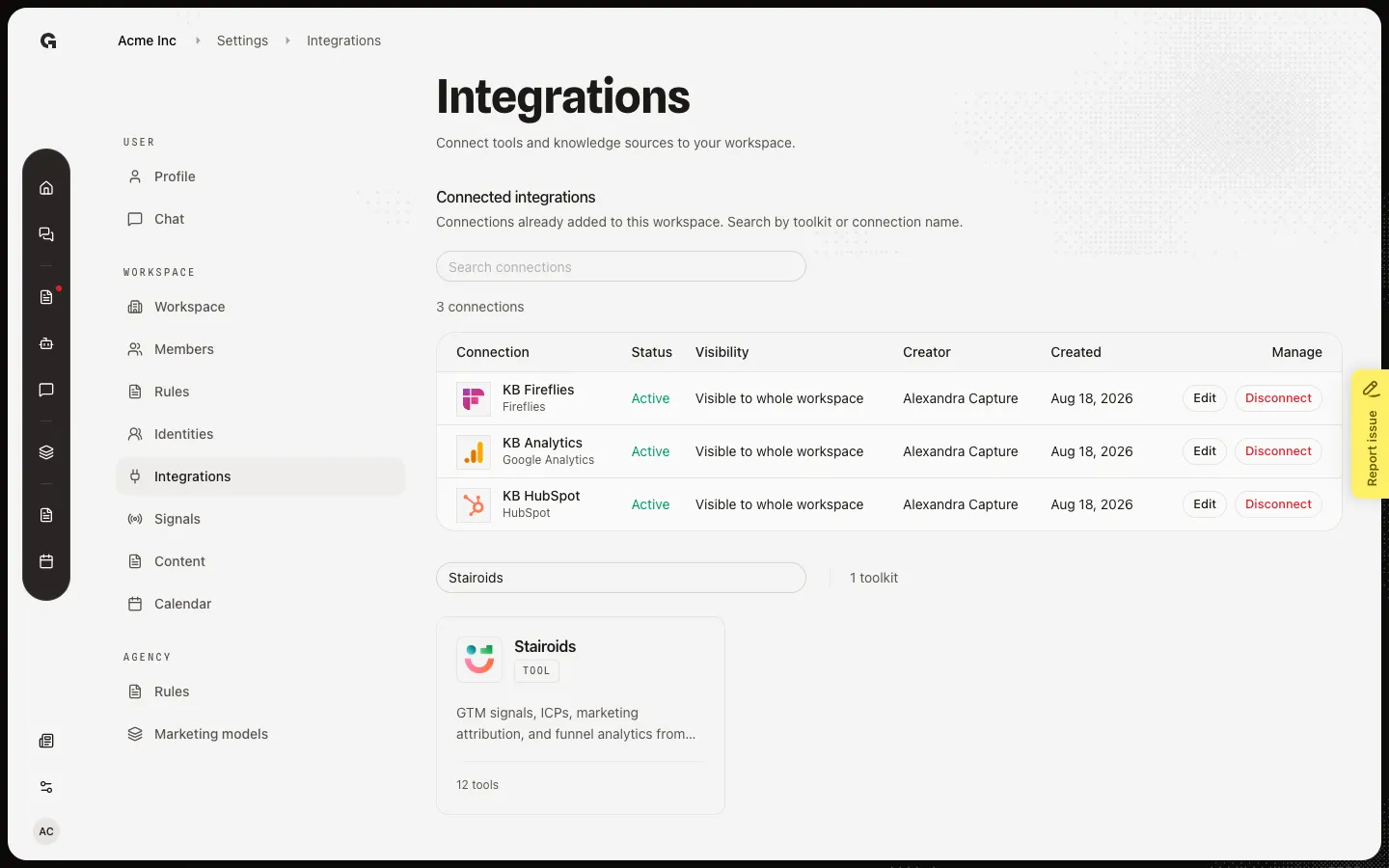
Open the Stairoids configure page
Click the Stairoids card, then Connect. Connect closes the library and opens Configure Stairoids. Jobmatix and Livestorm use Configure {name} on this same button and open their own key forms. This walk opens the configure page directly.
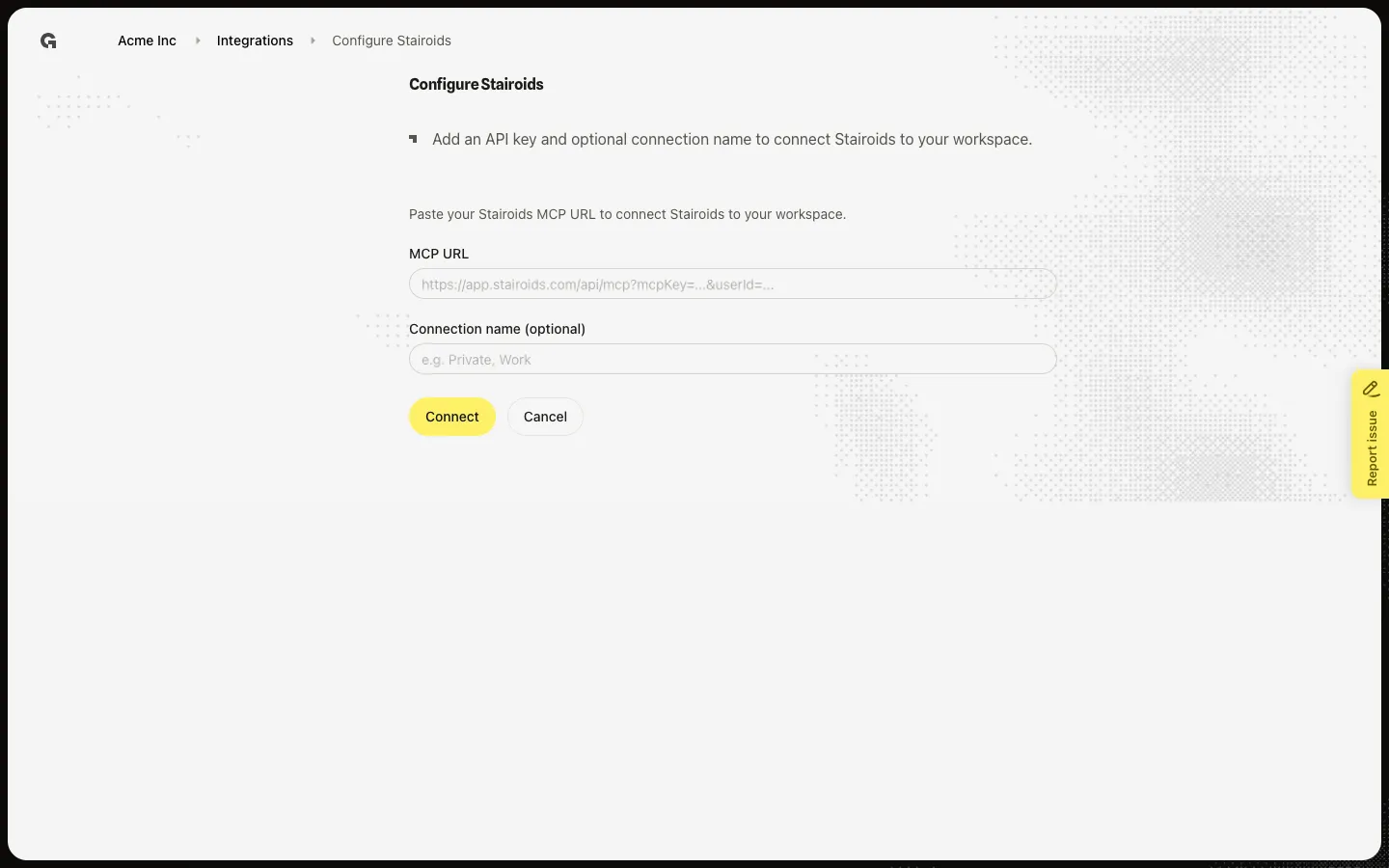
Fill the MCP URL
Choose Connect. Configure Stairoids asks for MCP URL (required) and Connection name (optional). Paste the URL Stairoids gave you, then add a label if you will connect more than one. Connect saves the workspace link. Cancel returns to Integrations. This walk fills the fields and does not submit.
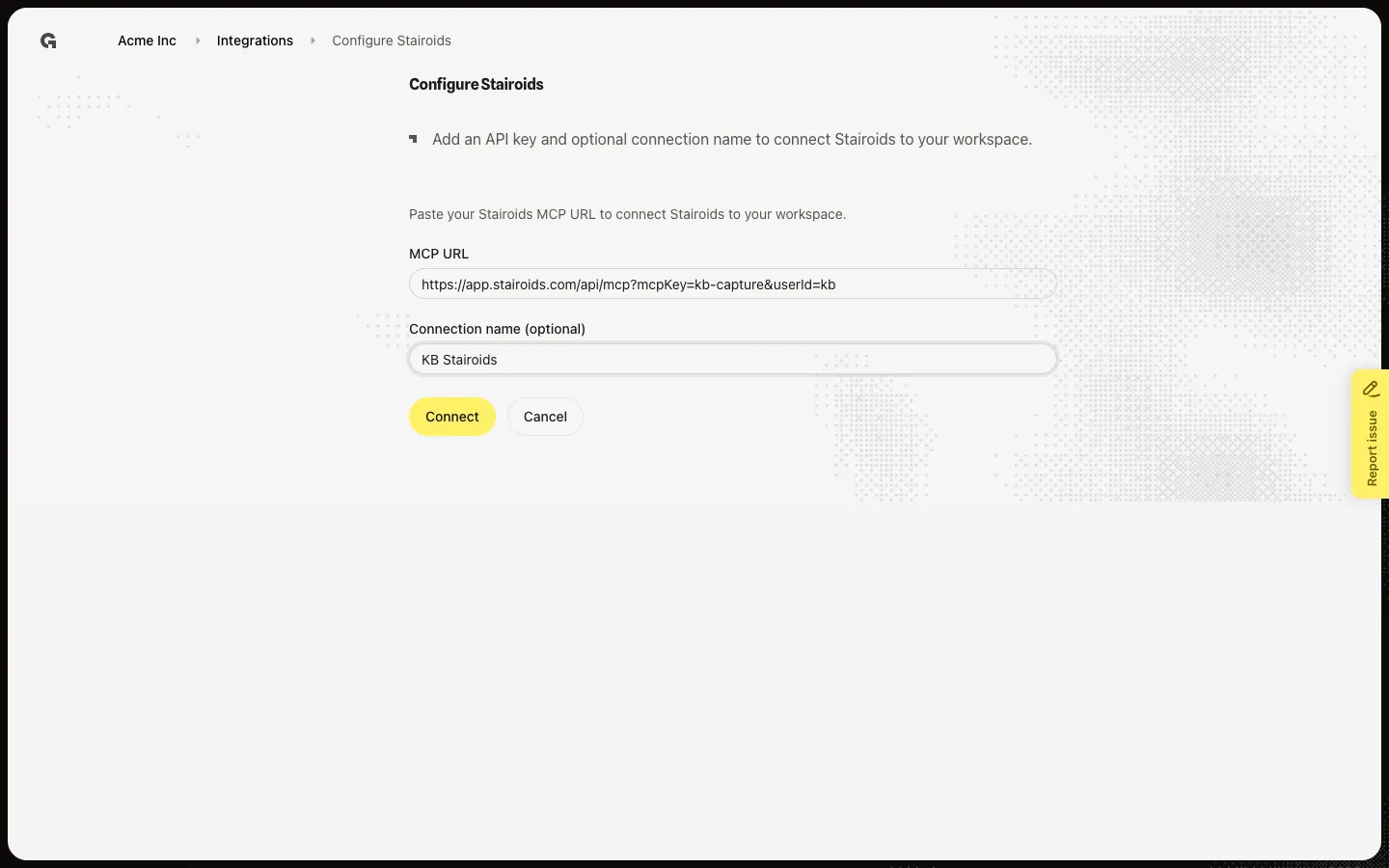
FAQ
Jobmatix and Livestorm look different from Stairoids.+
They use an API key, not an MCP URL. On the card, the button says Configure Jobmatix or Configure Livestorm. The form asks for Jobmatix API key or Livestorm API token, an optional connection name, and who can use the connection in chat (Only me or Whole workspace). Jobmatix saves with Connect Jobmatix. Livestorm saves with Connect Livestorm.
Where do I get the MCP URL or API key?+
Copy it from the provider. Stairoids shows an MCP URL that includes your key. Jobmatix and Livestorm show a project API key or private token. Growf does not create those values.
What happens after Connect succeeds?+
Growf adds the row under Connected integrations and opens Edit integration so you can finish the name and, for chat tools, visibility. Stairoids can also feed a signal detector. See Connect an integration and Configure integration signals.