Review feedback and approvals
Open Feedback, read a pending request, then Approve or Reject with an optional note.
Feedback is your review inbox. You see requests assigned to you. The person who sent the draft uses **Request content feedback** on the piece.
3 steps · About 3 minutes
Open Feedback
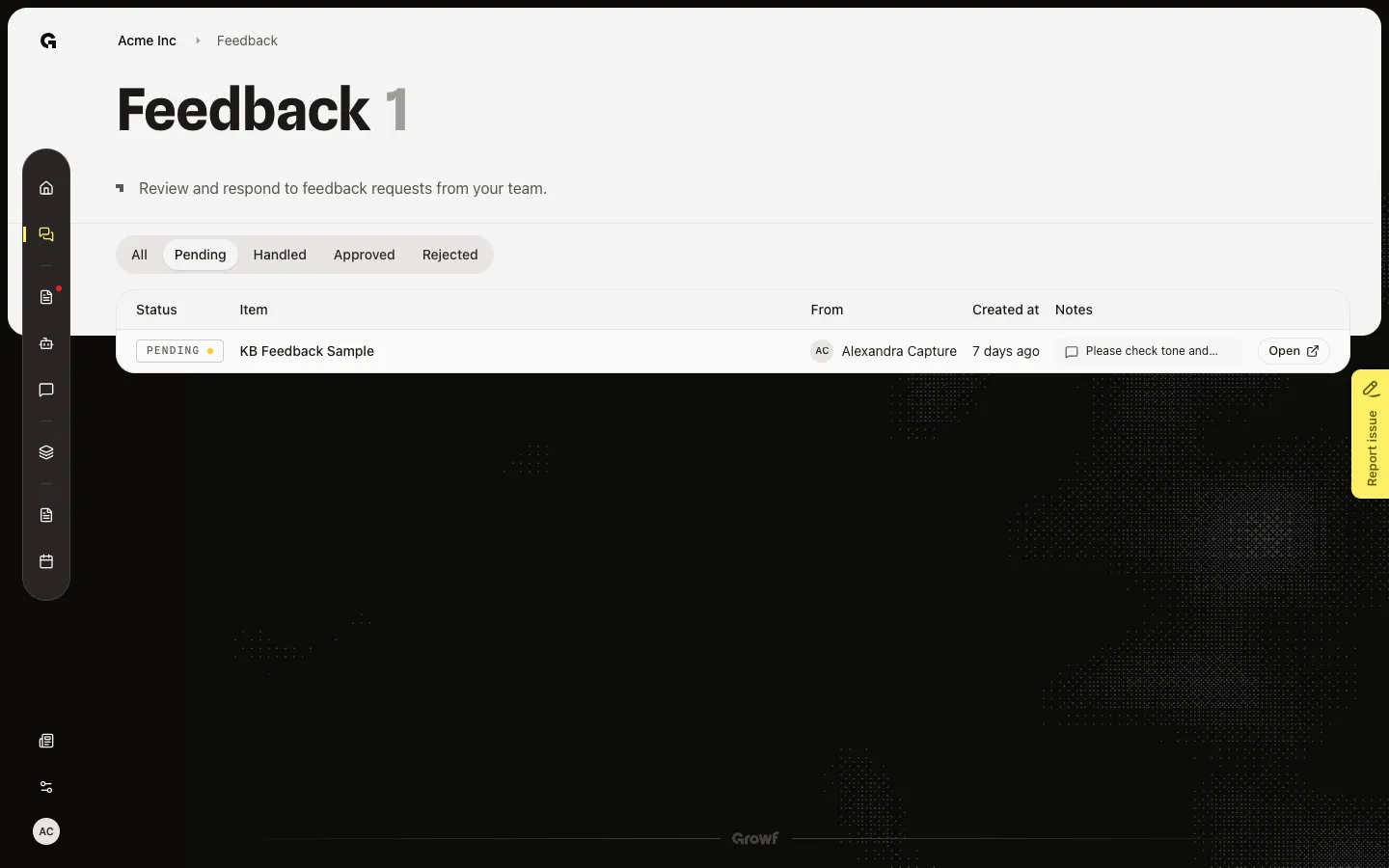
Choose Feedback in the sidebar. The list is requests assigned to you, not ones you sent. Pending is the default tab. Seed puts KB Feedback Sample here with Please check tone and CTA. so the list is not empty. Tabs are All, Pending, Handled, Approved, and Rejected.
Open the request
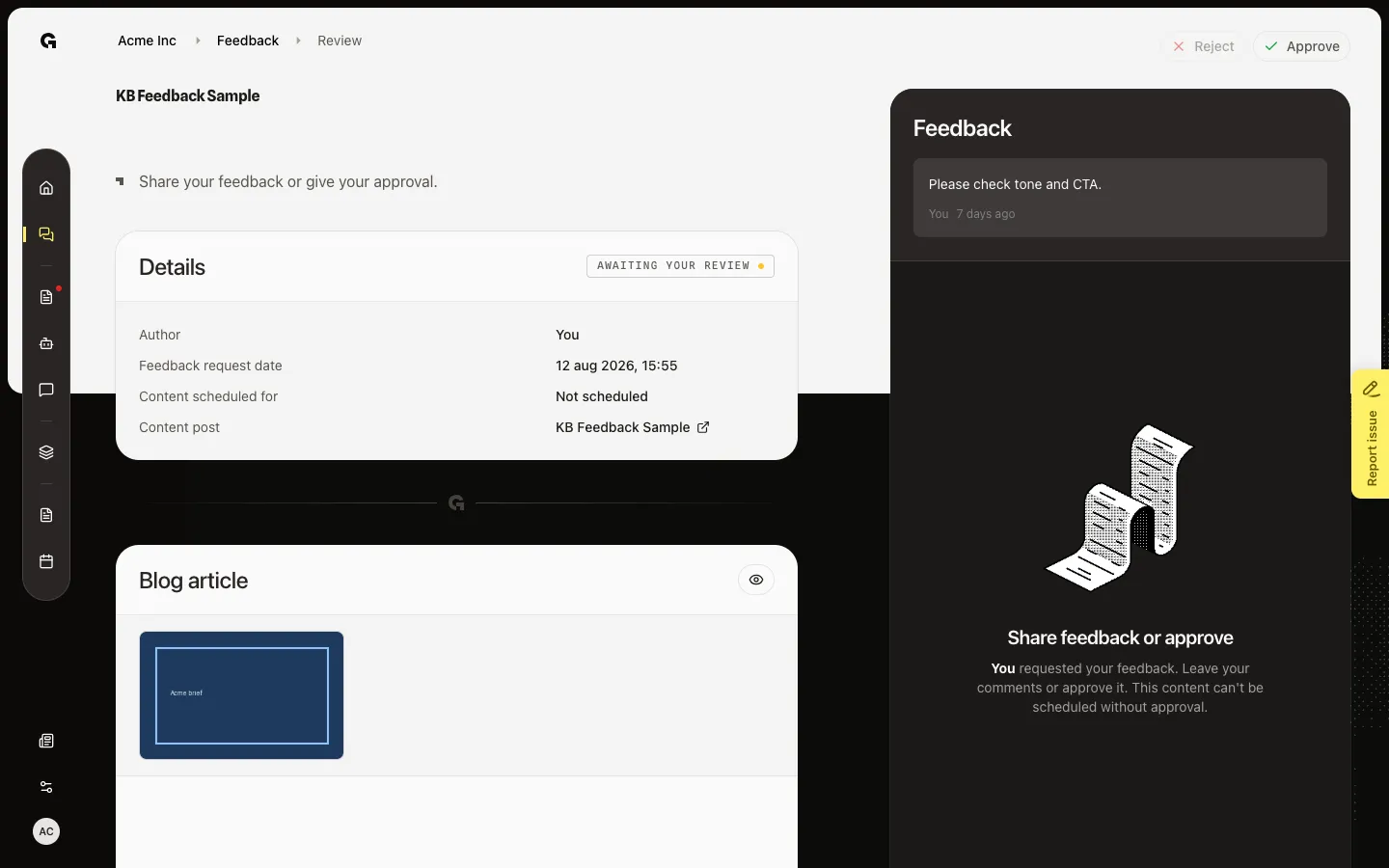
Choose Open on the row. Review shows Details, the draft, the requester’s message, and Awaiting your review. Leave comments in the sidebar, or go straight to a verdict. Approve stays on until you have left comments — then Reject is the path for changes. You cannot schedule the piece without an approval if the request required one.
Approve or request changes
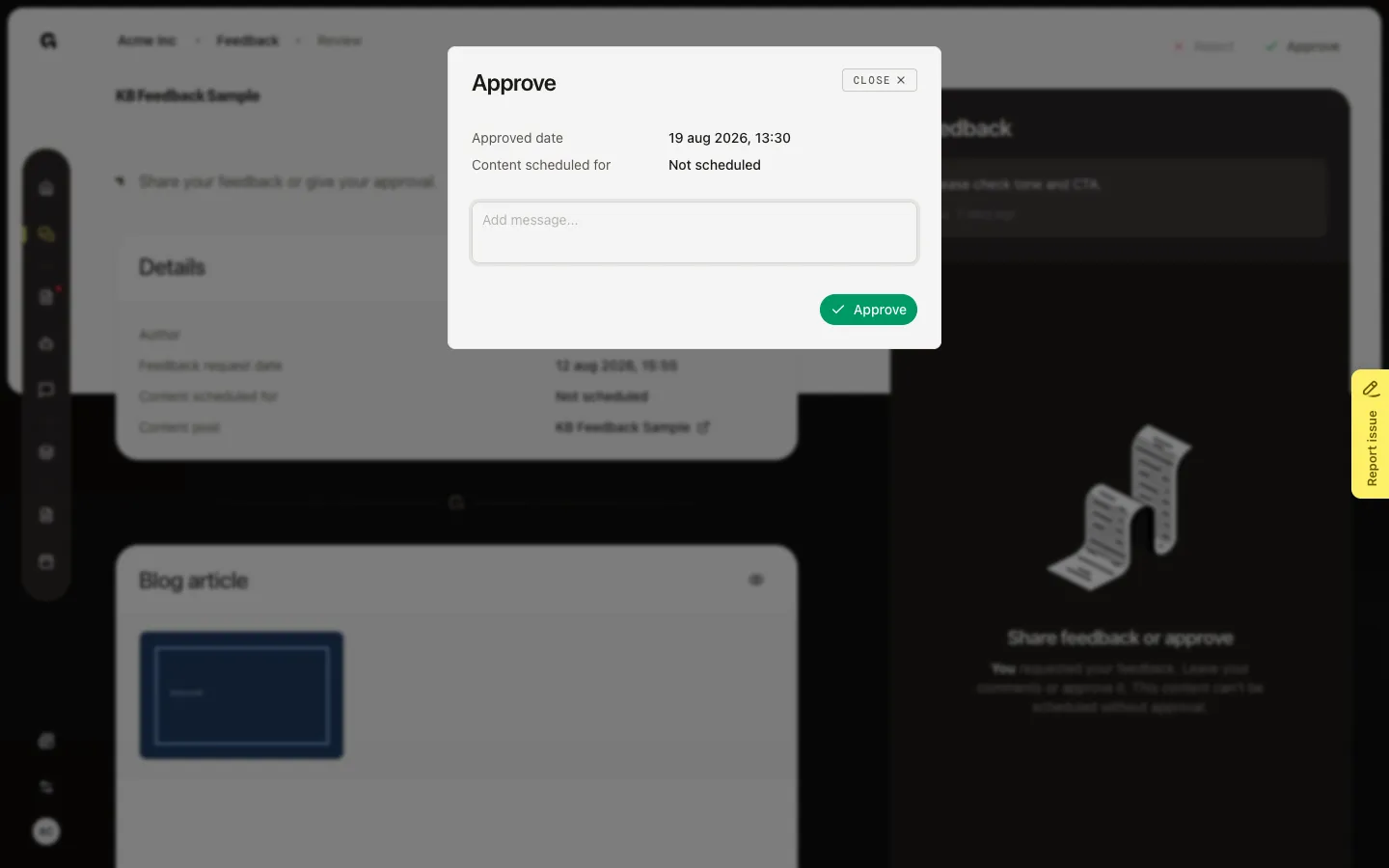
Choose Approve to accept the draft. The dialog can include a short note. The requester is notified. Choose Reject after you have left comments — that is Changes Requested, and the requester must revise. Do not confirm on a capture walk if you still need this pending row for later shots.
FAQ
Pending is empty. Is Feedback broken?+
No one has assigned you a request. Ask a teammate to use Request content feedback, or check All. Seed creates a pending row for the capture user because you cannot assign yourself in the product.
When do I Approve vs Reject?+
Approve when the draft can go on to schedule or publish. Reject (Changes Requested) when they must edit. Reject is meant for after you have left comments.
I do not see Feedback in the sidebar.+
You need feedback permission (content or strategy). Ask an admin. This list is only items assigned to you.
What happens after I decide?+
The requester is notified. The piece moves on the Content board (Ready to Schedule after Approve, Has Feedback after changes). You can still open the row under Handled, Approved, or Rejected.