Set document visibility
Choose Public or Private for a file you uploaded so the workspace, or only invited people, can open it.
Visibility decides who in the workspace can open a knowledge file. Only the person who uploaded it can change it.
2 steps · About 2 minutes
Open the file
On Documents, open a file you uploaded (this walk uses agency-onboarding-brief.md). Access explains who can open this document in your workspace. New uploads start as Public — everyone in the workspace can open this document. Cards and List show Public or Private. Only you get the Visibility control. Other people see the current value and Only the owner can change access settings.
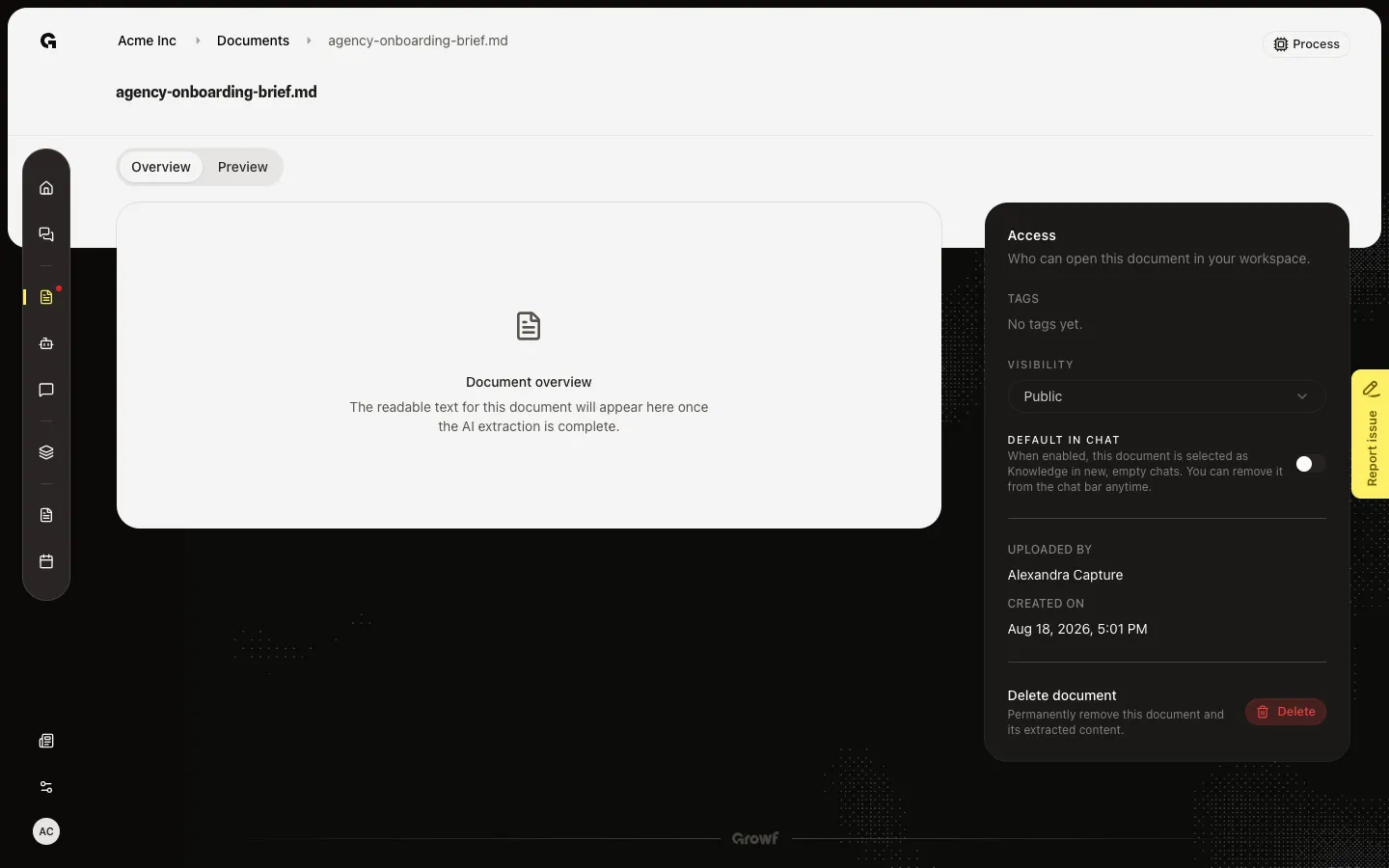
Open Public and Private
Choose Visibility. Public means everyone in the workspace can open this document. Private means only you, unless you invite specific people below. Pick Public when the file is shared context (a brand brief). Pick Private when it is sensitive (a contract or a client-only note). Switching to Public clears everyone you shared with. Switching to Private hides the file from people you have not invited — then use Shared with. See Share a document.
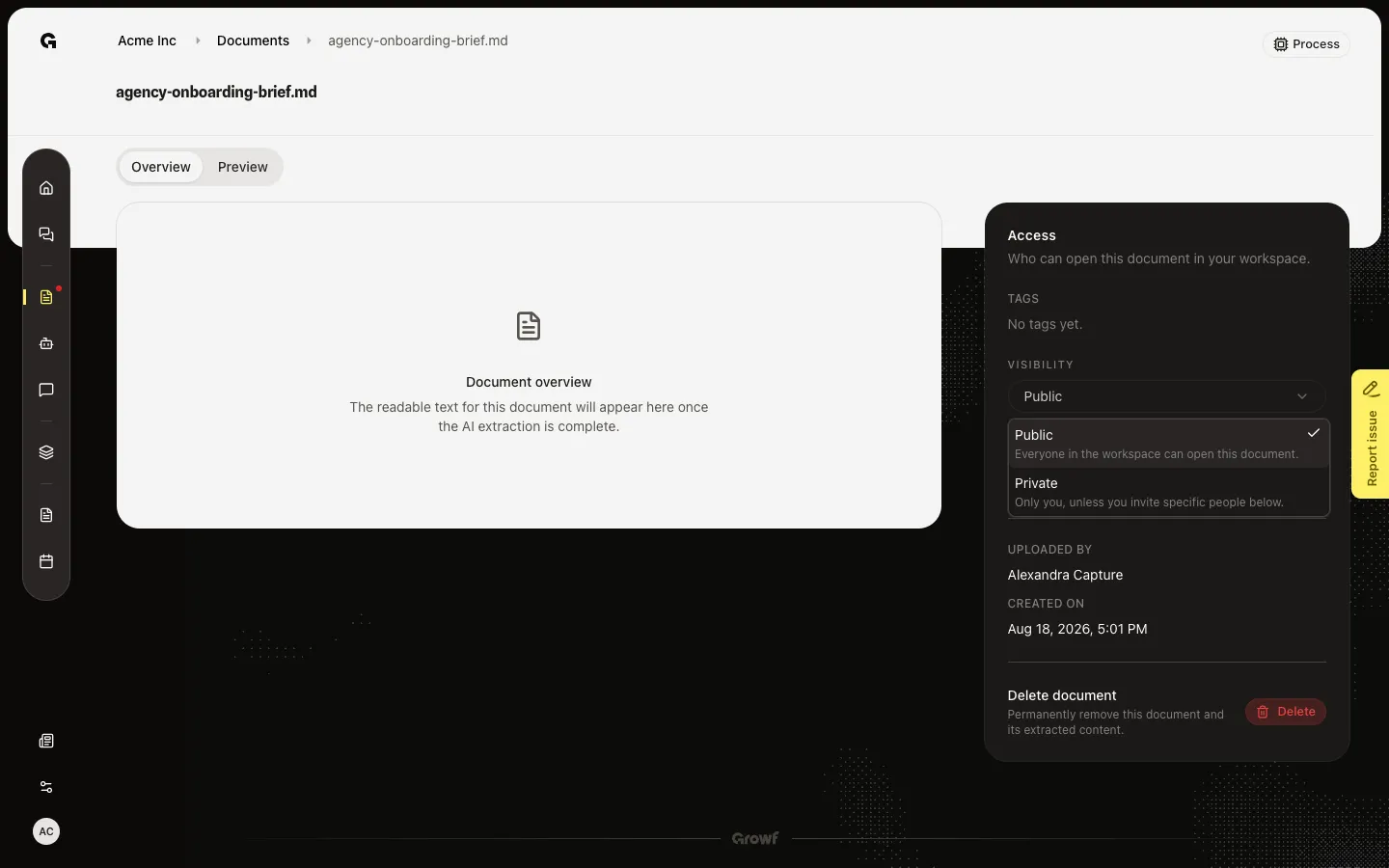
FAQ
Visibility is text only. How do I change it?+
Only the person who uploaded the file can change Visibility. You also need permission to update documents. If you need it Private, ask the owner.
When should I choose Private?+
Choose Private when only some people should see the file. Public is the default and is right for material the whole workspace may use in chat. Private files stay out of other people’s Documents list and out of their default chat knowledge until you share.
I switched back to Public. Where did Shared with go?+
Public files do not use Shared with. Growf removes those people when you choose Public. Set Private again if you need to invite specific people.