Schedule content to publish
Set a date and time in the workspace timezone so Growf posts the piece automatically.
Schedule is how a draft becomes a planned post. Anyone who can update content can set a date. Growf then posts at that time in the workspace timezone when the piece is ready.
3 steps · About 3 minutes
Open a draft with a title and body
Schedule stays off until the piece has a name and body. Open KB Feedback Sample from Content. The header shows Schedule and the publishing checklist ring. The time uses the workspace timezone, shown in the dialog.
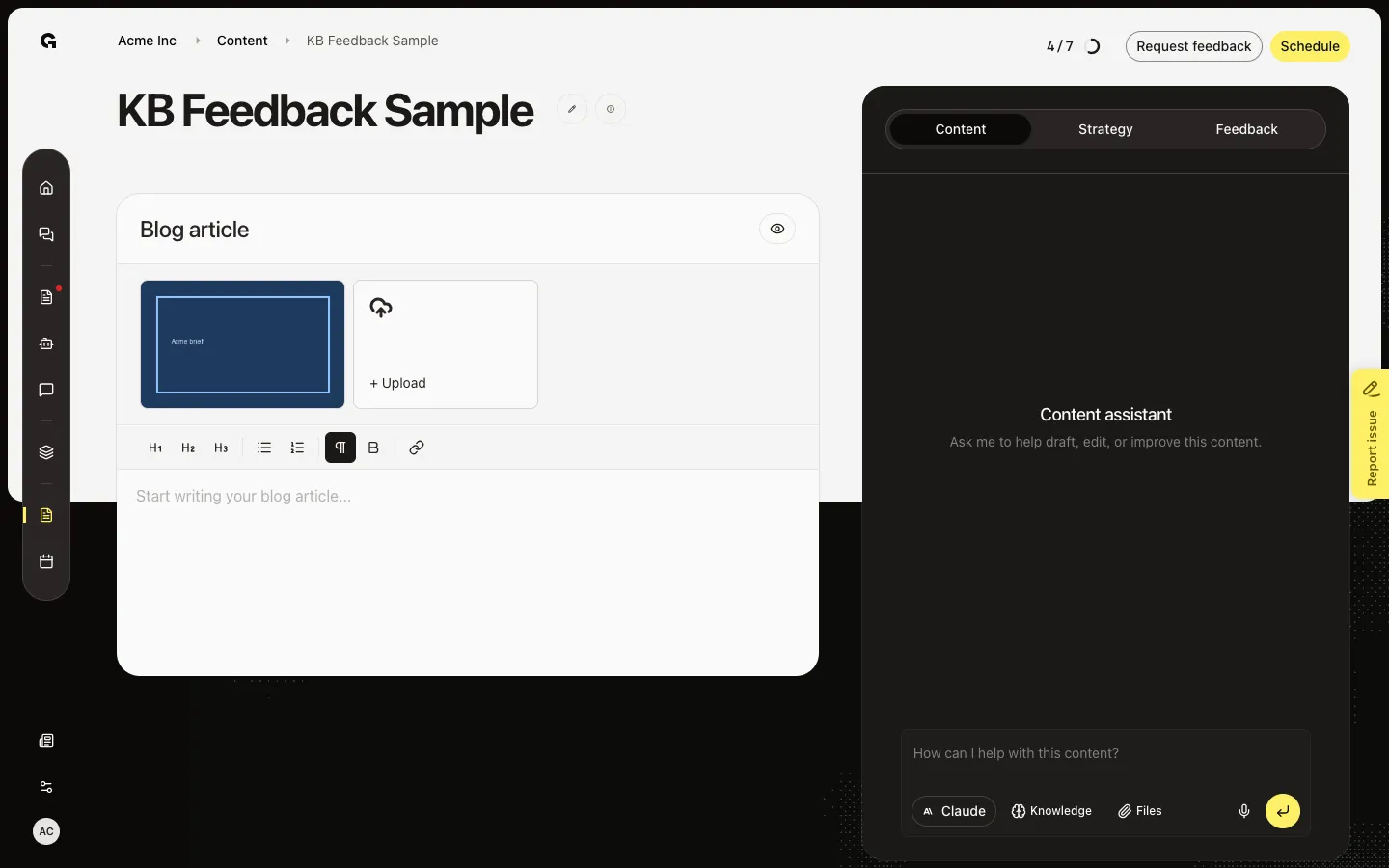
Open Schedule
Choose Schedule. Step 1 of 2 is the calendar. Past days are off. A short bar under a day means something else is already planned that day. If a schedule already exists, Clear removes it.
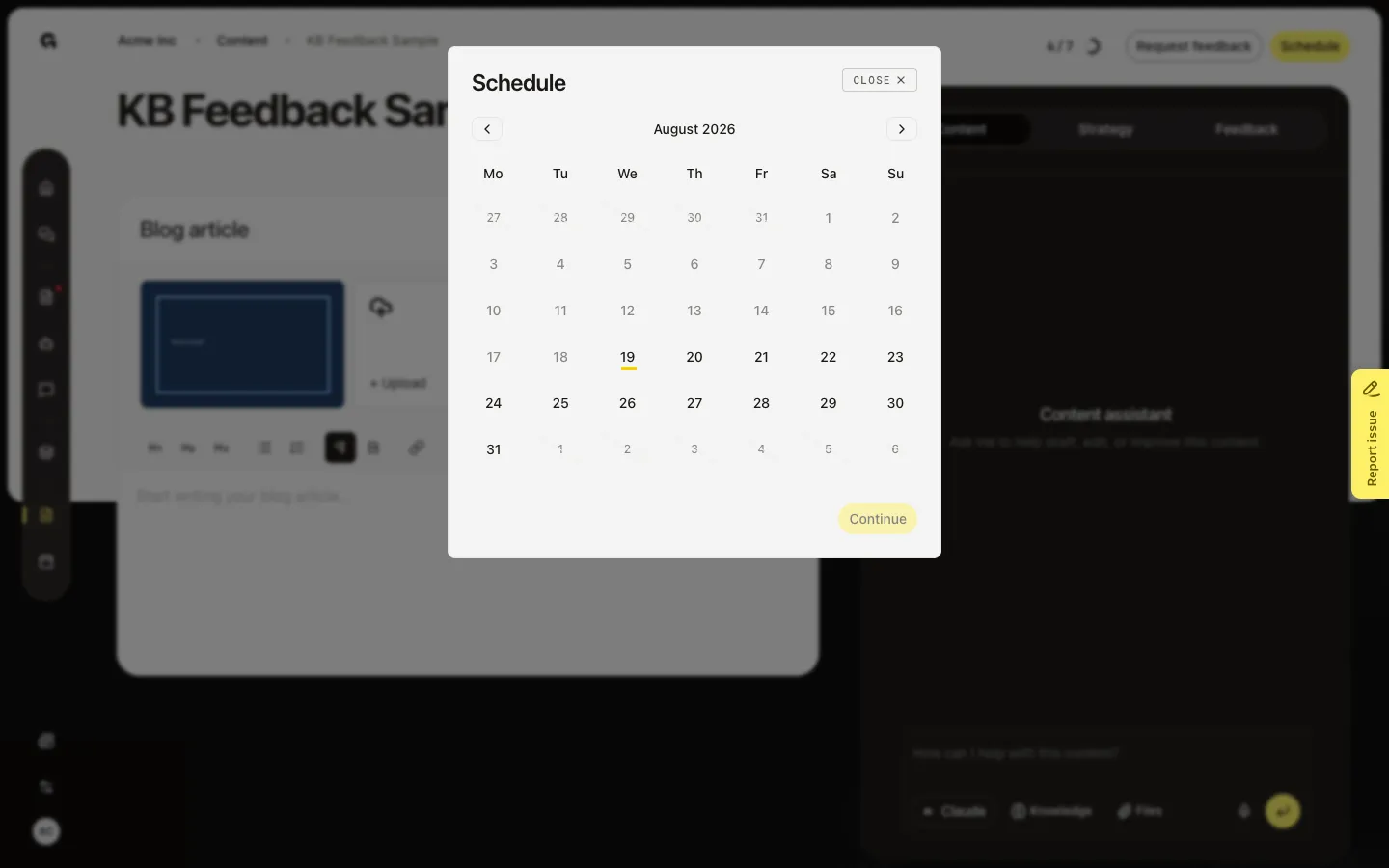
Pick a date, then a time
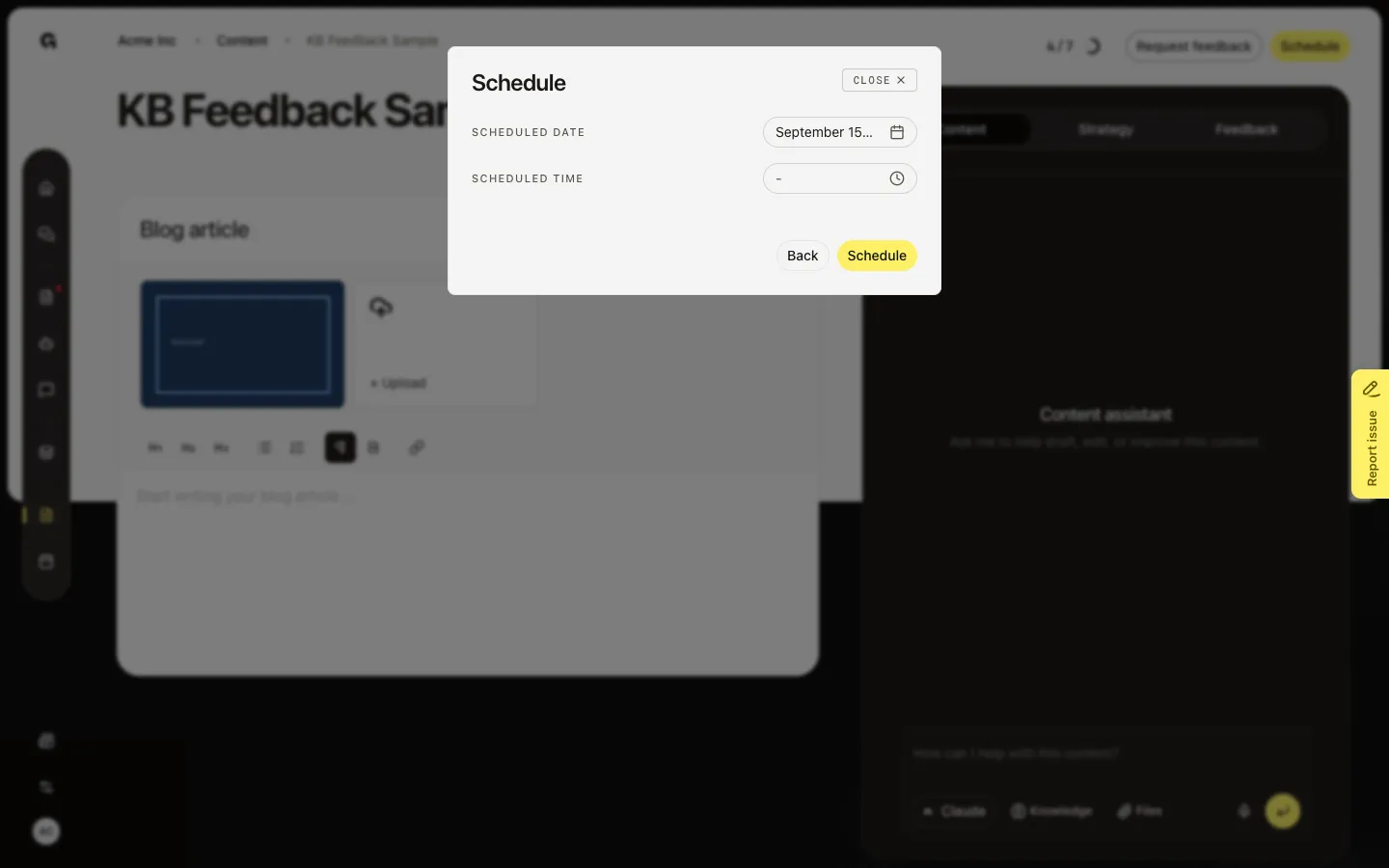
Choose a future day, then Continue. Step 2 is the time. Set Schedule to save. Growf posts at that time if the piece is ready: identity and channels for social posts, persona for an article, and no locking feedback. A social post that is too long for a channel cannot be scheduled until you shorten it. You can also drop a draft onto a day on Calendar.
FAQ
Why is Schedule grey?+
Add a title and body. A published post cannot be scheduled again. A locking feedback request, or text over a channel limit, also blocks Schedule.
Will the post go out at that time?+
Only if the piece is ready. Missing identity, channels, or persona (for an article), or pending locked feedback, means the time is saved but Growf will not post. The schedule dialog states this.
Which timezone does the time use?+
The workspace timezone, shown in the dialog. It is not your browser clock.
What is the difference between Schedule here and Calendar?+
Both set a date. Calendar is the week or month view and can schedule an unscheduled draft onto a day. This dialog also sets the time.