Review the agency team
See who is on the agency and client workspaces, open a member, and change their role or workspaces.
Team is the people view for the agency and every linked client. Agency owners and agency admins use it to see who is in, how recently they used AI, and which workspaces they can open.
3 steps · About 3 minutes
Open Team
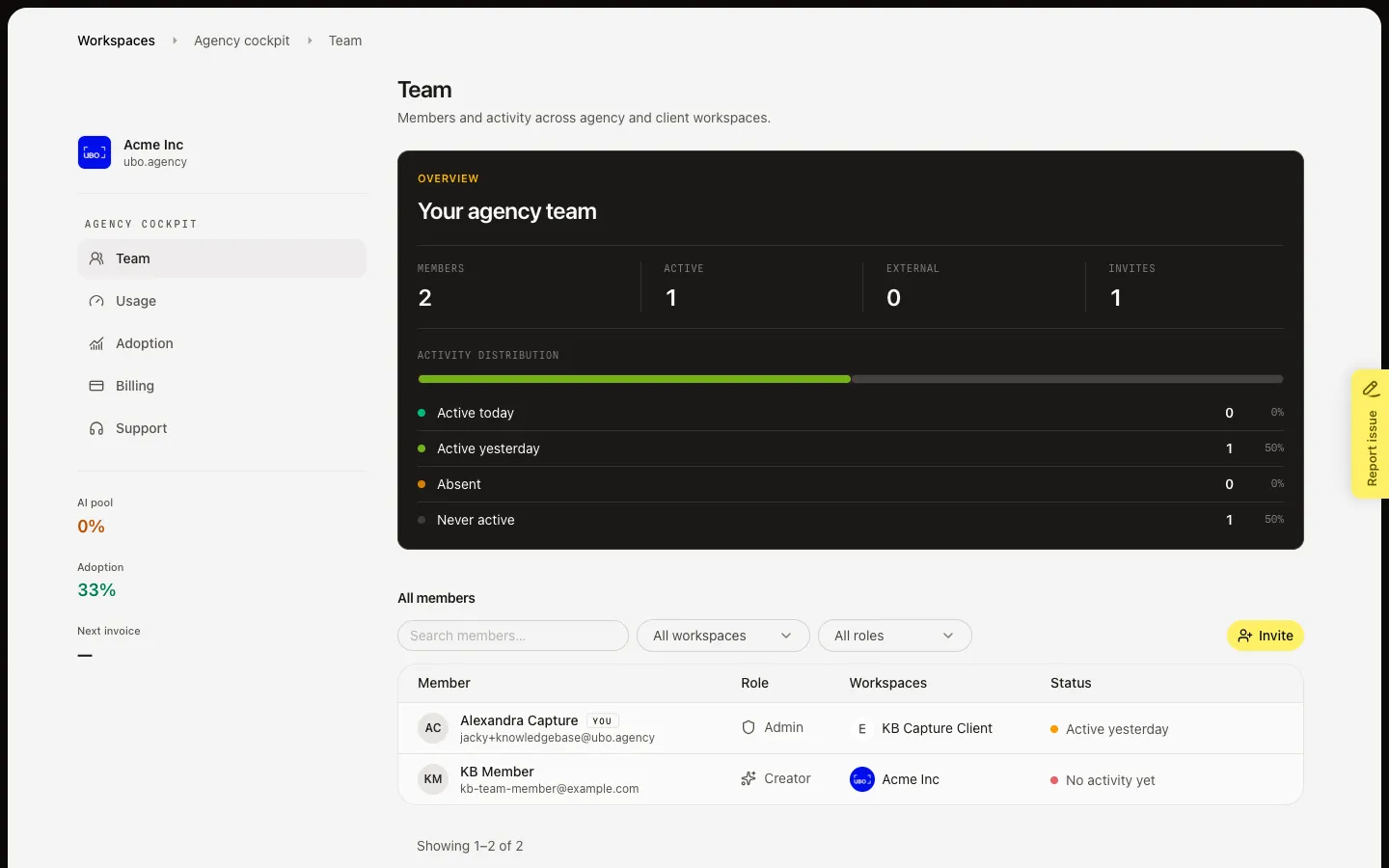
Open Agency cockpit. Team lists people on the agency workspace and every linked client. Your agency team counts Members, Active (people who used AI this billing month), External (Client role), and Invites. Activity distribution groups people by their last AI action: today, yesterday, absent, or never. All members sits under that card.
Filter by workspace
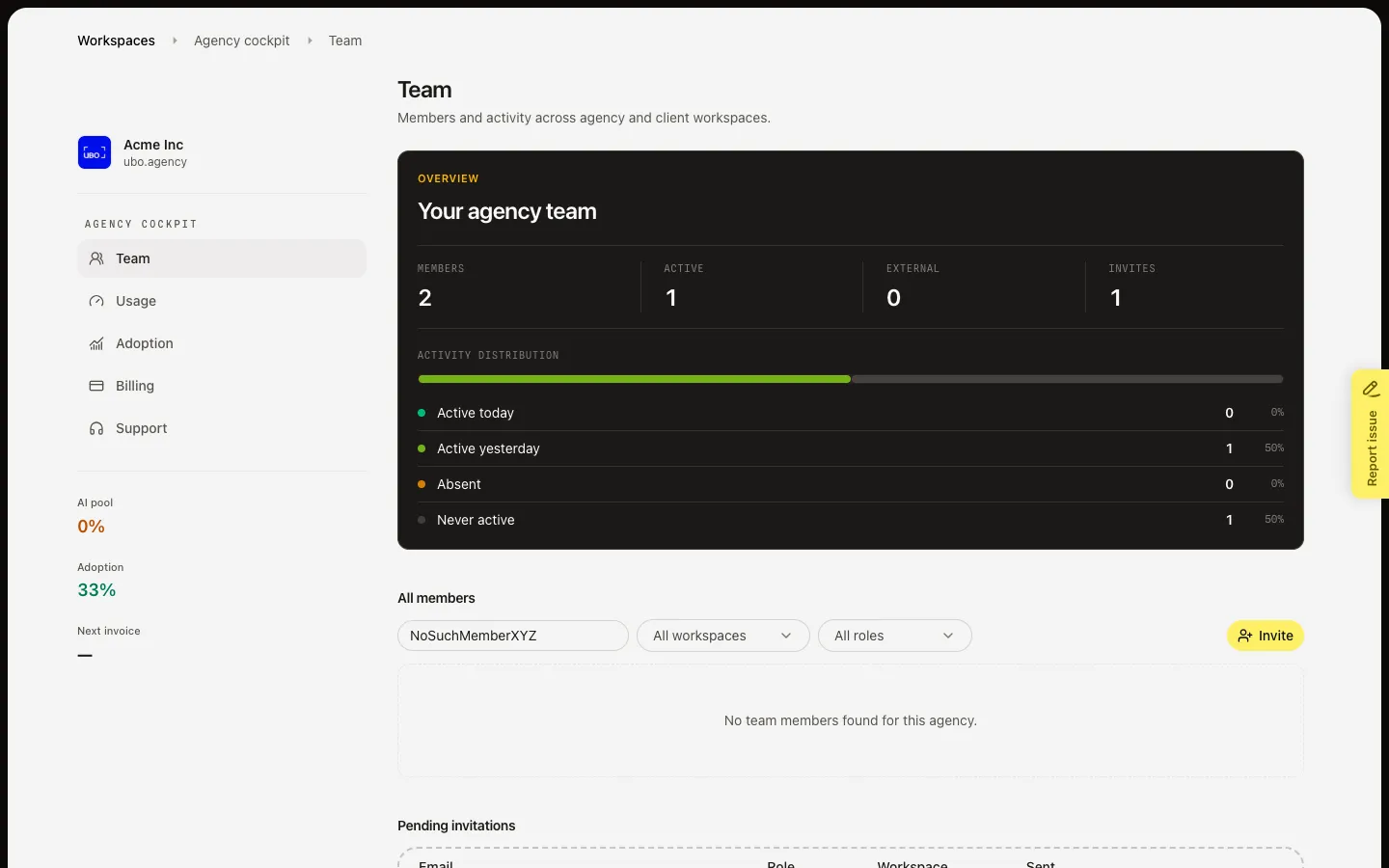
Use Search members, All workspaces, and All roles to cut the list. All workspaces and All roles apply to both the table and Pending invitations. Choose one workspace when you only want people on that client.
Open a member
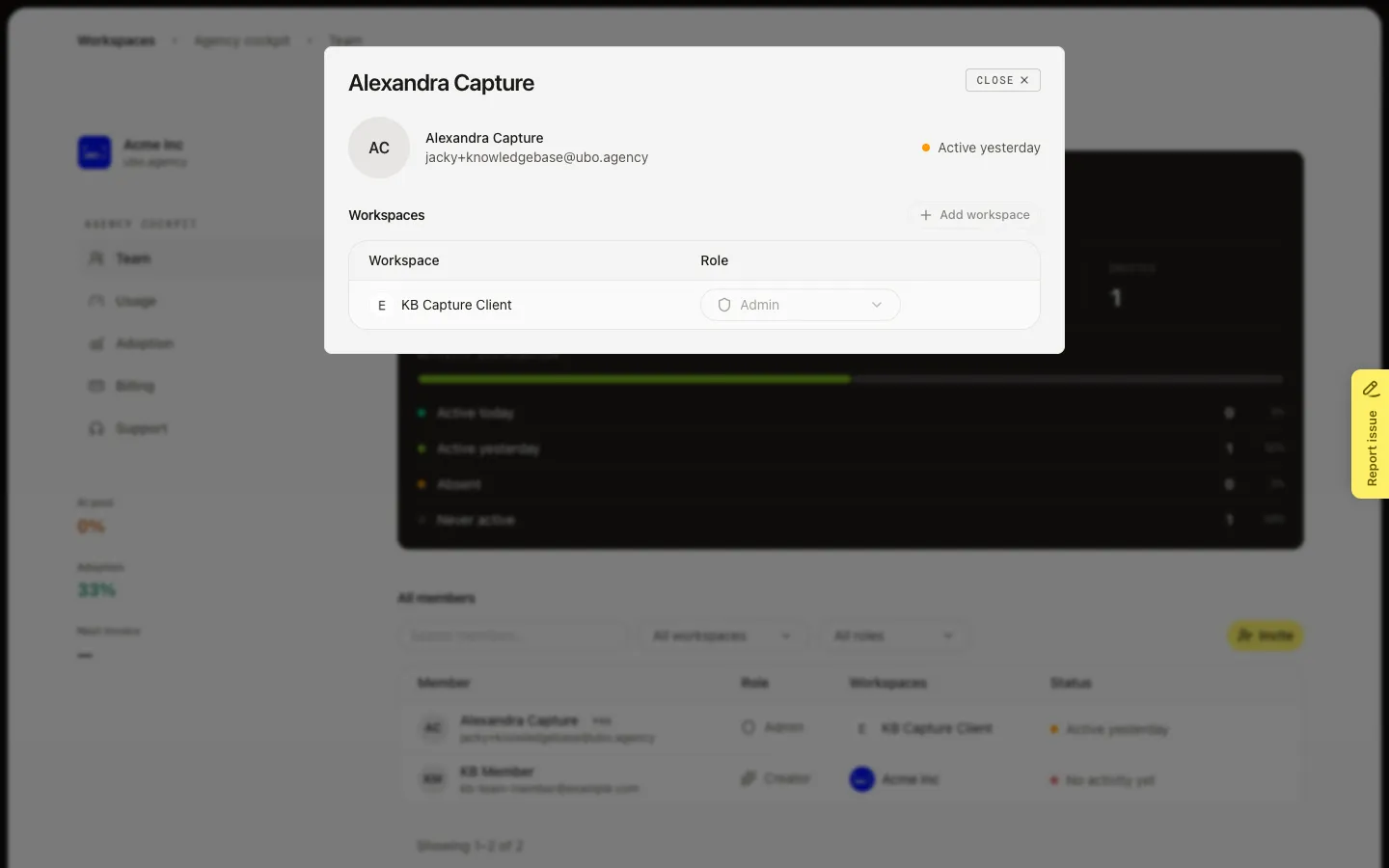
Hover a row and choose View. The dialog lists each workspace and role. Change a role from the list. Add workspace puts them on clients they are missing. Remove from workspace drops one workspace. You cannot edit your own row, the workspace owner, or the last admin. Remove on the table row drops them from every listed workspace.
FAQ
Who appears on All members?+
Anyone with an active membership on the agency or a linked client, including you (You). People who only have a pending invite sit under Pending invitations, not this table.
Does Active today mean they visited a workspace?+
No. Team status uses the last AI action, in the agency timezone. Adoption uses visits and product work. A person can be Active on Adoption and Never active on Team if they have not used AI yet.
Why can I not change a role or remove someone?+
You cannot change your own membership, the workspace owner, or the last admin on a workspace. Growf shows that reason on the control.
Pending invitations says No open invitations. Is that an error?+
No. That list fills when you send mail from Invite. See Invite agency team members. Resend and Withdraw appear on a row after you hover it.