Add personas from documents
Choose From documents on Personas, pick a sales deck, customer case or market analysis, and add the personas Growf finds in it. Growf then fills in their profiles.
From documents lets Growf read documents about the people you sell to, such as a sales deck, customer case or market analysis, and suggest buyer personas from them. Growf then fills in each persona's profile for you, instead of you setting up every persona step by step. You find it on Personas, under Strategy in the sidebar.
3 steps · About 3 minutes
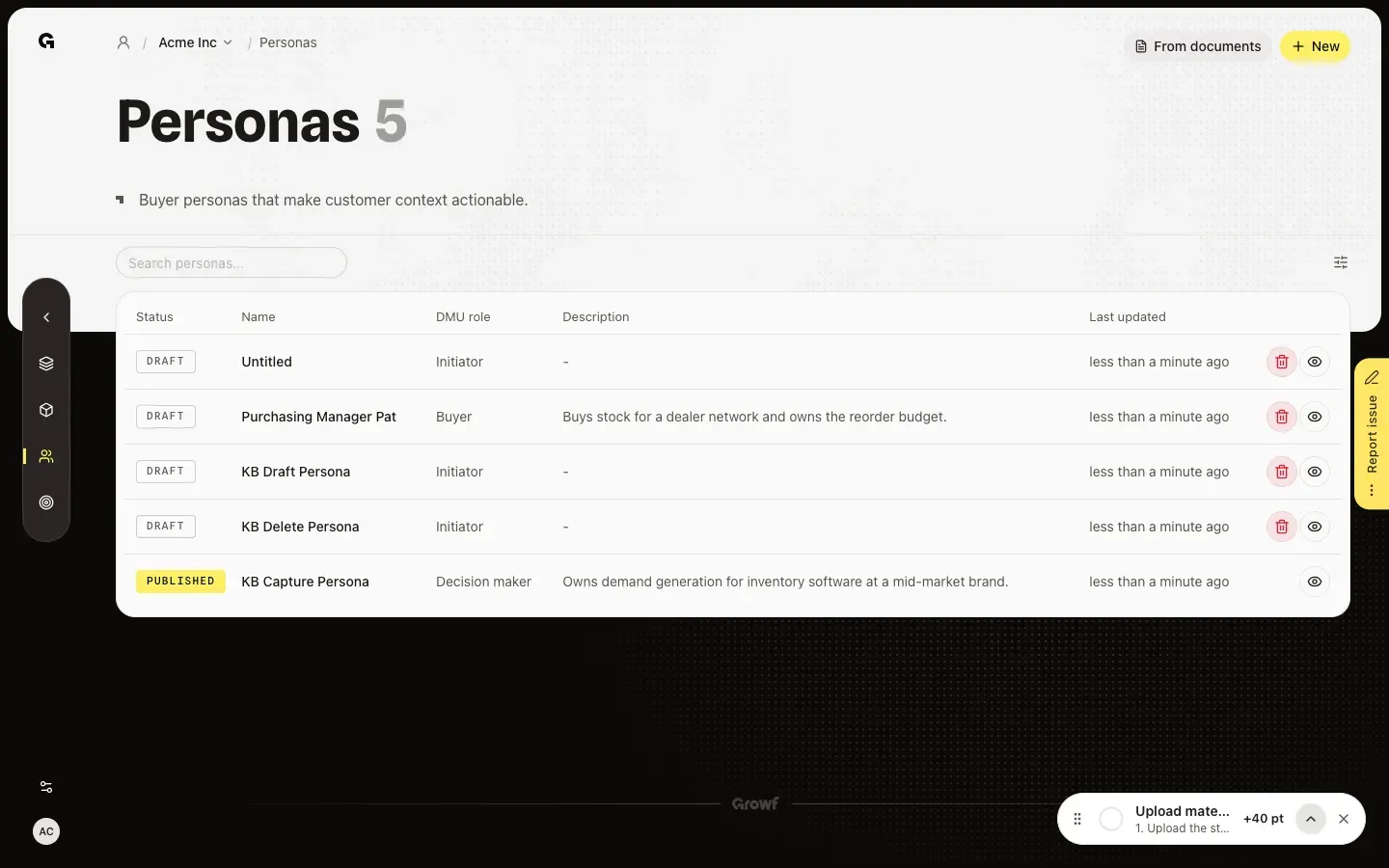
Choose From documents
In the sidebar, choose Strategy, then Personas, and choose From documents at the top right. Add personas from documents opens. Upload documents adds files from your computer; Growf stores them in Knowledge, in the folder that is open below. Choose from Knowledge lists the documents and folders that are already there.
Pick the documents and find personas
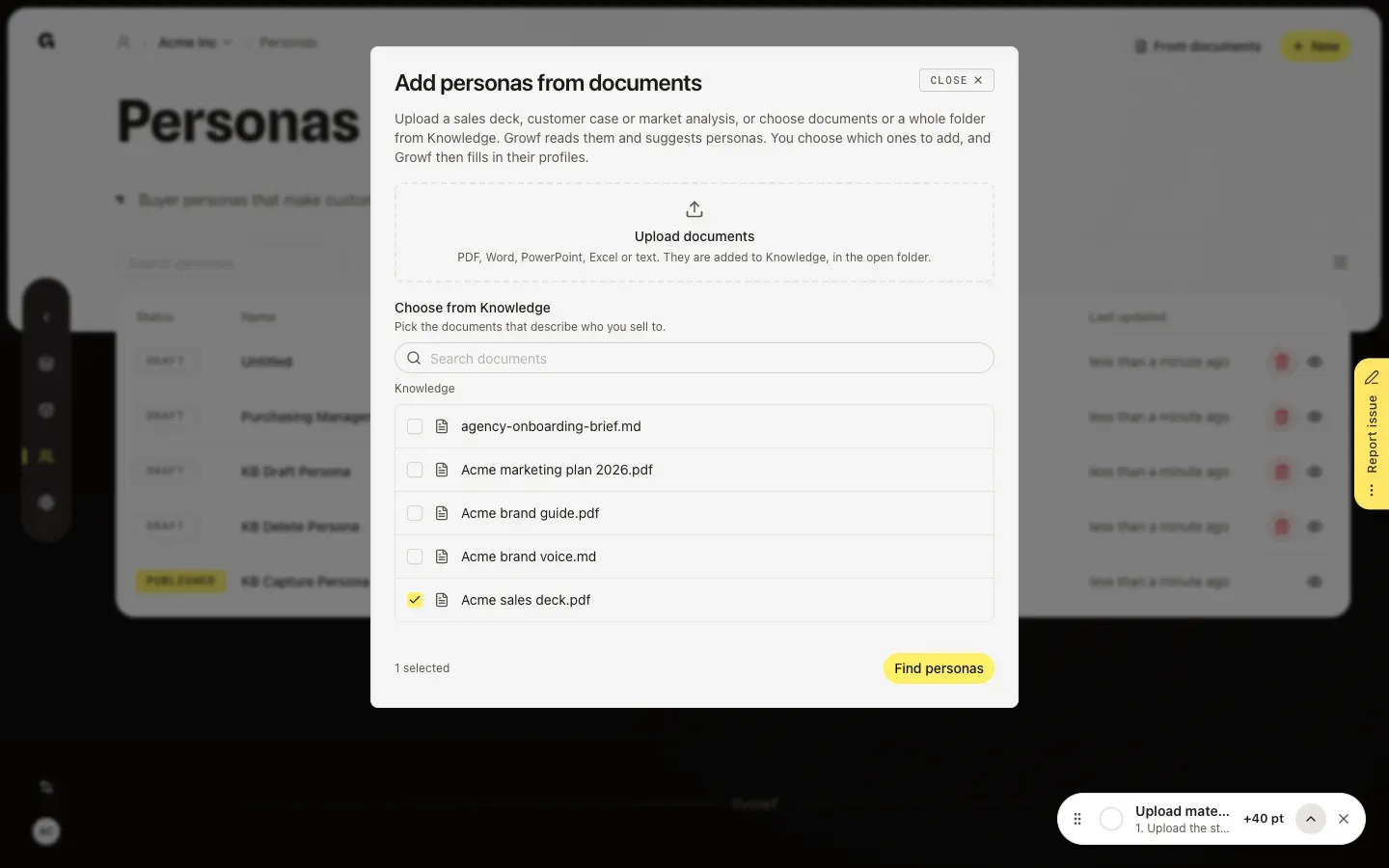
Tick the documents that describe who you sell to, such as a sales deck, customer case or market analysis. You can also tick a whole folder, search, or open a folder to see what is in it. Pick up to 10 documents or folders. A file you just uploaded is read first, and the dialog says how long that still takes. Then choose Find personas.
Add the personas and check them
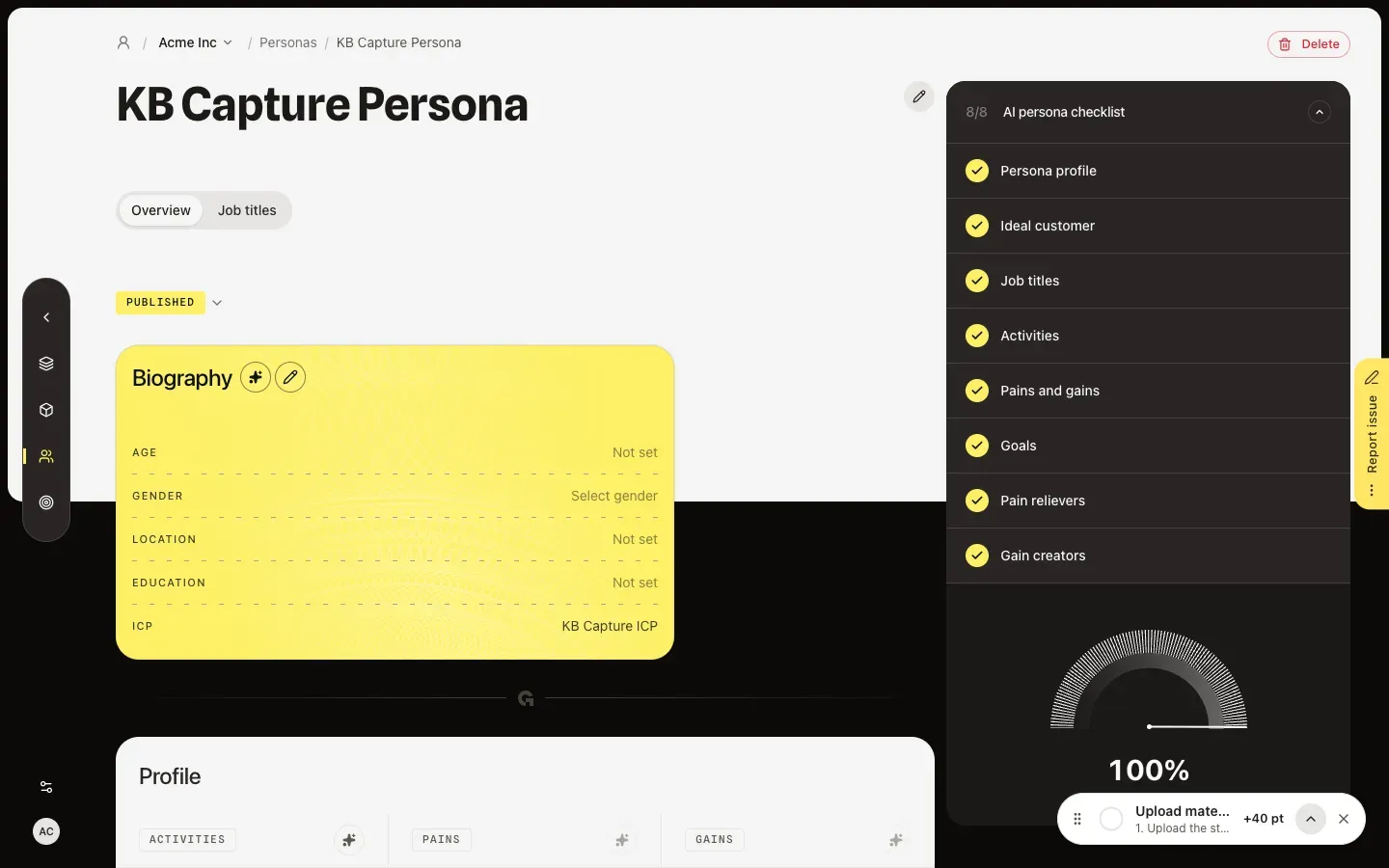
Growf reads the documents, which can take a minute, and lists the personas it found, each with its DMU role, a short description and the document it comes from. Personas that are already in Growf are left out. Under ICP, Growf picks the ideal customer profile each persona belongs to; change it or choose No ICP. Untick what you don't want and choose Add. Growf then looks up job titles for each persona and fills in its profile. When it finds at least three titles and can complete the AI persona checklist, it publishes the persona; otherwise the persona stays a Draft for you to finish.
FAQ
Which files can I use?+
PDF, Word, PowerPoint, Excel and text files. A sales deck, customer case or market analysis that describes the people you sell to works best. Growf only reads documents you can open in Knowledge.
Find personas is greyed out.+
Pick at least one document or folder, and no more than 10. The button also waits while Growf is still reading a new upload, and when a file you uploaded is already in Knowledge: choose Use existing or Upload anyway next to it first.
Why did a persona stay a Draft?+
Growf found fewer than three job titles for it, or couldn't fill every checklist item. Open the persona: the AI persona checklist shows what is still open, and Set up or Go next to the next item takes you there. Then choose Publish; see **Publish a buyer persona**.
Who can use From documents, and does it cost credits?+
You need permission to create and to edit personas, and access to the workspace's documents; Admin, Strategist and Creator have these by default. Uploading needs permission to add documents or content. Reading the documents and filling in the profiles use AI credits.
Can Growf set up products, ideal customers and personas from documents in one go?+
Yes, in Get started: Growf reads your documents once and sets up products, ideal customers, personas, marketing models and rules. See **Set up a client workspace in Get started**.