Configure integration signals
See which detectors run for this workspace, add a new one, or open one to change its prompt and priority.
A signal detector watches one connected integration and writes findings to Home. Anyone who can update the workspace can open Signals.
2 steps · About 2 minutes
Open Signals
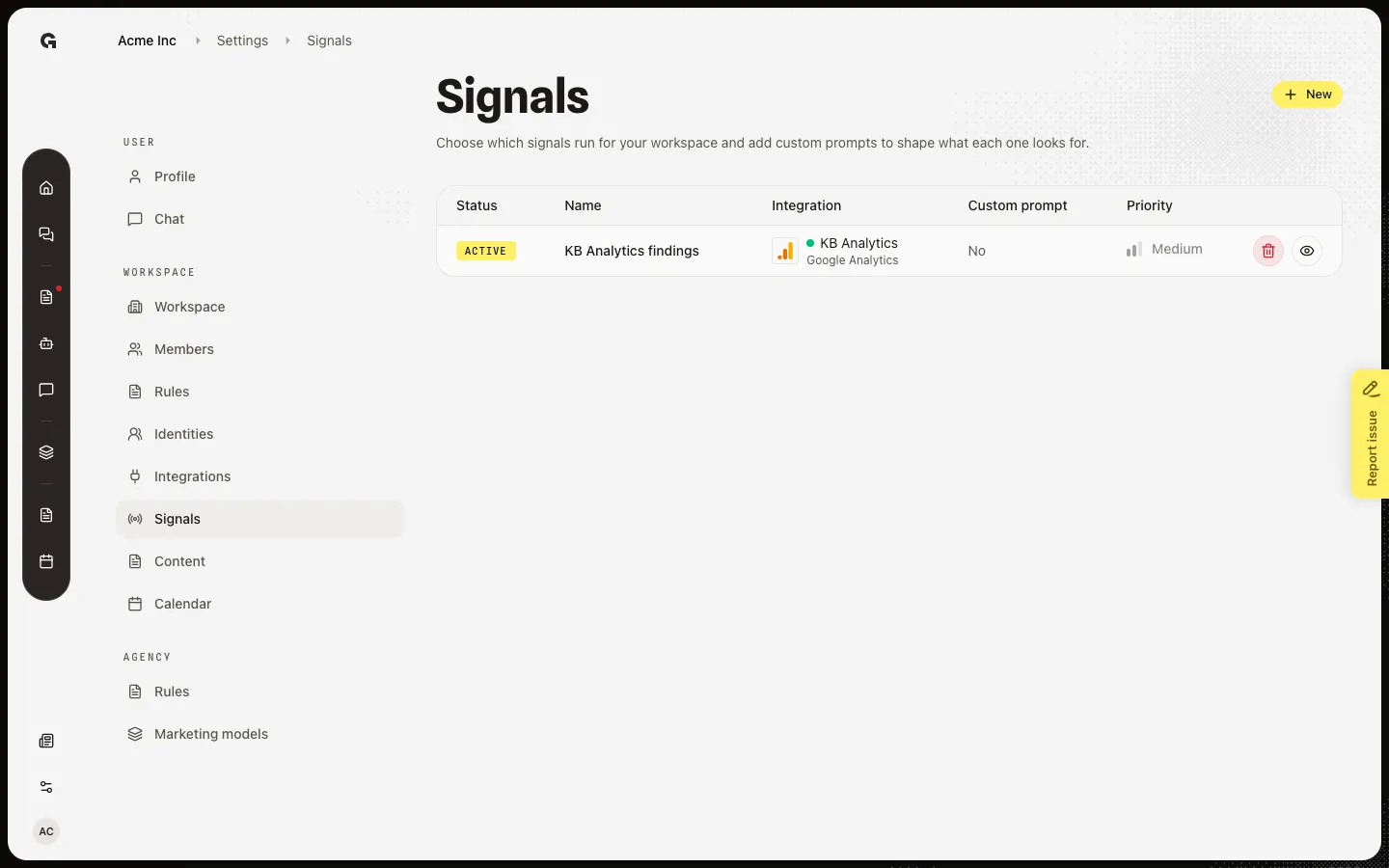
In Settings, choose Signals. You need permission to update the workspace. The table lists Status (Active or Inactive), Name, Integration, Custom prompt (Yes or No), and Priority. Trash deletes the detector. The eye opens it. Capture shows KB Analytics findings on Google Analytics, Active, no custom prompt, Medium. New opens the create dialog.
Open New signal
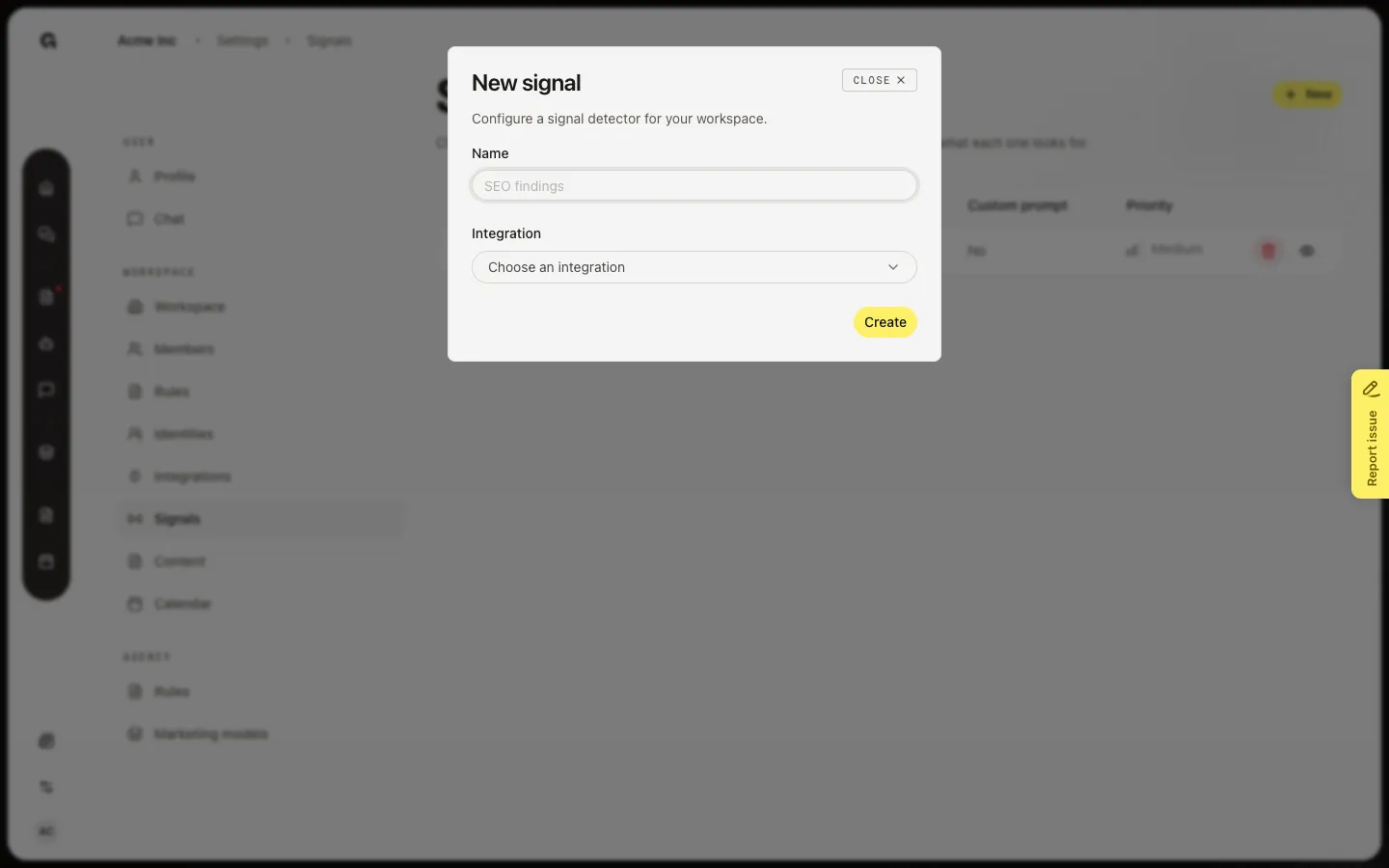
Choose New. New signal asks for a Name and an Integration. Only connected toolkits that support signals and do not already have a detector appear. Create opens that detector. If every supported connection already has a signal, the form says so and Create stays off.
FAQ
I see How to use Signals instead of a table.+
No detectors exist yet. Connect a supported toolkit first (Analytics, Ahrefs, Search Console, HubSpot, Ads, LinkedIn, Instagram, or Stairoids), then choose New. Findings appear on Home after the next run. See Create a signal detector.
I do not see Signals in Settings.+
Signals is for people who can update the workspace. Ask an admin to raise your role.
How is this different from Integration signals on Home?+
This page turns detectors on and sets prompts. Home shows the findings after a run. See Review home integration signals. Recommended this week on Home is a different list.
Can I add two signals for the same HubSpot account?+
No. Each supported connection can have one detector. To change what it looks for, open the existing row and edit the custom prompt.