Use My work
Chat with Growf on your own in My work, keep your chats in folders, and reach your workspaces, Inbox, skills and settings from one sidebar.
My work is your own place in Growf: a chat that only you see, with your own folders, skills and integrations, next to your workspaces. Everyone in your agency workspace has it, its owner and its active members. Sending messages needs an active plan for your agency.
5 steps · About 4 minutes
Open My work
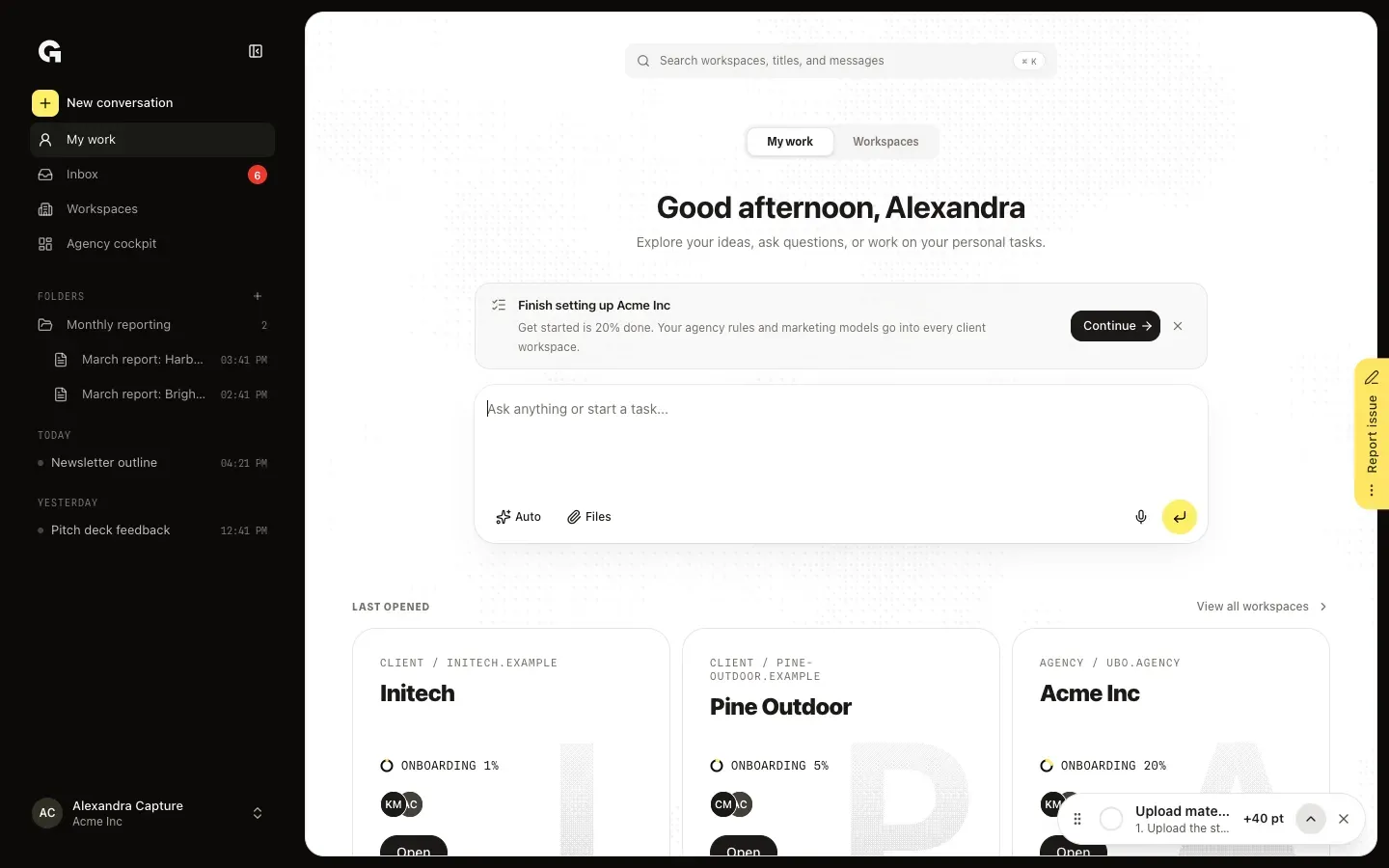
After you sign in, you land on My work. From a workspace you get there with the person icon at the start of the path at the top of the page. The sidebar has New conversation, My work, Inbox, Workspaces and, when you have access to it, Agency cockpit. Below are your folders and your conversations under Today, Yesterday and Earlier.
Start a conversation
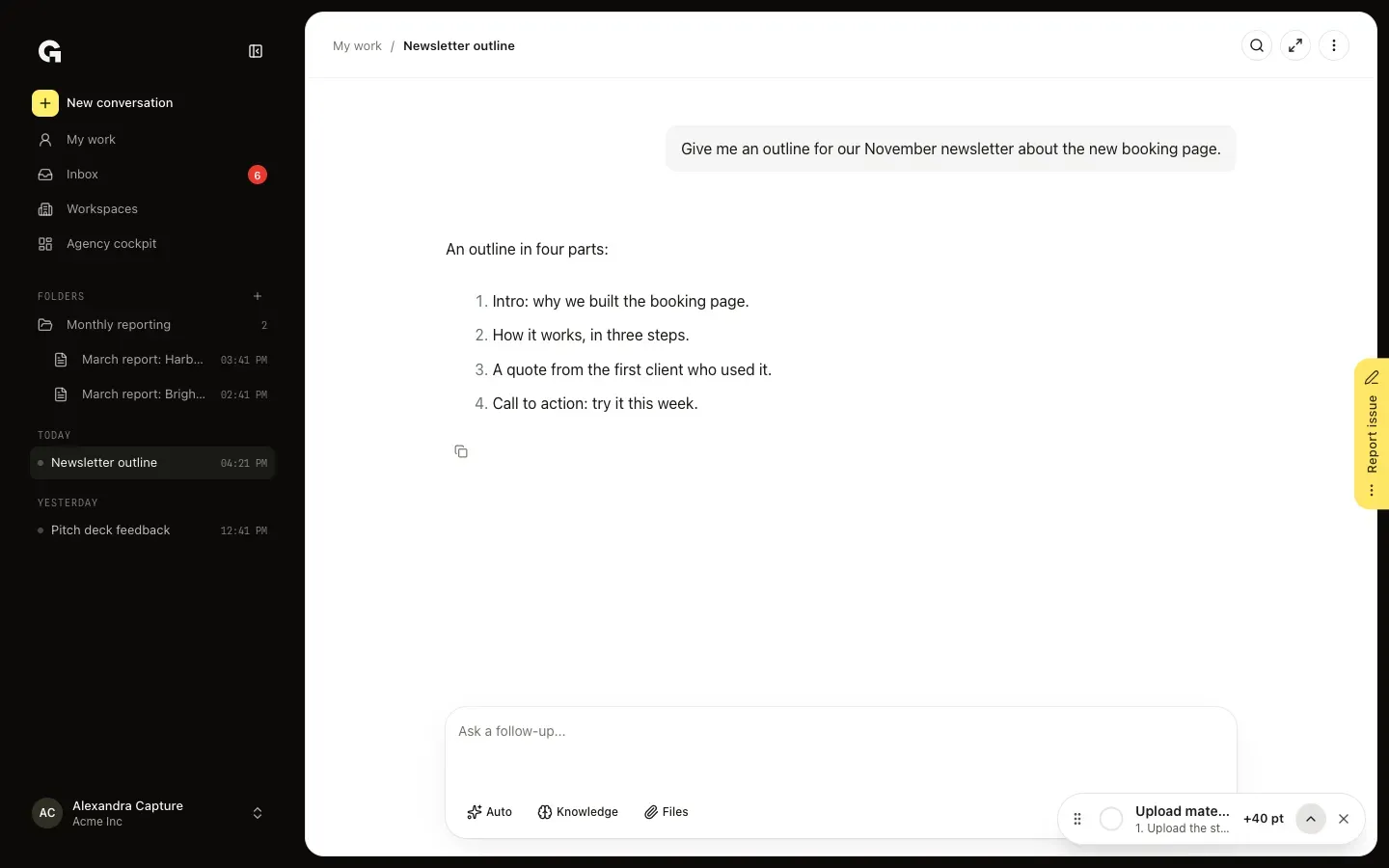
On My work, type a question or task in the box under the greeting and press Enter. The conversation opens on its own page and joins the sidebar; only you can see it. In the box, Auto chooses the model, Files adds files and / picks one of your skills. At the top of a conversation, Focus hides the sidebar and ⋮ has Rename, Move and Delete.
Search My work
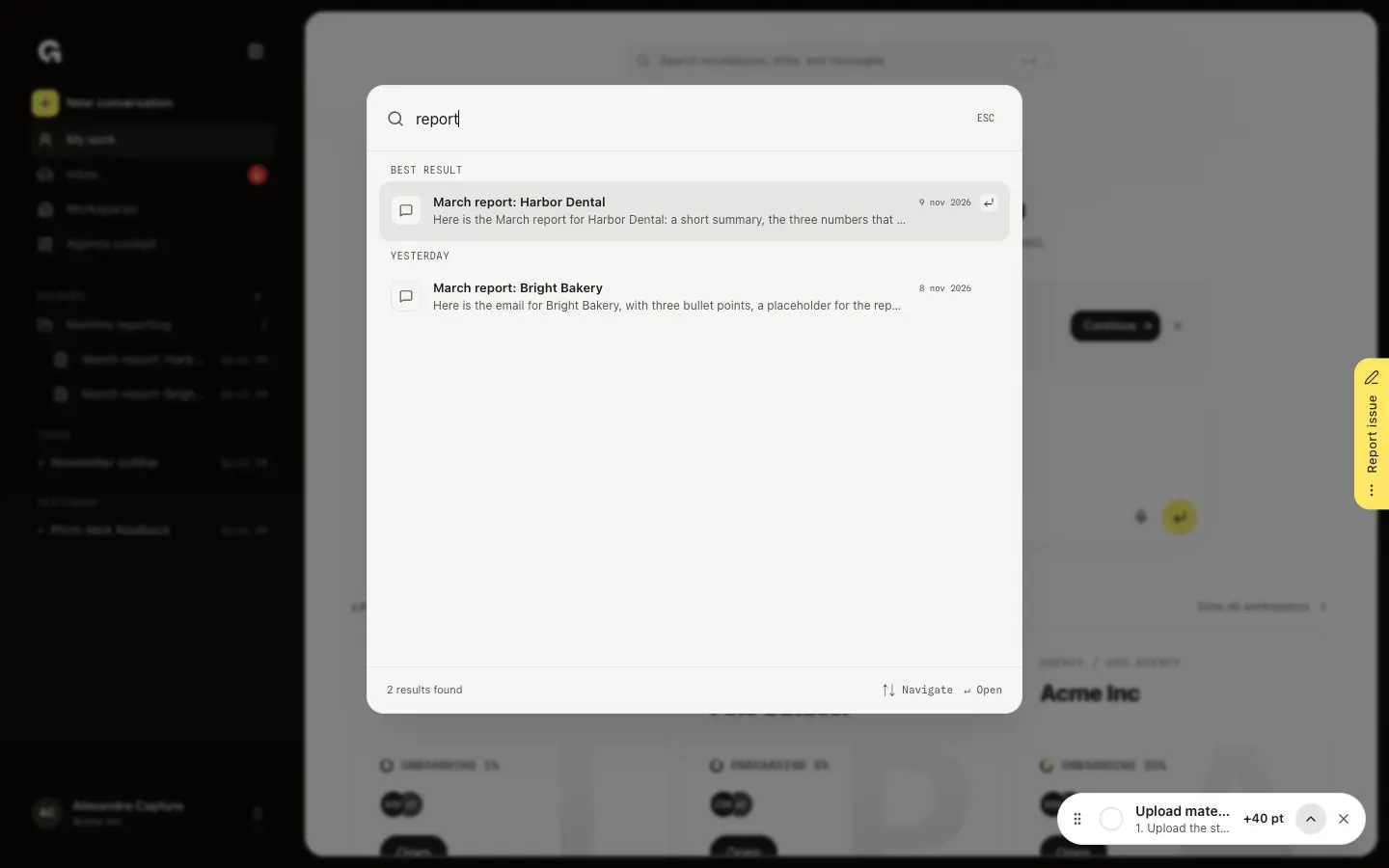
Click Search workspaces, titles, and messages at the top of My work, or press ⌘ K (Ctrl K on Windows). Type a word: you see the workspaces whose name matches and your conversations in My work whose title or messages match. Click a result or press Enter to open it.
Open your account menu
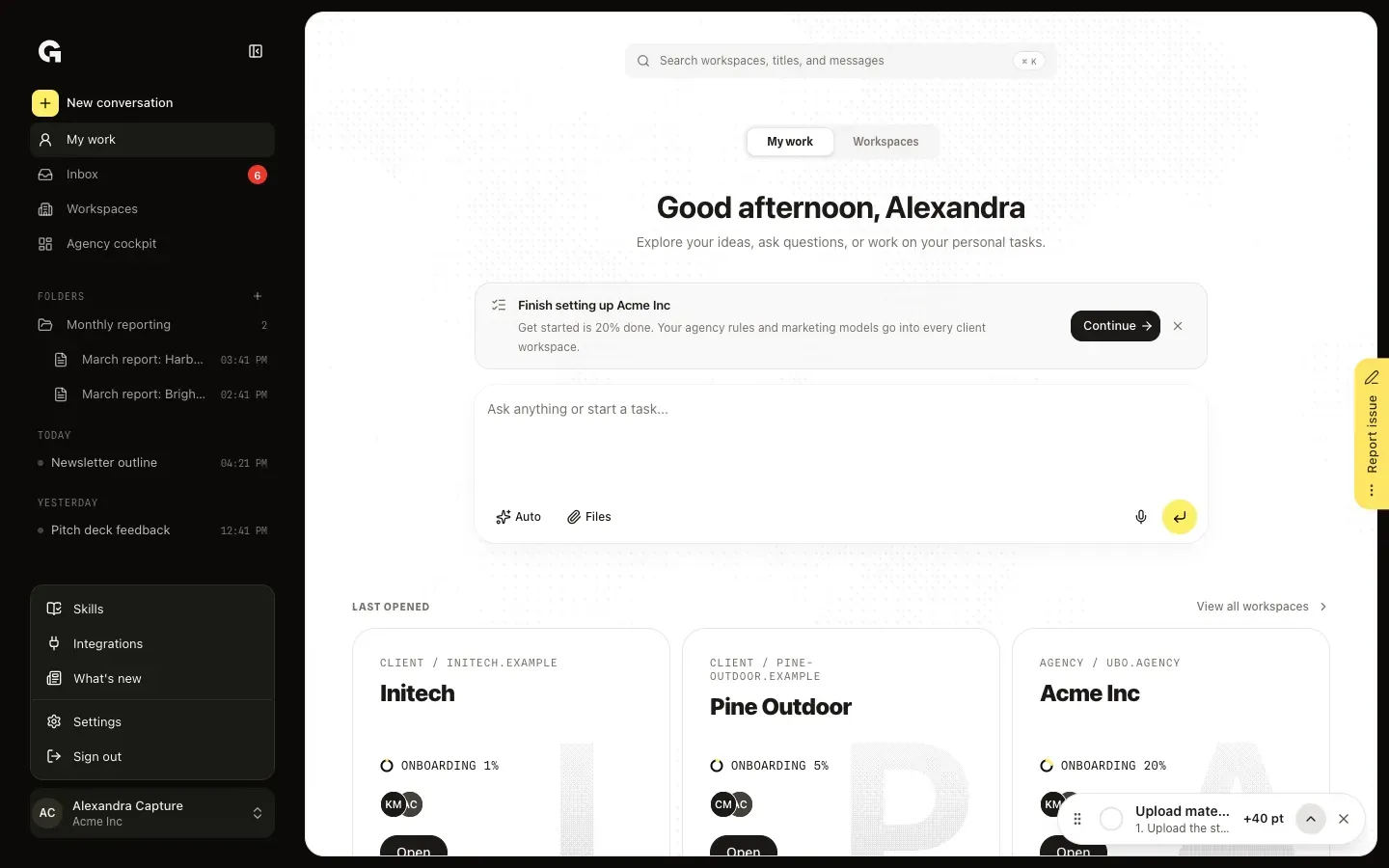
Click your name at the bottom of the sidebar. Skills opens your personal skills and Integrations the accounts you connect for your own chats. What's new shows the latest changes in Growf, when your role can see them. Settings opens your profile, team profile, security, chat, memory and integrations, and Sign out signs you out.
Connect your own accounts
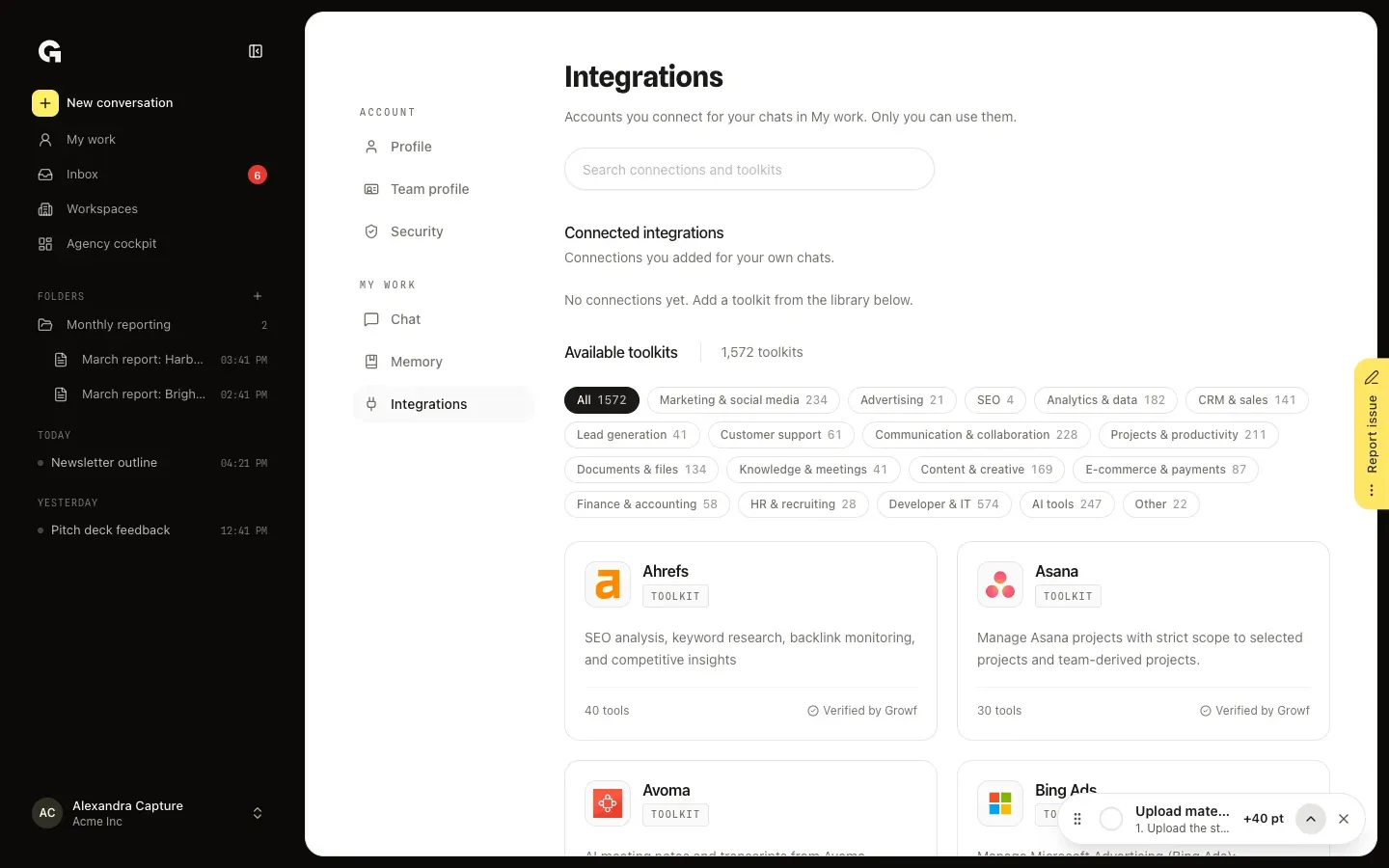
In the account menu, click Integrations. Here you connect accounts for your chats in My work, from the toolkits under Available toolkits. Only you can use these connections, and only in My work; a workspace keeps its own integrations.
FAQ
Who has My work?+
Everyone in your agency workspace: its owner and its active members. People who are only in client workspaces, such as your clients, don't have My work; they land on Workspaces after they sign in.
Who can see my conversations in My work?+
Only you. Your colleagues don't see your chats in My work, and they have no Share. To work on a chat together, move it into a workspace, see **Move a conversation**.
I can't send a message in My work.+
Sending messages needs an active plan for your agency. Ask the owner of your agency account.
What happens to my chats when I delete a folder in My work?+
They stay. Point at the folder, click the pencil, choose Delete folder and confirm with Delete: its chats and subfolders move to where the folder was. **Give a chat folder instructions and skills** explains what else a folder can do.