Invite and manage workspace members
Invite people with a role, change roles and deactivate members in the workspace's Members settings.
Members, in the settings of a workspace, shows who has access and with which role. Everyone who can view the workspace can open it. Inviting, changing roles and deactivating each need their own permission; Admins have all three by default.
4 steps · About 3 minutes
Open Members
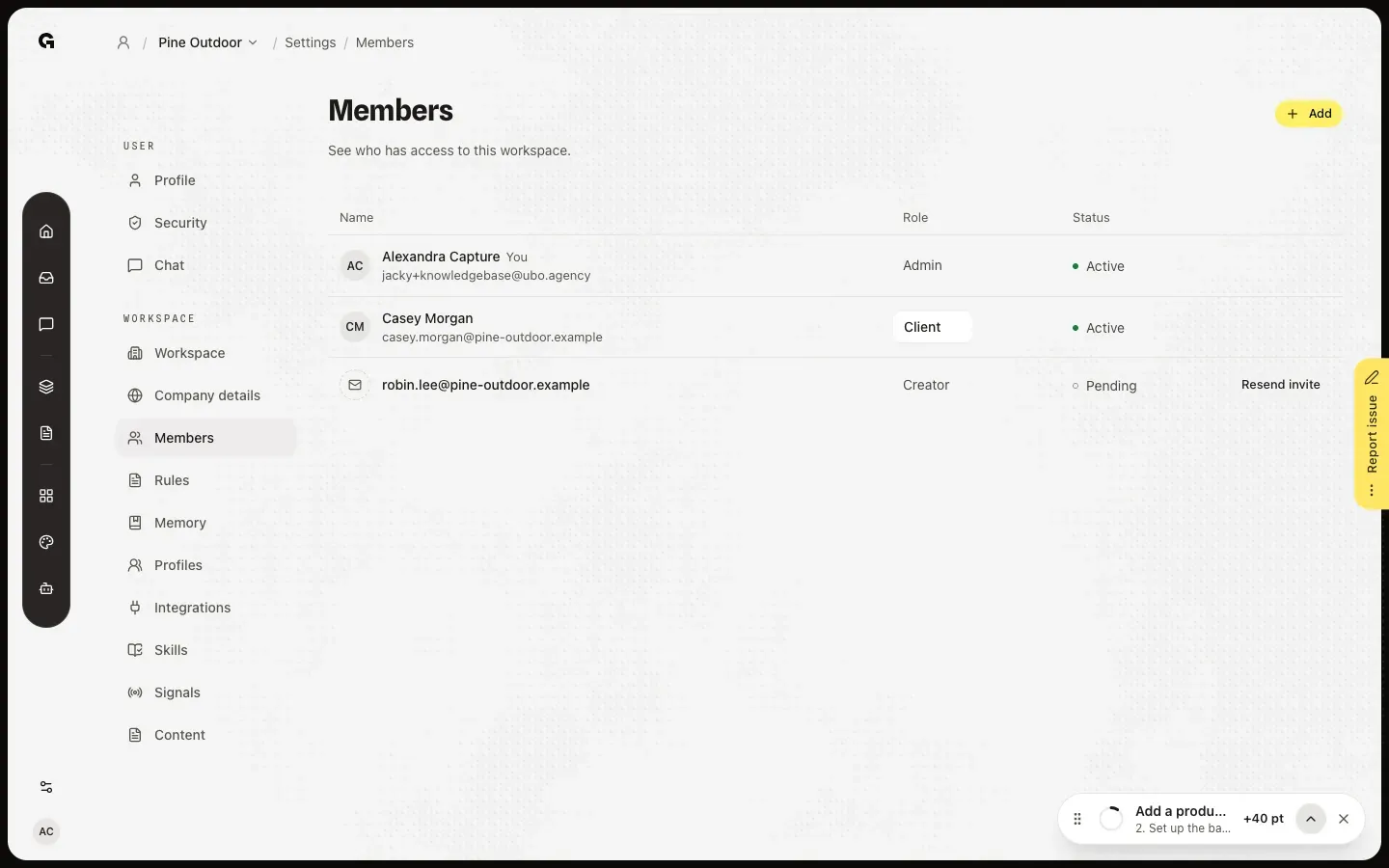
Inside a workspace, click Settings at the bottom of the left bar and choose Members under Workspace. The table lists everyone with access, with their Role and Status: Active, or Pending for an invite that is not accepted yet. Admins also see deactivated members at the bottom, as Inactive. Next to a pending invite, Resend invite sends the email again.
Invite people with a role
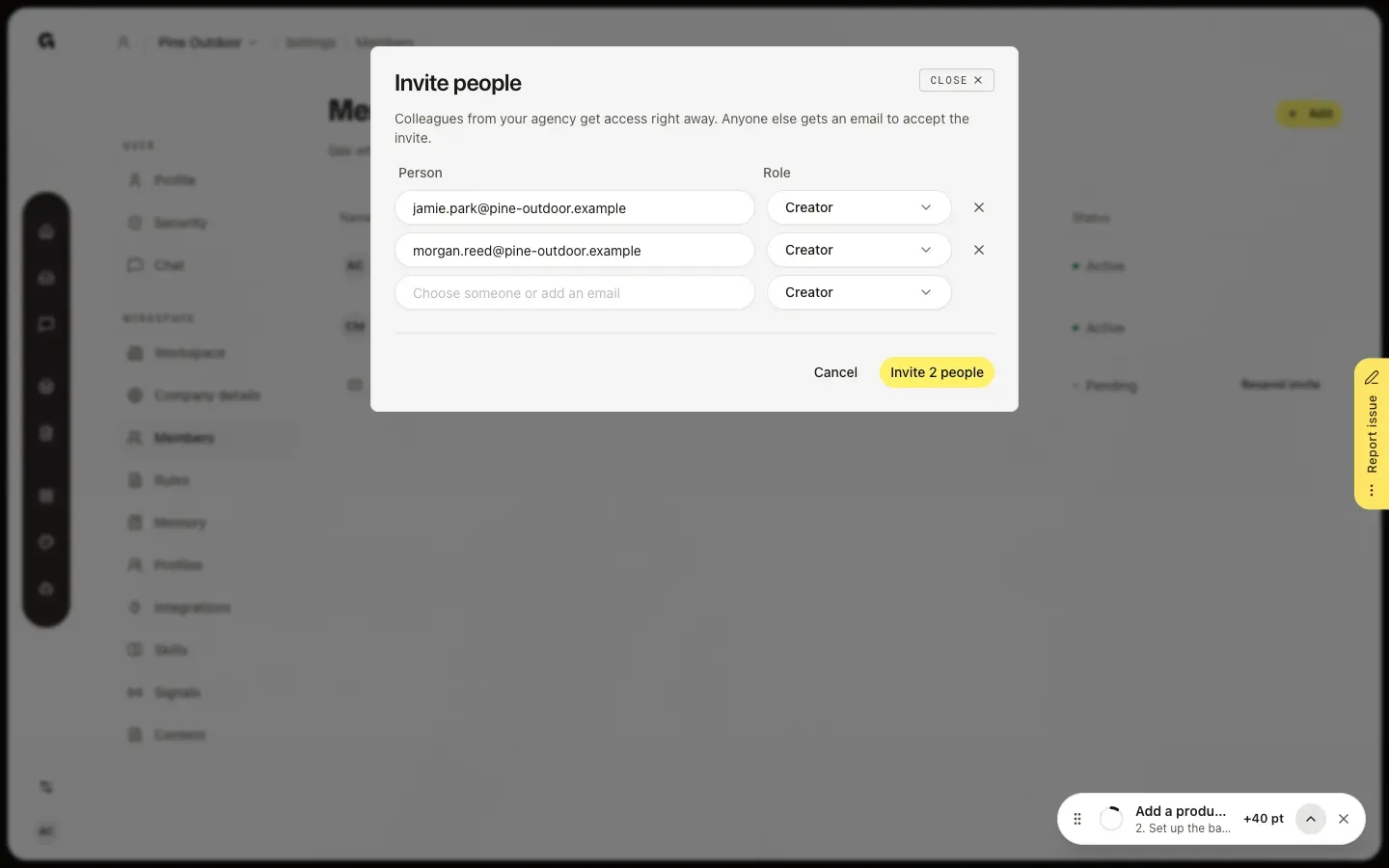
Click Add. In Invite people, type an email under Person, or pick a colleague from your agency from the list, and choose their Role. A new row appears for the next person, each with its own role. To invite a whole list, paste the addresses into Person: each gets its own row. Click Invite, which shows how many people you invite. Colleagues from your agency get access right away; anyone else gets an email to accept the invite.
Change someone's role
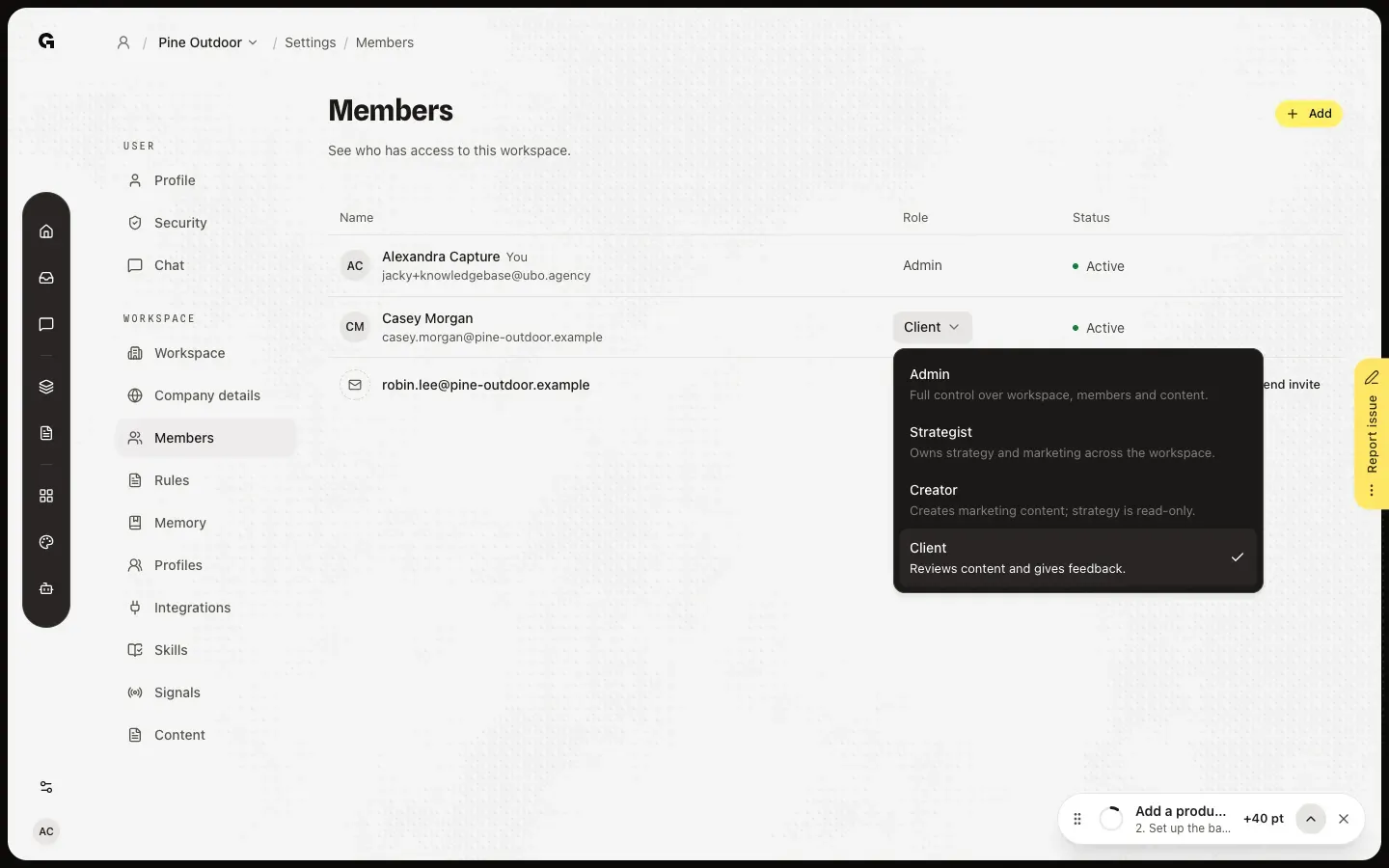
Click the role of a member in the Role column. The menu shows each role with what it can do: Admin, Strategist, Creator and Client. Pick another role and Growf saves it right away with Role updated. You cannot change your own role, the workspace owner's, or a role with more access than yours.
Deactivate a member
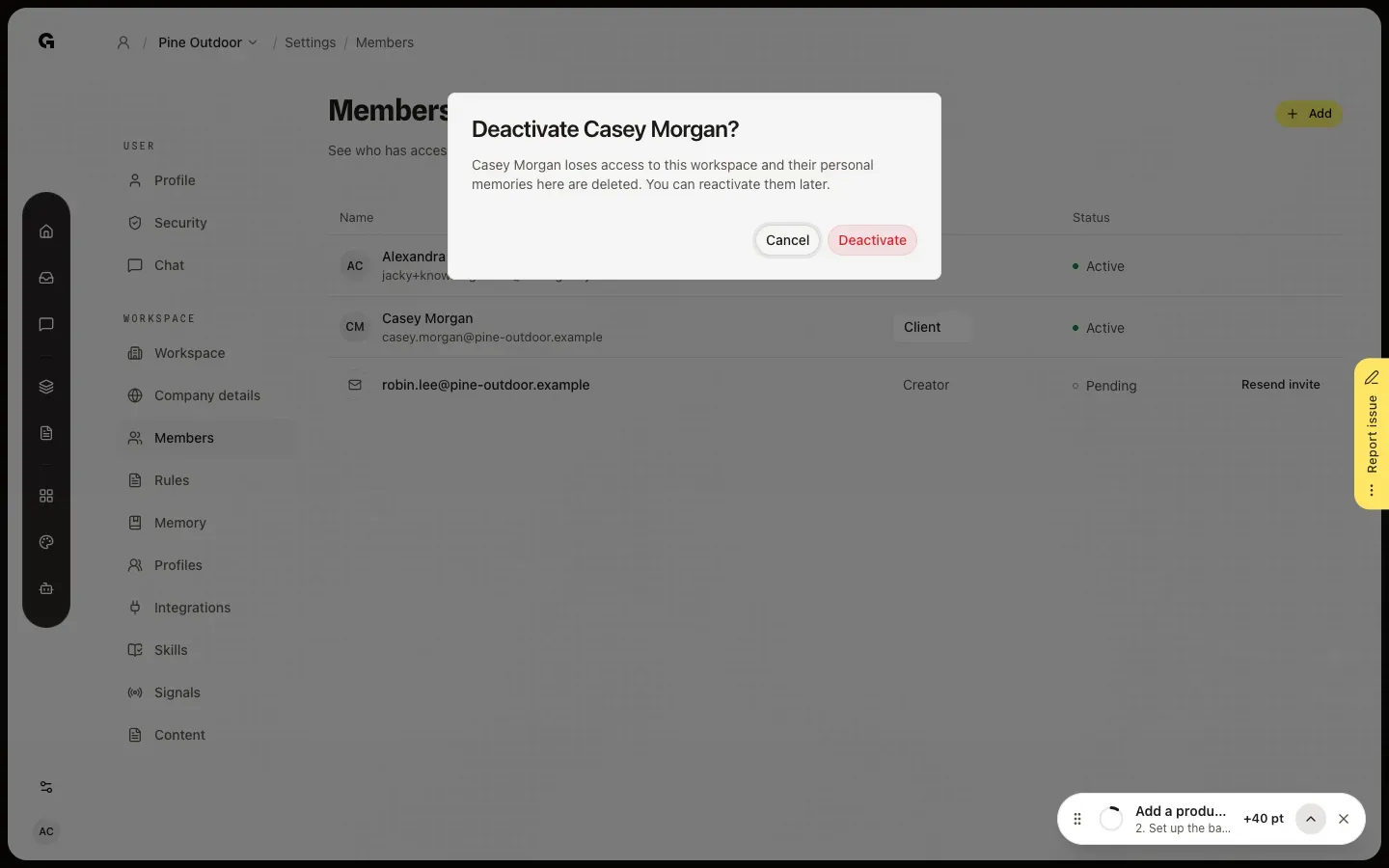
Point at a member and click the three dots at the end of the row, then Deactivate. Growf asks to confirm: the person loses access to this workspace and their personal memories in it are deleted. Click Deactivate. They stay in the list as Inactive, and Reactivate gives them access again.
FAQ
Add is greyed out.+
Inviting members needs permission to invite, and changing roles and deactivating need their own permissions. Admins have all three by default. Everyone who can view the workspace can open Members and see who has access.
Which role should I give?+
Admin has full control over the workspace, its members and content. Strategist owns strategy and marketing. Creator makes marketing content and can read the strategy. Client reviews content and gives feedback. An agency with its own roles shows those instead. You cannot give a role with more access than your own.
The person is still Pending.+
They have not used the link in the invite email yet. The link works for 7 days. Click Resend invite to send the email again with a link that works for another 7 days. See Accept a workspace invite.
Why did a colleague get access without an email?+
People who already work in your agency get access right away when you add them. Only people from outside your agency get an invite email.
I cannot change or deactivate someone.+
You cannot change your own access, and the workspace owner cannot be changed or deactivated. A workspace also keeps at least one active admin. Point at the role to see why it is locked.