Restore an earlier version of a post
Look back at how a post, email or article read in the last 30 days and restore an earlier version, made by you, a teammate or the chat.
Growf keeps earlier versions of every post, email, article, chapter and web page in Content mode for 30 days. A version is kept each time you, a teammate or the chat changes the item, so you can always go back to a text you liked better. You need permission to edit content; Admin, Strategist and Creator have it by default.
3 steps · About 3 minutes
Open Versions
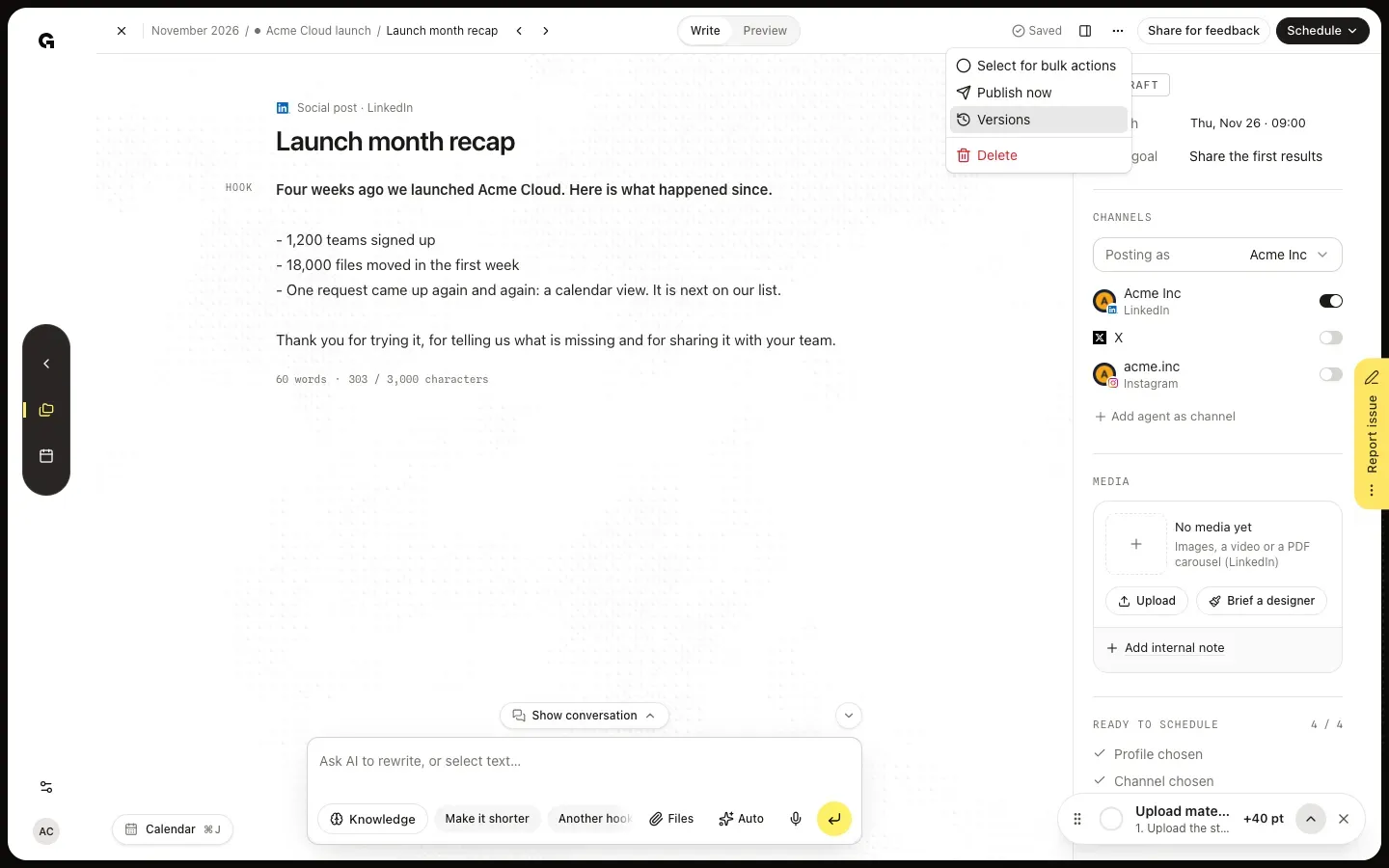
Open the post, email or article. Click More actions, the … button in the top bar, and choose Versions. When nobody changed the item yet, Versions is greyed out and reads None yet. Growf keeps a version as soon as you, a teammate or the chat changes the text, the title, the date or a channel text, and keeps each version for 30 days.
Pick a version
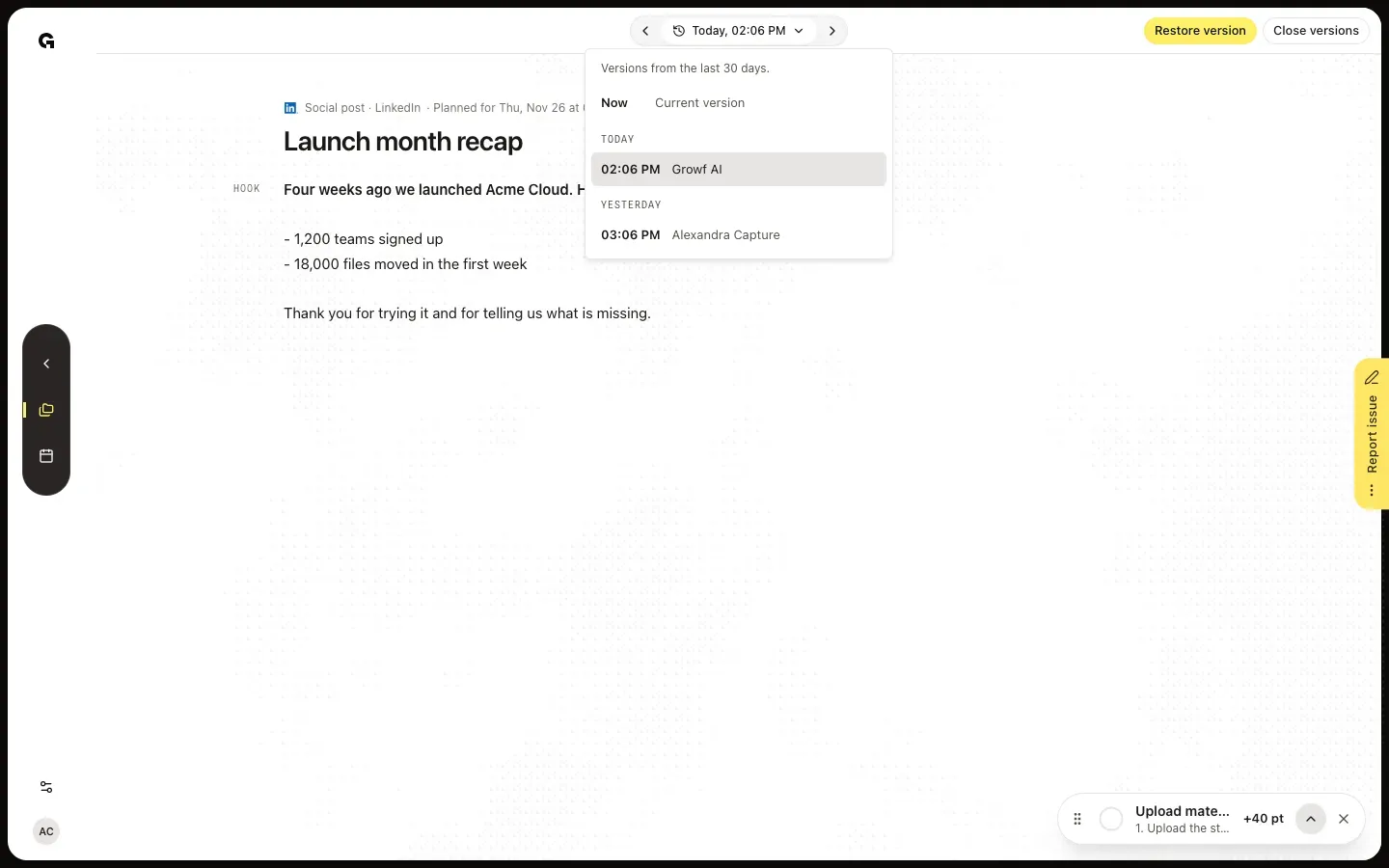
The post opens in versions mode on its newest earlier version: the text is read-only and the chat steps aside. The picker in the top bar shows when that version is from. Click it to see Versions from the last 30 days: Now, the text as it is, and the earlier versions grouped by day, each with its time and who made the change that came after it, such as a name, Growf AI, Before it was deleted or Before a restore. Click a version to read it, or step through them with the arrows beside the picker, Older version and Newer version.
Restore the version
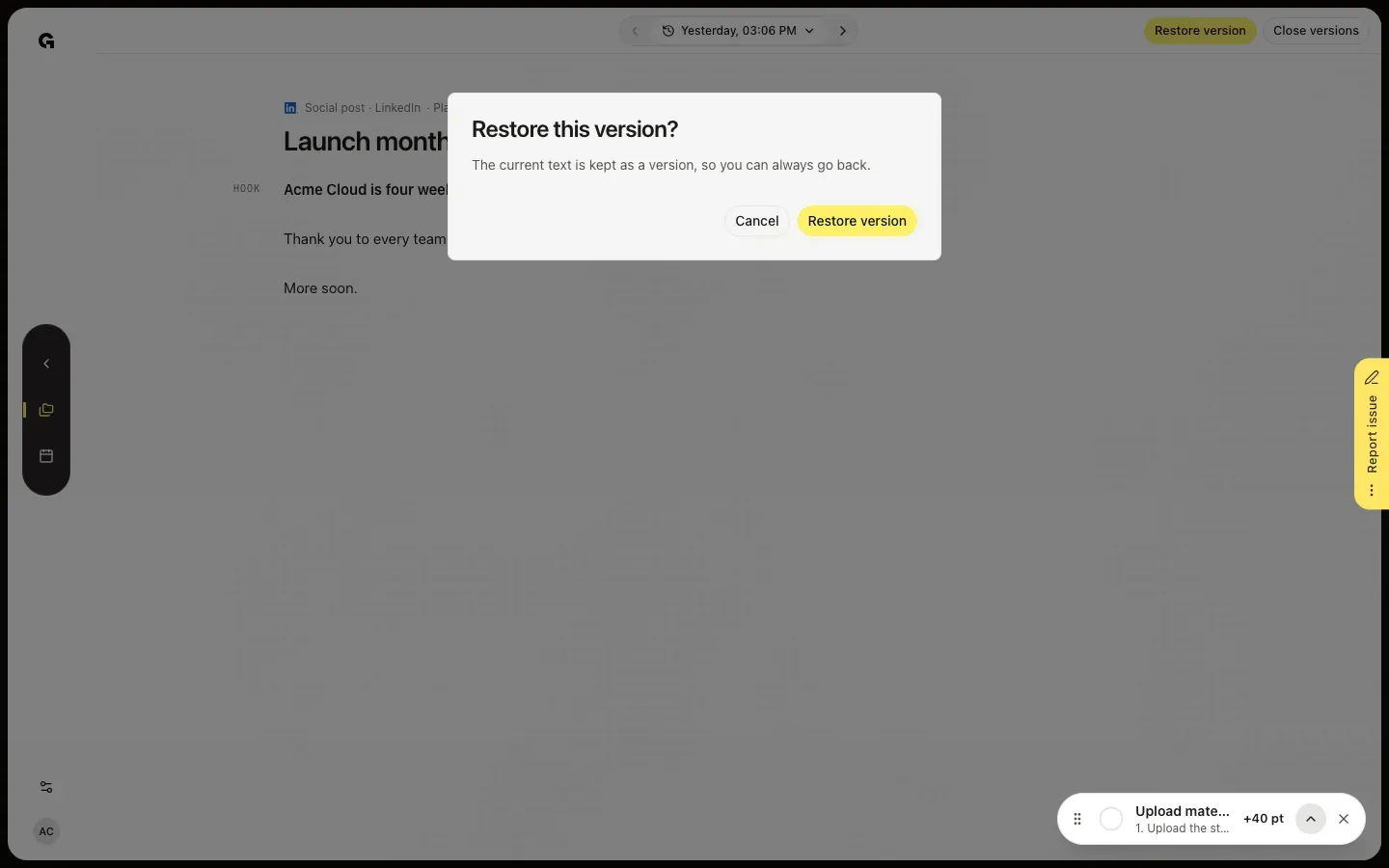
With the version you want on screen, click Restore version. Restore this version? tells you that the current text is kept as a version, so you can always go back; click Restore version again. You see Version restored, and the post opens with that text, title and date. Close versions leaves without changing anything. A post that is scheduled, published or waiting for feedback cannot take an older text: Restore version is greyed out until it is a draft again.
FAQ
What does a version hold?+
The item as it was just before a change: its title, text, subject and preheader for an email, its planned date and time, and the own text of each channel. Restoring a version puts all of these back. Edits you make in a row within a few minutes count as one version, and so do the changes the chat makes in one reply.
Can the chat restore a version?+
Yes. Ask it, for example, to go back to the text from yesterday morning. The chat reads the versions and shows a card that asks Restore this earlier version? with the version it means. Restore version puts it back; Keep current text leaves the post as it is. Every message to the chat uses AI credits.
The post itself is gone. Can I still get it back?+
Yes, from the trash of the calendar, for 30 days after it was deleted. **Restore a deleted post** explains how. A restored post keeps its versions.
Who can restore a version?+
Everyone who can edit content: Admin, Strategist and Creator by default. Clients cannot open Content projects, so they see no versions.