Process a document
Re-run extraction on a file you uploaded so Overview and chat can use its text.
Process re-queues the job that turns a file into readable text and search chunks. Only the person who uploaded the file sees the button. Growf already starts that job on upload.
2 steps · About 2 minutes
Open the file you uploaded
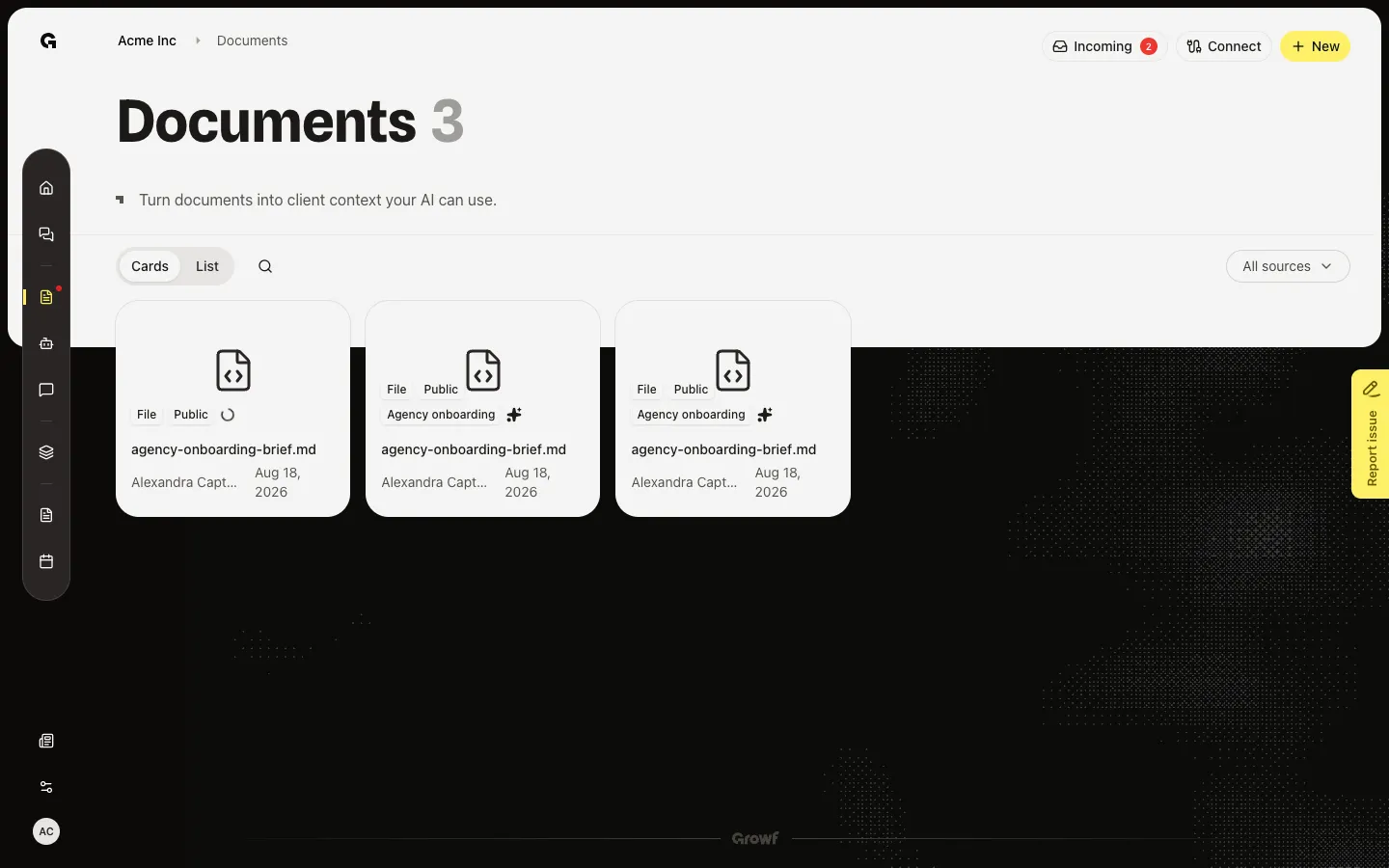
On Documents, find the file (this walk uses agency-onboarding-brief.md from Upload workspace documents). Open it next. Process sits in the header only if you uploaded the file. Other people do not see it. Overview shows Currently being processed while a job is running, the extracted text when it finished, Extraction failed with the error when it did not, or Document overview if no text exists yet. A card on the list spins while processing and fills the sparkle when the file is indexed.
Choose Process
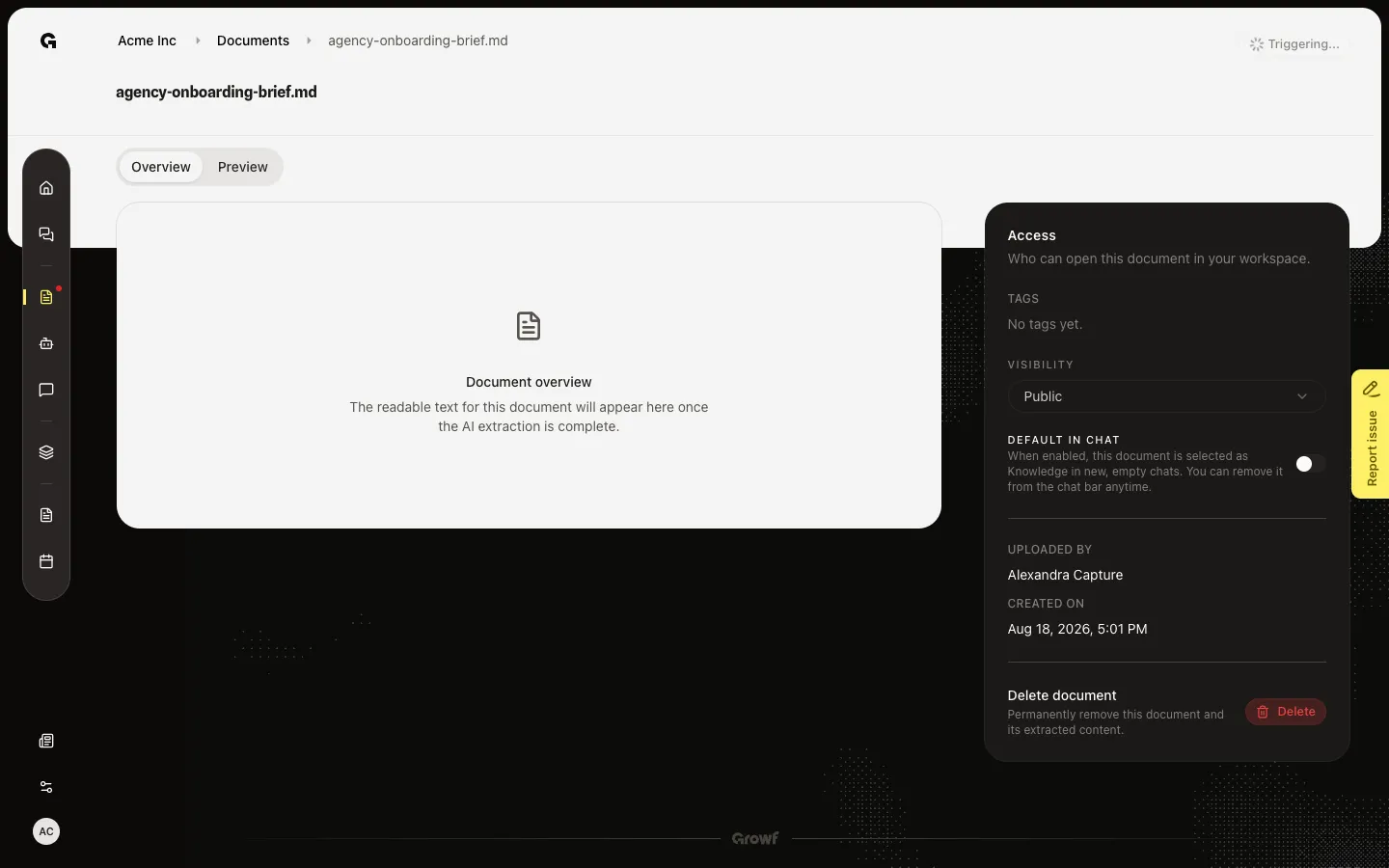
Open the file, then choose Process when extraction failed, when it stalled (the job can time out after about 30 minutes), or when you want Growf to read the file again. The button shows Triggering, then Triggered. Overview polls and replaces the wait state with the text, or with Extraction failed and a reason. Upload already starts this job. You do not need Process on a healthy new file unless the first run failed.
FAQ
I do not see Process.+
Only the person who uploaded the file can run Process. You also need permission to update documents. If you can open the file but did not upload it, ask the owner to run Process.
Upload said processing started. Do I still click Process?+
Not if Overview already shows the text and the card sparkle is filled. Use Process after Extraction failed, when the wait state never ends, or when you know the file changed in storage and need a new read. Old DOC and PPT files often fail — upload DOCX or PPTX instead.
Process finished but Overview still has no text.+
Images have little or no extractable text. Some decks and scans fail the read. Check Extraction failed for the reason (including a file that is too large). Chat cannot use a file that was not indexed. Try a text or PDF export, then upload again.