Activate a custom agent
Set Type and Output, finish tools and identities, then switch Status from Draft to Active.
Activate moves an agent from Draft to Active so a schedule can run. It is for people who can update agents.
5 steps · About 4 minutes
Open Settings
Open **KB Capture Agent**. In the sidebar, choose Settings. Status starts as Draft. Active stays off until Type and Output are set, and until any required tools, identities, and output recipients are ready.
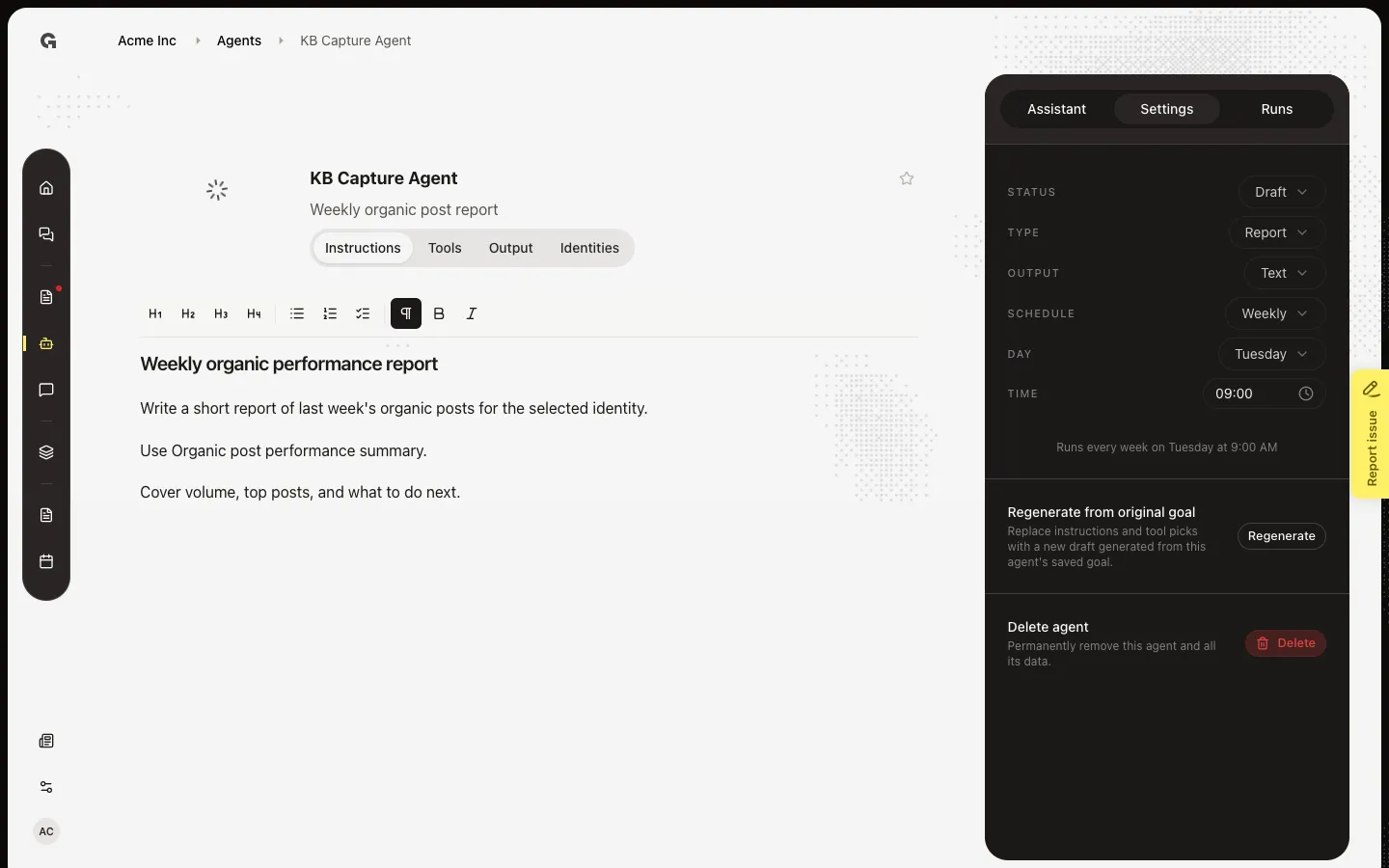
Set Type to Report
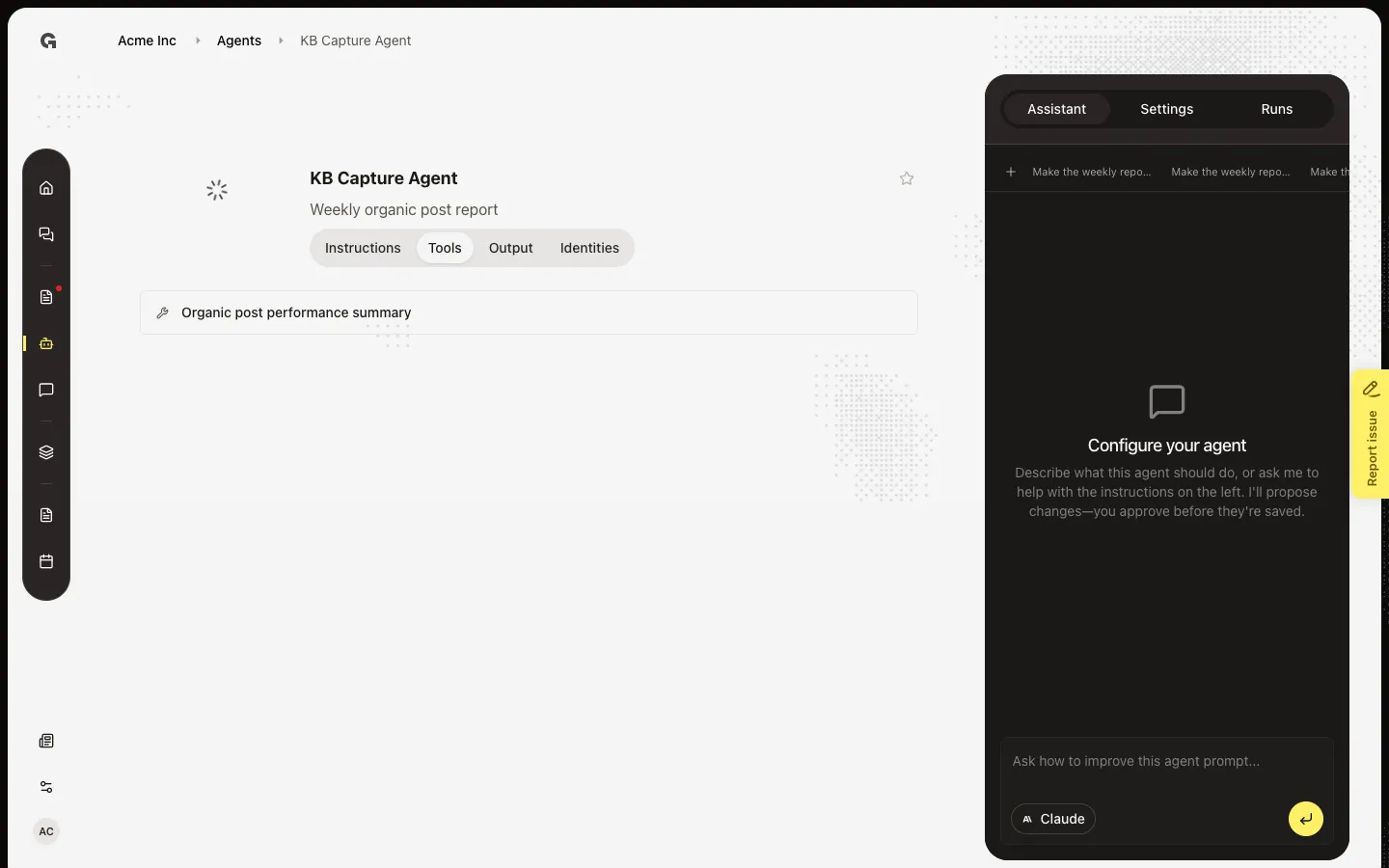
On Settings, choose Type, then Report. Analyst and Executer show (soon) and stay off. Report is the type that runs today. Then open Tools and confirm required connections are linked before you activate.
Set Output to Text
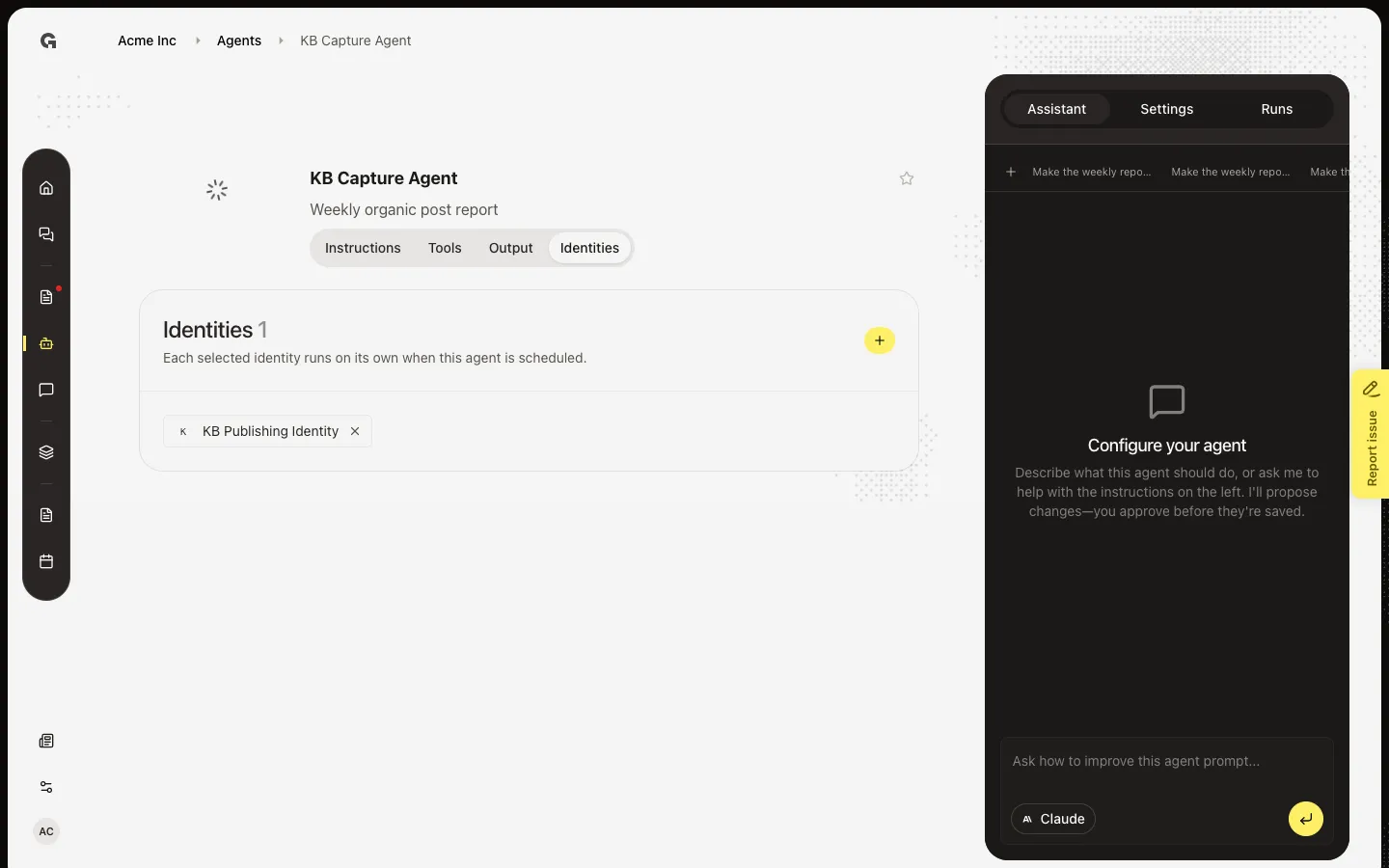
Choose Output, then Text. Presentation shows (soon) and stays off. If Active still shows a hint, finish that item first: identities on Identities, recipients on Output, or connections on Tools.
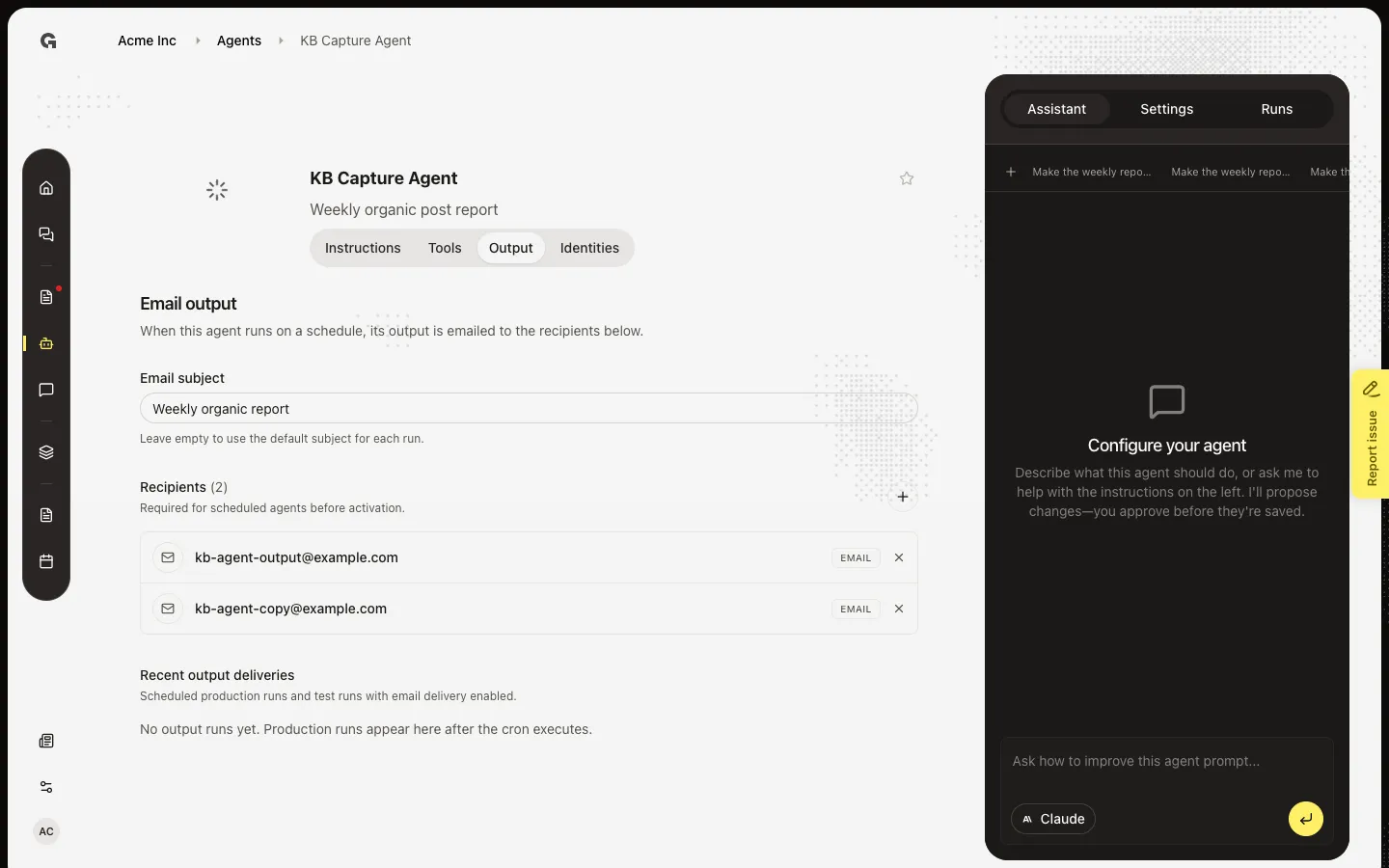
Confirm an output recipient if the agent is scheduled
If Schedule is Daily, Weekly, or Monthly, Active needs at least one recipient. Open Output. This agent already lists kb-agent-output@example.com. If Recipients is empty, choose Add recipient and add a member or an email. See Manage agent output recipients.
Switch Status to Active
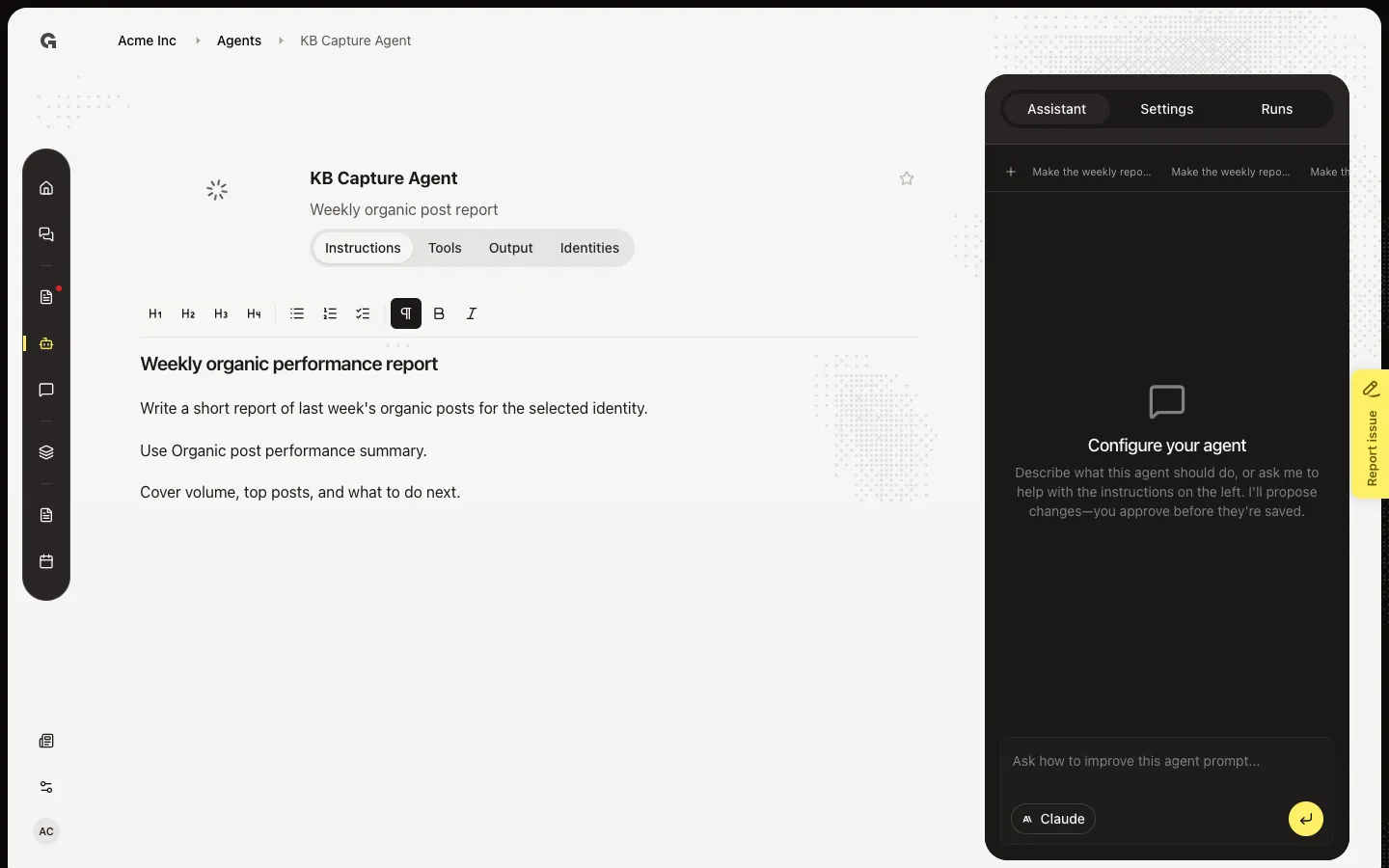
Open Settings. Choose Status, then Active. The list card switches from Draft to Active. Scheduled runs only fire when Status is Active. You can set Status back to Draft to stop the schedule without deleting the agent.
FAQ
Active is off or shows a hint.+
Read the hint. Set type and output first means Type or Output is empty. Configure identities first means a tool needs an identity and Identities is empty. Add output recipients first means the agent has a schedule and Output has no recipients. Link integrations in Toolset means an external tool has no connection.
Should I leave the agent as Draft?+
Yes while you edit instructions and tools. Draft will not run on a schedule. Use Run Test on Runs to try the agent before you activate it.
I cannot change Status.+
You need permission to update agents. Ask an admin.